Week 3-Meshing of Hood Challenge
AIM
- To extract mid-surface and generate mesh on the Hood using Hyper mesh.
PROCEDURE
- First, import the model in Hyper-mesh.
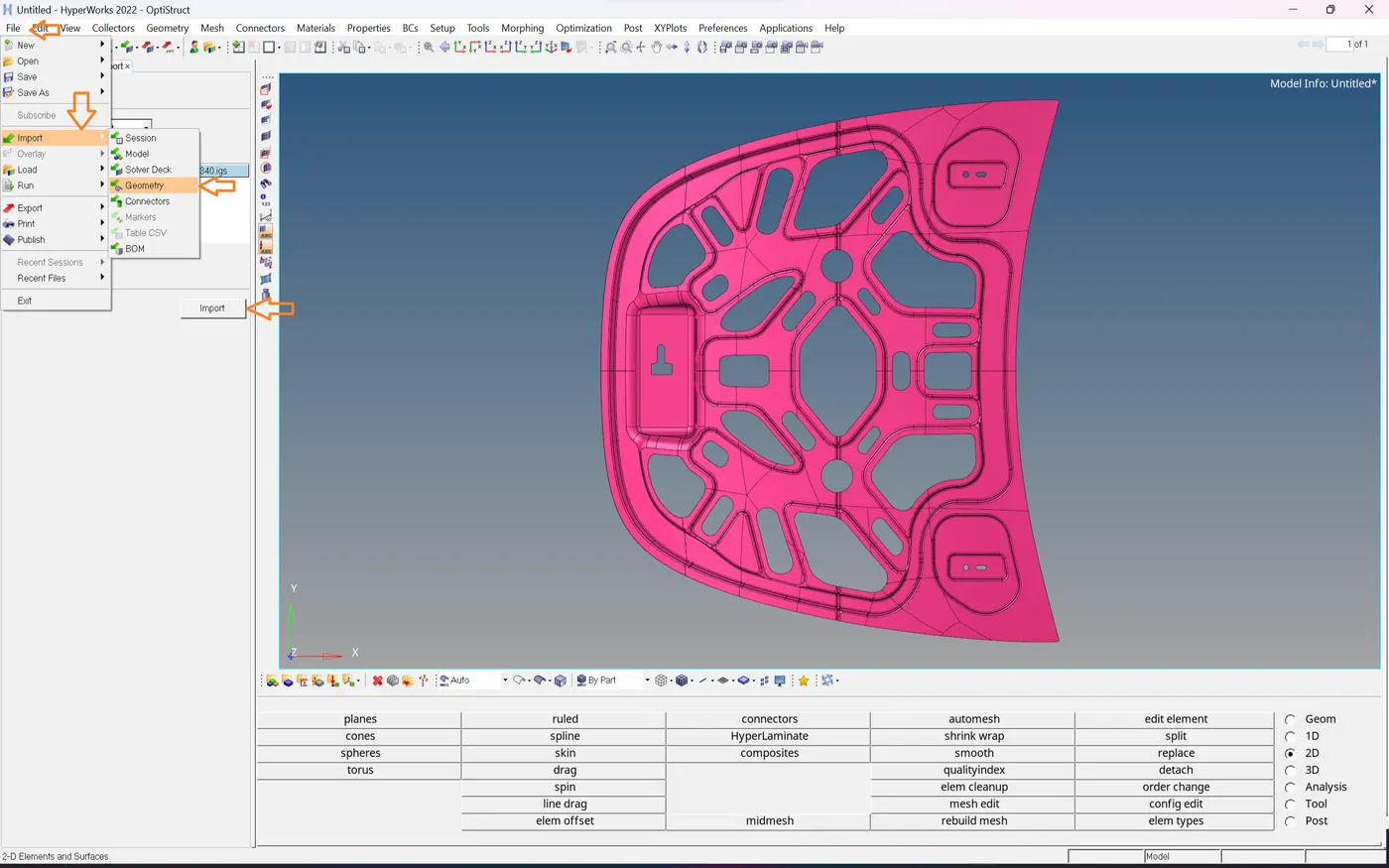
- Now we will examine the model, where there is any geometrical error in the surface.
- And then Geometry clean-up in the given model.
- Go to Geom - Autocleanup Select Surfae - click on it.
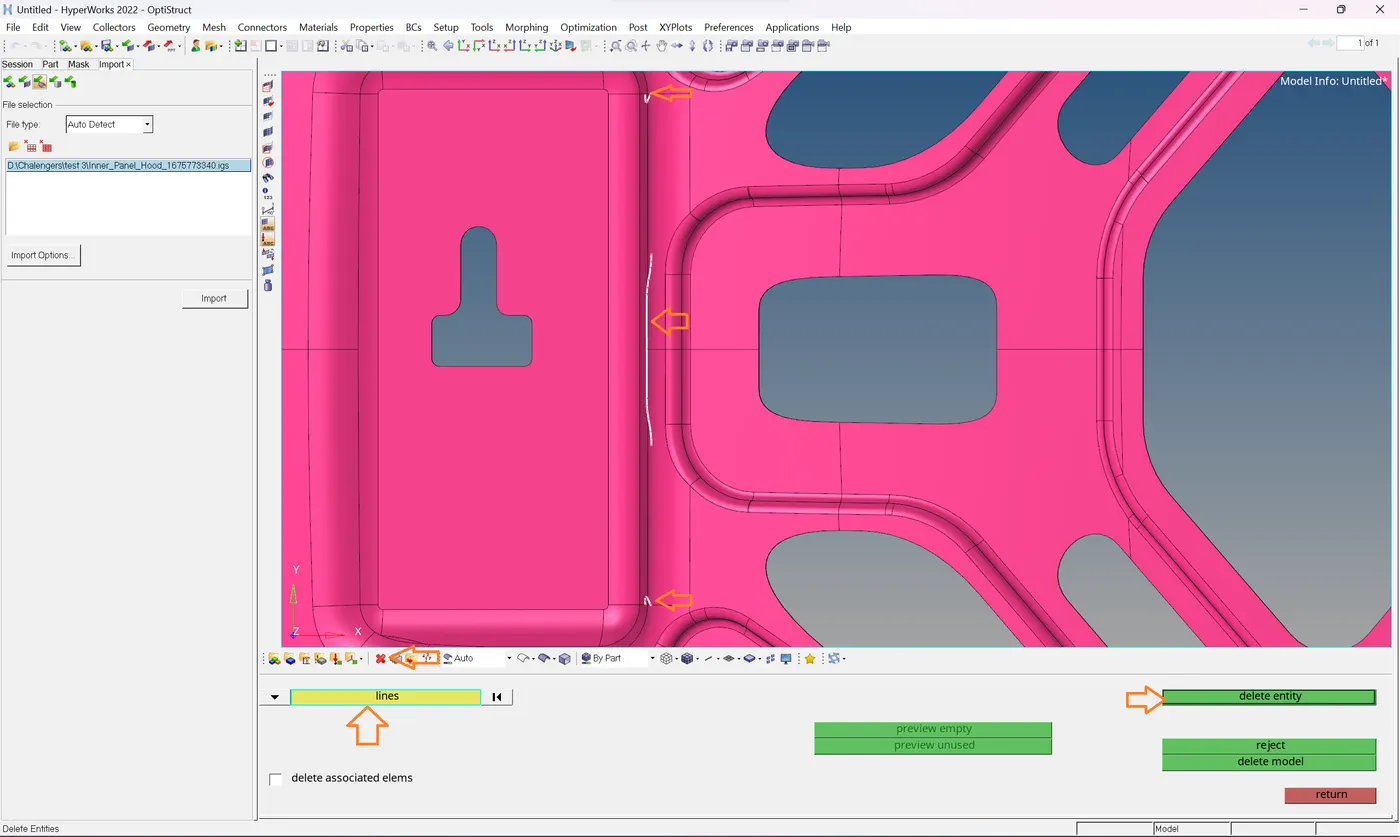
- Now delete the unwanted line in the given component as shown in the above image.
- After examining the model, we can see that except for one place, another part is symmetrical. So, dividing the modal in half meshing on the half portion, and then reflecting the same will save us time.
- Now Click Geom-Midsurface-auto mid-surface-Select surface-Select auto extraction and click on extract.
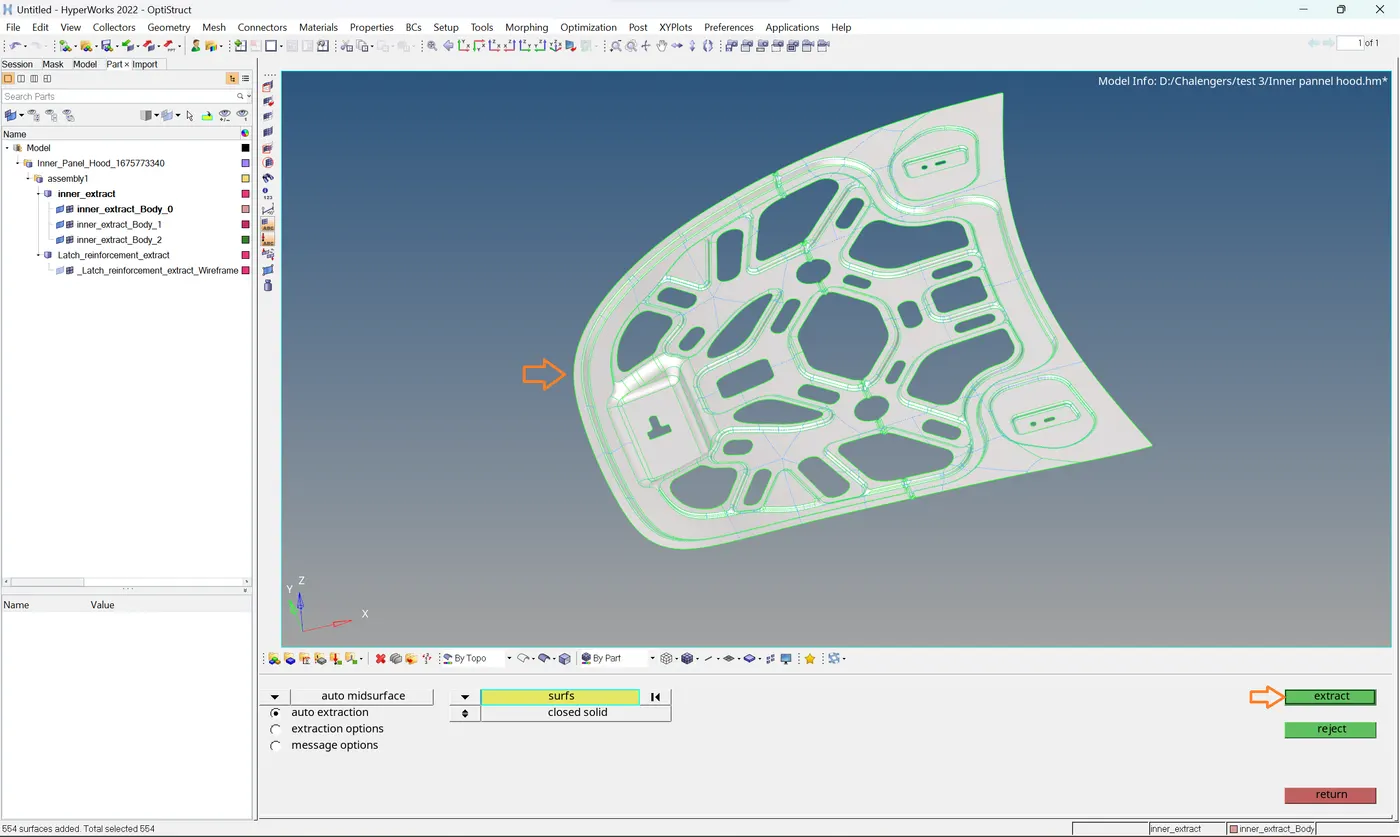
- Now Hide the component, and keep only the middle surface on the window.
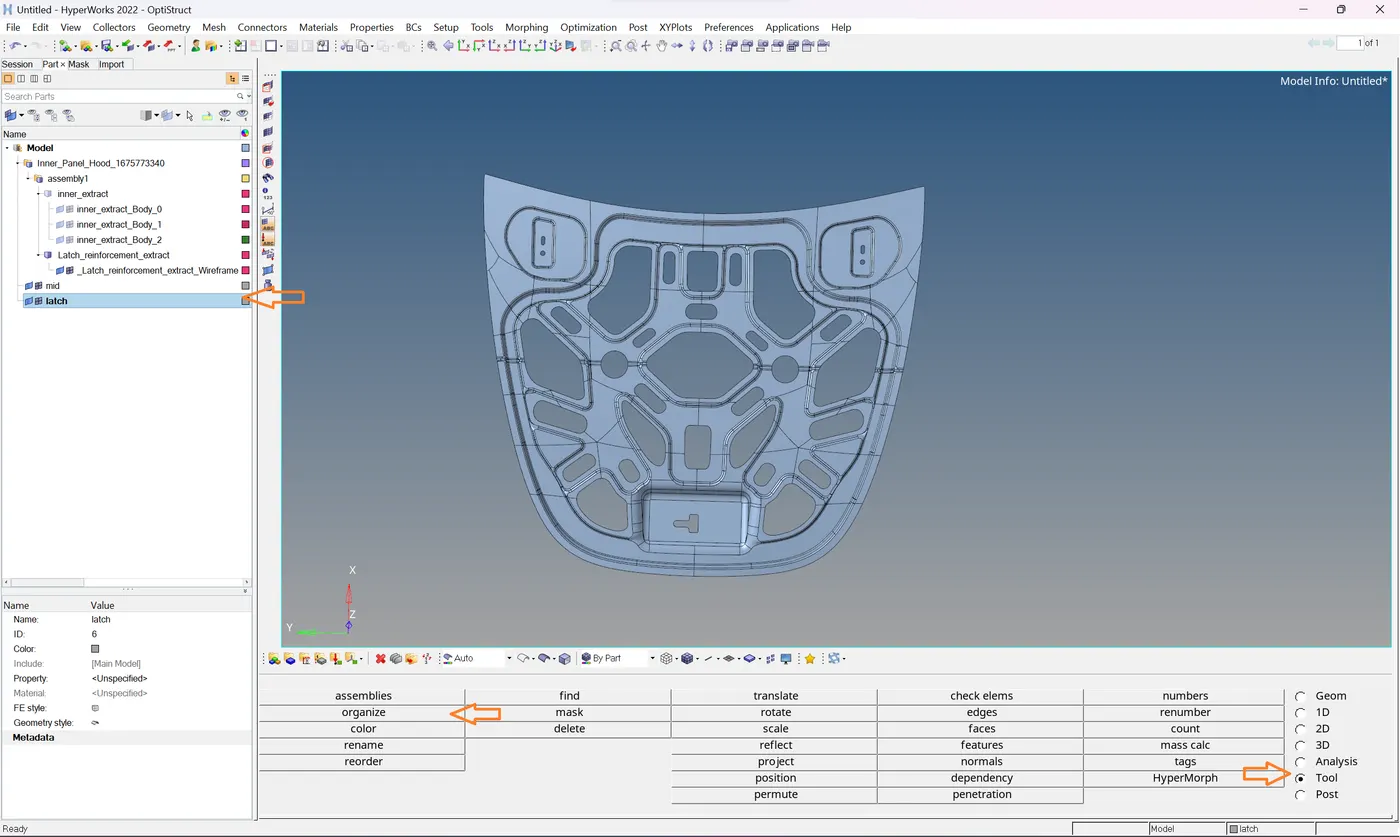
- The below Showing is not symmetric so we will collect it in different components.
- First, create a new component, Now go to The Tool - organize - select the surface to move - select the component in which the surface is to move - click on move.
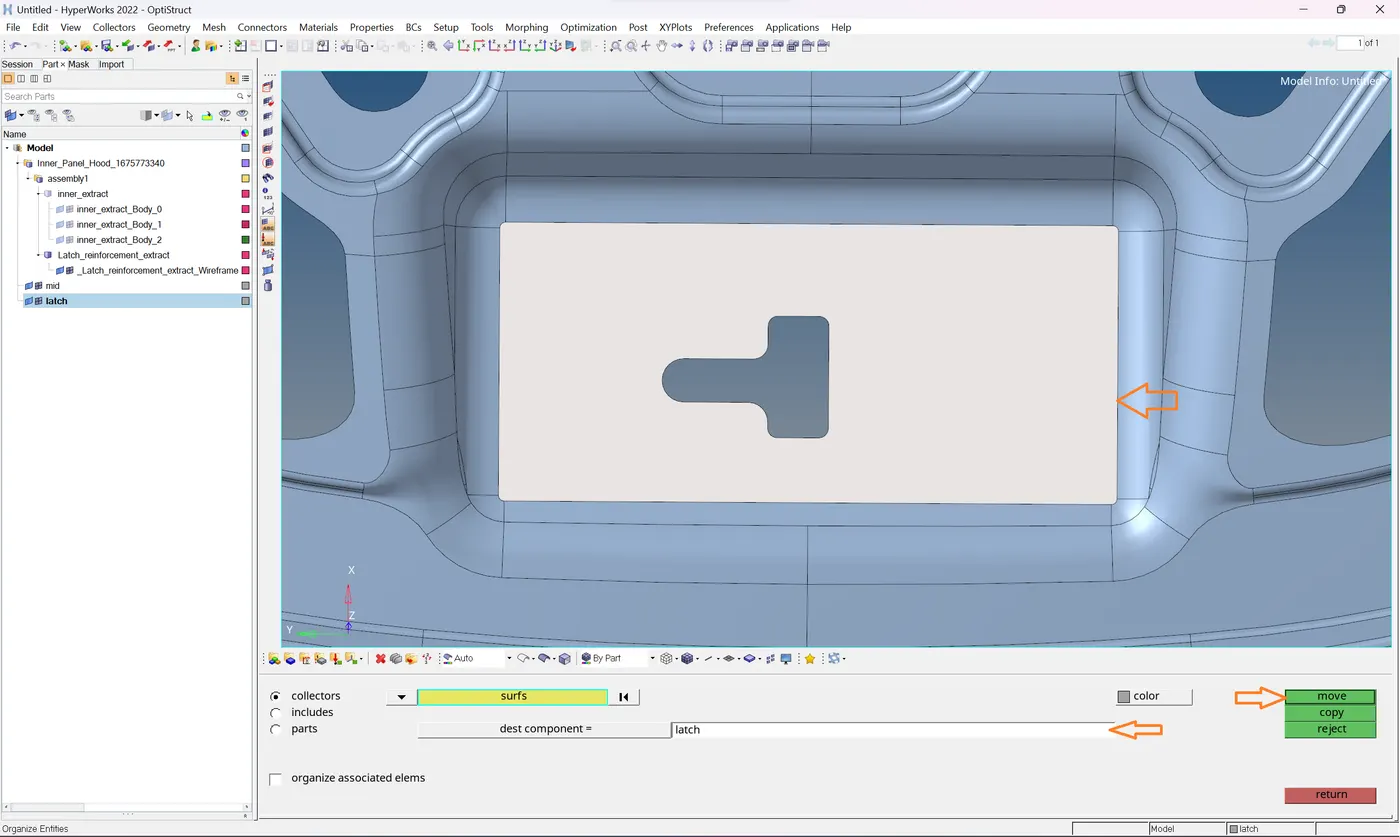
- Now hide this unsymmetric surface, we will mesh it later, and Delete the half portion of the symmetric middle surface.
- To delete first trim the surface into half.
- Then, Click The Geom-surface edit-trim with surf/plane - with the plane - select surface - y axis – select the base point - click on the trim.
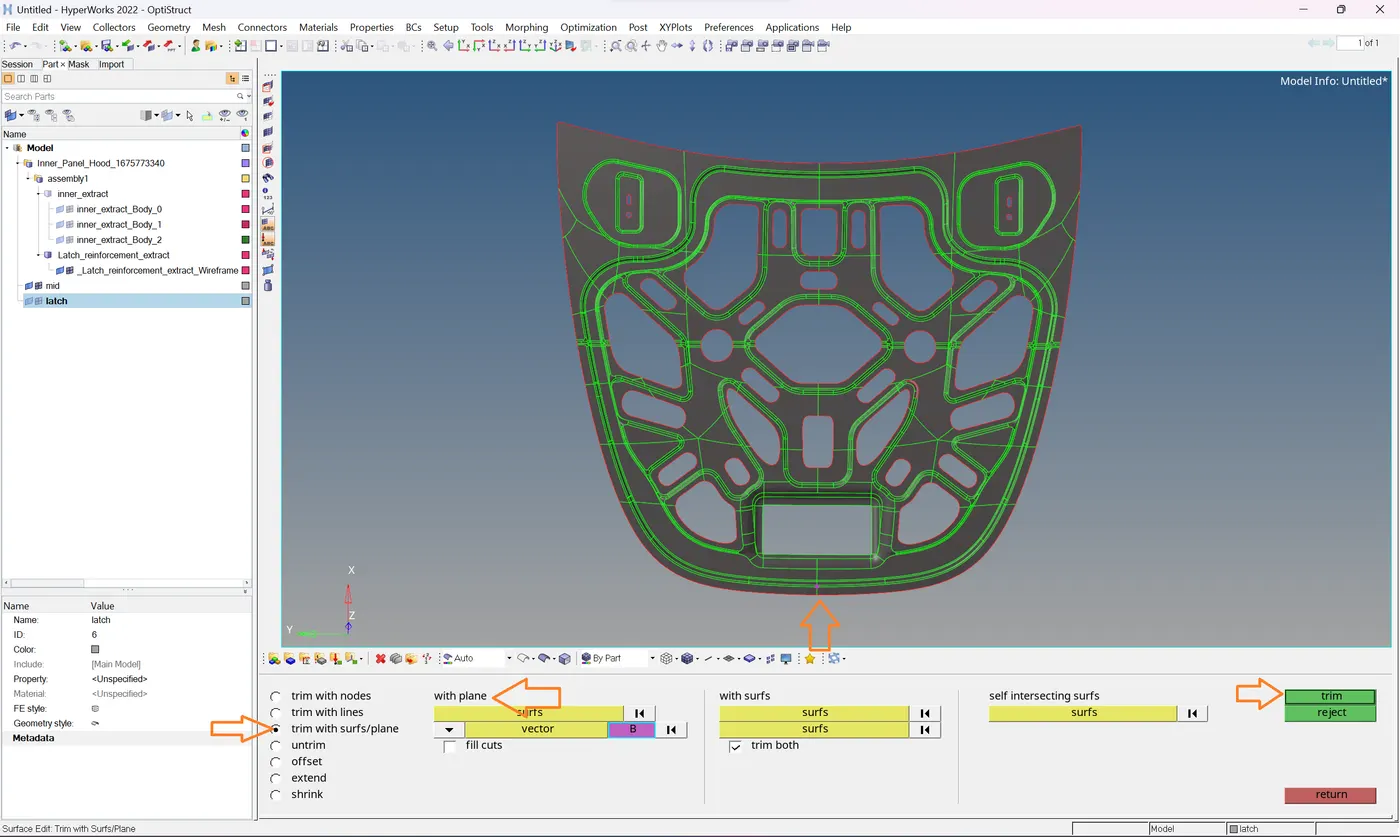
- Then Delete Half of the Given Hood as shown in the image below.
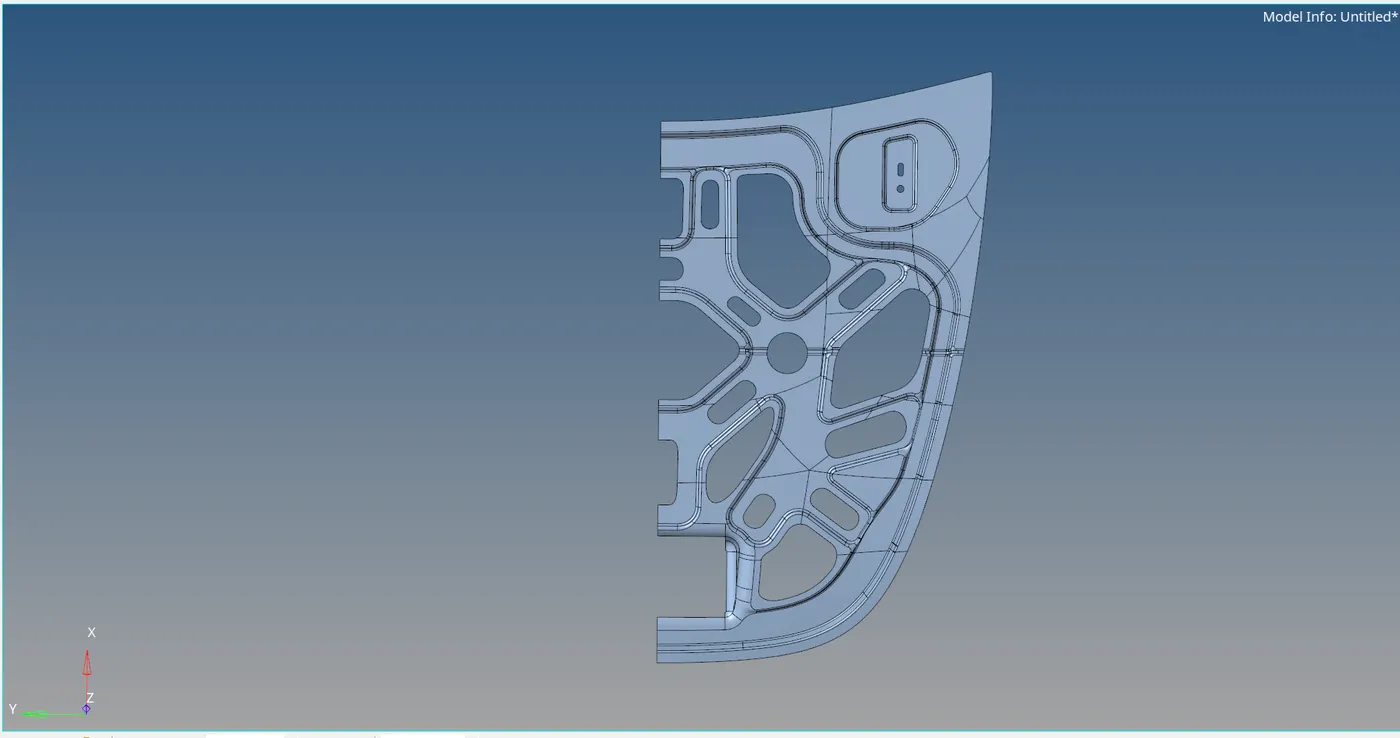
- Then Click Geom - Quick edit - Add or Remove points - remove the unnecessary points using the right mouse and click the window selection.
- Now suppress the unnecessary lines and give the surface proper cut so that mesh flow will be proper.
- Use the quick edit panel for this. It helps to recreate line-to-line on the given geometry.
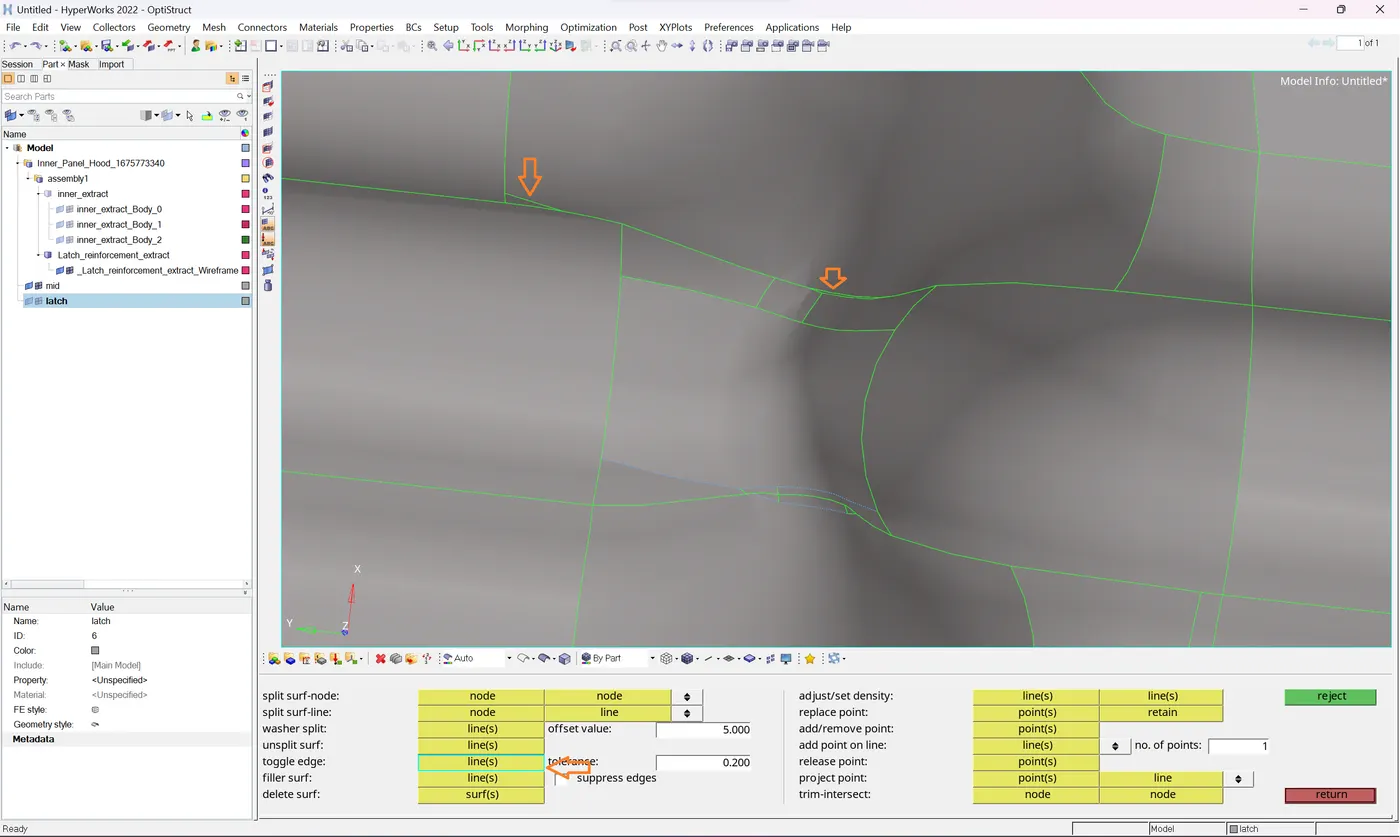
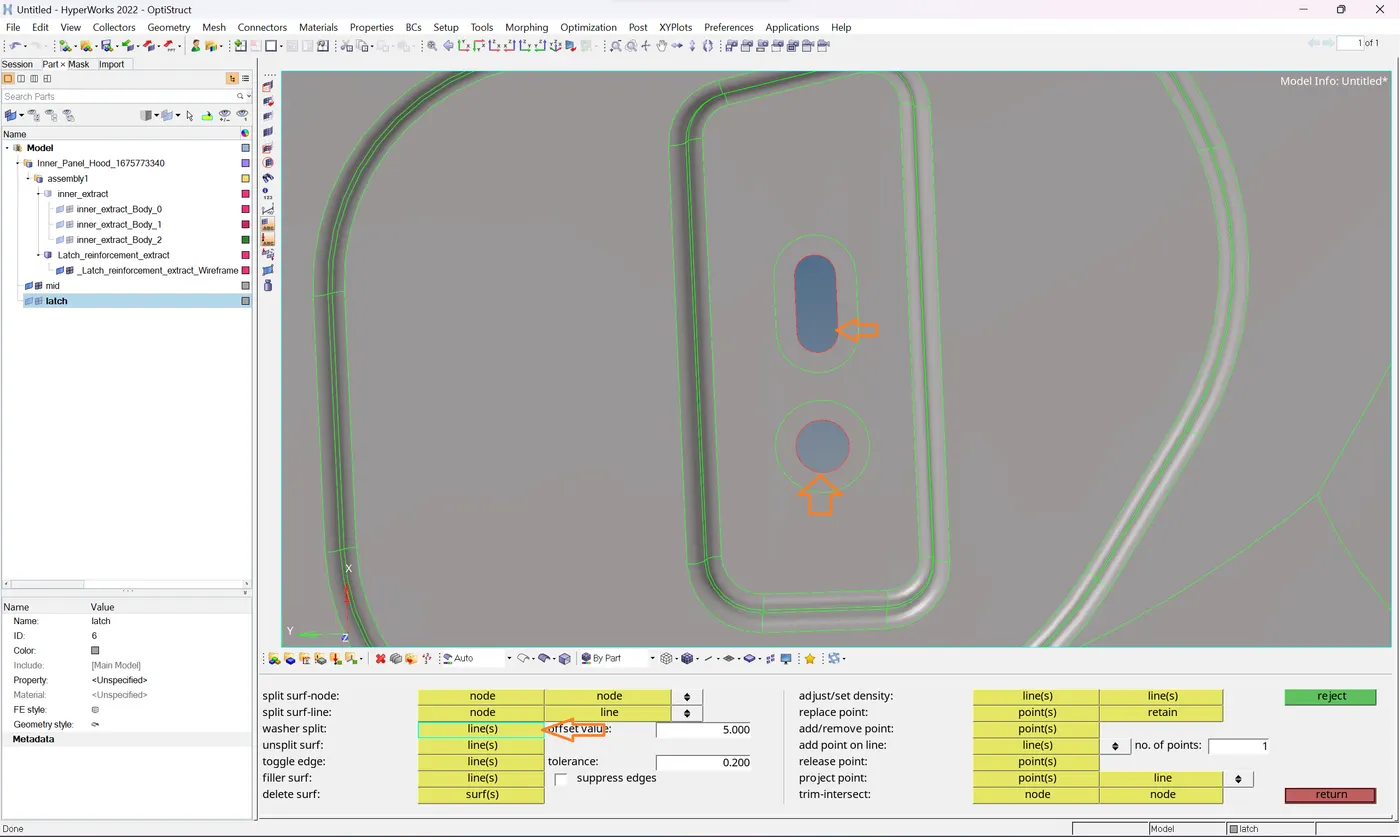
- Now click Geom - Quick edit - washer split - give offset value of 5 mm - Select lines.
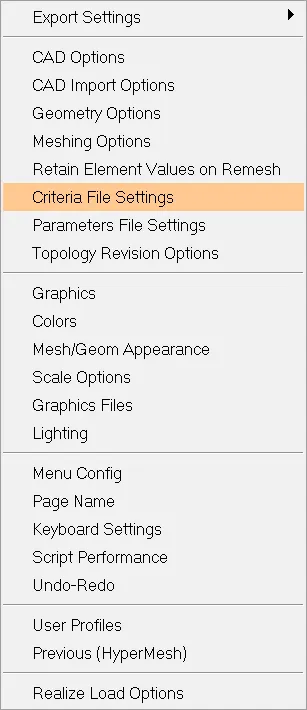
- Now click Preference at the top of the disk and select the Criteria File setting in the below showing image.
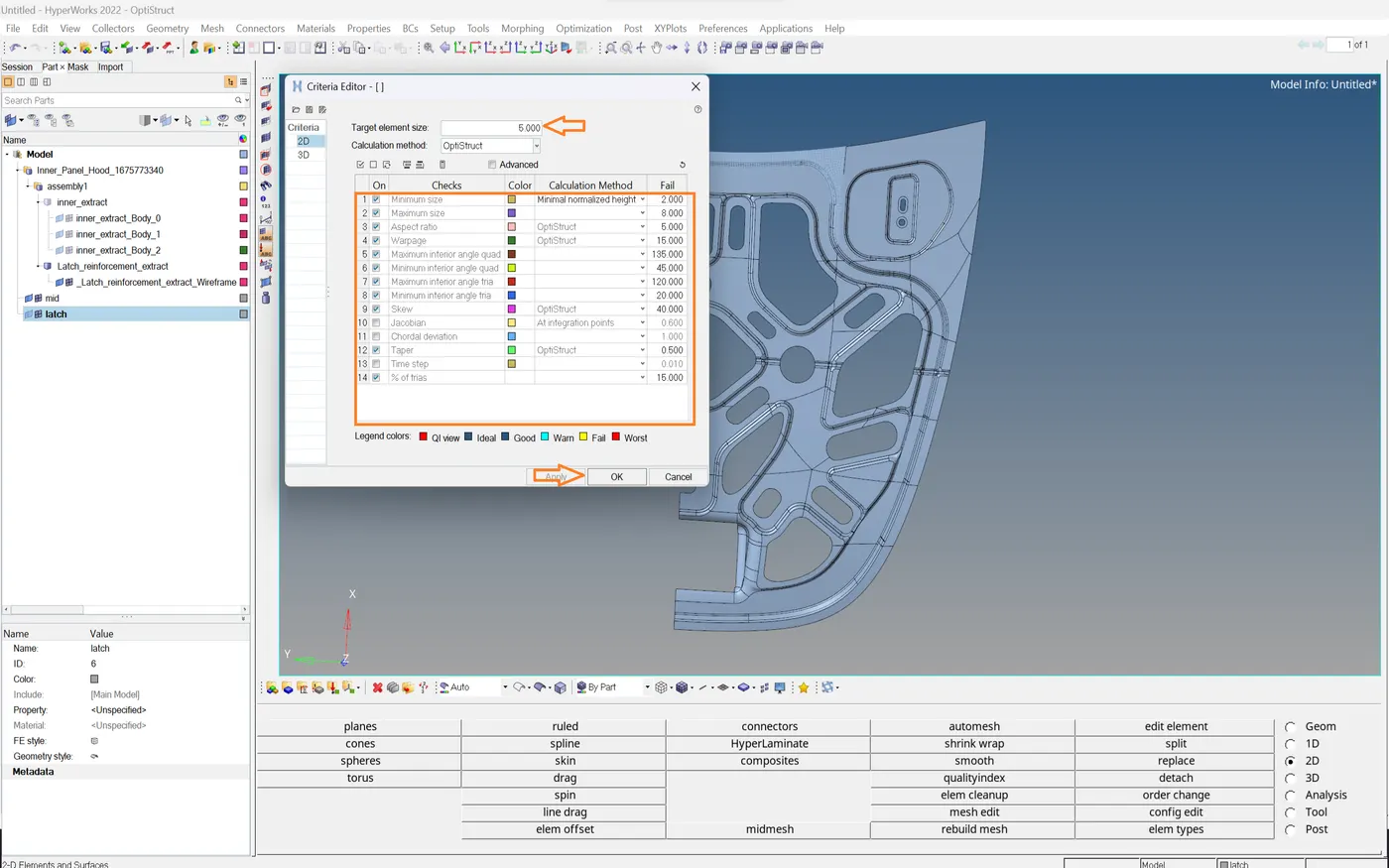
- Then give the given criteria value and click apply -ok as shown in the below image.
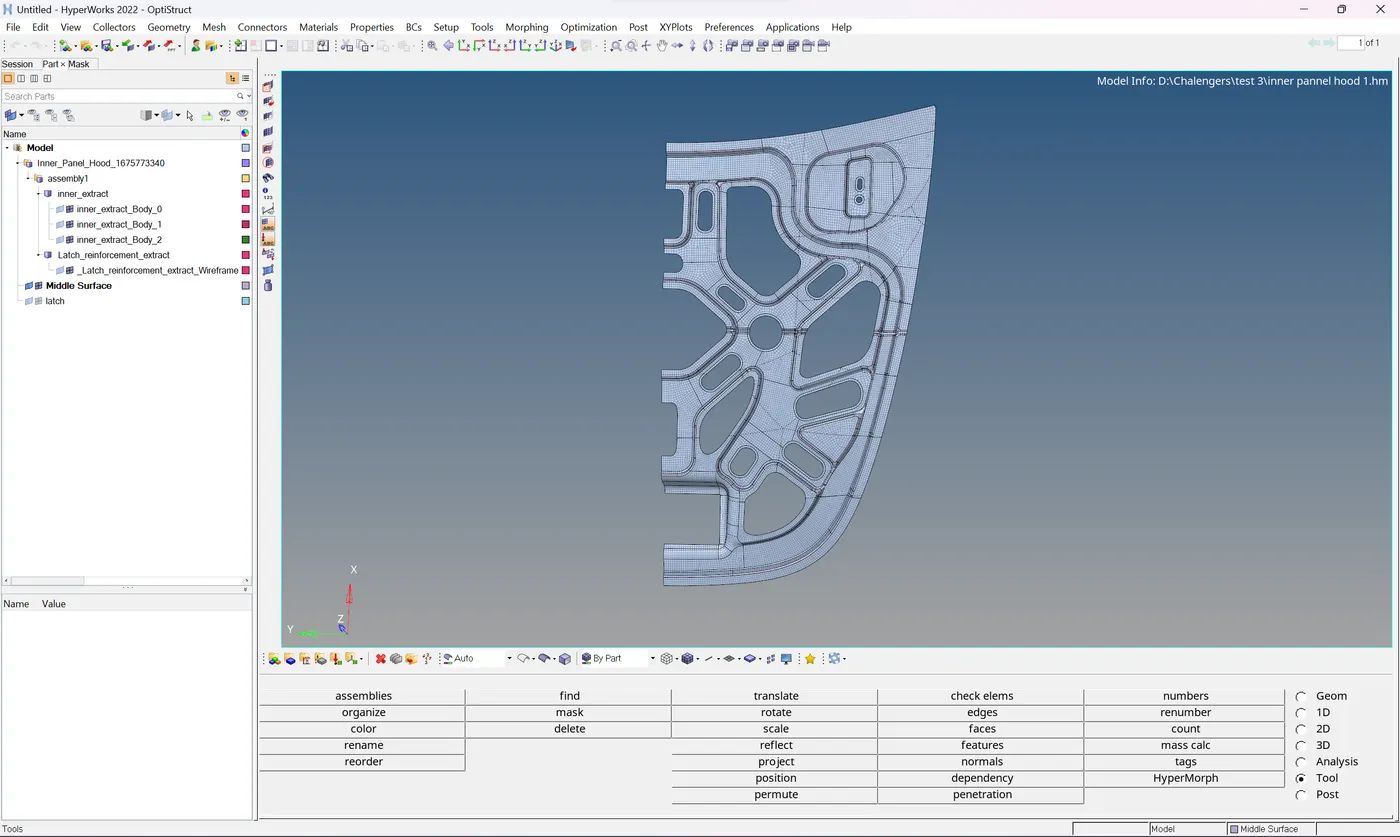
- Now click 2D - Automesh - select the surface - provide element length of 5 mm - choose mesh type as ‘mixed’ - element to the current surface - select current component as symmetric one - Keep connectivity - click mesh.
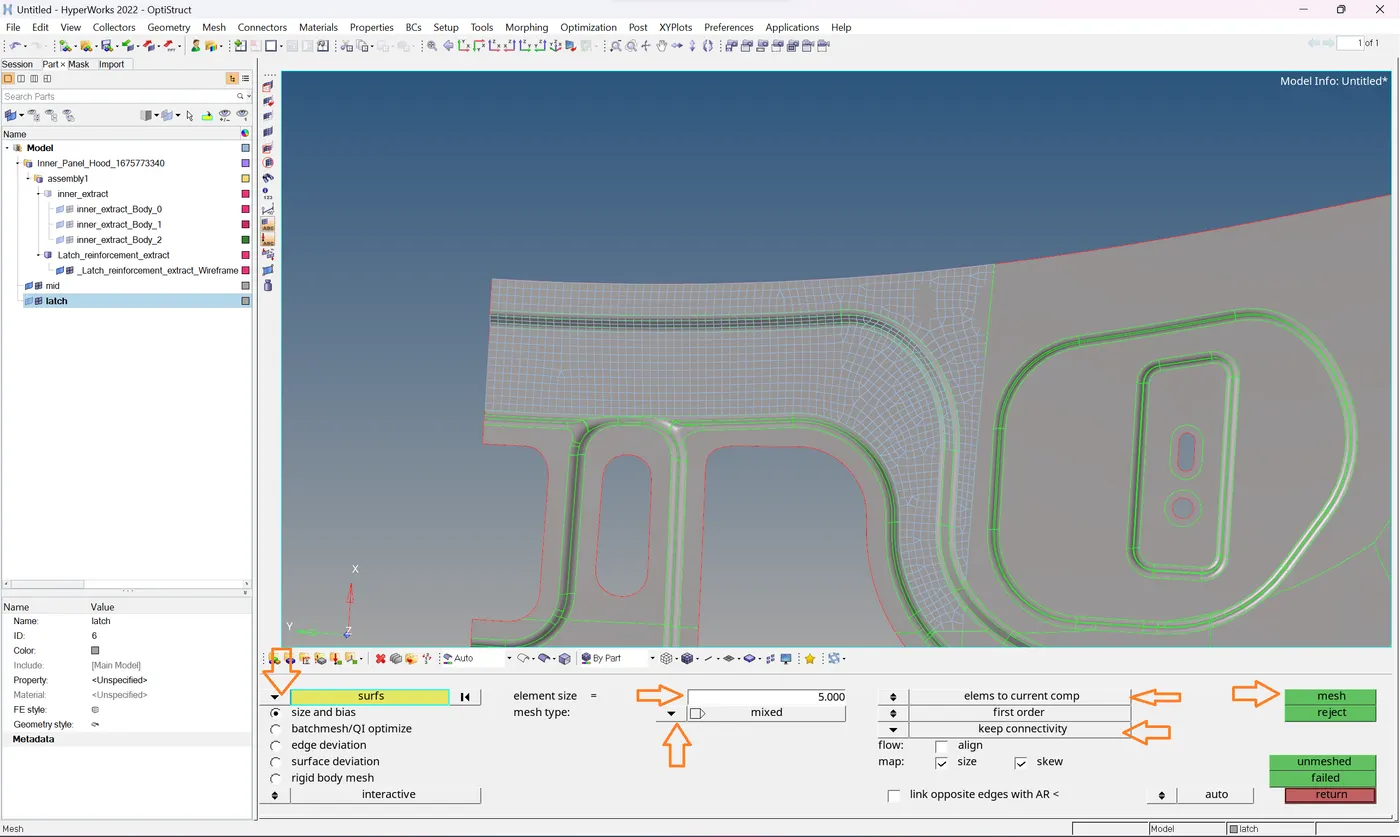
- After meshing the half hood it shows like the below image.
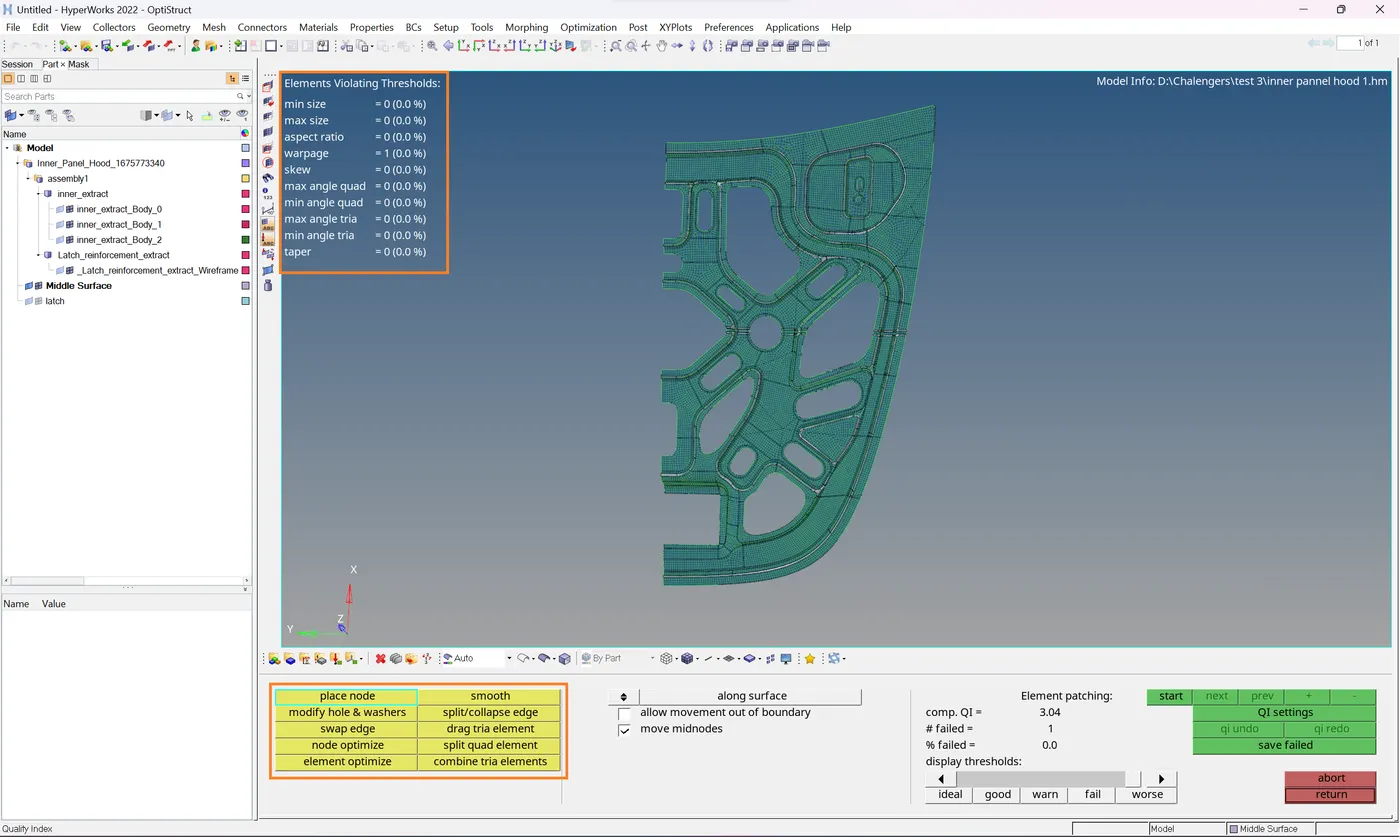
- Now click 2D - Qualityindex - to the chick and work with the proper mesh criteria.
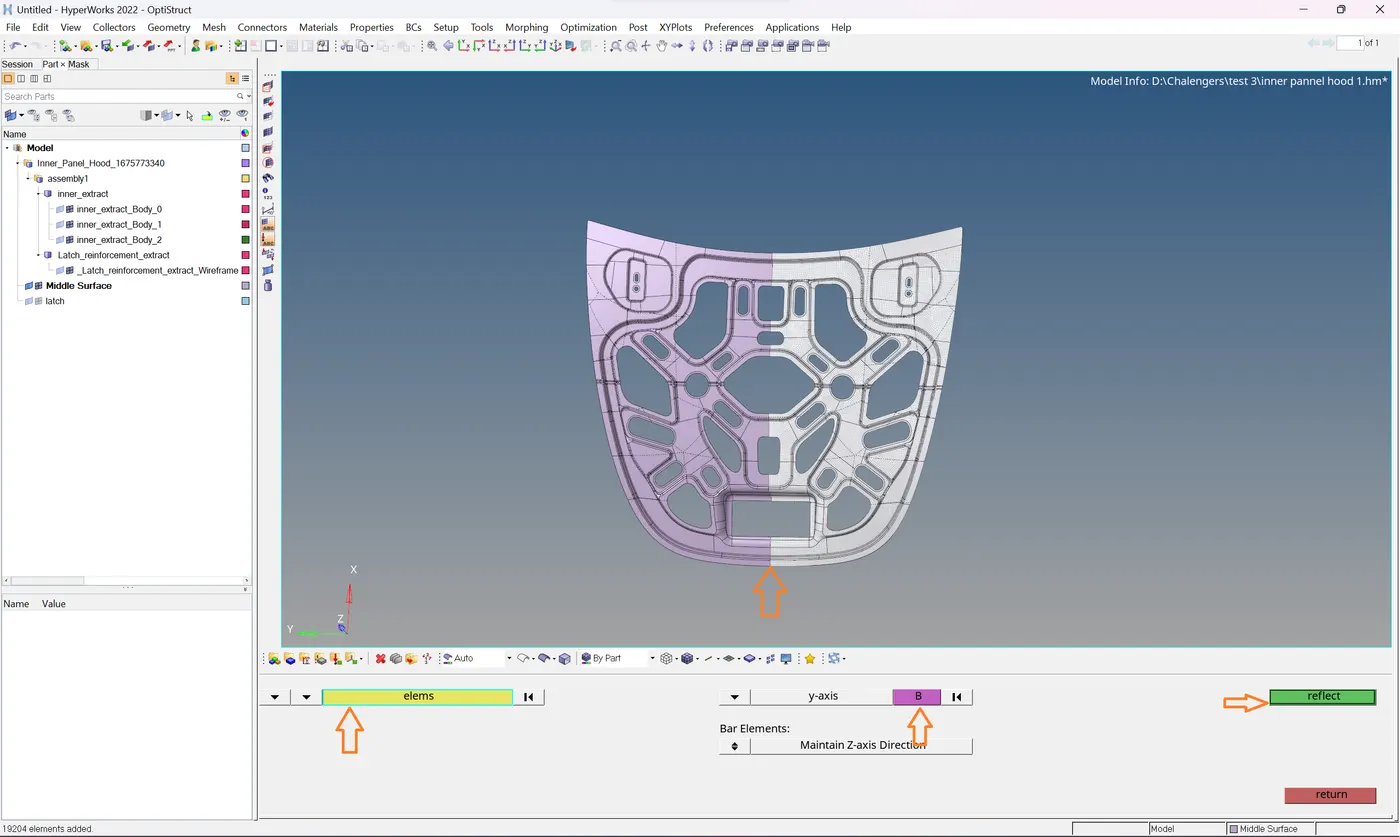
- Now we will reflect the mess symmetrically.
- Click Tool - Reflect - Select elements - Duplicate - Choose axis - Choose base point - Click Reflect.
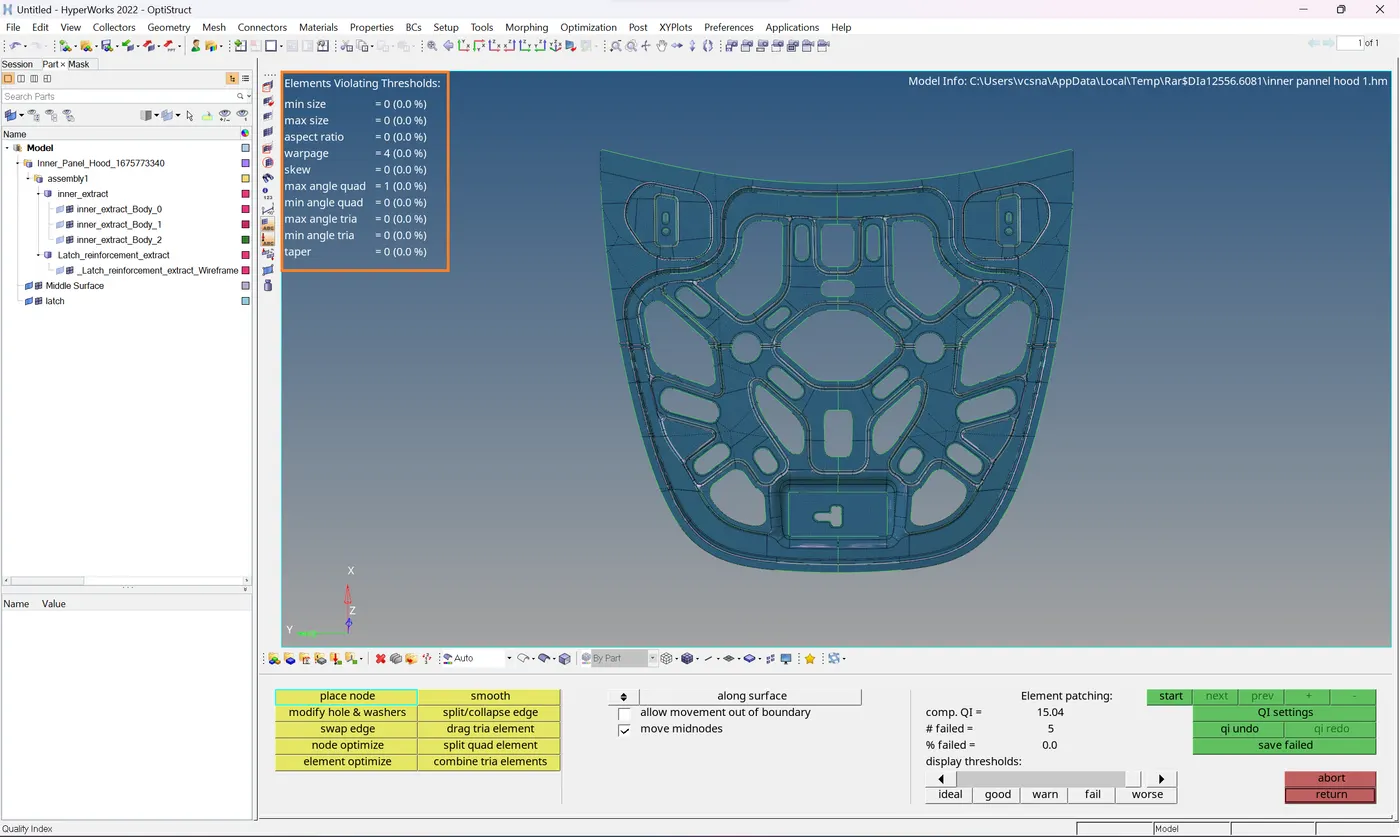
- Now we will unhide the unsymmetrical surface and mesh such that the mesh is collected into the Middle surface collector.
- The Final output of the given Hood component is shown in the below image.
File link
https://drive.google.com/file/d/1ROC6e9ocfpNoIBKPSlShoA0va9NIbET3/view?usp=drive_link
Thank you