Week 3- Geometry cleanup and Mid-surfacing
Aim:
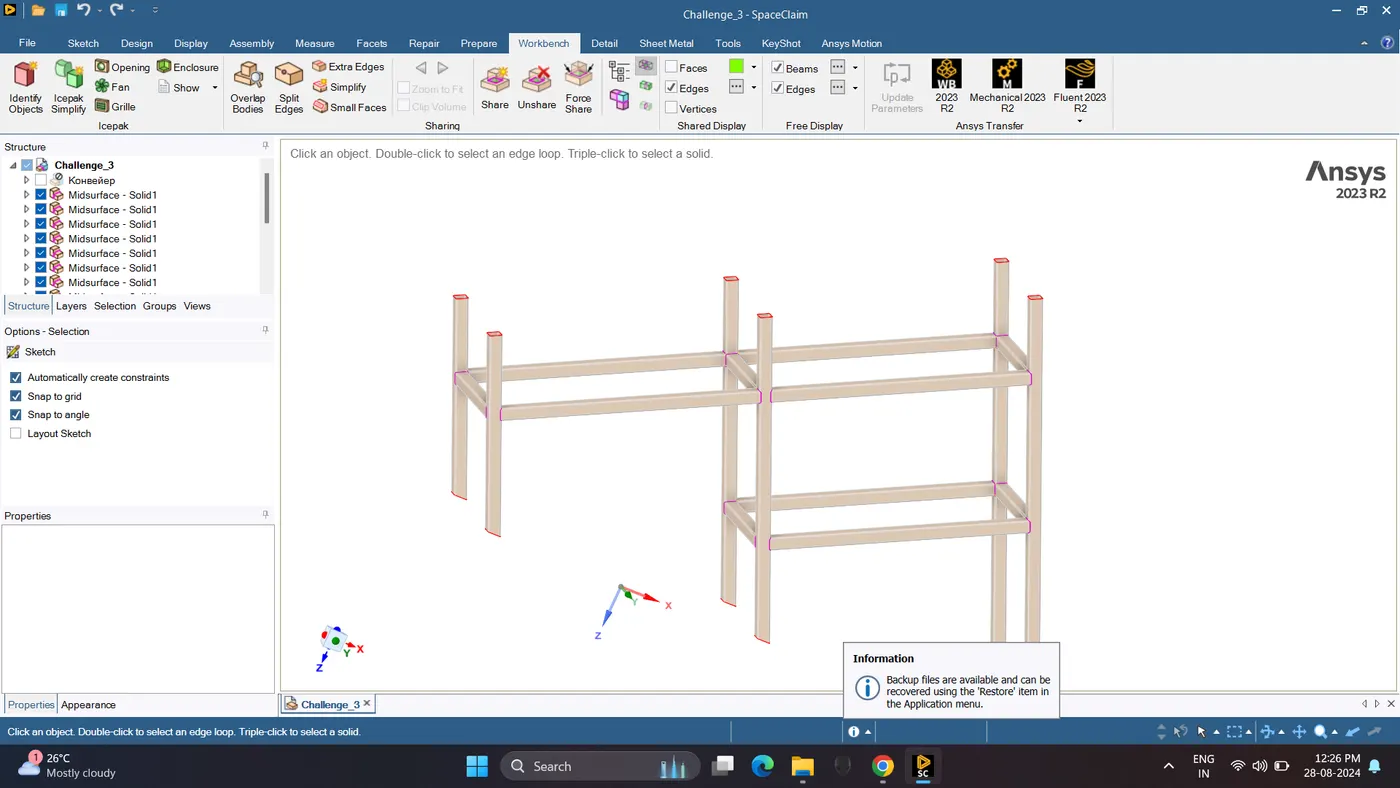
1) To extract mid-surface for the tube model and provide a connection with sharing option at the tube joint locations
2) Create a model in Spaceclaim one on top of each other and create a shared topology between the top block and the bottom block. Perform a modal analysis (free-free run)
Procedure:
Case 1
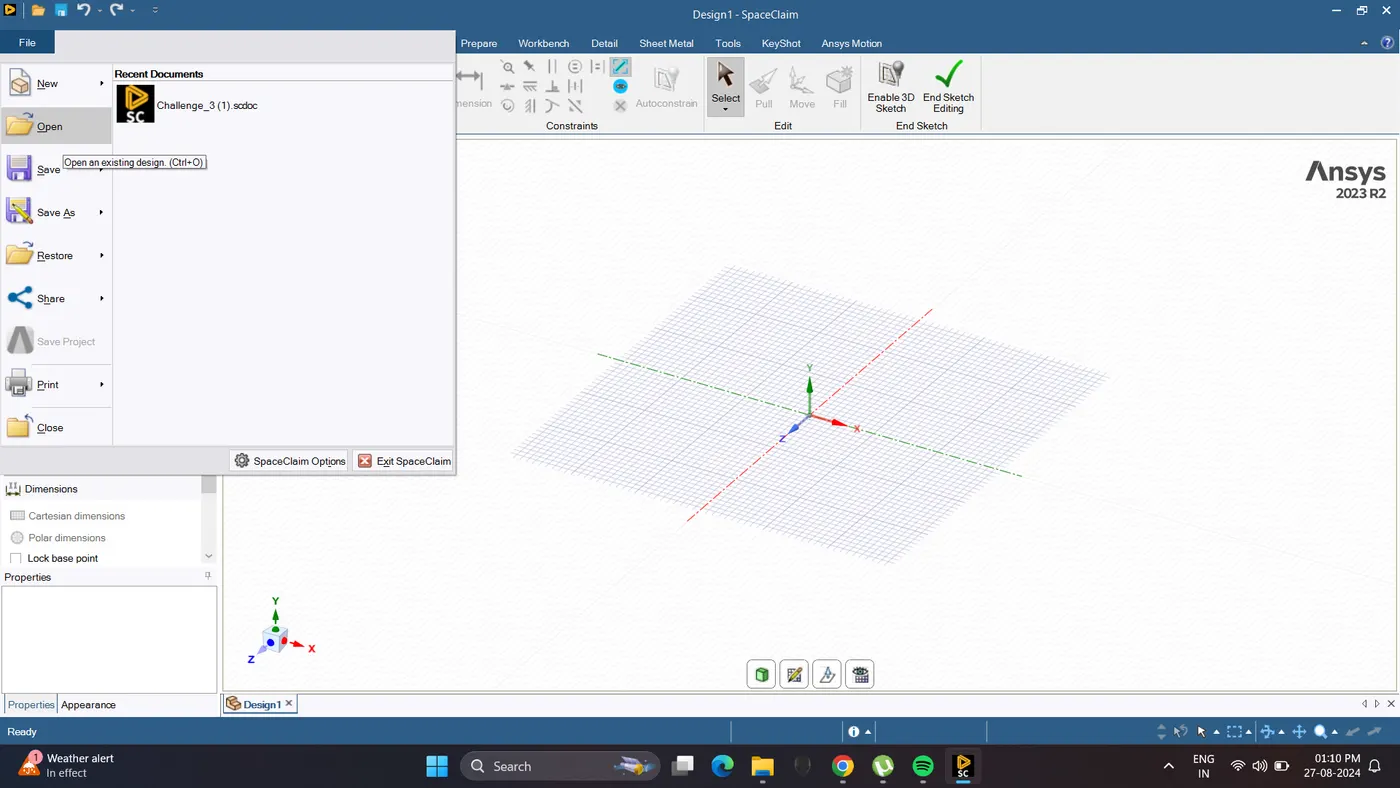
1. Open SpaceClaim. Import the CAD Model.
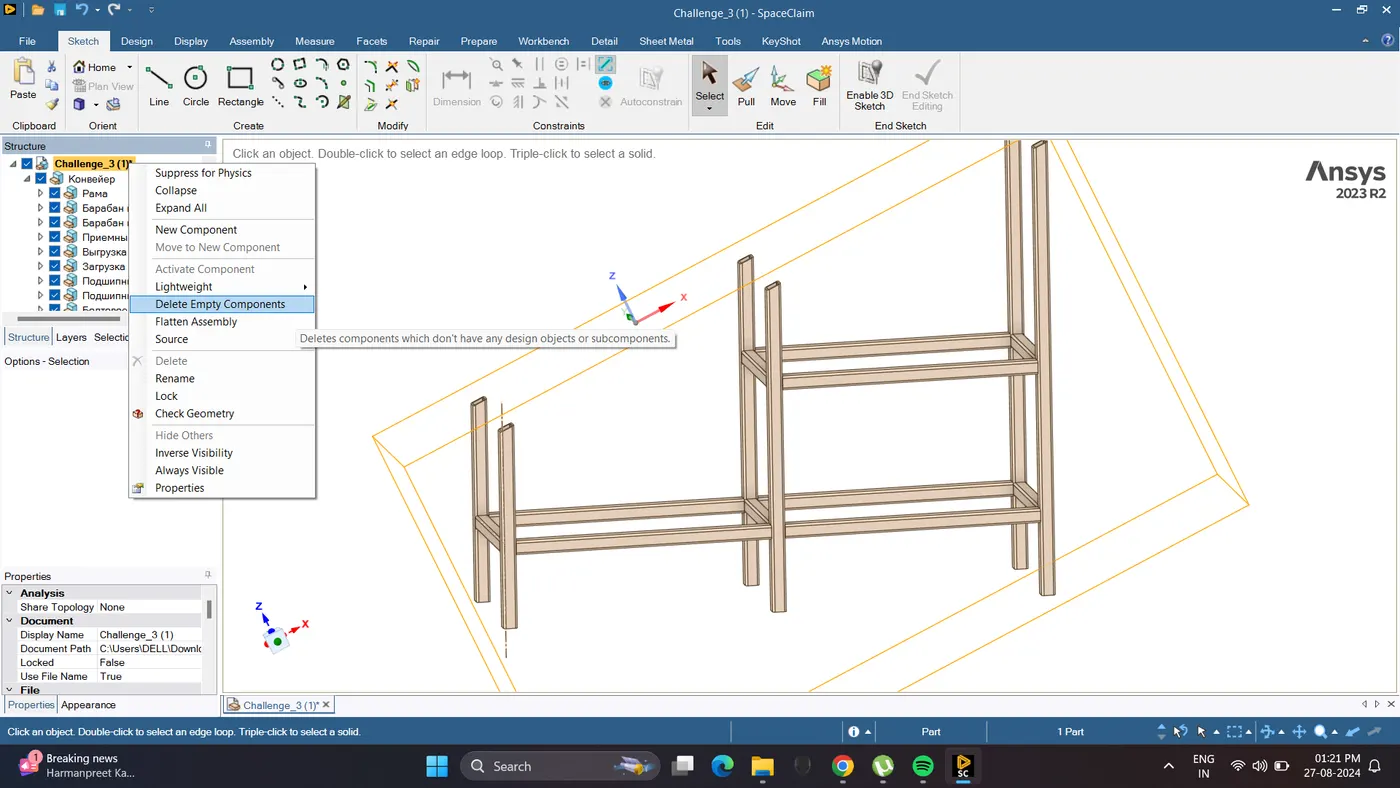
2. Check the Model.
It is seen there are empty component present in the model. Delete the Empty component.
Right Click on Parts - Delete empty components.
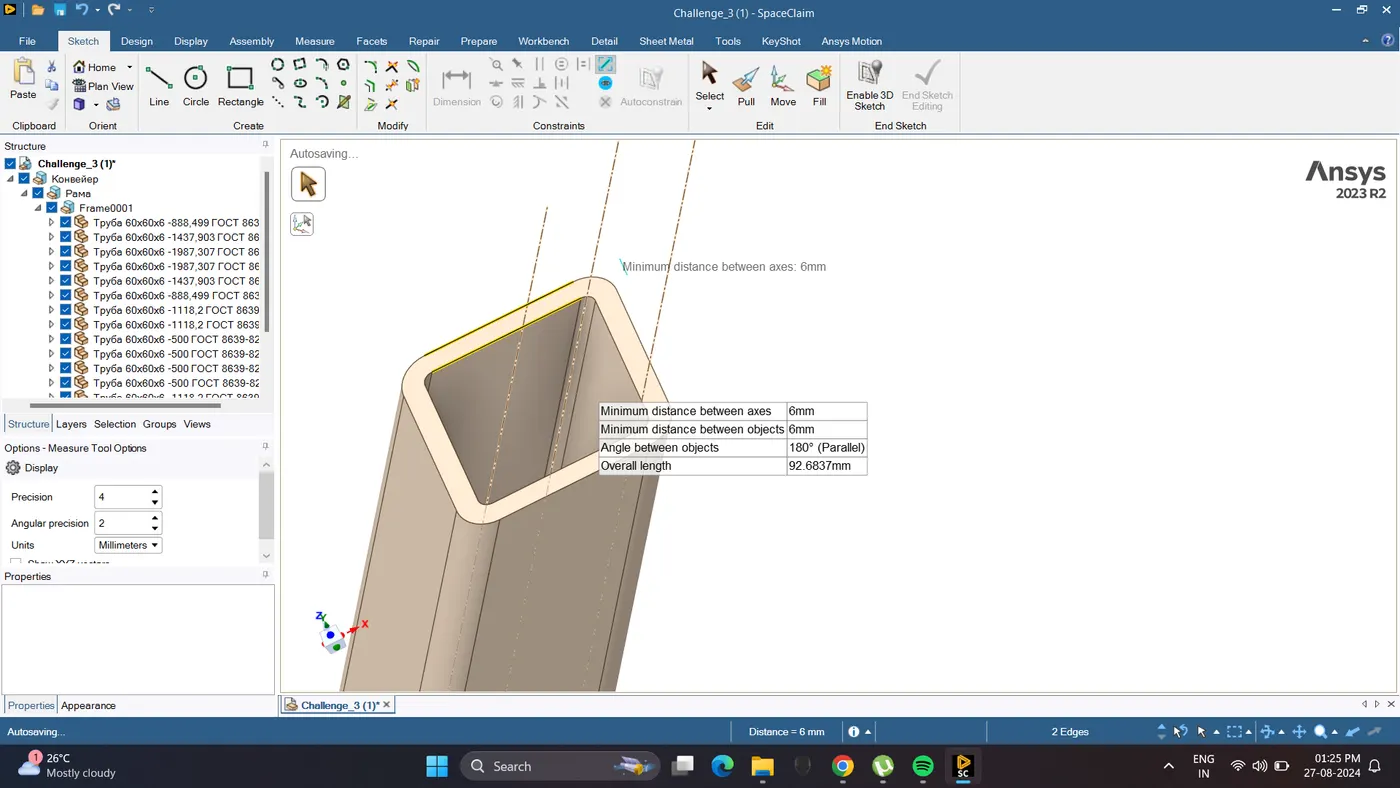
3. Check the thickness of the tubes.
Click on the tube edge - Ctrl + other edge - Press E.
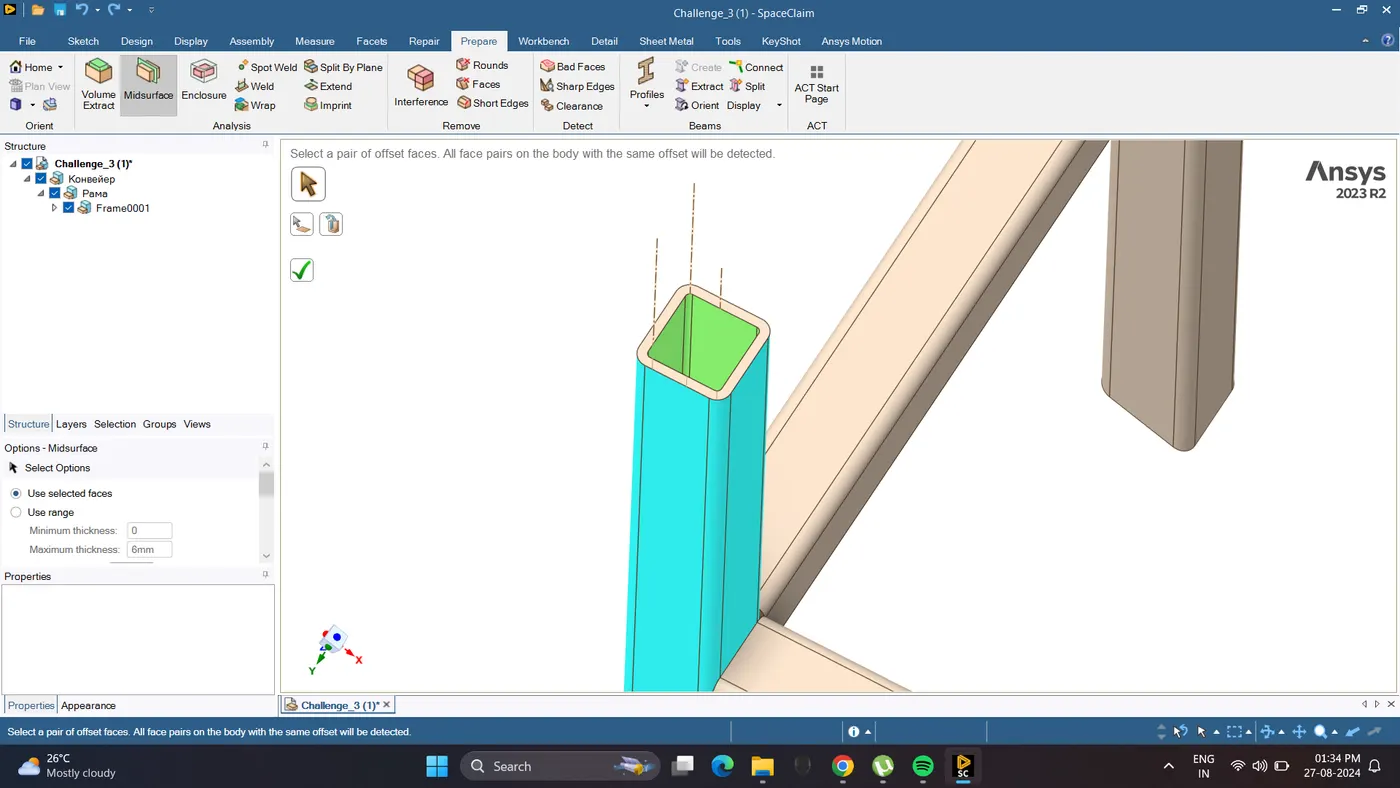
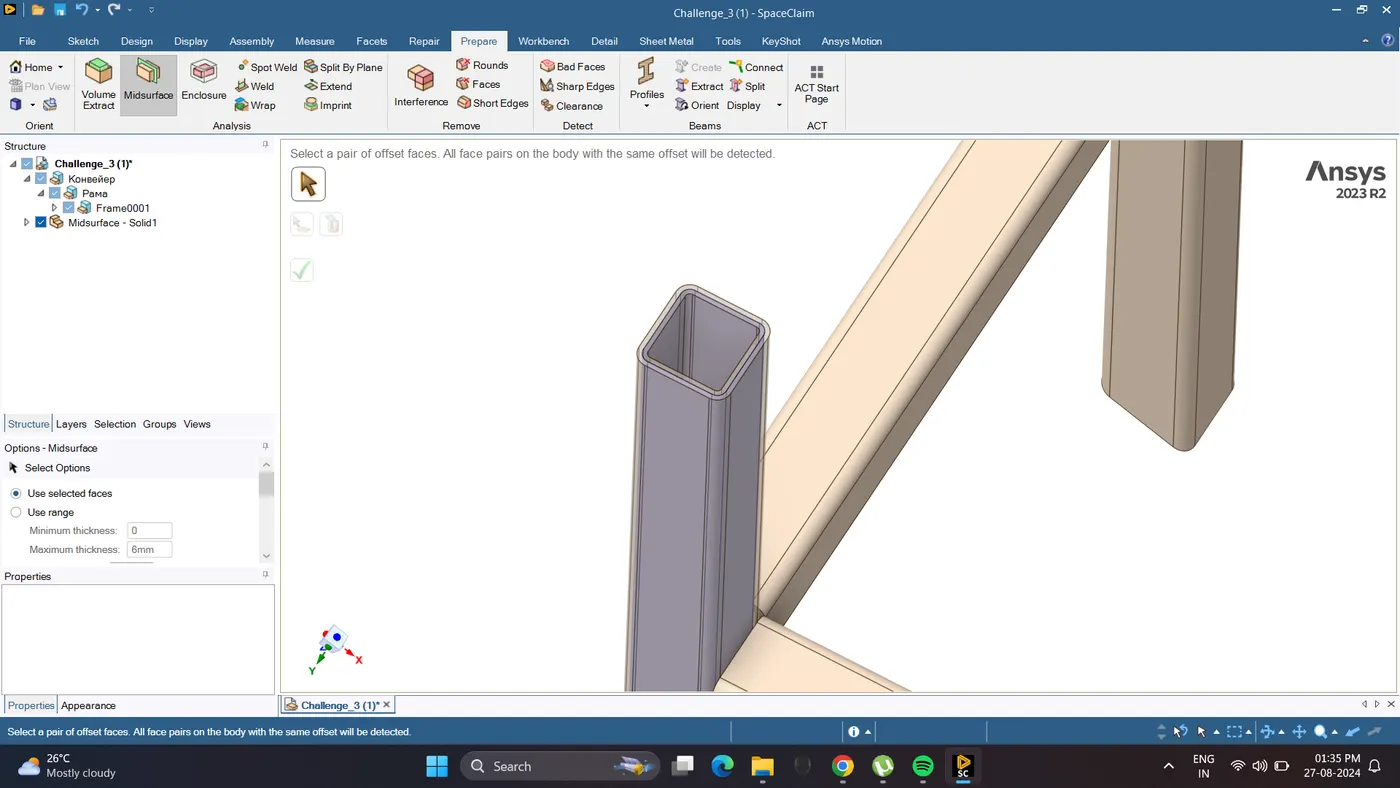
4. Extract the Mid - Surface of all the Tube.
Go to Prepare - Mid surface - Select One outer and one Inner face - Press Enter or click right sign.
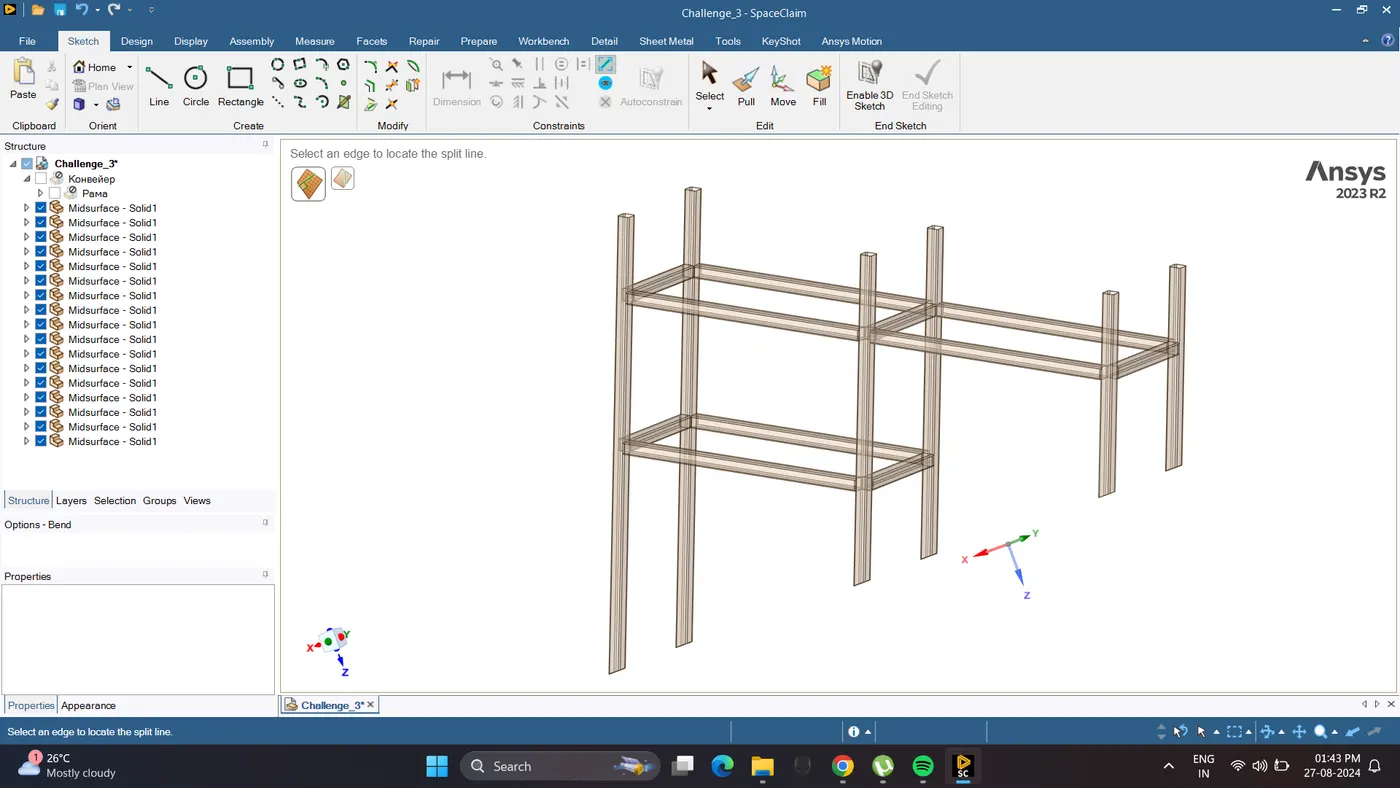
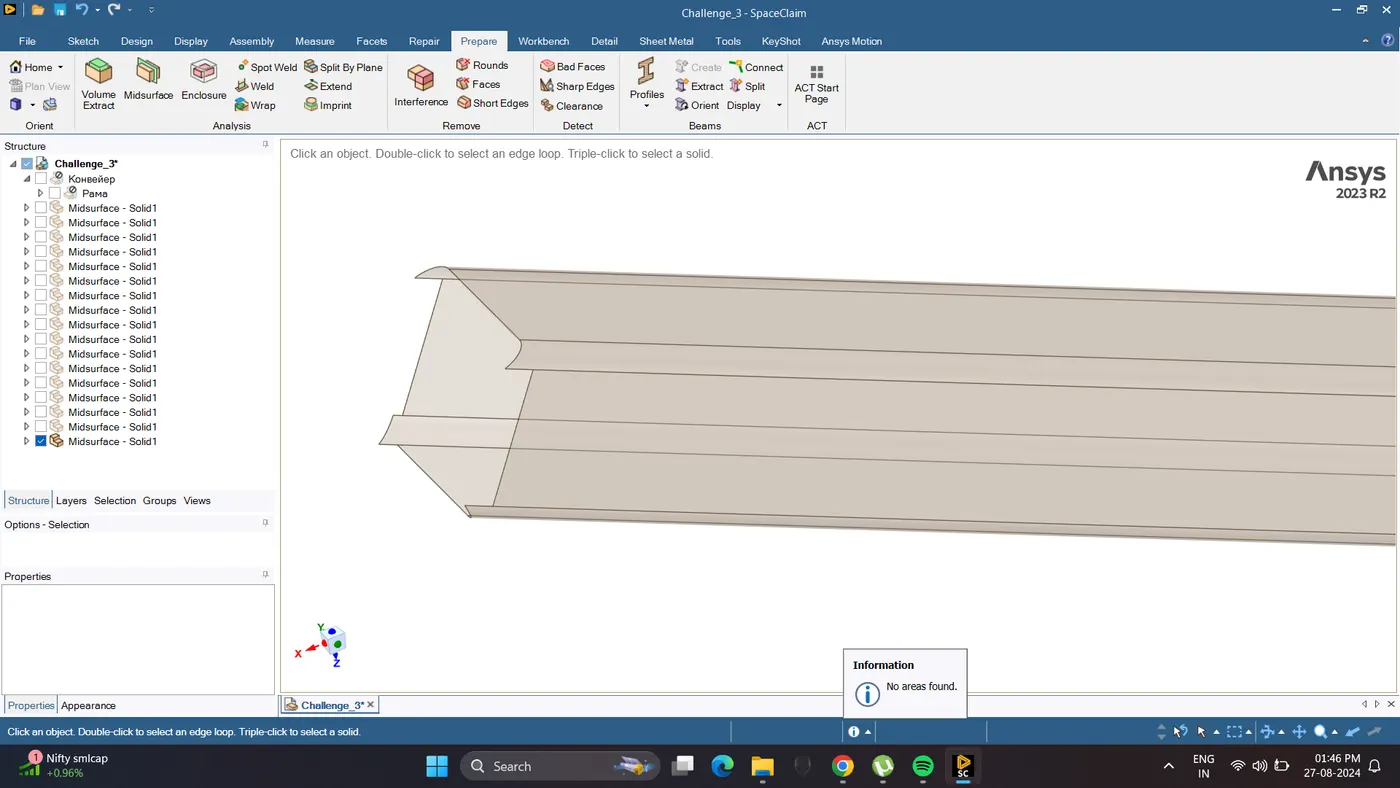
5. Check the Mid - Surface Geometry. It is seen that in the mid surface some geometry is not proper. So we have to correct it.
6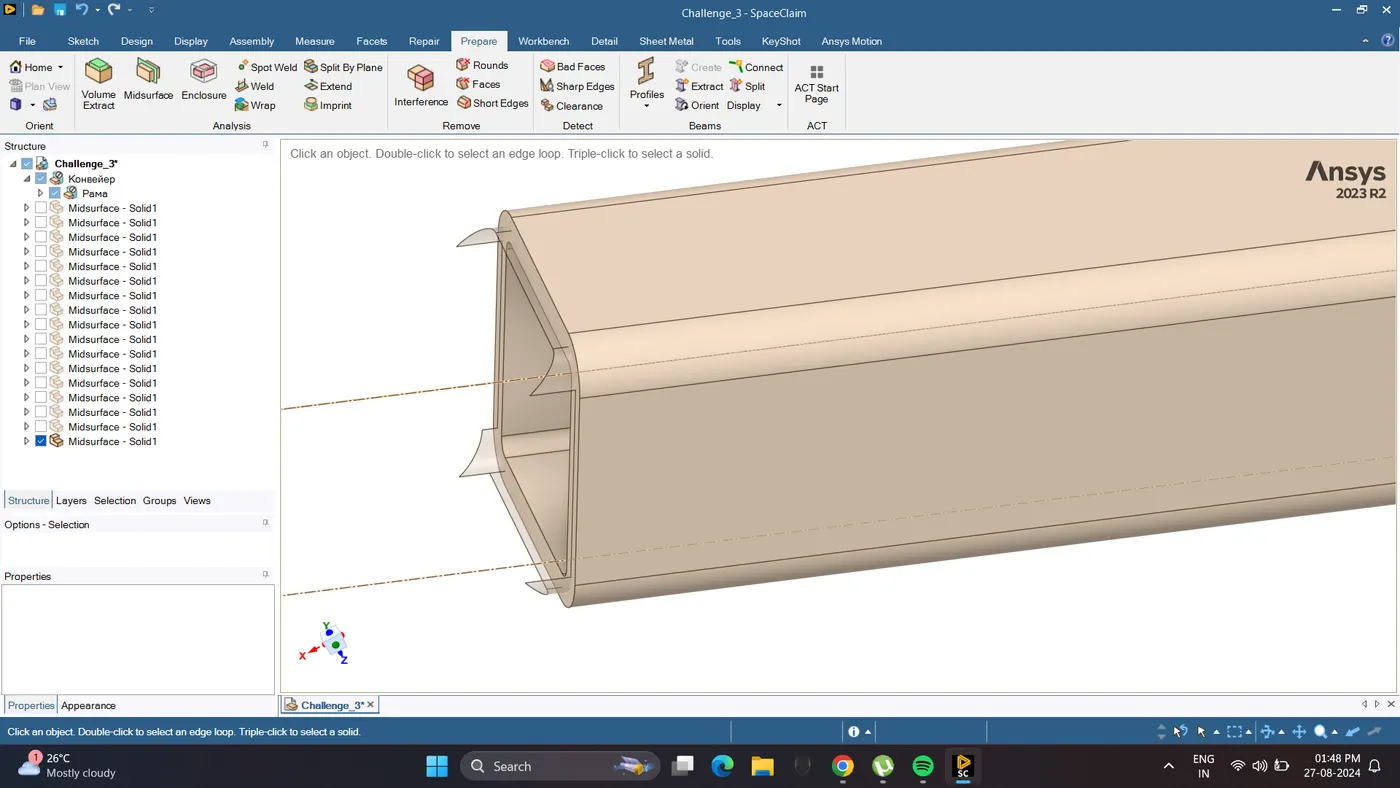
6. Visible all the mid surface and change display mode from transparent to opaque.
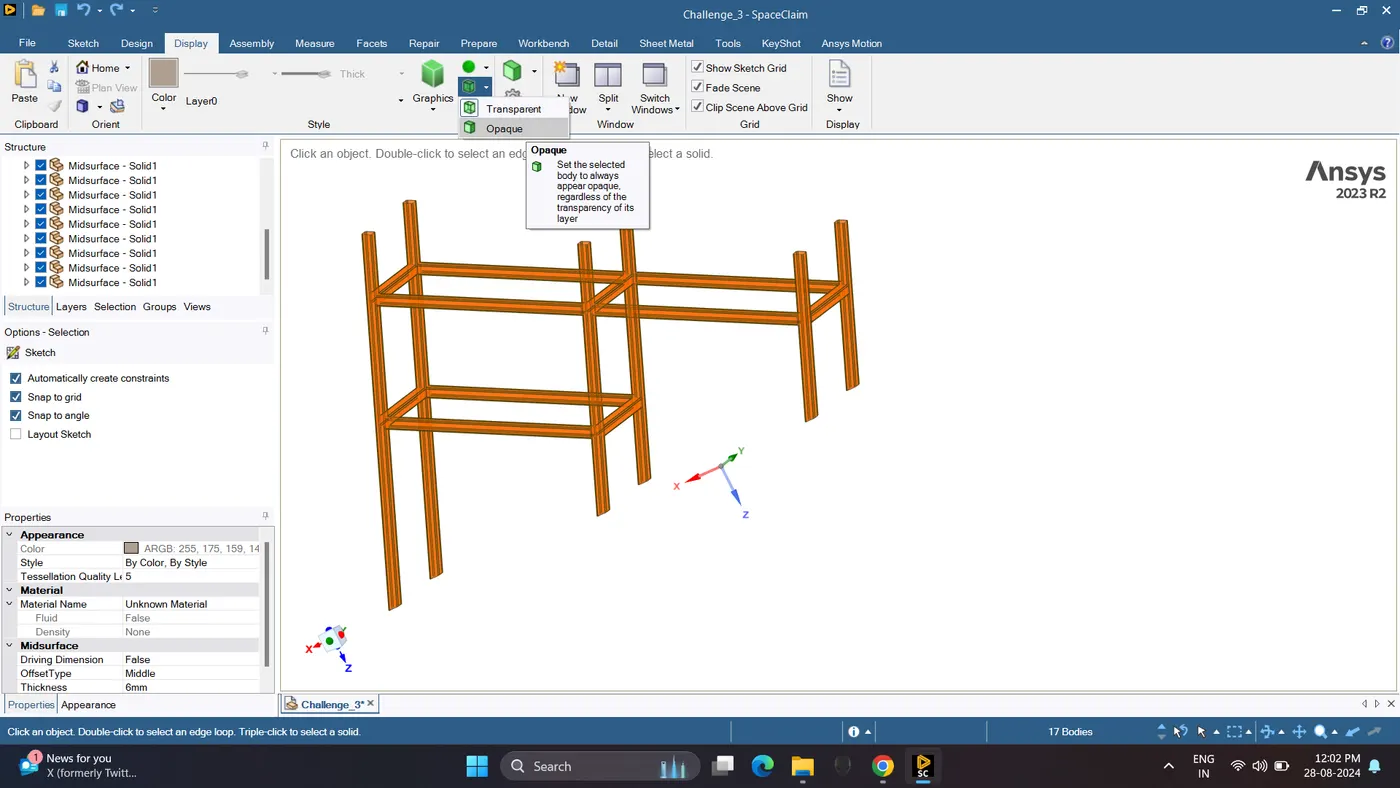
7. Joint the mid surfaces using extend command. Go to Prepare - Extend - Press Enter.
Do this operation till all the surfaces are attached.
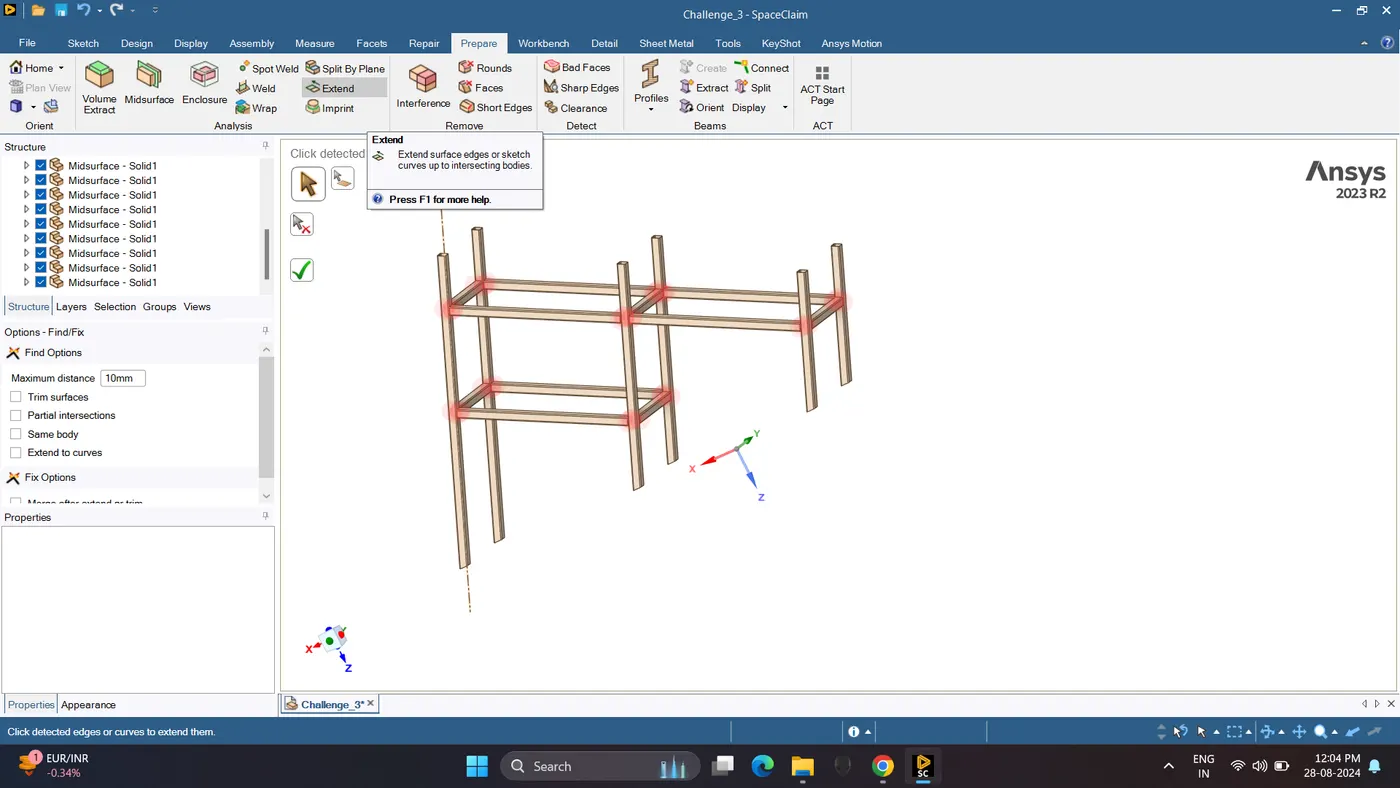
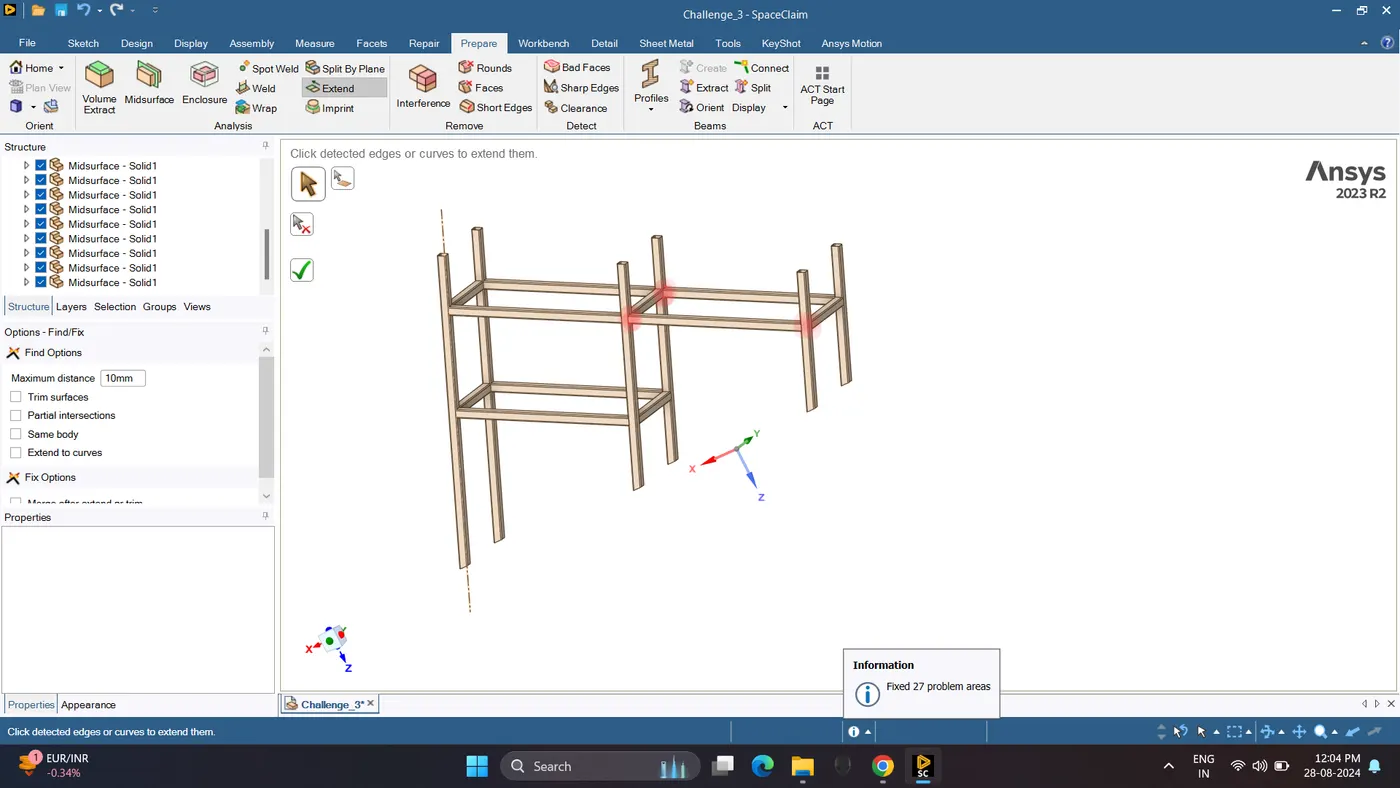
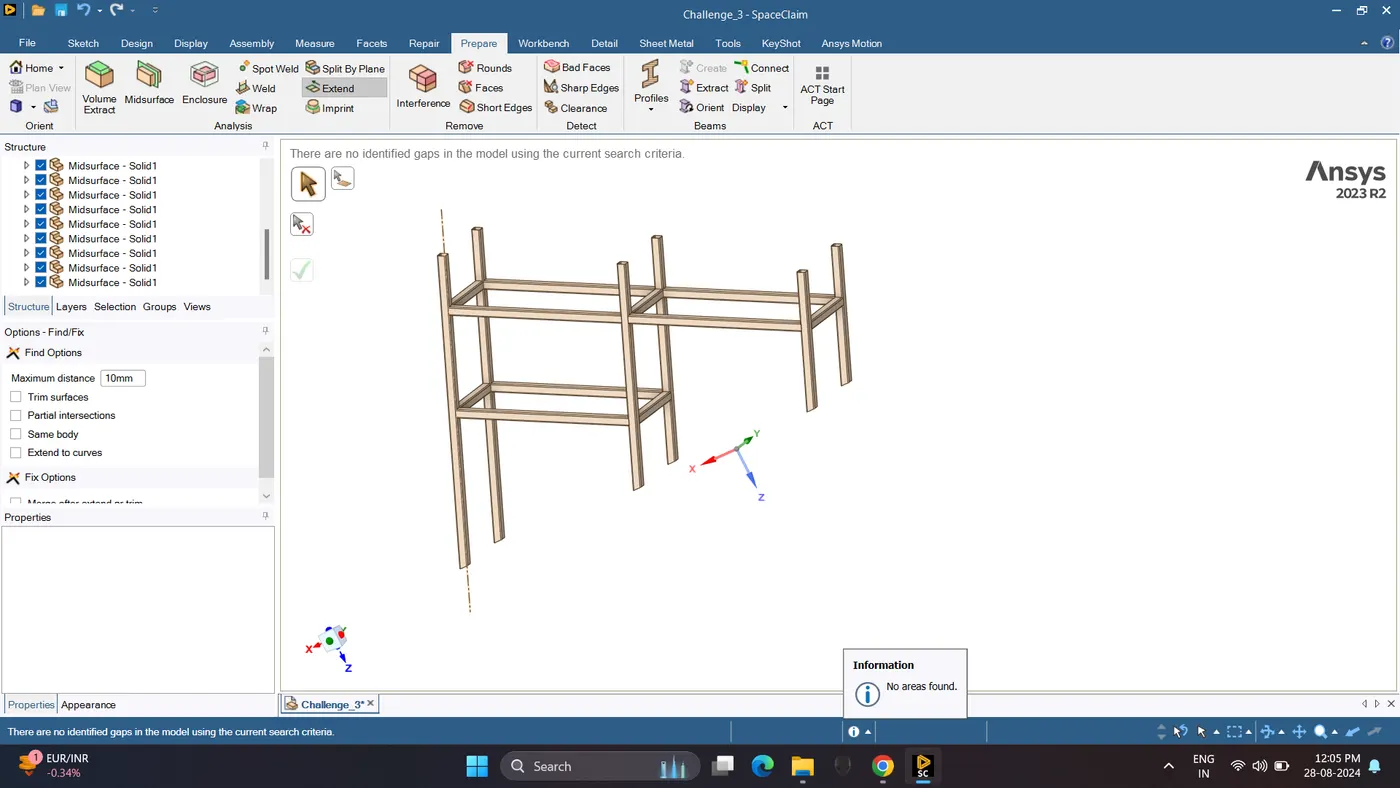
8. Check the Gap and Edges.
For gap checking go to Repair - Gaps.
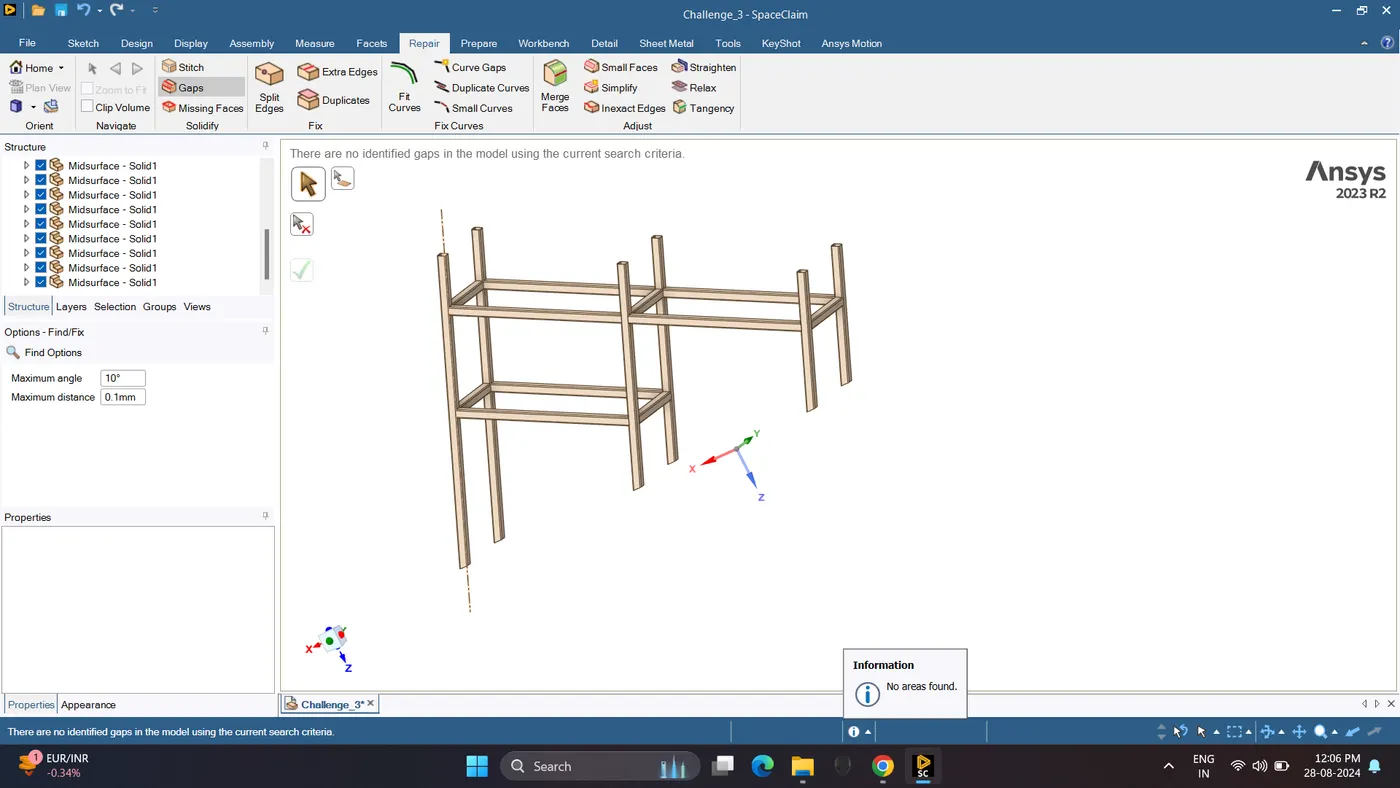
9. Check for the connection between two face. Go to Workbench - Share.
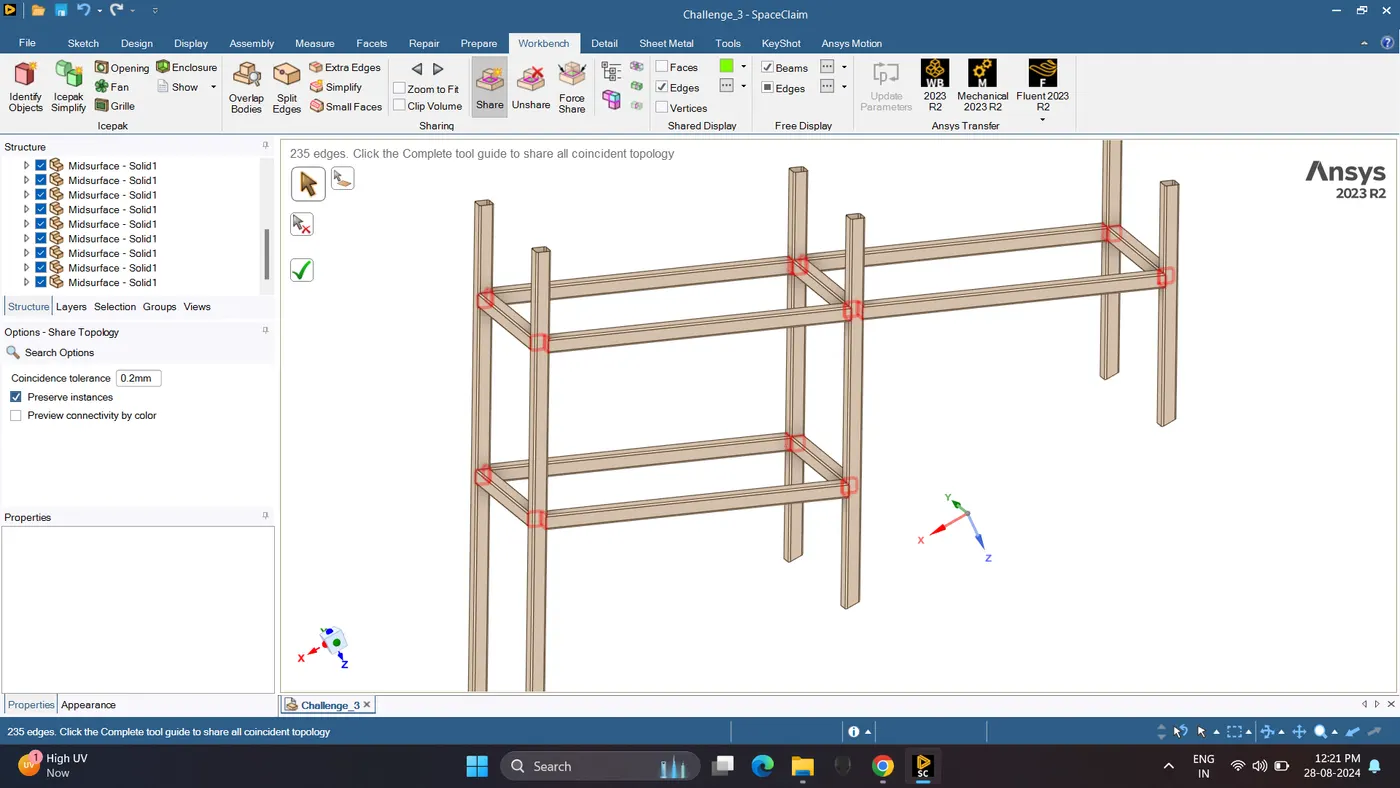
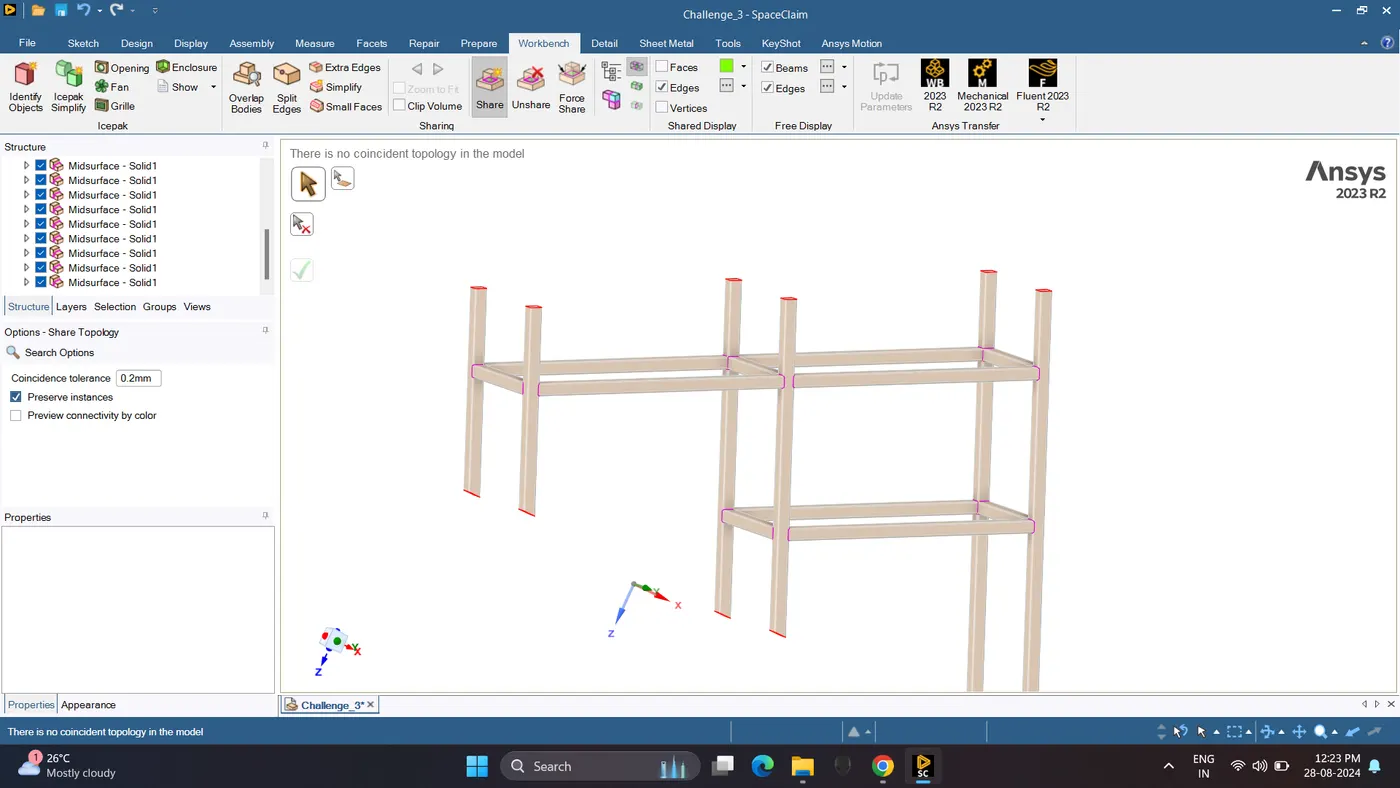
10. Check for the free edges which are shown in Red.
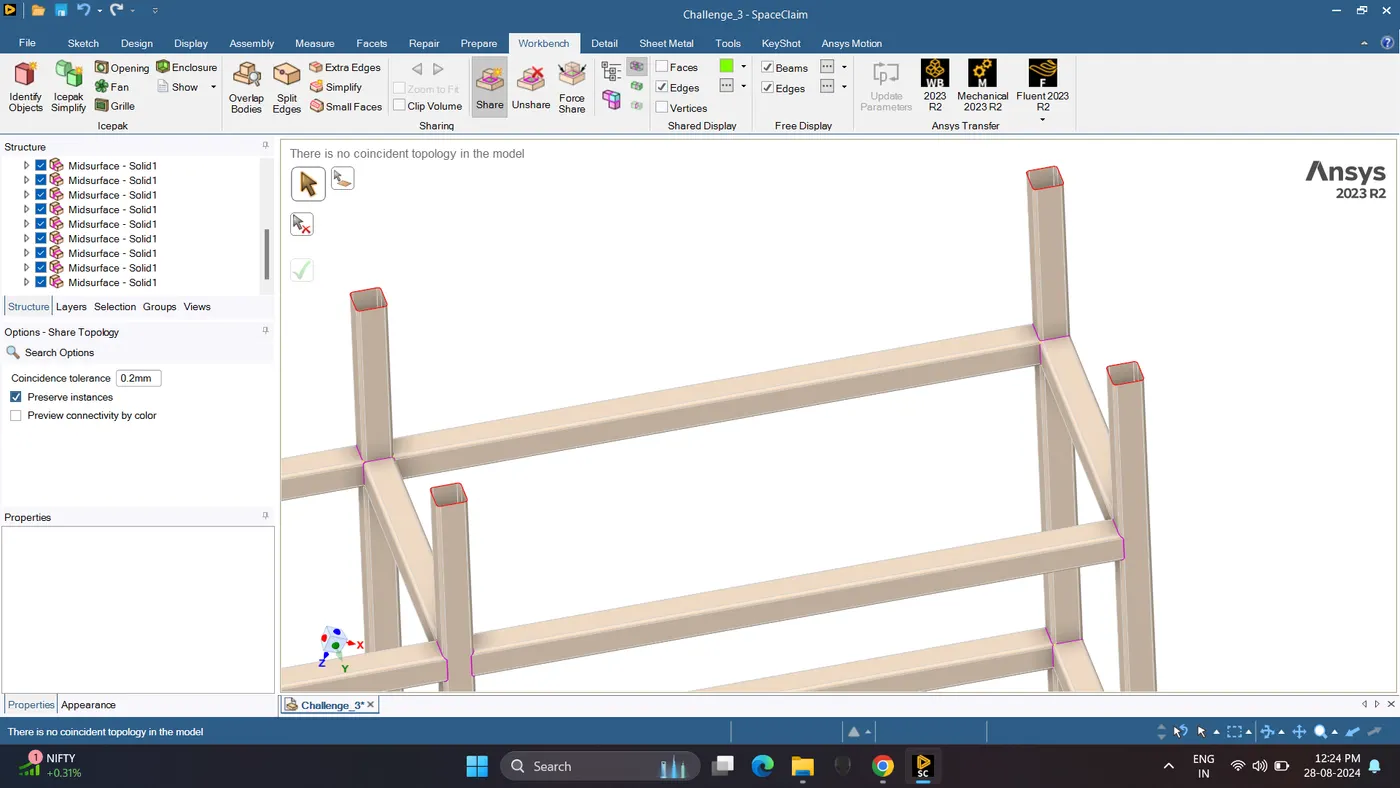
11. Model is Complete.
Case 2:
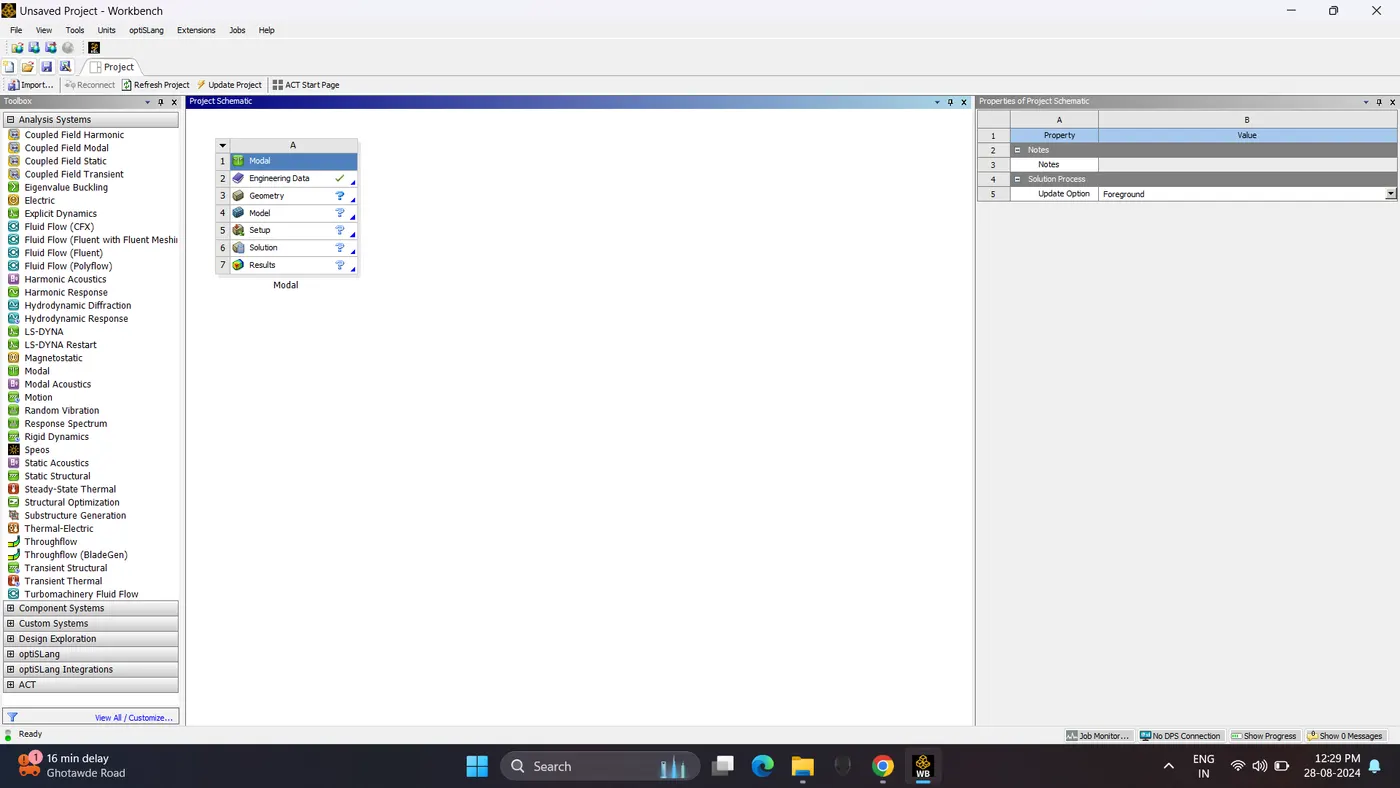
1. Open Ansys Workbench. In the Analysis system - Double click Modal.
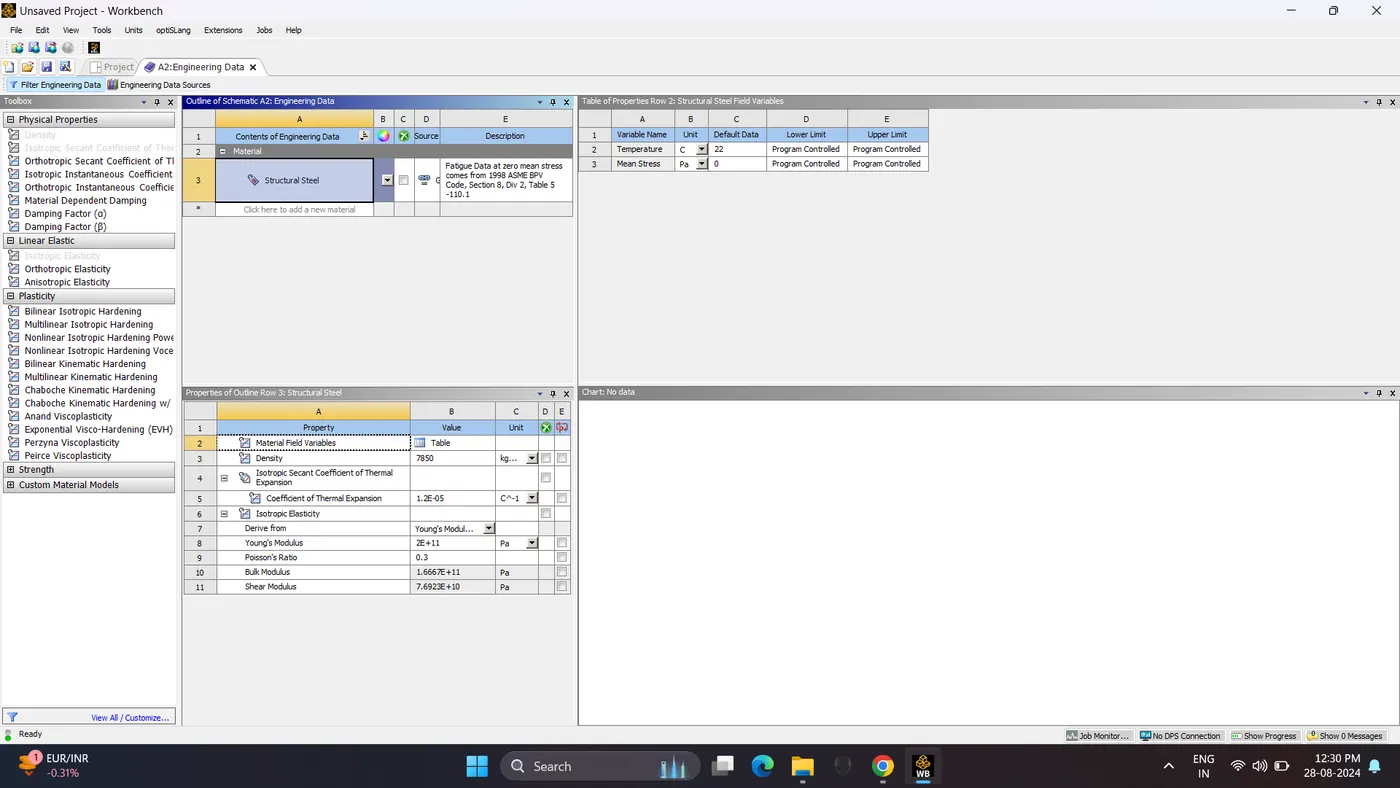
2. Edit the Engineering Data and Give Steel Material.
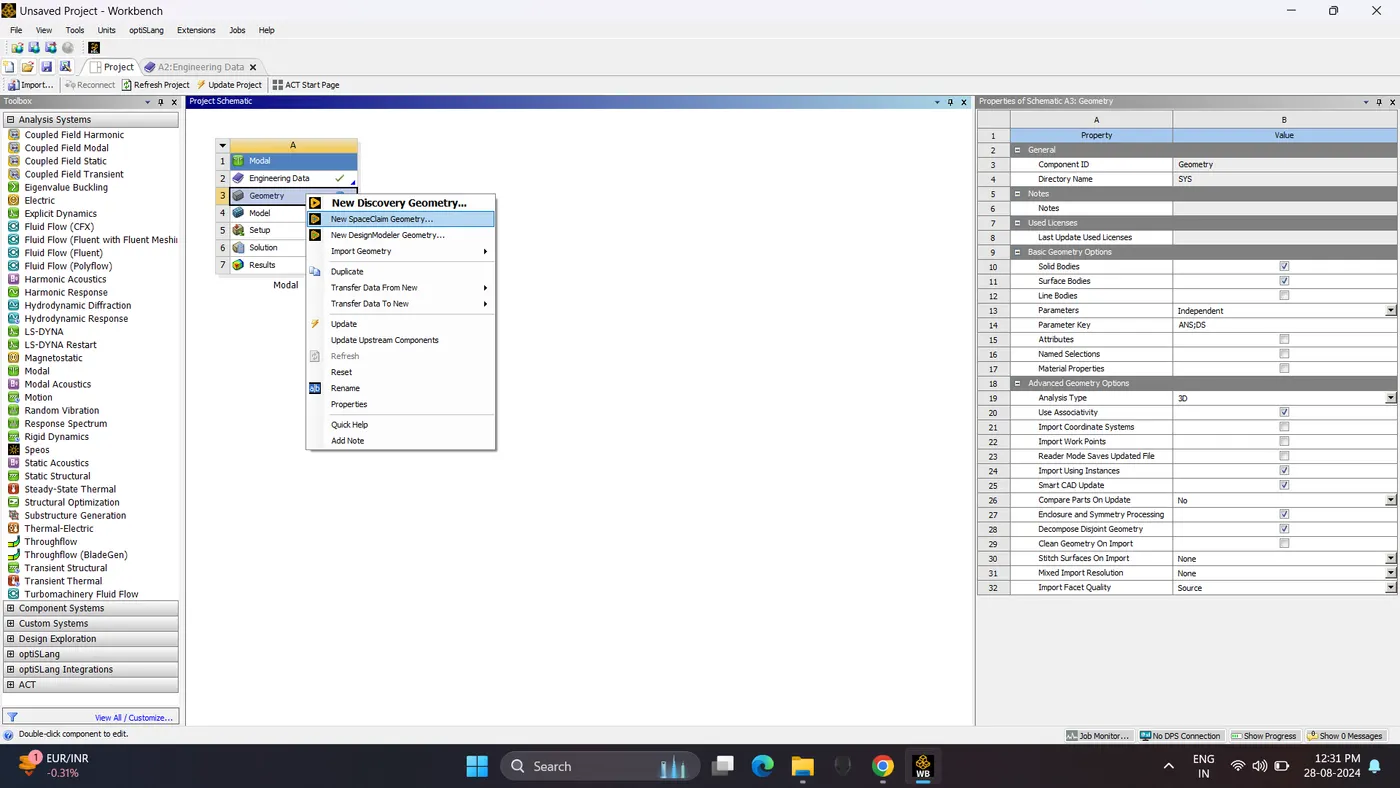
3. Go to Project - Right Click Geometry - New SpaceClaim Geometry.
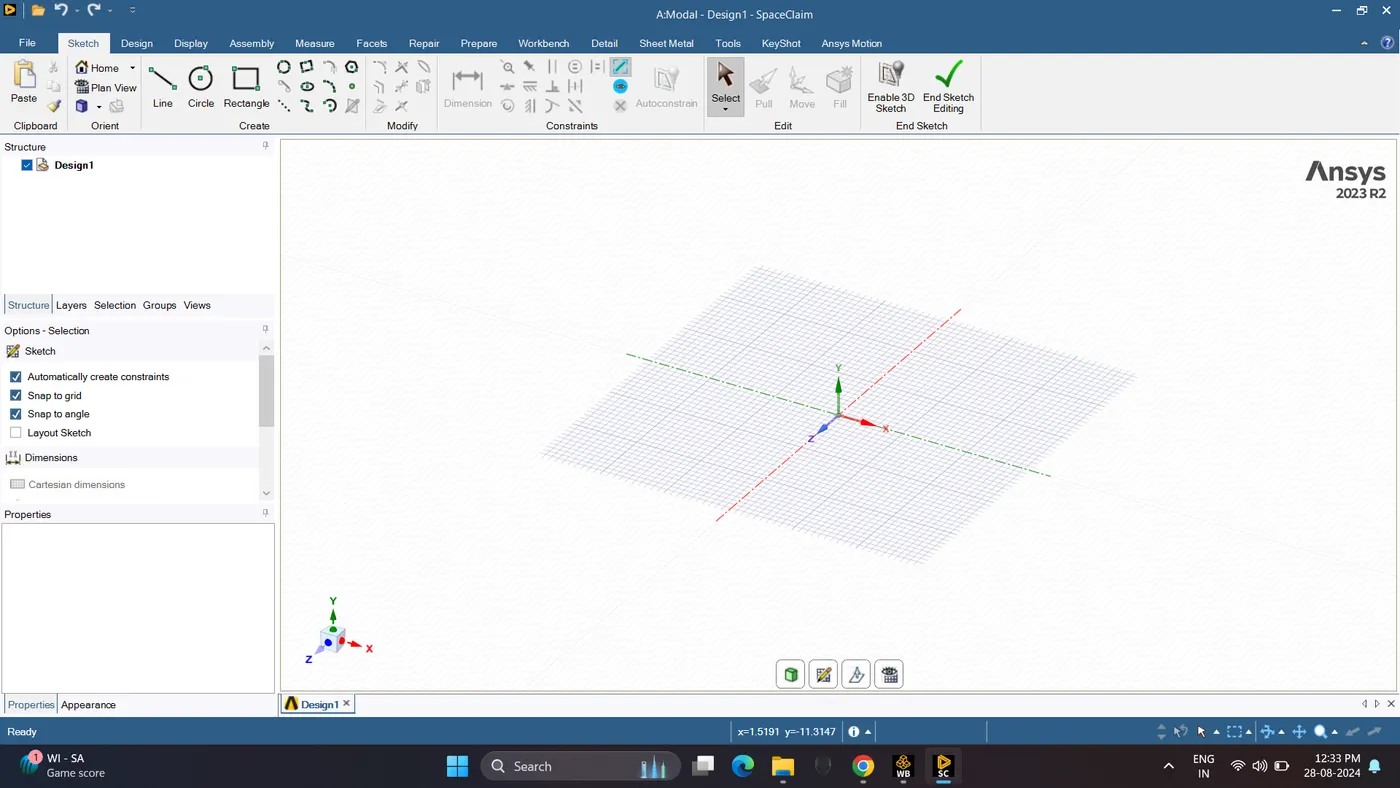
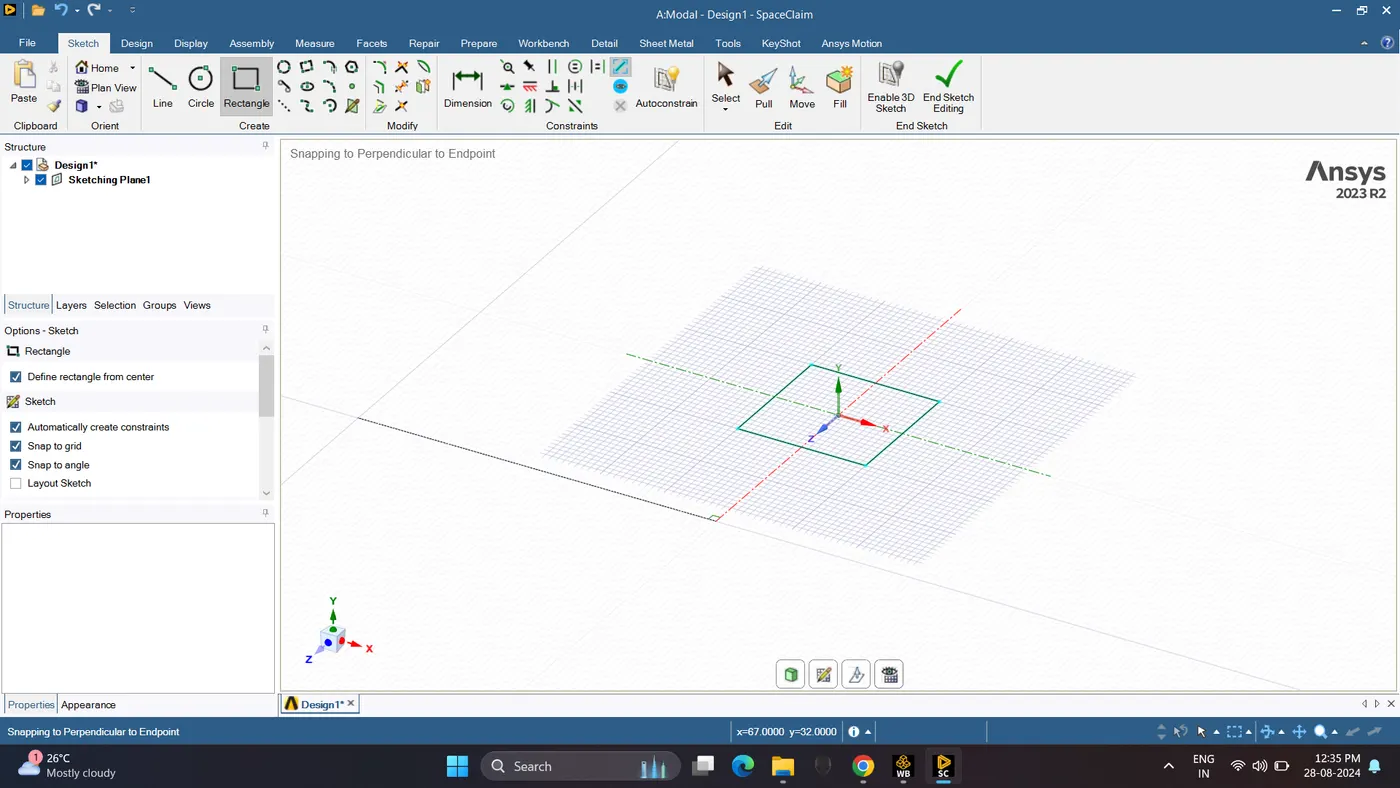
4. Create a Rectangle of 20 x 20. Go to Sketch - Rectangle.
while Creating a rectangle in sketch option turn on define rectangular from centre.
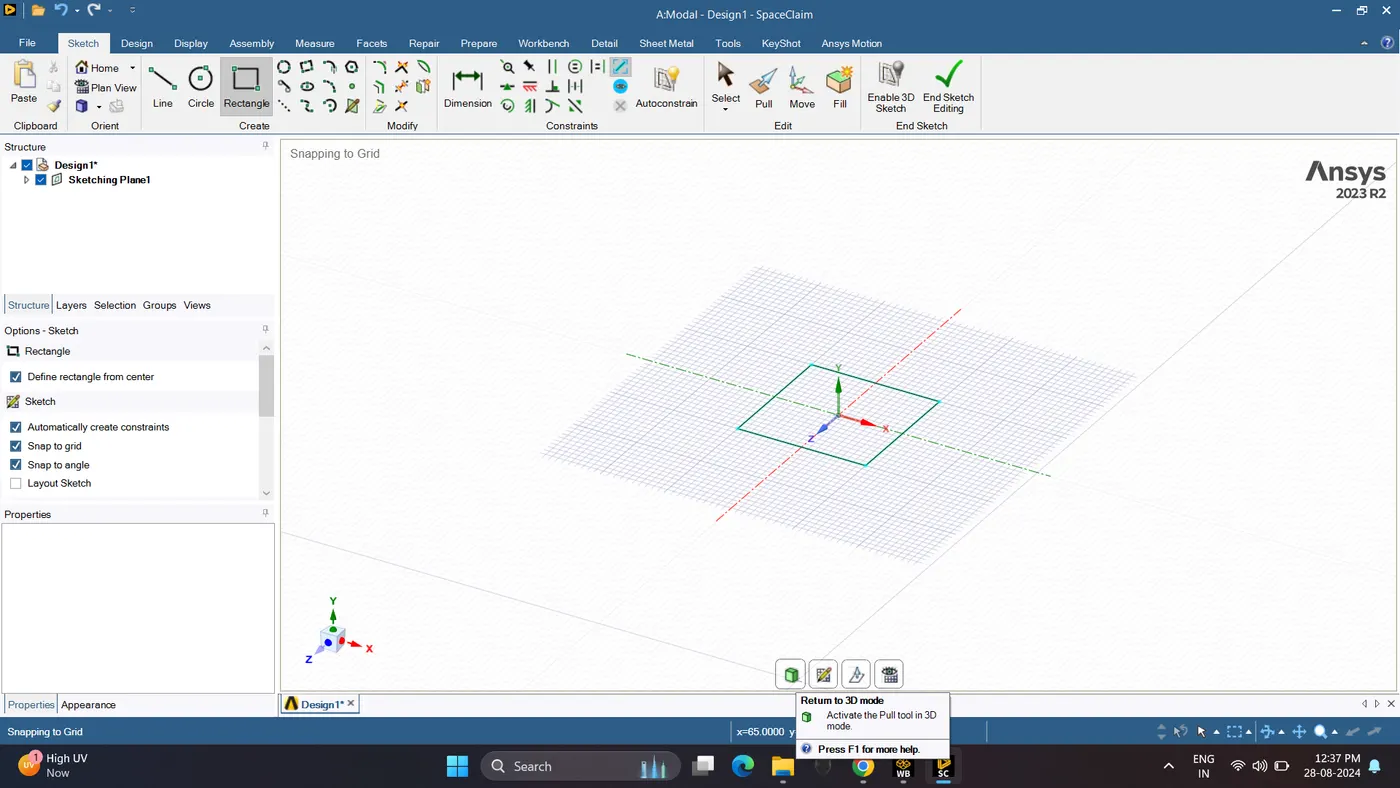
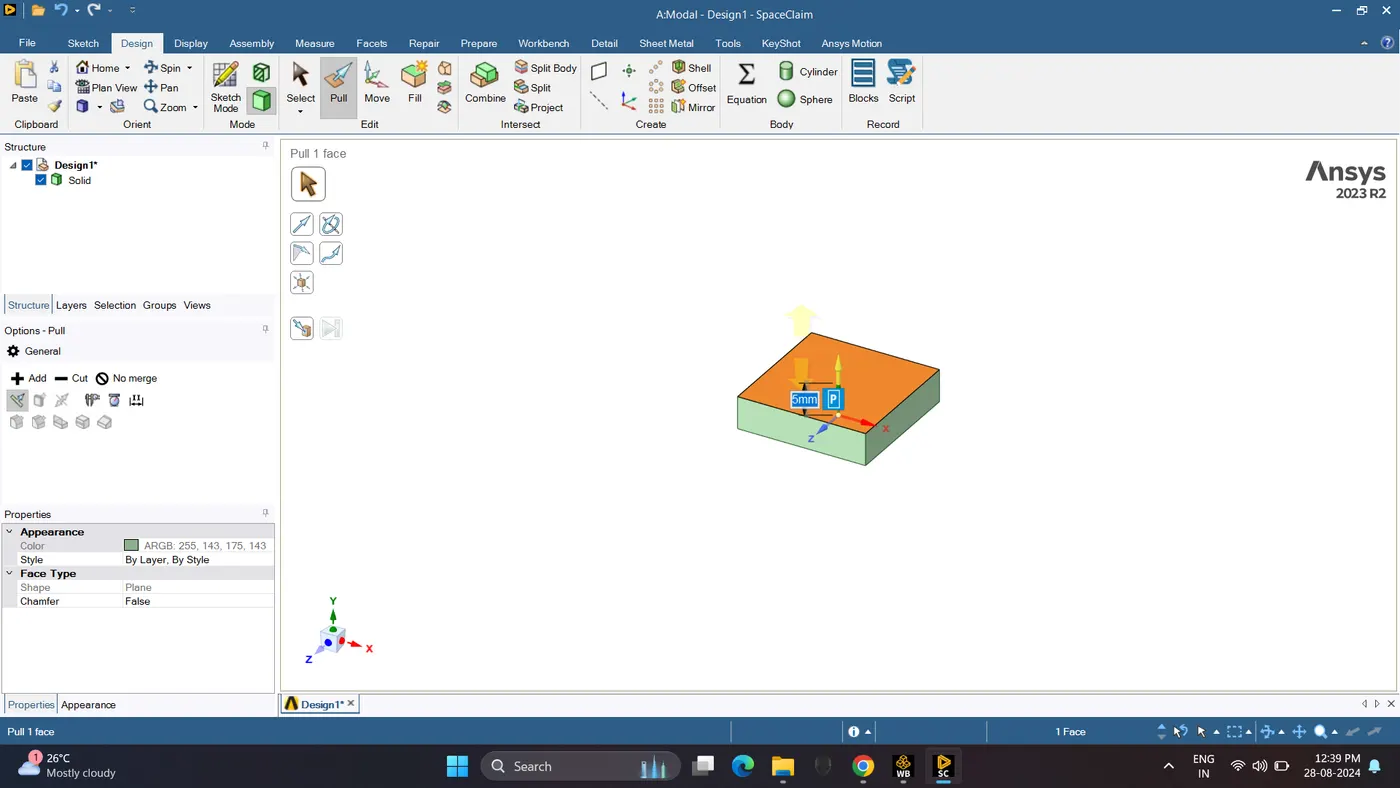
5. Go to the 3D Mode. Create a box using pull by giving thickness 5 mm.
Go to Design - Pull
6. Go to the sketch Mode. By selecting bottom face.
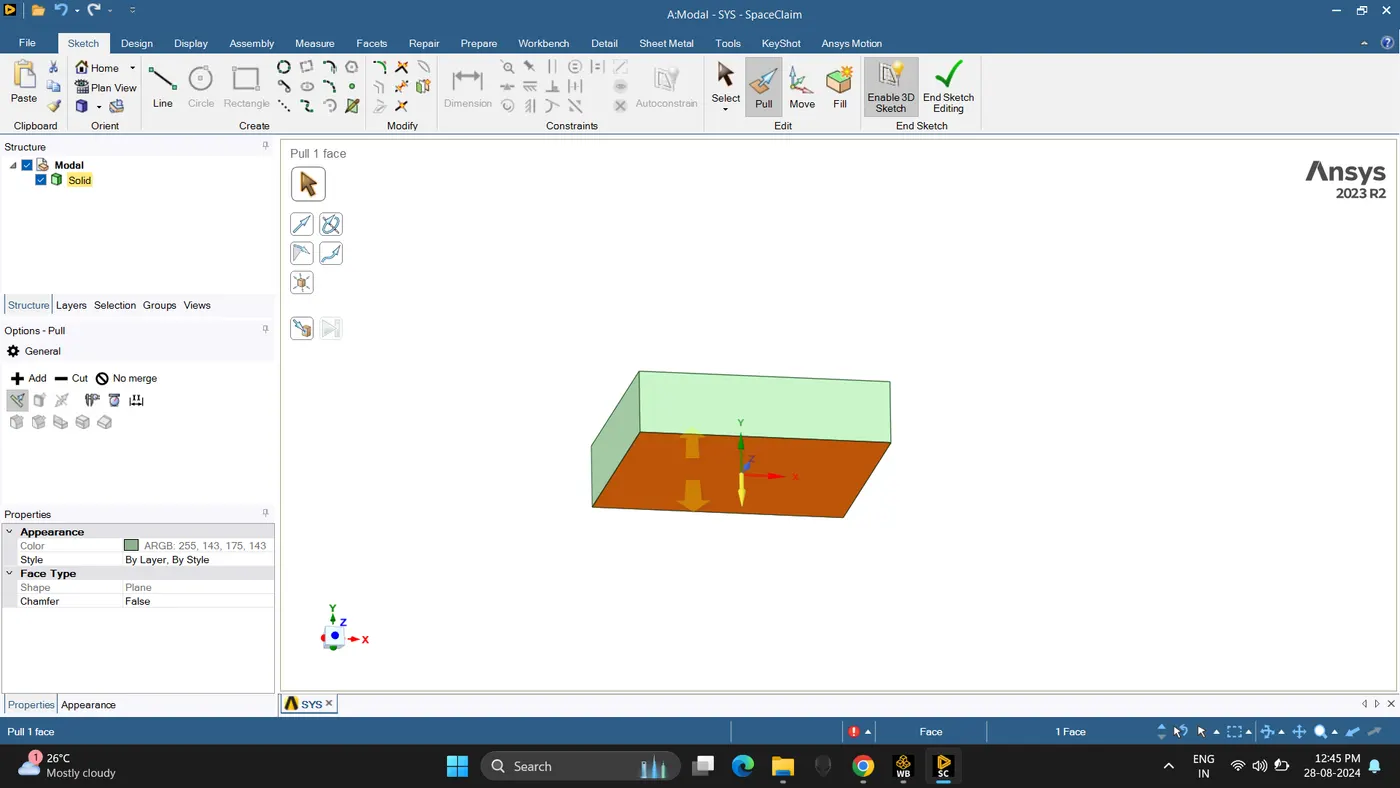
7. Create a 40 x 40 rectangle.
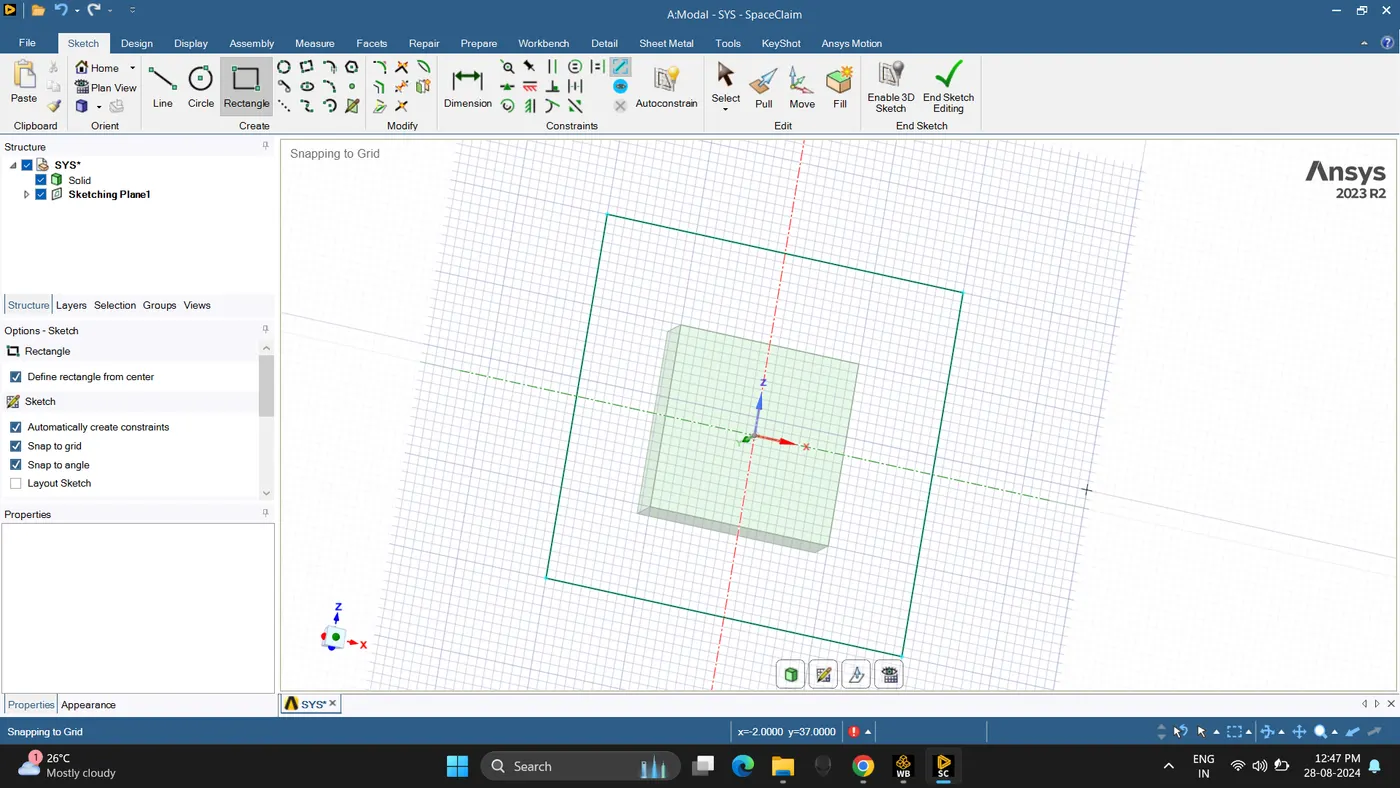
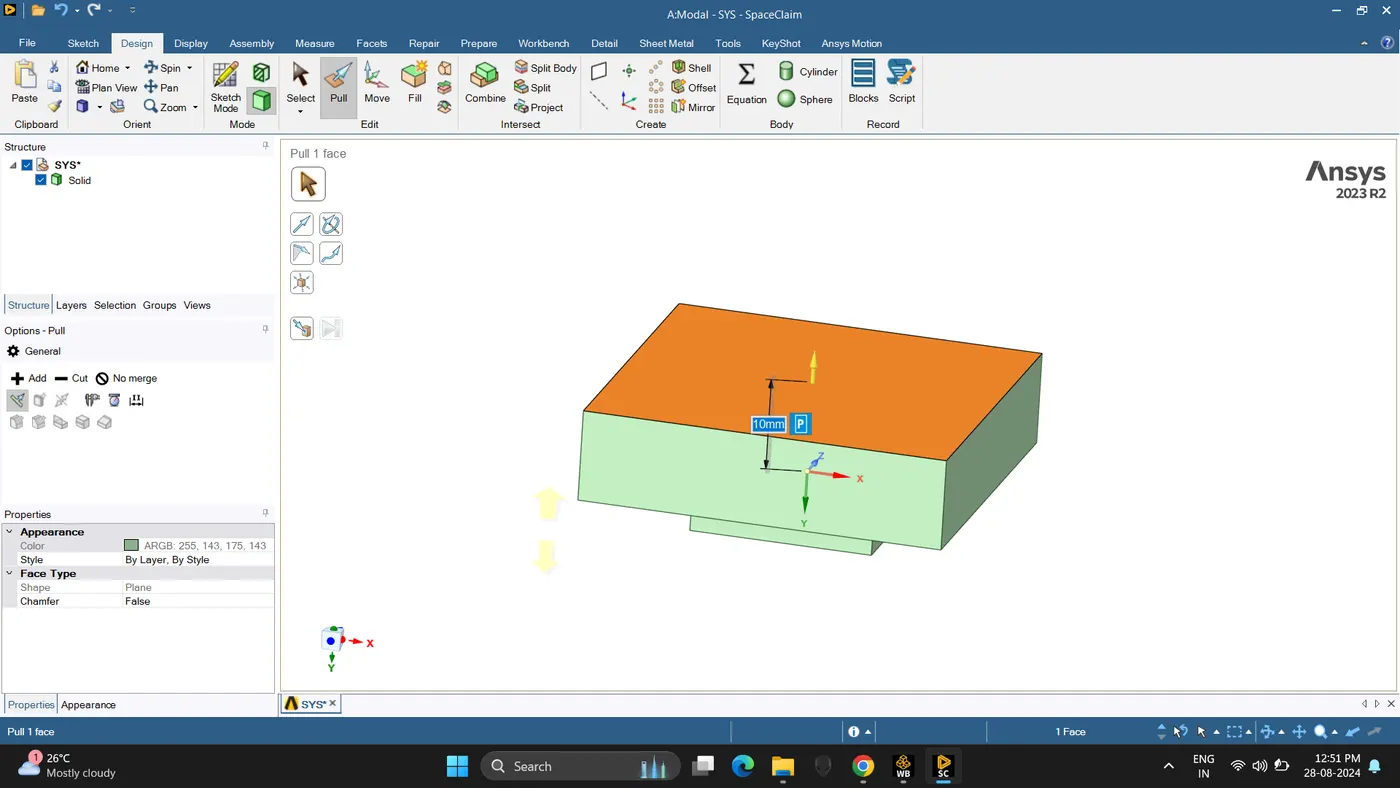
8. Create a box of 10 mm thickness. Go to Design - Pull.
9. Split the Body. Go to Design - Split -Body.
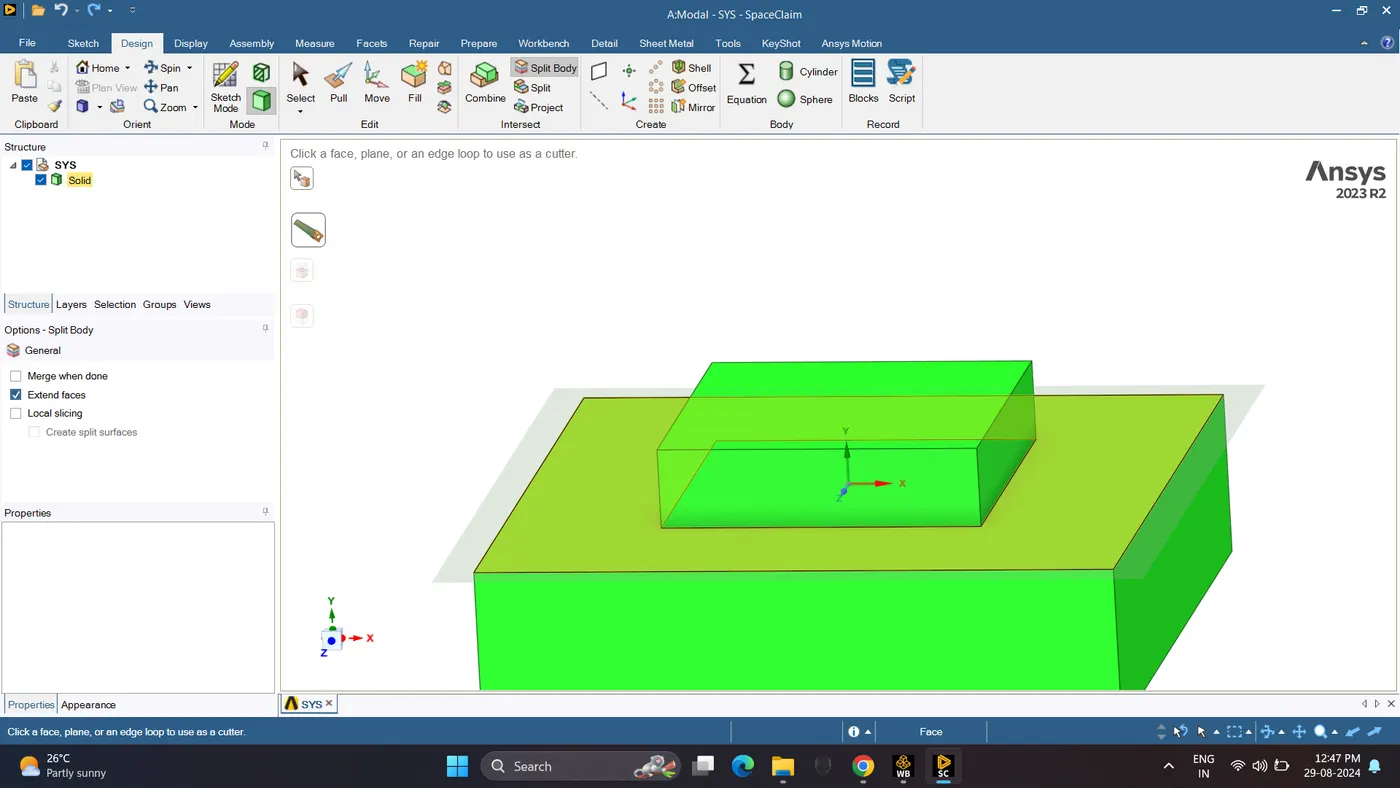
10. Make a share topology of two box. Go to Workbench - Share.
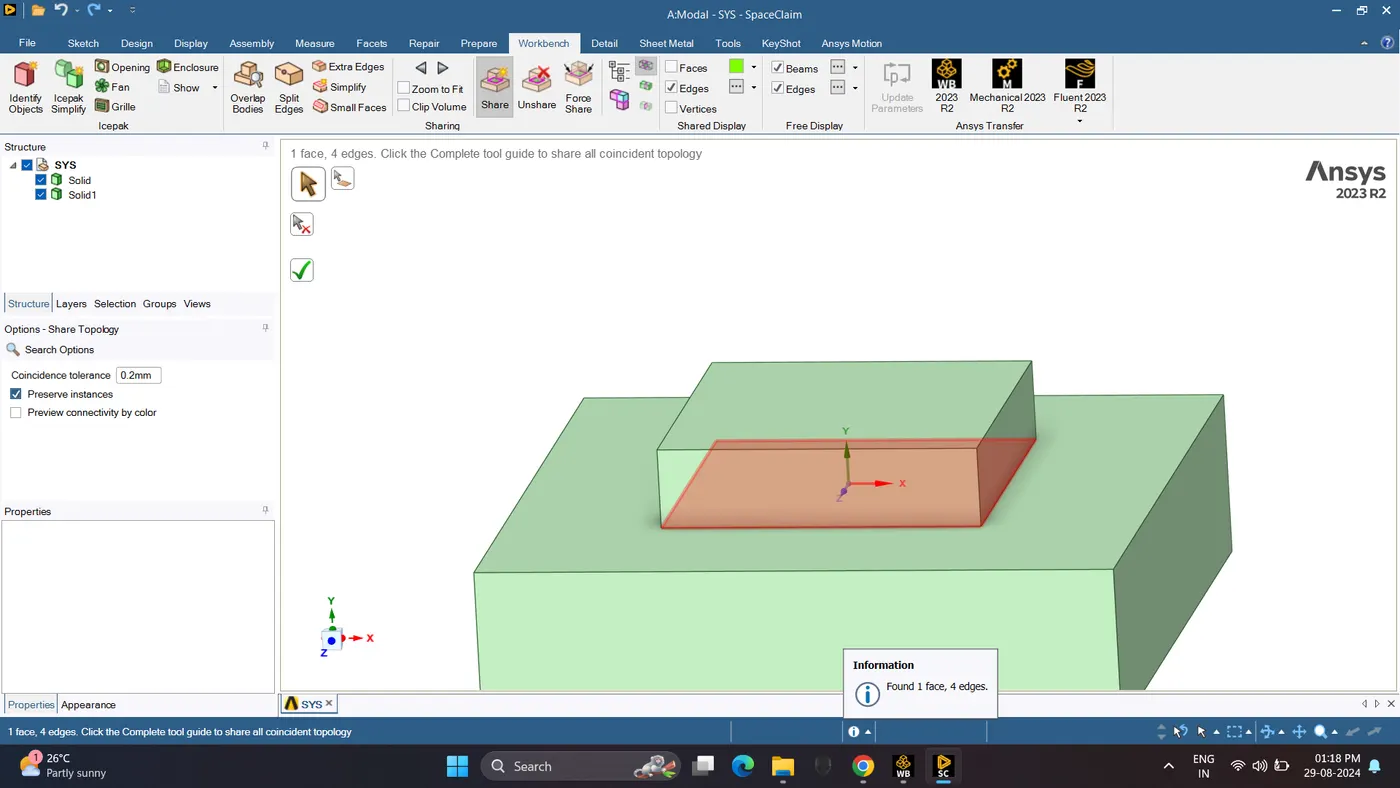
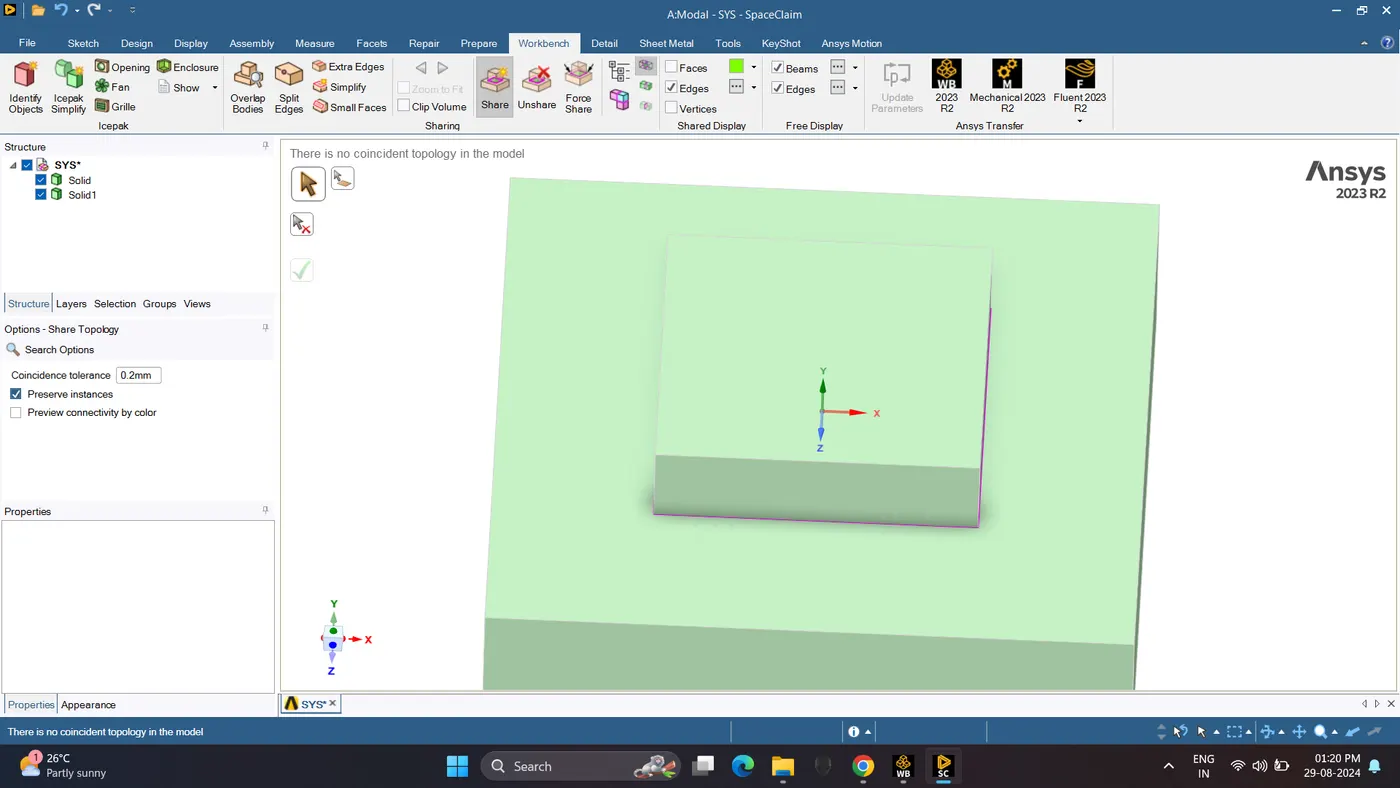
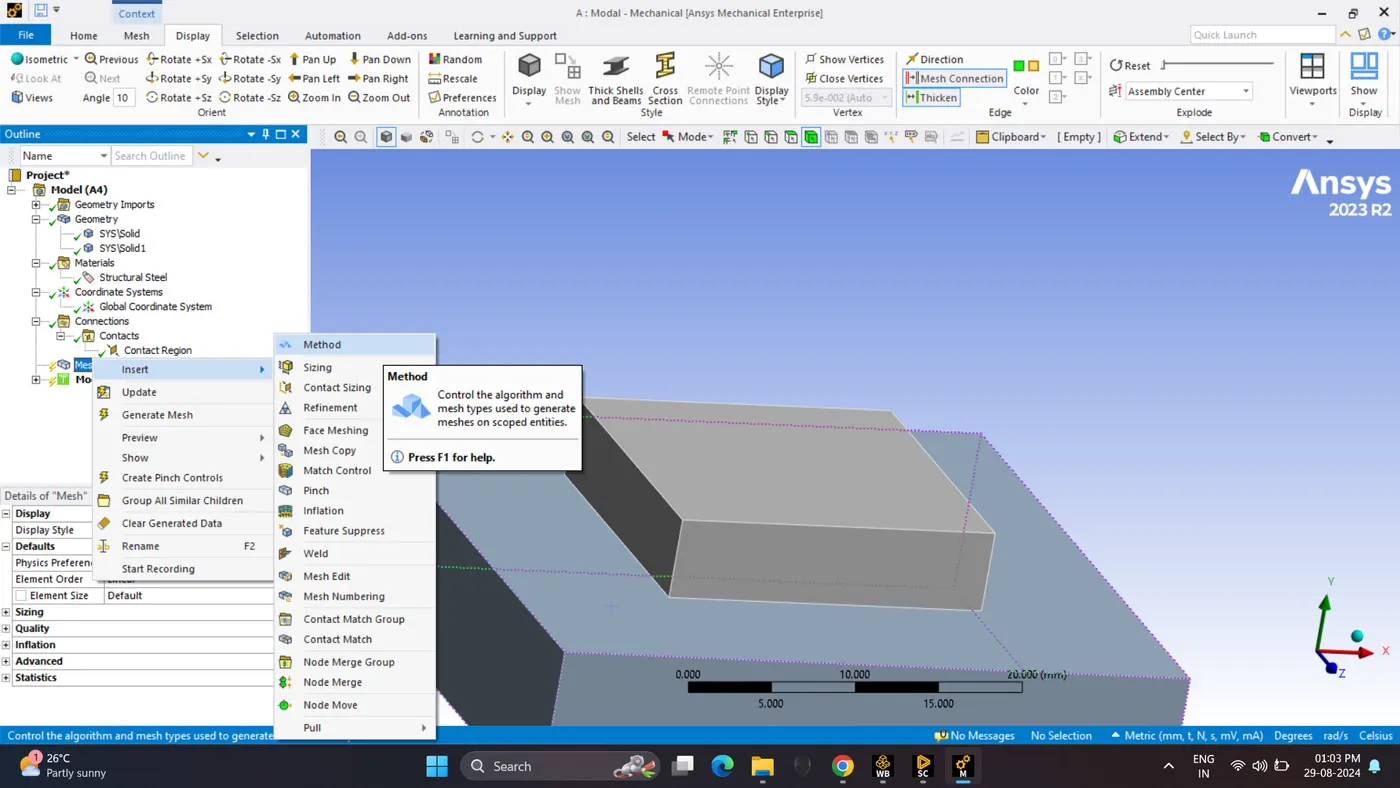
10. Update the geometry in workbench and open Mechnical in Mesh create Sizing and Method.
Give Elemental type and Method.
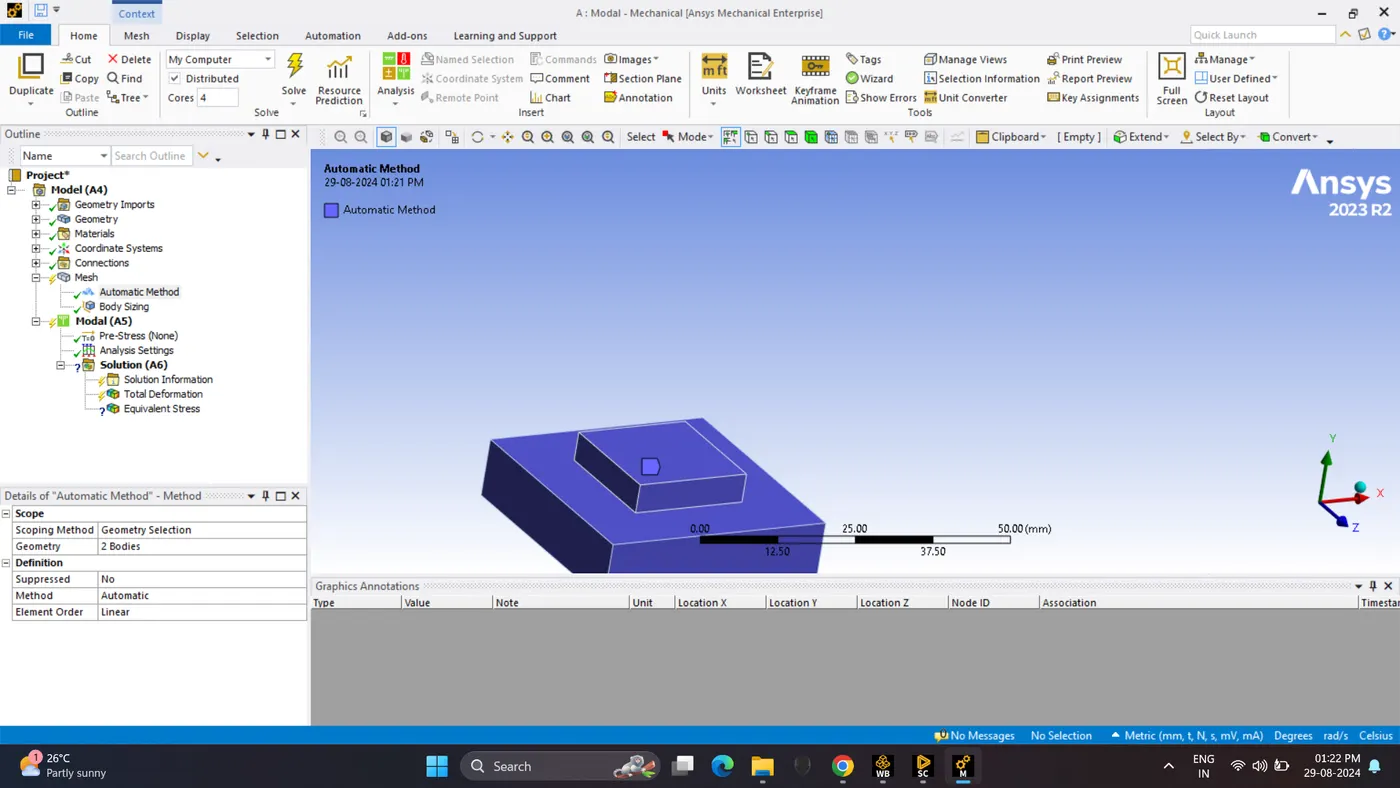
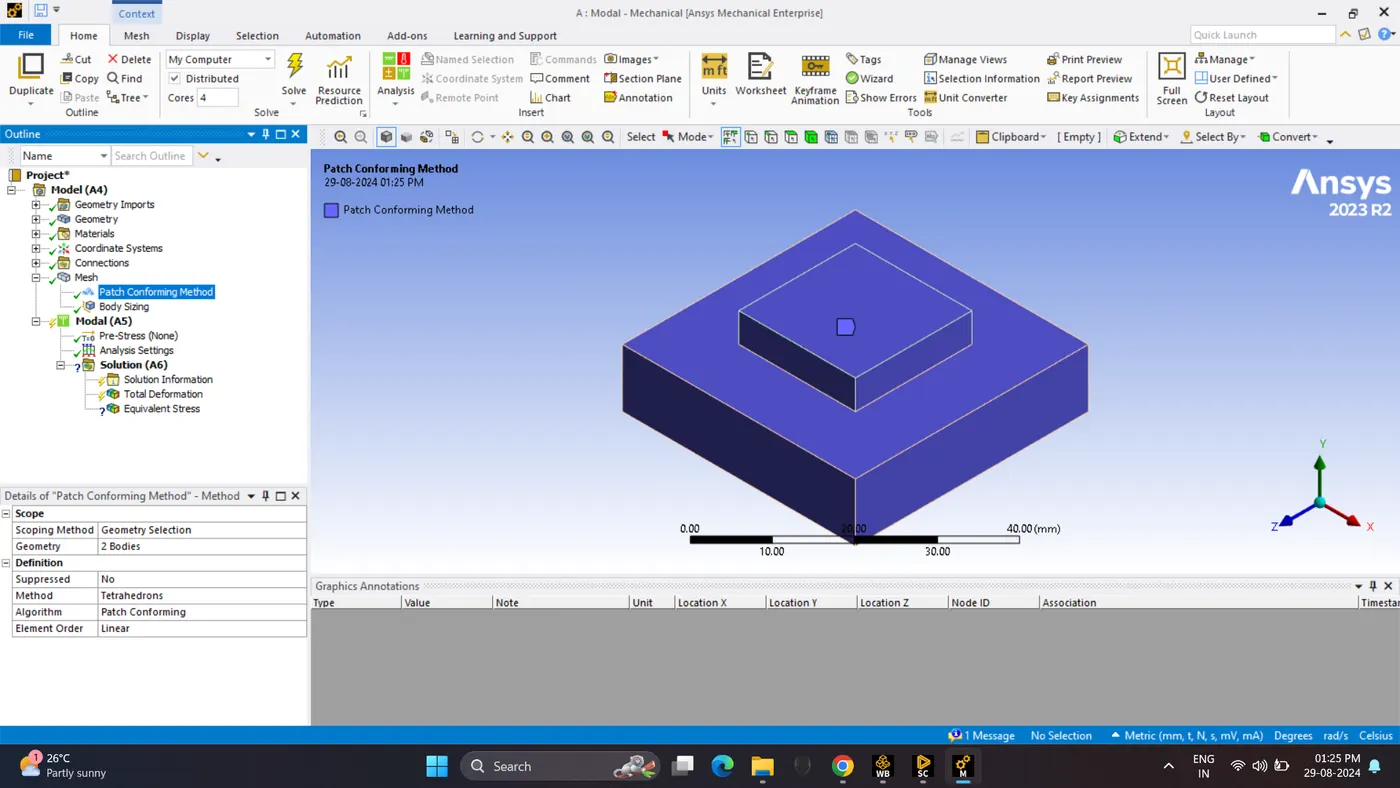
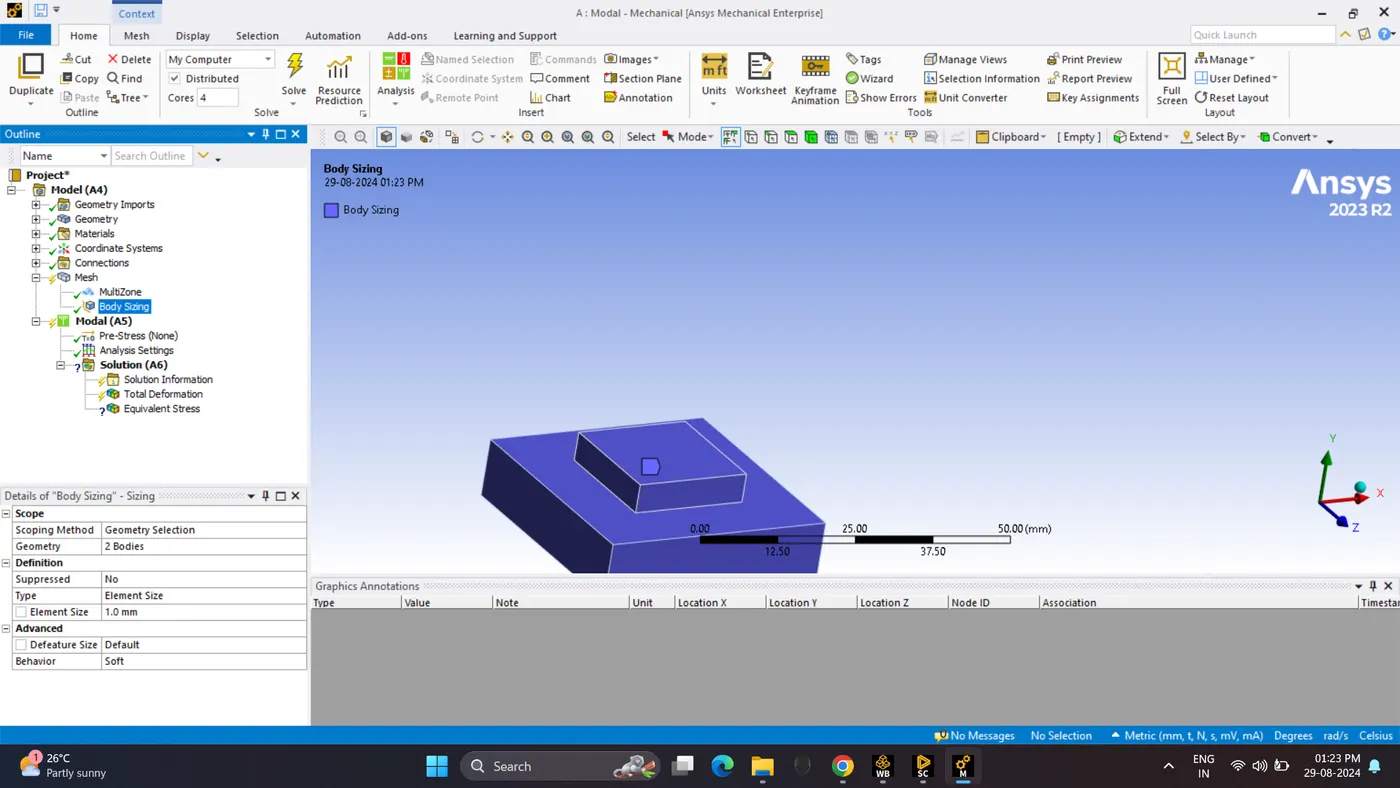
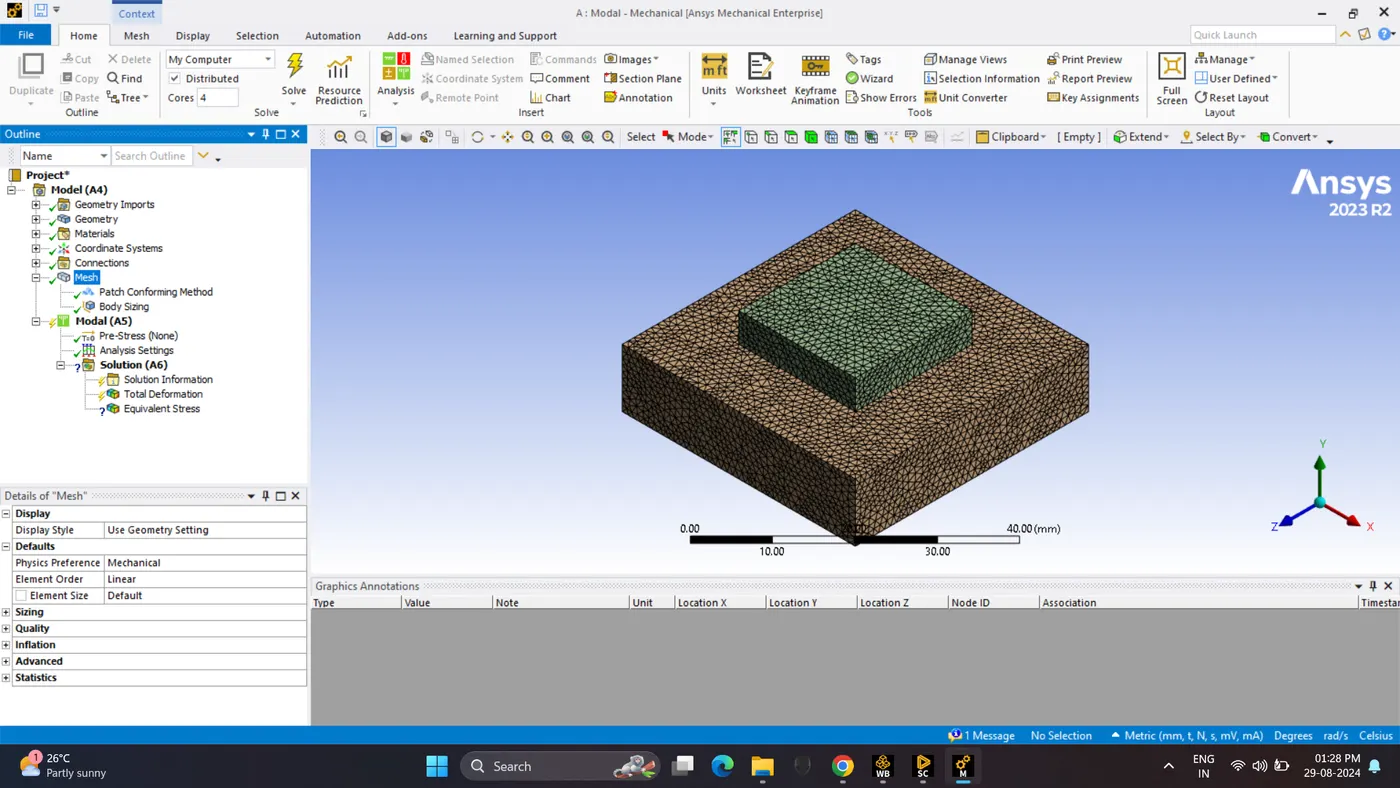
11. Generate the mesh.
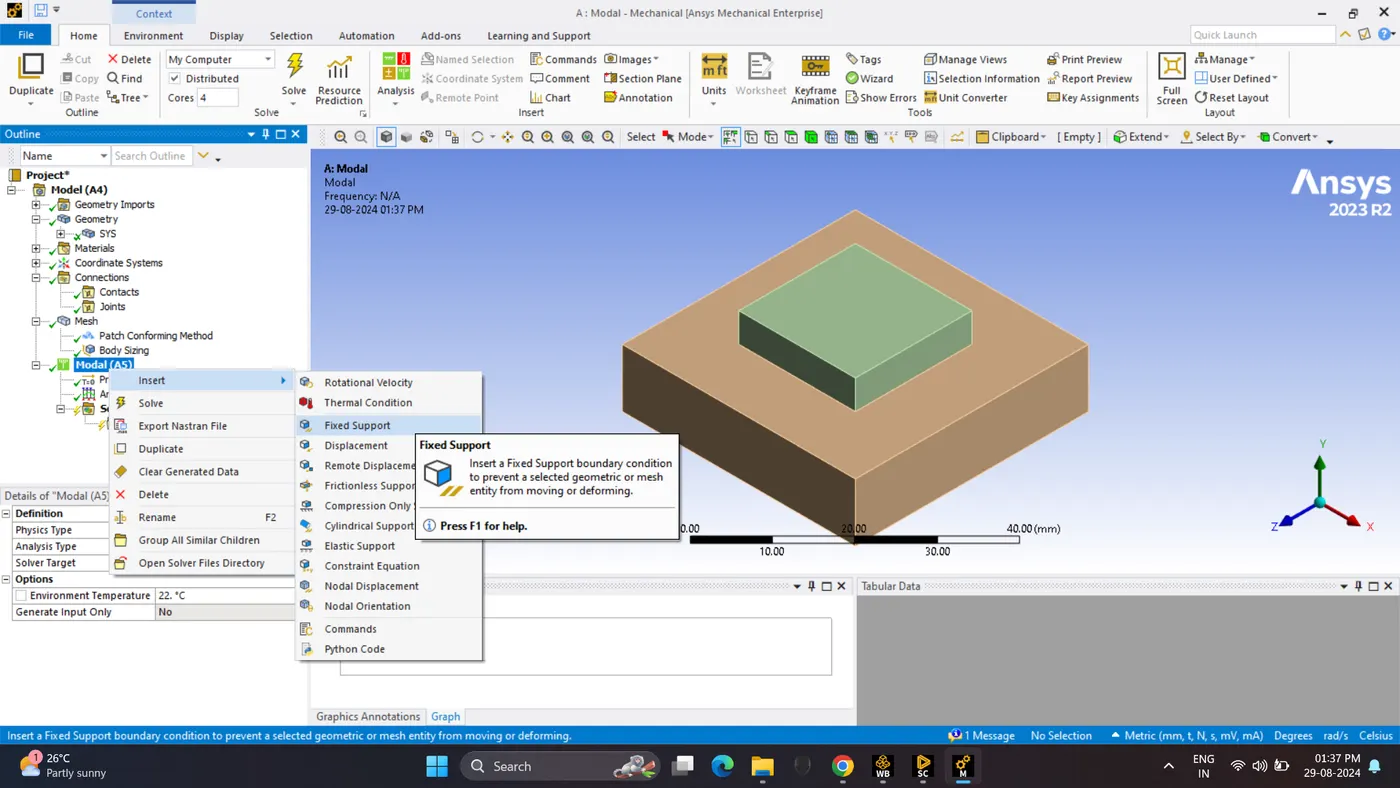
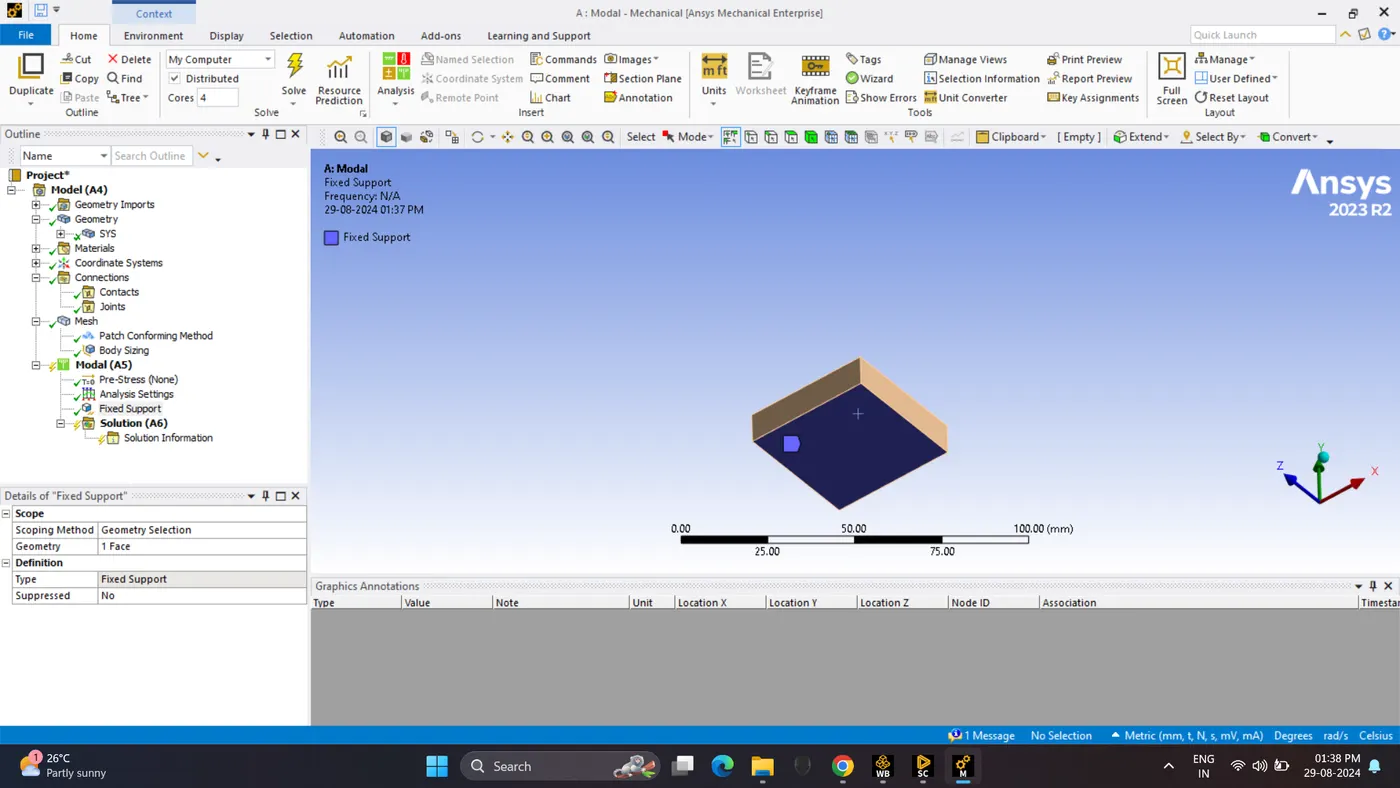
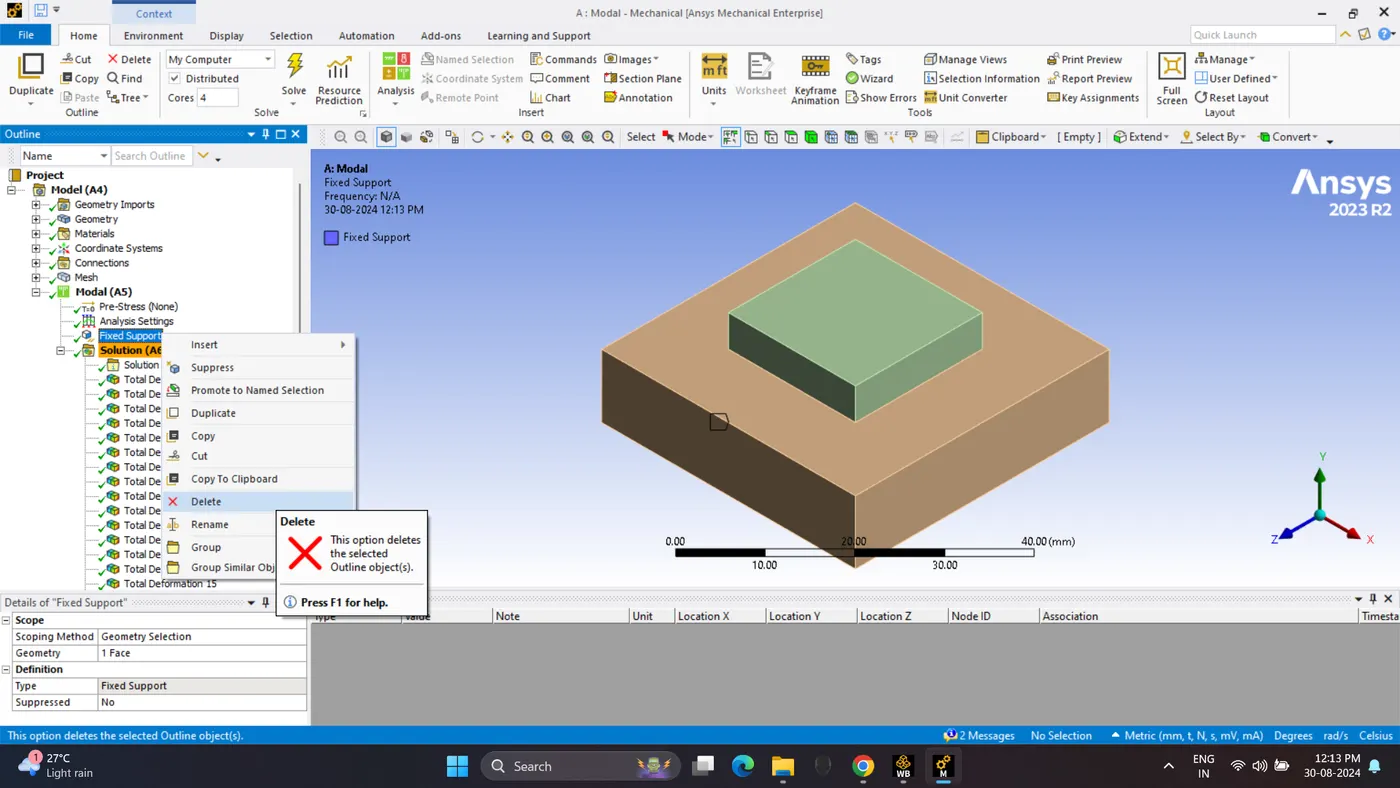
12. Give fixed support in Bottom face.
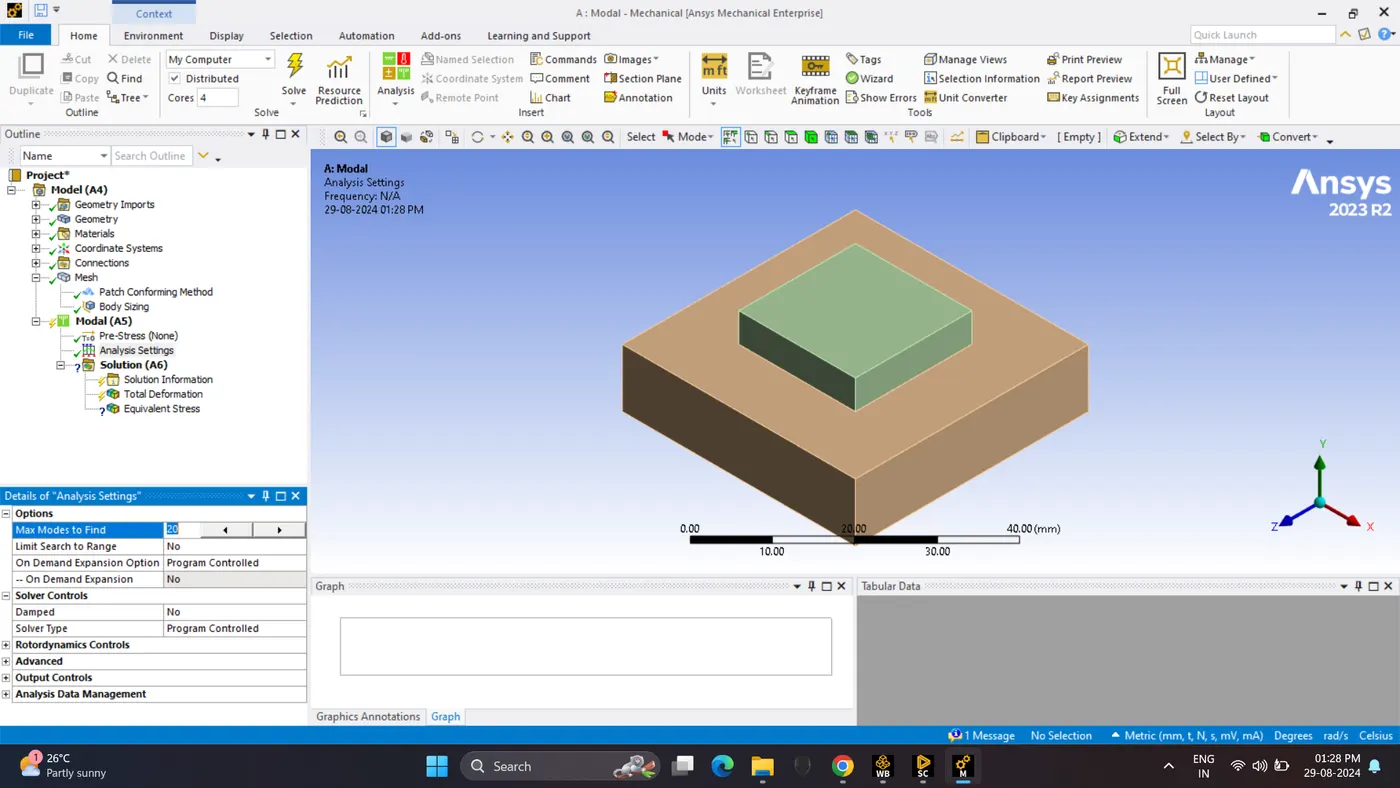
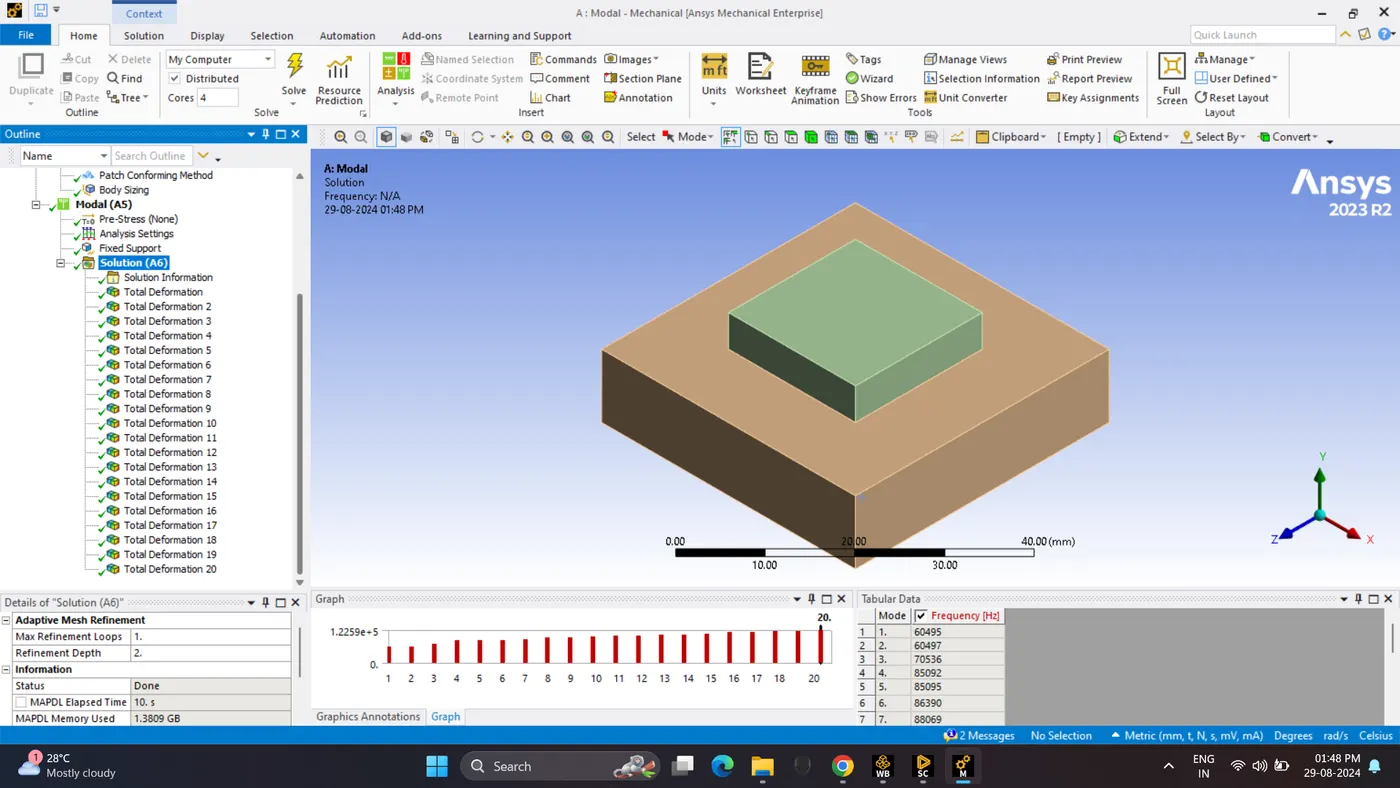
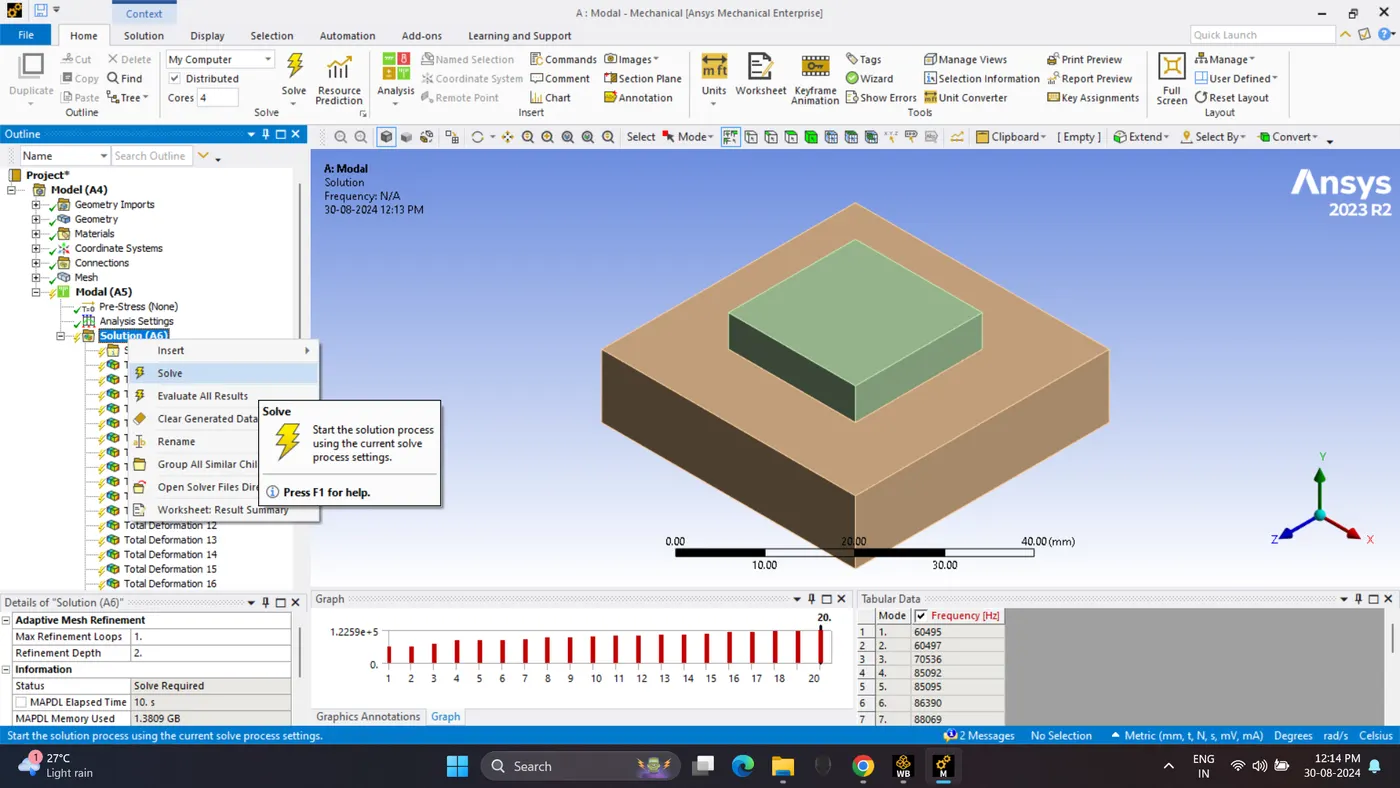
13. In the Model Analysis setting change modes to 20 and solve the solution.
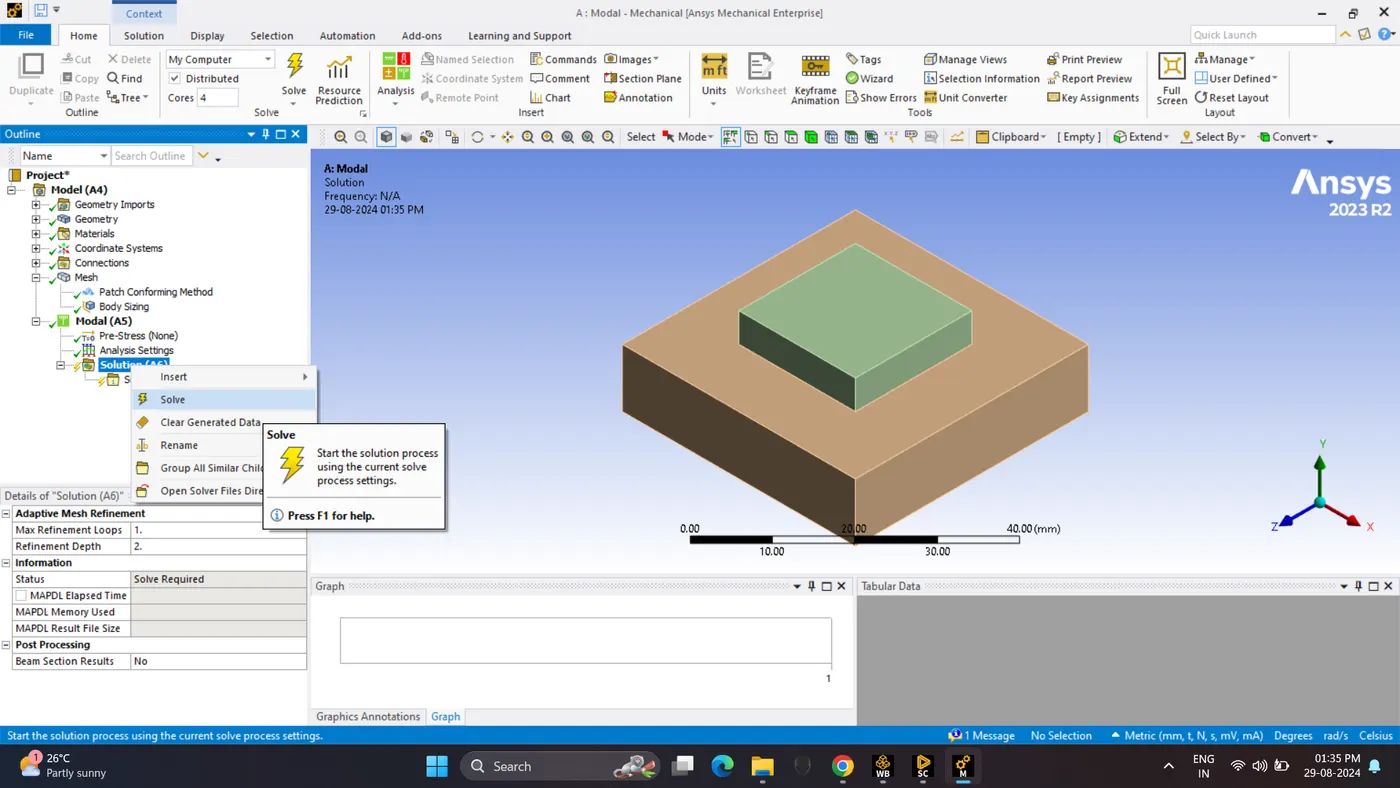
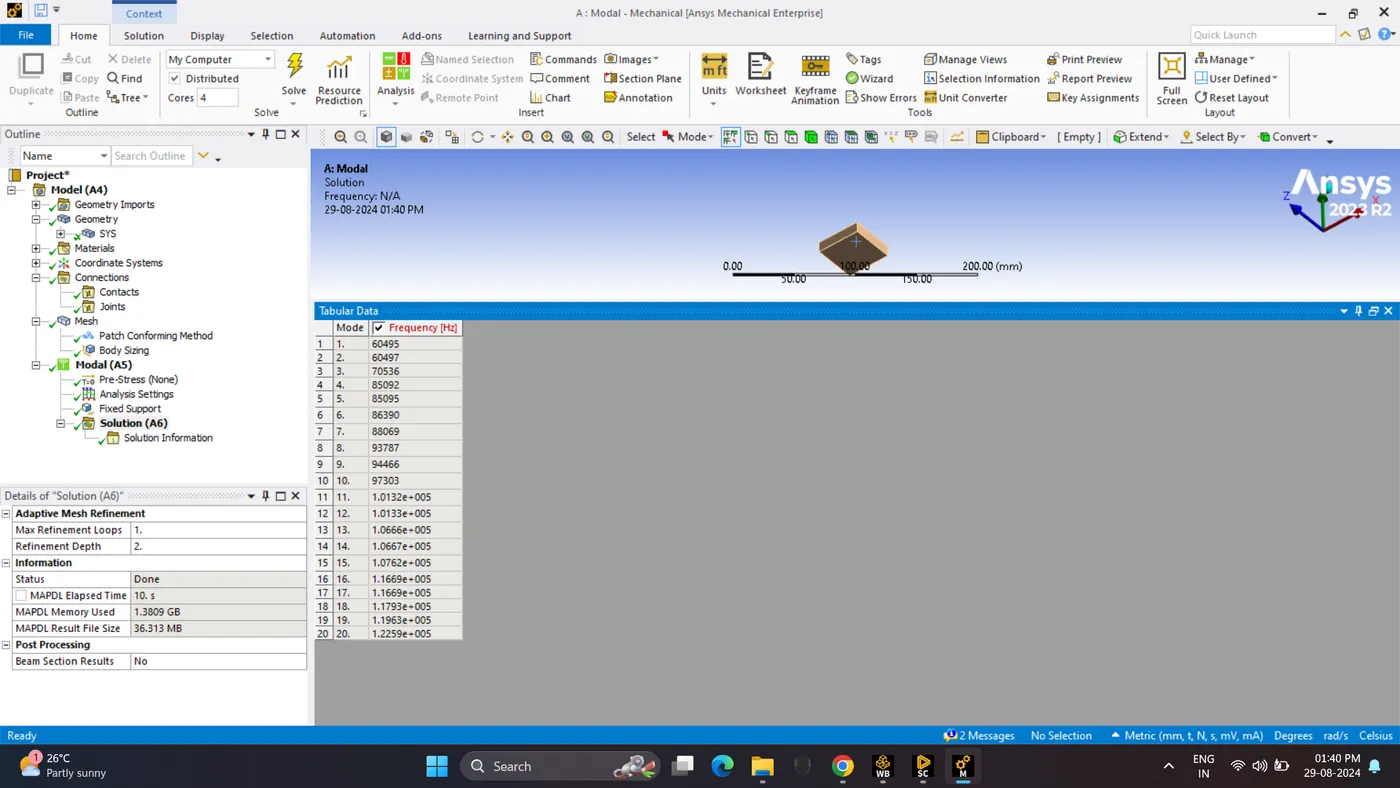
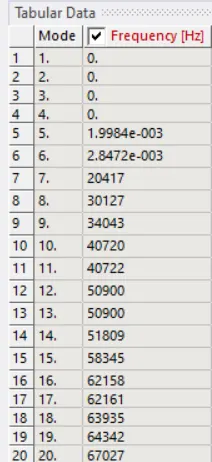
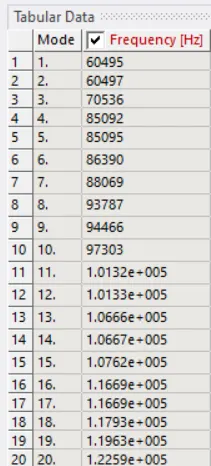
14. Model is Solved it is given the frequencies.
15. In solution request the deformation for all the modes and solve it.
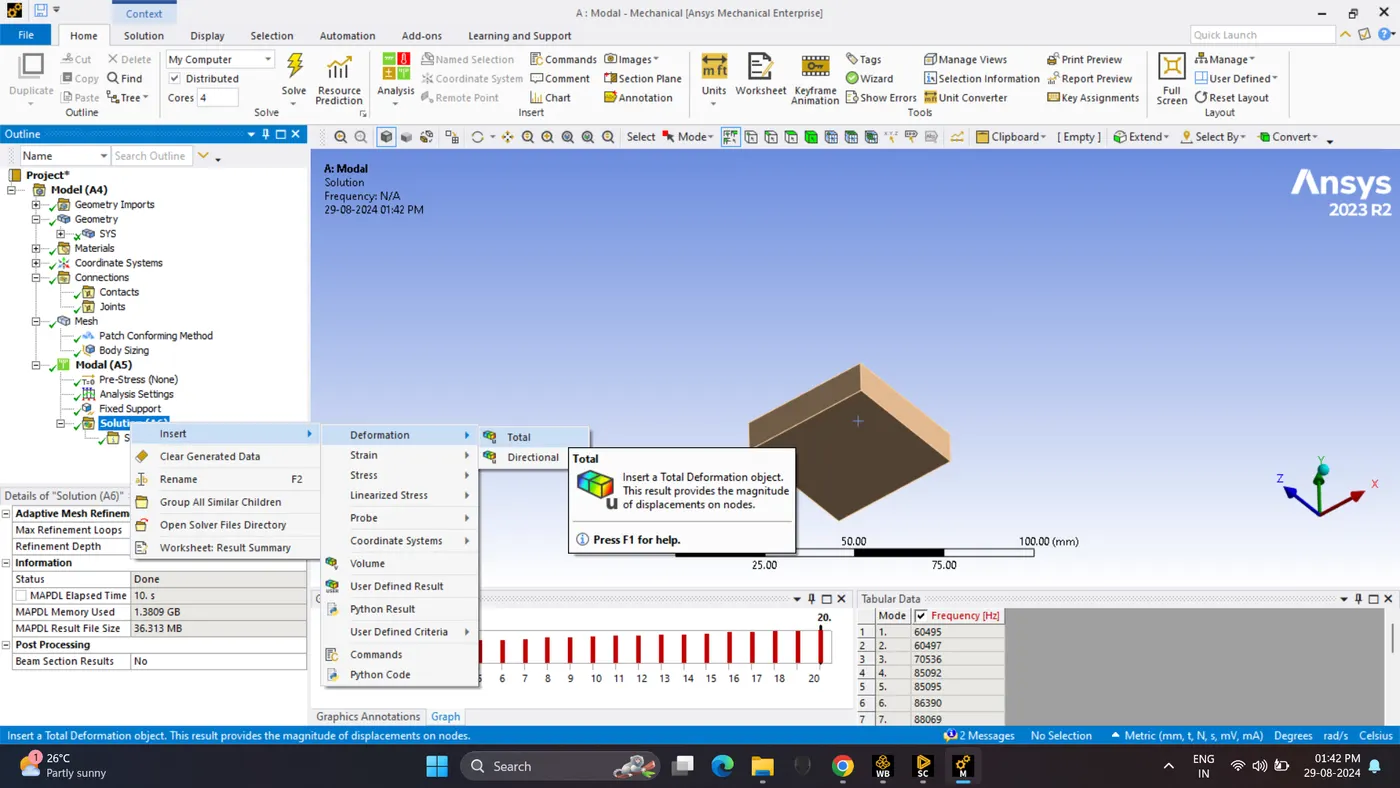
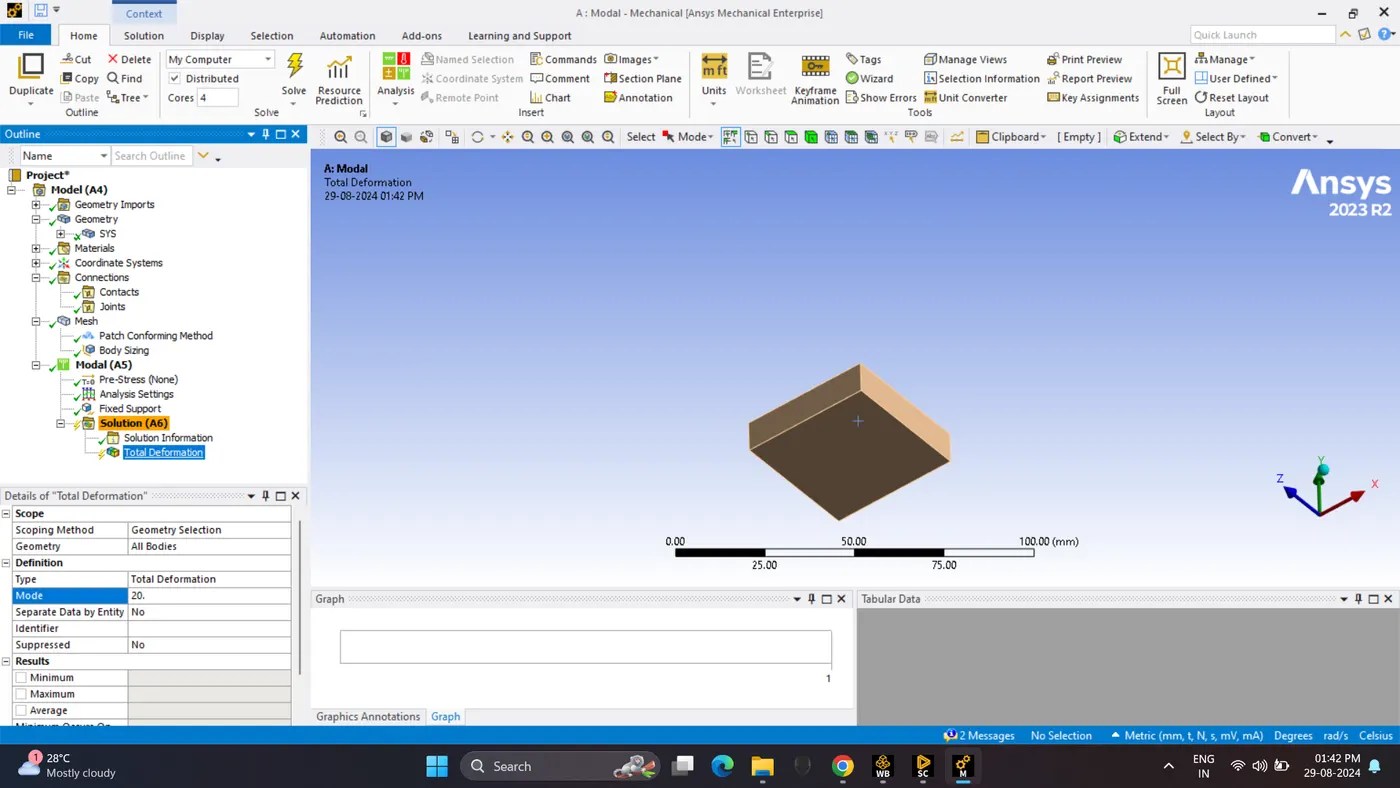
16. Go to Deformation and Play the animation.
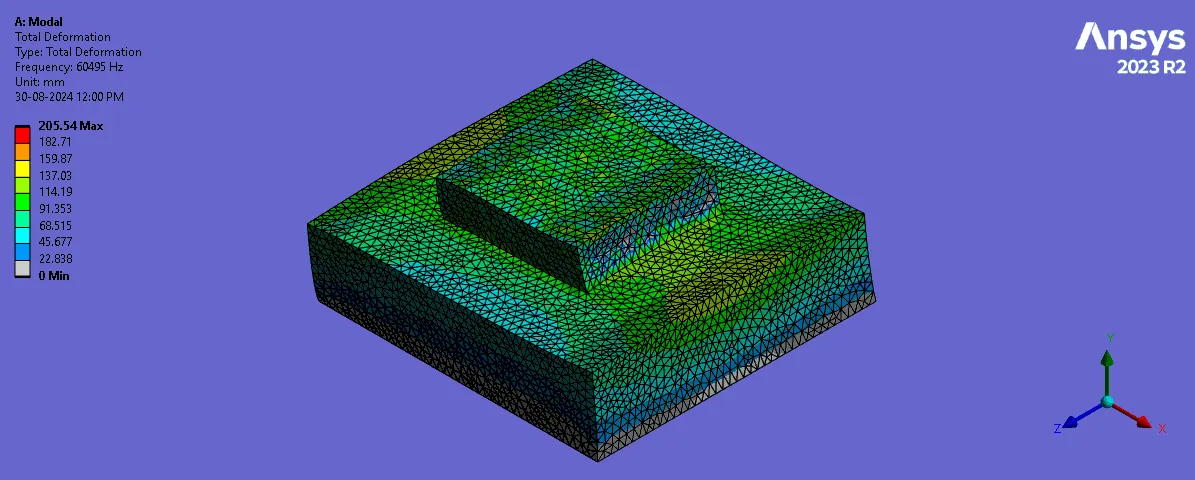
Free Free Modal
1. Remove the fixed support. Solve the solution.
2. Go to Deformation and Play the animation.
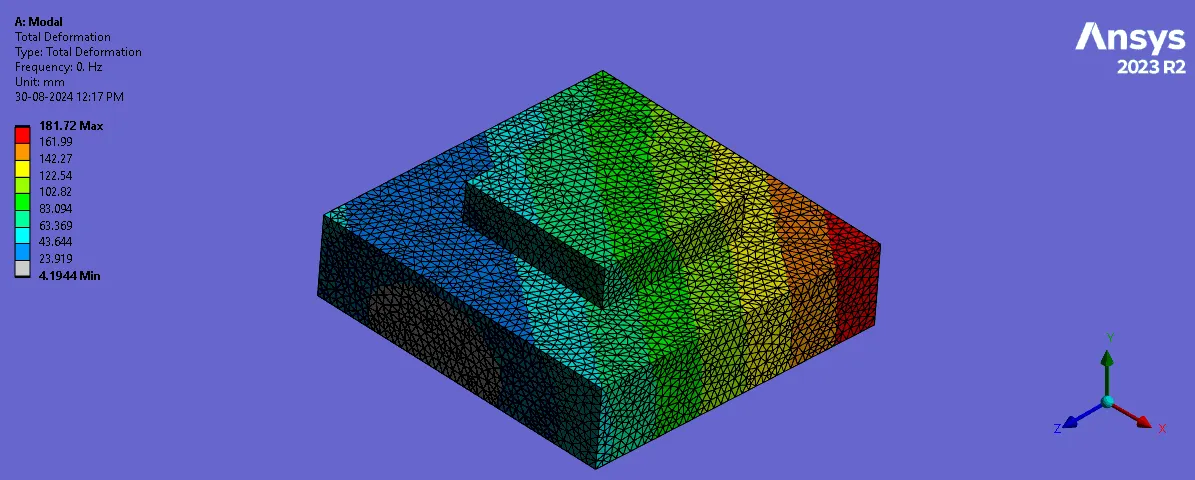
Comparison Table of Result Animation of Free Free Modal and Constrianed Modal Analysis.
| Modes | Free Free Modal | Constrained Modal |
|---|---|---|
| 1 | | |
| 2 | 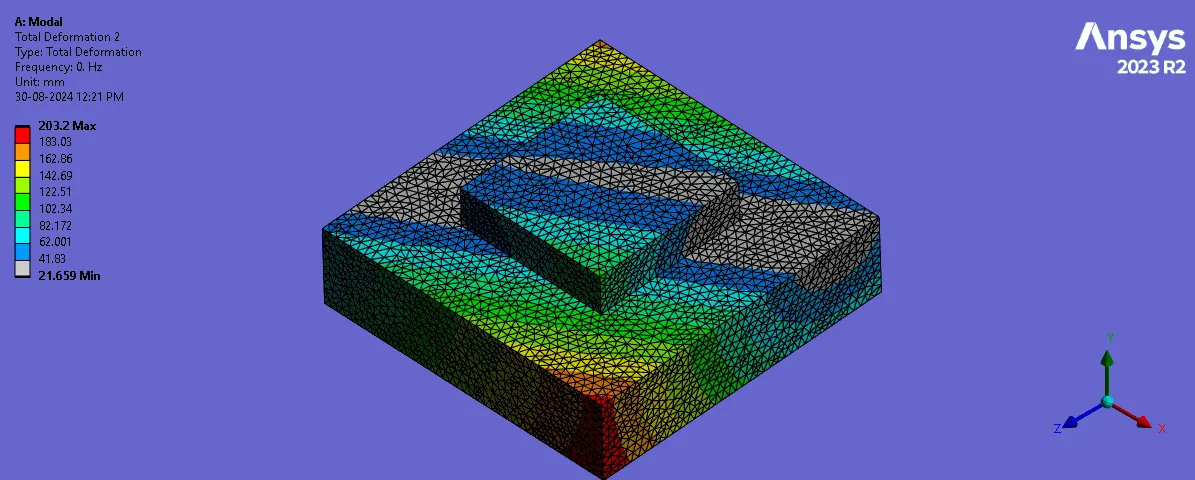 | 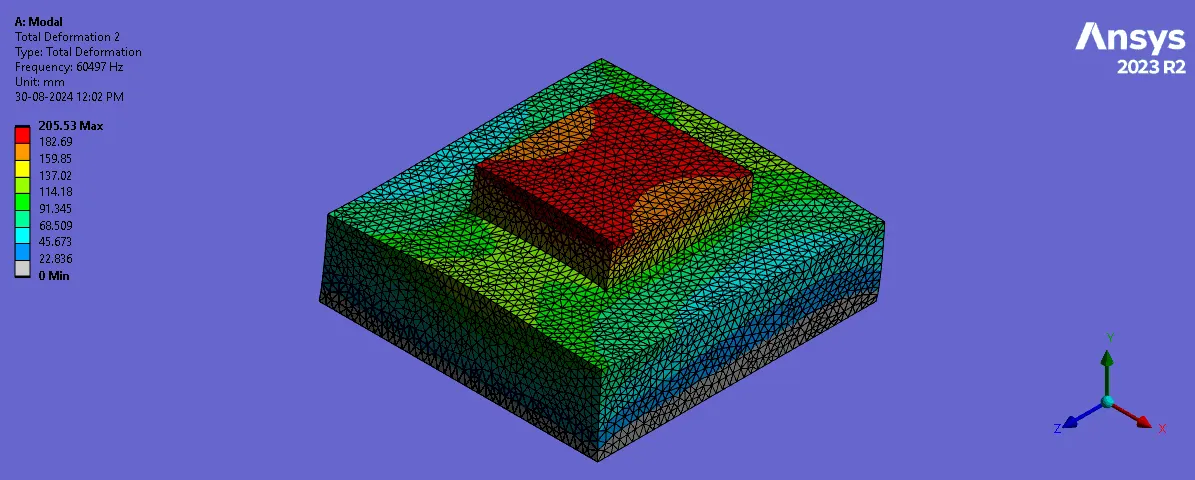 |
| 3 | 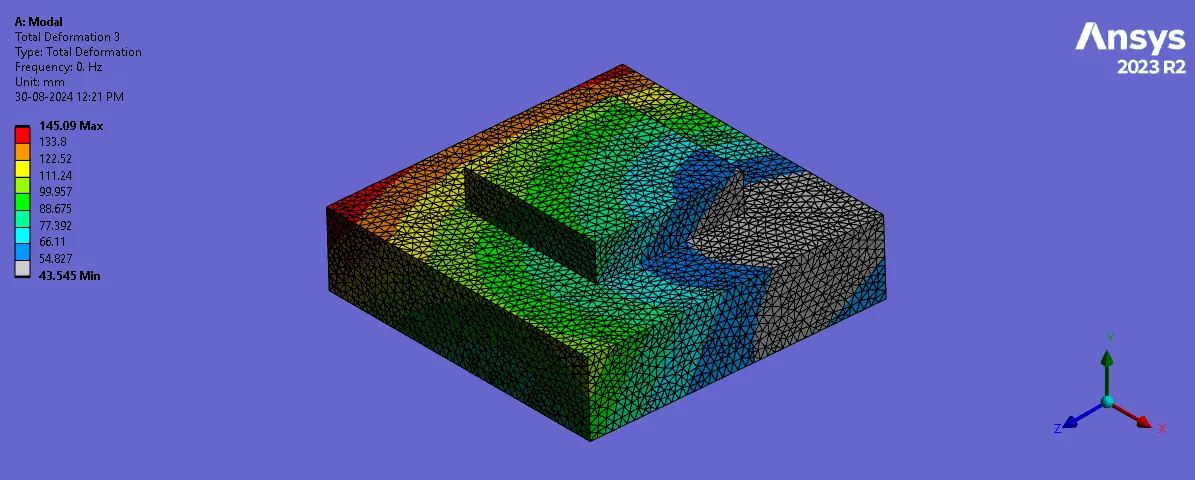 | 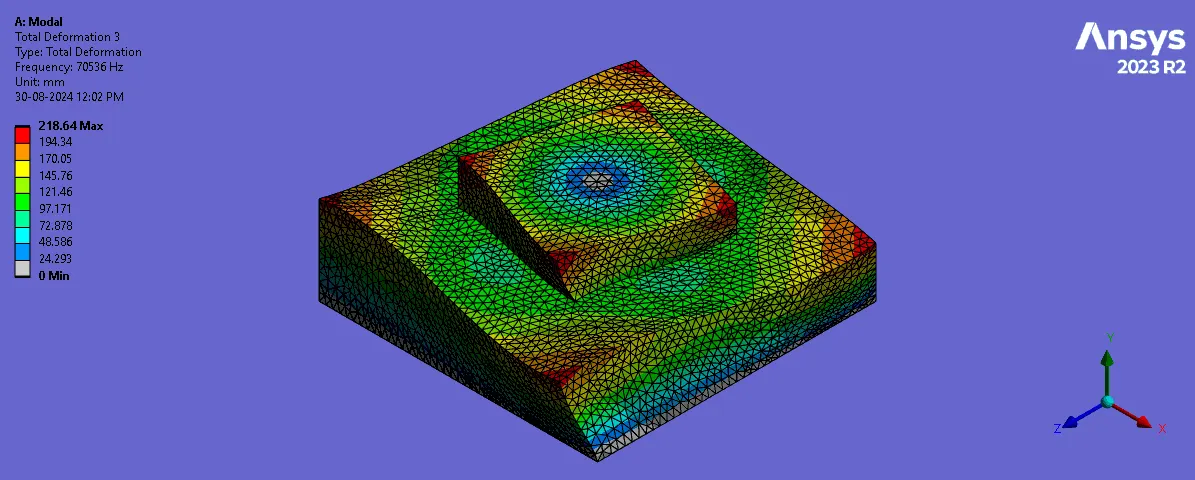 |
| 4 | 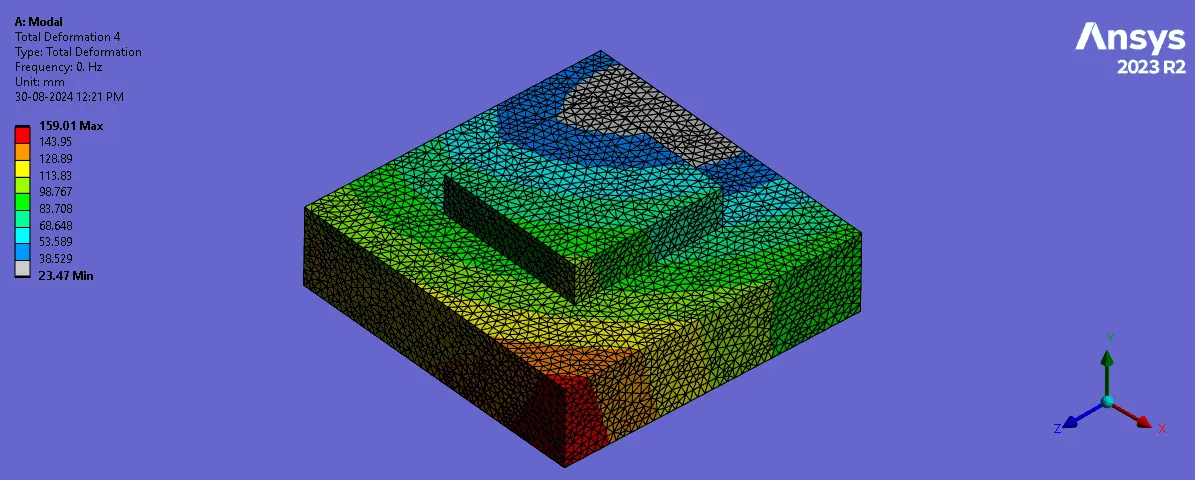 | 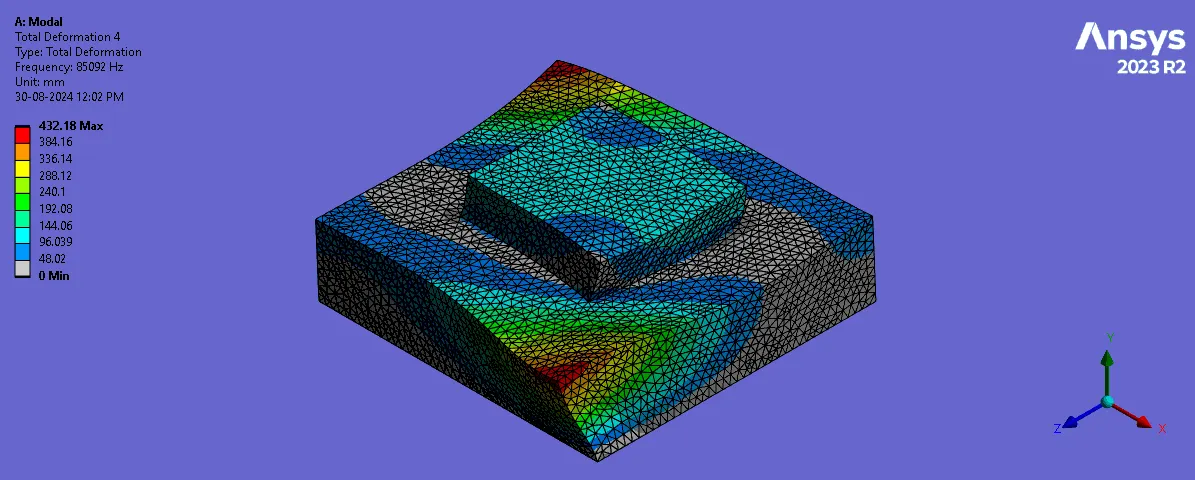 |
| 5 | 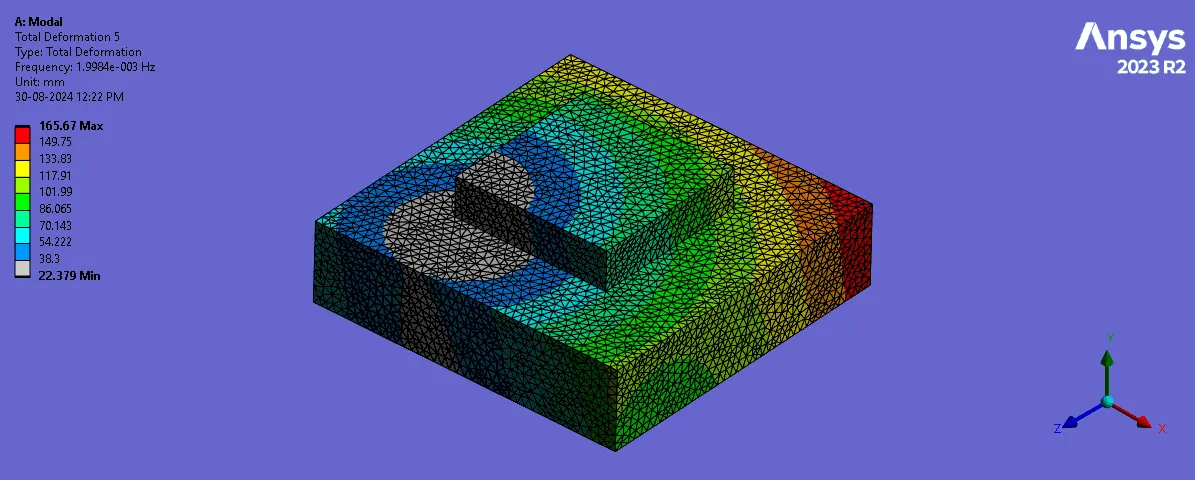 | 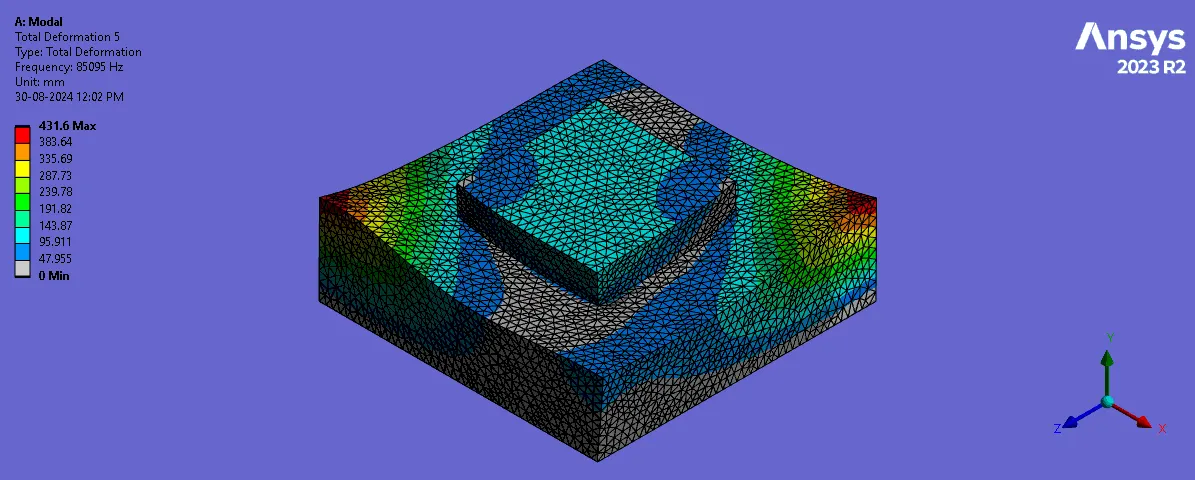 |
| 6 | 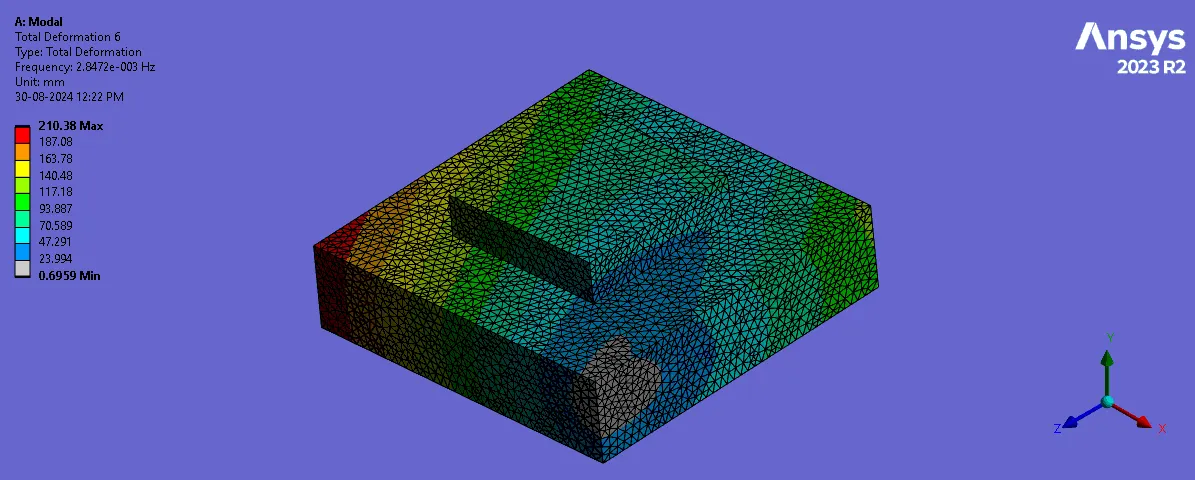 | 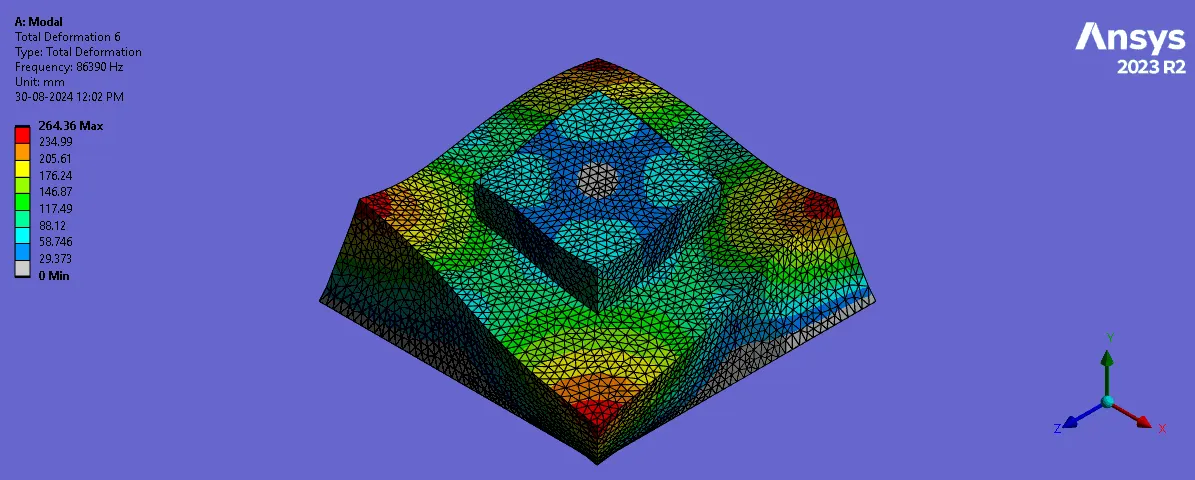 |
| 7 | 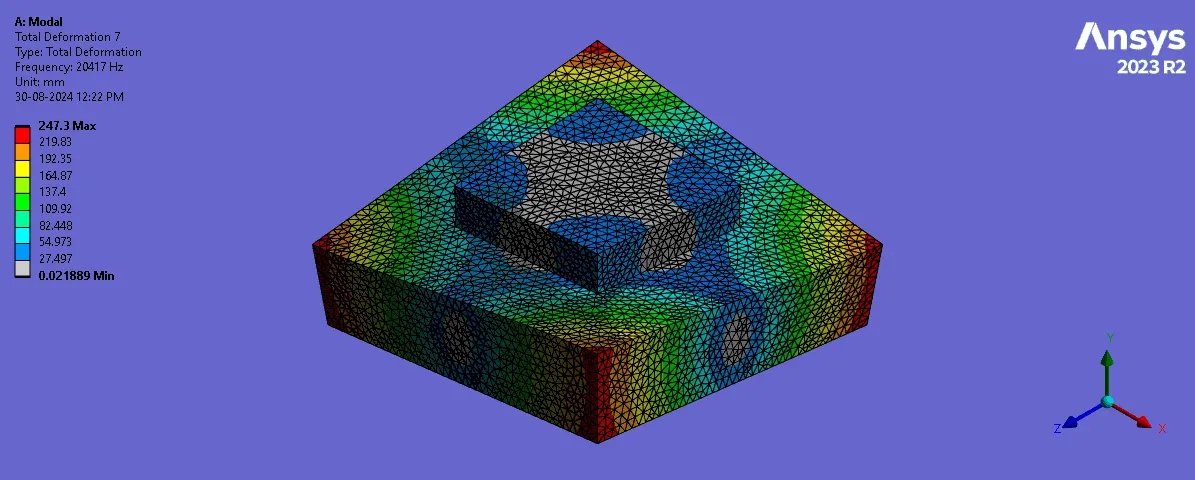 | 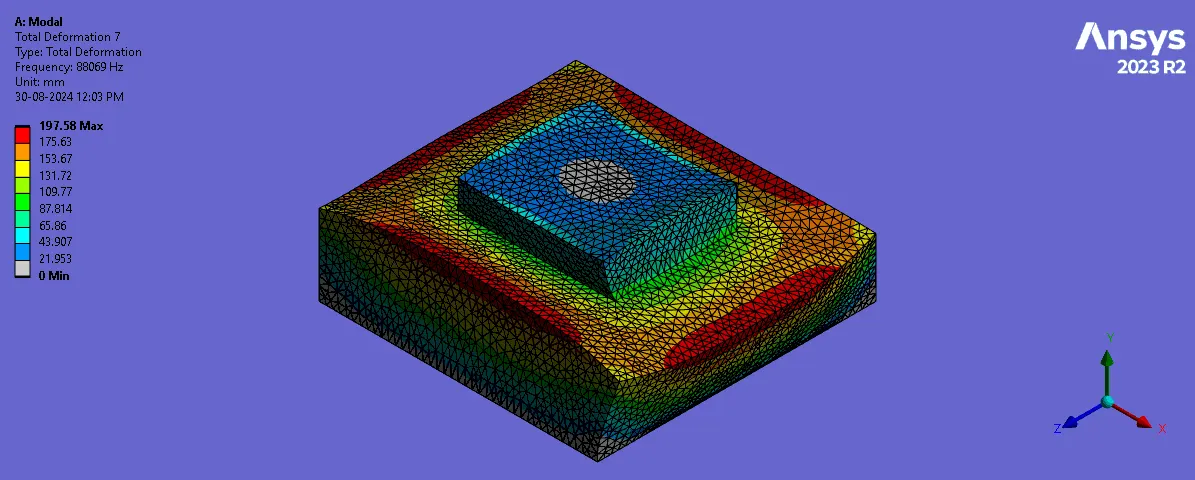 |
| 8 | 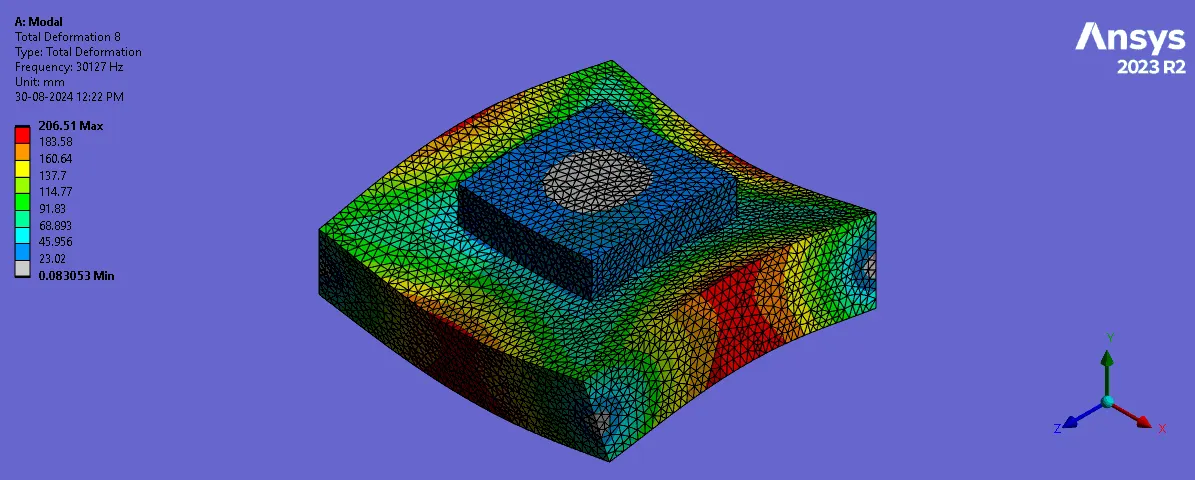 | 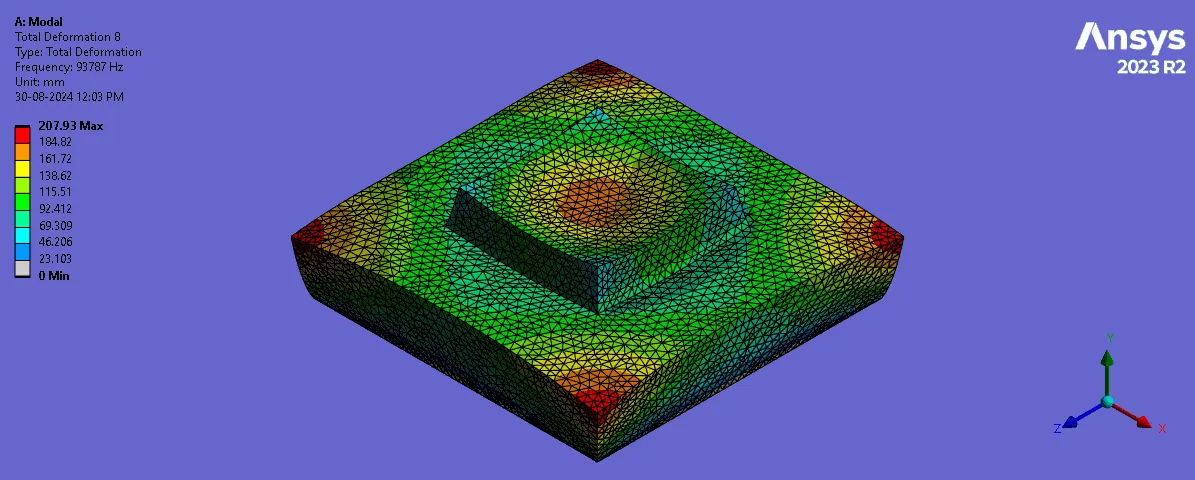 |
| 9 | 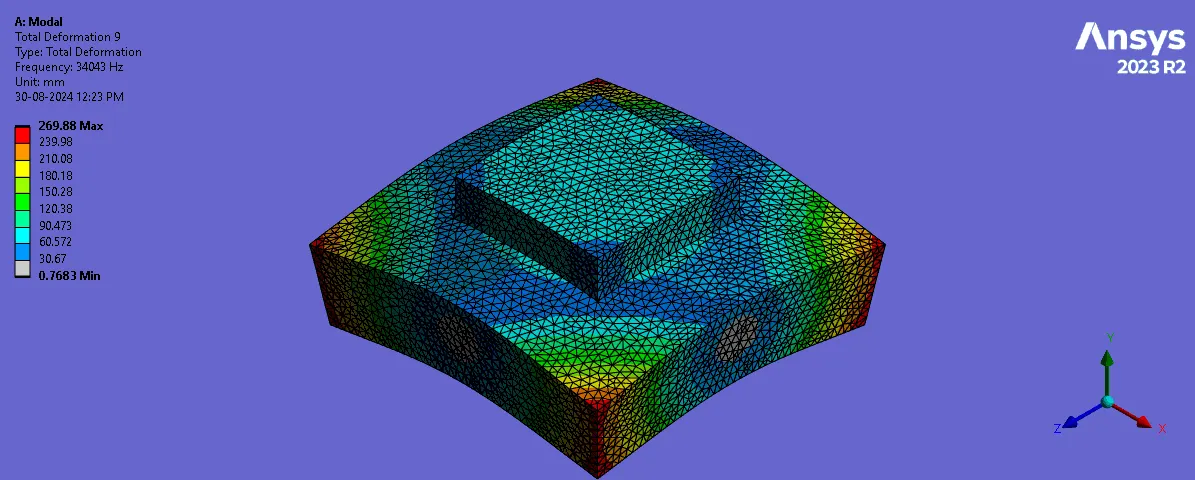 | 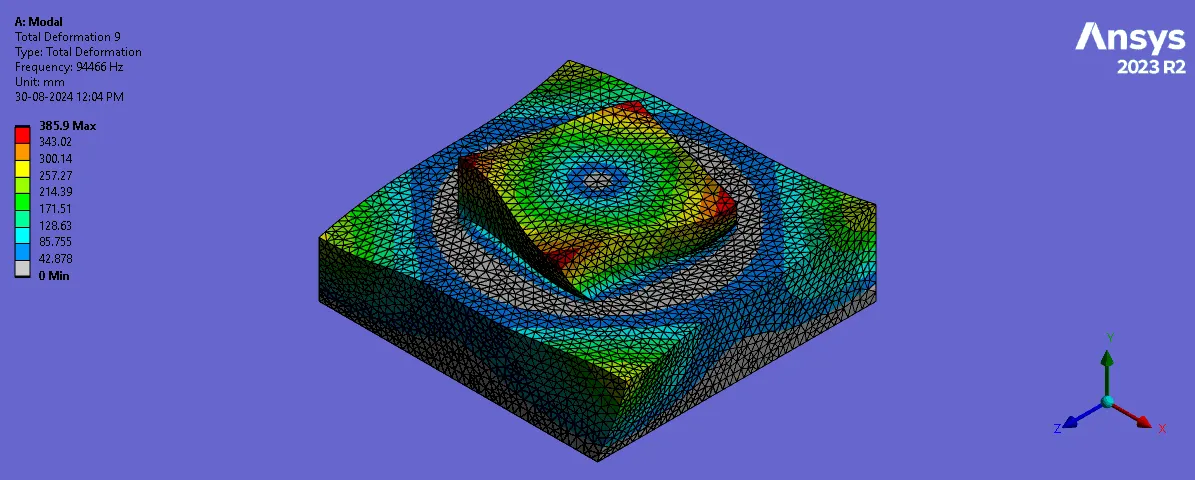 |
| 10 | 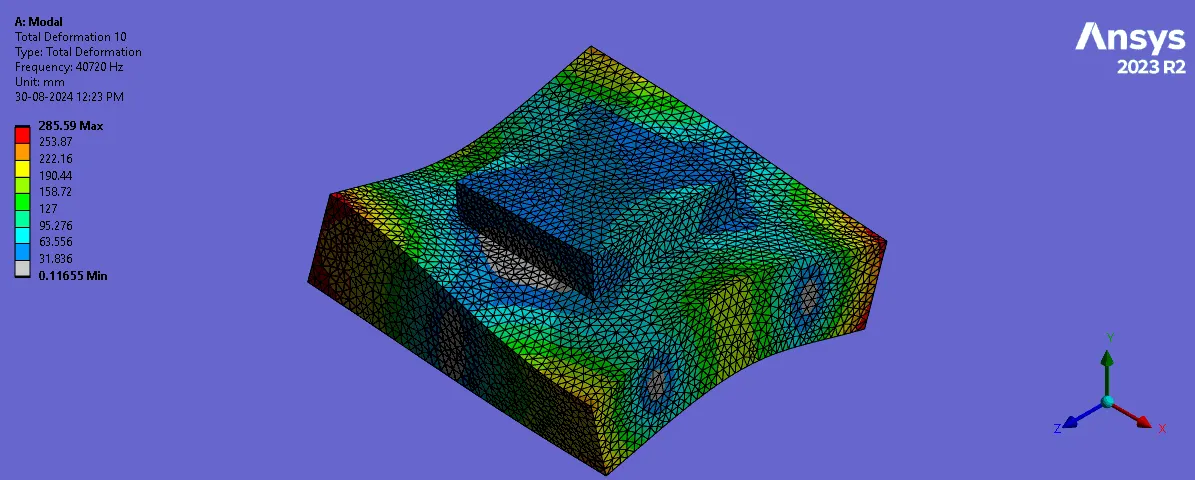 | 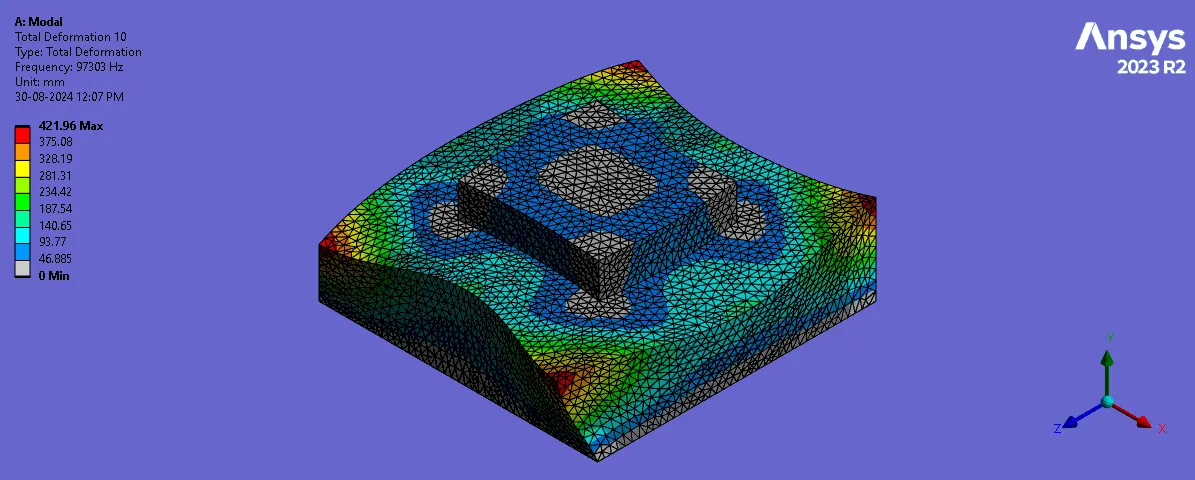 |
| 11 | 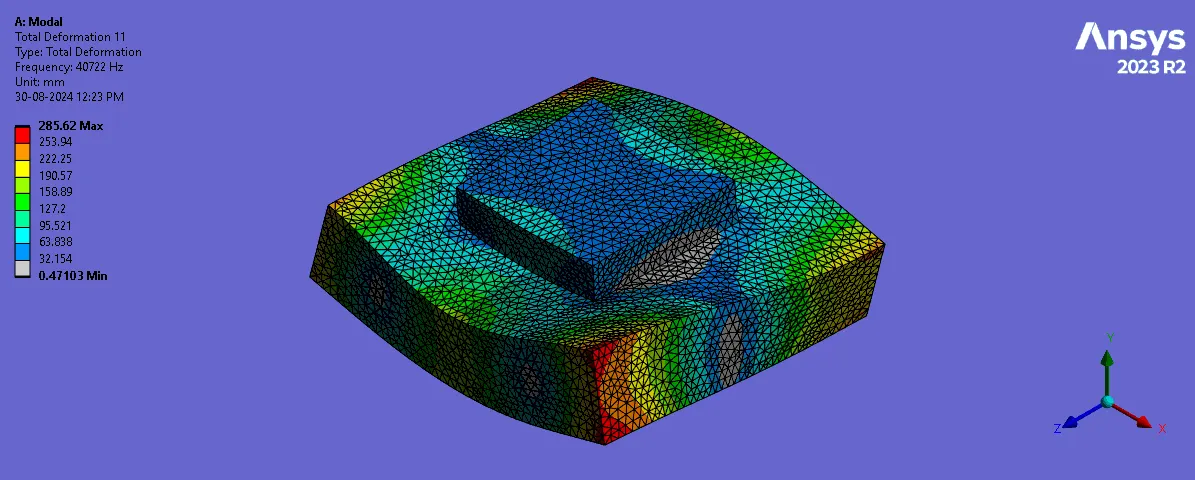 | 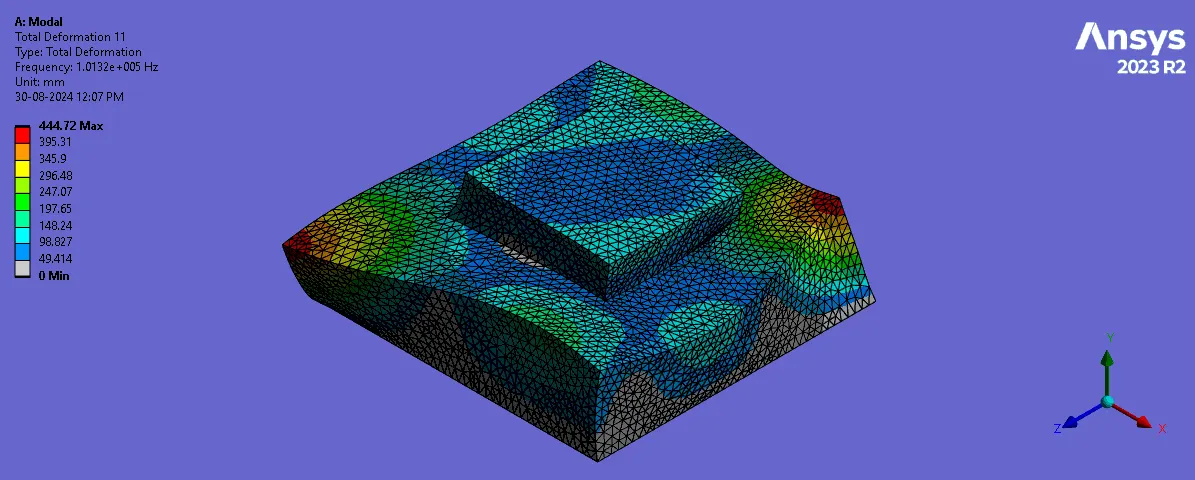 |
| 12 | 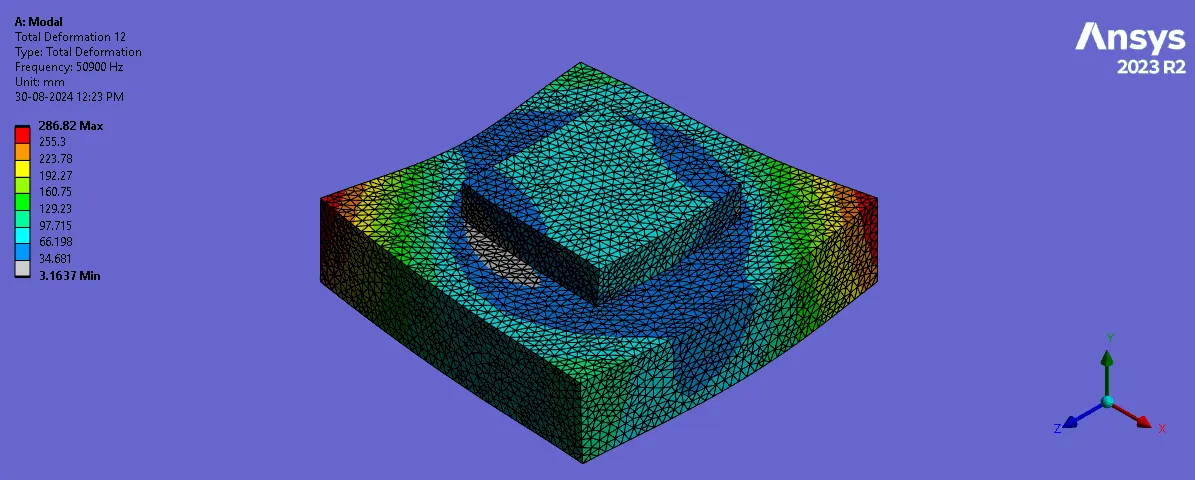 | 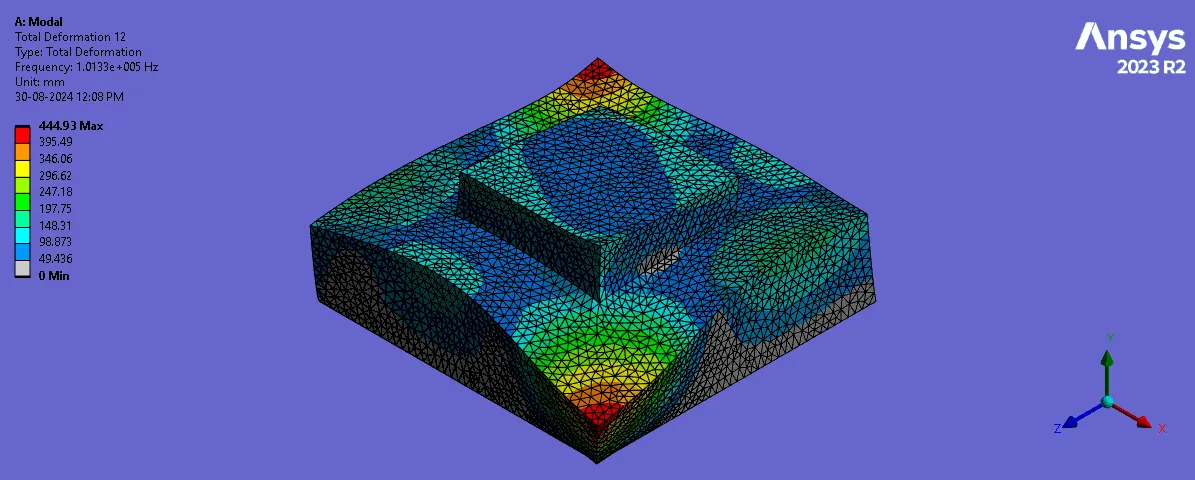 |
| 13 | 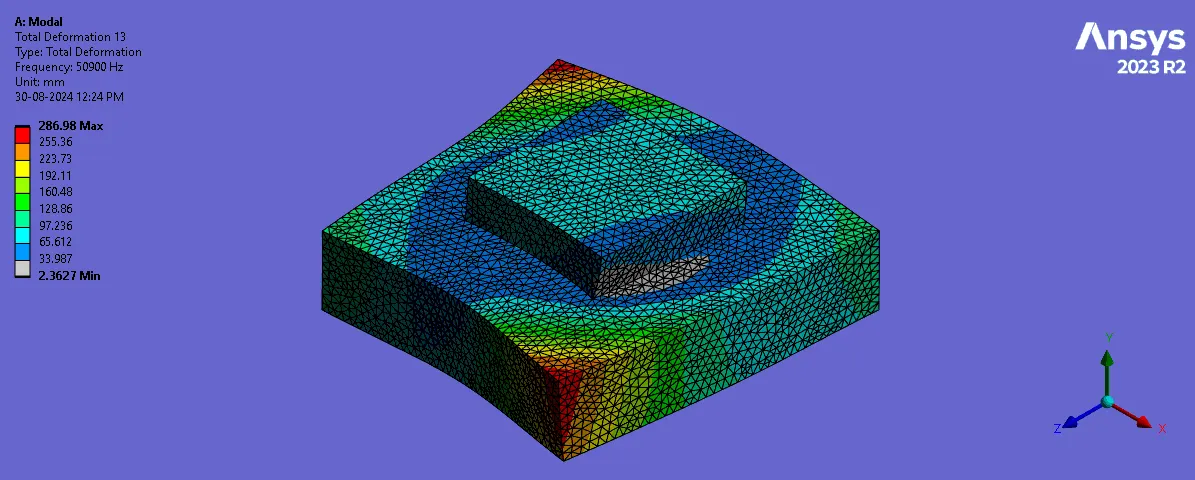 | 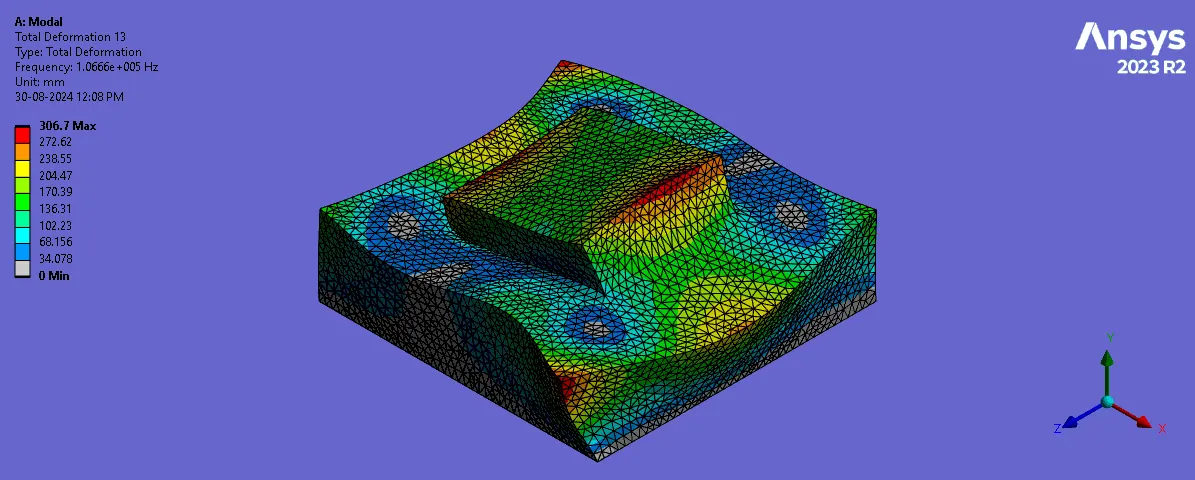 |
| 14 | 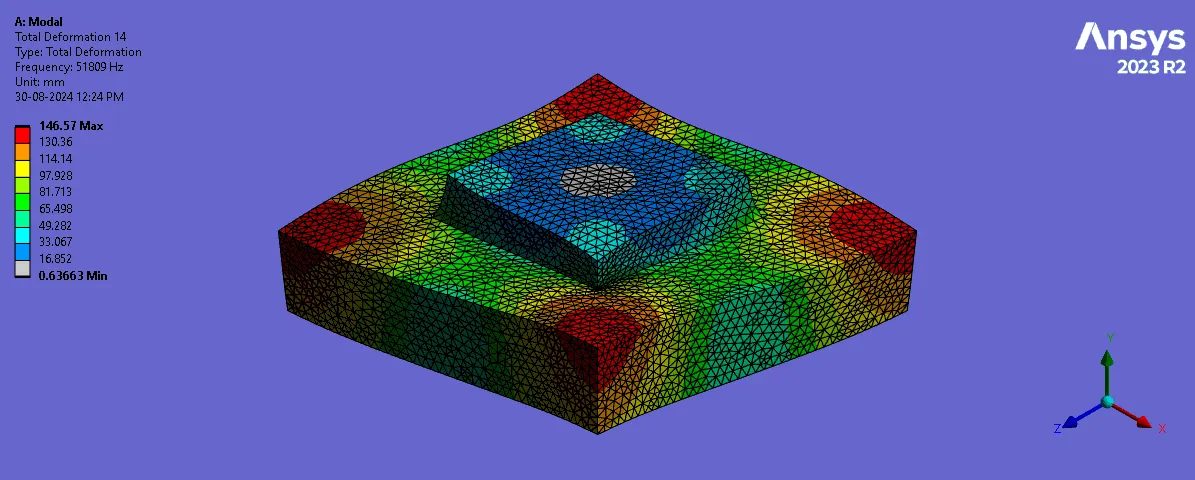 | 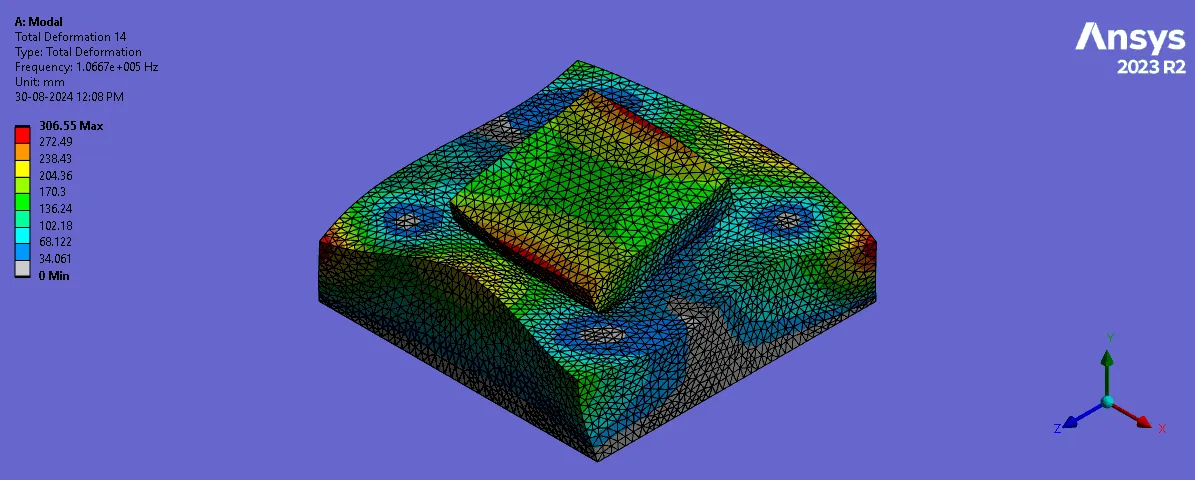 |
| 15 | 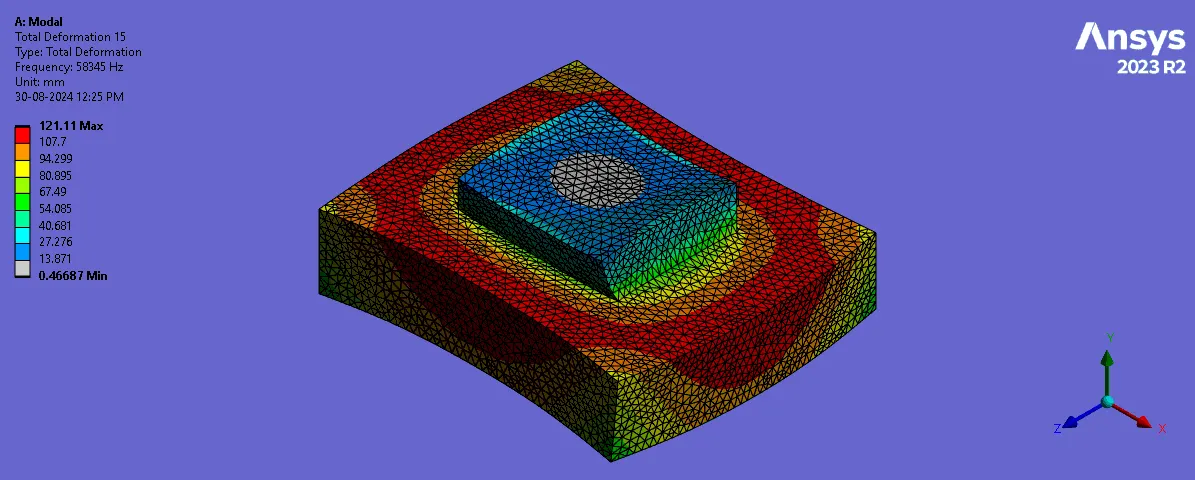 | 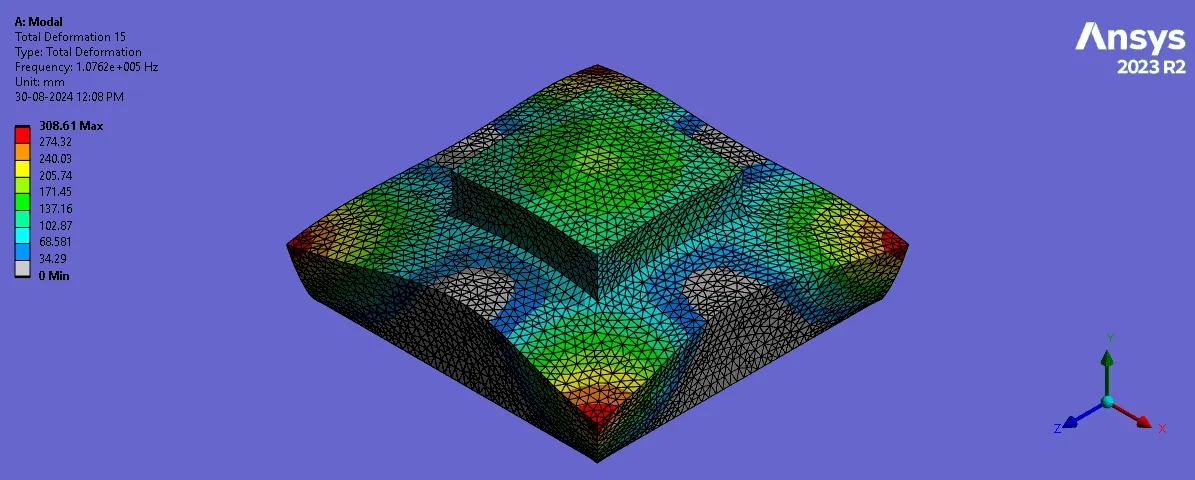 |
| 16 | 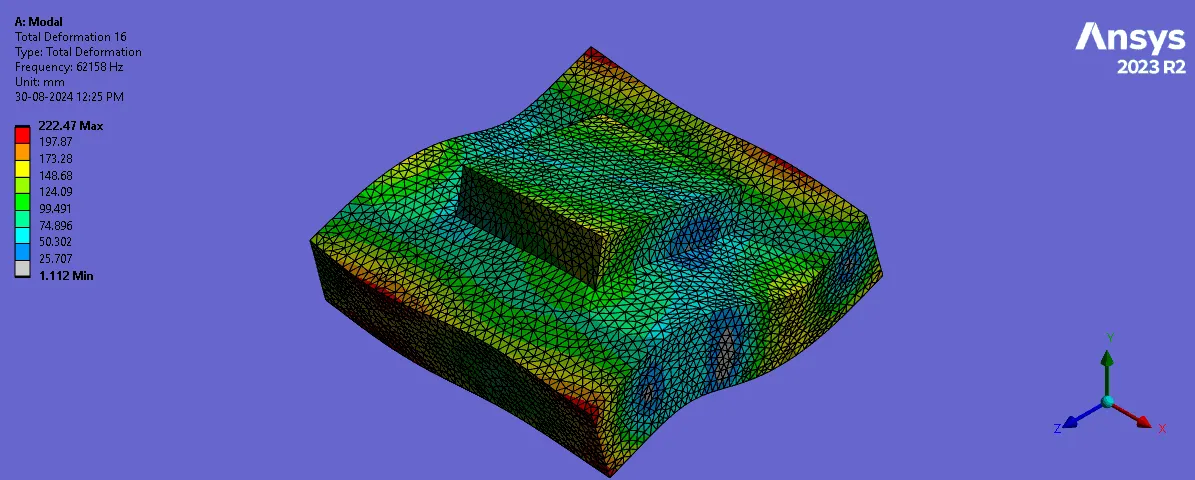 | 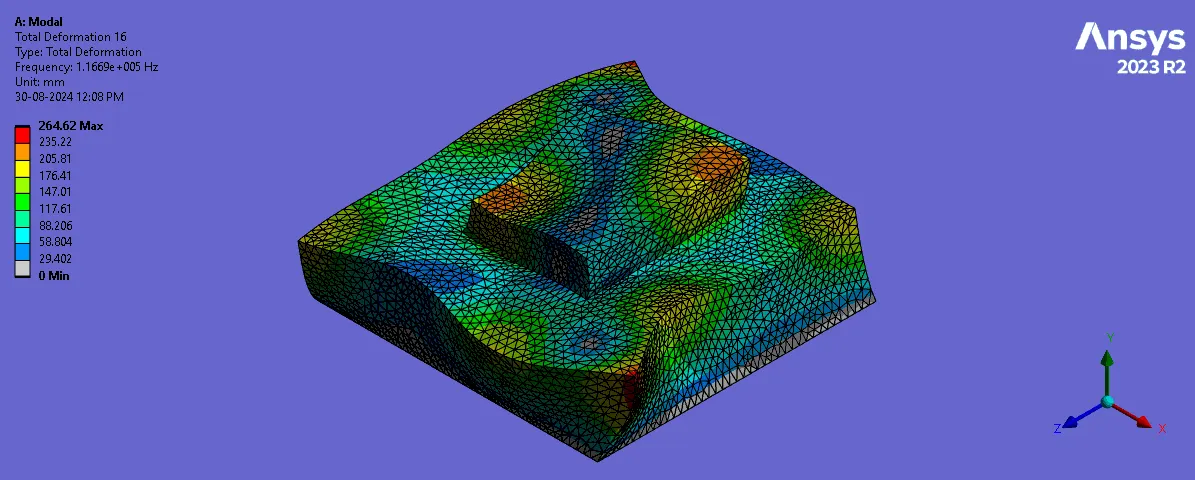 |
| 17 | 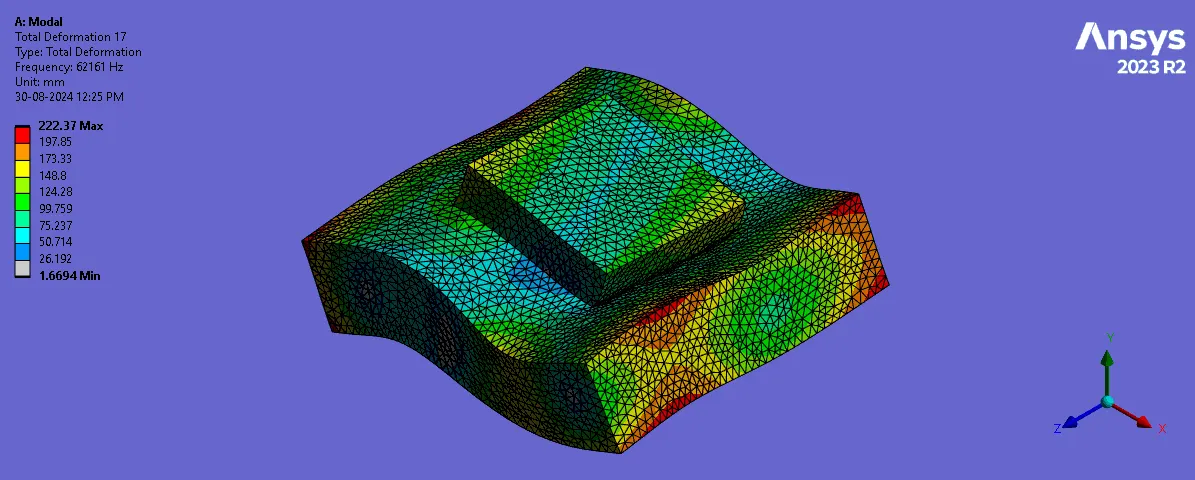 | 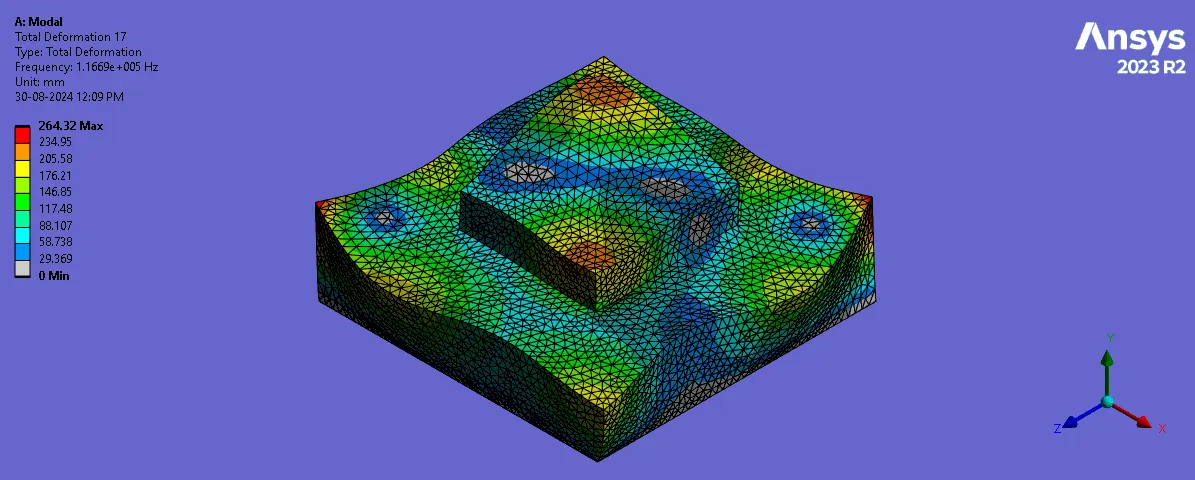 |
| 18 | 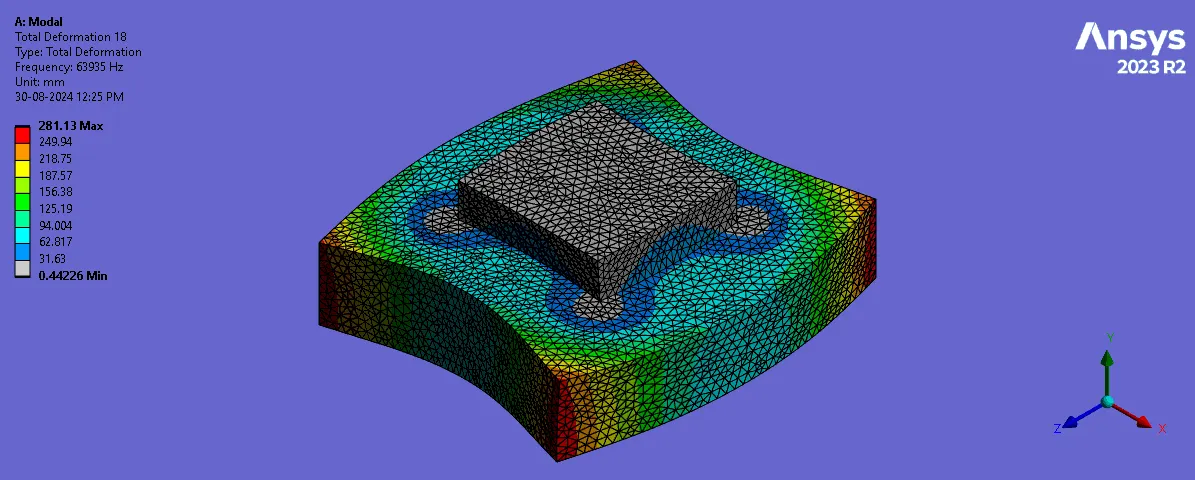 | 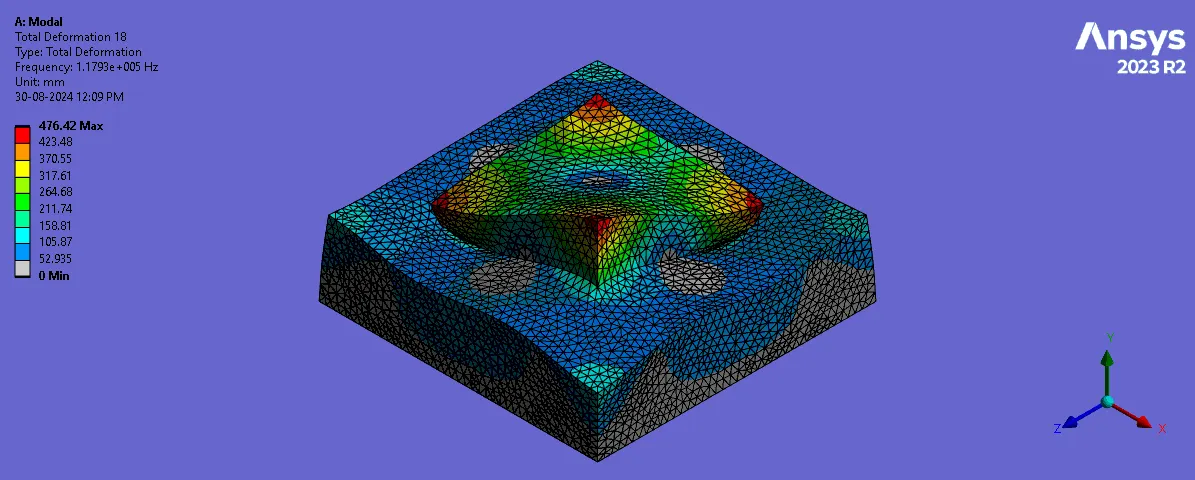 |
| 19 | 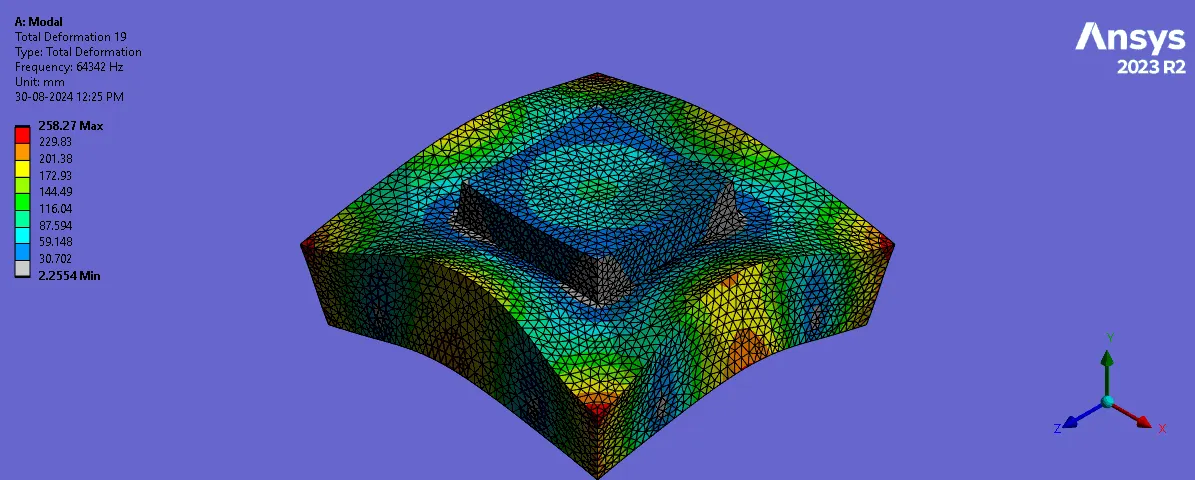 | 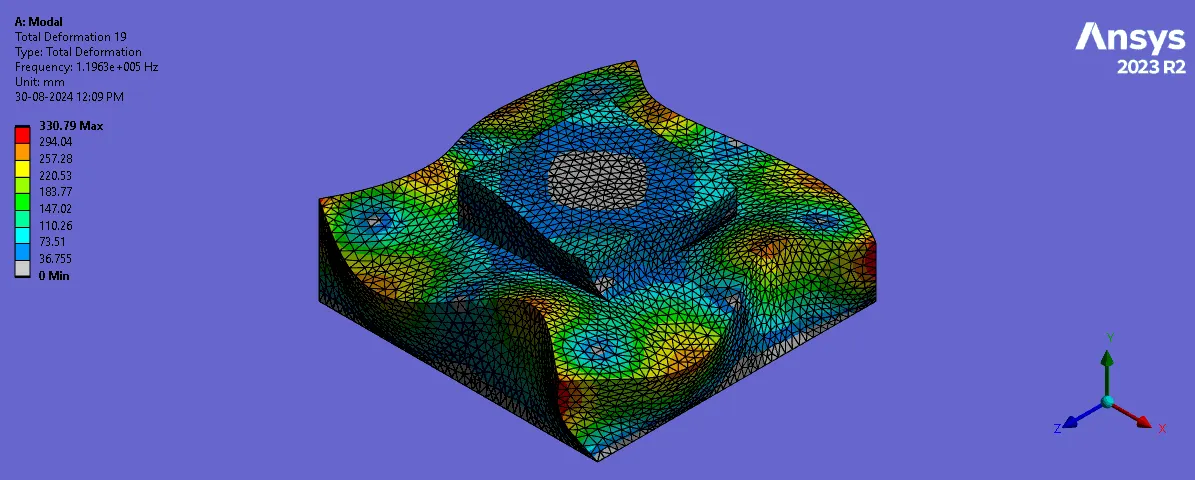 |
| 20 | 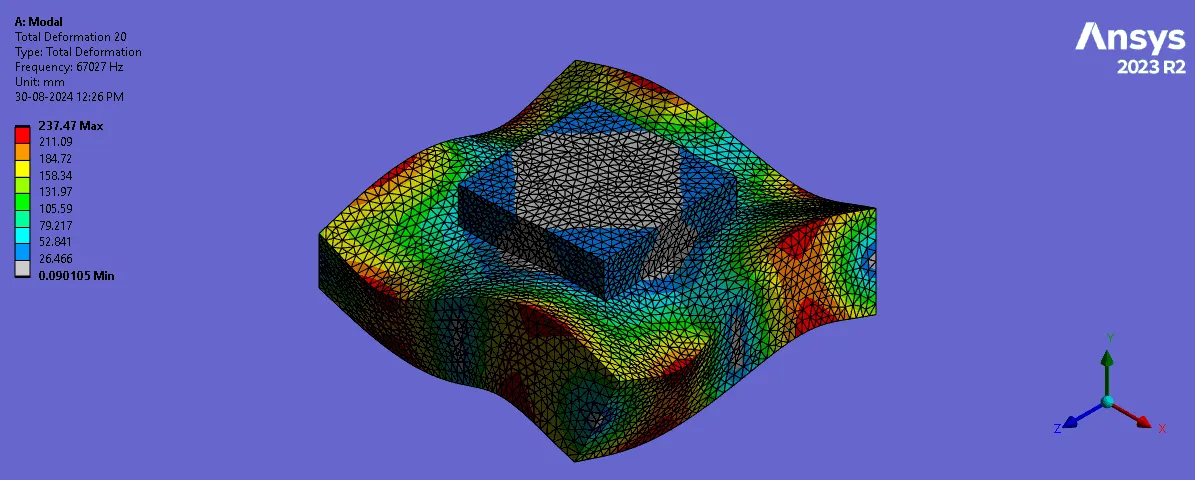 | 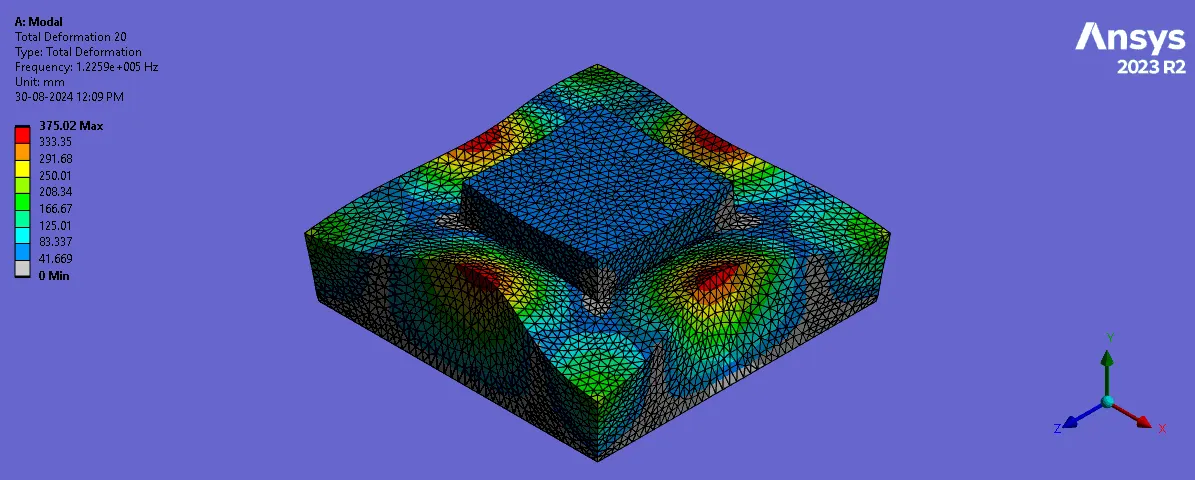 |
Frequency Table:
Free Free Modal
Constrained Modal
Learning Outcome:
1. How to create geometry, extract mid surface, meshing, do shared topology connection in Ansys.
2. To perform Constrained Modal and Free Free Modal Analysis in Ansys.
Conclusion:
1. The mid surface extraction of given geometry and their connection is done successfully.
2. Creation of two box and their Free free Modal and Constrained Modal analysis is done successfully.