Week - 3 Drop test Challenge
Aim:
To Setup the given problem by using LS Prepost, solve by LS Run and Post process the results using LS Prepost.
Procedure:
- First open the given input file. Click on File > Open > LS Dyna Keyword file. Open the file with .k extension.
- Then the given input file is opened as shown in figure.
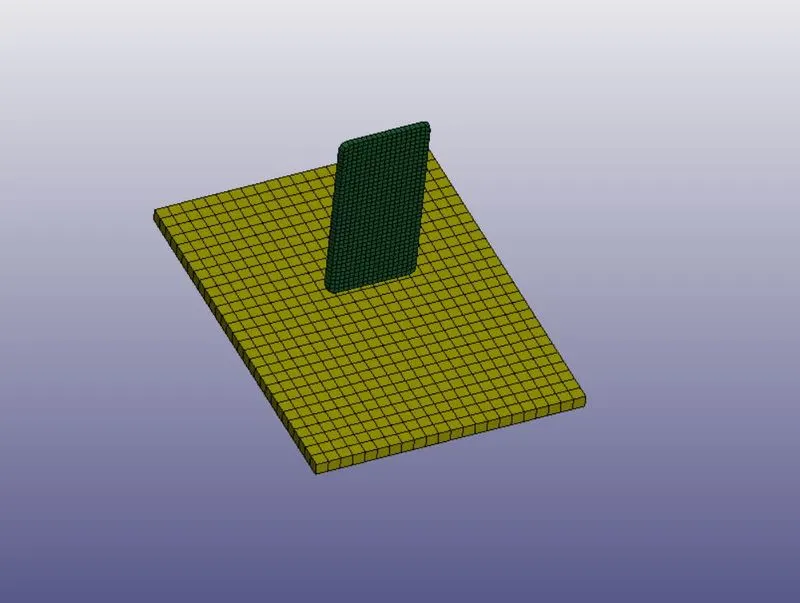
Fig: 1 Showing Initial model.
- After click on the Keyword manager option in Model tab. This will displays the No of elements, Nodes, Parts details.
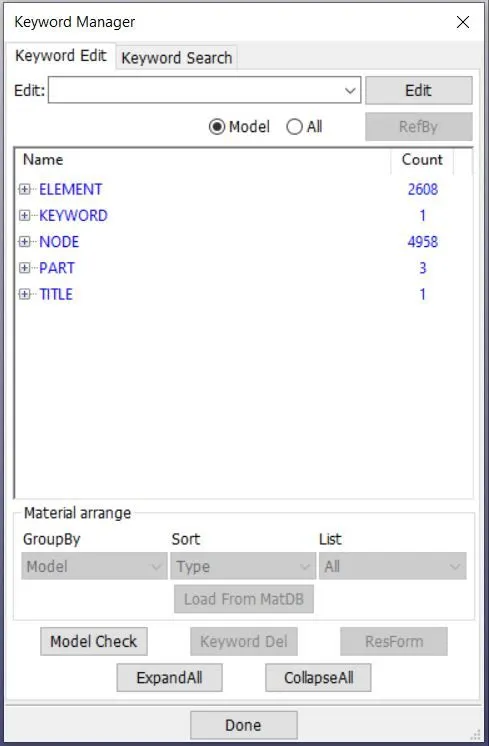
Fig: 2 Showing the initial model details ( no of elements and nodes)
- After Define material for various parts. This can be done by clicking on Keyword manager option > All > MAT. This will display different types of materials. Examples like Elastic, Piecewise Linear Plasticity materials, Rigid etc. After selecting particular material type , key in all the material properties like density, poissons ratio, E etc. After Definition of the materials , these needs to be assigned to specific parts.
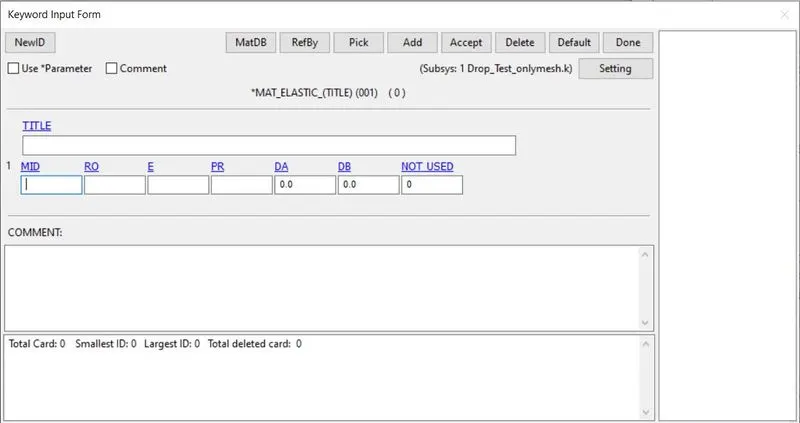
Fig:3 Showing the MAT input requirements.
- Next step is to define the sectional properties which includes thickness assignment to Shell elements , ELFORM etc. Assign proper ELFORM depending upon whether it is shell or solid.
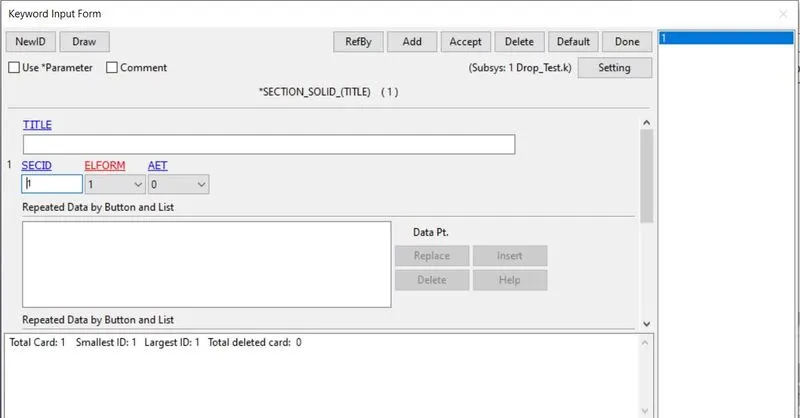
Fig:4 Showing the Sectional properties definition window
- Next step is to assign the Defined materials and sectional properties to the various parts. This can be done by clicking on Keyword manager > model > part. Assign material and section properties to each and every part.Mat Rigid to be assigned to the wall to make it rigid.
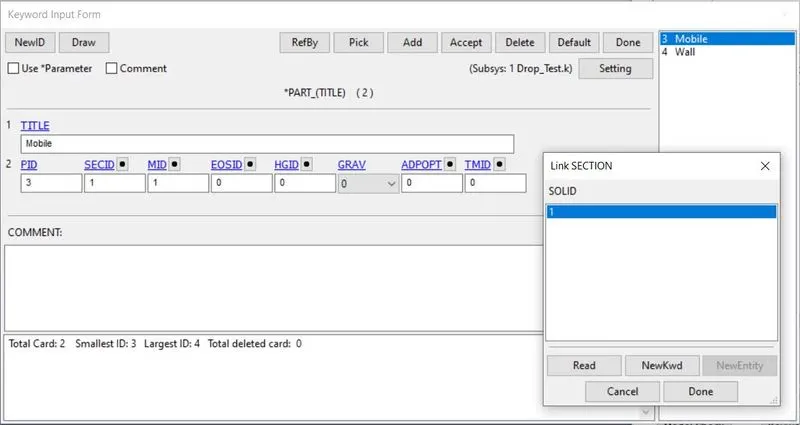
Fig: 5 Showing the Mat and Sectional assignment to parts
- After define the boundary conditions. In this case Mobile should be assigned with some initial velocity and floor should be rigid.
- For giving initial velocity to the mobile, Click on Model and part > Keyword manager > create entity. In that click on initial > velocity. Check the direction in which velocity needs to be assigned to the model i.e., X or Y or Z. Click on create and given the velocity value in the Specific direction. In this case it is -Z direction and select the model by using box selection. Velocity is assigned for the model.
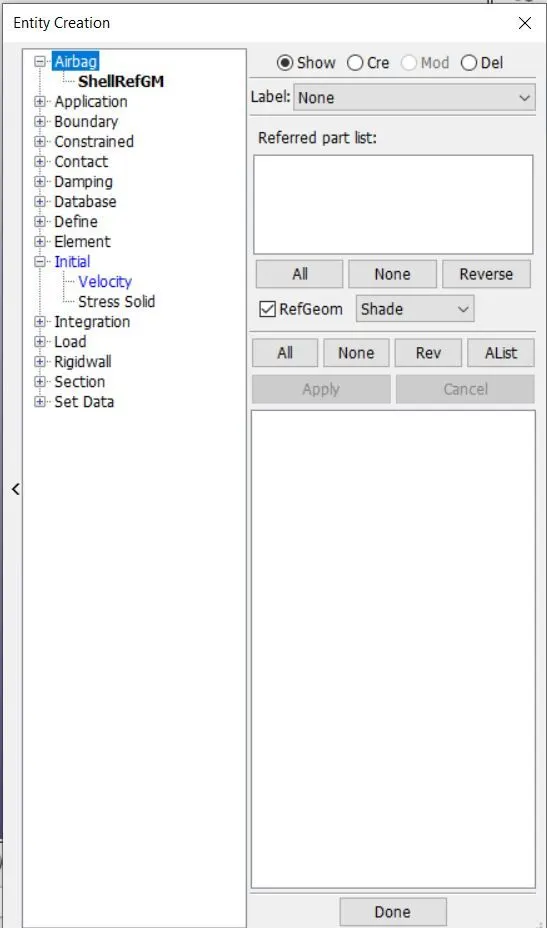
Fig :6 Showing the Entity creation tab for initial velocity.
- Next step is to define contact between the two parts. This can be done by clicking Model and part > Keyword manager > Contact. In contact select Automatic surface to surface and select the wall as master and mobile as slave part.
- Next step is to define the control cards. This can be done by clicking on Model and part > Keyword manager > ALL. In that click on control > Termination. A window will pop up in that end time needs to be given as input.
- Last step is to call for OUTPUT. This can be done by clicking Model and part > Keyword manager > ALL > Database. Click on the d3plot and specify the timestep.
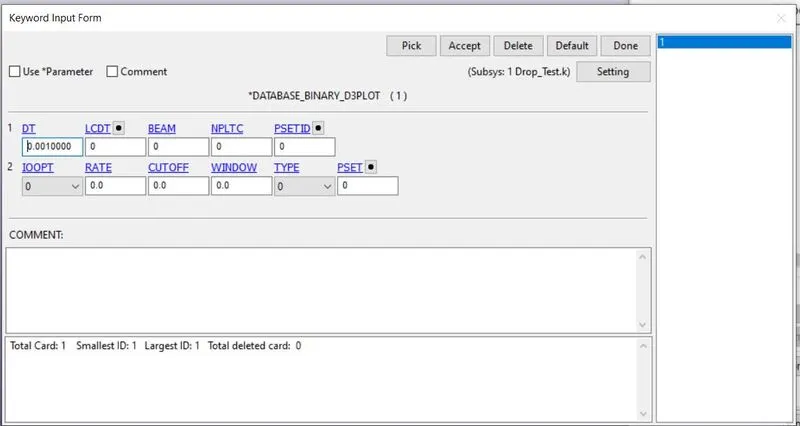
Fig :7 Showing the Output D3plot window
- After all the parameters are assigned properly, Model check can be performed to find any errors in assigning anything.
- The model should be run using LS-Run. After completion of Run, it should be opened in LS prepost for view the results. i.e., Post- processing.
Conclusion:
- The given initial model is solved by assigning proper materials, boundary conditions and solved using LS-Run. The obtained are post processed using LS-Prepost.
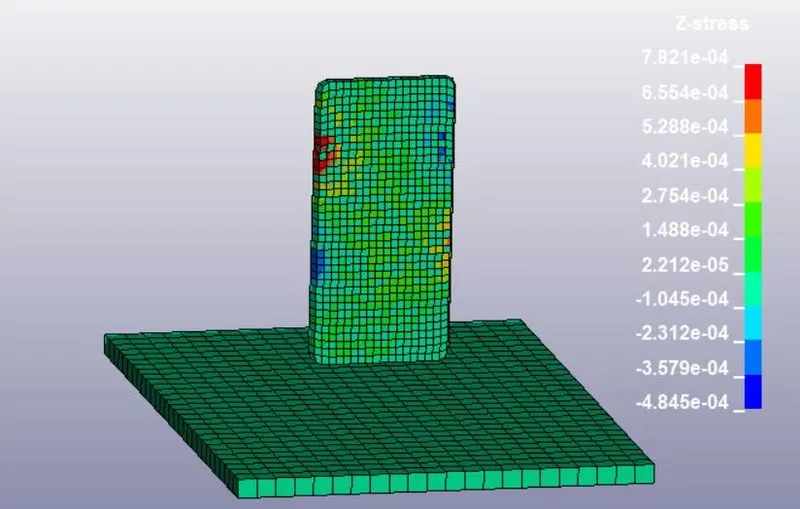
Fig: 8 Showing the Initial model. Fig:9 Showing the final output file (showing stress in Z-direction)
Learning Outcomes:
- Material creation
- Sectional properties definition
- Setup of Boundary conditions
- Defining contacts.
- Assigning Control cards
- Requesting Output
- Solving
- Post processing.