Week 4
Aim:
To perform geometry cleanup if there are any geometric errors and extract Midsurface followed by assigning thickness and mesh the extracted midsurface as per prescribed quality parameters and show the thickness of the meshed model.
Procedure:
- First step is to click on File - Open.Then the given geometry is open in ENT mode.We have to see and understand the given geometry and fix geometric issues manually if found any. Otherwise Click on Tools - Checks - Geometry. Then a window will pop up showing the eroors in the geometry. These errors can be fixed automatically by right clicking on the issue and tap on fix option. Few or all issues will be solved as per ANSA understanding.
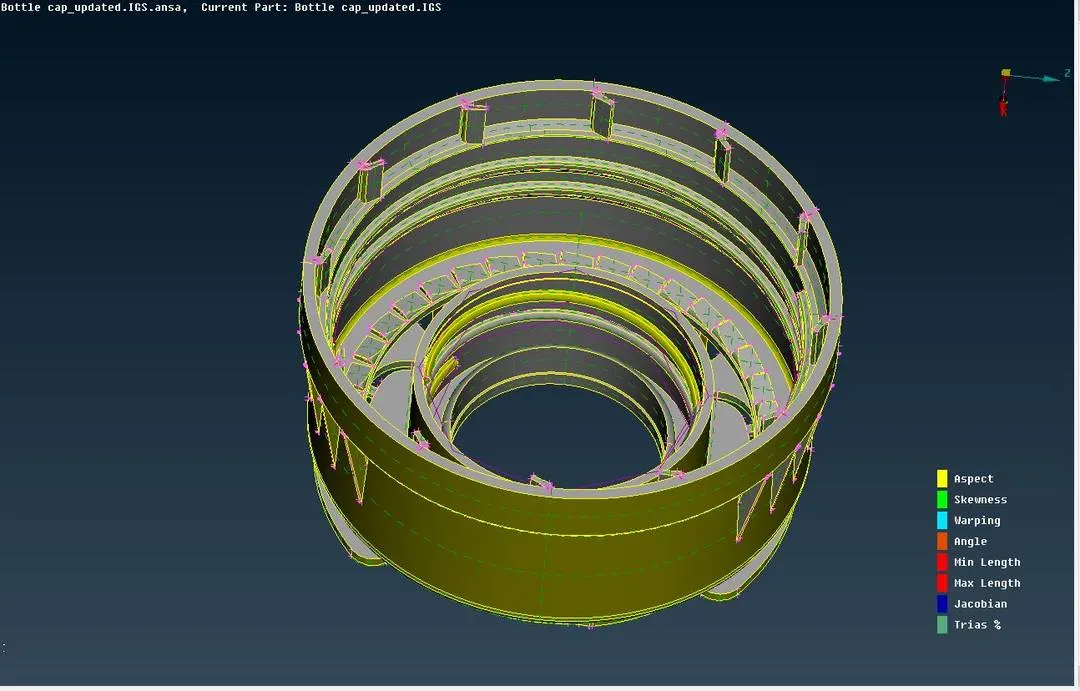
Fig 1 Showing model in ENT mode
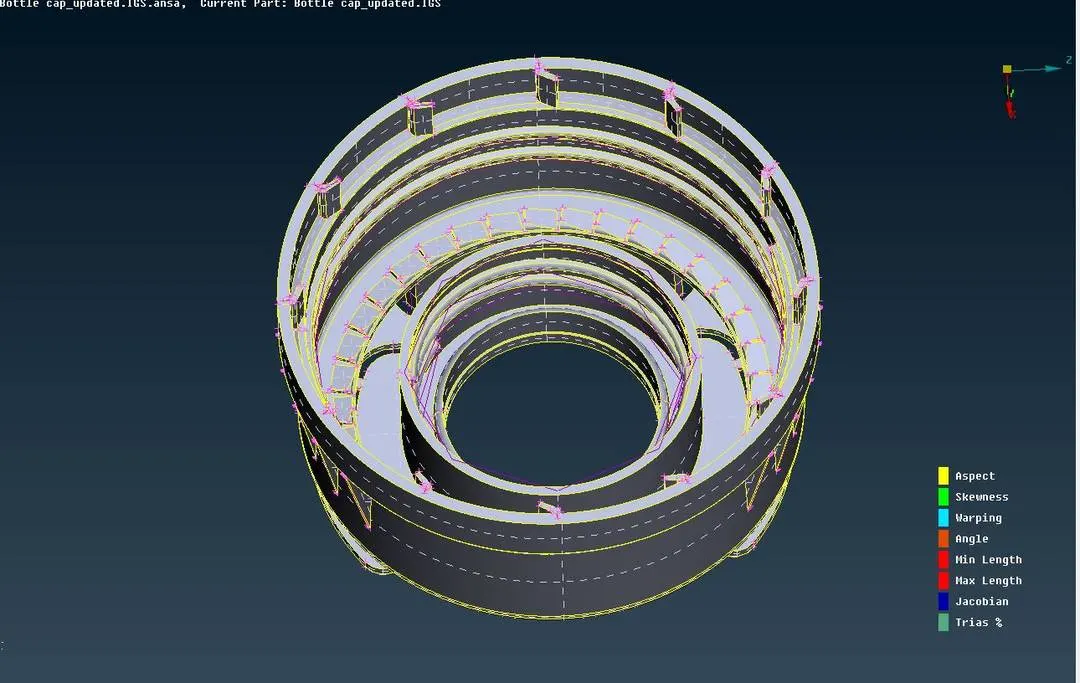
Fig 2 Showing the model in PID mode
- Errors in the given geometry are displayed as follows.
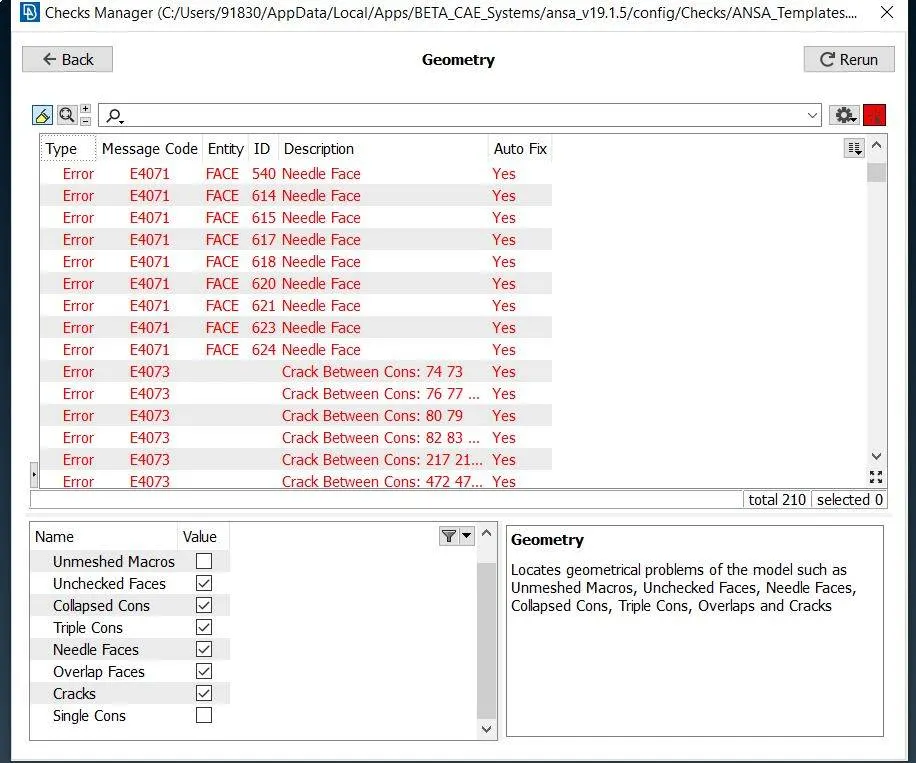
Fig 3 Showing the geometric errors in the model
- After fixing the displayed issues in the model, Create the properties for various geometric features of various thickness in the model.
- Proceed further by extracting the midsurf of the geometry by using the tools in the TOPO module.
- In TOPO module especially Faces tab is used to extract the midsurf. Since the given model is of variable thickness the Measure option is very useful. By using Measure option, thickness of each feature is measured and recorded. Variable thickness is assigned as average thickness
- In Faces tab Middle and Offset option is used to extract the midsurf of the various features in the geometry. If midsurf cannnot be extracted using above mentioned options, then midsurf has to be created by using New option under faces tab. For joining the perpendicular faces Extend option is used to join.
- In some critical places, midusrf cannot be generated normally. In that case curves are generated and then midsurf is created with the help of curves.
- After extraction of midsurf create Property according to thickness of feature and assign the midsurf with corresponding Property. The extracted midsurf should be checked for any errors using Checks-Geometry. Use Fix option to automatically fix the issues. Otherwise manual fixing is needed for issues which are not solved by ANSA.
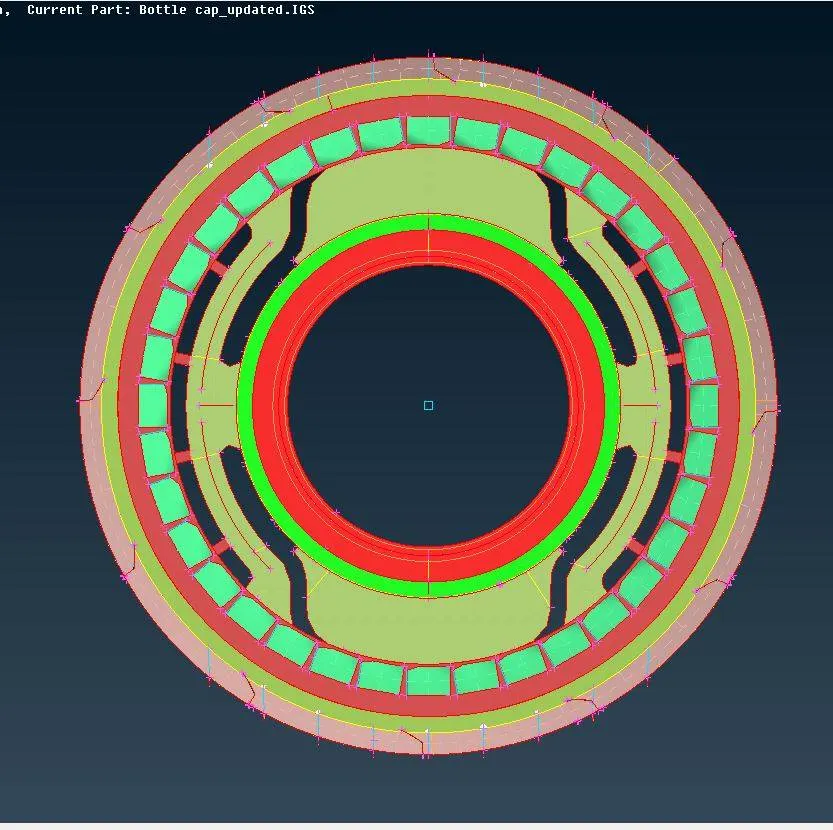
Fig 4 Showing the Midsurface assigned with respective property
- After ensuring that the extracted midsurf is free from geometric errors, proceed to mesh the mid surf.
- Meshing can be done using MESH module. In mesh module, under Mesh Generation tab BEST option is to generate the mesh for midsurf. If the mesh is not proper we can use Smooth and Reconstruct options in Shell Mesh tab. Reconstruct option reconstructs or provides the best possible mesh for given criteria.
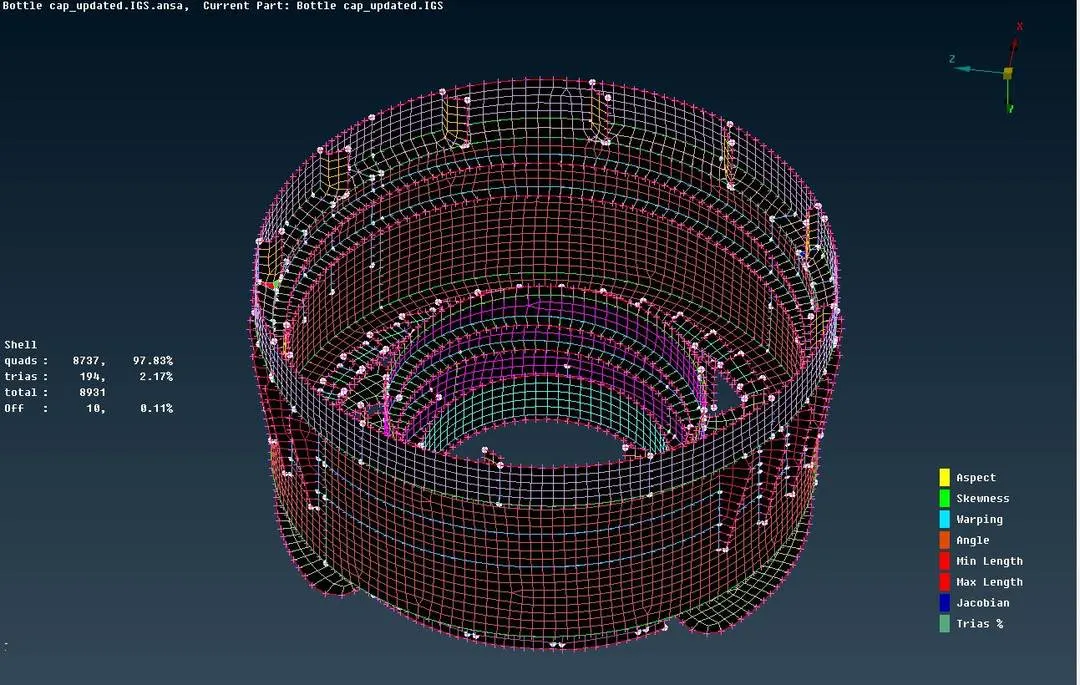
Fig 5 showing the meshed model (without thickness)
- After meshing the model, thickness can be showin in meshed model by clikcing Quality criteria option or press F11. In that click on presentation parameters and then check the draw shell as solids option. Then the meshed model is displayed with thickness which is assigned as per geometry requirement.
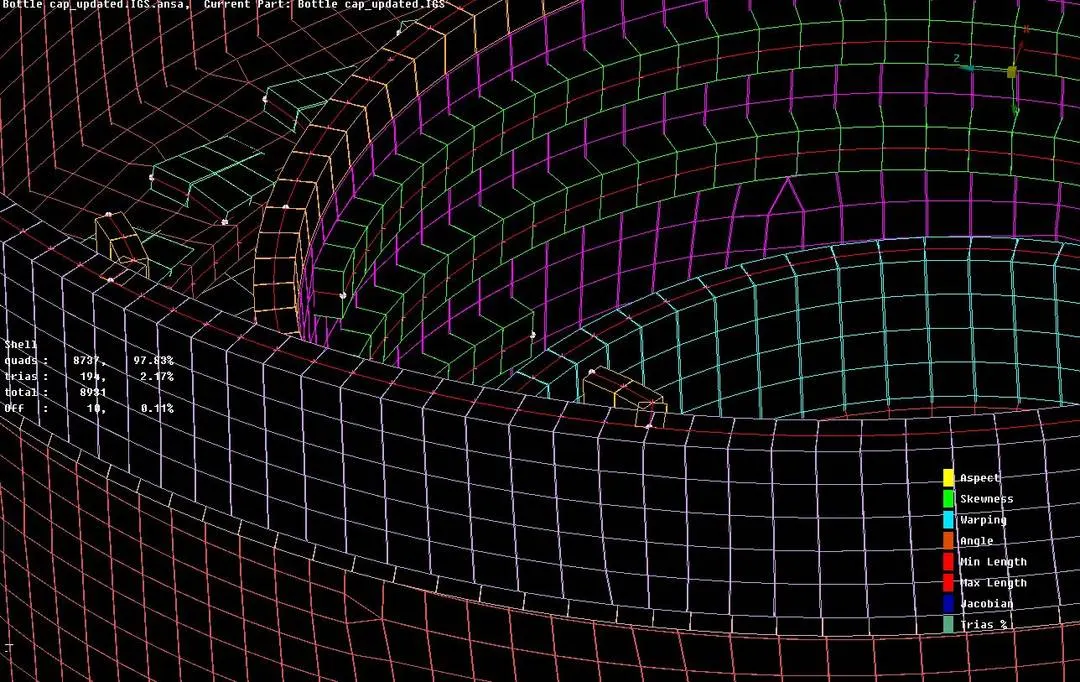
Fig 6 Showing the meshed model with thickness
Conclusion :
In conclusion after the mesh is generated check for total no of OFF elements. For good quality mesh, the no of OFF elemenst should be zero. Also ensure there should not be any rotating quads.
Fig 7 Showing initial given geometry Fig 8 Showing final meshed model Learning Learning Outcomes:
- Geometric cleanup.
- Manual extraction of mid surface for variable thickness geometry.
- Property creation for various geometric features.
- Meshing the extracted midsurface.
- Showing the thickness in meshed model.