Week - 3 Drop test Challenge
Objective: To perform drop test simulation of a cell phone on a plate with initial velocity using LS Dyna.
Modal Image:
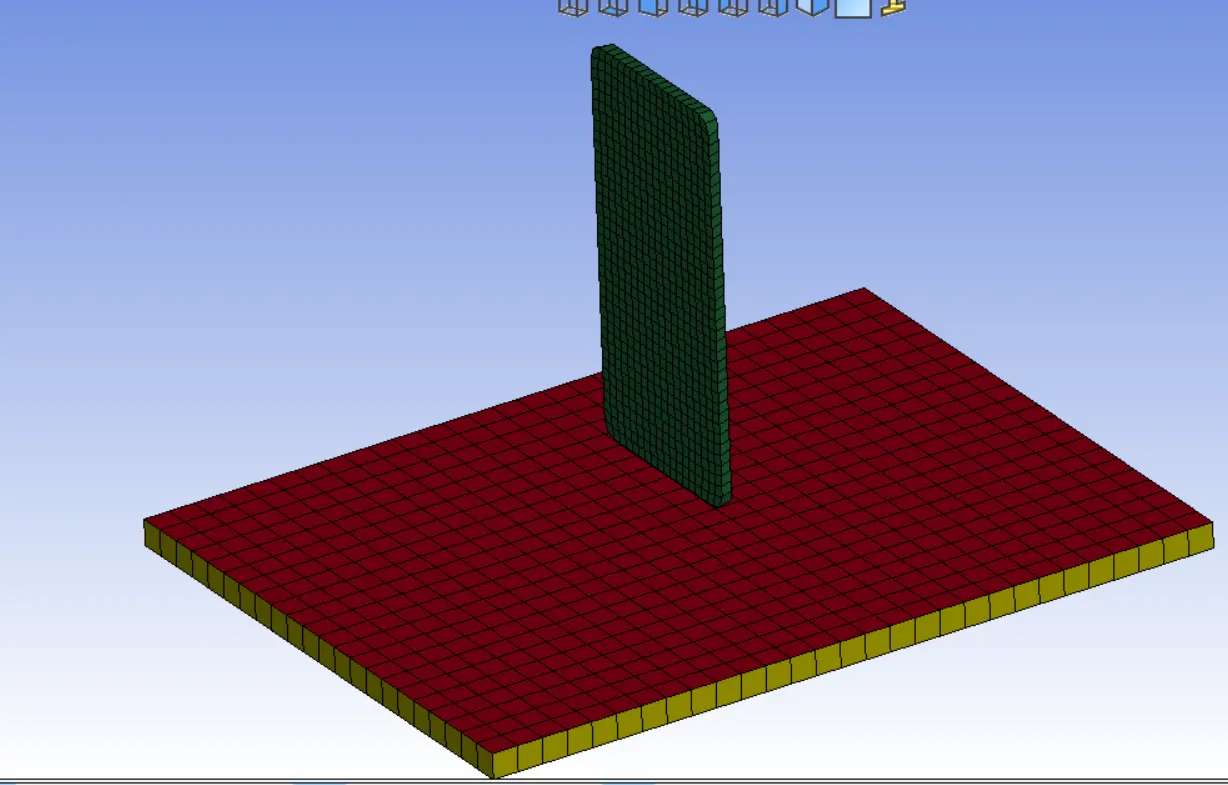
Procedure:
1) Open the given Keyword file in LS Dyna. For this
goto File >> Open >> LS Dyna Keyword File >> Select the given file >> click on open.
File will be open in LS Dyna window
2) Keyword Check. For this
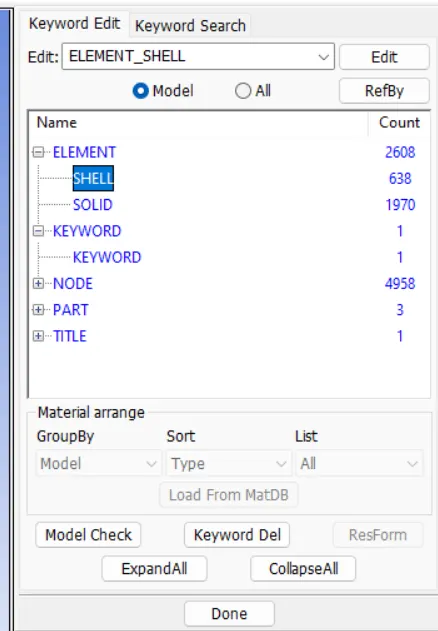
Go to right tool panel >> Model and Part >> Keyword >> check the model properly
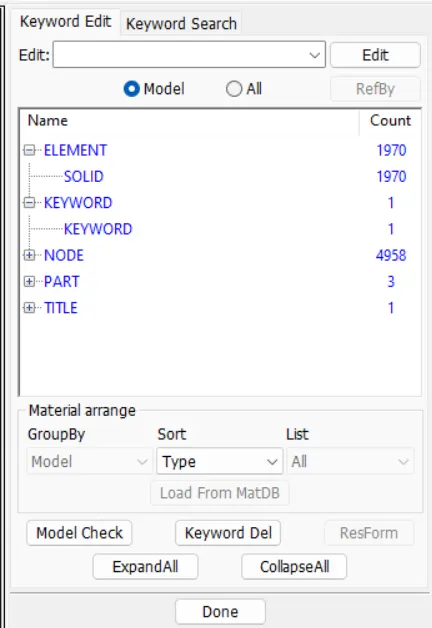
We can see that both shell and solid elements are there, but for the given analysis we required only solid element.
Hence delete the shell element.
For this select the element and click Keyword Del
3) Create Material Card (Cell Phone). For this
go to right panel >> Keyword manager >> all >> MAT >> 024 - Piecewise_Linear_Plasticity >> Title = "Cellphone_Material" >> Density = 2.7x 10^-6 >> Elasticity = 70 >> PR = 0.33 >> SIGY = .276 > ETAN = .562 >> Accept >> Done
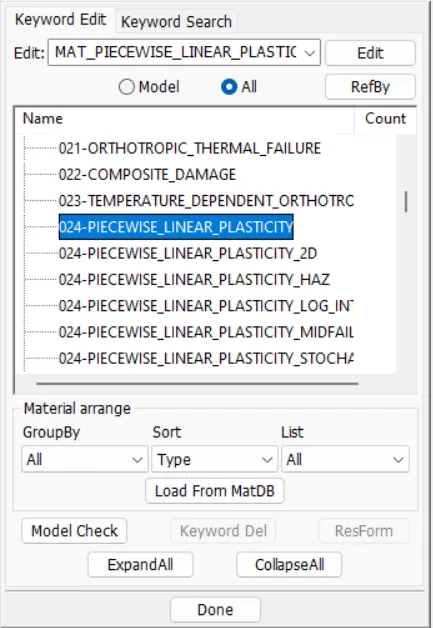
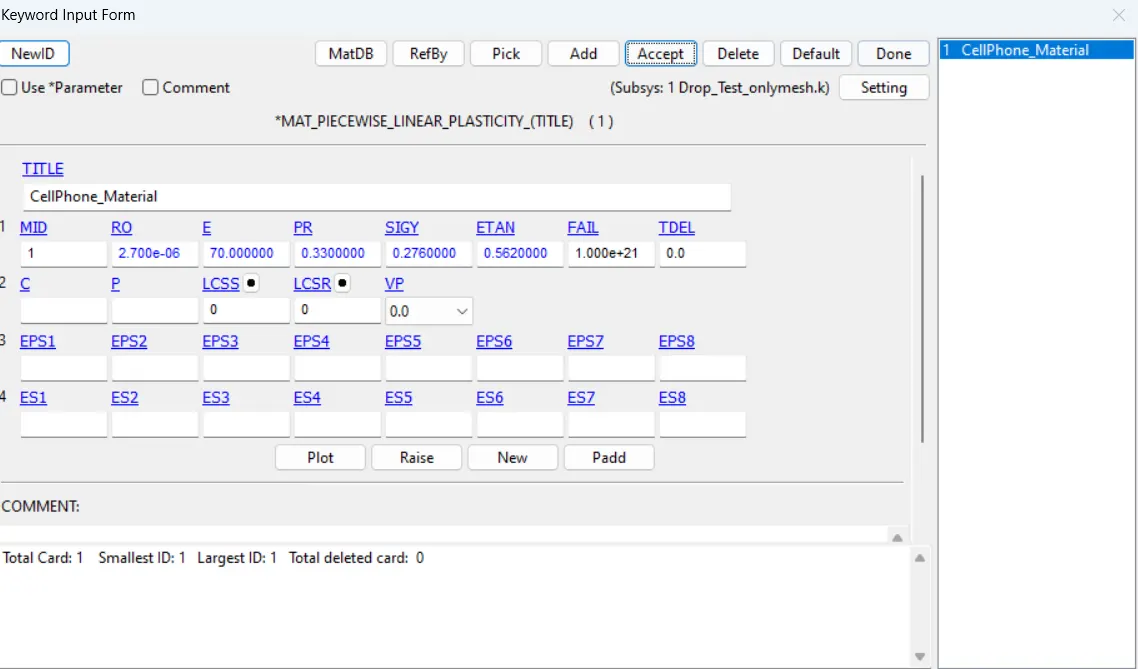
Create Material Card (Cell Phone). For this
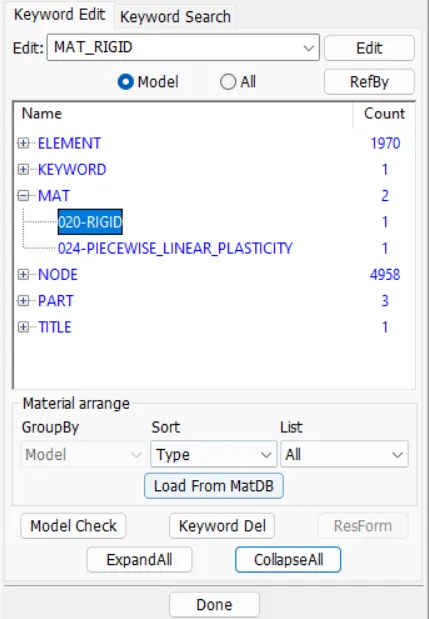
go to right panel >> Keyword manager >> all >> MAT >> 020 RIGID >> Title = "Plate_Material" >> Density = 7.8x 10^-6 >> Elasticity = 210 >> PR = 0.26 >> Accept >> Done
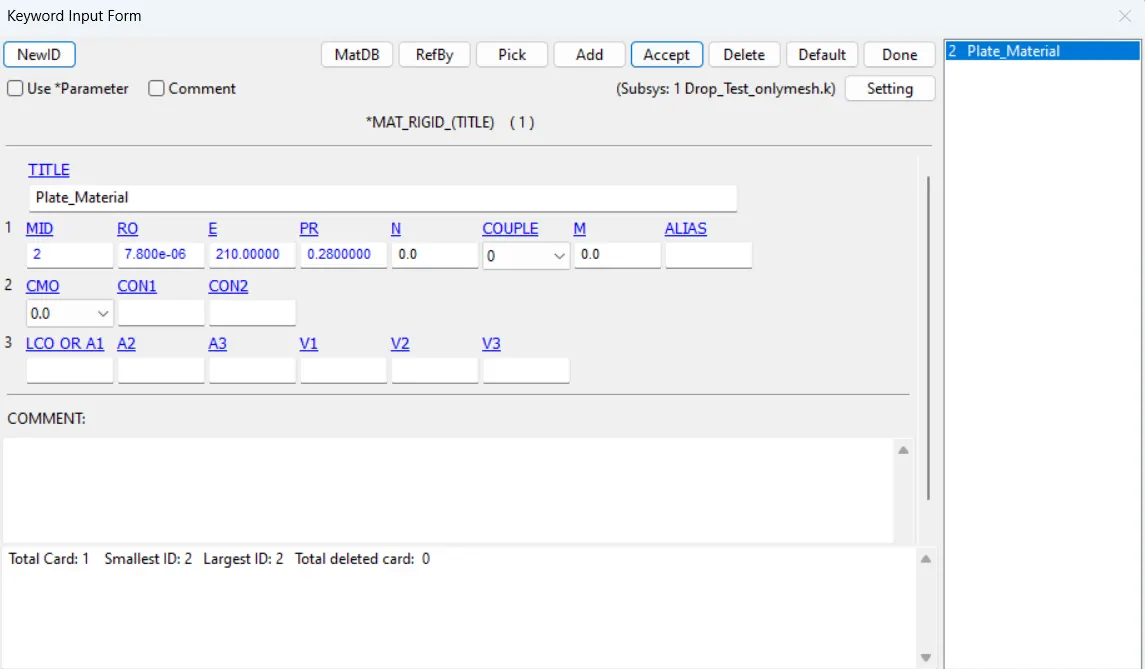
4) Create the section Card for Cellphone
go to right panel >> Keyword manager >> all >> Section >> Solid >> Title = "CellPhone_Section" >>EL = 1 >> Accept >> Done
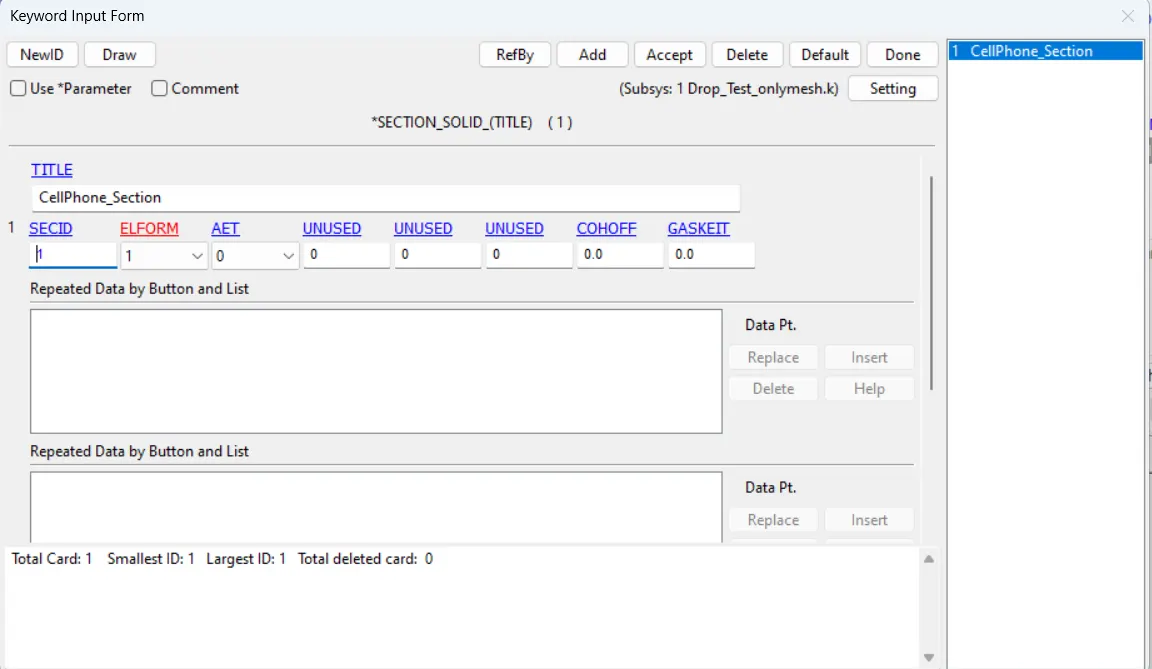
Create the section Card for Plate
go to right panel >> Keyword manager >> all >> Section >> Solid >> Title = "Plate_Section" >>EL = 1 >> Accept >> Done
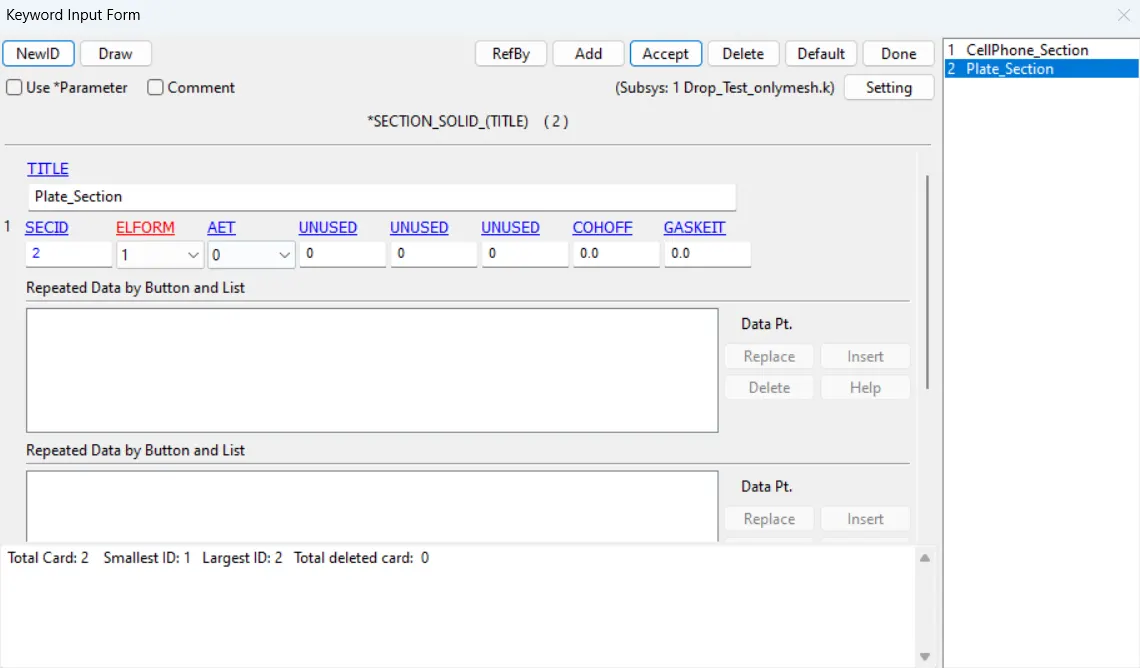
5) Assign Material Card and Section Card to part
For this go to right panel >> model and part >> keyword manager >> model >> part >> assign the MID and SECID cards to their respective parts.
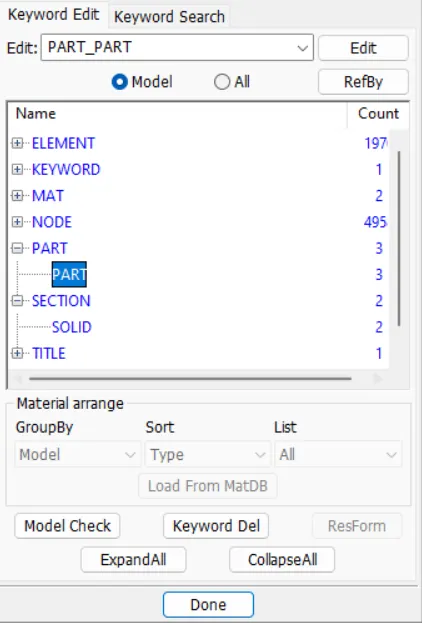
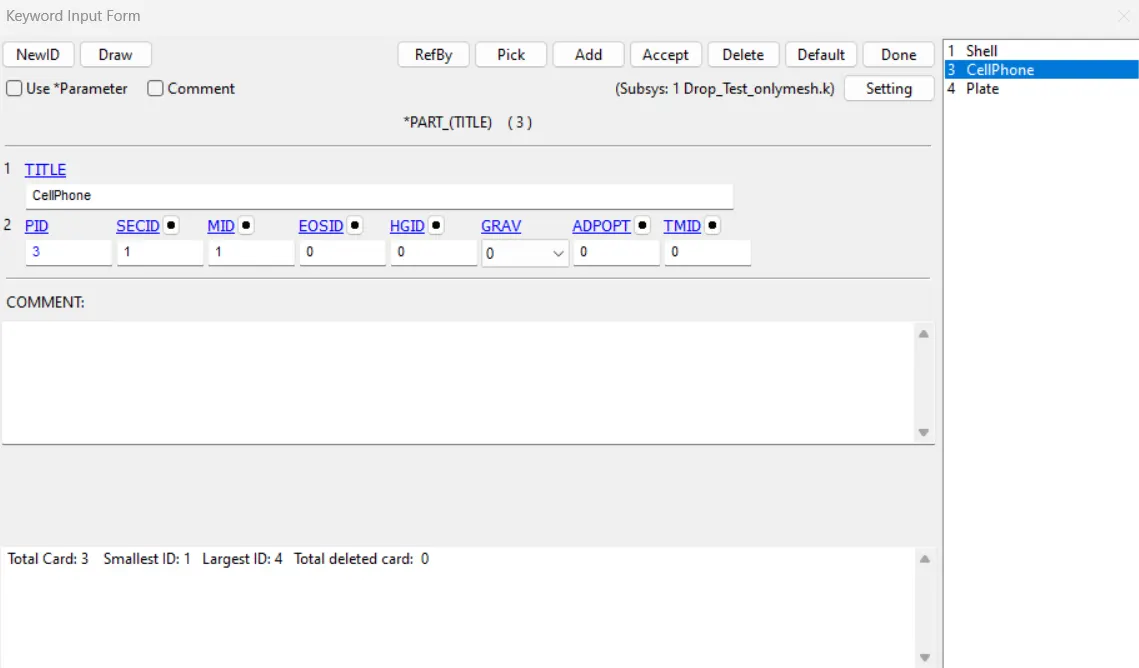
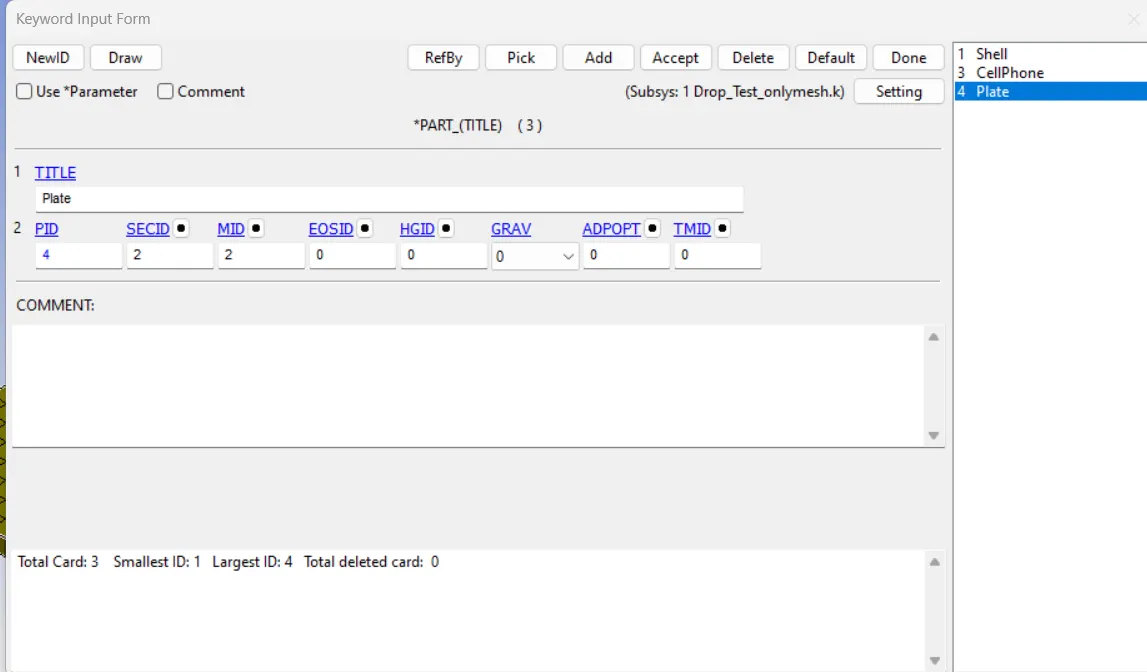
6) Apply Boundary Condition
Create node set ID (Plate)
For this go to right panel >> model and part >> create entity >>set data >> set node >> select the nodes by area in plate >> node set created for plate >> title = plate_node >> Apply >> Done
Create node set ID (Cellphone)
For this go to right panel >> model and part >> create entity >>set data >> set node >> select the nodes by area in cellphone >> node set created for plate >> title = cellphone_node >> Apply >> Done
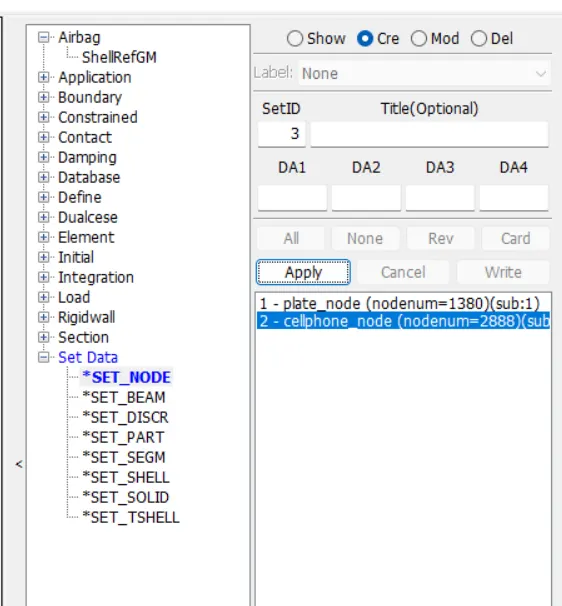
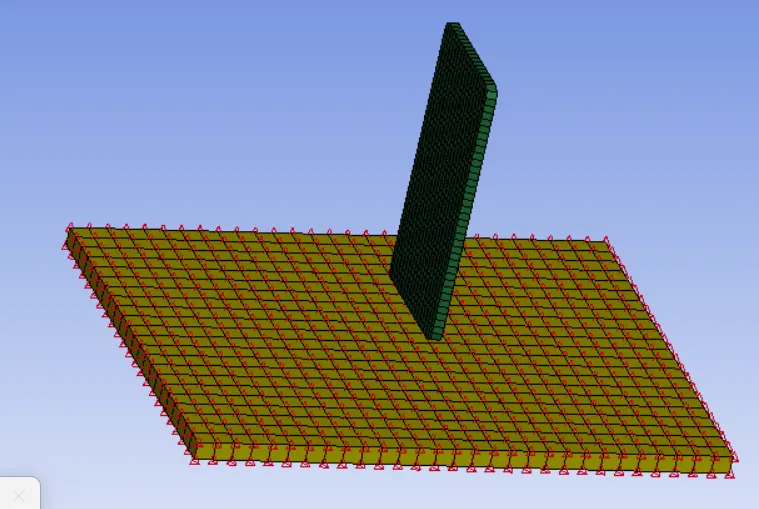
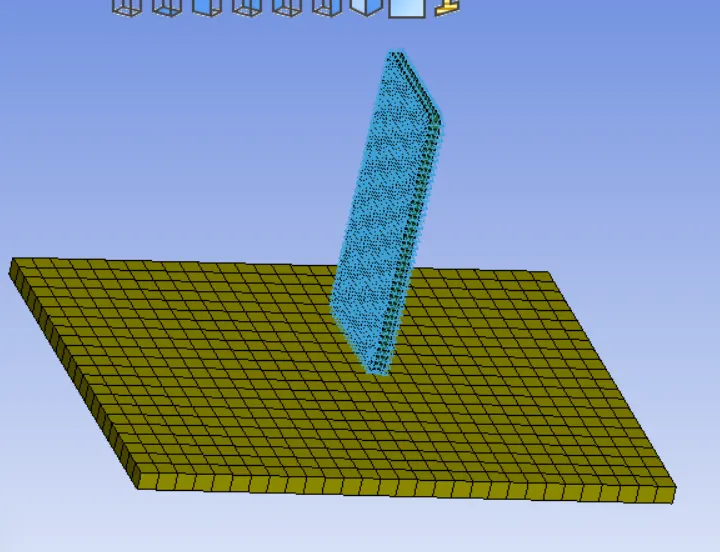
Boundary Condition to plate (Rigid)
For this go to right panel >> model and part >> create entity >> boundary >> Spc >> create >> set >> all fix [111111] >> node set id foe plate >> select nodes >> apply >> done
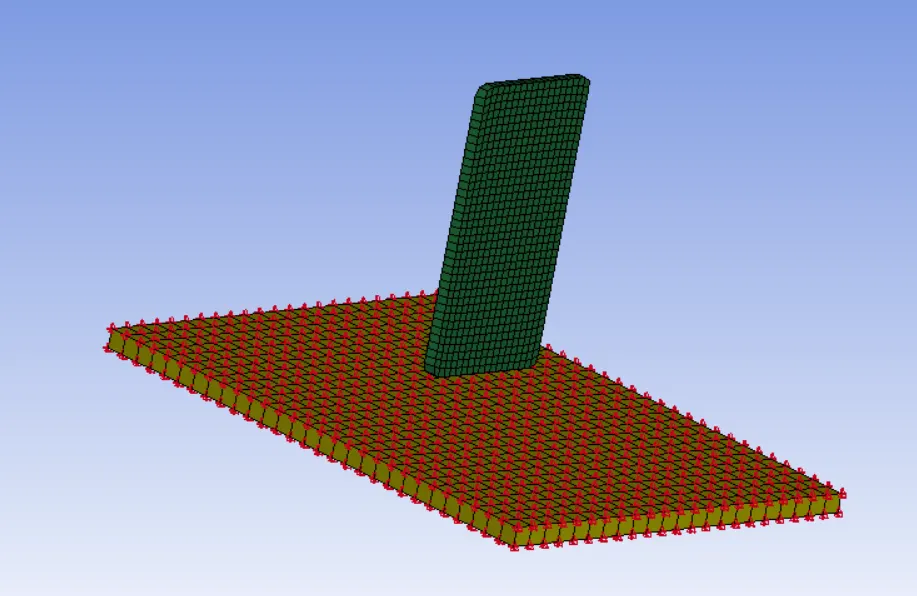
7) Assign Initial velocity to cell phone
For this go to right panel >> model and part >> display entity >> select velocity >> velocity direction will be displayed
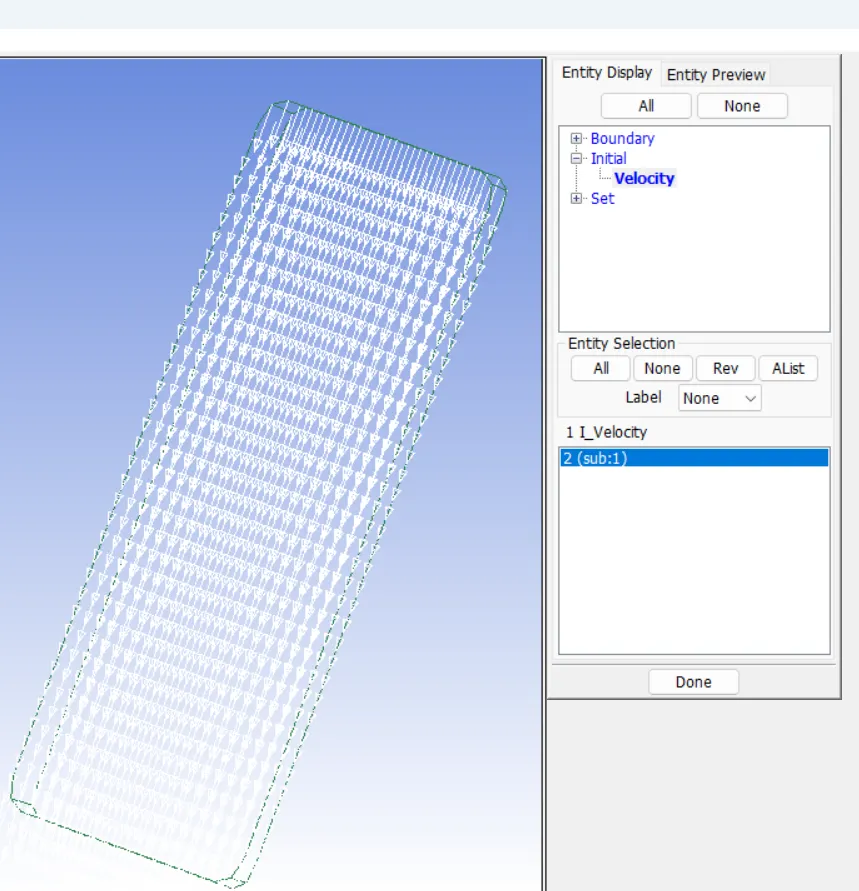
9) Assign control termination card
For this go to right panel >> model and part >> keyword manager >> all >> control >> termination >> specify termination time is 5 ms >> accept >> done
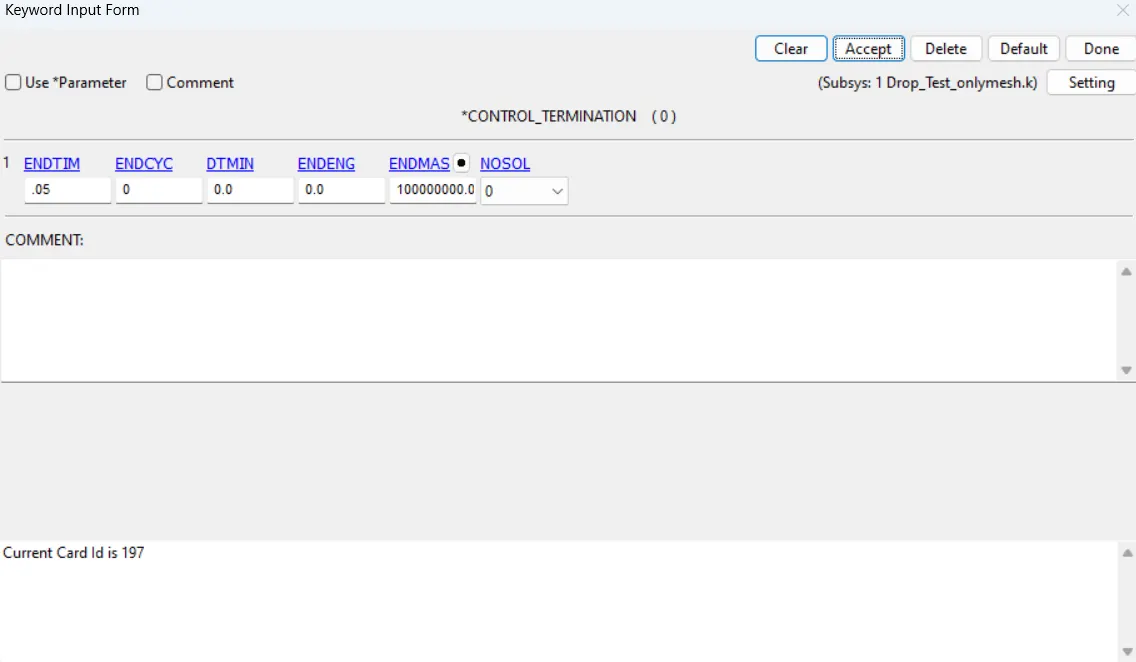
10) Create contact interface between cellphone and plane
create set of segments for cellphone
For this go to right panel >> model and part >> create entity >> set data >> *SET_SEGM >> select cellphone elements >> cellphone segment created
create set of segments for plate
For this go to right panel >> model and part >> create entity >> set data >> *SET_SEGM >> select plate elements >> plate segment created
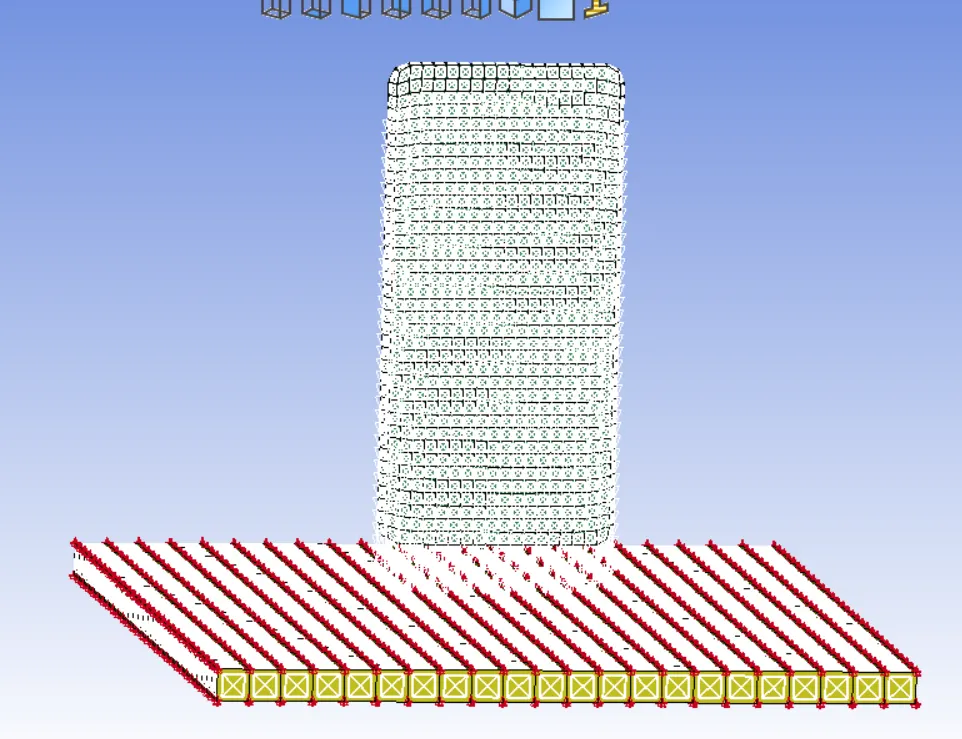
Now create contact card
For this go to right panel >> model and part >> keyword manager >> all >> contact >> AUTOMIC SURFACE TO SURFACE >> select plate segment as master and cellphone segment as slave >> accept >> done
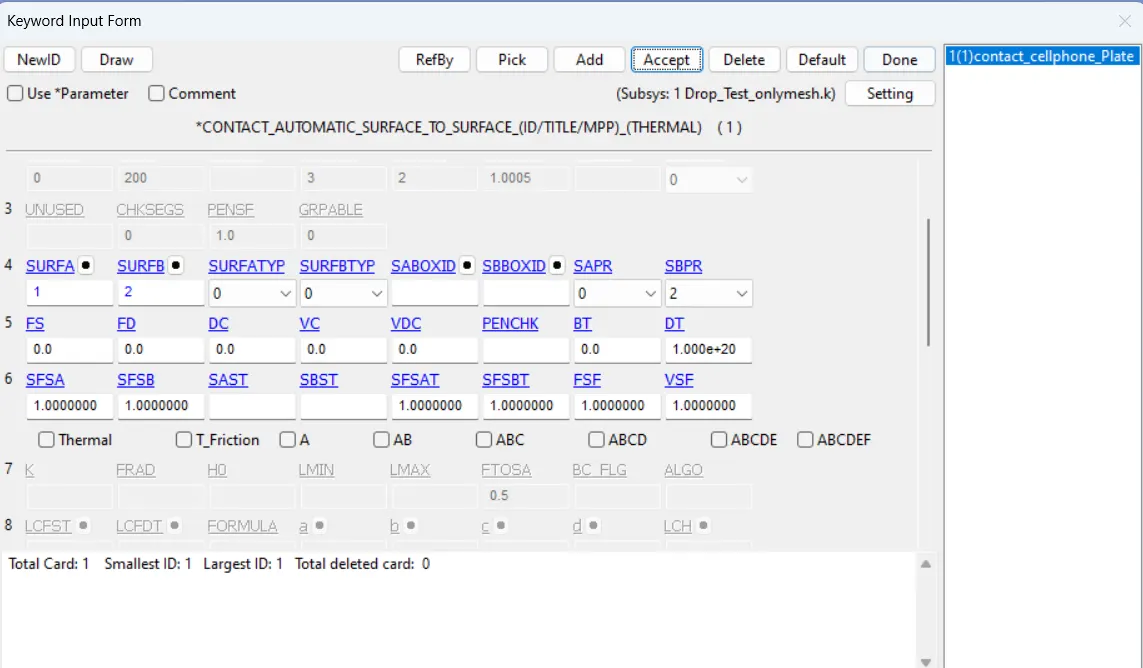
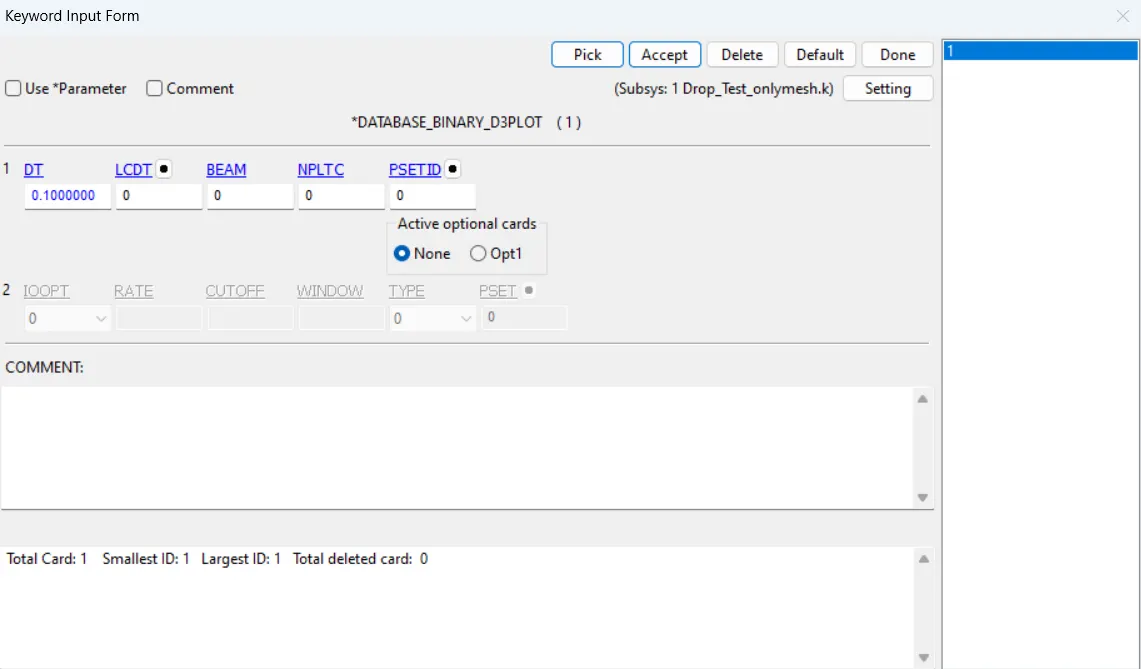
11) Define the output database as both BINARY D3PLOT & ASCII
For this go to right panel >> model and part >> keyword manager >> all >> database >> DATABAE_BINARY_D3PLOT >> DT = 0.1 >> accept >> Done
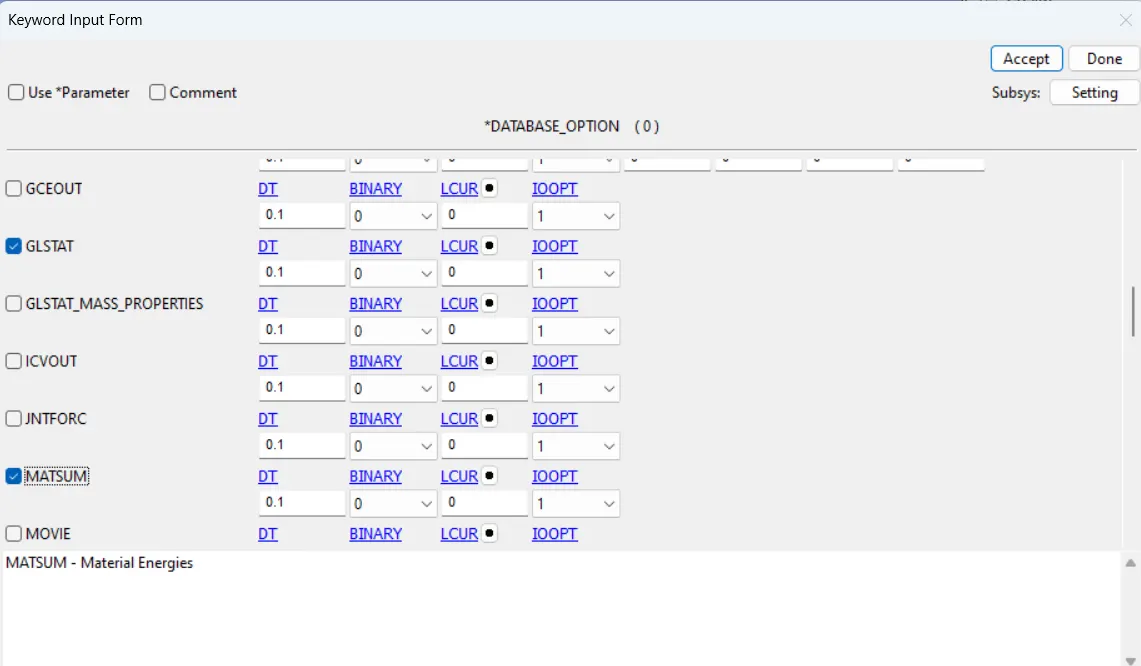
go to right panel >> model and part >> keyword manager >> all >> database >> ASCII_Option >> for GLSTAT & MATSUM , DL = 0.1 >> accept >> done
12 ) Model Checkup
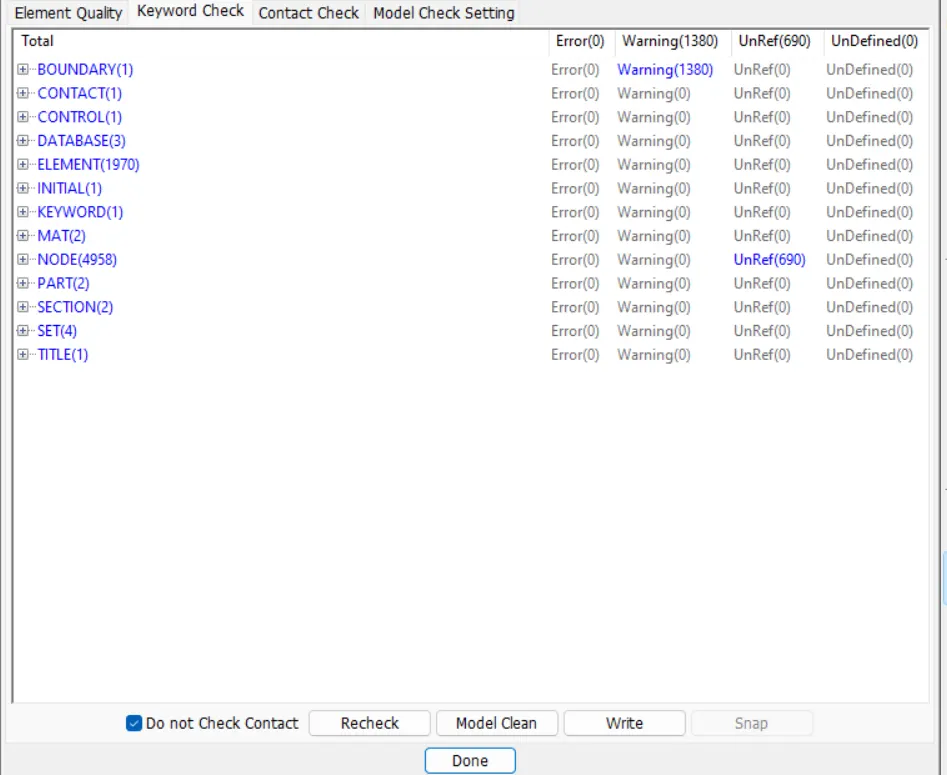
go to right panel >> Model Checking >> Keyword Check >> recheck >> correct the error if any , warnings can be ignore
13) Run the simulation
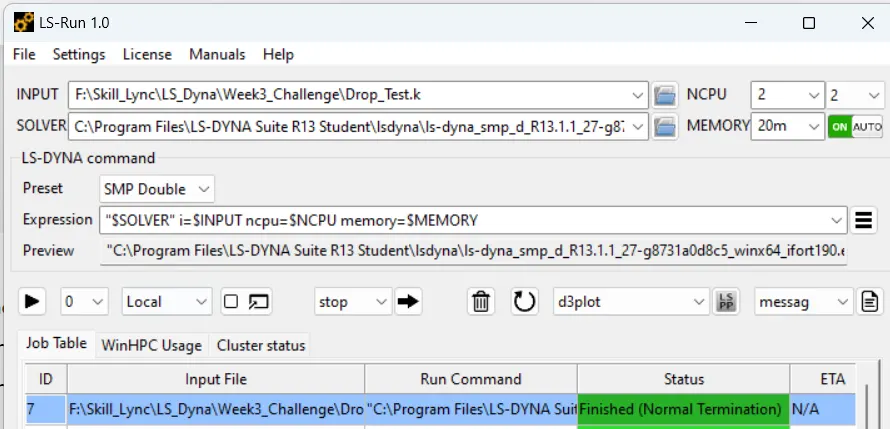
1. Open LS Run.
2. Open the file and run the analysis, If it achieved normal termination, means model is ready for post processing.
14) Post Processing
1. Open another LS Pre Post window.
2. go to file >> open >> LS Dyna Binary Plot >> select the d3 plot file
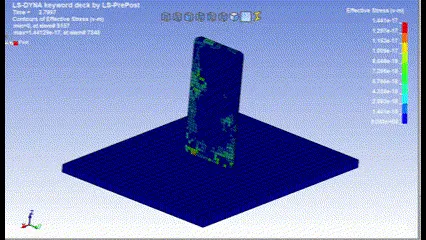
3. Plot stress contour
go to right pannel >> Post >> frienge component
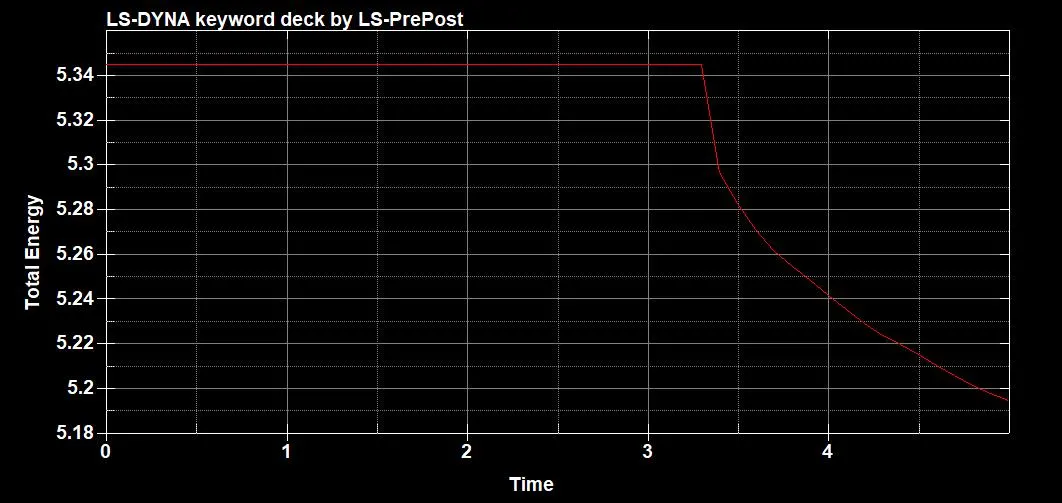
4. For energy plot result
go to right pannel >> Post >> ASCII
Conclusion
1. Performed a drop test simulation of a cell phone droped on a plate under initial velocity using LS-Dyna.