Week-3 Challenge: ADVISOR Tool
HOW TO OPEN THE ADVISOR TOOLS IN MATLAB
- First download the Advisor tools in chrome then extract the file
- Now , Open the Matlab
- Go to current folder ,insert the Advisor file, Right click on the Advisor file
- Add subsystem now advisor file added in matlab
- Now ,type advisor in Matlab command window
- For EV_defaults_in file, if cargo mass is 500 kg with all other default conditions, can the vehicle travel for 45 km with FTP drive cycle? Conclude your observations.
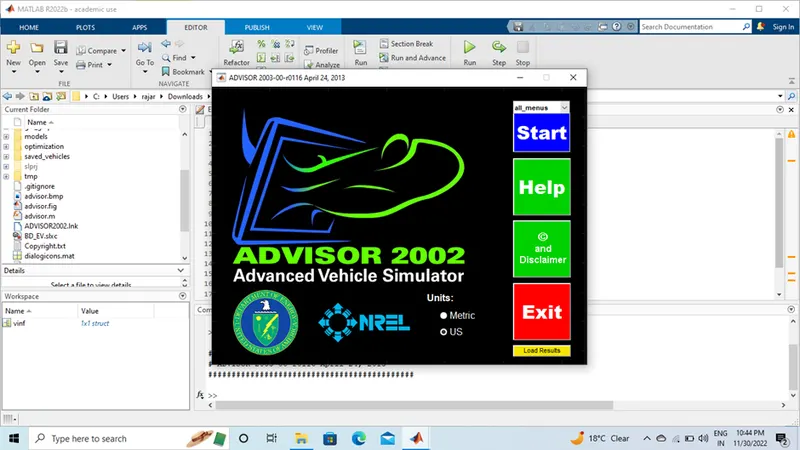
Step-1 OPEN THE ADVISOR TOOL AND CLICK START TO OPEN THE VEHICLE INPUT IN ADVISOR SIMULATOR
Step-2 Search the ‘ EV_ Defaults in’ File and click the File, the File will be Open now
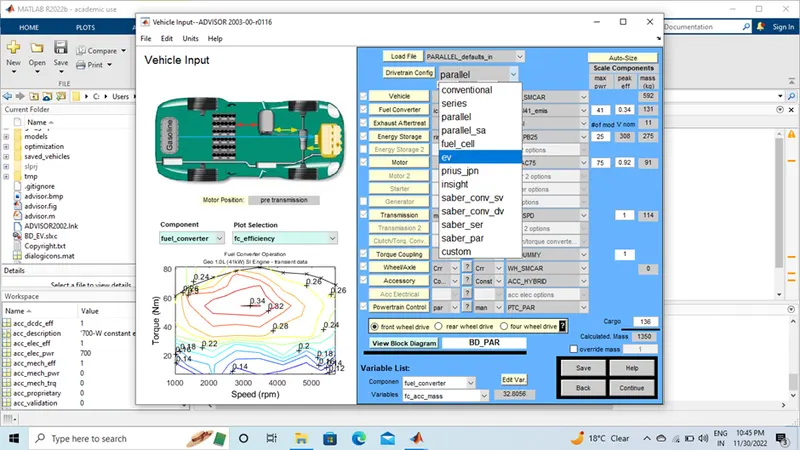
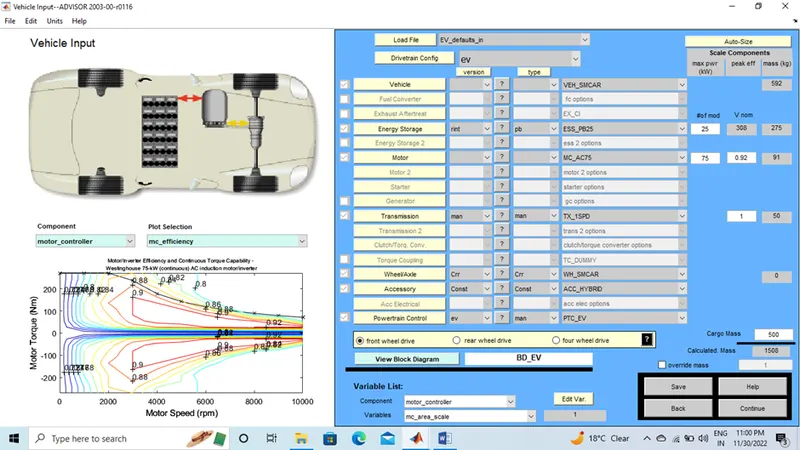
Step-3 the Advisor tools consists of every parameter like that Mass, vehicle, Motor, Energy Storage, transmission etc….
Step-4 Now , change the CARGO MASS VALUE TO ENTER THE 500 KG.
Step-5 click continue , To simulation Parameters will be open now, its consists of Drive Cycle, grading and acceleration test.
Step-6 Now, search the ‘CYC_FTD’ in Drive Cycle.
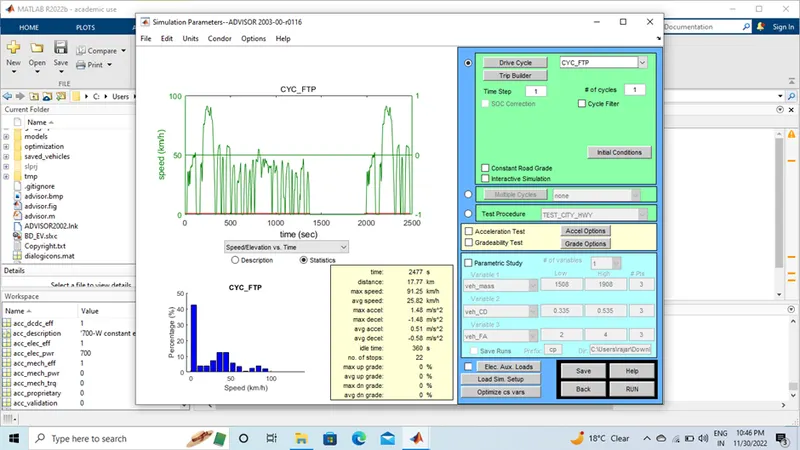
Step-7 Now , click RUN will get the Results
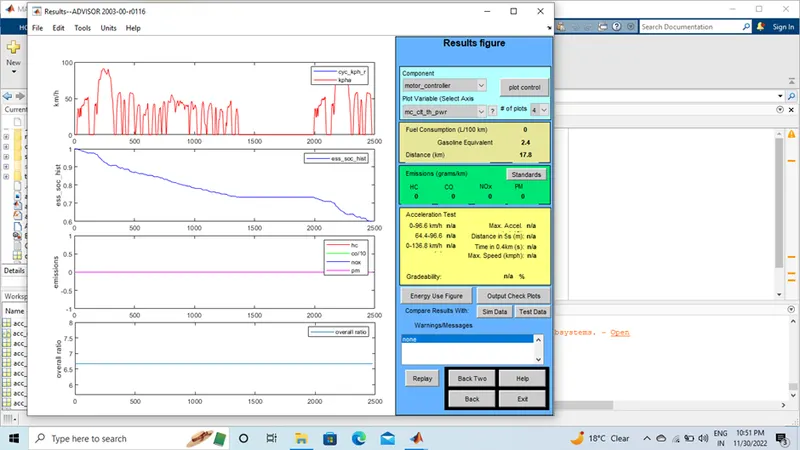
RESULT
- The vehicle Cannot Run at 45 km in FTD Drive Cycle.
- Because , the cargo weight mass is 500 KG, the vehicle can be travel Upto 17.8 km
Q.2 For the EV_ defaults_in file, if cargo mass is 500 kg with all other default conditions, try changing the battery capacity and repeat the simulation.
STEP-1 Change the energy storage to ‘ESS_PB65_FOCUSEV’ and keep all parameters same
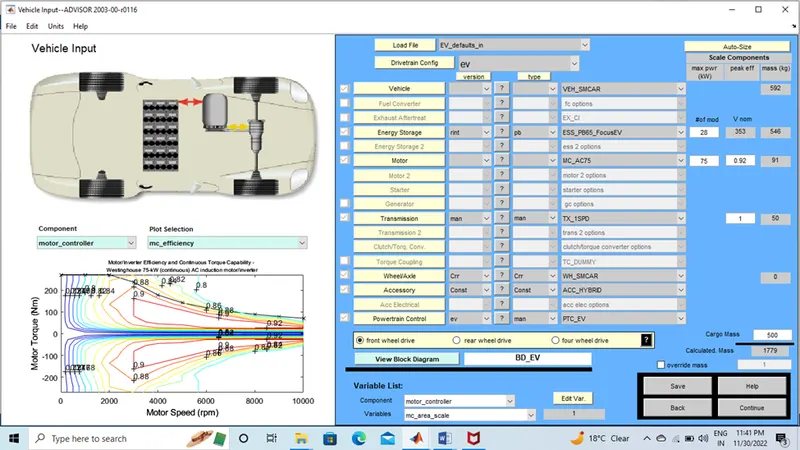
Step-2 click next and RUN the simulation
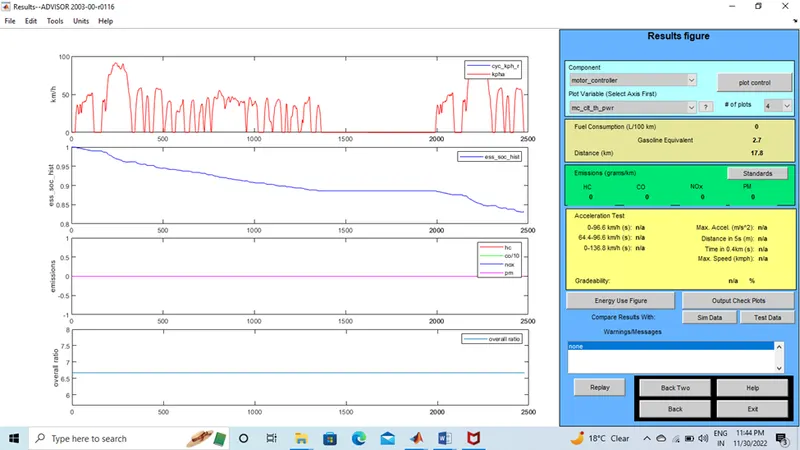
- The Results we can the Distance covered 17.8 km the fig was not changed,
- The One FTP Cycle covered 17.8 and charge still remaining in battery
- Now , we need increase the FTP drive Cycle-7
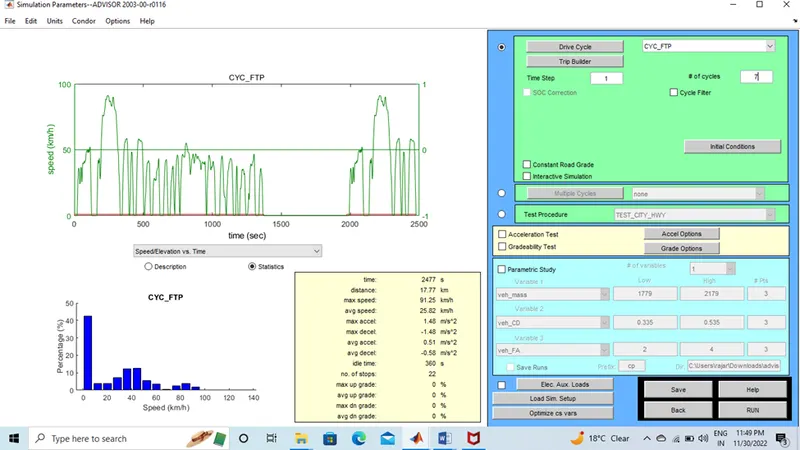
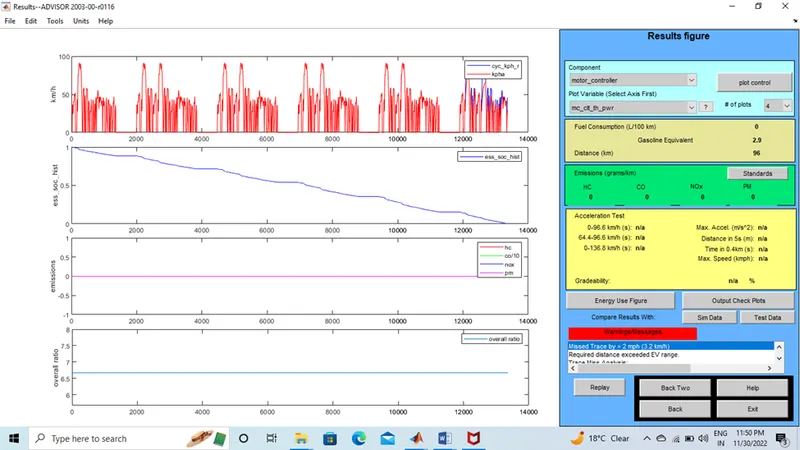
- We can see the Distance covered 96 km and SOC indicate the 0% by 1300 seconds aprx.
- The single charge the vehicle can travel Distance 96 KM
Q.3Perform gradeability test with PRIUS_Jpn_defaults_in file
Compare your results in table and conclude.
HOW TO OPEN THE ADVISOR TOOLS IN MATLAB
- First download the Advisor tools in chrome then extract the file
- Now , Open the Matlab
- Go to current folder ,insert the Advisor file, Right click on the Advisor file
- Add subsystem now advisor file added in matlab
- Now ,type advisor in Matlab command window
.
Step-1 Open the advisor tool and click start to open the vehicle input in advisor simulation
-
Step-2 search for ‘ PRIUS_JPN_DEFAULTS_IN’ file from load file and click next
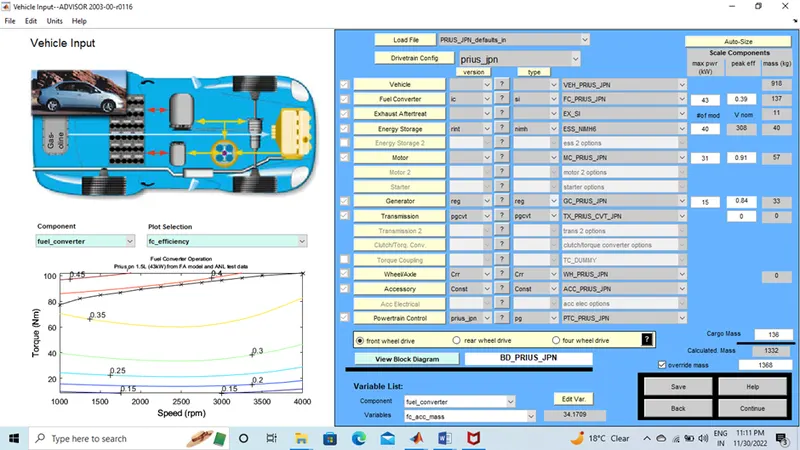
-
Step-3 click continue , To simulation Parameters will be open now, its consists of Drive Cycle, grading and acceleration test.
Step-4 Now, search the ‘CYC_UDDS’ in Drive Cycle.
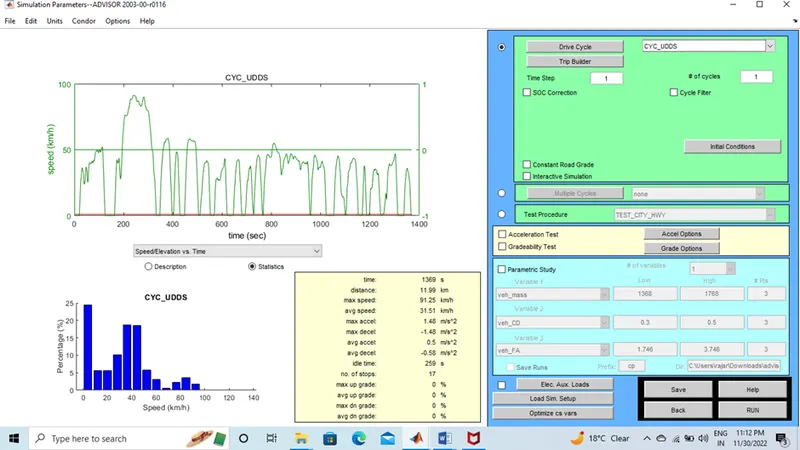
Step-5 now click the grade option ,grade folder will be open now
SPEED = 55 m/ph
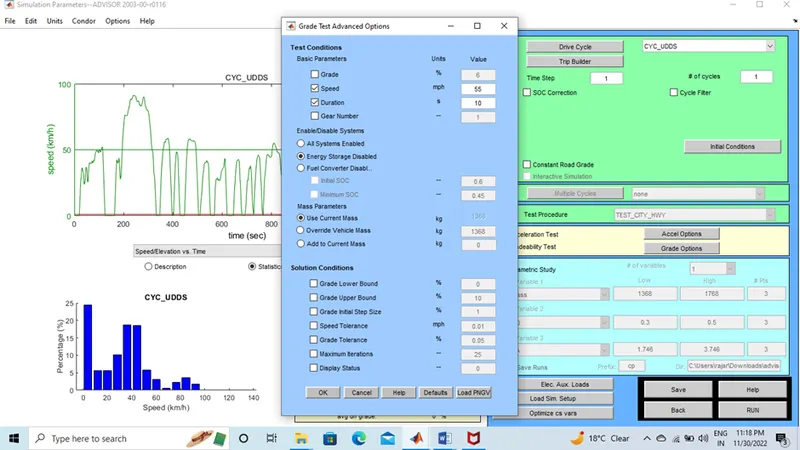
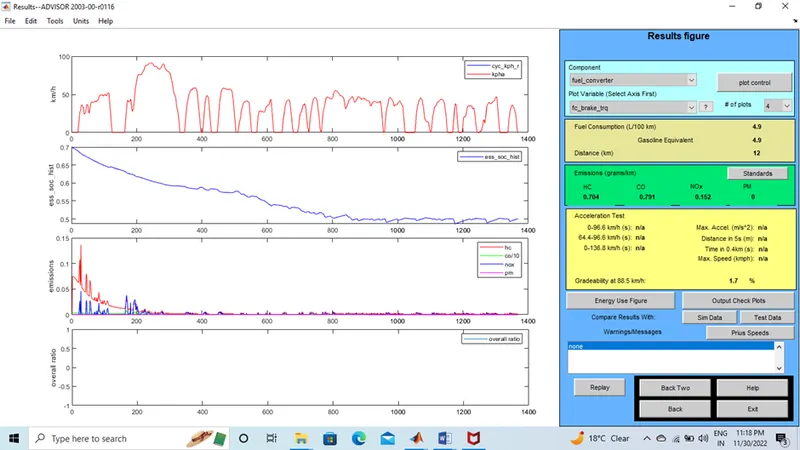
Speed 65 mph
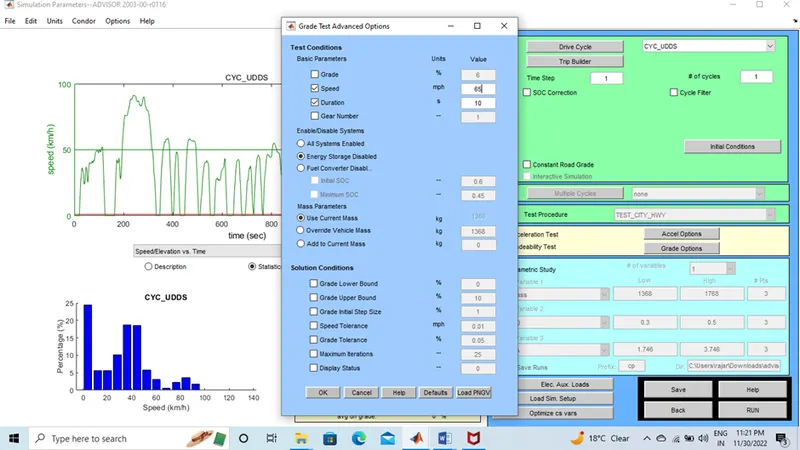
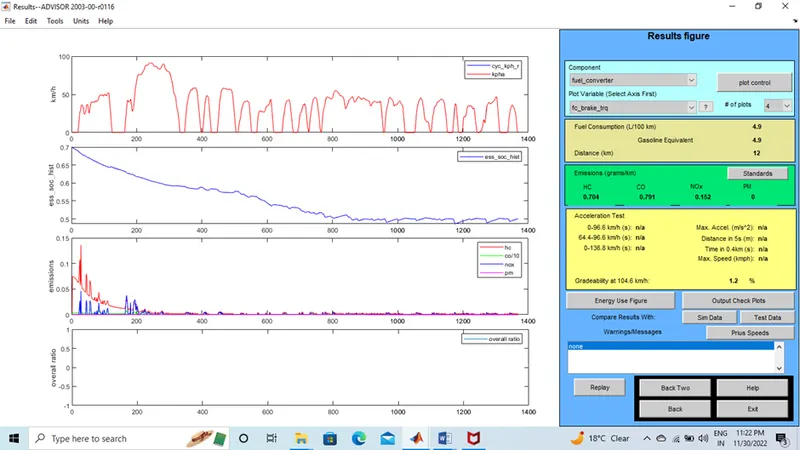
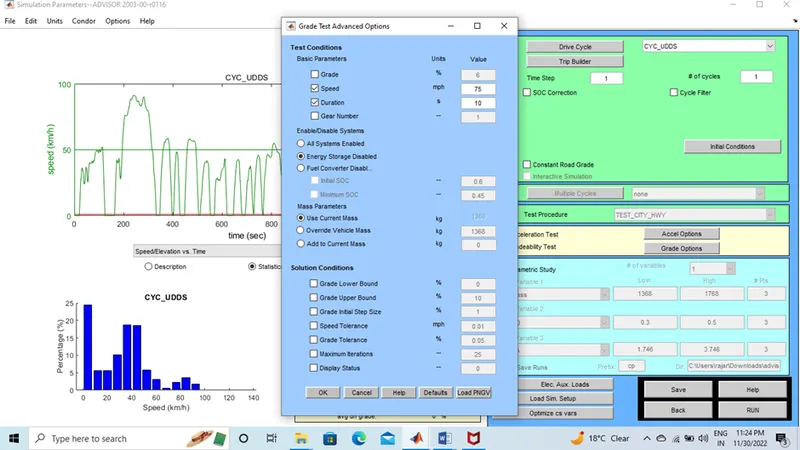
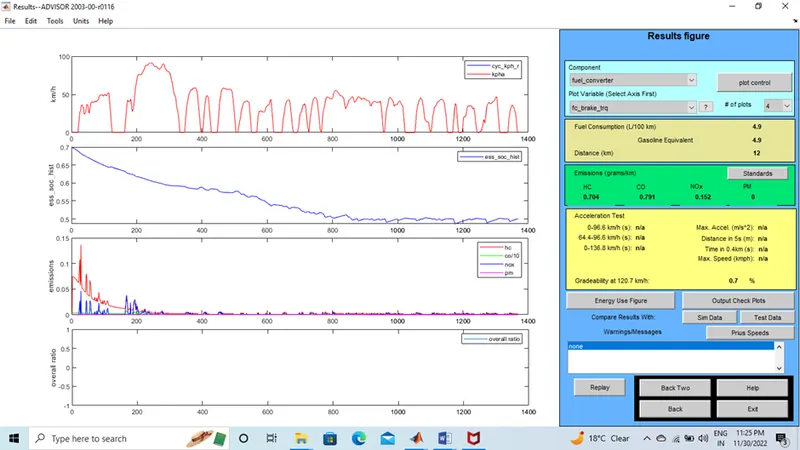
Step-6 so by varying the value of speed in grade of option menu we get the gradebility percentage.
Vehicle-1
Vehicle-2
Vehicle-3
Grade %
1.7
1.2
0.7
Speed(mph)
55
65
75
- THE SPEED INCREASE THE GRADEABILITY DECREASE