Week-3 Challenge: ADVISOR Tool
Use ADVISOR tool and simulate the following
1. For EV defaults in file, if cargo mass is 500 kg with all other default conditions, can the vehicle travel for 45 km with FTP drive cycle? Conclude your observations.
INTRODUCTION: -
Created by National Laboratory for Renewable energy (NREL) and Department of Energy USA
Development phase 1994 to 2004
Rapid analysis of the performance and fuel economy of conventional electric and vehicles Use a backward flow (driving cycle to energy storage.)
Vehicle models are mostly experimentally relying on the drivetrain component input/output relationship measured in the laboratory.it is a set of model’s data script text files for use with MATLAB and Simulink.
The benefits of using ADVISOR: -
Estimate the fuel economy of vehicles that have not yet been built Compare relative tailpipe emission produced on a number of cycles.
Evaluate an energy management strategy for your hybrid vehicle's fuel converter Optimize the gear ratios in your transmission to minimize fuel use or maximize performance etc.
How to start ADVISOR toll: -
Launch MATLAB and first set a default location folder to the advisor
Now in the command window of MATLAB type advisor and press enter.
A new window will open and then set the metric for unit and ADVISOR.
It will launch in a new window ADVISOR TOOL HAVE 3 windows.
1) Vehicle input window
2) simulation parameter window
3) Result in window
1. For the EV_defaults_in file, if cargo mass is 500 kg with all other default conditions, can the vehicle travel for 45 km with FTP drive cycle? Conclude your observations.
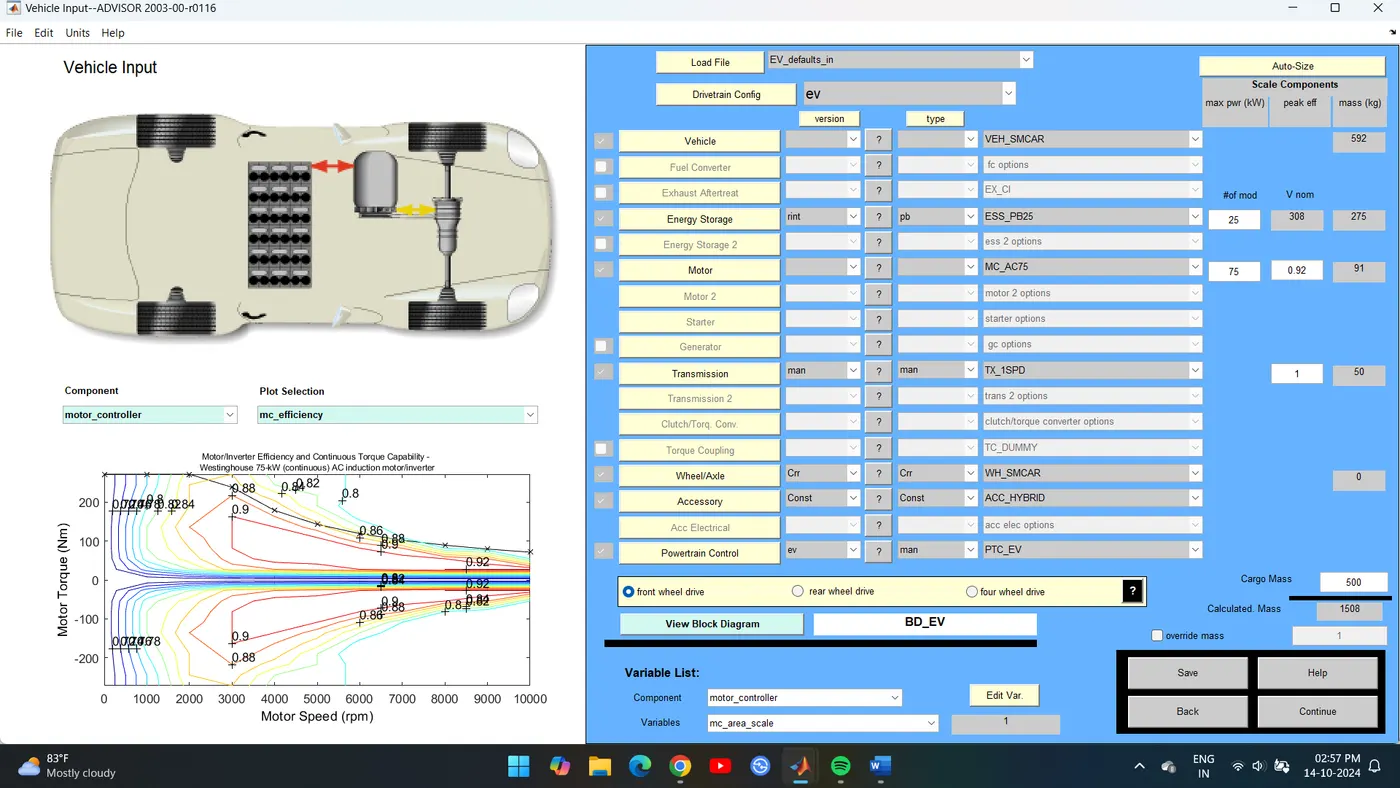
First, loading EV_defaults_in from the drop-down menu and changing Parallel default in to EV_defaults_in from the Vehicle Input window.
Now changing the cargo mass to 500 kg
A change in the total mass of the vehicle can be seen.
Clicking on the continue button after that a new window simulation parameter will pop up.
In Simulation Parameter window change drive cycle to CYC_FTP by selecting the drop-down menu.
Below that we will see of cycles from here we can set our drive cycle.
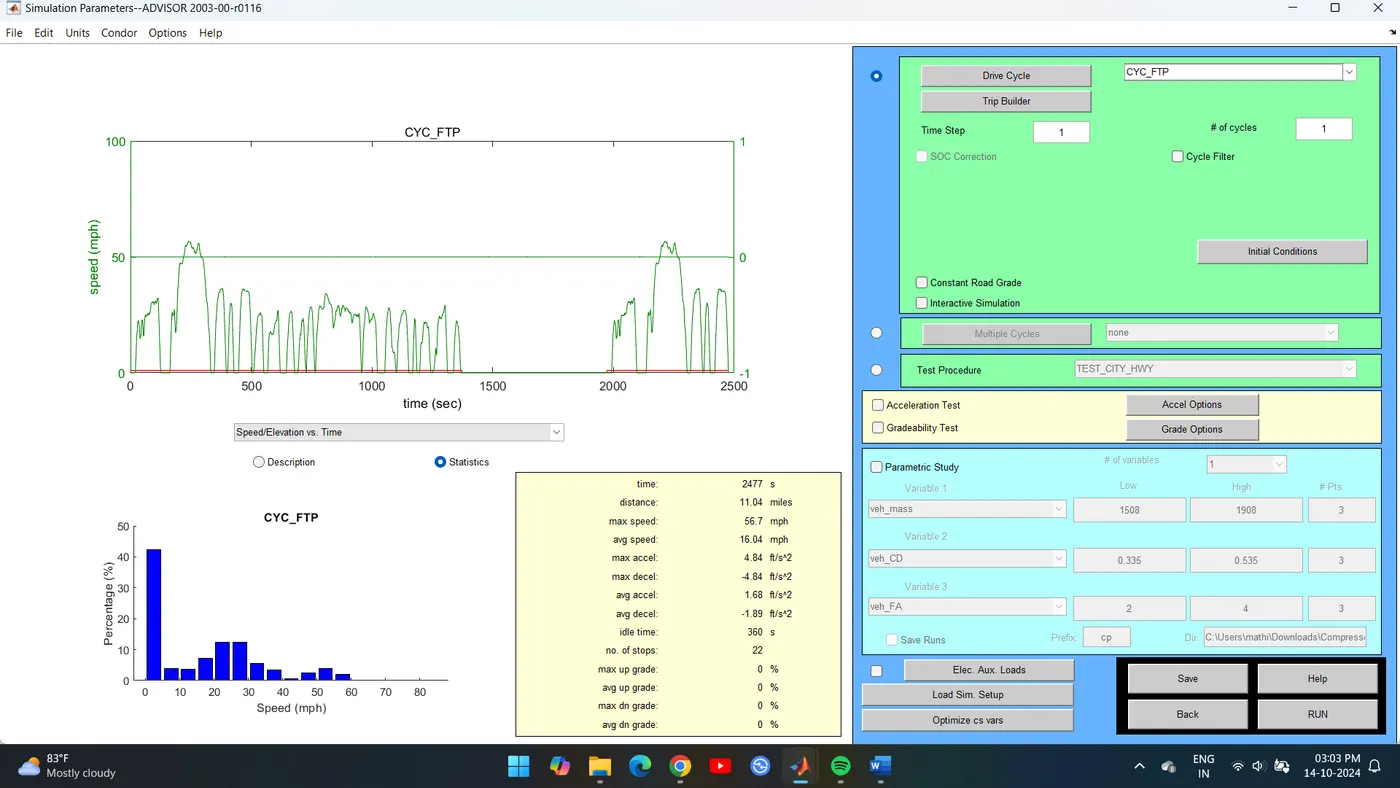
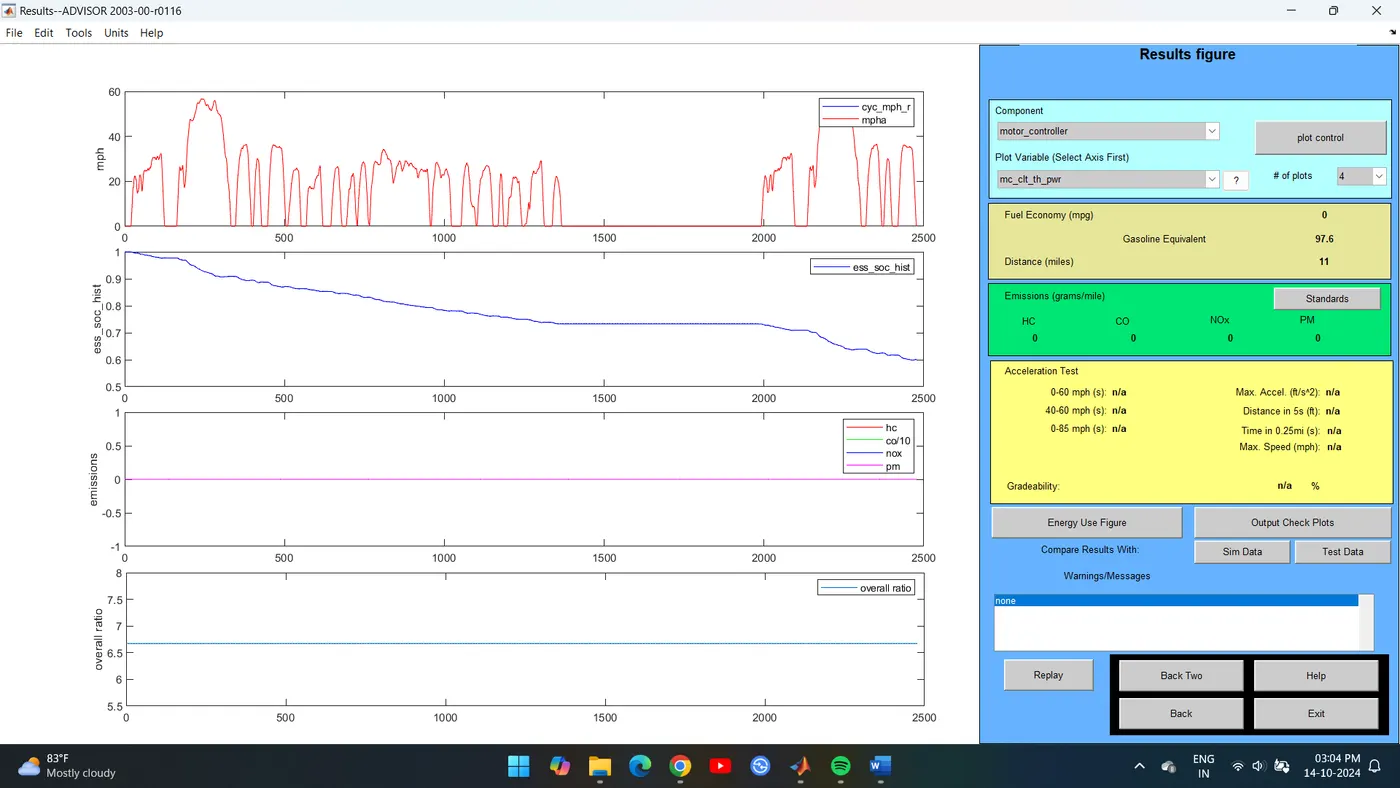
The distance traveled by the vehicle in a 1 drive cycle is 17.7 km
Increasing no. of drive cycles to 2.
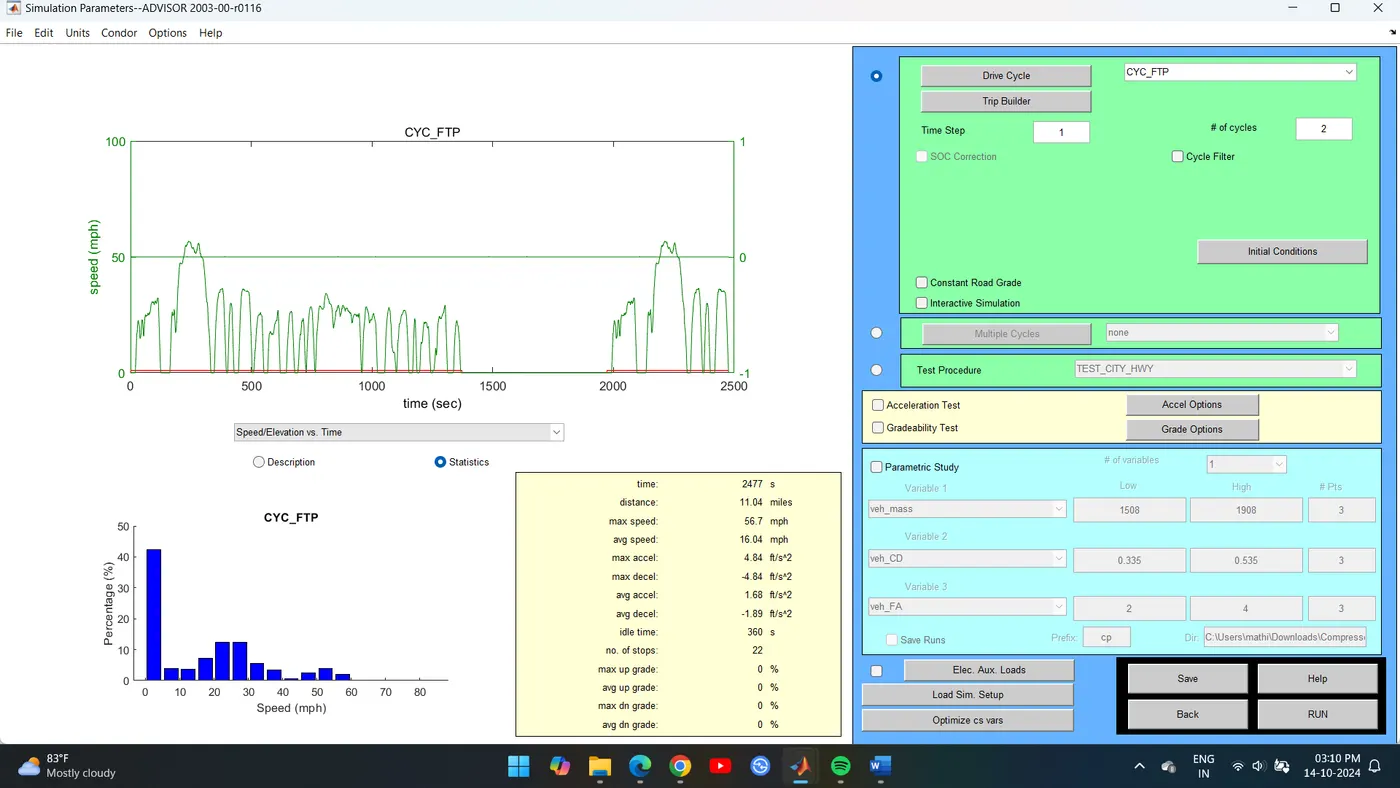
Now run the program
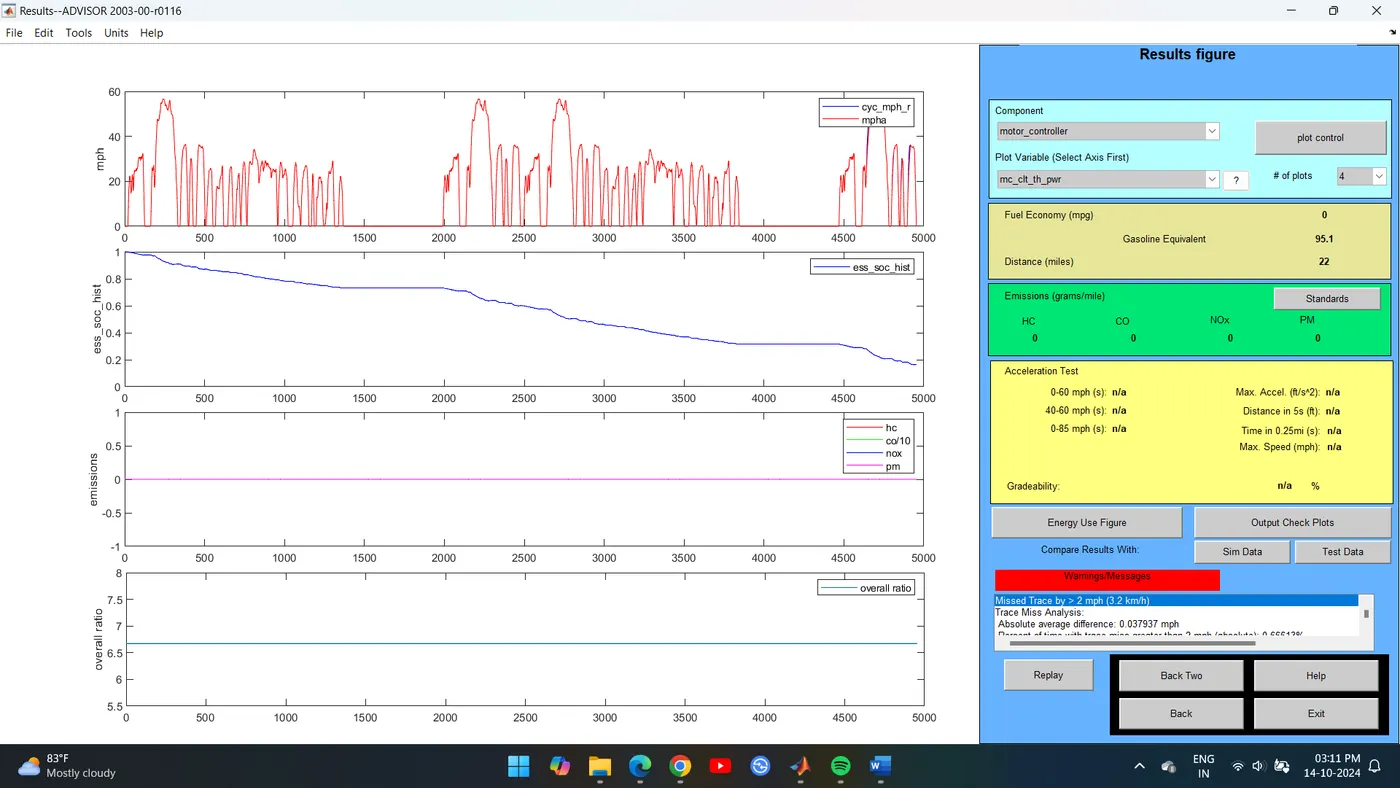
The distance traveled by the vehicle in 2 drive cycles is 35.5km
Increasing no. of drive cycles to 3.
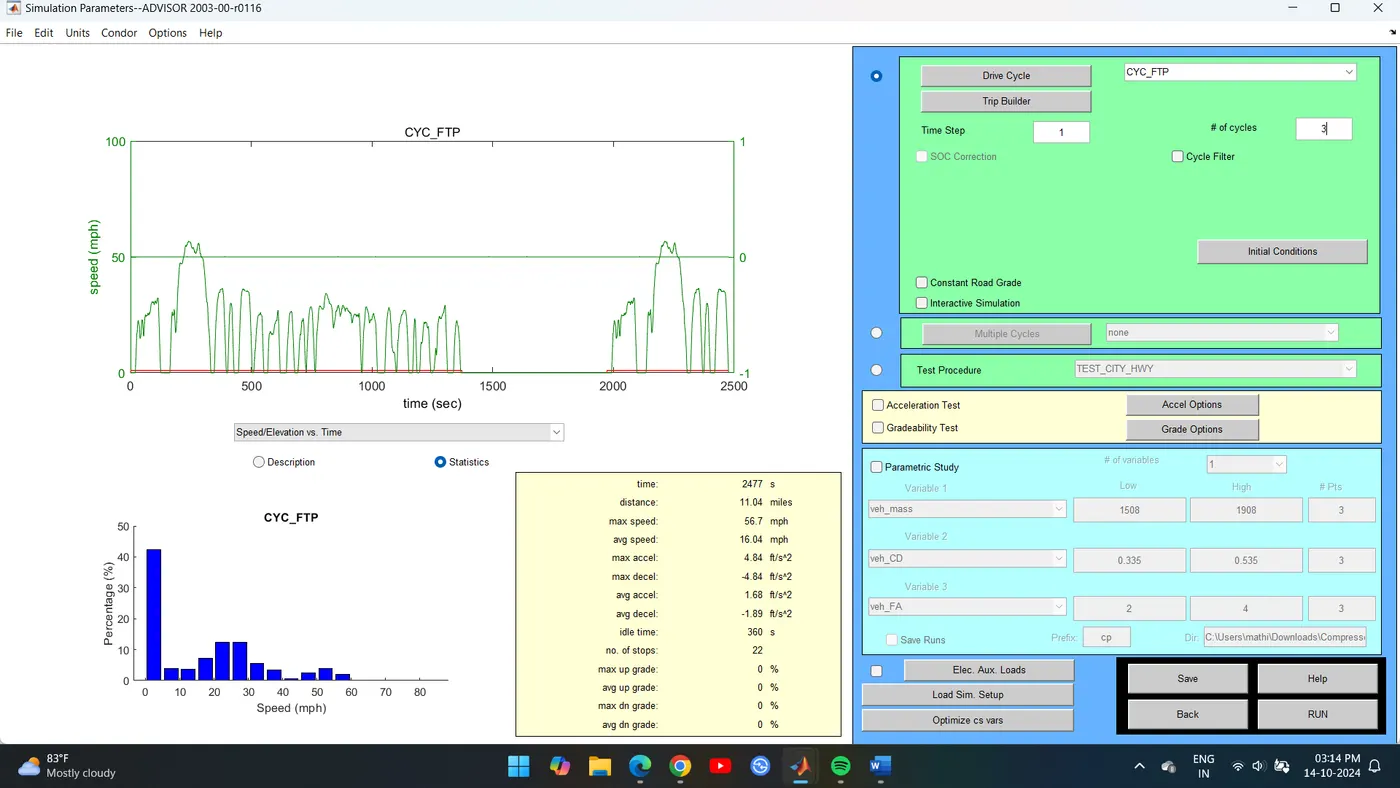
Now run the Program,
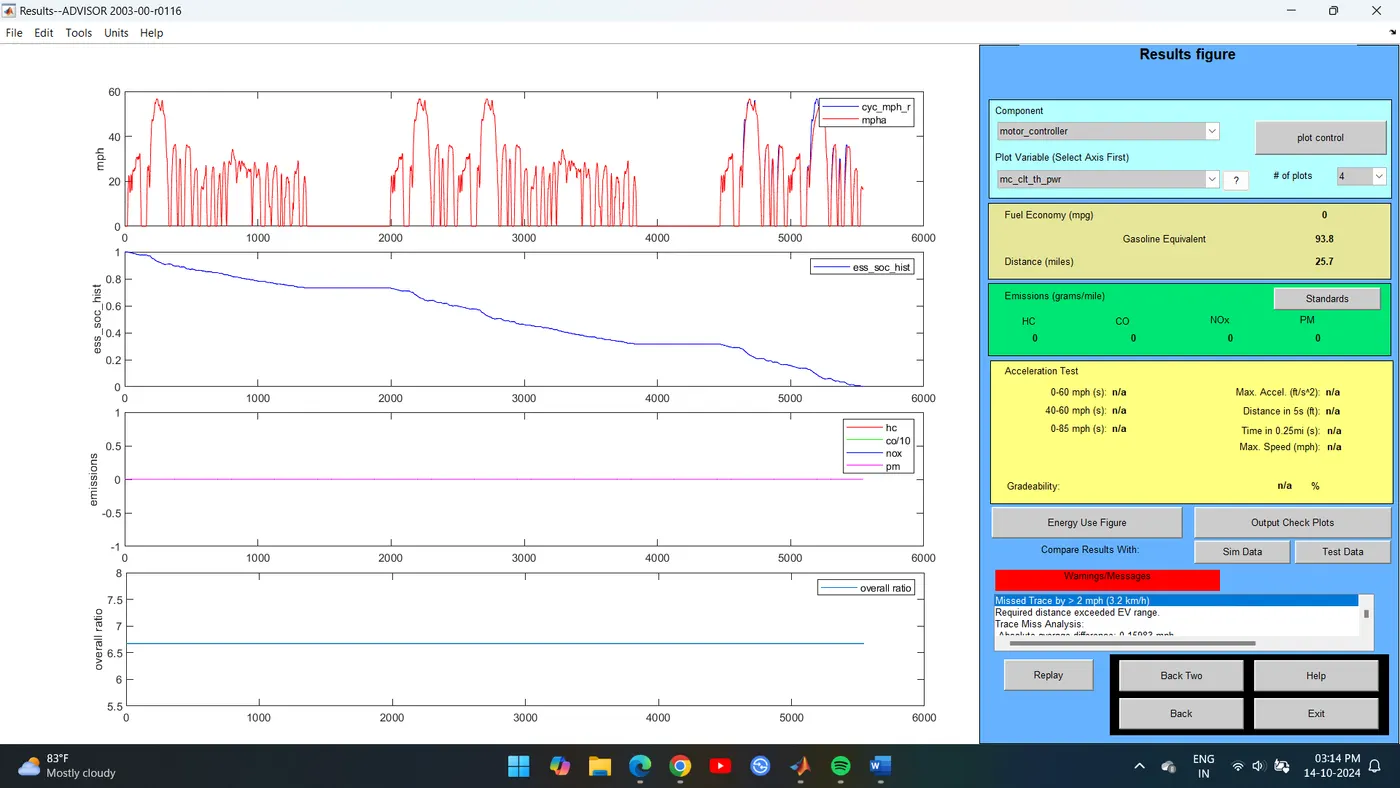
The distance travelled by the vehicle in 2 drive cycles is 41.3 km.
|
No. of Drive cycles |
Distance covered in km |
|
1 |
17.8 |
|
2 |
35.5 |
|
3 |
41.4 |
2. In the above case, try changing the battery capacity and repeat the simulation.
In Vehicle Input window we will change the capacity of the battery from energy storage which will be open.
f mod V nom describes the battery capacity so we will change the module number of batteries from the first box and we will see those changes in voltage and weight of the battery.
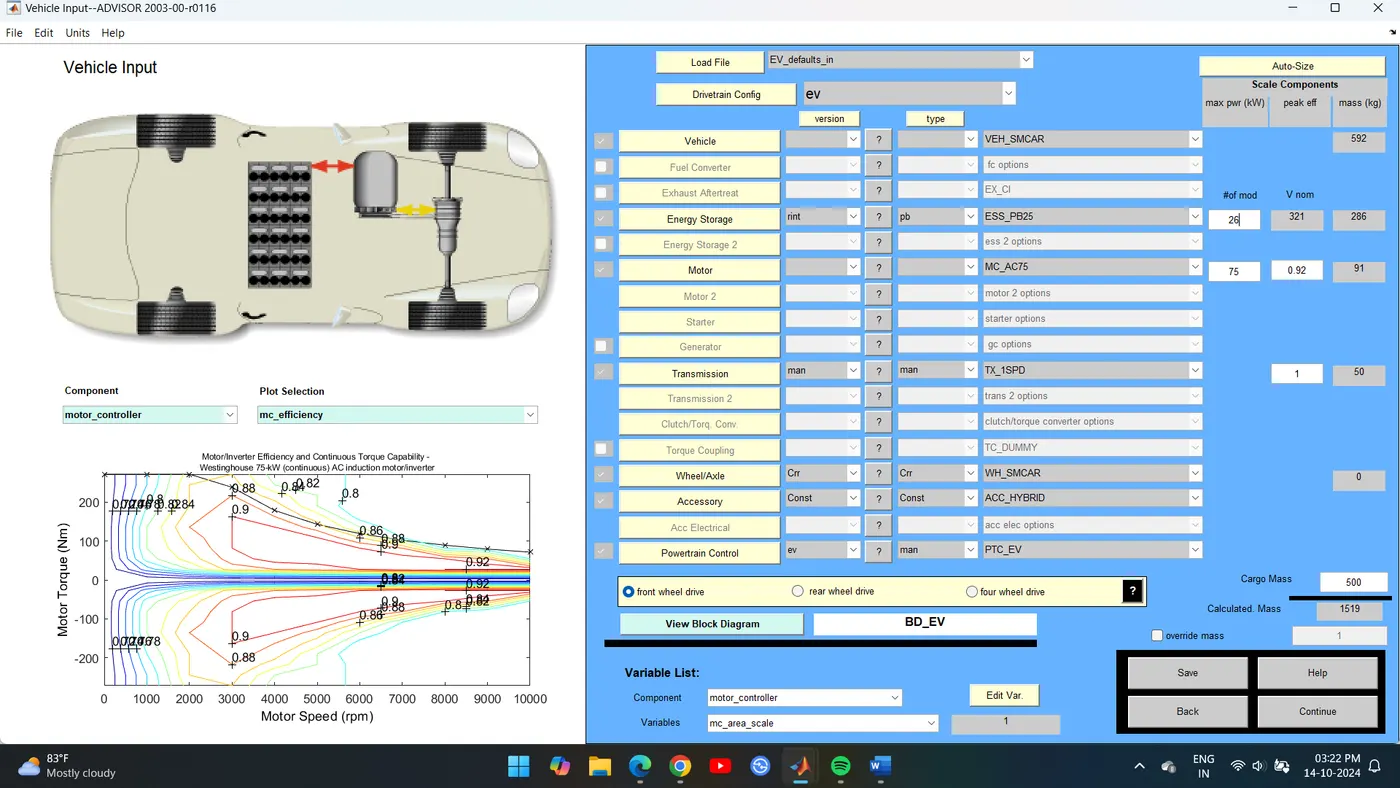
A new Simulation Parameter window will open here we will change the drive cycle to 2 or 3 one at a time, and run the simulation.
After completing of simulation, we will see the result window where we observe the change in distance of vehicle travel.
We can repeat this simulation by changing the battery module and the drive cycle.
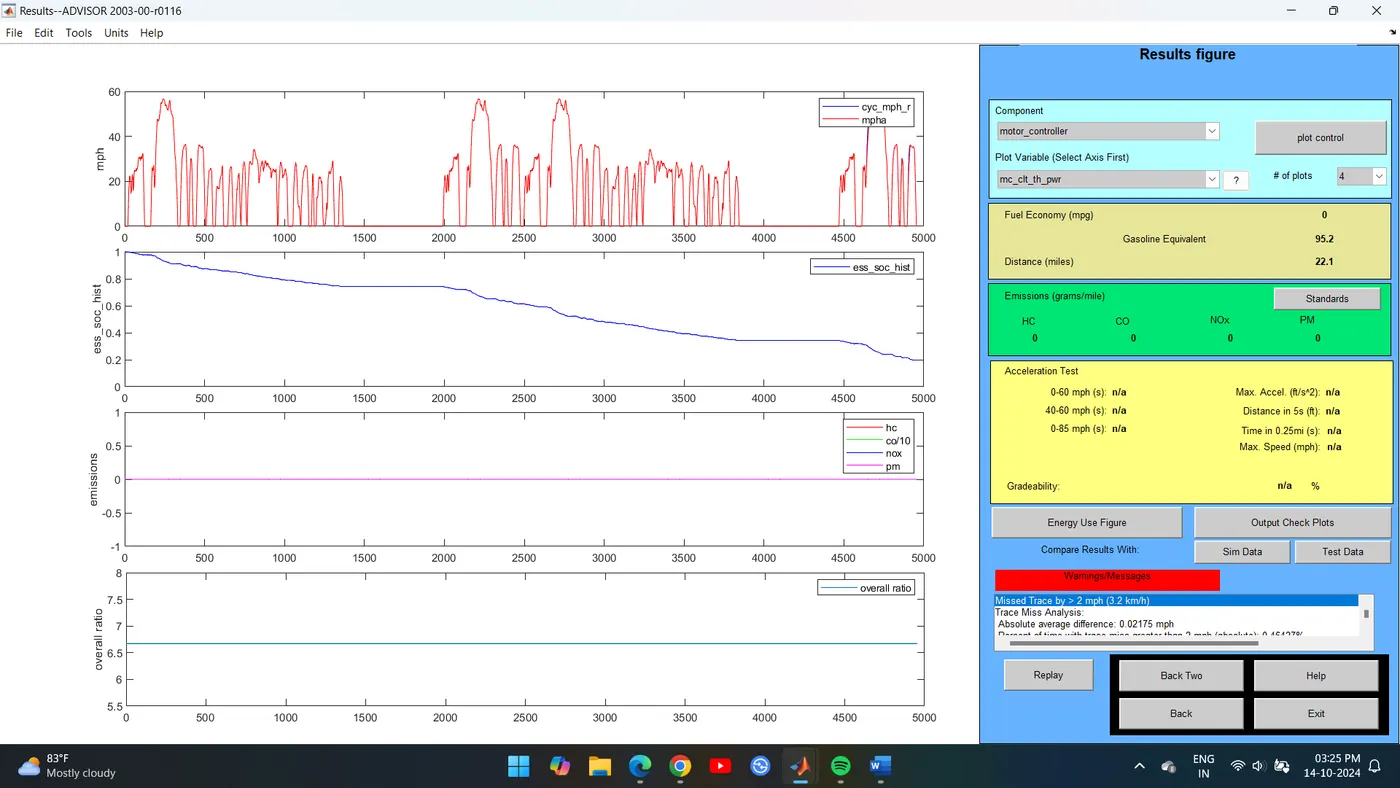
Now change Energy Storage System with 27 modules and 2 drive cycles
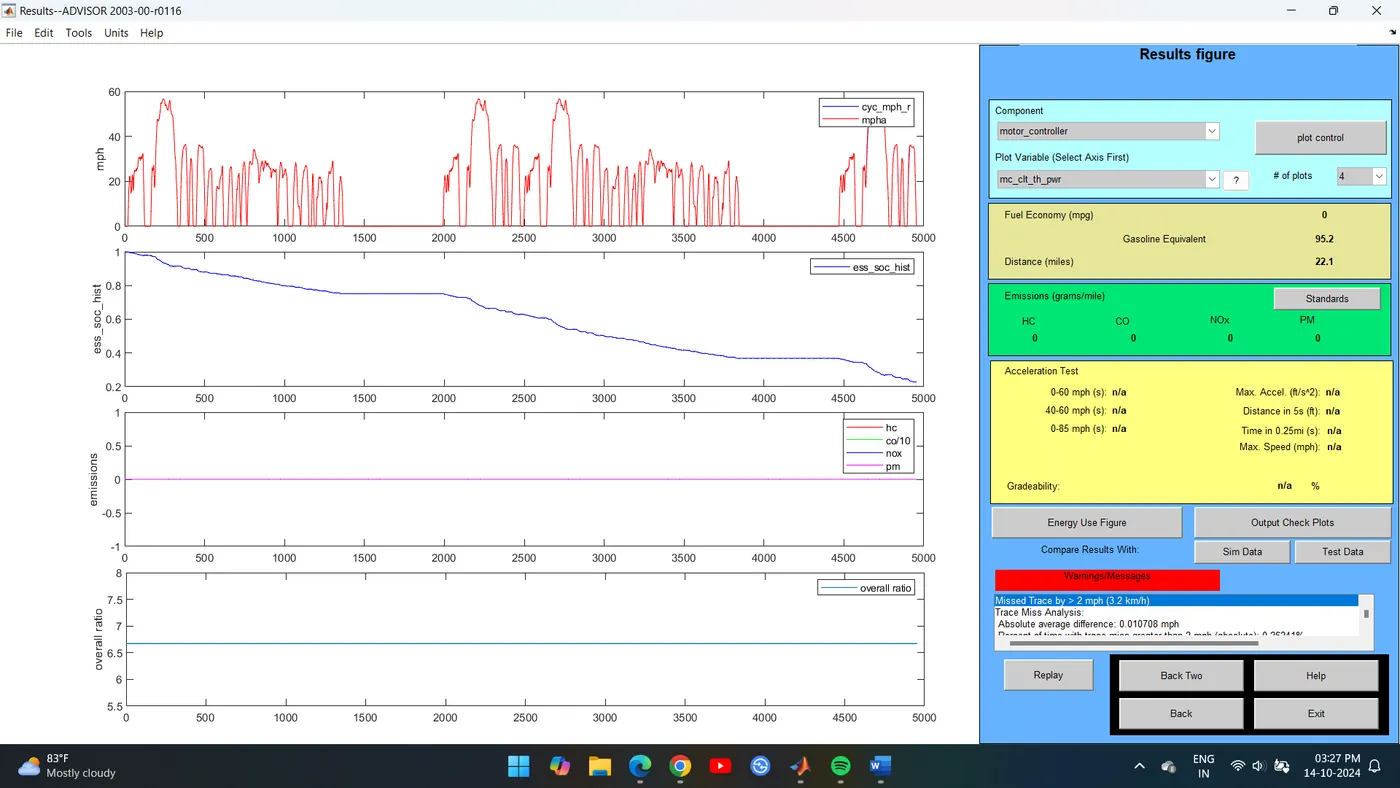
Now change Energy Storage System with 28 modules and 3 drive cycles
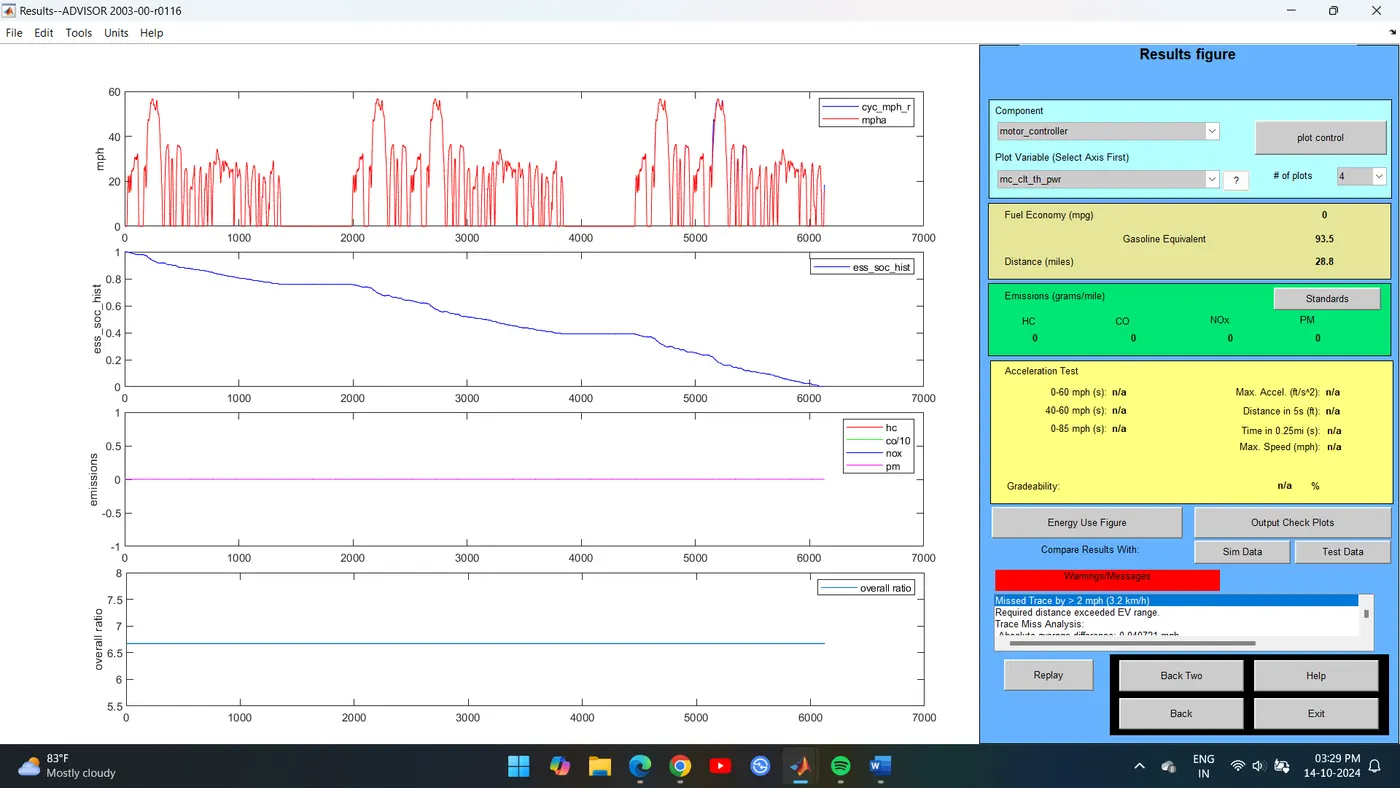
Battery modules 28 and with 3 drive cycles, the distance travelled is 46.3km.
We will Changing the battery module in drive cycle 3 we get changes in distance travel by vehicle.
3. Perform gradeability test with PRIUS Jpn defaults in file
Compare your results in table and conclude.
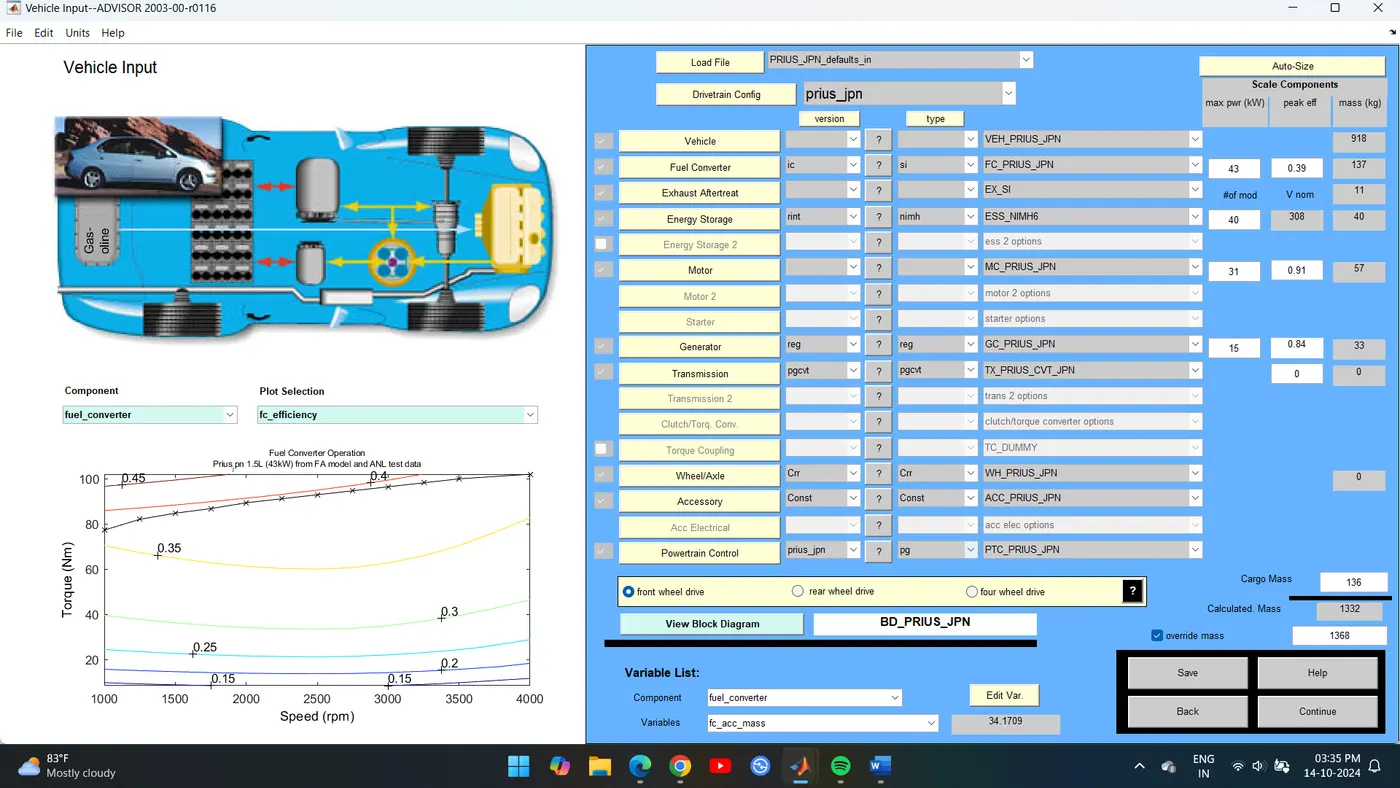
In the ADVISOR tool Vehicle Input window select the PRIUS_Jpn_default model.
Continue to the next window.
The simulation Parameter window will open.
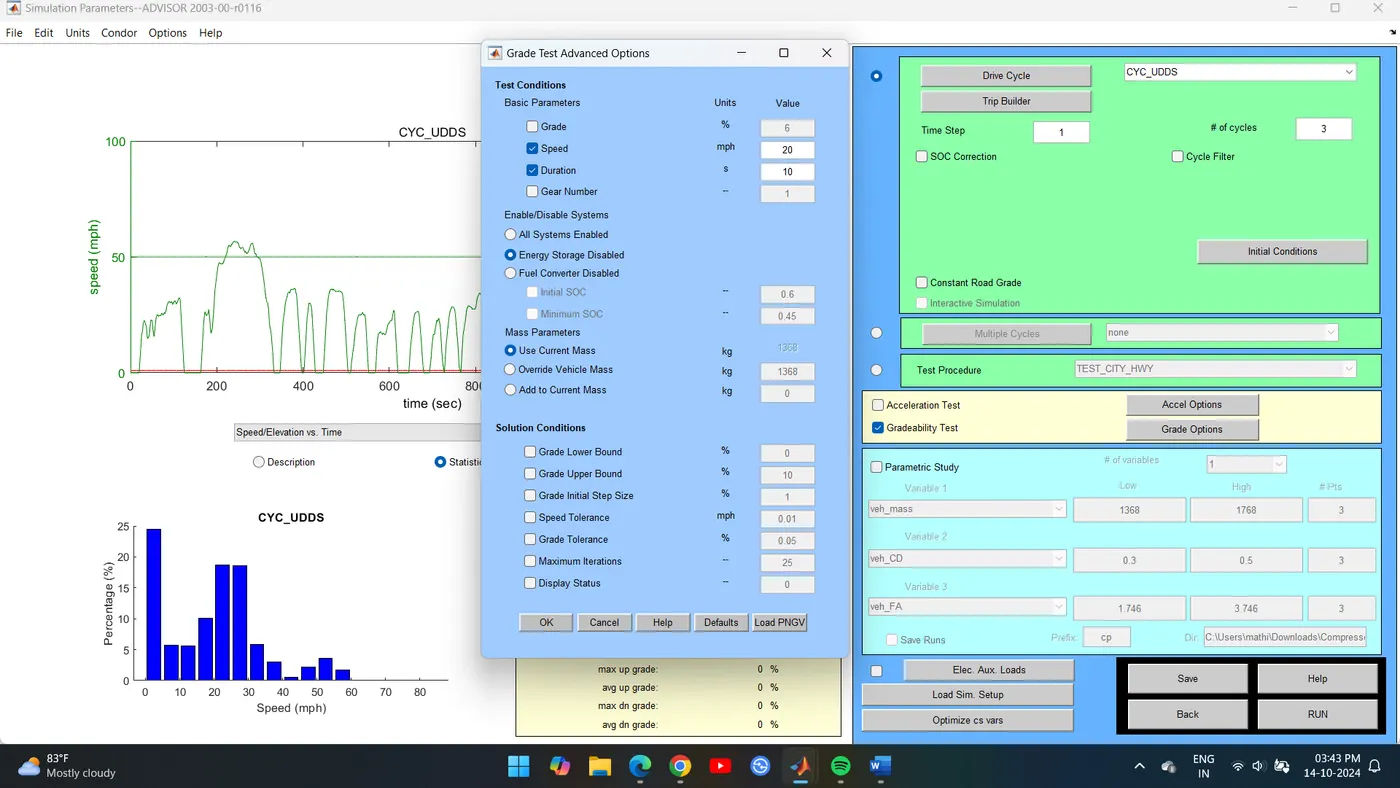
Select the gradeability test and click on the grade Option box, a new dialogue box will open.
In the grade option box, we can change speed or duration with respect to our simulation.
So, for this simulation, I change speed one time and duration another time.
Click on All system enabled.
Also, click on constant road grade.
Click ok and run the simulation and a Result window will open showing different results depend upon input data.
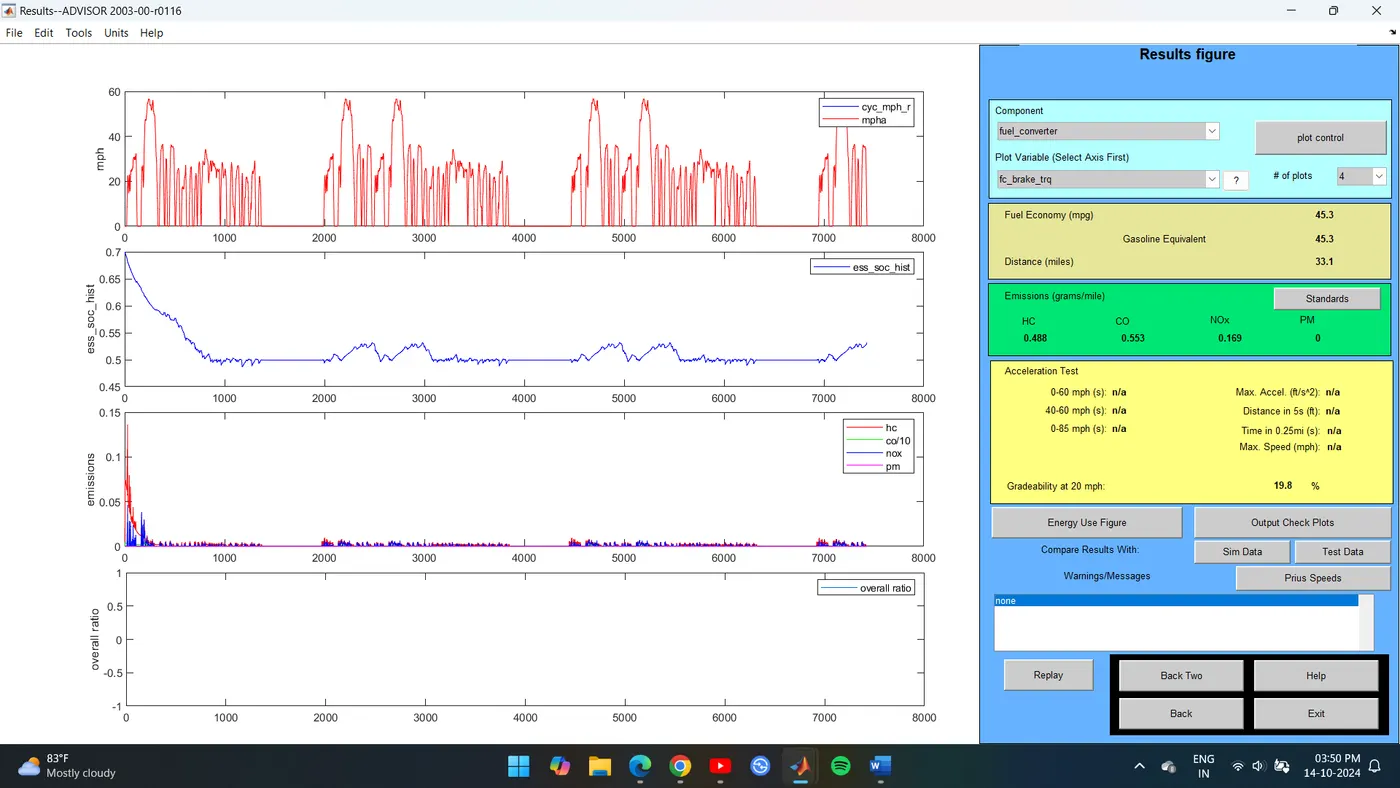
Speed - 20 miles/h or 32.2 kmph
Gradeability = 19.8%
Change the speed 25 kmph
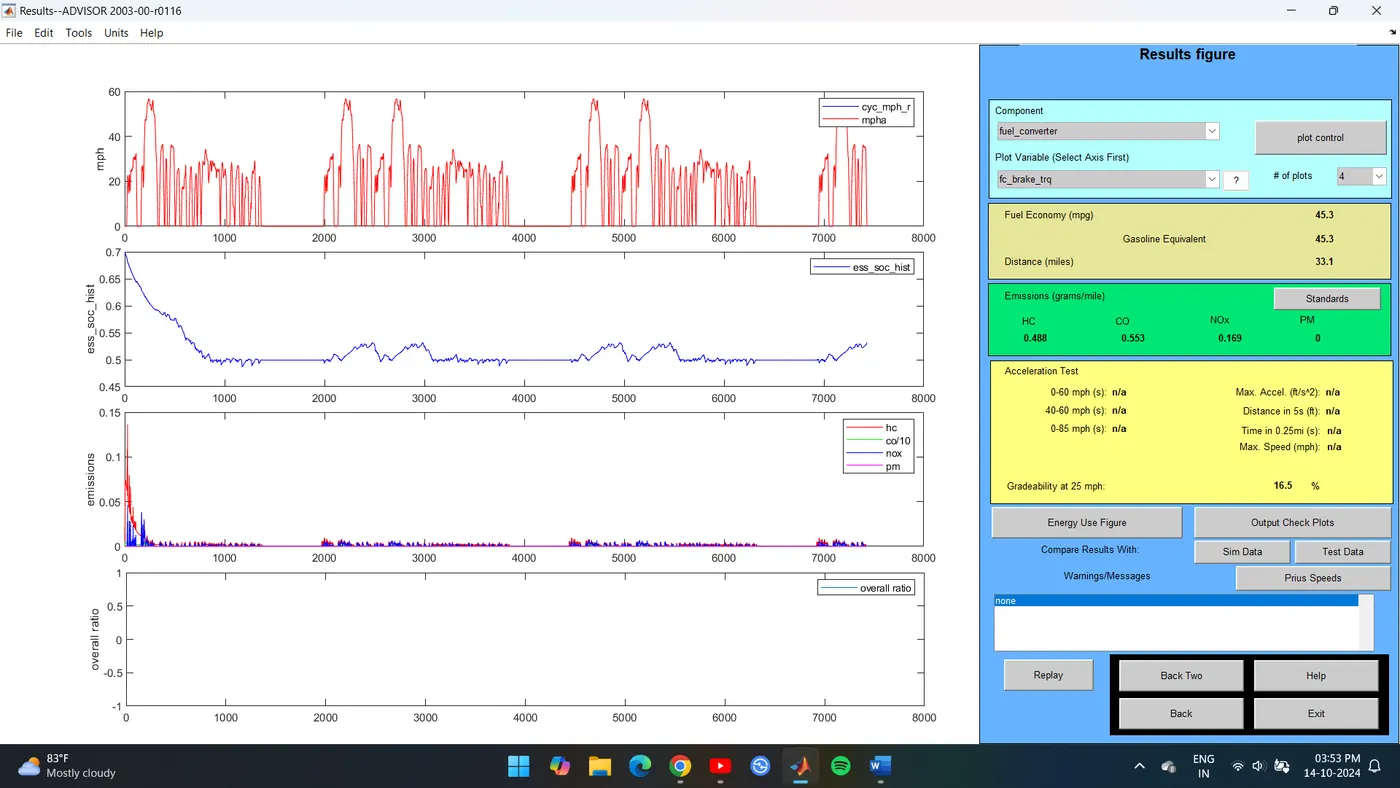
Speed - 25 miles/h or 40.2 kmph
Gradeability = 16.5 %
Change the speed 30 kmph
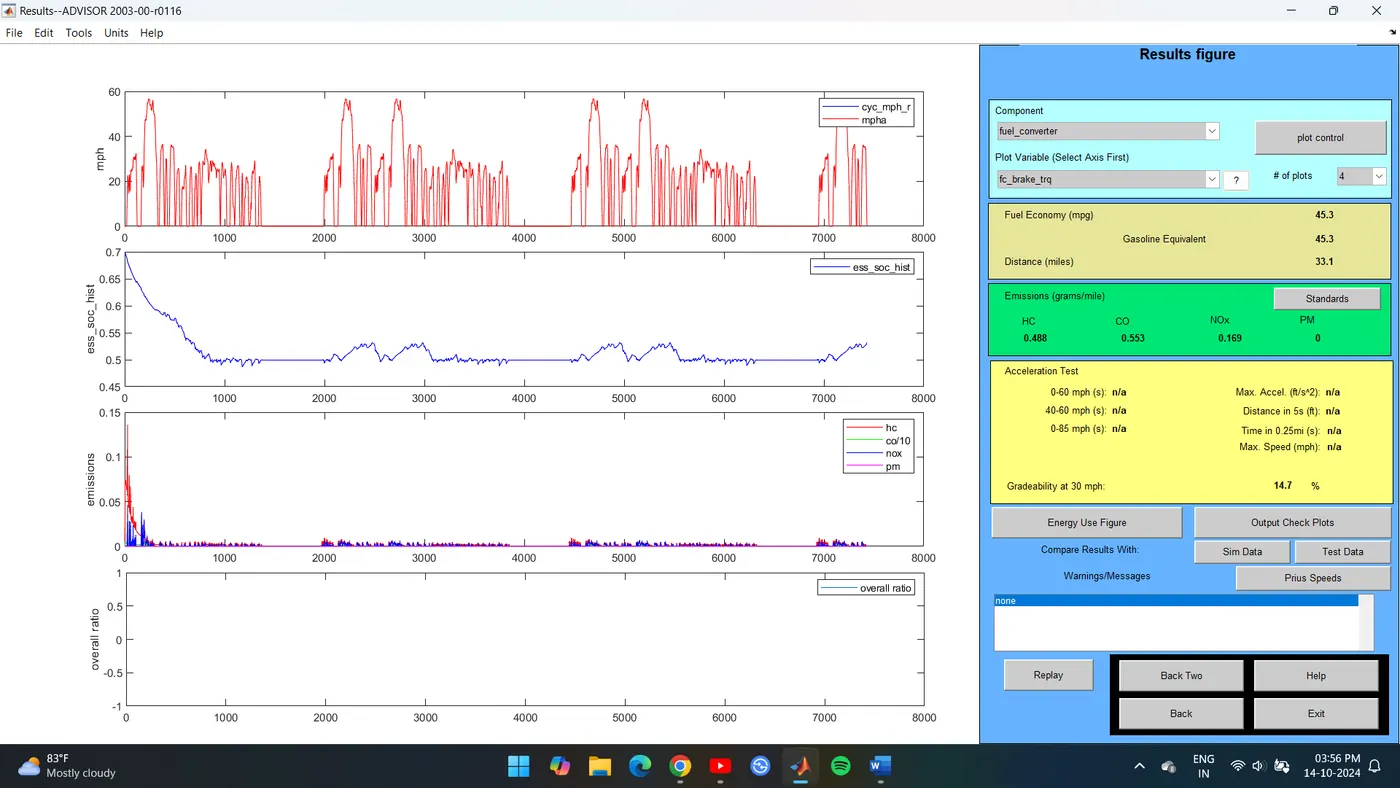
Speed - 30 miles/h or 48.3 kmph
Gradeability = 14.7%
Change the speed 35 kmph
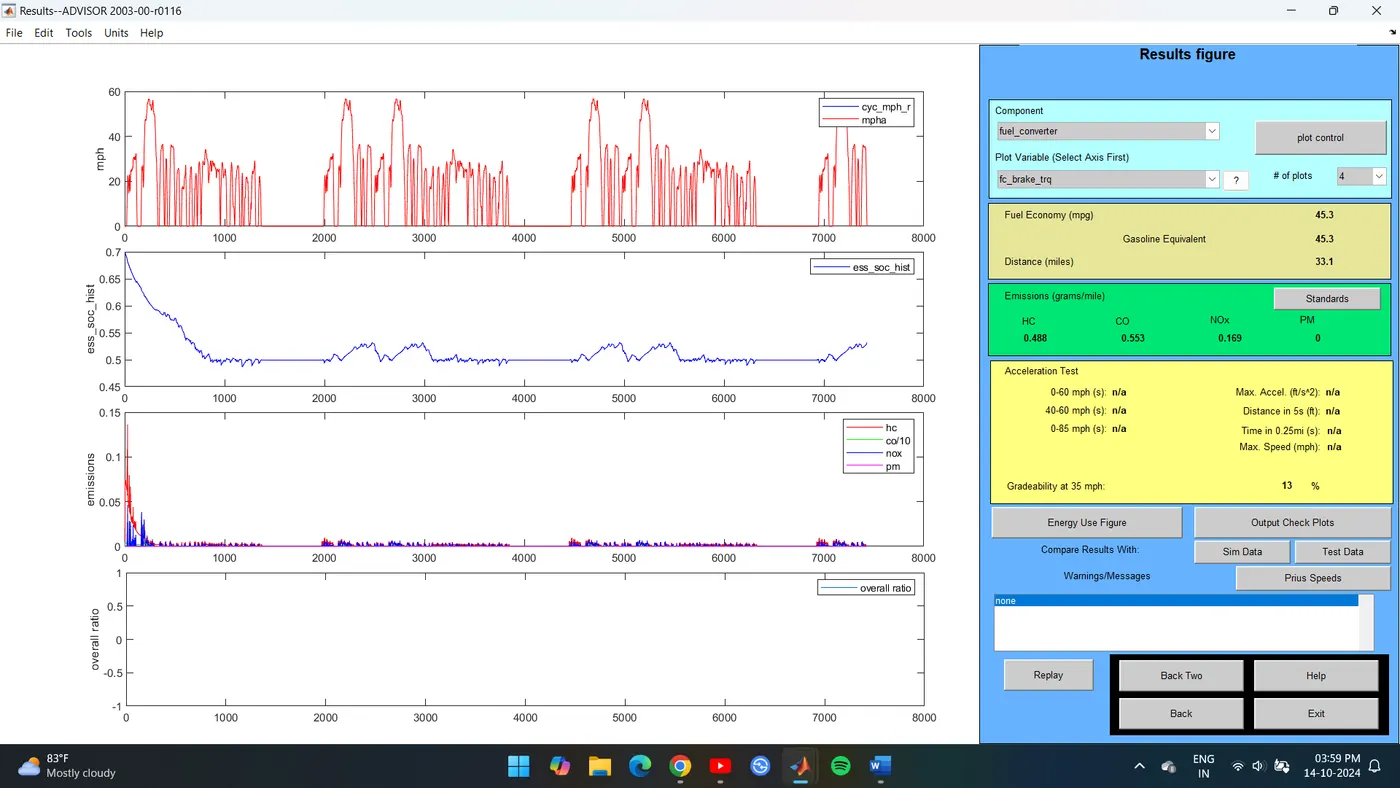
Speed - 35 miles/h or 56.3 kmph
Gradeability = 13%
Change the speed 40 kmph
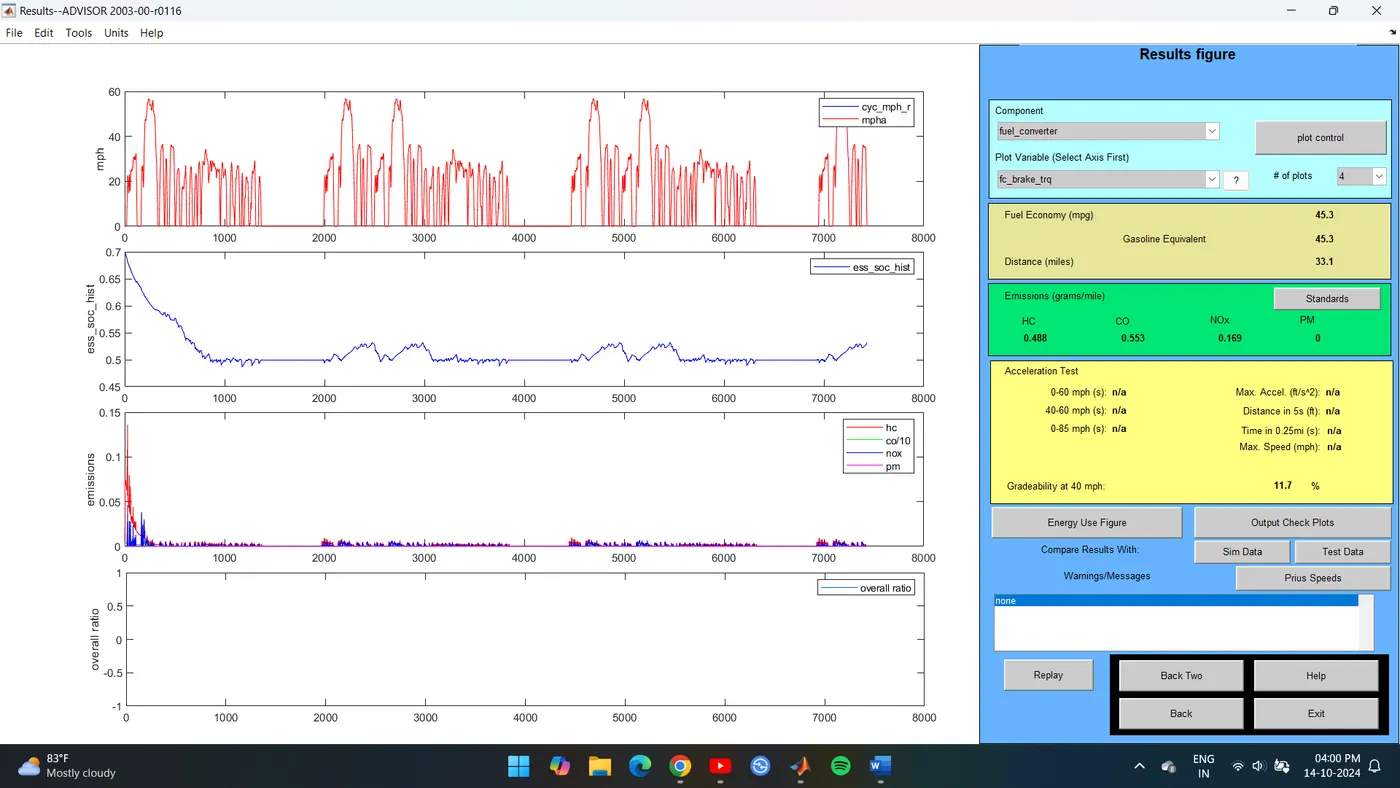
Speed - 40 miles/h or 64.4 kmph
Gradeability = 11.7
|
S. No |
Vehicle Speed mph |
Gradeability % |
|
1 |
20 |
19.8% |
|
2 |
25 |
43.3 % |
|
3 |
30 |
14.7 % |
|
4 |
35 |
13 % |
|
5 |
40 |
11.7 % |
From the above tables, it can be seen that when vehicle speed increases there is a decrease in upgradeability for both 10sec and 20sec duration. When vehicle speed increases there is a decrease in grade ability.