Week-3 Challenge: ADVISOR Tool
Problem 01:
AIM:
To conclude the observations for EV_defaults_in file, if cargo mass is 500 kg with all other default conditions then find the vehicle can travel for 45 km with FTP drive cycle.
Step 1:
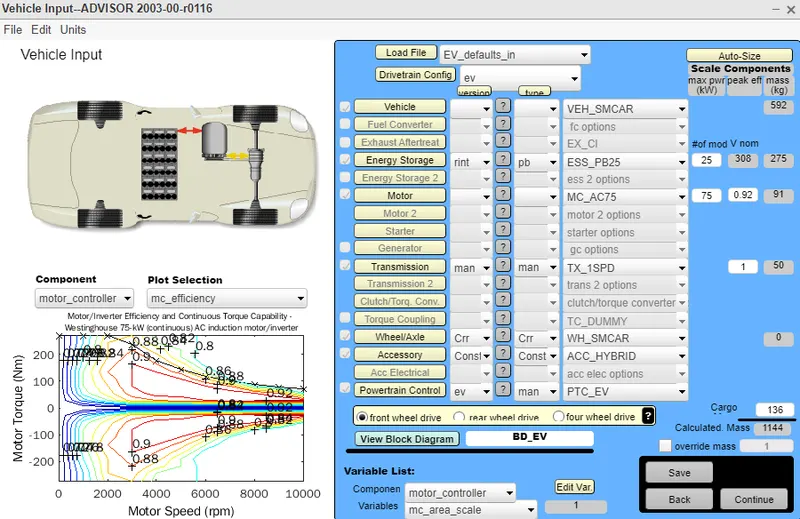
Open the Advisor GUI and find the load file option at the top right corner. Then select EV_defaults_in file in the drop-down Menu.
Step 2:
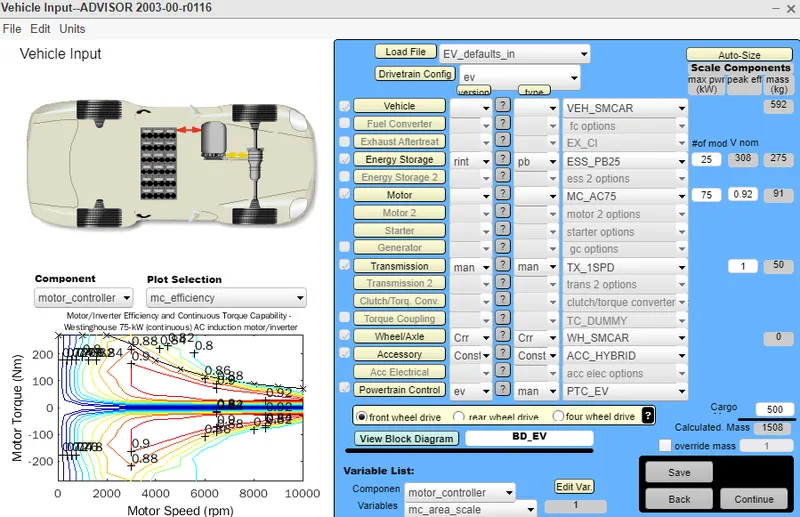
After loading the EV_defaults_in file to the vehicle, then find the cargo mass option at the right bottom corner and set the value as 500 kg. Then click Continue to set the drive cycle.
Step 3:
Here, at the top right corner there has a drive cycle drop-down menu, click the menu and select the drive cycle "CYC_UDDS" to "CYC_FTP".Then leave all other parameters are default.
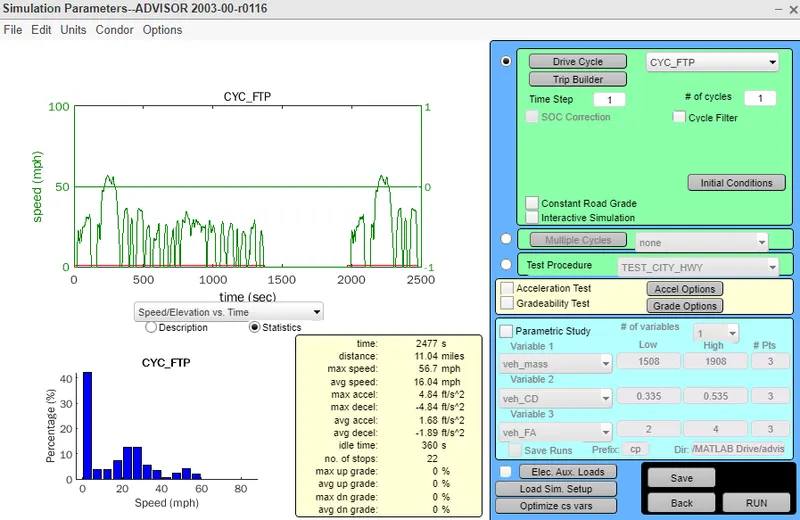
From the above drive cycle observation, the average speed of the vehicle is observed as 25.81 kmph in a distance of 17.76 km. Then the maximum speed recorded is 91.24 kmph The time taken for the vehicle is 2477 s.
Step 4:
Then Run the Vehicle GUI.
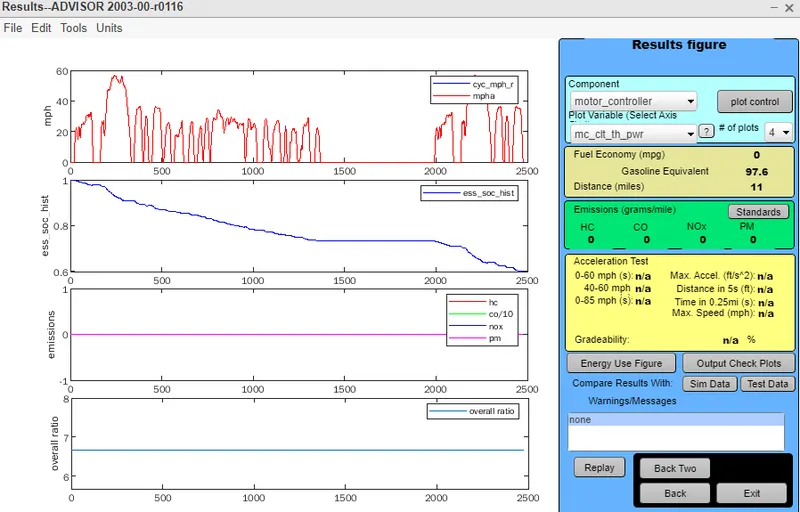
From the above results, when a particular drive cycle(CYC_FTP) was applied, the vehicle traveled 17.67 km. For one-time charging of the vehicle, it can travel only 17.67 km in exactly 2477 s.
Problem 02:
Aim:
To consider the above case, try changing the battery capacity and repeat the simulation.
Simulation:
From problem 01, we can take the parameters and cargo weight.
we have to change the battery capacity from default to some other battery variants.
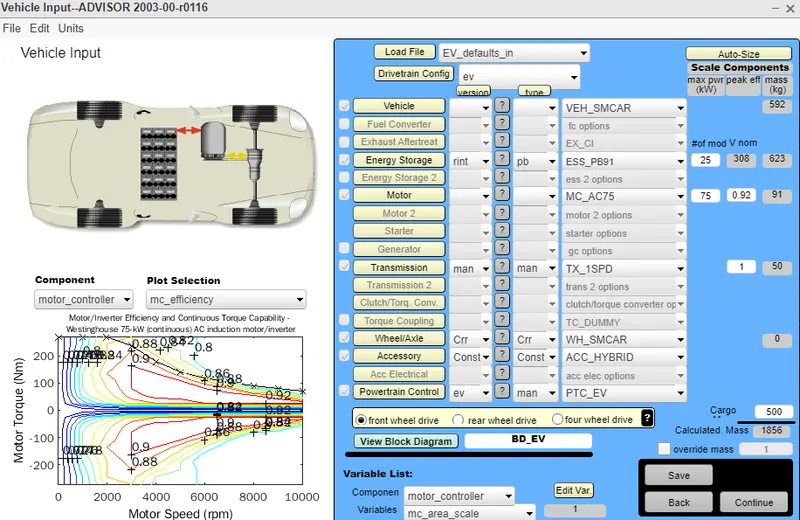
In this case, the energy storage is selected as "ESS_PB91" from default.
The cargo weight is the same as 500 kg.
Drive cycle:
In this case, the drive cycle is the same as "CYC_FTP" but the no of cycles is given as 3.
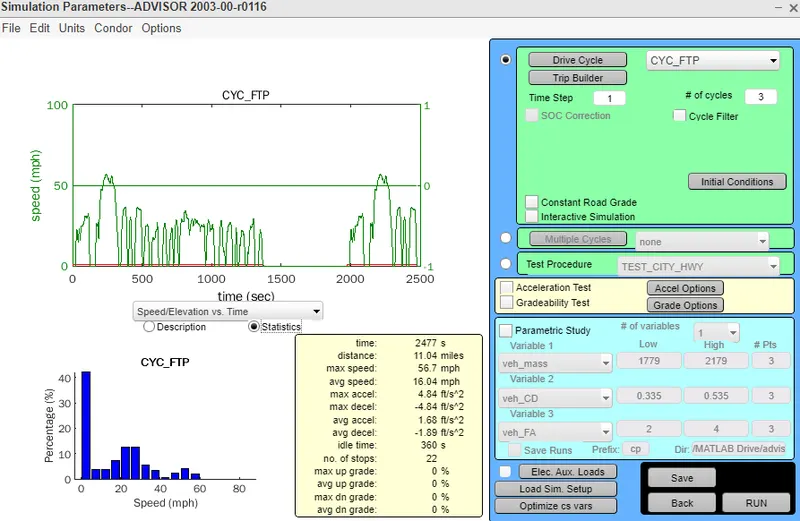
Here from the drive cycle output, the vehicle is traveled 17.67 km only.
Output:
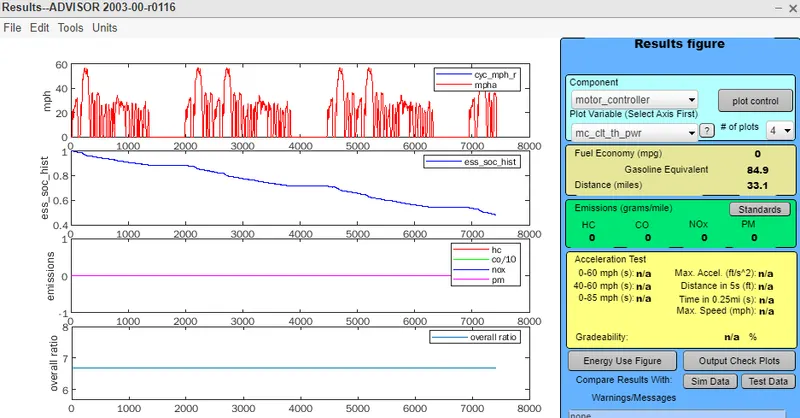
From the above plots, the vehicle traveled only 1767 km, but the time is increased and not going to zero. Because the drive cycle is increased, whenever the drive cycle is increased the vehicle can run a long time in a single charge of the vehicle.
Problem 03:
Aim:
To perform a gradability test with PRIUS_Jpn_defaults_in file then, Compare your results in a table and conclude.
Step 01:
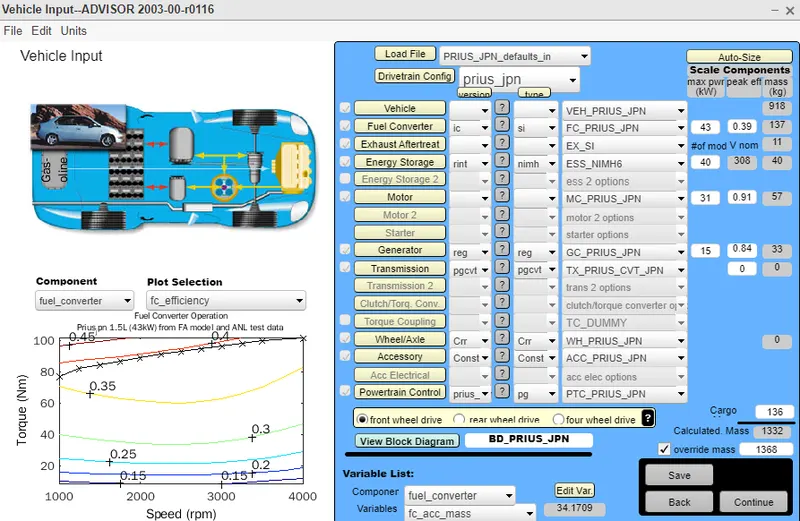
Load the PRIUS_Jpn_defaults_in file in the Load File drop-down menu and leave all other parameters the same. There is no need to change the cargo weight.
Step 02:
Click continue and then find the "gradability test checkbox" and click that.
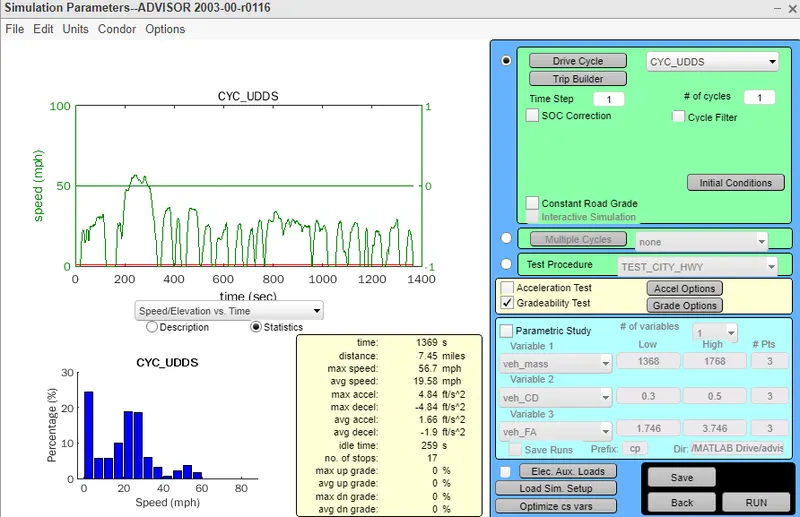
In the Gradability test, click the grade option menu.
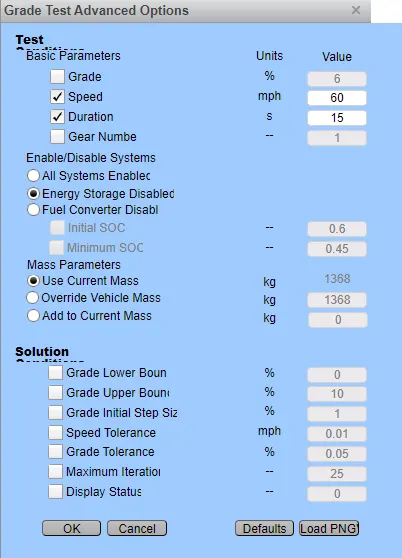
Here the speed of the vehicle is set to 60 mph and the duration is set to 15 s.
Step 03:
Then continue to simulation. In the simulation, we can see the gradability of the vehicle in according to the given speed.
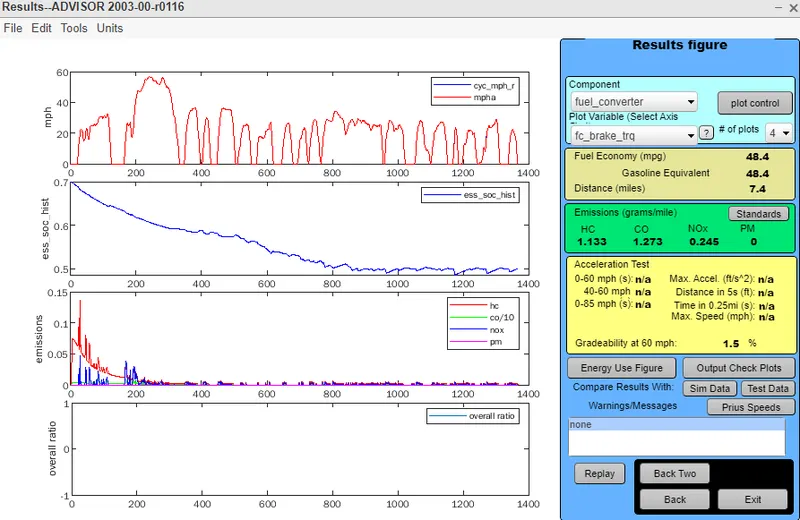
For 60 mph the gradability is 1.5%.
Then the below tables shows the gradability of different speeds is noted.
| s.no | Parameters | vehicle 1 | vehicle 2 | vehicle 3 | vehicle 4 |
| 1. | Speed(mph) | 60 | 35 | 45 | 28.64 |
| 2. | Gradability(%) | 1.5 | 2.4 | 2.2 | 3.49 |
Result:
From the above observation, the various speed is tested in gradability. From the comparison of the 4 vehicles speed and gradability, When the speed of the vehicle increases the gradability decreases.