Week-3 Challenge: ADVISOR Tool
Aim:-
Use ADVISOR tool for simulation in Matlab.
Objective:-
1) For EV_defaults_in file, if cargo mass is 500 kg with all other default conditions, can the vehicle travel for 45 km with FTP drive cycle? Conclude your observations.
2) In the above case, try changing the battery capacity and repeat the simulation.
3) Perform gradeability test with PRIUS_Jpn_defaults_in file & Compare your results in table and conclude.
Answer [1]:
- First we have to load/add the ADVISOR tool to Matlab.
- Then ADVIOR tool menu window appears. Here select units as “metric” & then click on Start.
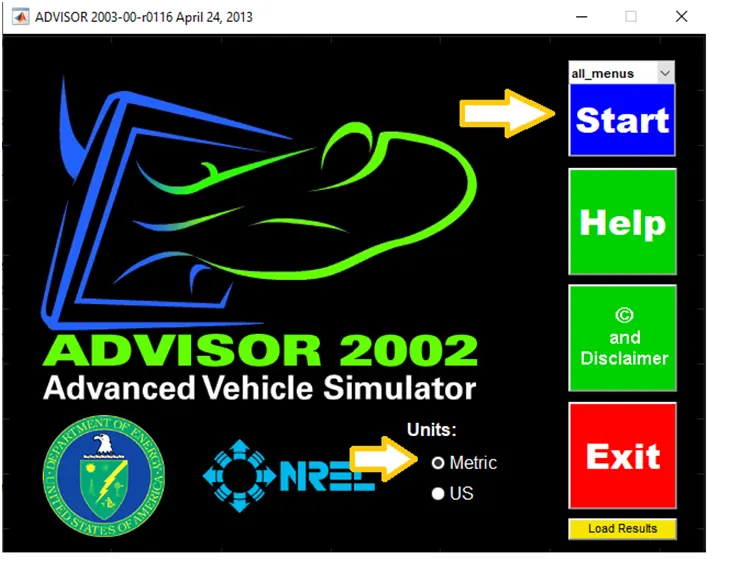
Fig.1:- ADVIOR tool menu window
- Now the first window of ADVISOR tool opens. Here we have to keep Load file as "EV_defaults_in file" & cargo mass as 500 kg. Keep other parameters as by default. Here we can observe the contour plot for various parameters. We can also see the arrangement of a vehicle & its block diagram.
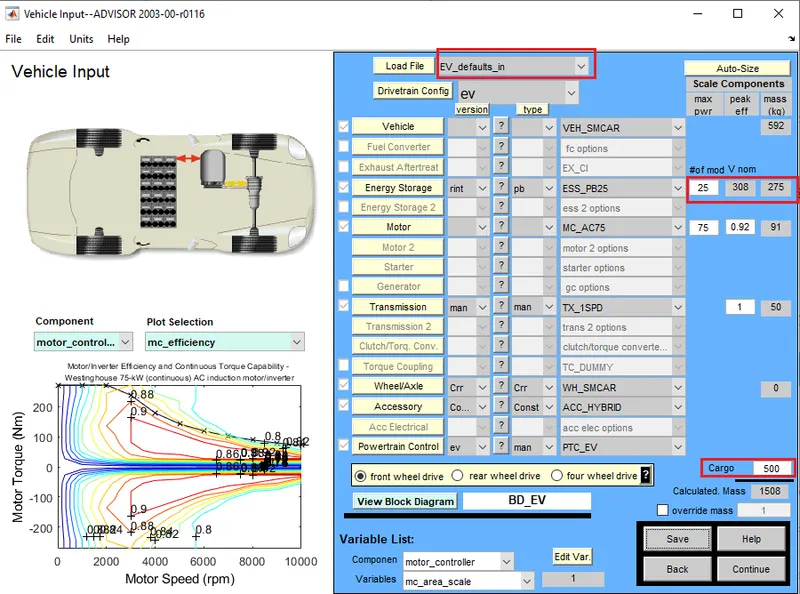
Fig.2:- ADVIOR tool vehicle input window
- .Now click on 'Continue' in fig.2 then Simulation parameter window appears. From here we can change the driving cycle. So select driving cycle as "CYC_FTP" & change number of cycles to 3. We know that for FTP cycle; cycle covers distance of 17.77km (see fig.3). As we need to run vehicle at 45km, we have choose nos of cycle as 3.
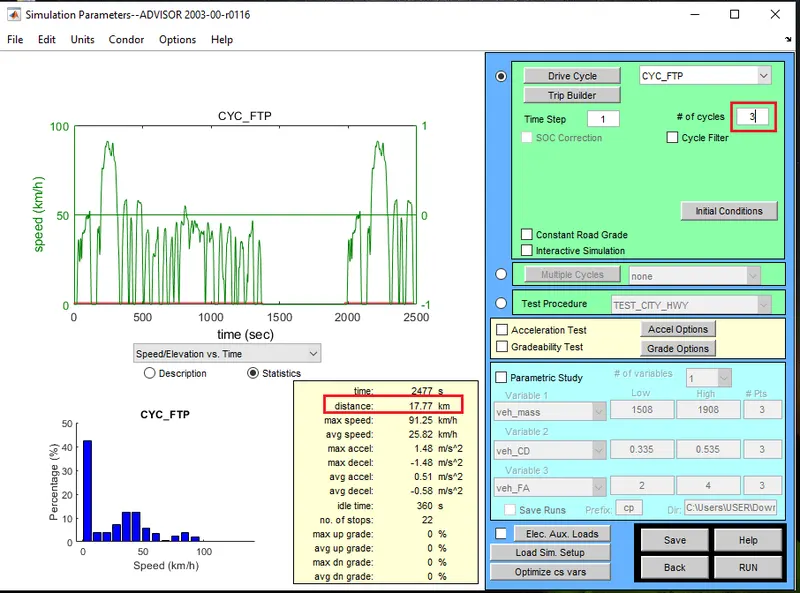
Fig.3:- ADVIOR tool Simulation parameter window for 3 number of cycle.
- Now click on 'RUN' and view the result. Here we can see the velocity vs time graph, energy storage system_SOC graph,emission graph, etc. We can vary the component & plot variable to view different types of plot. We observe from fig.4 that emission is '0' & SOC which is reducing is constant when speed is '0'. Here for 3 number of cycle, result shows the distance covered is 41.4km.
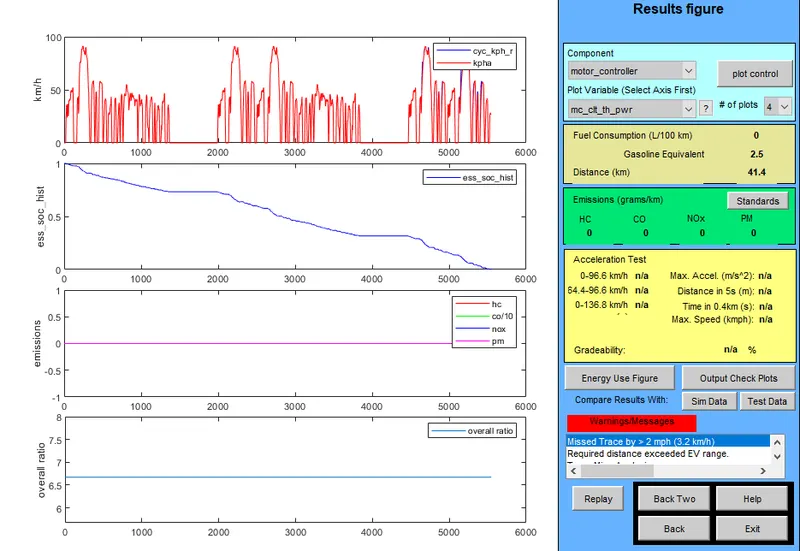
Fig.4:- Result window for 3 number of cycle.
- Now go back and change the number of cycle as 10 & RUN the model to view result.
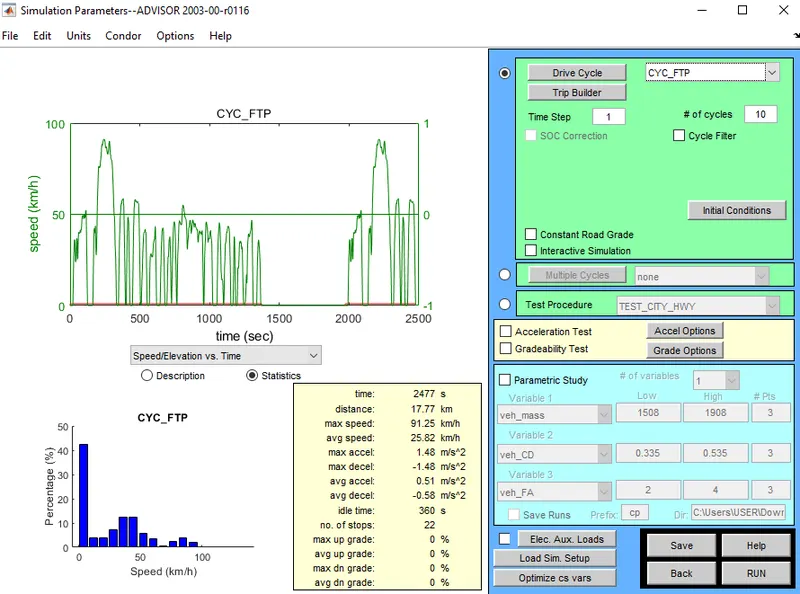
Fig.5:- ADVIOR tool Simulation parameter window for 10 number of cycle.
- Here we can see that distance travelled is 41.4km only for 10 nos of cycle same as result for 3 nos of cycles.
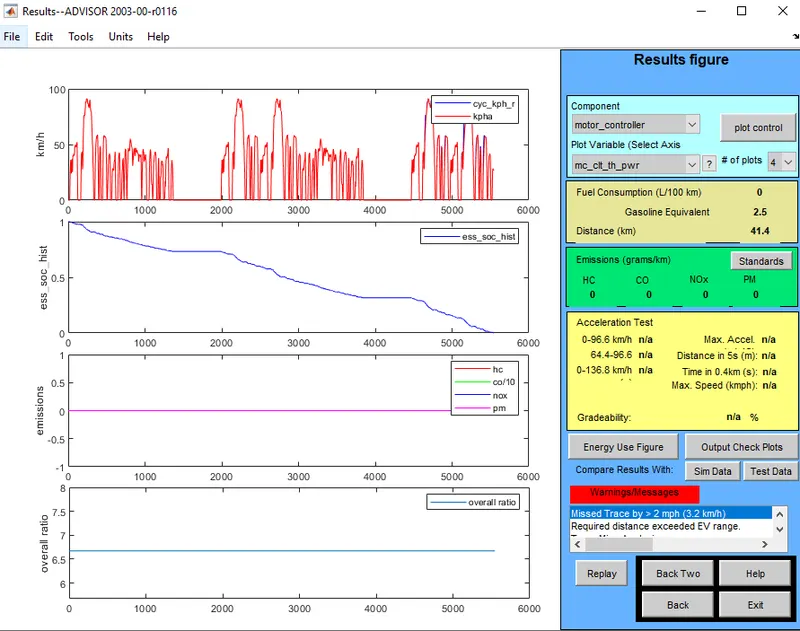
Fig.6:- Result window for 10 number of cycle.
Conclusion:-
We can conclude from the result (fig.4 & fig.6) that even if we increase the nos of cycles the vehicle do not reach the 45km speed. So the EV_defaults_in vehicle with cargo mass as 500 kg cannot travel for 45 km with FTP drive cycle.
Answer [2]:
- Inorder to change the battery capacity in above case, click on 'Back two' seen in fig.6 Vehicle input window appears. Change the battery capacity by changing the number of modules of energy storage system. So change nos of modules from 25 as in previous case to 27, then voltage is 333V & mass of battery is 297kg.
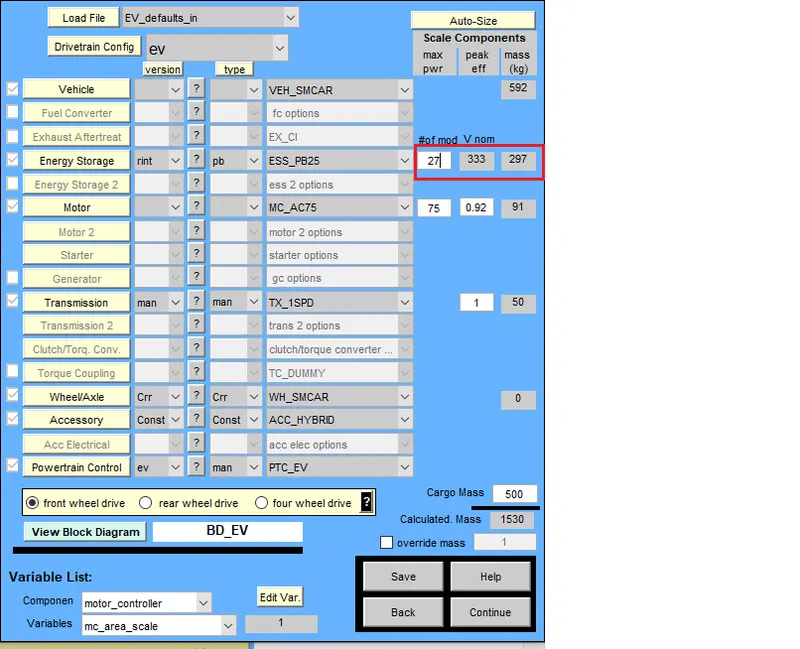
Fig.7:- ADVIOR tool vehicle input window keeping nos. of battery modules=27.
- Now click on continue and keep nos of cycle 3 for FTP cycle as shown in fig.3 & click on RUN to view the output. We can see here the vehicle covers distance of 44.8km.
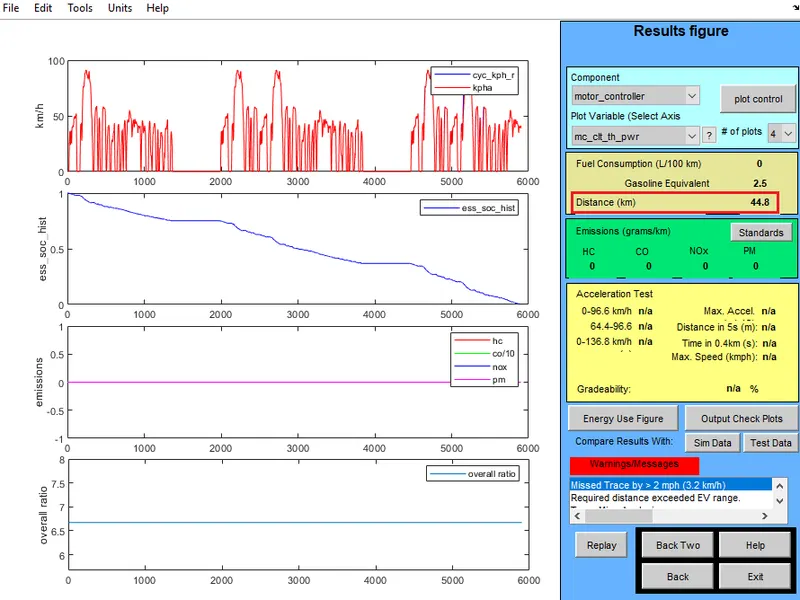
Fig.8:- Result window keeping nos. of battery modules=27.
- Now again go back and change the nos. of modules of a battery to 28, then voltage is 345V & mass of battery is 308kg. Now click on continue & RUN the model to view result.
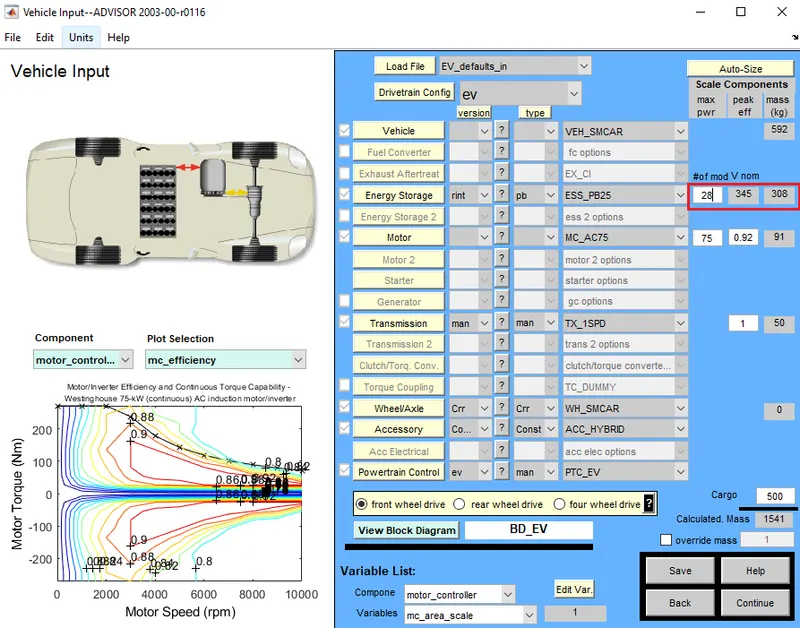
Fig.9:- ADVIOR tool vehicle input window keeping nos. of battery modules=28.
- We can see here that the vehicle covers distance of 46.3km
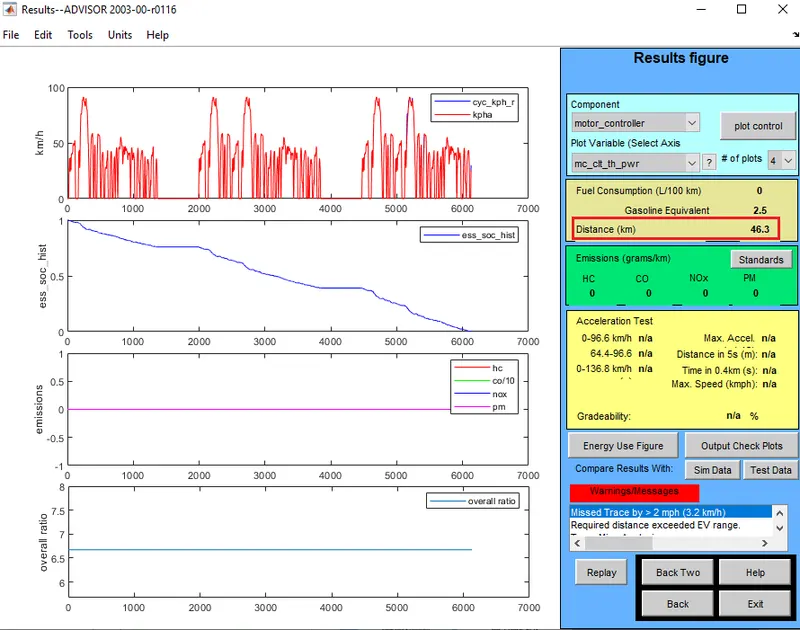
Fig.10:- Result window keeping nos. of battery modules=28.
Conclusion:-
From this results we can conclude that whenever the battery capacity is increased the distance travelled is increased. Hence for EV_defaults_in vehicle with cargo mass as 500 kg can travel for 45 km with FTP drive cycle by keeping number of battery modules as 28 whose voltage will be 345V.
Answer [3]:
- To perform the gradeability test with PRIUS_Jpn_defaults_in file, first load the file "PRIUS_Jpn_defaults_in" in the ADVISOR tool and then click on continue.
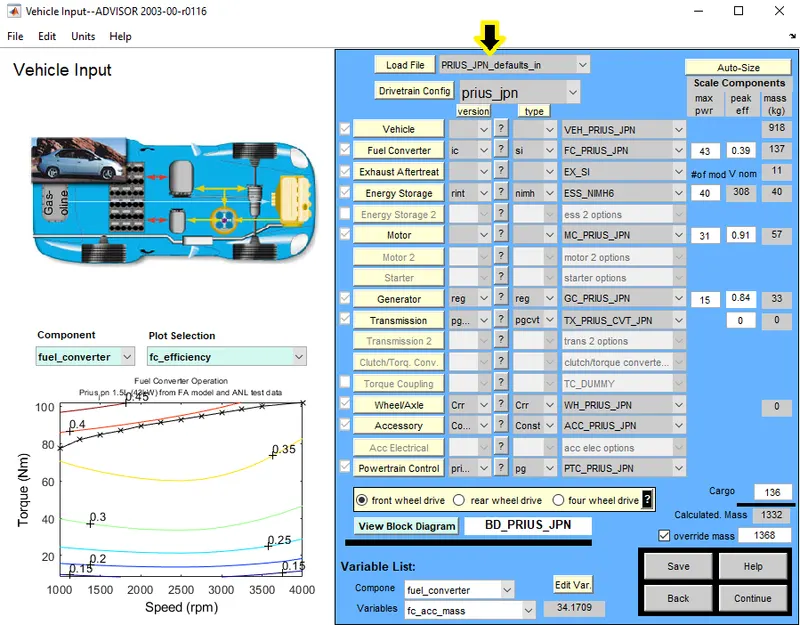
Fig.11:- ADVIOR tool vehicle input window
- Select the drive cycle as "CYC_UDDS", keep number of cycle as 1. We gave to perform gradeability test so click on "Gradeability Test" as shown in fig.12 and then click on 'Grade options'.
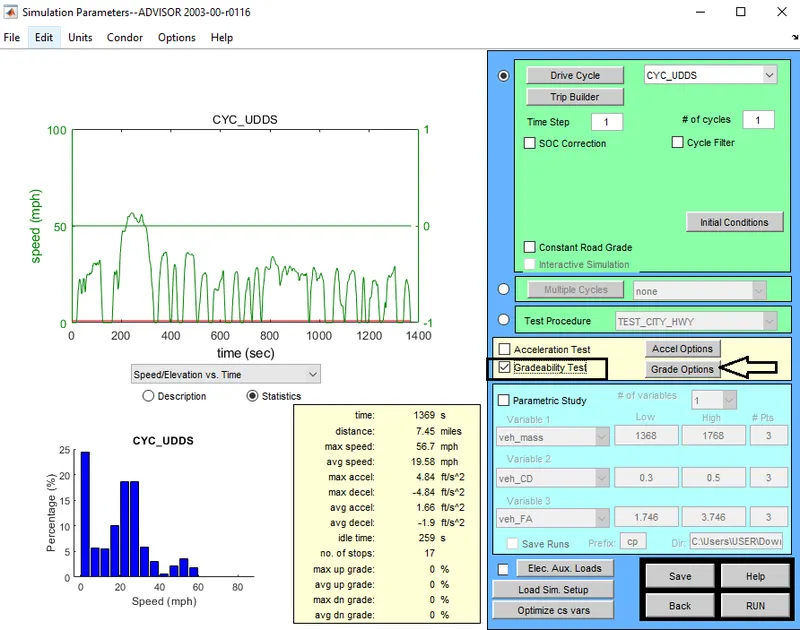
Fig.12:- ADVIOR tool Simulation parameter window for PRIUS_Jpn_defaults_in.
- Grade Test Advanced Option window appears where we change various parameters such as speed, duration,SOC,etc. To perform gradeability test keep first speed=55mph. Now click on "All Systems Enabled" & then click on 'OK'. After this click on RUN button as shown in fig.12 to view the result.
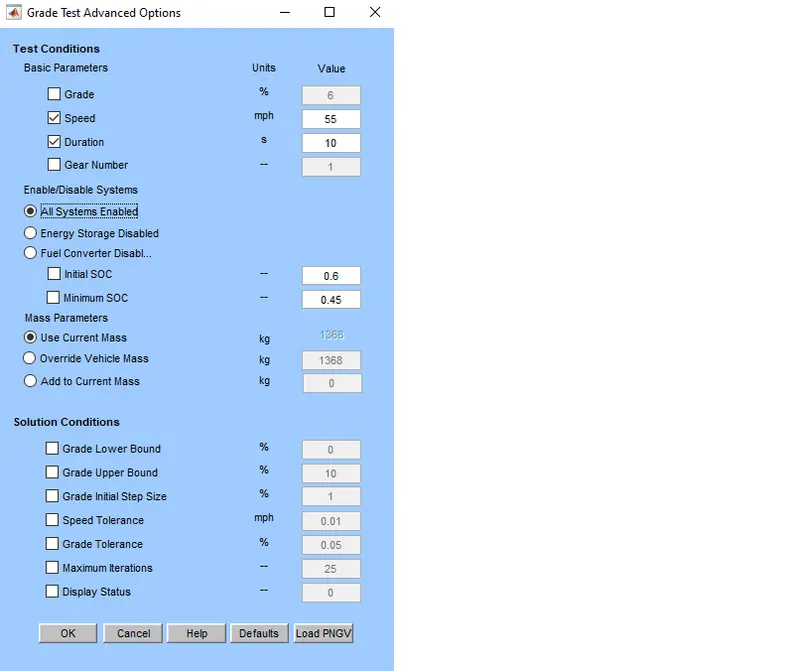
Fig.13:- Grade Test Advanced Option window for speed=55mph.
- Here in result we can see various plots & the gradeability at 55mph is 8.9%.
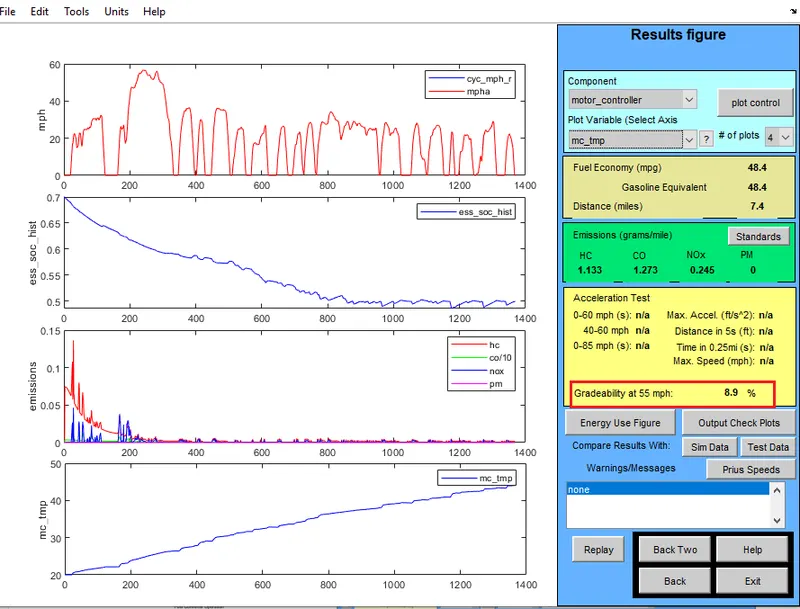
Fig.14:- Result window showing gradeability at 55mph
- Now go back and change the speed as 45mph, then click on 'OK' & RUN the simulation.
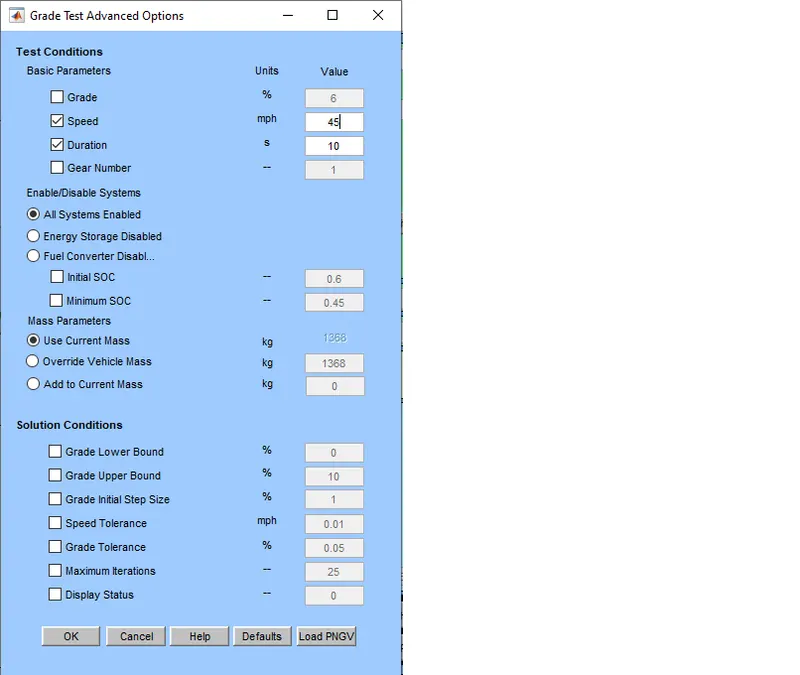
Fig.15:- Grade Test Advanced Option window for speed=45mph.
- Here in result we can see various plots & the gradeability at 45mph is 10.7%.
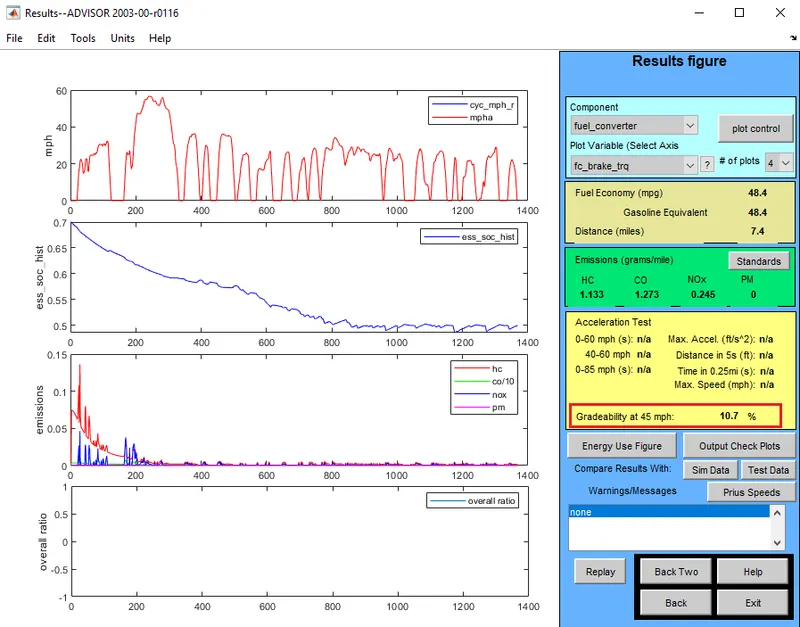
Fig.16:- Result window showing gradeability at 45mph
- Now go back and change the speed as 30mph, then click on 'OK' & RUN the simulation.
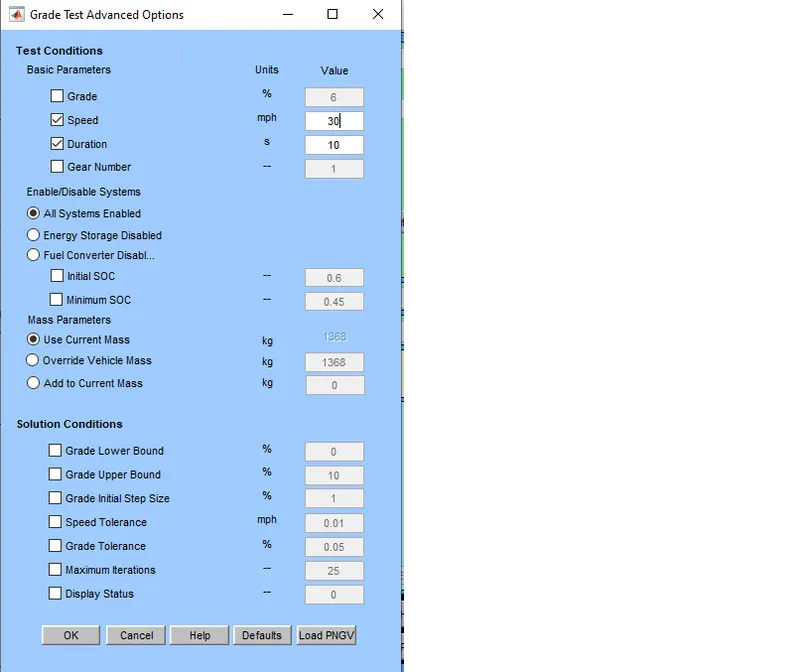
Fig.17:- Grade Test Advanced Option window for speed=30mph.
- Here in result we can see various plots & the gradeability at 30mph is 14.7%.
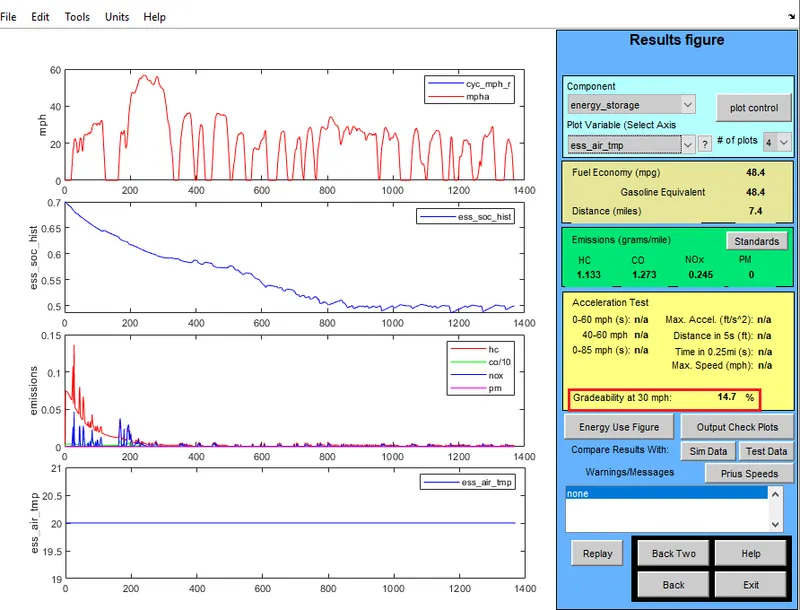
Fig.18:- Result window showing gradeability at 30mph
- Now go back and change the speed as 65mph, then click on 'OK' & RUN the simulation.
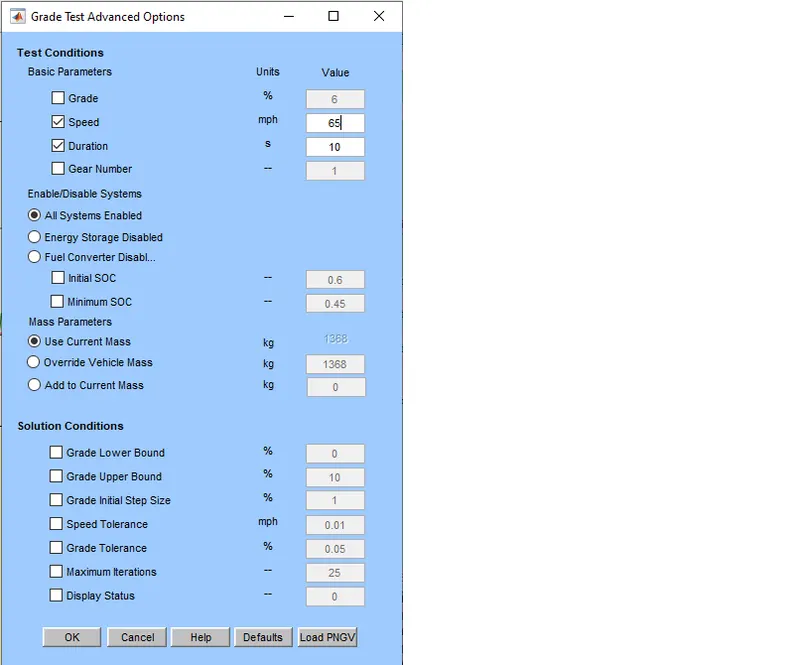
Fig.19:- Grade Test Advanced Option window for speed=65mph.
- Here in result we can see various plots & the gradeability at 65mph is 7.2%.
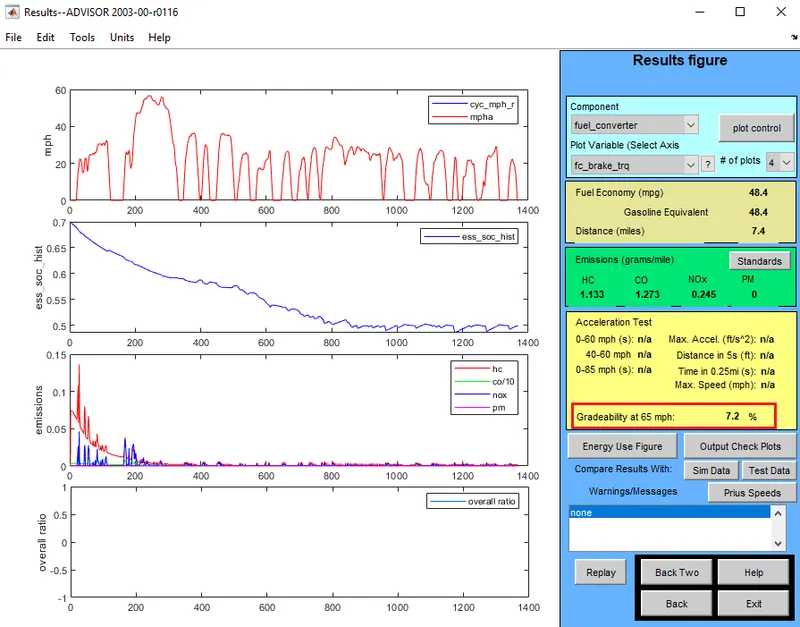
Fig.20:- Result window showing gradeability at 65mph
Table for all results:-
| Sr. No | Vehicle speed(mph) | Gradeability(%) |
| 1 | 55 | 8.9 |
| 2 | 45 | 10.7 |
| 3 | 30 | 14.7 |
| 4 | 65 | 7.2 |
Conclusion:-
After performing the gradeability test with PRIUS_Jpn_defaults_in we can observe from result table that as vehicle speed decreases, gradeability increases and as vehicle speed increases, the gradeability decreases. Thus Vehicle speed is inversely proportional to the gradeability.