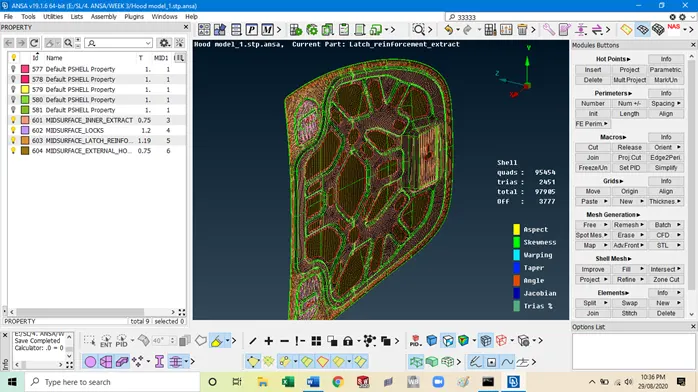
Meshing of given component according to quality criteria - Engine Hood
Meshing of given component according to quality criteria
Engine Hood
Objective
- Follow the geometrical cleanup.
- Extracting the middle surface from a component.
- Setting up properties i.e PID setup, material ID and the meshing parameters
- Meshing of given component according to quality criteria.
Procedure
- Click on ANSA icon. It will ask you to choose the working directory and layout to work.
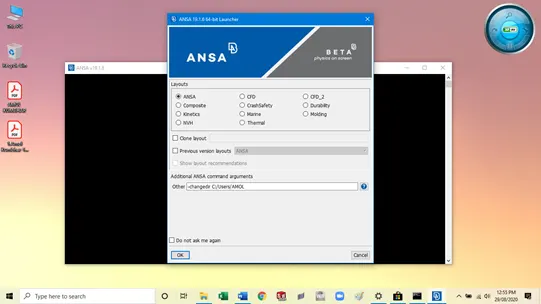
- Select ANSA and hit OK.
- Click on Import geometry. It might be .step, igs, or in another format.
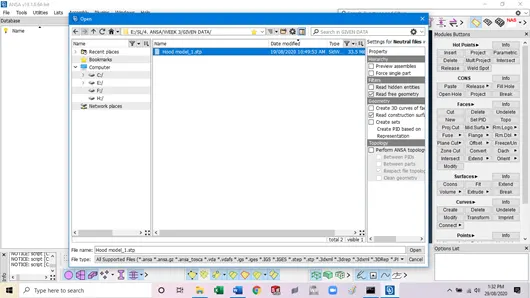
- It will appper as a shaded view in Entity mode. On left side it will shows the database.
- Database include some important tabs like properties and material.
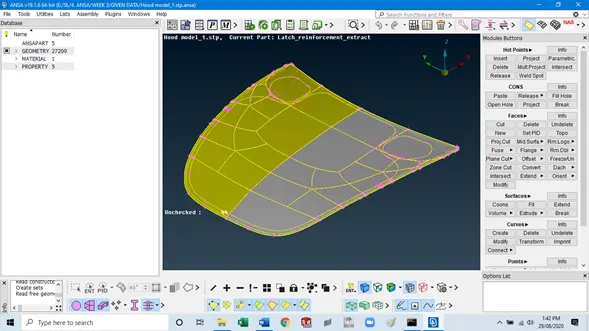
Here 4 component we have to mesh, namely
- Inner Extract
- Outer Extract
- Hinge Reinforcement
- Latch Reinforcement
- Now we are remaining with only surfaces which we are going to use for meshing.
- All analysis depends on a good meshing so we are going to mesh individual components.
- INNER EXTRACT
- Geometry Cleanup
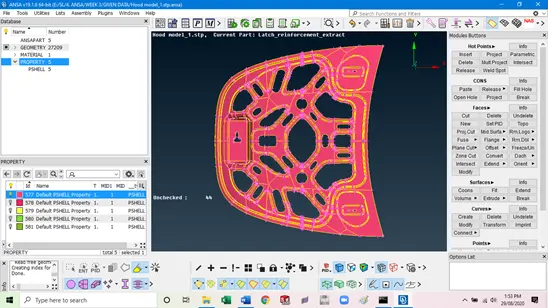
- Now click on the inner extract component. We have to check the component for the proper surface, which is free from any errors. Such as middle face, cracks, single, double, triple cons before taking mid surface.
- For checking the geometry, we have to go to the geometry checks manager to get error free surface.
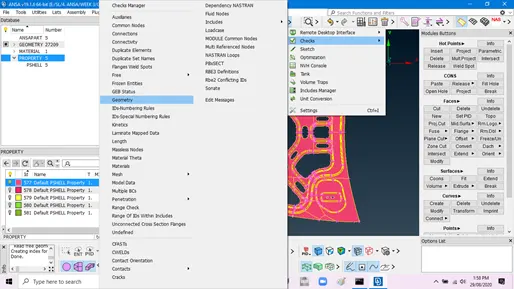
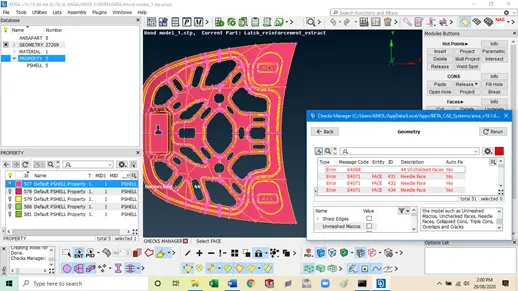
- Removal of this errors in geometry lead to get the good and clear middle surface.
- We can remove errors individually or all together, it depends on the complexity of error.
- Errors can be removed manually or automatically. But manually fixing will give the better results.
- After removal of all the errors we will get a clear surface. Now we can go for the middle surface.
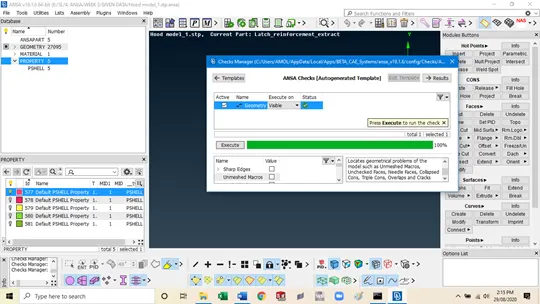
- Extraction of Middle Surface
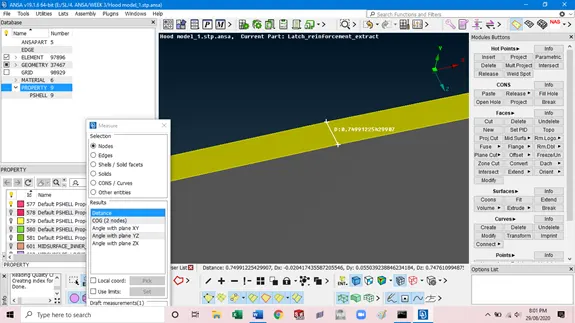
- Now for creating the middle surface we have to measure the distance i.e. thickness of the component as given below.
- Go to utilities à Measure à click the two hot points to measure the thickness of the concerned component.
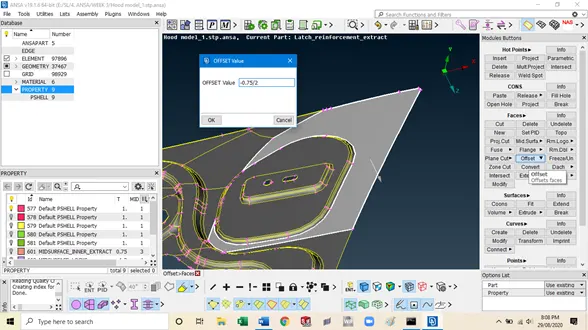
- Creating of midsurface with offset distance. As shown in pic
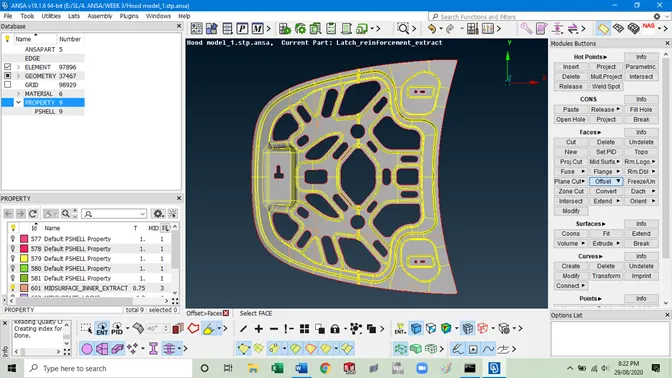
- Now we have fully equivalence mid surface. We have to clean the mid-surface to get clean and clear meshing. It will avoid the pinholes, very small edge and surface fillets automatically. We have to set the parameters according to requirement.
- We will get number of offsetted surface we have to follow the topo mode. Topo mode joins the surfaces together to get continue midsurface.
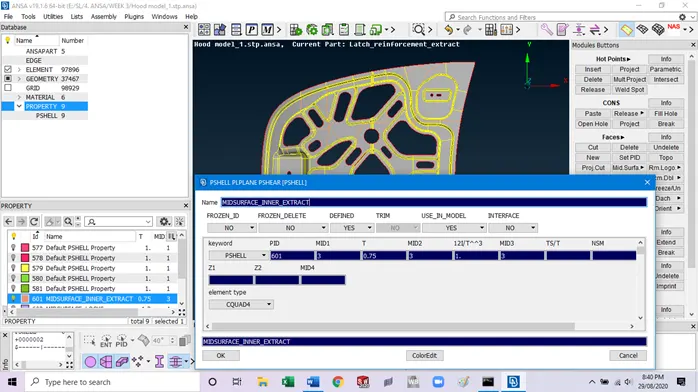
- Set the property id for extracted mid surface. Property may define the thickness of the shell elements.
- Setting up parameters and quality criteria
- Set the required mesh size, type of mesh and order of meshing required,according to customer requirements and accuracy required.
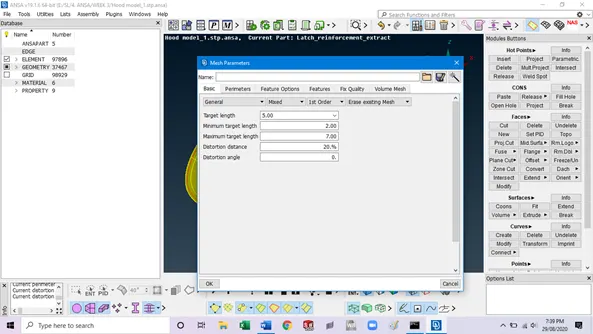
Eg. Target Element Size= 5 as shown in picture.
- Now click on edit criteria. This is where we have to specify the criteria for the Quality index of meshing.
- Set all the quality criteria and save the details as a file.
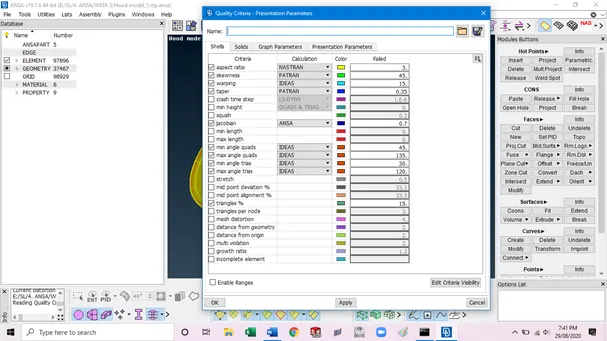
- These are the criteria on which our meshing gets checked on quality of meshing.
E.g. Min/ Max Size of element, Aspect ratio, Warpage, Min/Max Quad angle, Skewness etc.
- Meshing
- After geometric cleanup and setting the conditions now we are going for meshing.
- We have to finalize the target mesh size and set the perimeter length. Setting of the perimeter length for meshing divides the surfaces into the imaginarily small parts for required meshing.
- Select the surface as displayed surface. Choose element size as per requirement. Here it is
- Use mesh type as Mixed. And hit the mesh button on screen.
- Adjust the nodes according to requirements. Make sure the mesh flow is good. Adjust each area of meshing with care to get a quality mesh. Hit middle mouse button to exit the mesh.
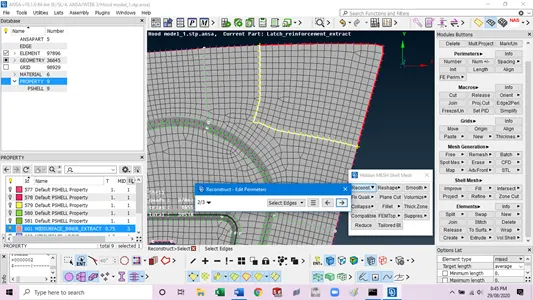
- Mesh flow near cutouts and at edge will specify mesh quality. Now meshing is done. It’s time to check the quality of the mesh.
- Quality Check
- Click on quality index. It will show the no. of elements failing in quality criteria which we have specified previously. The quality of elements are only seen in the hidden mode. Change the mode to hidden and check the quality of elements.
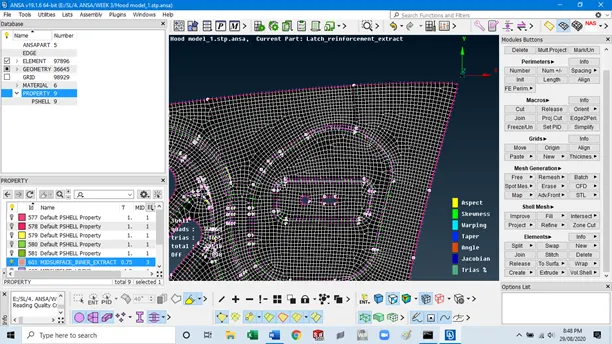
- So the quality index will show the failing elements or worst elements in the meshing. We have to avoid these elements during meshing. We can overcome these elements by remeshing certain areas again which is a good way to do it.
- Click on F11 and select the elements. Select the element from the outer edge to reconstruct the surface.
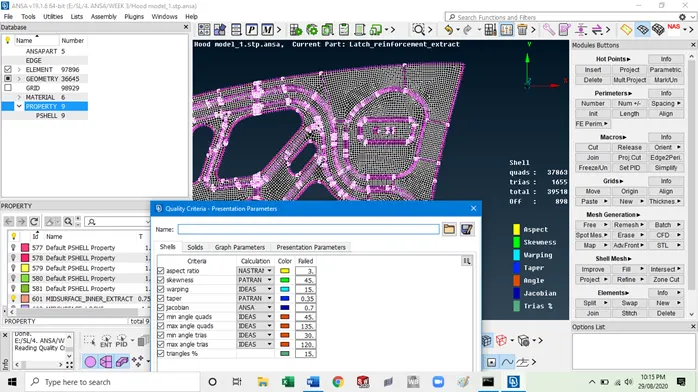
- Make a square to remeshing. It will easy to reconstruct targeted area. This is way to get remesh all the surface again and again. Repeating this procedure you will refine mesh.
- Now again we can check for the quality criteria. In quality index we can use the tools like place node, node optimize, element optimize, split option, paste, split quad, combine tria etc
- These tools also help to get rid off from bad mesh.
- Place Node use to place a node at a required position. We can use element optimize to adjust the element as per meshing thresholds specified earlier. These options will adjust the element at minor level..
- Split and combine tria are also used for removing tria from mesh or adding together to form a quad element.
- Apart from these entire tools smooth tool is used for very minor adjustments in the elements to complete quality criteria.
- After doing all this you will get a quality mesh which will pass all the quality criteria. In industry point of view the tolerance is given for quality criteria’s it may be in 5% to 10%.
Conclusion: Elements violating threshold are zero. So the quality of mesh is good. And we can decide good mesh quality based on the mesh flow as well. So below figure shows the good mesh flow. So we can conclude the meshing is of good quality.
Similarly we have to do the meshing for all the parts and follow the procedure to get good meshing.
- Outer Extract
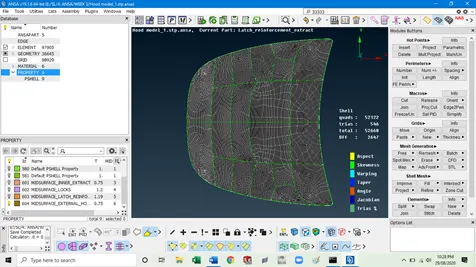
- Locks
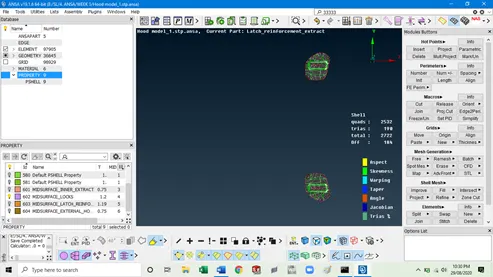
- Latch Reinforcement Extract
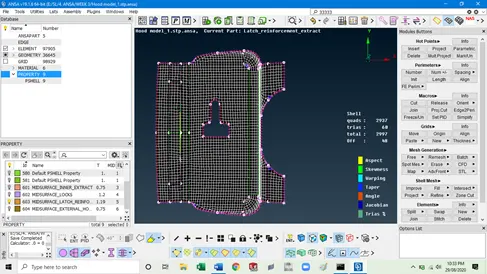
Now unhide all the meshing to see the whole component together.