Week 3 - 2D meshing for Sheet metal
AIM: For given hood model, take out mid surfaces for all the components in the model mesh thes midsurfaces with given quality criteria ,and assign the thickness.
GIVEN DATA:
Here given data provide are
1.Quality criteria -
| sl no | Qualkity Criteria | Value |
| 1 |
Target / Average length |
5 |
| 2 | Minimum Length | 2 |
| 3 |
Maximum Length |
7 |
| 4 | Aspect | 3 |
| 5 | Warpage | 15 |
| 6 | Skewness | 45 |
| 7 | Jacobian | 0.7 |
| 8 | Min Quad Angle | 45 |
| 9 |
Max Quad Angle |
135 |
| 10 | Min Tria Angle | 30 |
| 11 | Max Tria Angle | 120 |
| 12 | Tria % | 15 |
Procedure-
- Import the given cad model in the ansa.
- Give the TOPO on the enteir model to join all the faces.
- Clean all the edges by using FINE command for better mid surface creation.
- Do the geomatric cleanup before ready for the model for the meshing.
- Clear all the geomatrice issue by Right click- select the option FIX then all the issue are resolve by the ansa itself.
- Some issues are not solve by the ansa so we are now fix the issue by Manually.
- Measure the thickness of the enteir component for the midsurfece creation.
- Go to the faces-Extract option for creating the mid surface.( Faces- Extract- enter the value- middle mouse click) Enter the value with the total thickness of the g`iven model devided by2.
- Assign specific PID in the midsurface.
- Assign a thickness of the midsuface.
- Cheak the geomatric and clear all the geomatric issue befor going for the meshing.
- After doing the all operation set the given quality criteria for the meshing model.
- Now select the all holes notdes into an given number.
- Given the mesh element size.
- Now devided the large surface into the small small part for the good meshing result.
- Now doing the mesh in each and every small surface after the meshing cut the lines and join the mesh.
- Now cheack the quality of the mesh.
- now the model is ready for the future operation.
Step-1
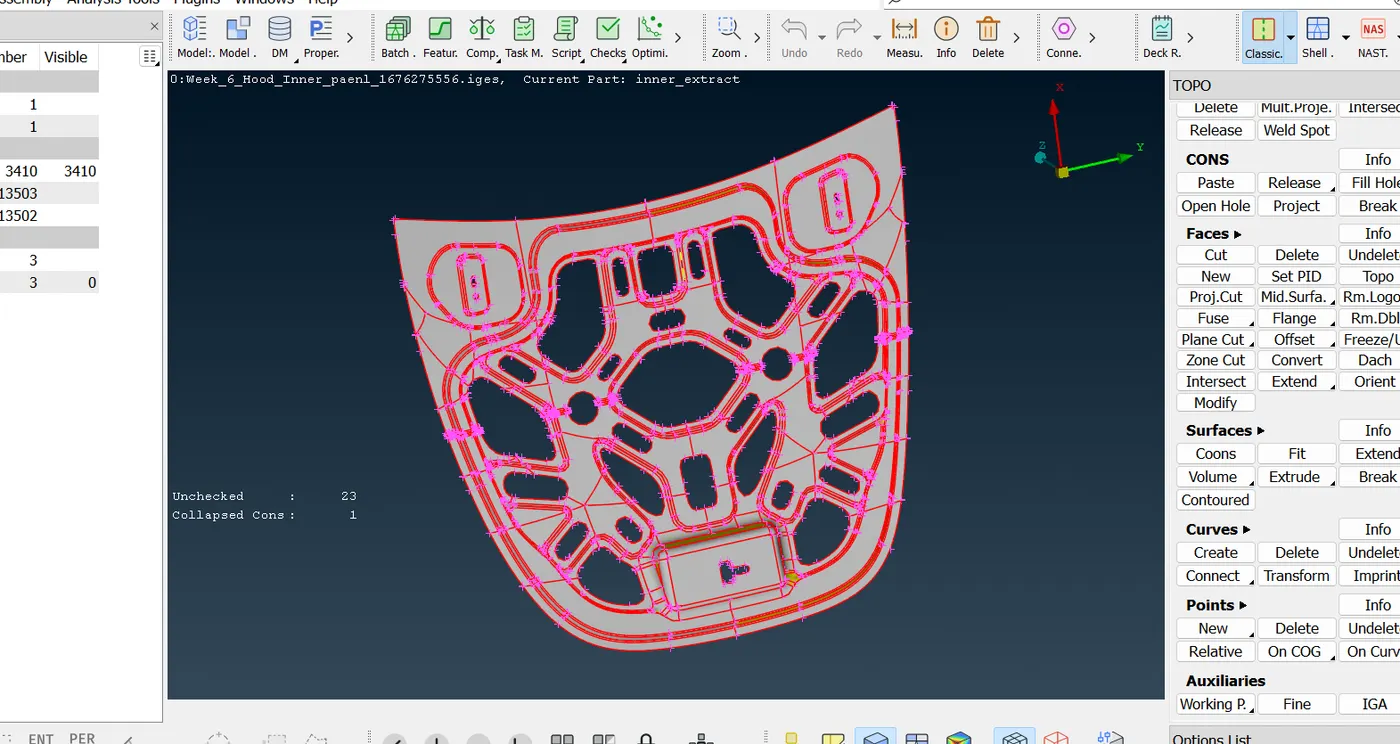
Import the CAD Geomatric
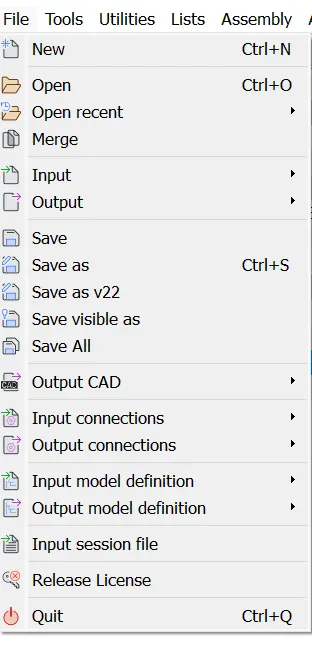
Go to file> go to open> select file location> ok
step-2
use the topo command for join the all surface
Go to face option> Select TOPO> Select entaire surface > middle mouse
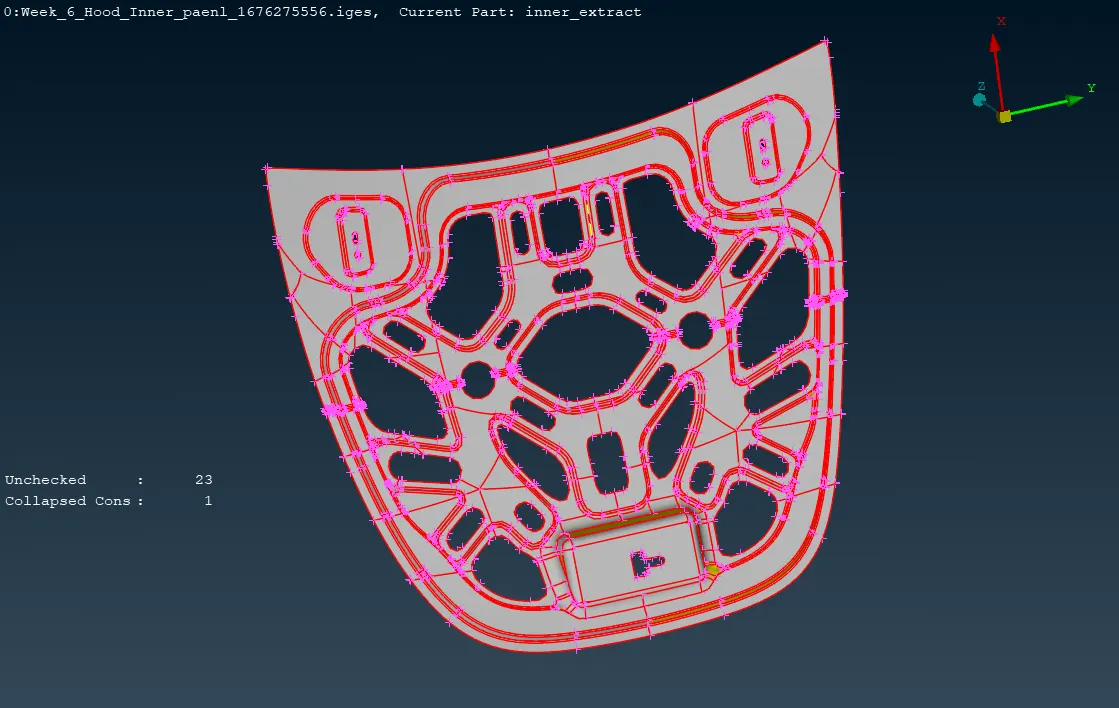
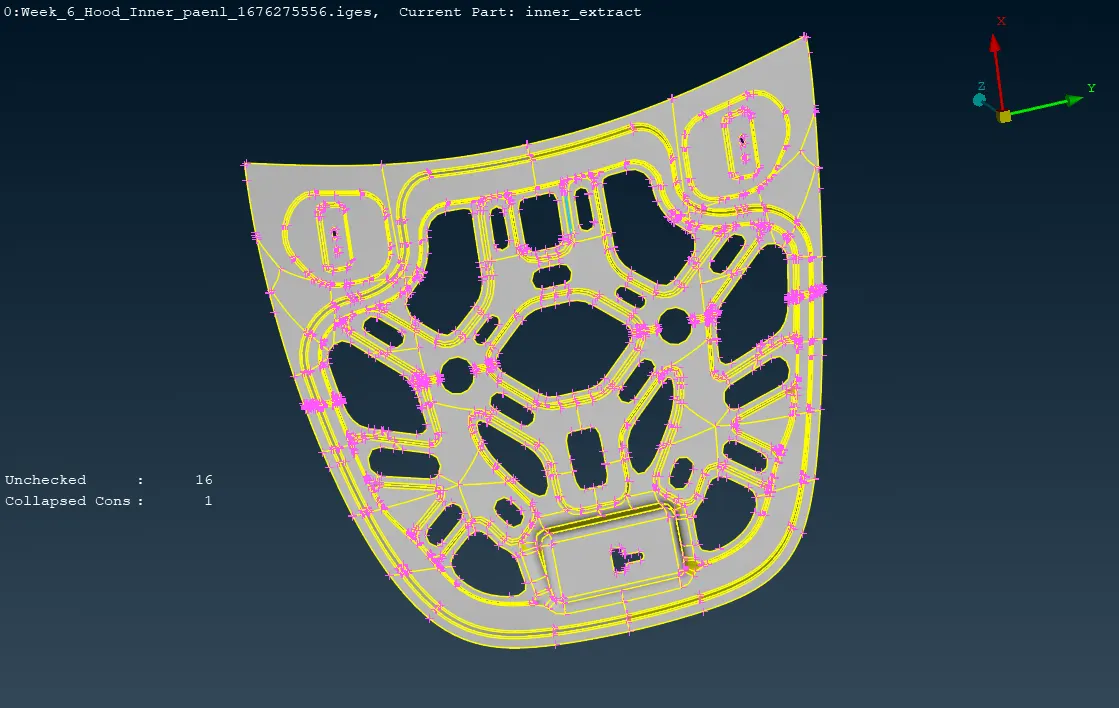
Before Topo After Topo
Step-3
Use the fine command foe set the edges of the cad model
Go to Auxillary> select FINE
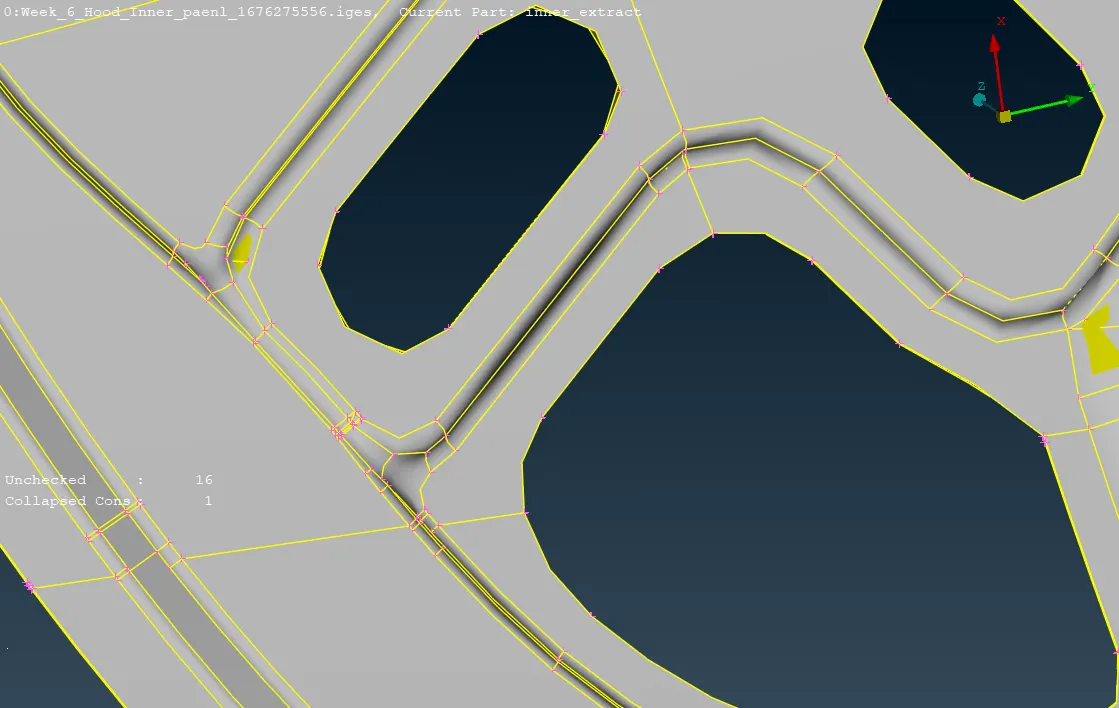
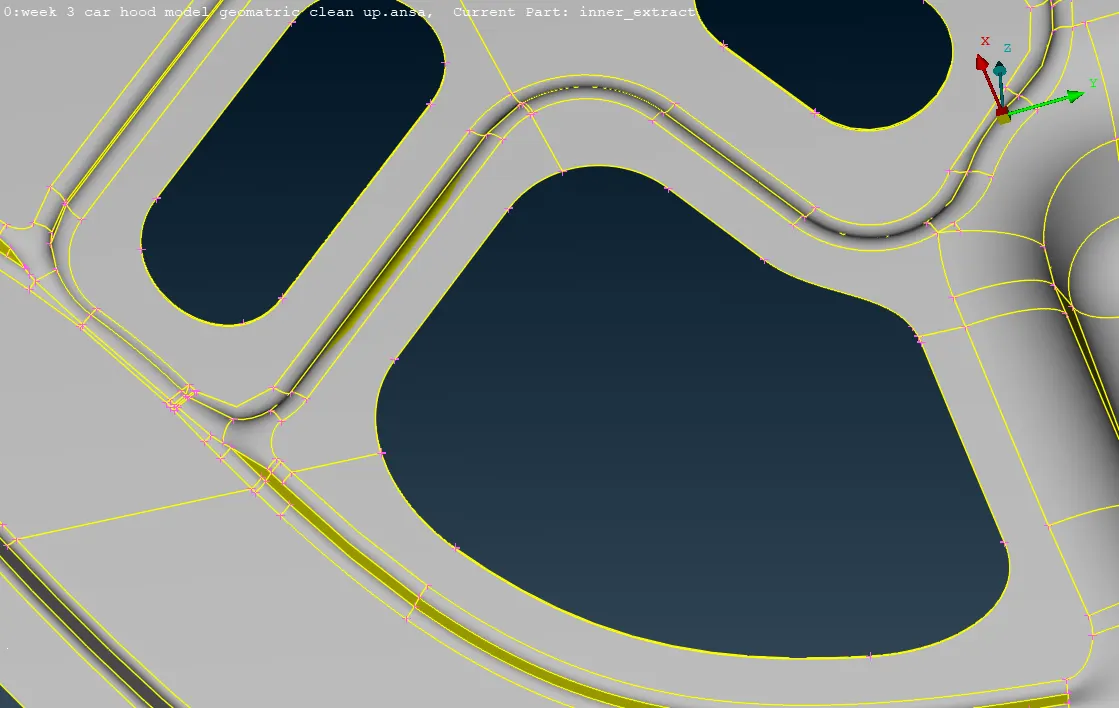
Before After
Step-4
Done the Geomatric cleanup before going to the meshing.
Go to cheackes manager> Go to geomatric option> select it > Exicute
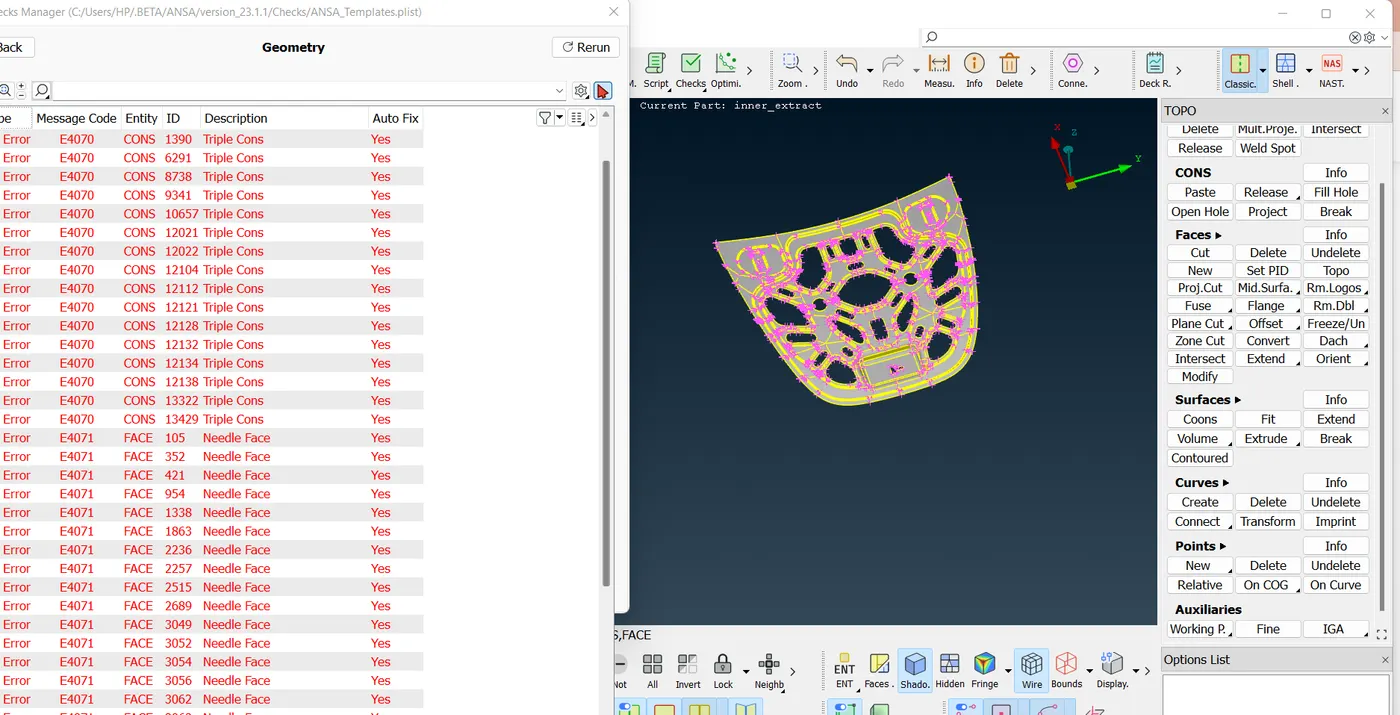
Before
Step-5
Clear all the geomatrice issue by Right click- select the option FIX then all the issue are resolve by the ansa itself.
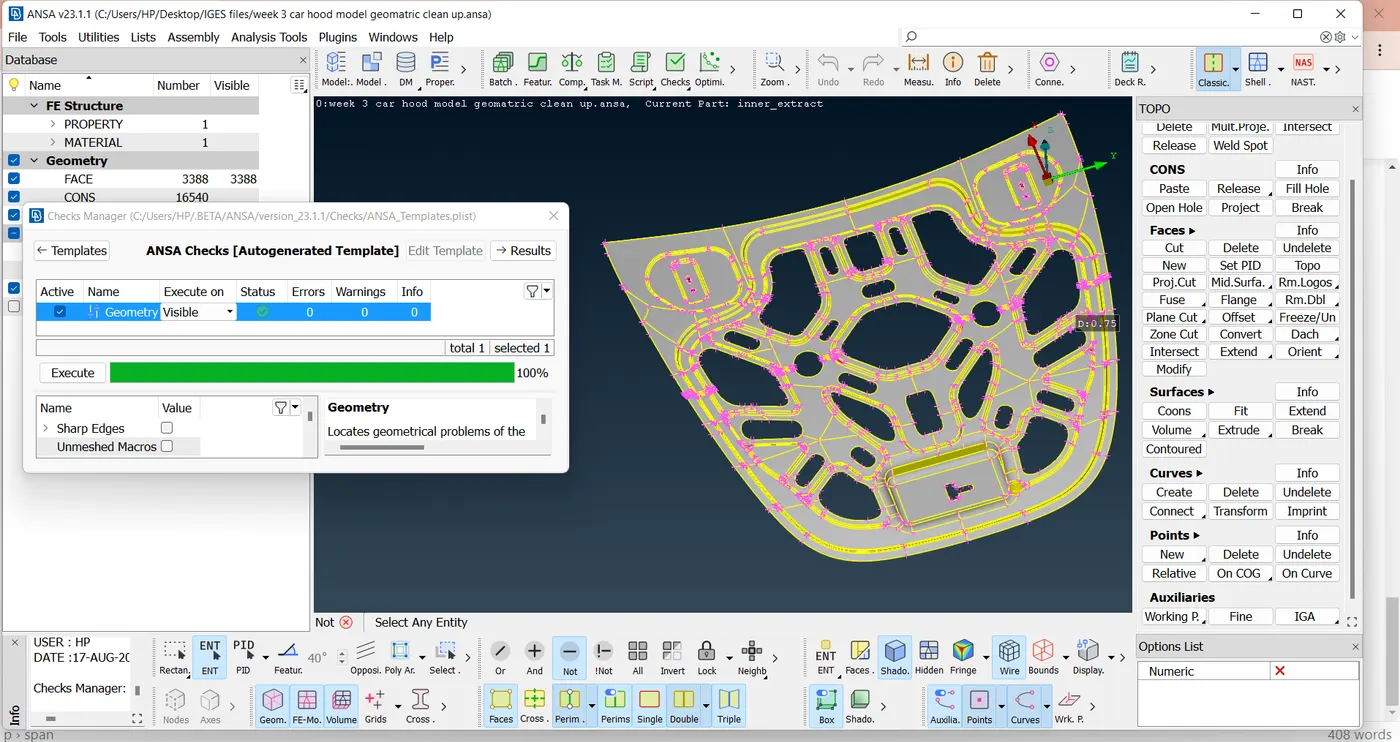
Step-6
Some issue are not solve by the ansa so we can clear the issue by manually.
Step-7
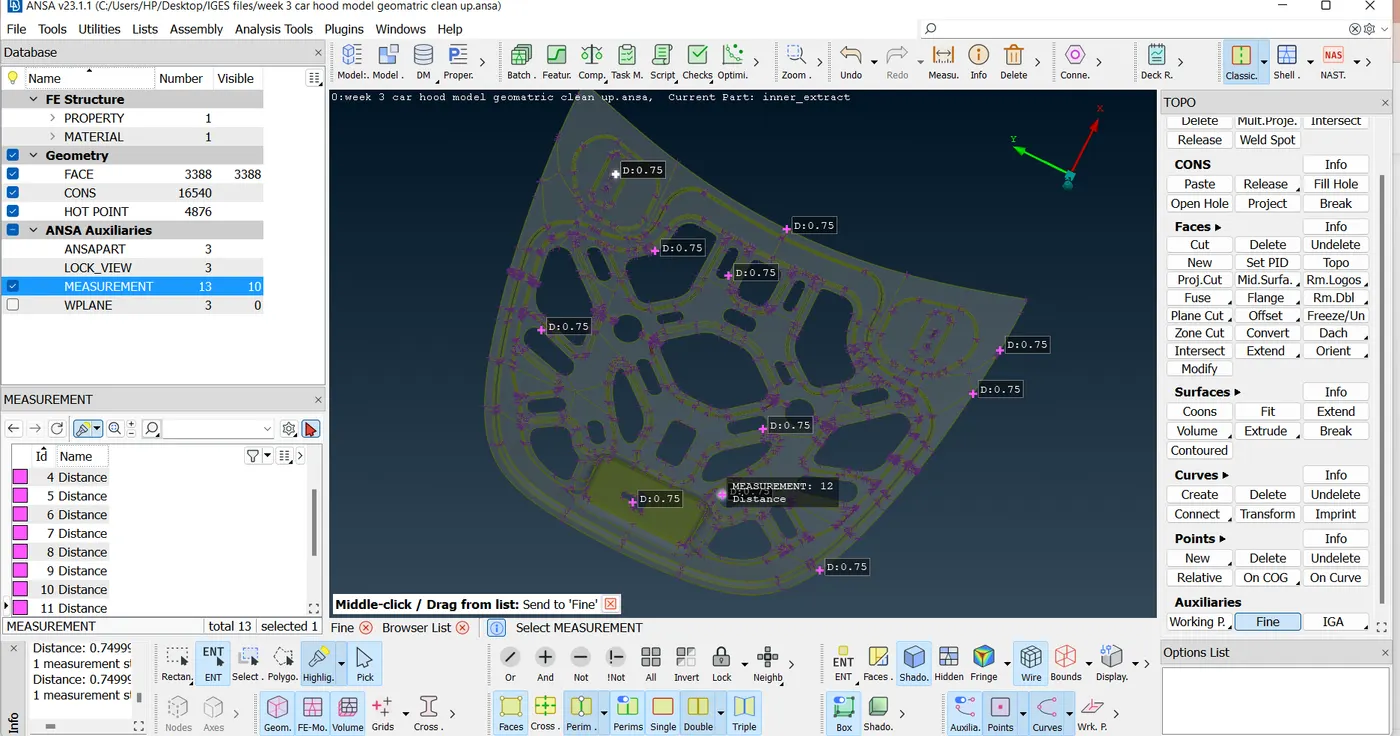
Measure the thickness of the entaire comonet
Go to the measurement command on the top of the ansa interface > Select the nodes for measurement and store it.
Step-8
Now generate the mid surface for the meshing
Go to > Faces option> Upset > select the surface one by one> middle mouse> Enter the value > Middle mouse.
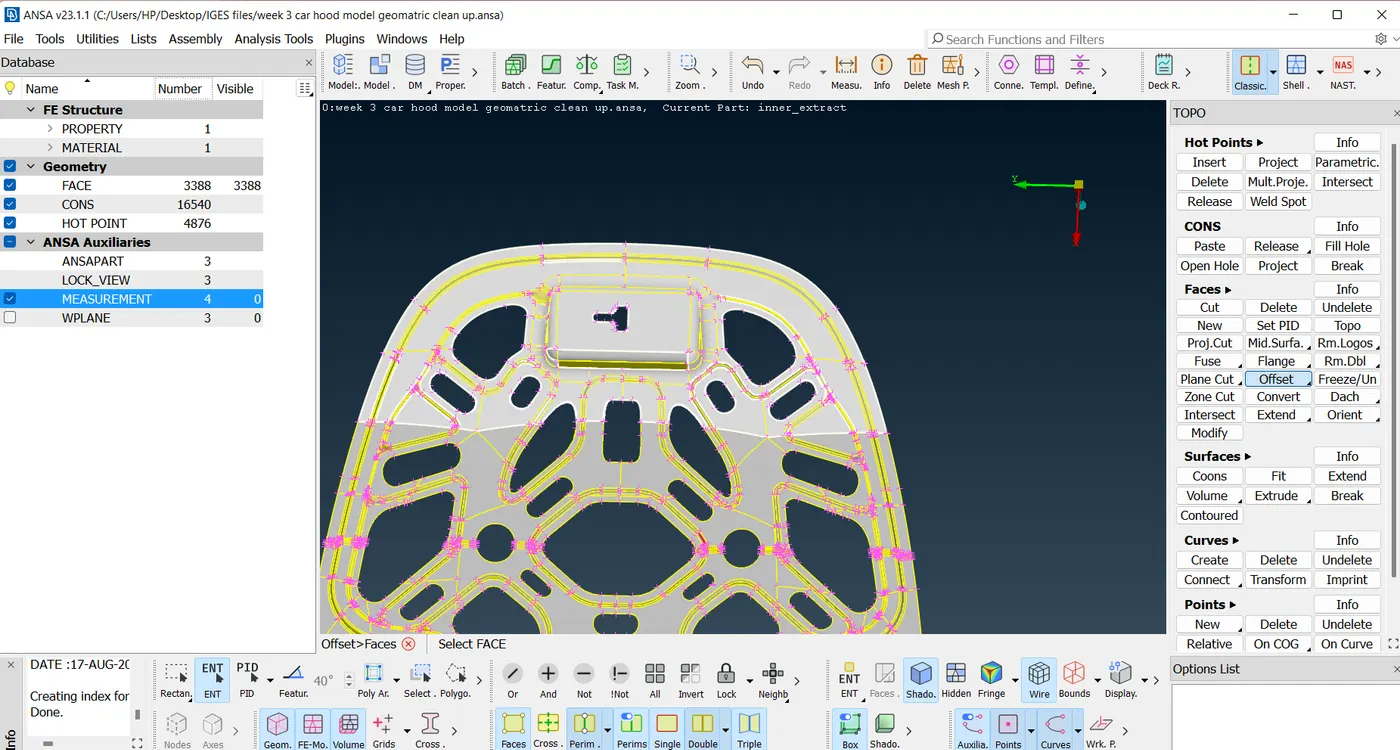
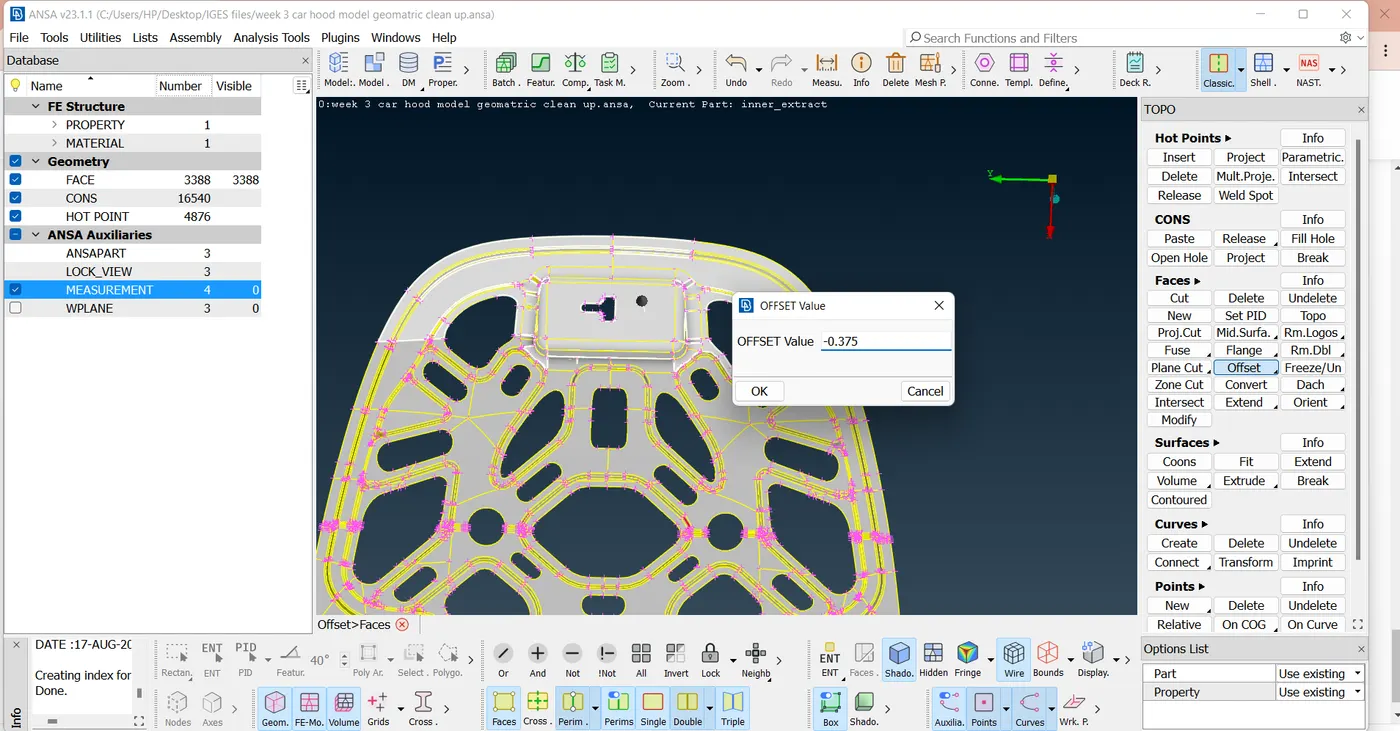
fig-1 Fig-2
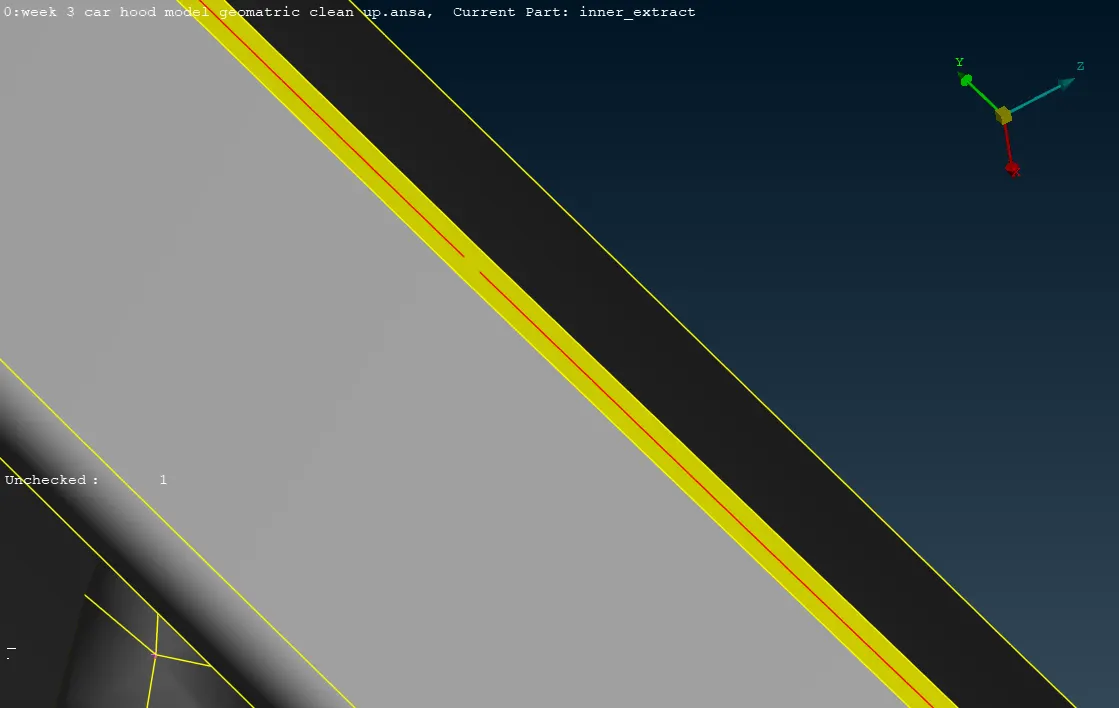
Fig-3
Step-9
Assign specific PID in the midsurface
Step-10
Assign the quality parameter and starting the meshing
Step-11
Try to Follow the all tria element criteria or Meshflow Rule
Step-12
Cheack all the area step by step and solve all the quality issues of the element.
Step-13
Submit the model in IGES, RADIOS,And .FEM Files