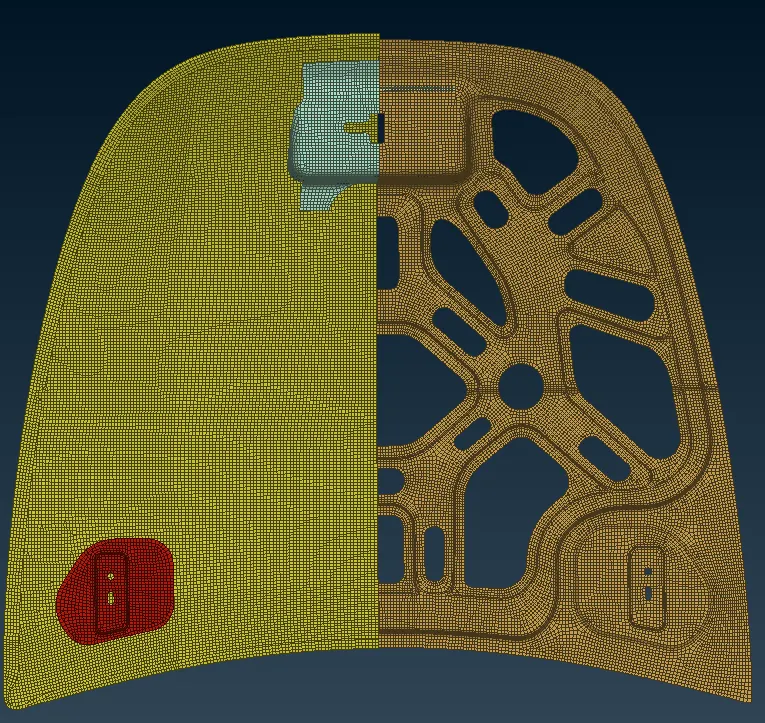
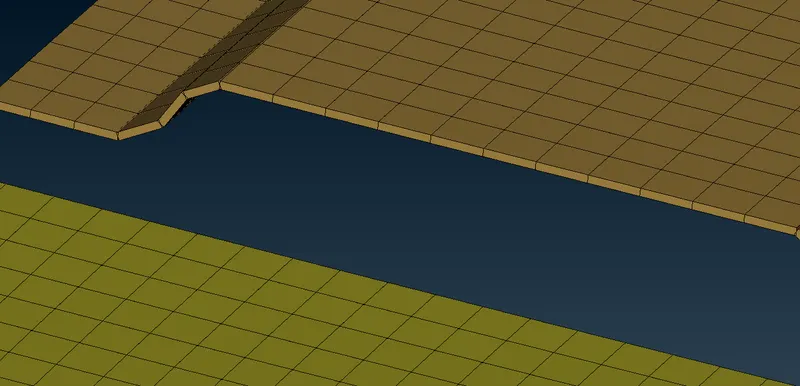
ANSA - Hood
Aim: To Perform geomerty cleanup, extract midsurface manually, mesh the hood component as per the given quality criterion and assigning the thickness.
|
S.No |
Quality Criteria |
Value |
|
1 |
Target/Average length |
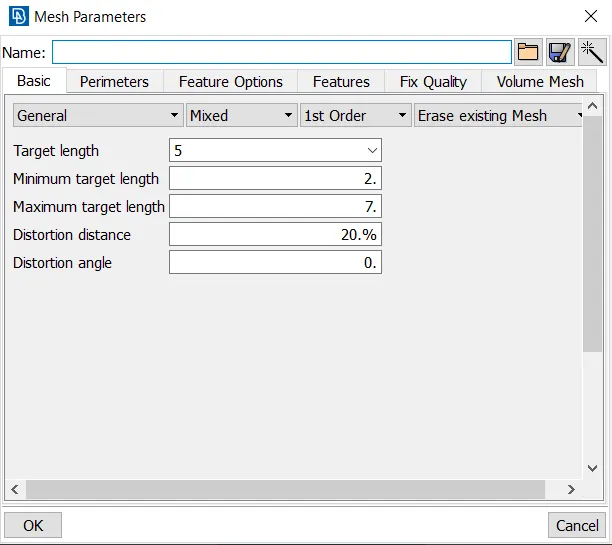
5 |
|
2 |
Minimum Length |
2 |
|
3 |
Maximum Length |
7 |
|
4 |
Aspect |
3 |
|
5 |
Warpage |
15 |
|
6 |
Skewness |
45 |
|
7 |
Jacobian |
0.7 |
|
8 |
Minimum Quad Angle |
45 |
|
9 |
Maximum Quad Angle |
135 |
|
10 |
Minimum Tria Angle |
30 |
|
11 |
Maximum Tria Angle |
120 |
|
10 |
Tria Percentage |
15 |
Model:
Procedure:
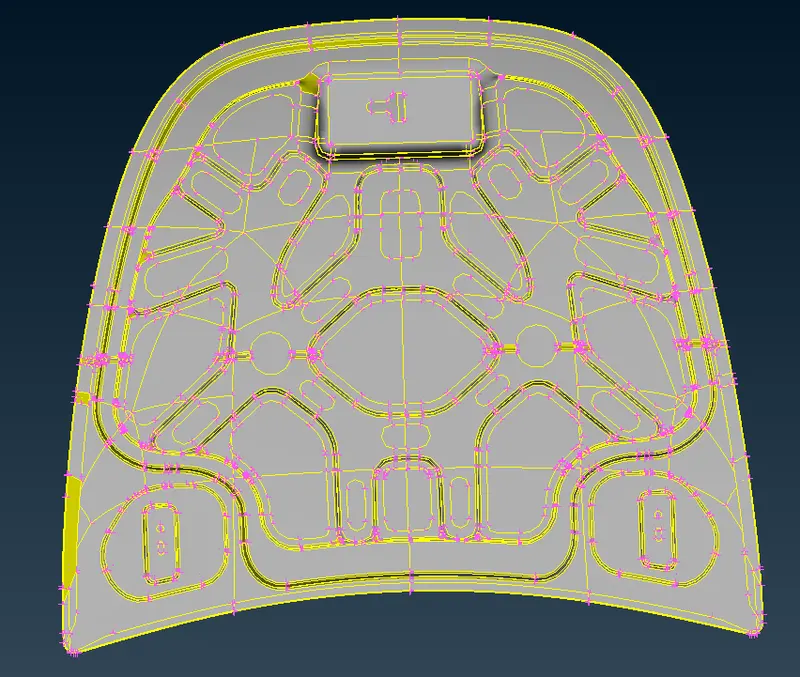
1. Import the .stp model and ANSA displays the model as shown above.
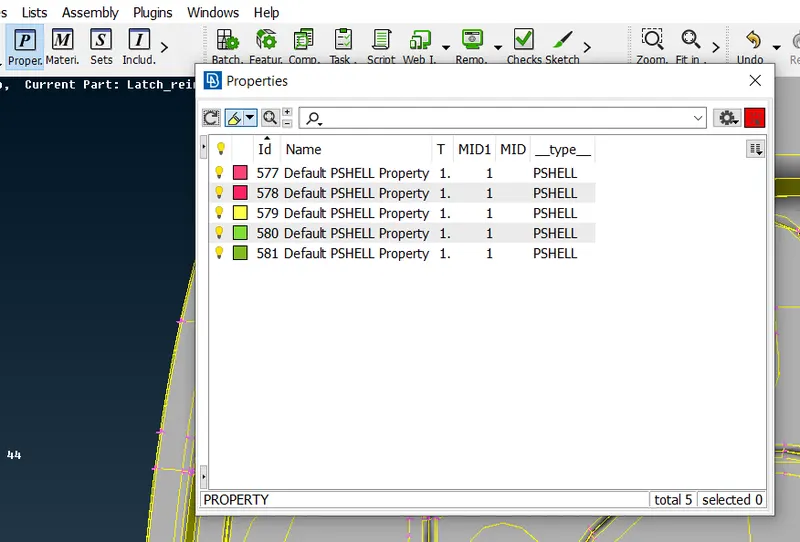
2. The entire model displayed are a group for sub components which can be checked in the properties as shown.
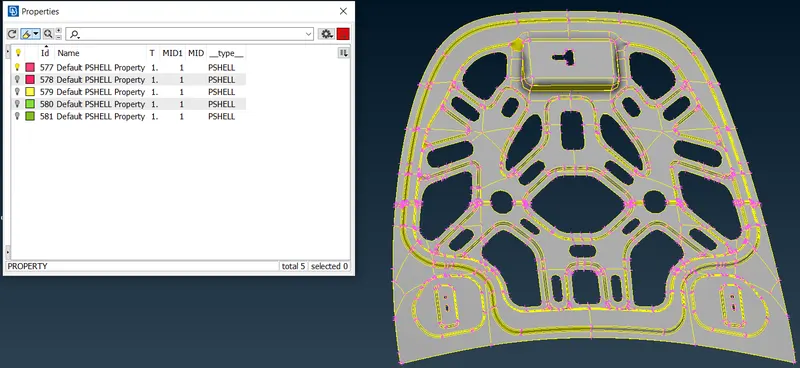
3. Hide the components and display only one component to work on as shown.
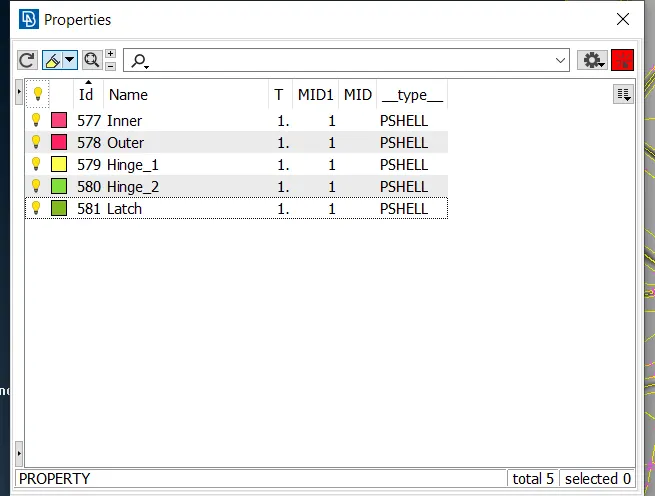
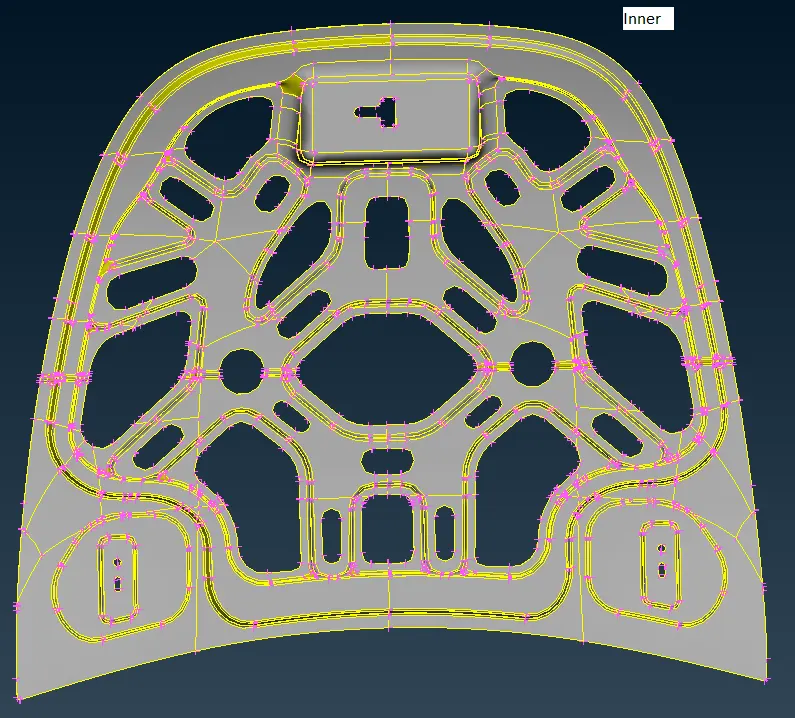
4. Rename all the sub-components as per requirement as shown.
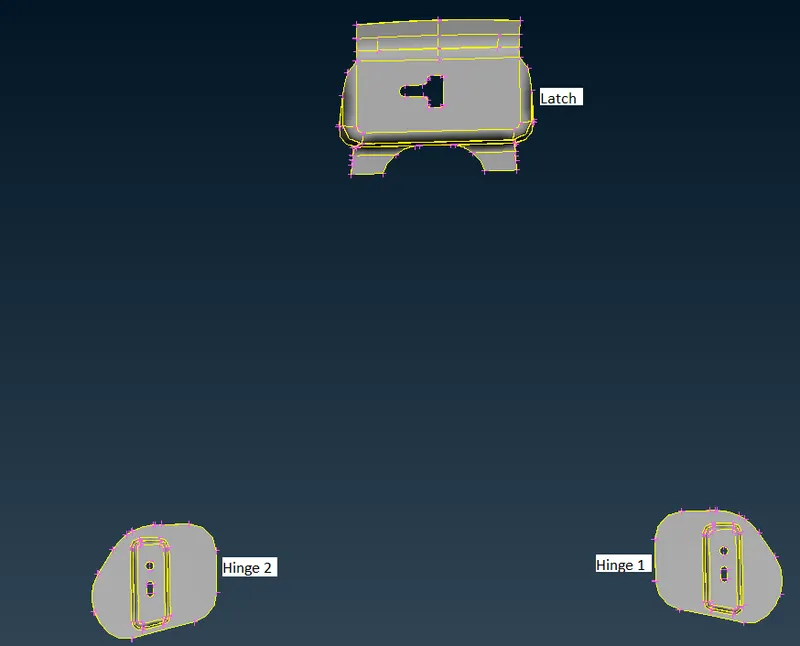
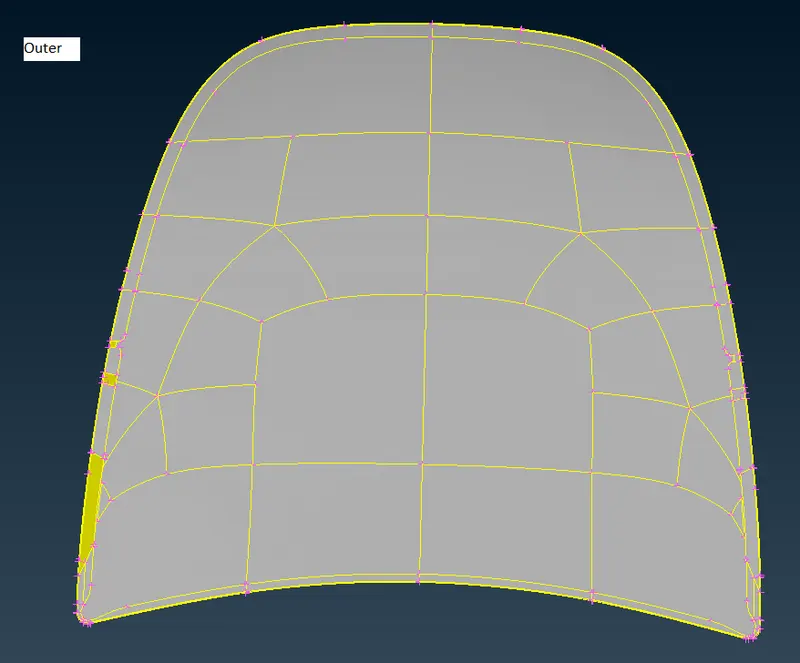
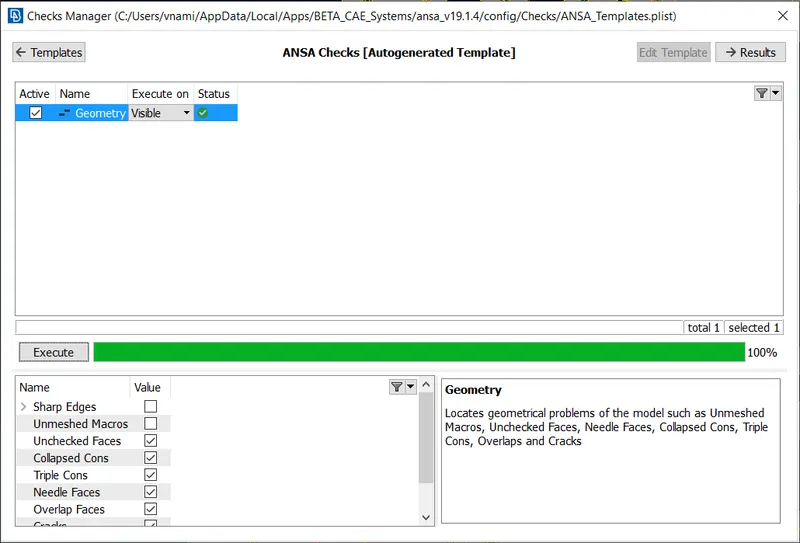
5. Perform geometry check on each component as shown.
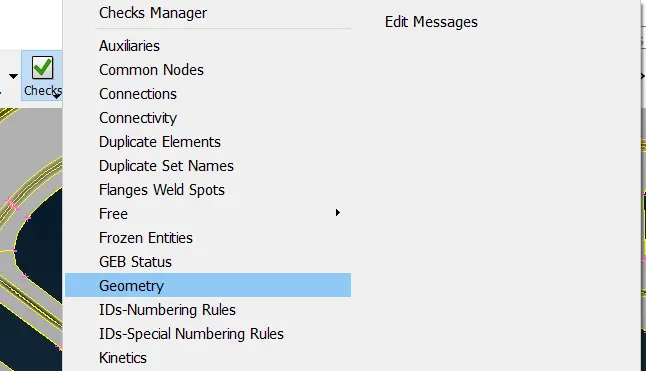
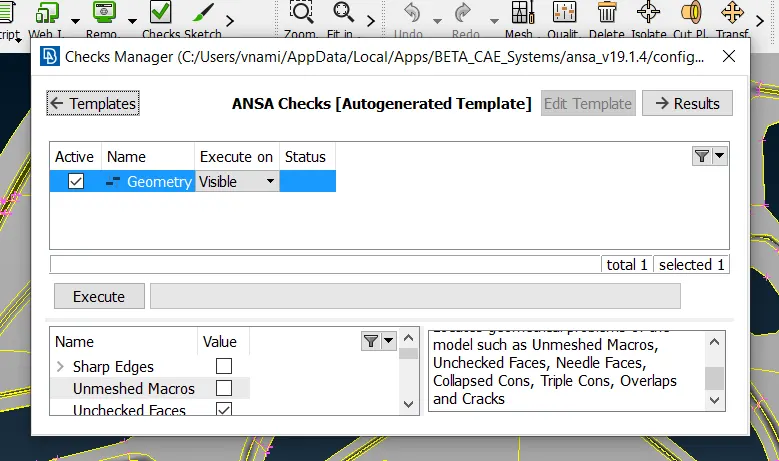
When execute is clicked the check displays if there are any geometrical issues in the model as shown.
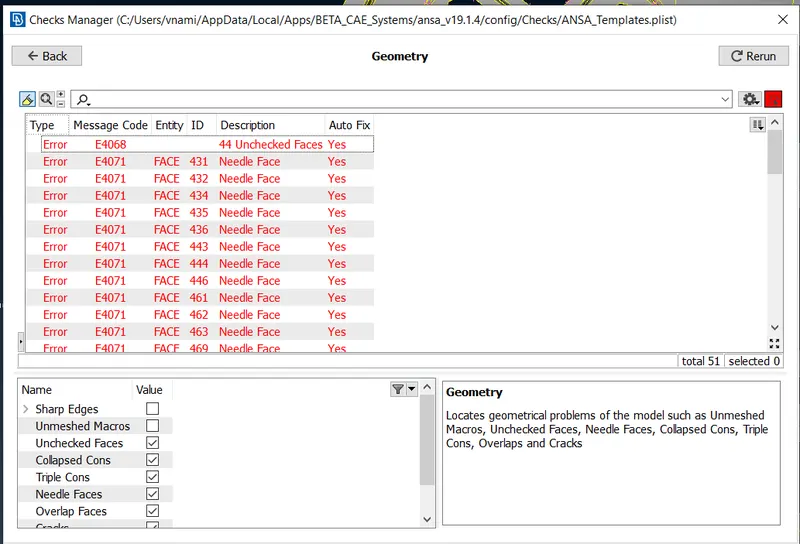
6. The issues can be fixed manually or with the help of ANSA autofix function. ANSA algorithm fixes the issues when autofix displays yes as shown.
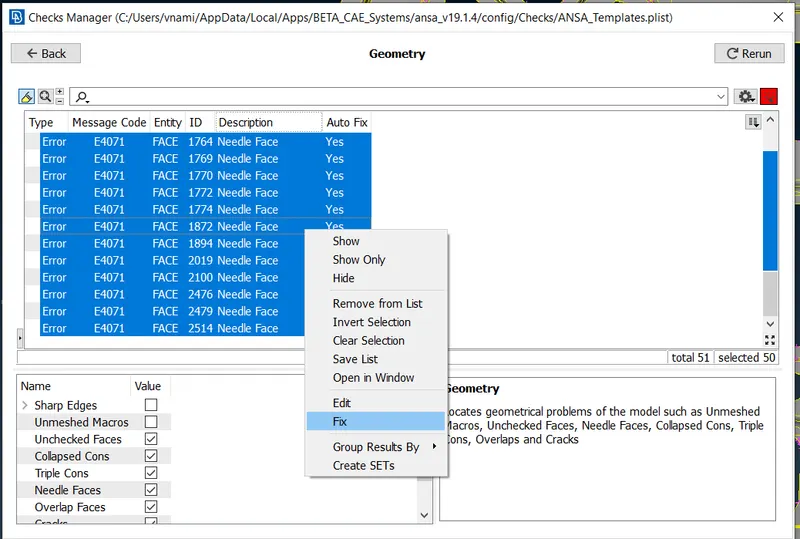
7. When fix is clicked it displays the following.
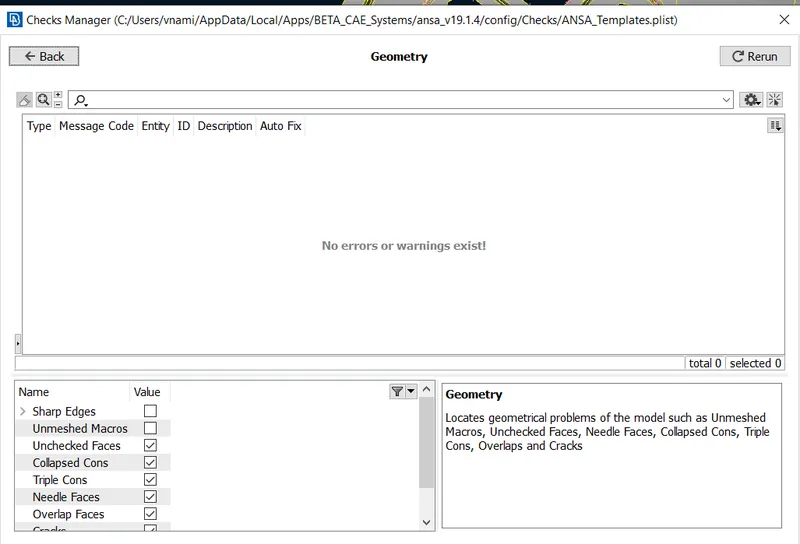
8. Check the geometry to ensure there are no issues and ANSA displays the following when there are no geomertical issues.
Repeat the procedure from 5 to 8 for other components to fix if there any geometrical issues in the model.
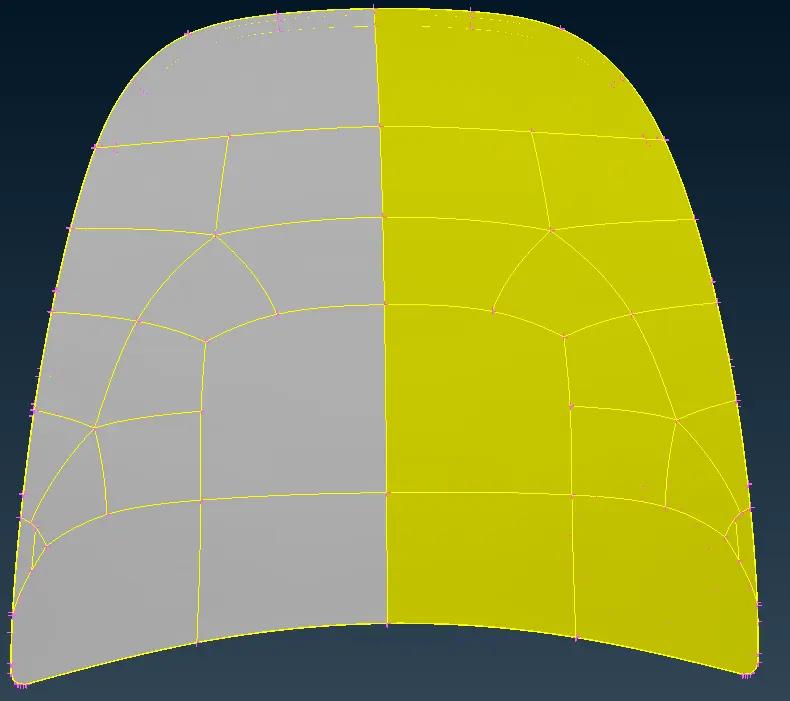
9. Check the orientation of the model and toggle it as per requirement outer surface being grey (positive) and inner surface yellow (negative) as shown.
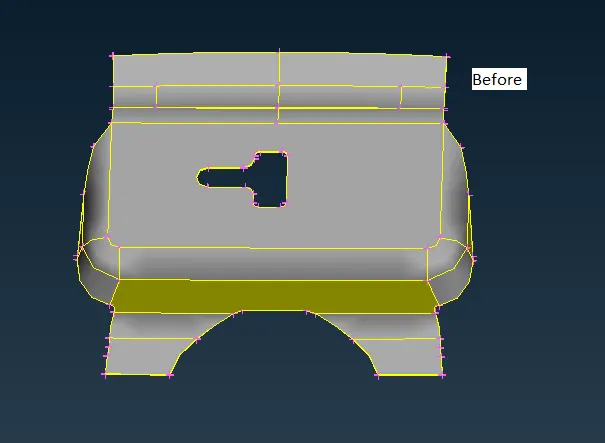
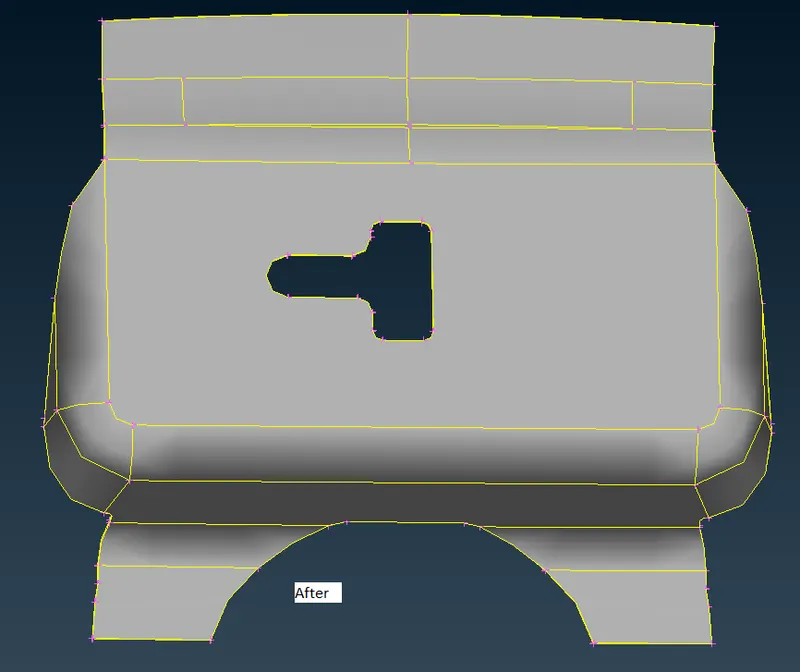
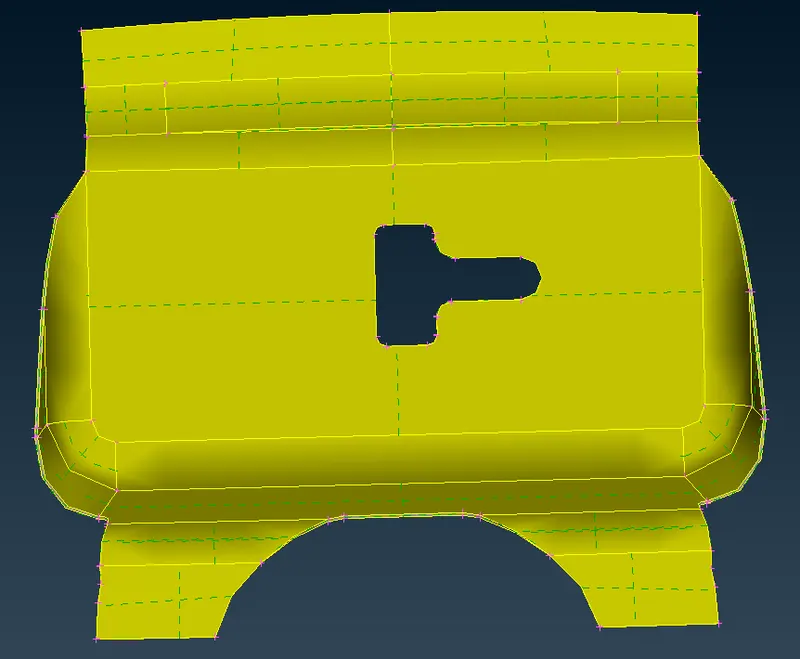
Orient all the components.
10. Check the thickness of each component to extract the midsurface by offsetting the surface. the Components have the following thickness
Inner - 0.75 Aprox
Outer - 0.75 aprox
Hinge_1 - 1.20 Aprox
Hinge_2 - 1.20 Aprox
Latch - 1.20 Aprox
11. Go to Faces - Offset and select the surface with the cross hatches as shown.
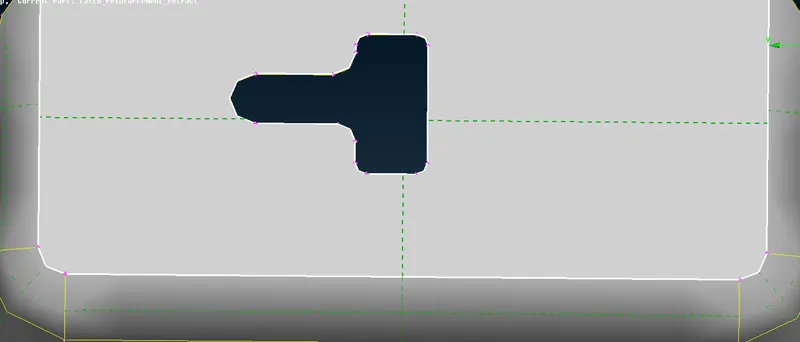
Select the outer surface and click the middle mouse button and ANSA prompts to enter the offset value. As per the vector directon the offset value is entered as -0.6 as shown.
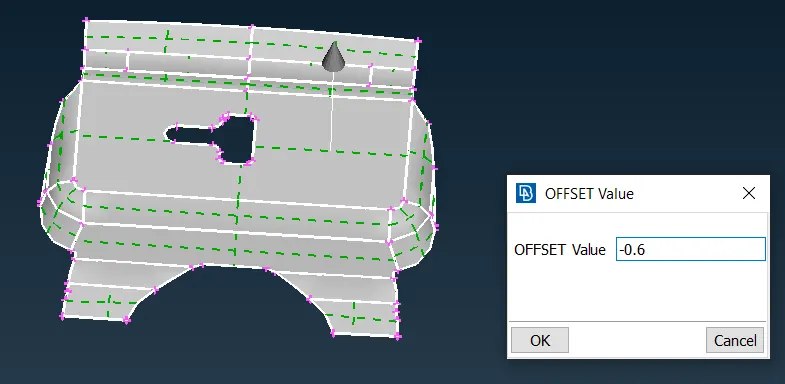
ANSA asks if the original faces should be deleted and click no.
12. Click on Not function and select the extracted midsurface and invert the view to display and select the AND fucnction and box select the surface displayed till the entire midsurface comes into view the midsurface extracted as shown.
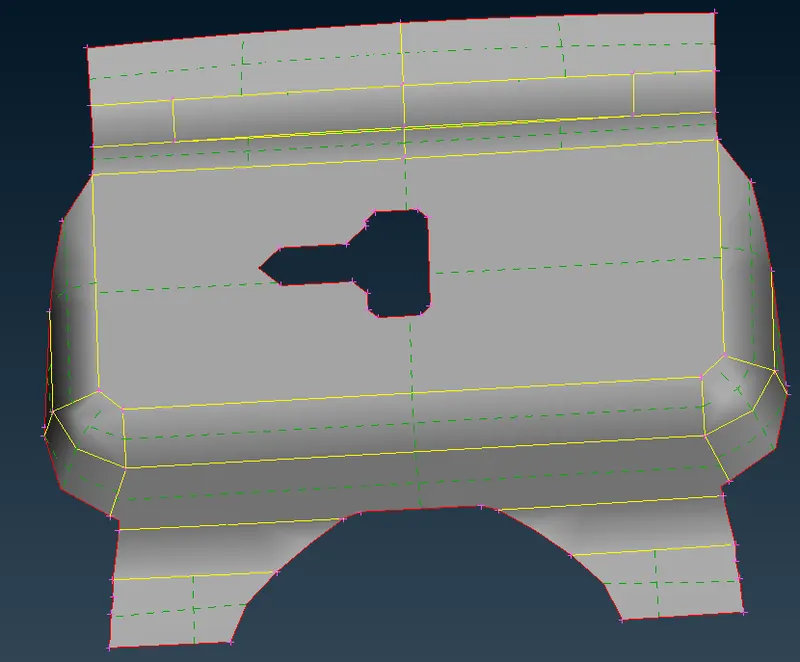
Repeat the above procedure for other components.
13. Select Faces - Set PID and select the entire midsurface and create a new PID as shown.
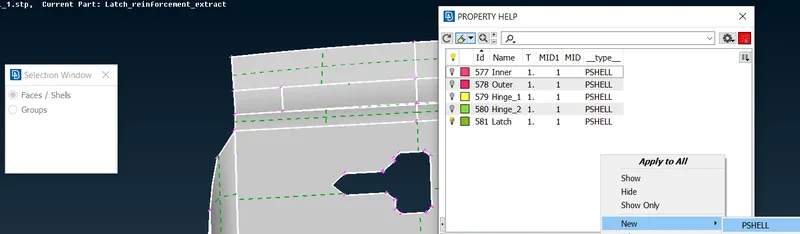
Enter the PID name and enter the thickness value as per measurement as shown.
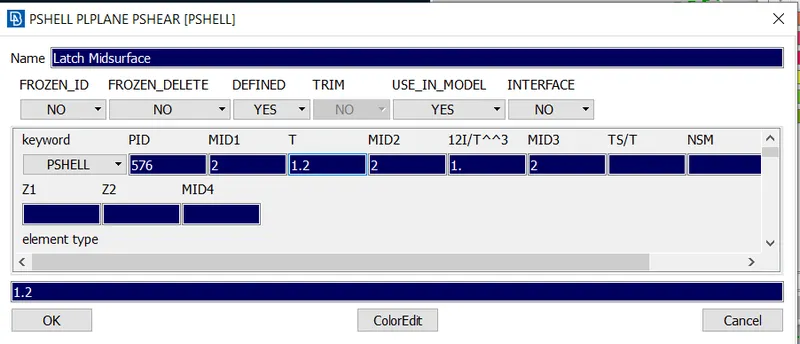
Repeat the above for other components.
14. Clean up the topology as required to ensure it passes quality parameters as shown.
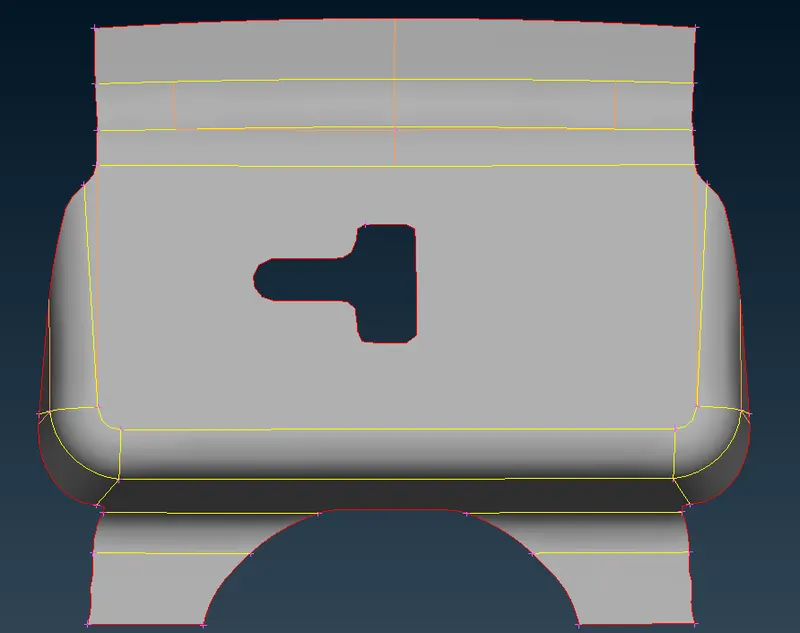
15. split the geometry as required to get a proper mesh flow. Enter the mesh parameters and Quality criteria as shown.
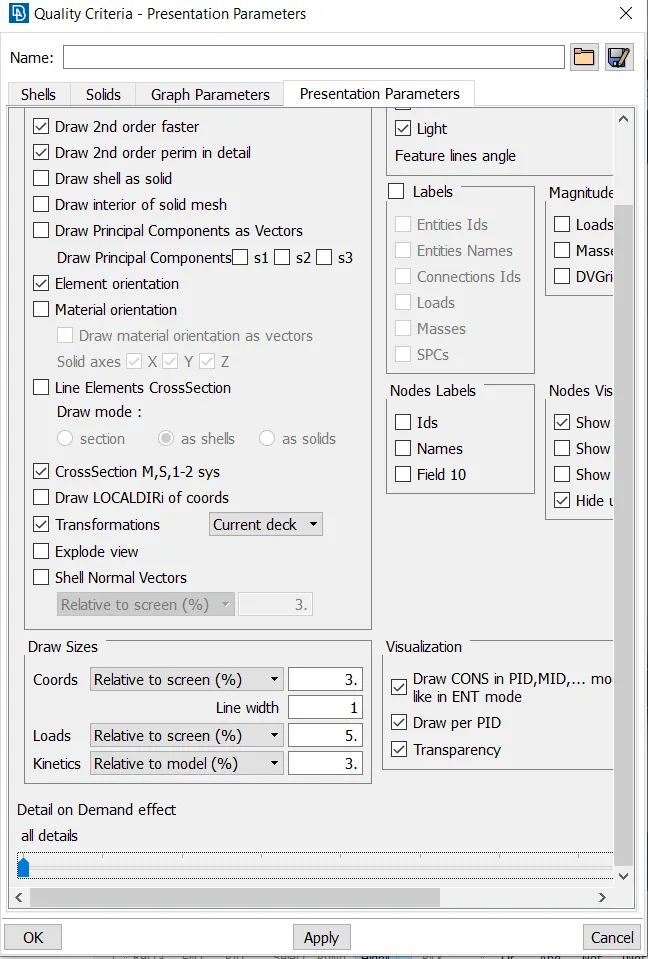
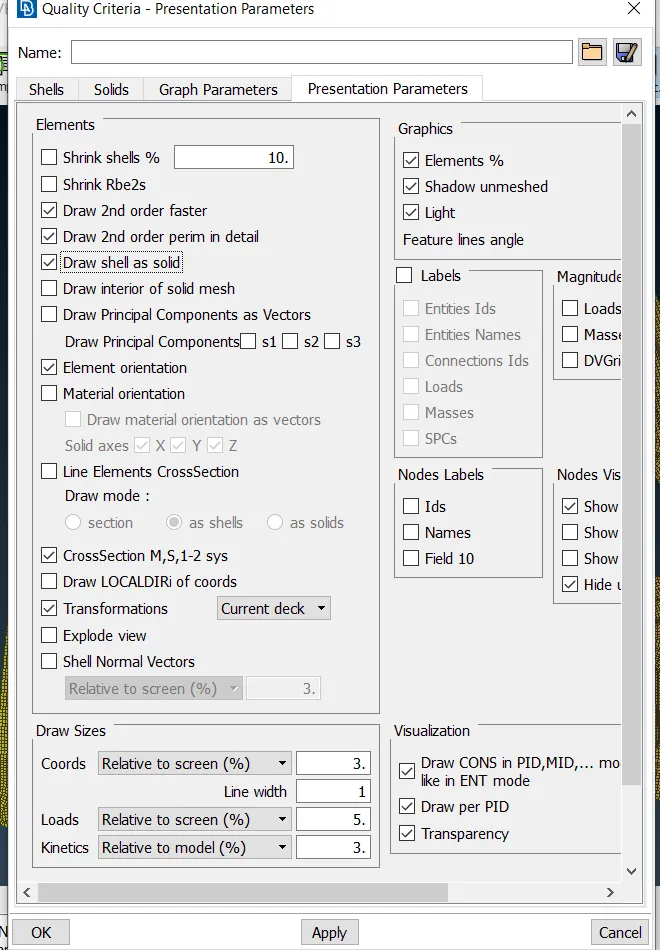
In Presentation parameters enable elements % in graphics and keep details on demand effect to all details.
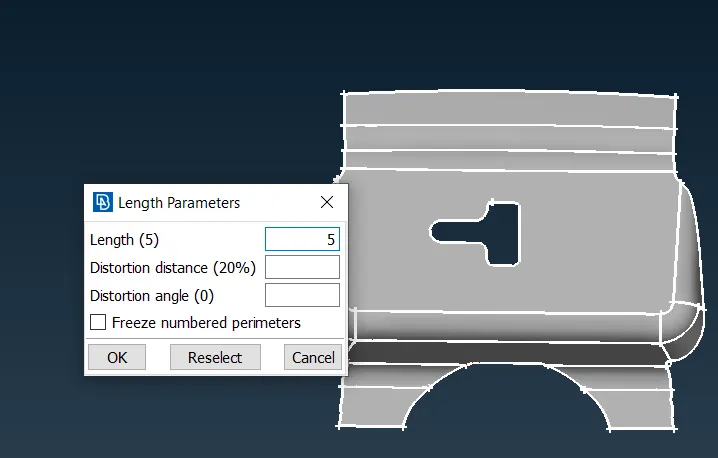
16. Switch to mesh module click on perimeters - length - perimeters and select the entire component and proceed and ANSA propmts to enter the length parameters as shown.
17. Add the highlighted modules button before meshing as shown.
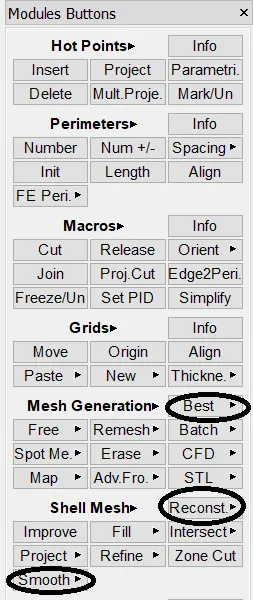
18. Select Best in mesh generation and click middle mouse to generate the mesh as shown.
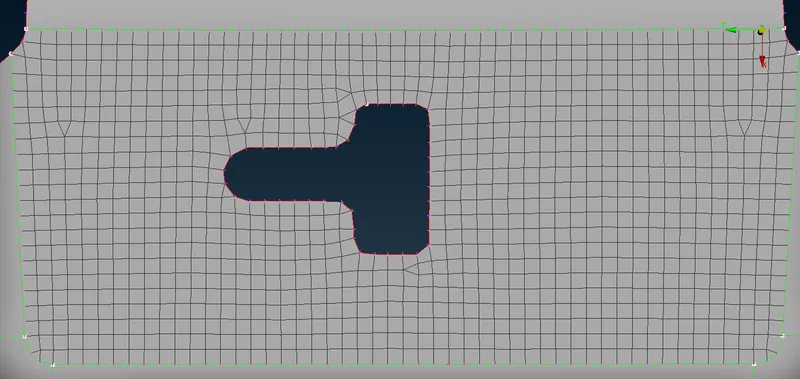
in the above image we see that the mesh has generated trias which can be eliminated by remeshing using reconstruct under shell mesh. using reconstruct few trias can be eliminated as shown.
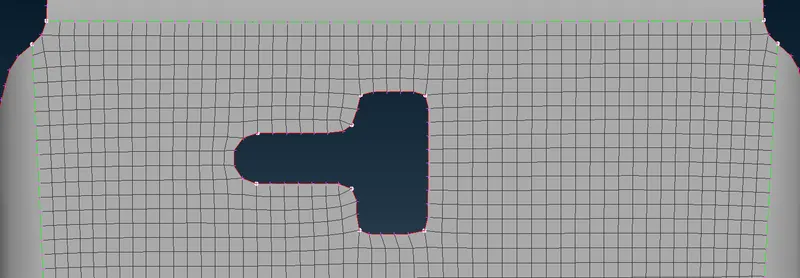
mesh the remaining surface and maintain proper mesh flow as shown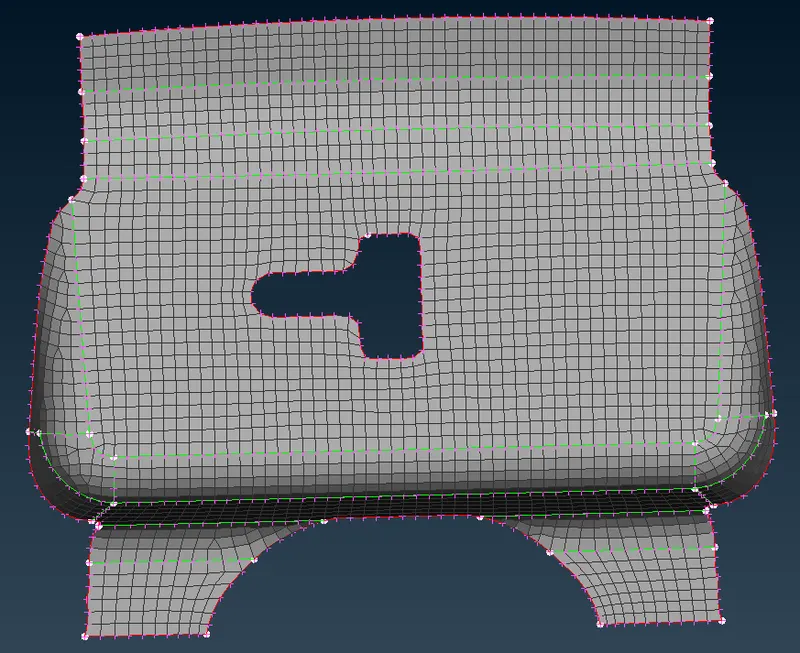
19. Check for quality and fix the issues by remeshing the elements if they are failing and to ensure there are no off elements as shown.
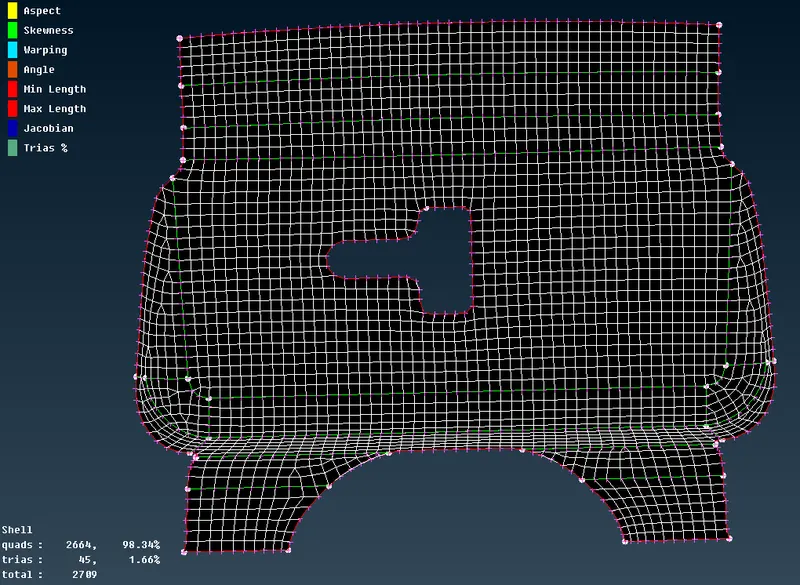
repeat the above for hinge 1 and 2 components.
Middle surface of inner and outer are symmetrical one half of the component is deleted and worked on as shown.
Inner Middle Surface:
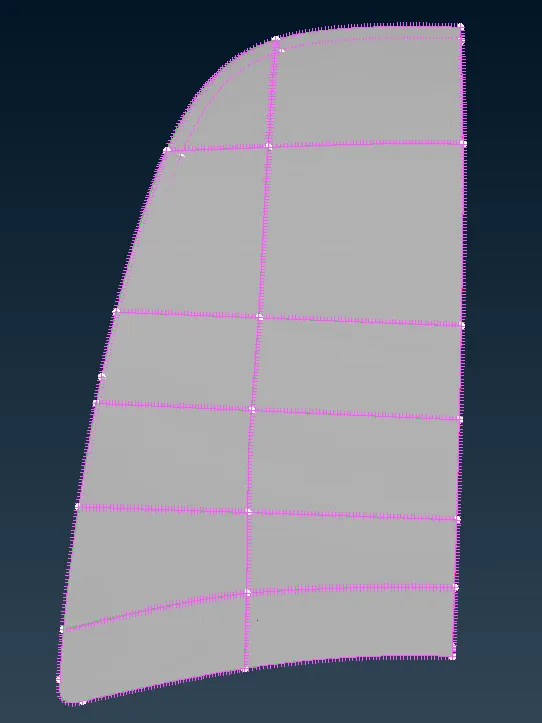
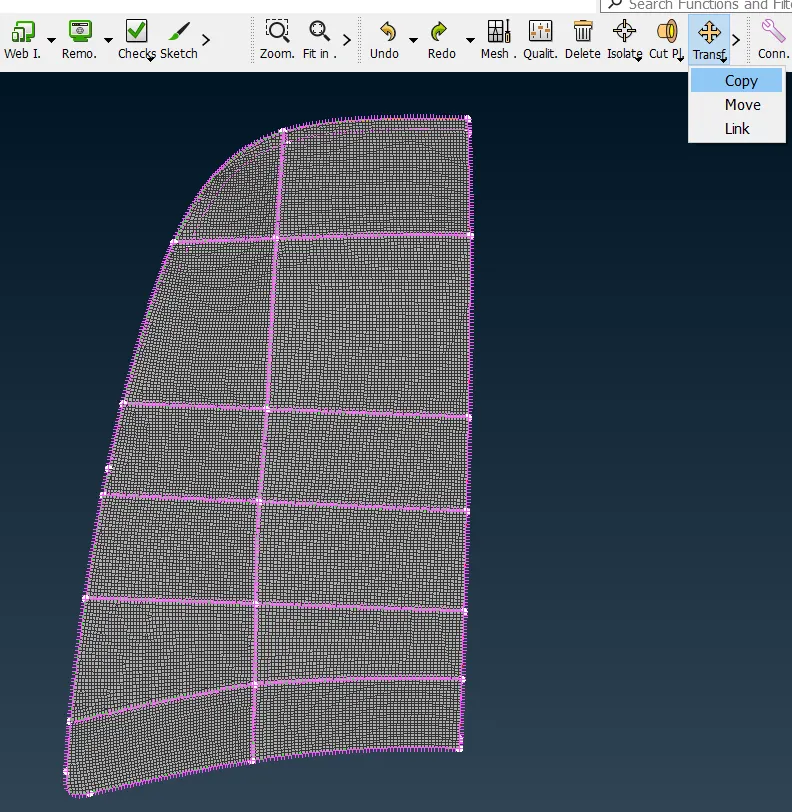
Once the component is meshed as per quality click on Transform copy as shown.
select all entities - symmetry - Mirror 3 points plane as shown.
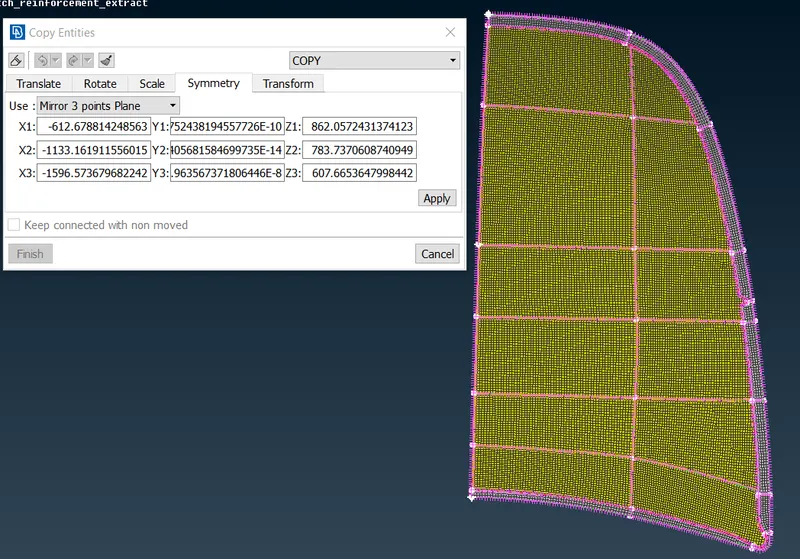
Mirrored surface with mesh is as shown.
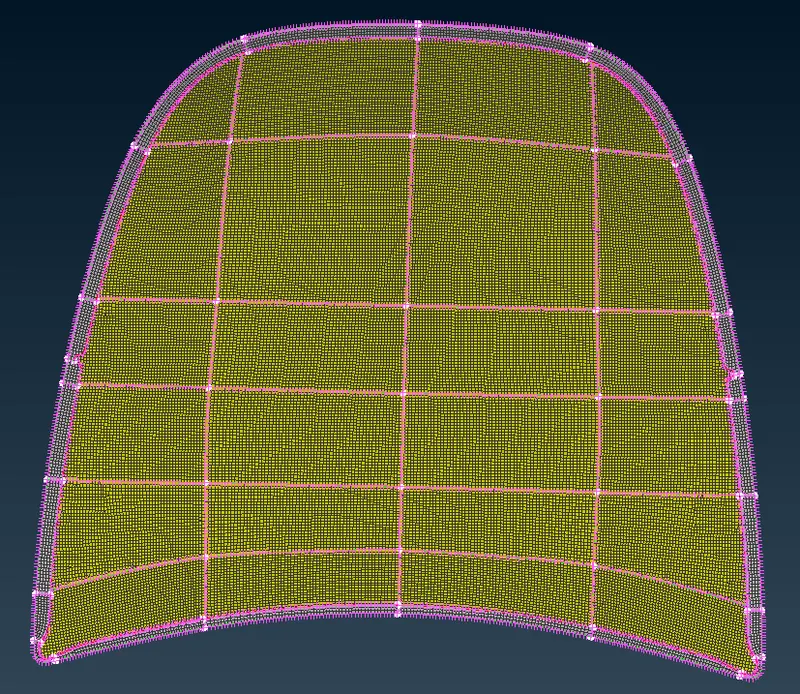
same procedure is followed for inner middle surface as shown.
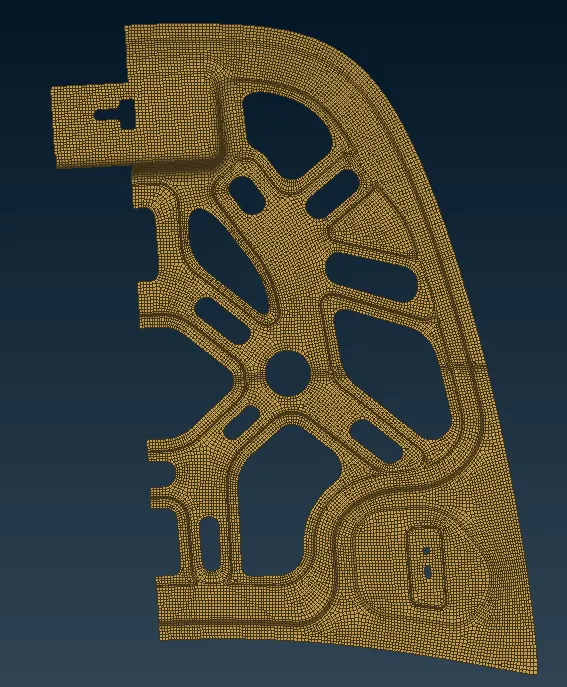
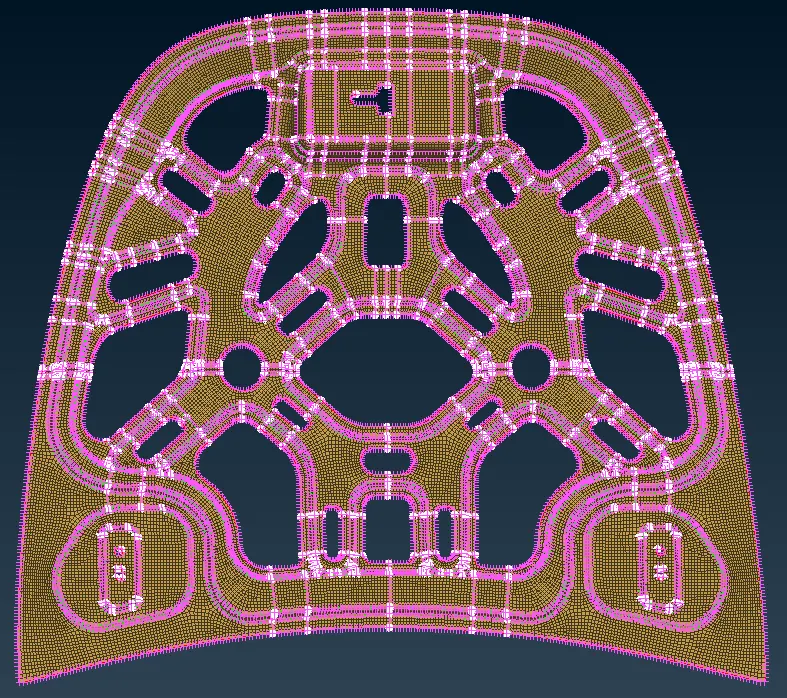
20. in the above mirrored connectivity is missing as shown.
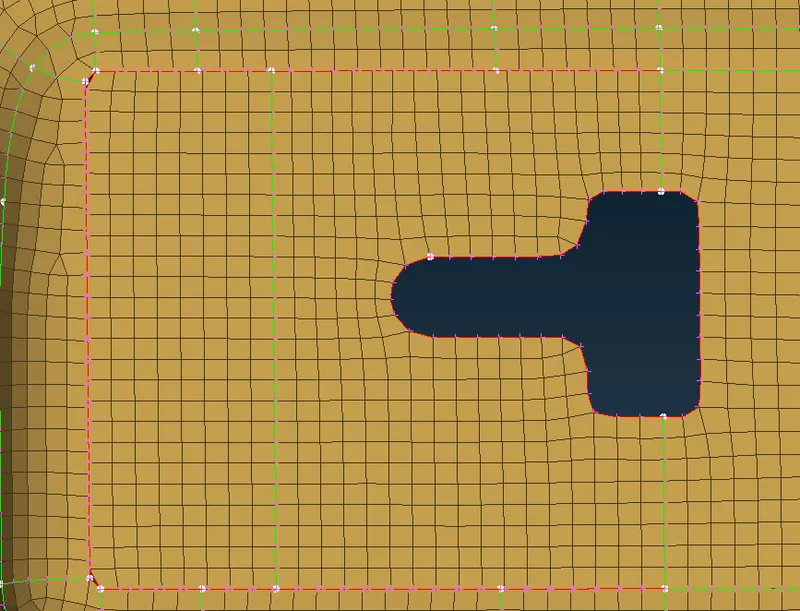
by switching back to topo module click on Faces - topo to fix the missing connectivity doing so will erase the mesh and has to be remeshed as shown.
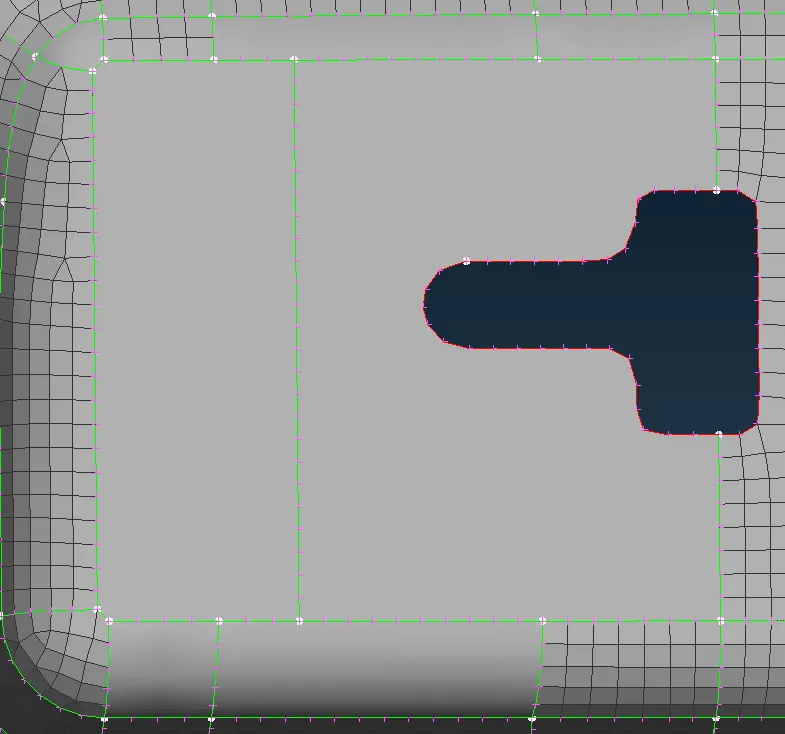
21. after meshing all the components click on quality criteria and enable draw shell as solids to show the assigned thickness.
Conclusion: the hood component is meshed as per quality criteria and thickness is assigned.