Week 2 Challenge : Surface meshing on a Pressure valve
Initally open the model using file-->open
Once the model is open we have to check the geometry in the model
Topo Cleanup
- Click the check tool-->geometry-->in the geometry check window select the visible option
- Choose options in the check box (single cons, triple cons), select execute option
- All the errors will open in the window
- Otherwise click the single cons tool in the window to see wherever the single Cons will present and then clear the single cons by selecting following options.
- To clear the single cons, Topo mode-->Faces-->New-->select existing surfaces, fitted, planar and COONS
- In existing surface click the cons separate and middle click in mouse
- In fitted and planar, click the cons and middle click in mouse then check the model, if it is ok click ok or check alternate option
- In COONS options, click the cons by select ENT and loop options to select the cons in single click, then click center button in mouse, click OK
- By using Fill hole option, Faces--->fill hole, select the small holes in same time click ok
- By checking the selected portions are ok by cross checking the wireframe model by clicking ctrl and shift or off the shadow model to chcek
- Before going to next step make sure, the model is fully closed.
- Remove the small sections using cut option
Setting the PID
- Open the PID tool-->in that shell geometry will divide the object in to different PSHELL
- Right click-->select PSHELL-->give names to the part
- Initially make inlet, outlet and body as well change the color for each parts by double click the color
- Select the part name and right click--->apply--> select the cross of the part then middle click the part will be assinged under the selection as well as color
- Then make the part of valve, spring, valve head and base separately.
- All the parts will be assigned just check the geometry
Meshing
- Select the mesh tool-->perimeter--->select the object then middle click--->give the length as 1mm
- select the macros--->select the object--> give the length as 1 mm
- Check the macro parameters as maximum and minimum length and change the object type as tria
- Select mesh generation--->spot mesh--->selct the object and middle click
- The object will be meshed and cross check with measure option
- Repeat the same by changing the target length as 3 mm and 5 mm
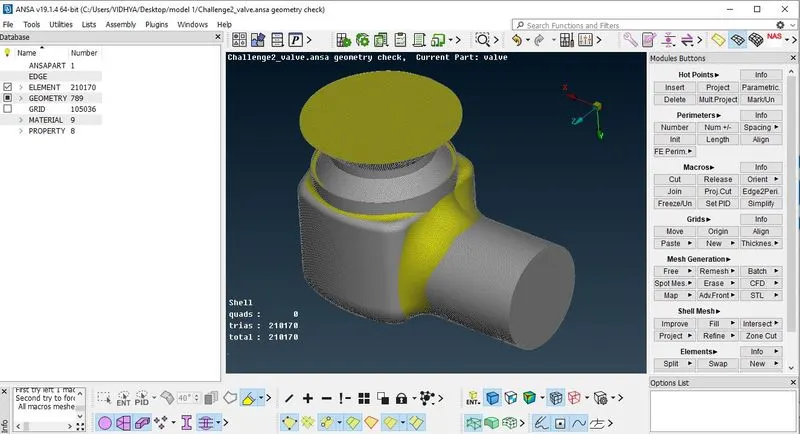
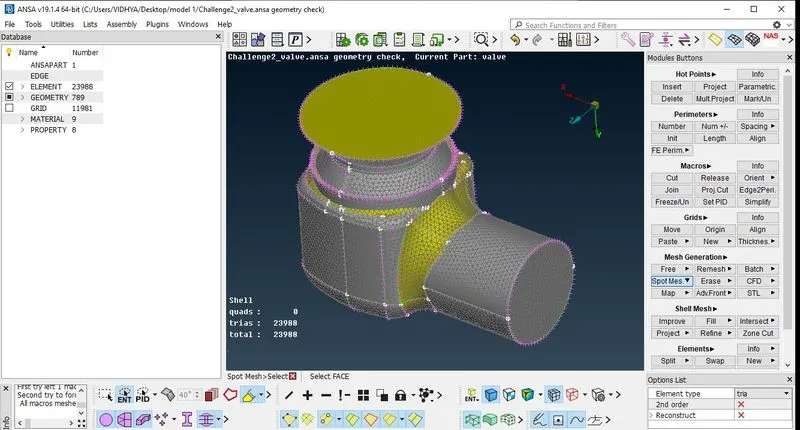
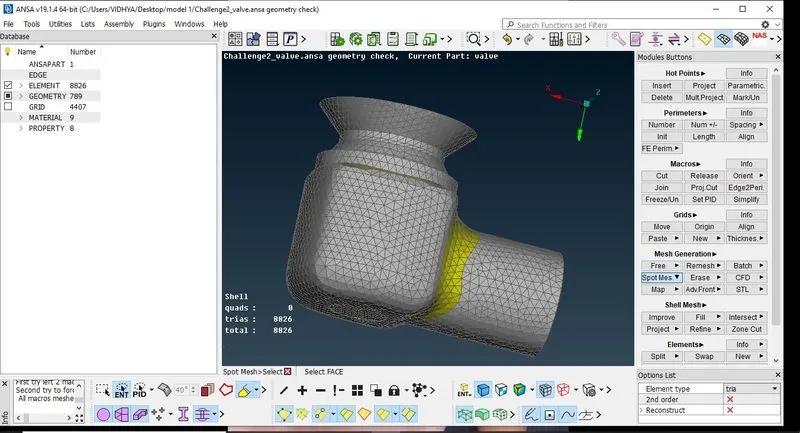
If the mesh length is small (target length is 1 mm) the object is meshed with good results.