Week 2- 2R Robotic Arm Challenge
Aim:
To write a program in Matlab to simulate the forward kinematics of a 2R Robotic Arm, as shown in the video provided by skill lynk.
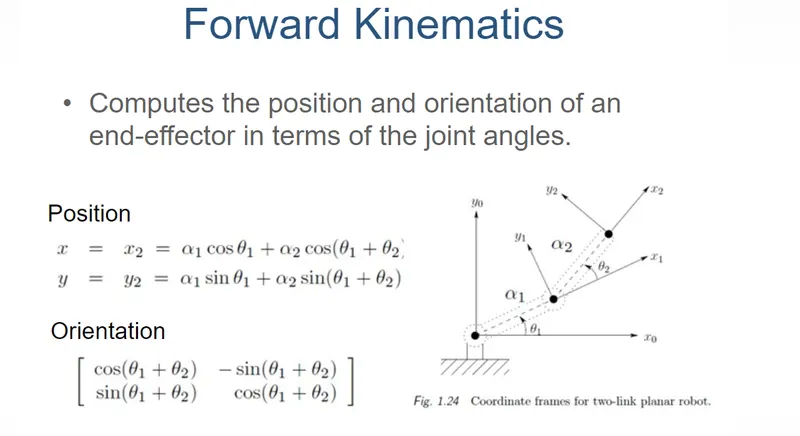
Forward kinematics
Forward kinematics refers to the use of the kinematic equations of a robot to compute the position of the end-effector from specified values for the joint parameters. The forward kinematics are used to find the coordinates of the end-effector in given Cartesian space using the input kinematic data.
CODE:
clear all
close all
clc

% input
L1=2;
L2=1;
theta1 =linspace(0,90,20);
theta2=linspace(0,90,30);

%the initial coordinates are fixes so value does not change
x0=0;
y0=0;
ct=1;

for i= 1:length(theta1)
    ang1=theta1(i);
    for j=1:length(theta2)
        ang2=theta2(j);

x1= L1*cosd(ang1);
y1= L1*sind(ang1);

x2=x1+L2*cosd(ang2);
y2=y1+L2*sind(ang2);

%plotting
plot([x0 x1],[y0 y1],[x1  x2],[y1 y2],'linewidth',4)
axis([0 3.5  0 3.5])
pause(0.03)
M(ct)=getframe(gcf);
ct=ct+1
    end
end

movie(M)
videofile=VideoWriter('2R arm robot simulator 2.avi','UnCompressed AVI');
open(videofile)
writeVideo(videofile,M)
close(videofile)
Step-wise explanation of code:-
Step 1: clearing screen and workspace
It is always important to start with clear all, close all and clc command in MATLAB M-scrip since
clc: cleans up the command window and now one can work without getting confused with the commands for previous runs
clear: erases the variables from previous runs this will reduce chances of error in subsequent runs and the programmer does not have to worry about unnecessary trash variables.
close all: closes all currently open figures. This can be very helpful during subsequent runs of the same script. If the figure from the previous run has not been closed then the subsequent run will plot the data on the already open figure. Which of course is a total waste.
Step 2: defining the inputs and values
The length of the arm of the robot is taken as L1 and L2 with the value 2 and 1 meter respectively. The angle of the arms are taken as theta1 and thera2 with respect to arm1 and arm2. The values of the angles are defined using linspace command. The linspace command generated multiple linearly spaced values with in the specific range. So the values of theat1 and theta2 are linspace(0,90,20) which generates 20 linearly spaced values between 0 to 90 degree. Since the base of the robot is fixed to ground the base point is taken as origin of the coordinates point (0,0). i.e. x1=0 and y1=0.
Step 3: Setting a counter and for loop
A counter is nothing but a variable that increase its value for every loop. Initially the value of counter ct equal to 1. This counter used to find the number of loop executed in for loop. A for loop is a control flow statement for specifying iteration, which allows code to be executed repeatedly. Since using nested for loop a large number of times the set of instruction is repeated.
Step 4: defining number of iteration
The value of theta1 and theta2 contain an array of values, so the potting every value through for loop is must. New variables i and j is needed for plotting every x and y point for first arm and second arm end point coordinate. The angle of the arm is defined by the ang1 and ang2 for theta1 and theta2 respectively. For every increment of value of i and j respective theta1 and theta2 values are defined in ang1 and ang2 respectively.
Step 5: defining the formula
The formula for calculating xn and yn is shown below.
xn T=xn-1+Ln*cosd(angle n)
yn=yn-1+Ln*sind(angle n)
The above formula is implemented to calculate x1, y1,x2 and y2 with respective angles.
Step 6: plotting the values of x and y
The calculated x and y values are plotted in the graph using plot command. The axis of the graph is defined using axis command. A pause command is used to pause the command for period of time. A variable M is defined with every frame of the graph using getframe(gcf) command in matlab. Then the ct value is incremented by 1 at the end of the loop.
Step 7: creating animated movie and store as a file
Movie command is used to create an animated movie of plots. The video writer command is used to create a video file in the working folder followed open, writevideo and close command to write the video with plot frames.
Mention the errors faced while programming:
I encounter 4 case sensitive errors
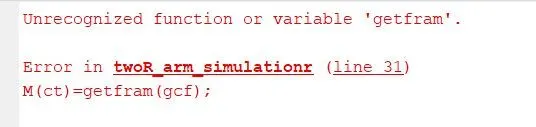
First: in line 31 instead of getframe I typed getfram where matlab throws unrecognized function error as shown below
Unrecognized function or variable 'getfram'.
Error in twoR_arm_simulationr (line 31)
M(ct)=getfram(gcf);
Second: In line 37 instead of VideoWriter I typed videowriter. V and W are to be in capital letter. Where MATLAB throws case-sensitive error as shown below. I referred matlab help library and changed it
Cannot find an exact (case-sensitive) match for 'videowriter'
The closest match is: VideoWriter in C:\Program Files\Polyspace\R2019b\toolbox\matlab\audiovideo\VideoWriter.m
Error in twoR_arm_simulationr (line 37)
videofile=videowriter('2R arm robot simulator 2.avi','UnCompressed AVI');

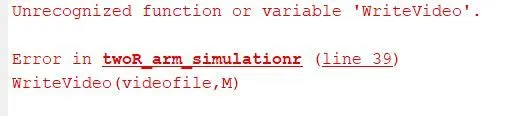
Third : In line 39 instead of writeVideo I typed writevideo, then changed to WriteVideo then also throws error as unrecognized function as shown below. Then referring MATLAB library I found it is writeVideo only the V should be in capital letter.
1st time
Unrecognized function or variable 'writevideo'.
Error in twoR_arm_simulationr (line 39)
writevideo(videofile,M)
2nd time
Unrecognized function or variable 'WriteVideo'.
Error in twoR_arm_simulationr (line 39)
WriteVideo(videofile,M)
RESULT:
The animated video is shared using the link below
ANIMATION LINK:
https://drive.google.com/file/d/1m4q463hxf-E1U1DCMzHM4KRBA2jcLNbY/view?usp=sharing