Week 2- 2R Robotic Arm Challenge
AIM: To write a program in Matlab to simulate the forward kinematics of a 2R Robotic Arm using MATLAB.
|
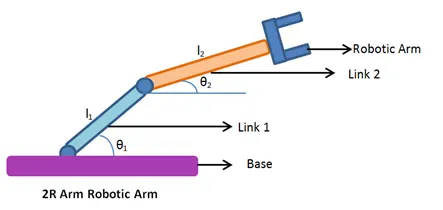
GOVERNING EQUATION: The equation to determine the position of end-effector is as follows: X2=X1+L2.cosθ2X2=X1+L2.cosθ2 , Y2=Y1+L2.sinθ2Y2=Y1+L2.sinθ2 X1=L1.cosθ1X1=L1.cosθ1 , Y1=L1.sinθ1Y1=L1.sinθ1 X0=Y0=0X0=Y0=0 where; (X0,Y0)(X0,Y0) = coordinates of origin i.e. base (X1,Y1)(X1,Y1) = end coordinates of Link 1 (X2,Y2)(X2,Y2) = end coordinates of Link 2 i.e. end-effector L1,L2L1,L2 = length of Link 1 and 2 (m) θ1,θ2θ1,θ2 = angle of Link 1 and 2 (degree) |
 |
|
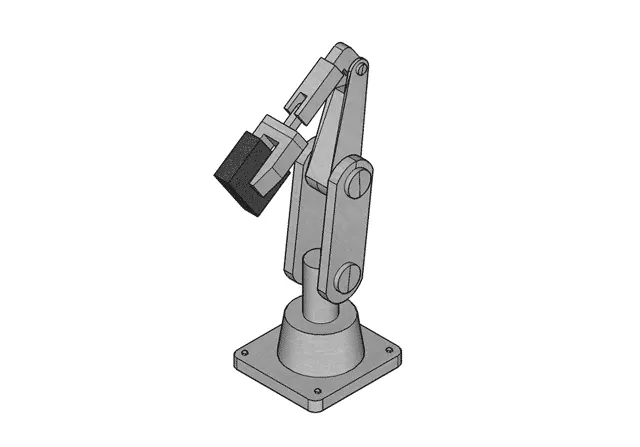
OBJECTIVE: 1. To write a program for a 2R robotic arm. 2. To plot the animation of the end-effector position according to forward kinematics. THEORY: A robotic arm is a type of mechanical arm, usually programmable, with similar functions to a human arm; the arm may be the sum total of the mechanism or may be part of a more complex robot. The links of such a manipulator are connected by joints allowing either rotational motion (such as in an articulated robot) or translational (linear) displacement The links of the manipulator can be considered to form a kinematic chain. The terminus of the kinematic chain of the manipulator is called the end effector and it is analogous to the human hand. Forward Kinematics: Forward kinematics refers to the use of the kinematic equations of a robot to compute the position of the end-effector from specified values for the joint parameters. |
 |
SOLUTION:
Programming Language: MATLAB
Code:-
Code Explanation:-
Before writing the code, it's important to start with clear all, close all and clc commands since
Clear all - removes data from the workspace, freeing up system memory
Close all- deletes the current figure or the specified figure
clc - clears all input and output from the Command Window display, giving you a "clean screen
Next step for the code is to define the inputs and its values. Length of arm 1 and arm 2 were both defined. both theta 1 and theta 2 were defined by using the 'linspace' command. The function of the linspace generates linearly spaced vectors. So in the case of theta 1 and theta 2, linspace(0,90,10) means that Matlab will generate a row vector 90 of 10 points linearly spaced between and including 0 and 90.
The next step is to set up a counter. A counter is a variable that counts an event in a loop. A for loop was used for this project, a for loop is a repetition control structure that allows you to efficiently write a loop that needs to execute a specific number of times.
Since theta 1 and theta 2 will contain multiple values of the angle within the x-axis, a new variable is needed inside the for loop for both x and y coordinates. THETA 1 and THETA 2 are added to the code, for THETA 2 the variable j was added instead of i as this will give THETA 2 its own respective angle. The formula for calculating x1, y1, x2 and y2 are shown in figure 2.
The next step is to plot the graph for all the x and y coordinates with axis shown above in figure 3. A pause command was used for pausing the command for a certain time, for this project a pause of 0.03 s was used. The M command was used to capture the current frame every time the for loop runs. The final step of the loop is to add a +1 to the ct variable; this will increment the frame every time the for loop run. End command was used for the plot and for the for loop to stop both from running.
The final step of the code is to create a movie of the animation of the robotic arm, so the movie command was used. The VideoWriter command was used to assign the video format, for this project .avi was used as the format. The open command was used to open the video. writevideo command was used to write the video with plot frames. Finally, the close command was used to close the video file.
Errors faced while programming:-
Error in alternateGetframe
Error in getframe (line 71)
x = alternateGetframe(parentFig, offsetRect, scaledOffsetRect, includeDecorations, true, h, offsetRectSpecified);
Error in Roboticarm (line 38)
M(ct) = getframe(gcf);
USE OF THE FOLLOWING FUNCTIONS USED WHILE PROGRAMMING
FOR LOOP- For loop is used here for the iteration of the theta values from 0 to 90 degrees I is used as the outer loop and J is used as the inner loop ,i is used for the movement of the link 1 and J is used for the movement of link 2.
COSD and SIND are used to covert the Radians into Degrees,because MATLAB by default takes angles in radians.
PAUSE - We have paused the code so that the process can be visualised more clearly .
Ct-Ct is used for saving the frames in order to create a movie of the frames
Getframe-Similarly getframe is used to capture the frame and then by fast movement of those frames it can be converted into a movie
Movie -Movie command is used to create a movie of the frames captured .
VideoWriter -It is to create a Video file of the movie created and save in the pc hard disc.
Plot - The plot command is used to plot the graphs of the coordinates provided.
Axis- The axis command is used to create the axis upon which we are going to plot the coordinates.
Linspace-The linspace command is useful in creating an array of values specified by the user.
RESULT:- https://youtu.be/MOjMGgy2Vxc