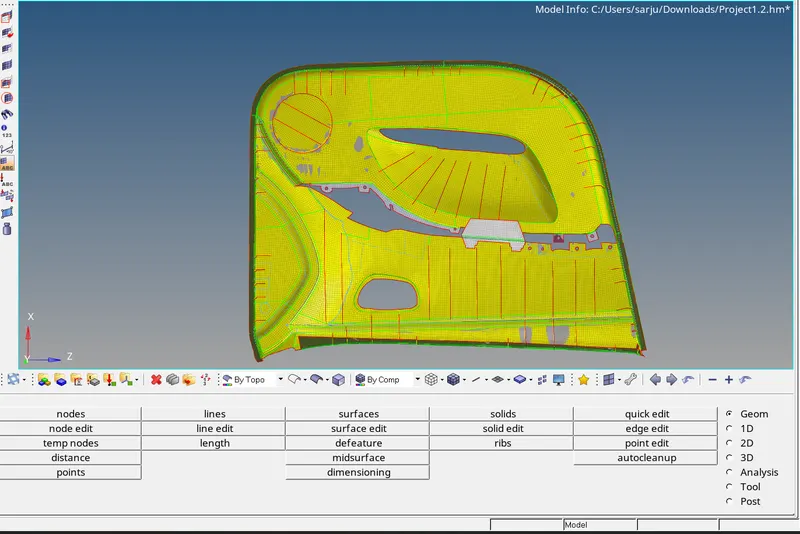
Week 12:Project-1-Meshing of Door Inner Panel Challenge
AIM
To mesh the given Side Door Panel by following the given Quality Criteria and to assign the corresponding thickness to the elements.
OBJECTIVE
To Extract Midsurface
To Mesh the component
To Assign Thickness
Target Element Length = 4 Units.
S.N Quality Criteria Value
1 Aspect Ratio 5
2 Skewness 45
3 Warping 15
4 Taper 0.5
5 Min. Length 2 Units
6 Max. Length 6 Units
7 Min angle Quad 45
8 Max angle Quad 135
9 Min angle Tria 20
10 Max angle Tria 120
11 Tria % 10
PROCEDURE
importing the geometry
The format of the file is stp, then first of all select import Model command, choose import geometry type and select file type is MODEL.
file -- Import – Model -- Import.
now select the file from our folder and import it
Geometry Cleanup
Check that the given model surface is perfect and free from errors like free edges, duplicate surfaces and missing surfaces.
If any defects are found then the required geometry cleanup needs to be done using the various tools such as toggle edge, filler surf, replace points etc. available under the quick edit panel.
Geom----quick edit
Midsurface extraction
Since the Given component is a plastic component
There are some variable thickness
So to measure the thickness
Click on the main menu bar Select-----Geom-----distance.

The thickness of the component is average 2.8
So midsurface is created by offset command
Next go to the main menu bar select-----Geom----- Surface Edit.
Select surface edit click on Offset ----- Select ----- surf ----- Duplicate ----- Current component ----- Offset.

Geoms---Midsurface---Final edit tools---Select the surface--- extract
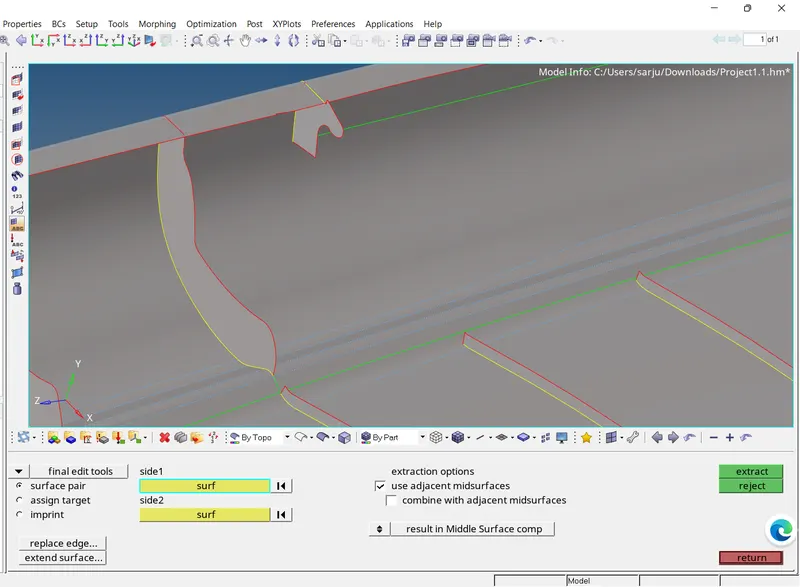
Using the ‘midline’ option in lines tool, a midline can be drawn on the surface of the rib.
Geom-----lines-----Midline-----select lines-----create
Select ----- Geom -----Surface Edit ----- Extend ----- Extend over edges ----- Line to extend over ----- Surface to extend ----- Extend
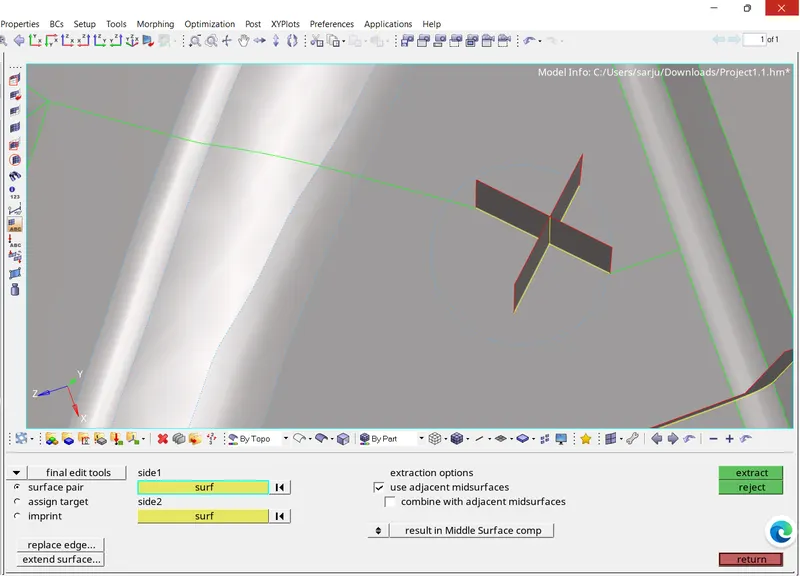
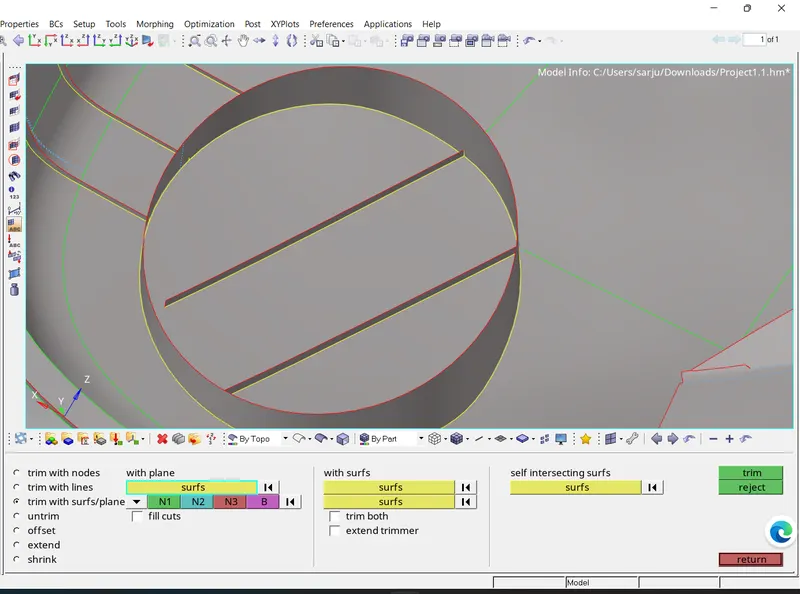
we have to repeat this for extracting the midsurface for all the ribs
Now the Midsurface of the component is obtained
Meshing of midsurface
The given quality criterias need to be specified using the criteria file editor before meshing the model.
Go to Preference-----Criteria file setting---- Give input of the criteria given
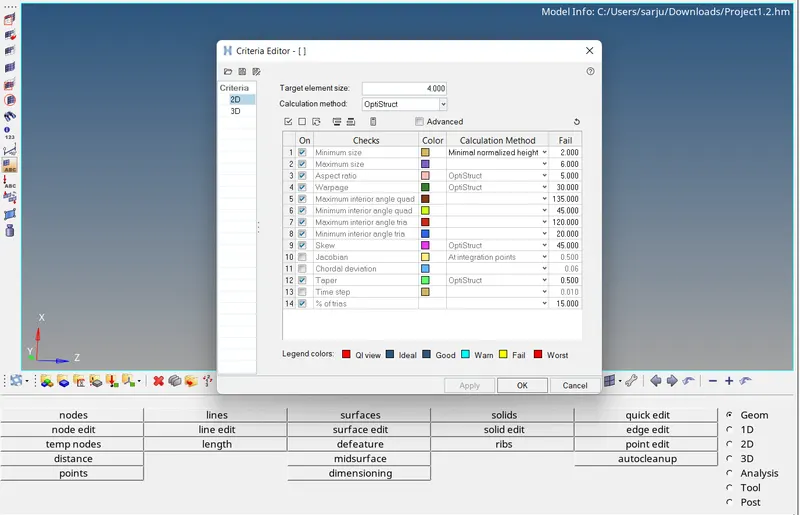
Then click 2D-----Automesh-----enter mesh size---click on the midsurface-----click mesh.
Check if any elements are failing for any of the given quality criterias. If any element is found to be failing the given quality criteria then the cleanup tools are used to correct them.
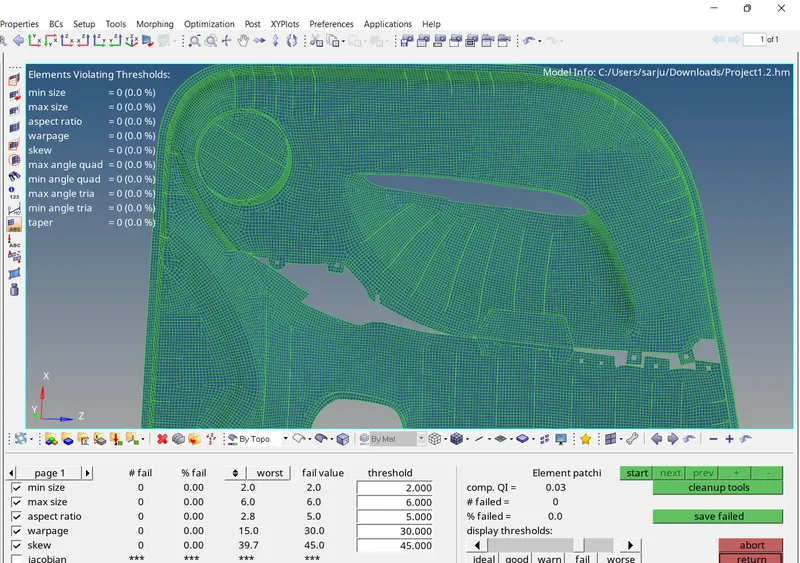
Now the meshing is done
ASSIGNING THICKNESS.
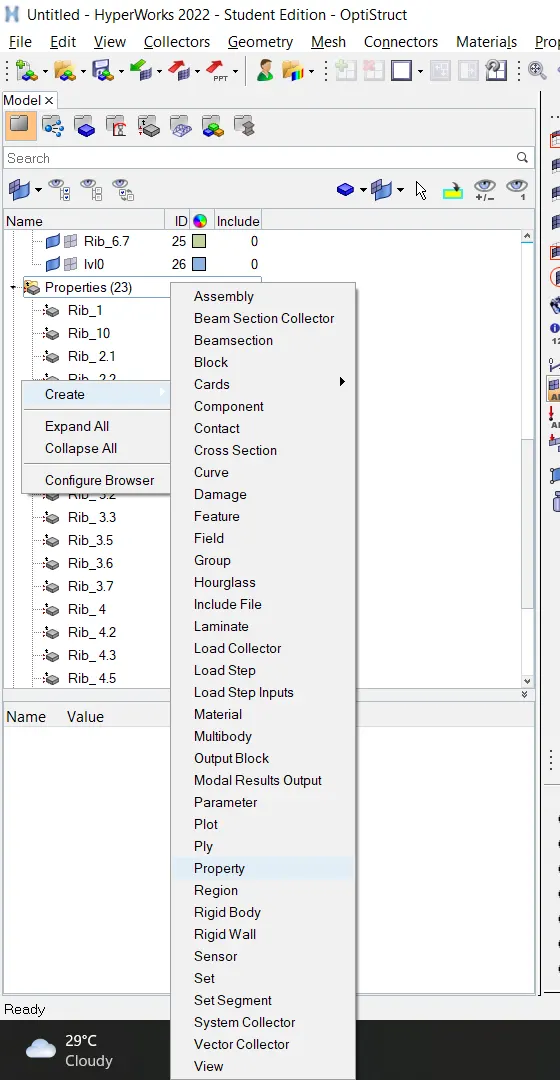
After meshing, the elements have to be assigned the required thicknesses. All of the elements are assigned to different component collectors based on the thickness of their parent geometry and they are renamed according to their thickness.
Right click tab area-----create-----property
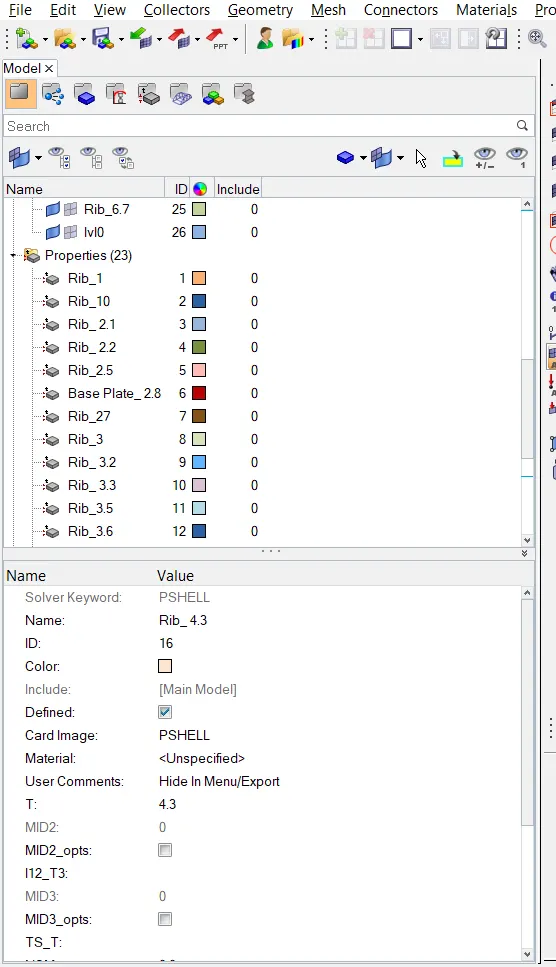
To assign the property to the component, right click on the corresponding component and choose the ‘assign’ option. In the pop up menu select the corresponding property from the drop down list and apply.
CONCLUSION:
Thus The given side door panel was meshed according to the given quality criteria after extracting the midsurface and also the required thicknesses were assigned to the corresponding elements