AutoCAD_Isometric View of a Room, Facade of a building, Staircase and Wall with footing in AutoCAD 3D_Week 12
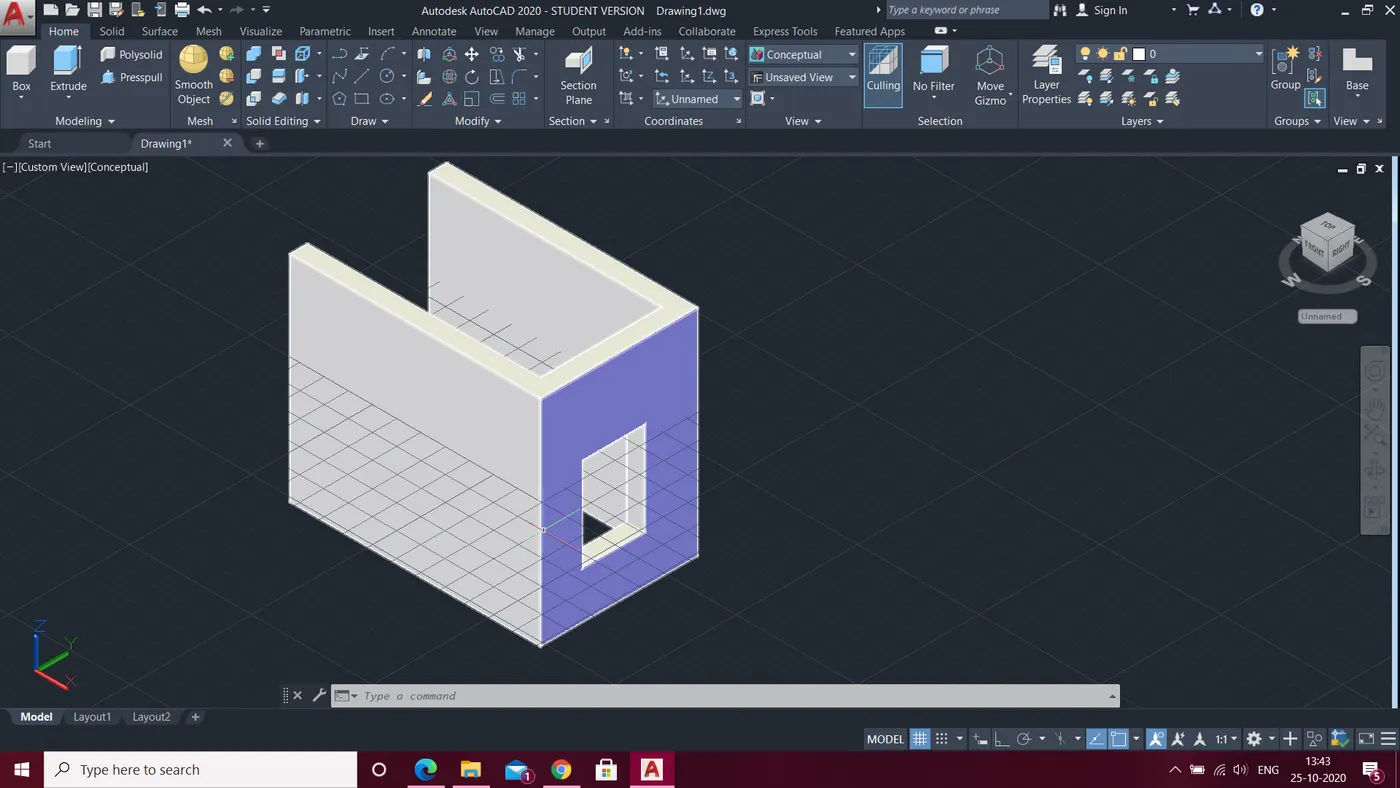
1. Aim:- create a 3D isometric view of the building with plan and elevation
Commands Used:-
- Line
- Rectangle
- Boundry
- Extrude
- Move
- Copy
- Substract
- Surface
Procedure:-
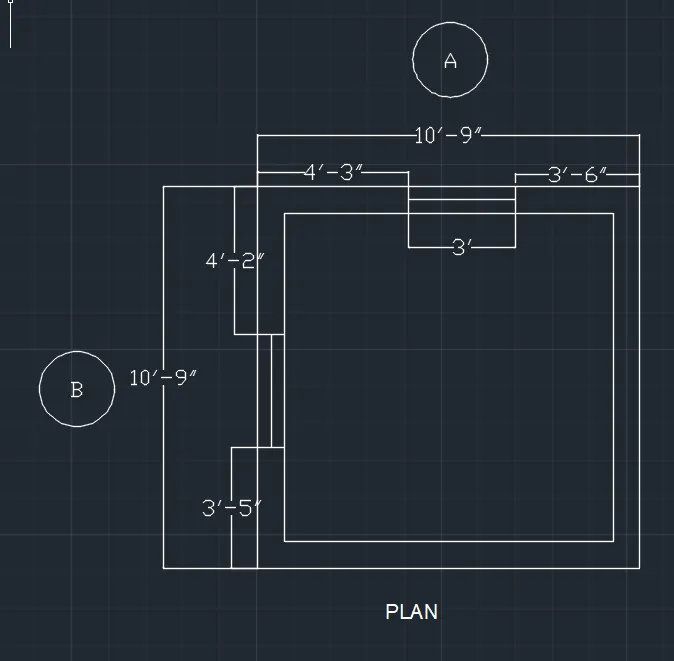
- Open autocad
- Type UN in the command prompt and specify the units as engineering and precision as 0'-0"
- Type Limits and specify the lower and upper limits
- Type z enter a enter
- Select the top view
- Select the line and specify the first point and type 10'9" in x axis
- Select the line and type 10'9" in y axis
- Type offset and specify 9" and do the offset
- Draw the window with the rectangle command of the specified length
- Select the home in the ucs
- Type bo and do the boundry
- Type extrude and pull it up to make 3D
- Type SU in command prompt and select the outer line enter and then inner line enter
- Select extrude and pull the window up
- Select move command and move the wndow
- Type SU in command prompt and select the outer and then the both window
- Select the Realistic mode and see the drawing
- plan is obtained
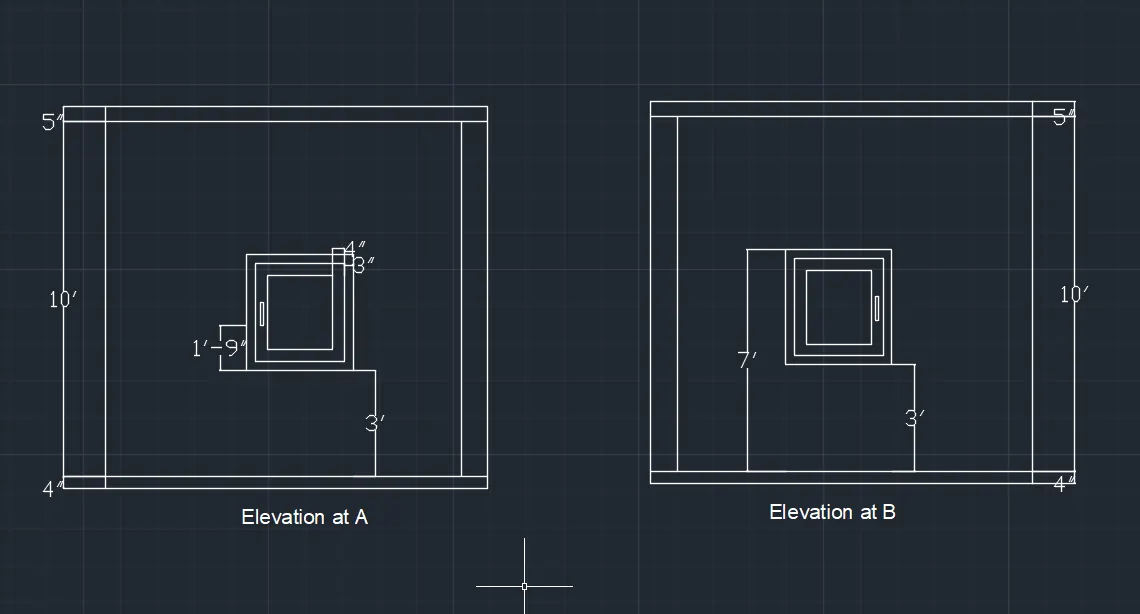
- For Elevation
- copy the plan
- Make the window from section A-A using the line command
- make the window from section B-B using the line command
Result:-
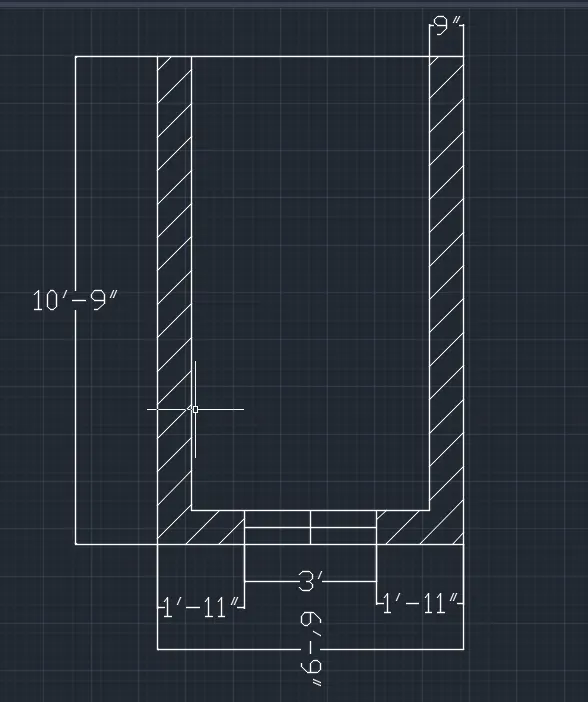
The following drawing is obtained as plan
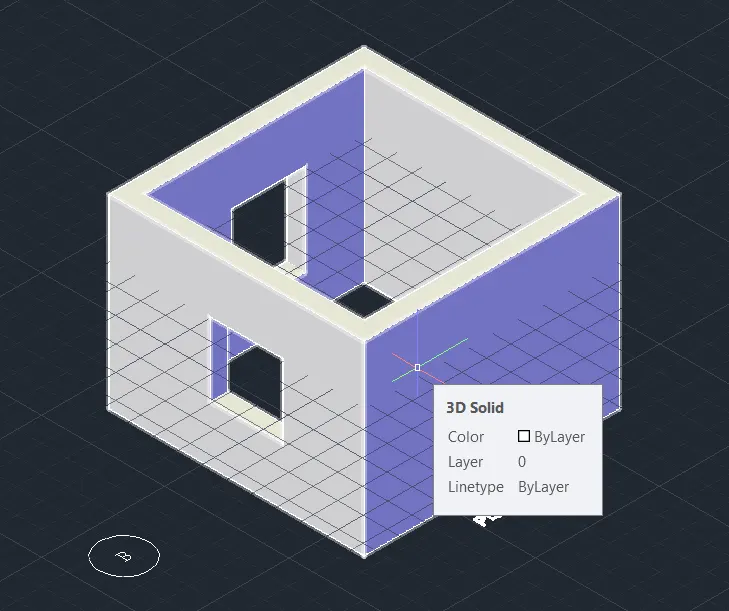
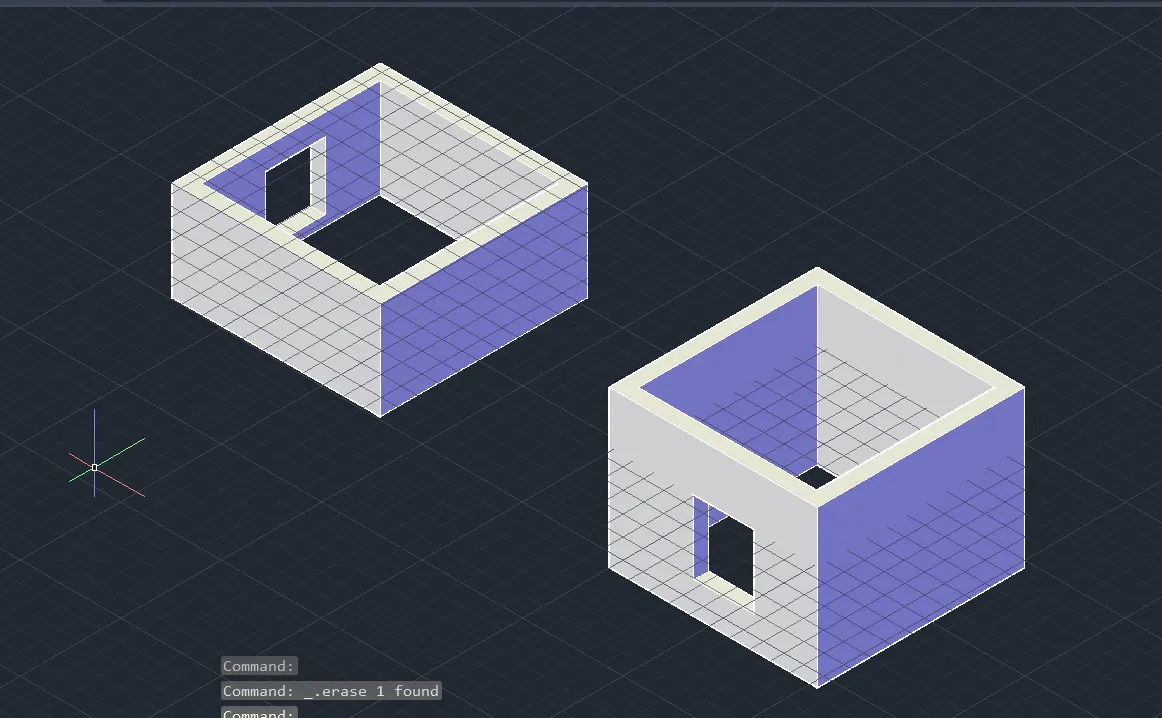
- Elevation is obtained as per the elevation
- We can change the plane for different views of the elevation
2. Aim:- Create a 3D view of building facade of plan and elevation with window details
Commands Used:-
- Line
- Rectangle
- Boundry
- Extrude
- Copy
- Trim
- Offset
- XL
- Hatch
- Text
- surface
Procedure:-
- Open the autocad
- Type UN in the command prompt and select engineering and precision to 0'-0"
- Type limits and specify lower and upper limits
- z enter a enter
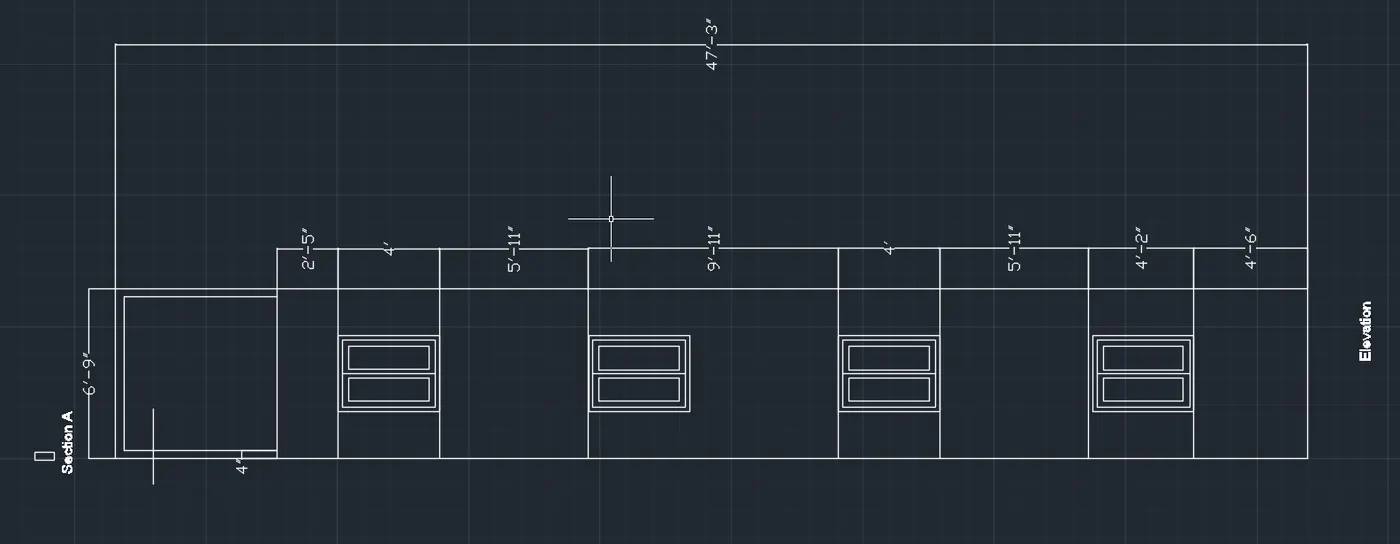
- Type XL in command prompt and then type v and draw the outer edge
- Select the first point and draw a line horizontal
- Type offset and specify 6'5" and do the offset
- Type offset and specify 4' and do the offset
- Type offset and specify 5'11" and do the offset
- Type offset and specify 9'11" and do the offset
- Type offset and specify 4' and do the offset
- Type offset and specify 5'11" and do the offset
- Type offset 4'2" and do the offset
- Type 4'6" and do the offset
- Type offset and specify 4" and do the offset
- Trim all the extra lines using trim command
- Type XL and draw construction lines with both ends of the windows
- Trim the extra lines
- Draw window with the help of line or rectangle command wherever required
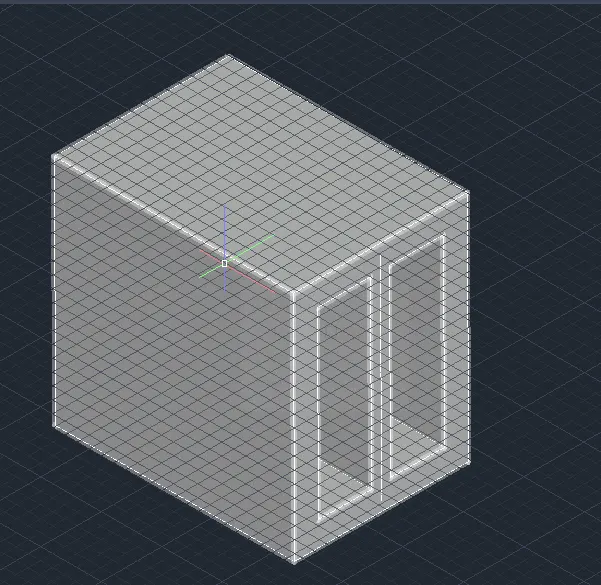
Detail of window
- Select the plan and go to 3D home view
- Type BO and create region
- Type SU in the command prompt and select the surface from where you have to substract the object enter
- Select the object to substract and then do the substraction
- Go to shaded portion from 2d wire frame
- 3D of window detail is obtained
- Select the plan
- Go to home tab of 3d modelling
- Type BO and do the region of the elevation
- select the extrude command and etrude the object
- select the window and type 3drotate and select the base point and rotate the window parallel to the x axis
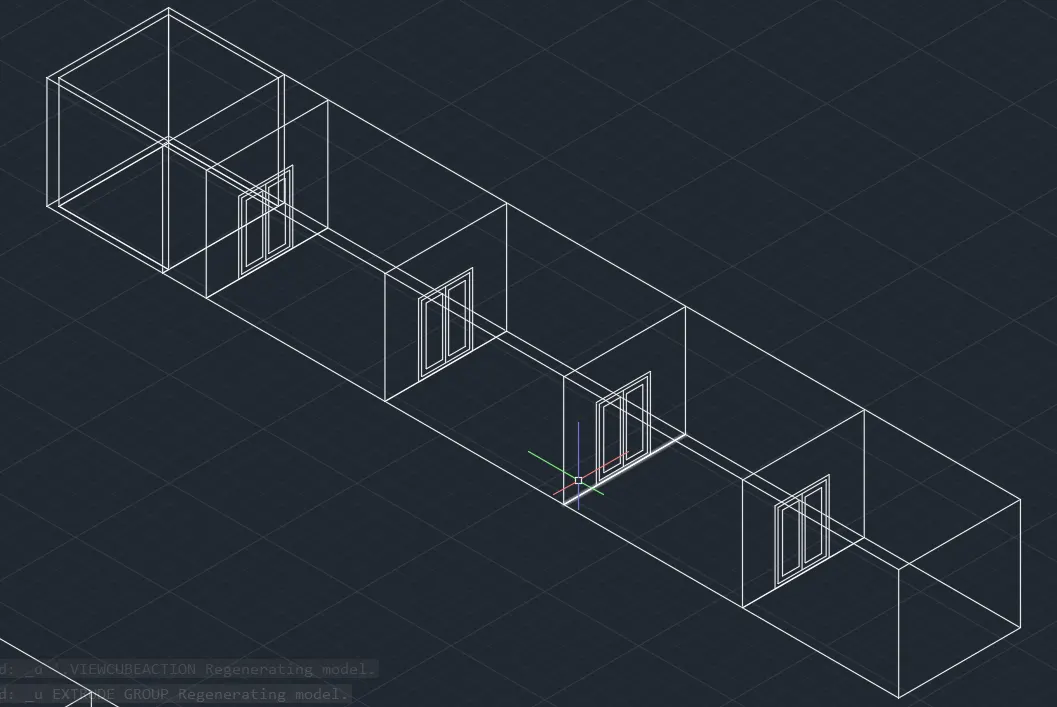
- The following drawing is obtained
Result
3. Aim:- Create a 3D isometric view of staircase with railing as shown in plan and elevation
Commands used:-
- Line
- Rectangle
- Boundry
- Extrude
- Copy
- Trim
- Offset
- XL
- surface
Procedure:-
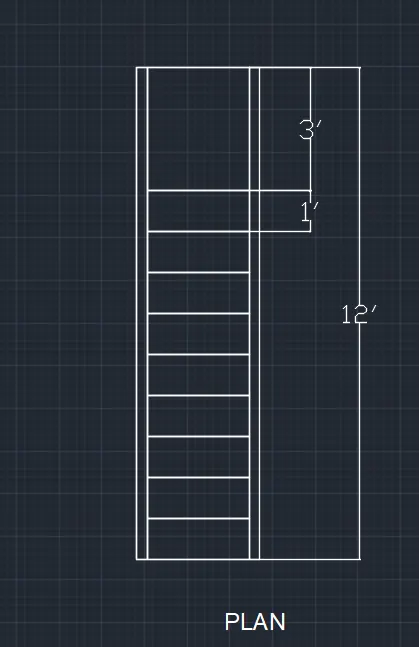
- Open the autocad
- Type UN and select the unit and precision as 0'0"
- Type Limits and specify lower and upper limits
- Z enter a enter
- Select line and specify the first point
- Type 3' and draw a line in the x direction
- Type 12' and draw a line in the y axis
- Type 3' and draw a line in x axis
- Type 12' and draw a line in y axis
- Type offset and specify 3" and do the offset from both the side
- Type rec and select dimension and specify the dimension as 3' and 1'
- Type copy and select teh object and with the base point draw teh stairs as shown in fig
- Plan is created
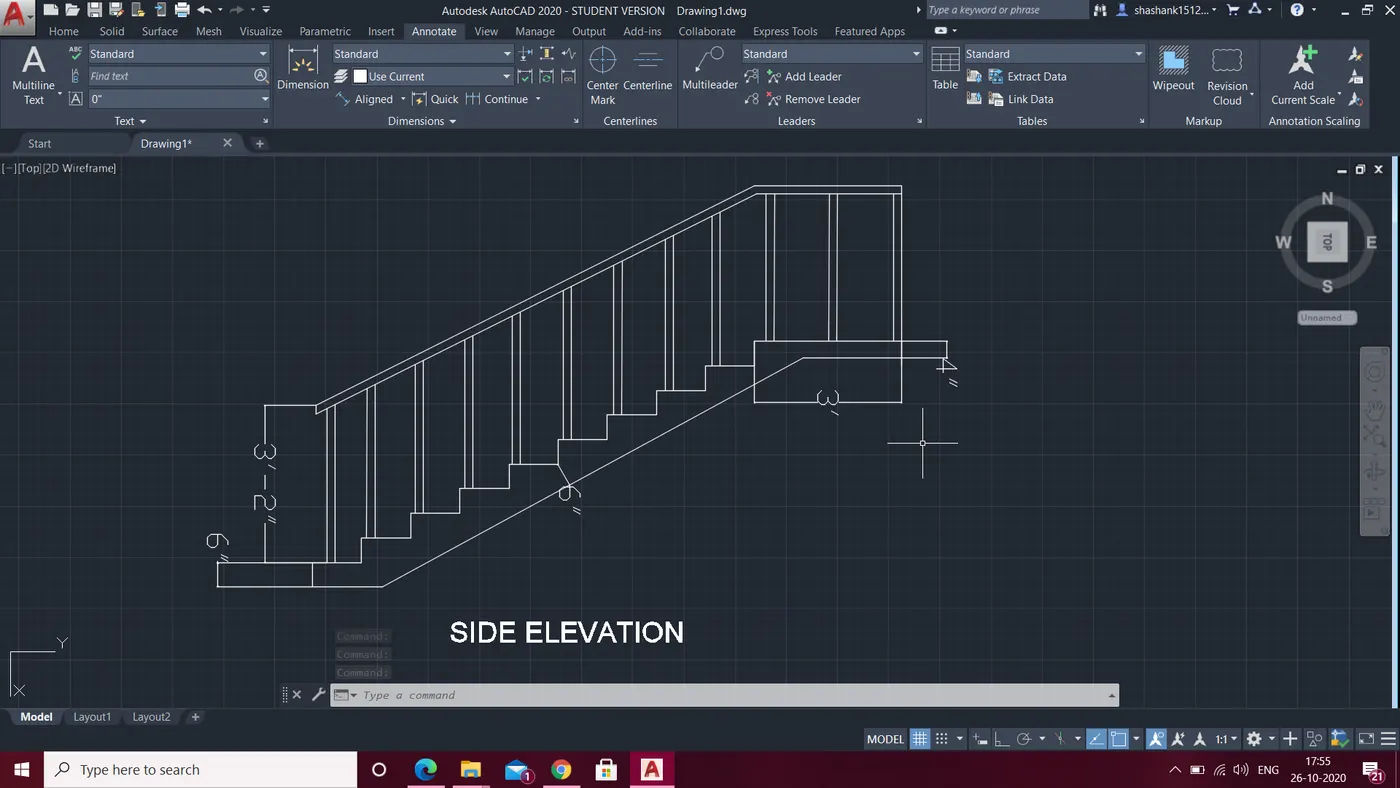
- Type XL in the command prompt and draw the construction line with each steps
- Select the start point of steps and type 6" and draw the line at each steps (riser)
- Select line and draw a line of 3' in y direction
- Type offset and specify as 2" and draw the offset
- Select the line and copy at each steps
- Draw a line with ortho off and join the lines top of the railing
- Type offset and do the offset of the line
- Join all the lines and trim all the extra lines
- Side elevation is obtained
Result:
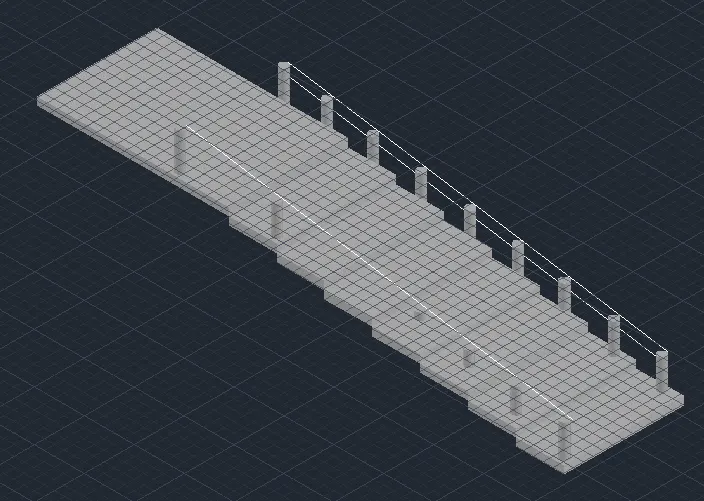
- All the plans side elevation and 3d plan is created
- Select the home tab of the ucs and select the view as v1 from view option
- Select the shaded option from 2d wireframe
- Type BO and select the region
- 3D object is shown
4. Aim:- Create 3D view of wall and spread footing and assume all the other dimensions
Commands used:-
- Line
- Rectangle
- Boundry
- Extrude
- Copy
- Trim
- Offset
- XL
- Hatch
- Text
- Circle
- surface
Procedure:-
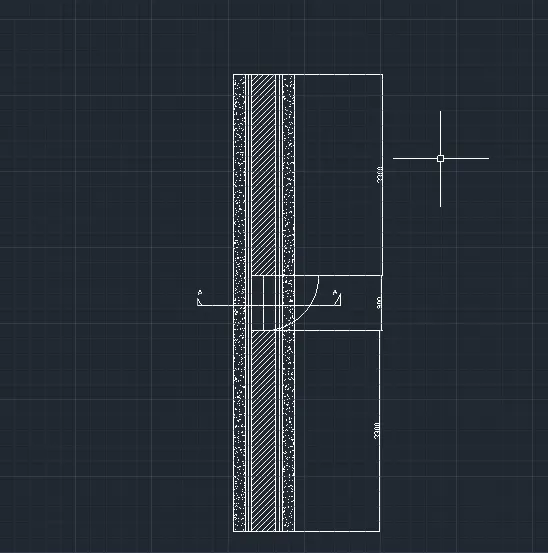
- Open autocad
- Type UN in the command prompt and select decimal and precision as 0.0
- Type limits and specify the lower and upper limits
- Z enter A enter
- Select the line and starting point and draw 1m in x direction
- Type 7500 in y direction and draw a line
- Type 1000 in x direction
- Type 7500 in y direction
- Type offset and specify the value as 200 and do the offset from both side
- Type offset and specify 50 and do the offset 2 times
- Type offset and specify 3300 and do the offset from top and bottom
- Draw a line in the middle fr door opening
- Select the lines and type join command and join the line
- Select hatch and do the hatching for the concrete portion and brick hatch at the middle portion as required
- Draw a door opening with the help of line and circle command
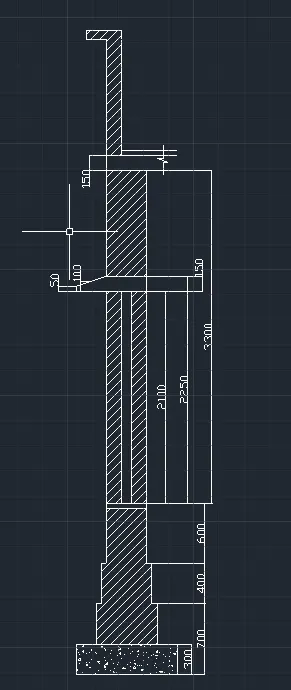
- Draw the spread footing with dimension
- Type offset and do the offset from both the ends 50mm for the footing
- Draw a line and do the offset of 100
- extend the line in y direction
- Type offset and specify 2100 and do the offset for chajja
- Type offset and specify 150 and do the offset for chajja
- extend teh line in y direction and draw the lines
- Join the lines and trim the extra lines using trim command
- Select the hatch and do the hatching for the footing as concrete
- Select teh hatch command and select brick and do the hatching
- Select the dimension and do the dimensioning of all the object as required
- Select the home tab in the ucs bar and type extrude
- Select the object and extrude it
- Select the realistic from 2d wireframe and see the image
- Go to the visualize option and select the material which i need
- Assign the material to the object
Result
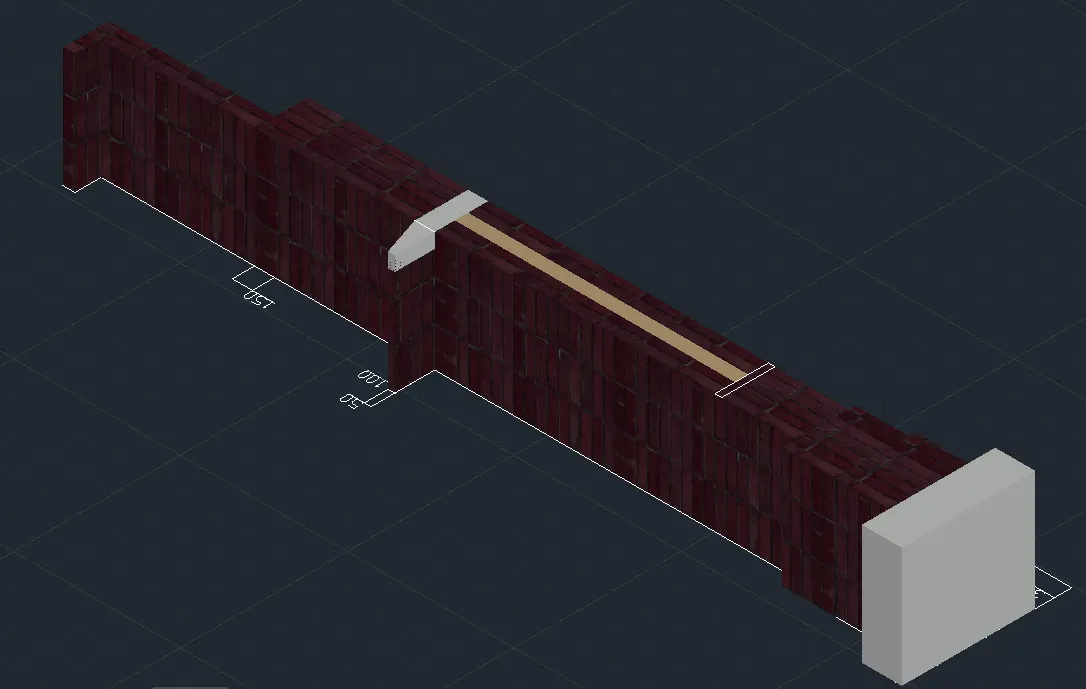
The following pattern is obtained