AutoCAD_Creating 3d Models_Week 11
Aim:- To create a 3D furniture element
Commands used:
- Line
- offset
- Trim
- Boundry command
Procedure
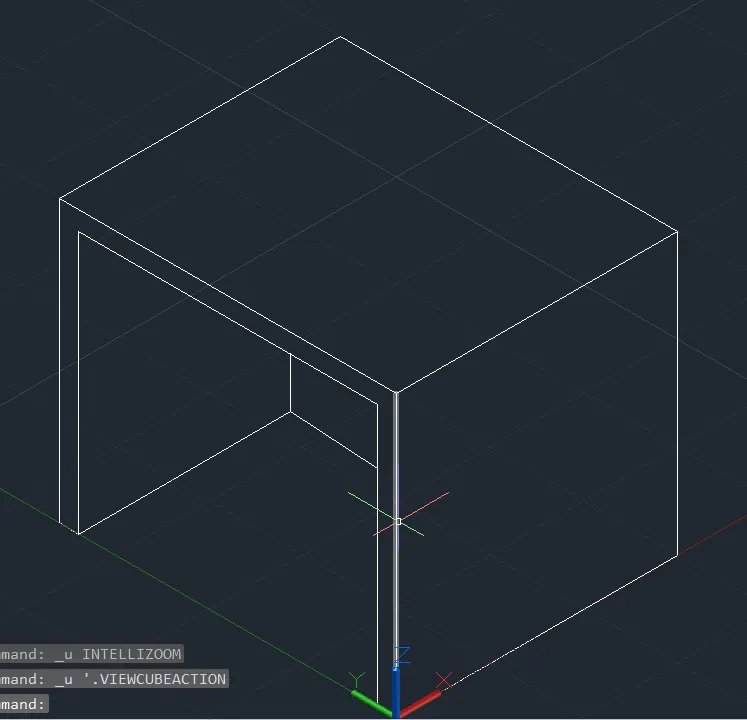
- Open the autocad
- Type UN in the command prompt
- Select the Engineering and preciion to 0'0"
- Type limits and specify the lower and upper limits
- z enter a enter
- Select the 3D modelling
- Type 2'6" in the command prompt x axis keeping mouse in the direction
- Type 2'6" in the command prompt z axis keeping the mouse in the direction
- Type 3' in the command prompt y axis keeping the mouse in the direction
- Type 2'6" in the command prompt the x axis keeping the mouse in the direction
- Type 2'6" in the command prompt z axis keeping the mouse in the direction
- Type offset and specify the distance as 2" and do the offset of z axis
- Change the plane and do the offset of 2" and do the offset in y axis
- Join the line whereever required
- Trim the extra lines using trim command
- Select the line command from ribbon bar and join the inner line of x and y plane
- The desired drawing is obtained
Result:-
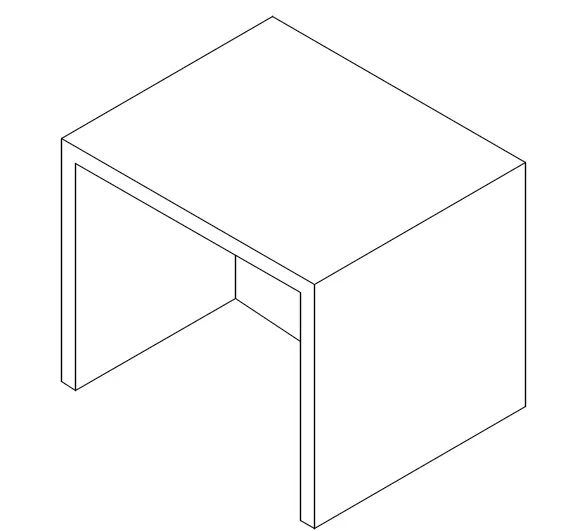
The following result is obtained.
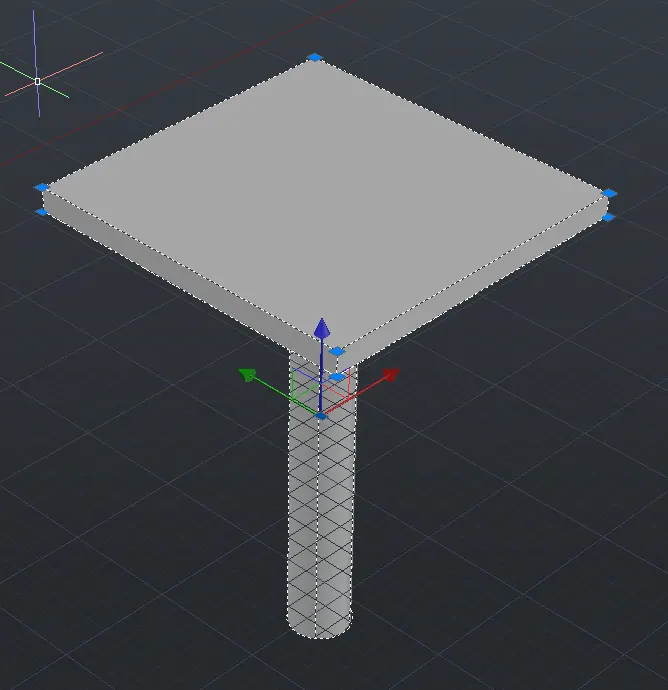
2. Aim:- Create a 3D model of isolated footing
Commands used:
- line
- Trim
- Offset
- boundry
- move
- rectangle
Procudure:-
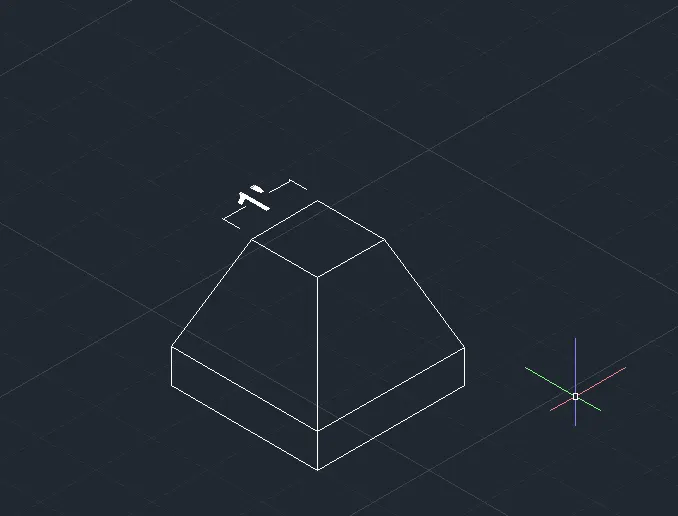
- Open the autocad
- Type UN in the command prompt and select Engineering and precision as 0'0"
- Type limits and specify the lower and upper limits
- ztype Z enter A enter
- Select the 3D modelling from the lower left corner
- Select the line command from the ribbon bar
- Type 2' in the x axis keeping the mouse in the direction with ortho on
- Type 6" in the command prompt in z axis keeping the mouse in the direction
- Type 2' in the command prompt in x axis keeping the mouse in the direction
- Type 2' in the command prompt in y axis keeping the mouse in the direction
- Type 6" in the z axis keeping the mouse in the direction
- Type 2' in the y axis keeping the mouse in the direction
- Select rectangle from the ribbon command and make a rectangle with 1'x1'
- Select the move command and place it above 2' from the base of the square created
- Select the line with ortho off and join the corner of the upper square with the base corners respectively
Result
The following 3D image is obtained
3. Aim:- Create 3D view of AASTHO type girder
Commands Used:-
- Line
- Extrude
- Dimension
- Boundry
Procedure:-
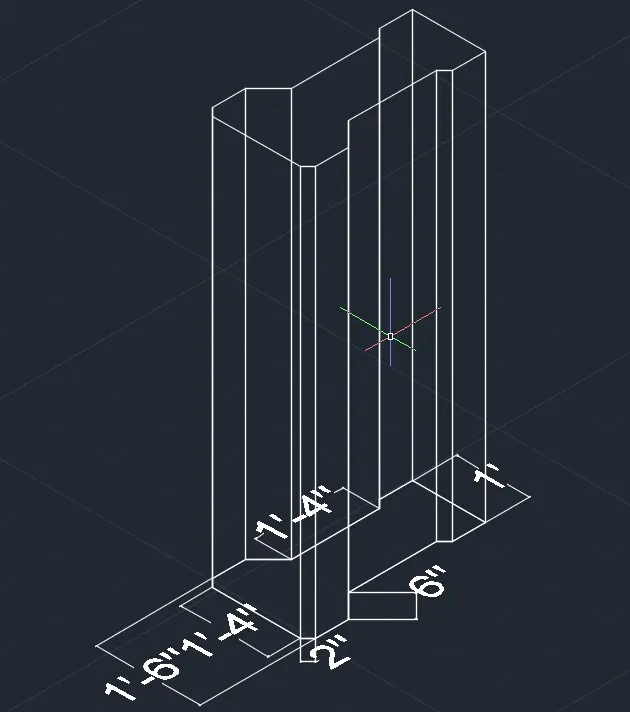
- 1. Open autocad
- Type UN in the command prompt and select engineering and precision to 0'-0"
- Type Limits and specify the lower and upper limits
- z enter a enter
- Select the 3D modelling from the lower left corner
- Select the top view
- Select the line and type 1'4" in the x direction
- Type @2"<-45
- Type @6"<90
- Type @6"<45
- Type @1'4" <90
- Type @2"<-45
- Type @6"<90
- Select the left lower point and type @2"<45
- Type @6"<90
- Type @6"<-45
- Type @1'4"<90
- Type @2"<45
- Type @6"<90
- join the line
- Do the dimension
- Type bo in command prompt and regin the object
- Select the extrude command and pull it
- Select the wcs and the object is obtained
Result:-
4. Aim:- Create a drop column in section and as well as in isometric view
Command used
- Line
- offset
- Dimension
- Boundry
Procedure
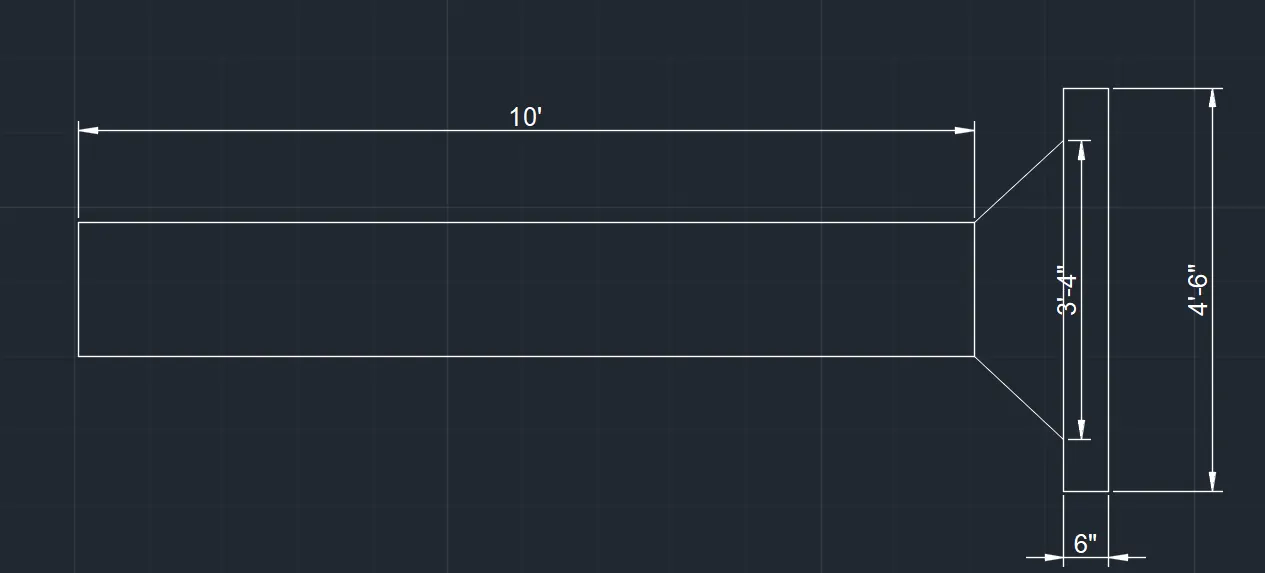
- Open the autocad
- Type UN in the command prompt and select engineering and precision as 0'-0"
- Type Limits and specify the lower and upper limits
- z enter a enter
- Select the 3D modelling from the right lower corner
- Select the line command with ortho on draw 10' in x axis
- Select the line command with ortho on and draw 1'6" in the y axis
- Again type 10' in x axis
- join the line
- Select the point and type @1'4"<47
- Select the point and type @1'4"<133
- Select the center point of the vertical line and from midpoint type 2'3"and draw both the sides
- Type offset and specify 6" and do the offset
- join the line
- Select the dimension and do the detailing
- Object is obtained in 2D wireframe
- Select the isometric view from the right side
- Type bo in the command prompt and select the object and make a boundry
- click on the wireframe on the top left corner and select shaded
- The drawig is obtained in the shaded portion in isometric view
5. Aim:- Create the 3D model of wall
Command used:-
- Line
- Offset
- Trim
- Dimension
- Boundry
Procedure
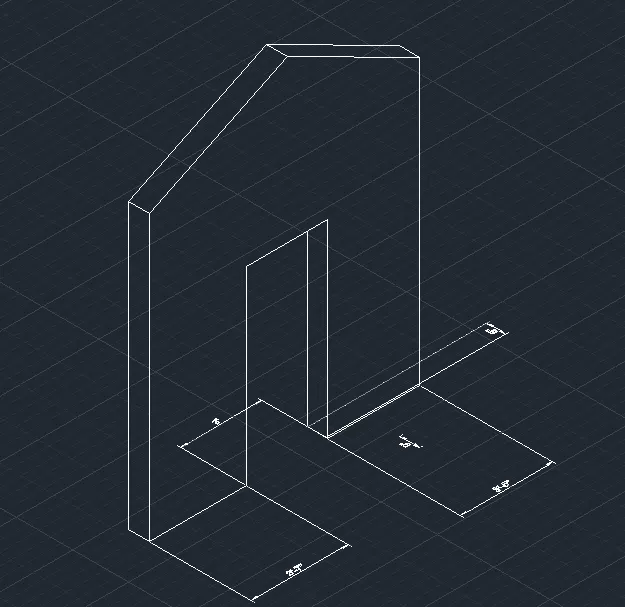
- Open the autocad
- Type UN in the command prompt and select engineering and precision as 0'-0"
- Type Limits and specify the lower and upper limis
- z enter a enter
- Select the 3D modelling from the bottom left corner
- Select line from the ribbon command
- Type 3'5" in x direction with ortho on keeping the mouse direction
- Type 7' in z axis with ortho on keeping the direction of the mouse
- Type 3' in x axis with the direction of the mouse
- Type 7' in z axis with the direction of the mouse downwards
- Type 3'5" in x direction with keeping the direction of the mouse
- Type 10' in x direction with the direction of the mouse upward
- Select the first point and type 10' in x direction
- Join the line horizontally
- Type offset and specify 2'6" and do the offset
- Mark the midpoint
- Selct the line with ortho off and join the midpoint as curved (slope)
- Type offset and specify 9" and do the offset for the vertical walls
- Join the lines and trim the extra lines with trim command
- Do the offset for the slope with 9" and join the lines
- Do the dimensioning as required with respect to the plane choosen
Result:-
The wall is obtained as shown in figure