Week 11-3D Tetra Meshing Challenge
- For the given MODEL 1, Create a Teramesh for Housing component with the following quality criteria.
TetraMesh Generation Method: 2D to 3D Conversion
Elements sizes: Min- 2 Units, Target- 5 Units, Max- 7 Units
Tet collapse: 0.15
OBJECTIVE:
TO CREATE A TETRA MESH FOR HOUSING COMPONENT WITH GIVEN QUALITY CRITERIA.
Given Cad Model-1
TetraMesh Generation Method: 2D to 3D Conversion
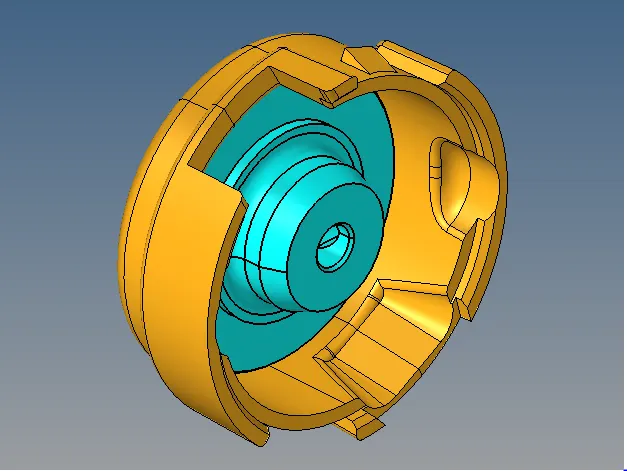
For geometry clean-up on model following cm are used :-
- add construction line for better mesh flow
- Geom-Quick edit-split surf line
- Geom-Quick edit-split node
- Geom-Quick edit-toggle edge
- Geom-Quick edit-delete surf
- Geom-Quick edit-filler surf
Snap after geometry clean-up :-
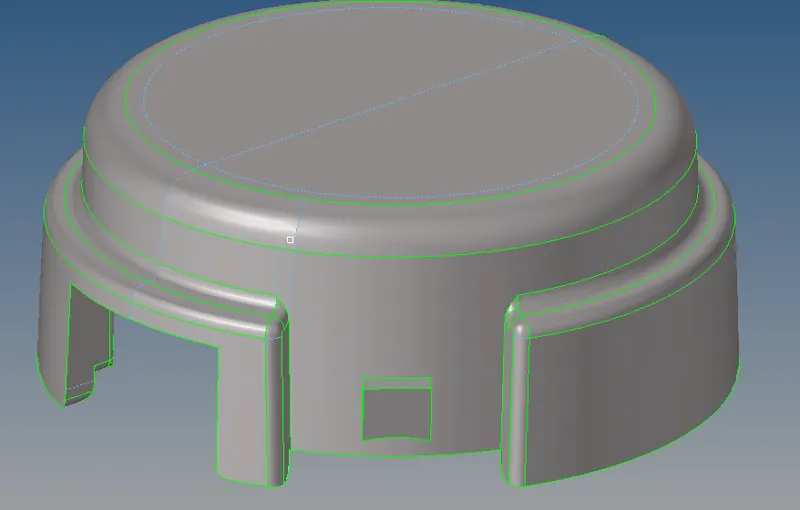
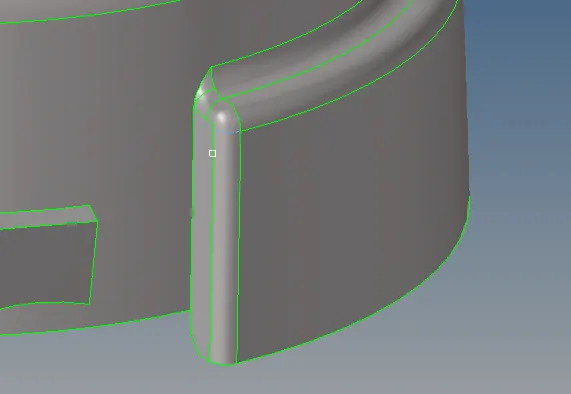
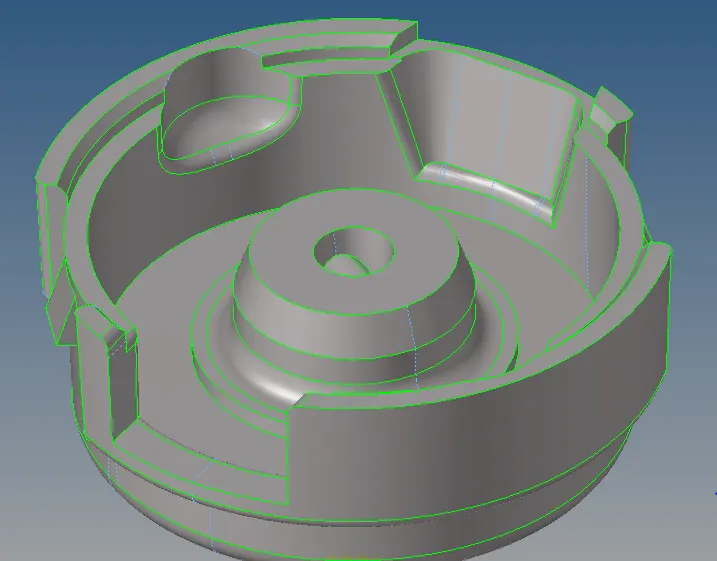
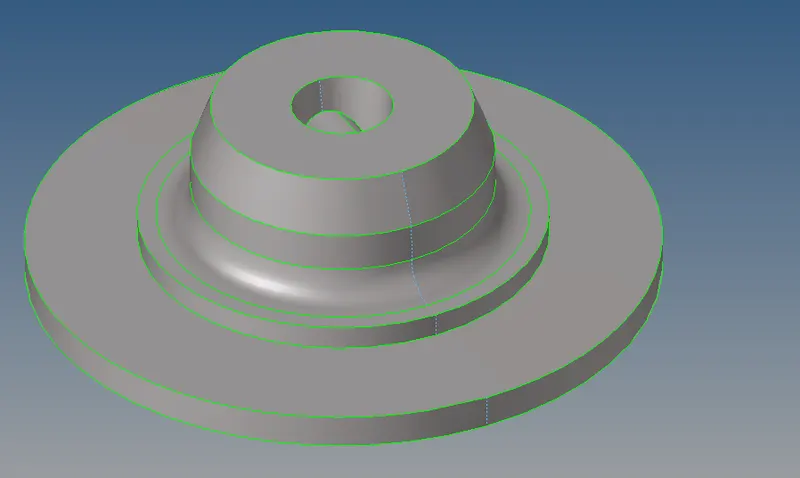
- Next step is to create 2D tria element on surface of model
- Quality criteria :- Elements sizes: Min- 2 Units, Target- 5 Units, Max- 7 Units Tet collapse: 0.15
2D - automesh - surface
2D mesh Snap :-
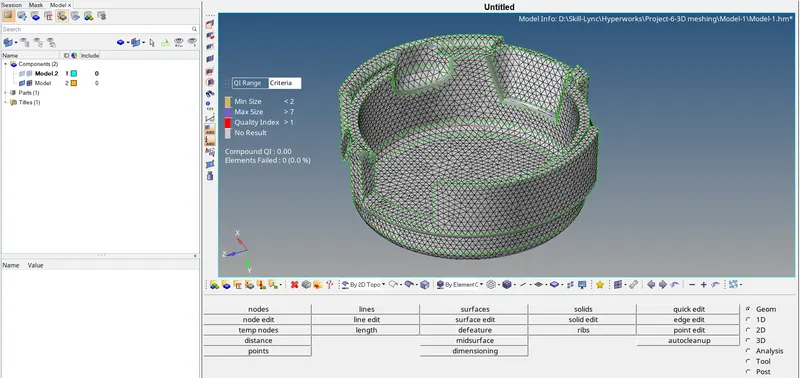
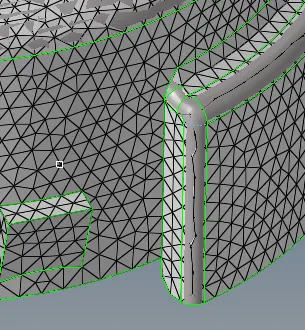
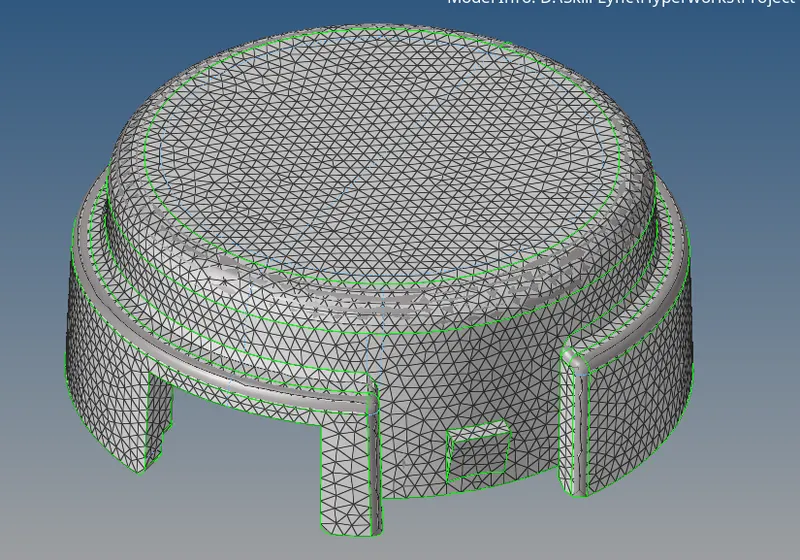
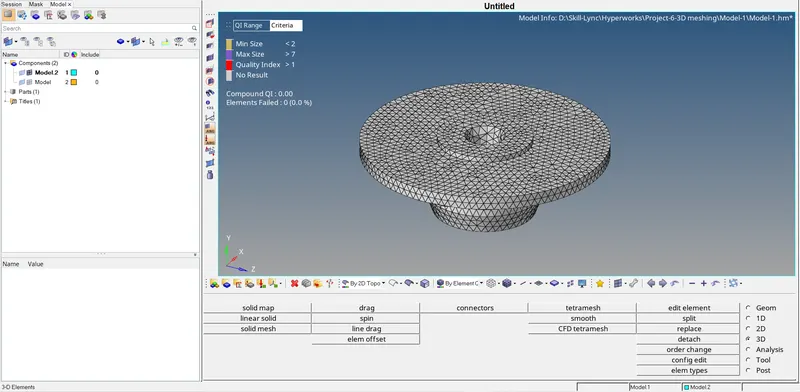
- Convert 2D surface mesh to 3D volume mesh :-
3D - tetra mesh - element
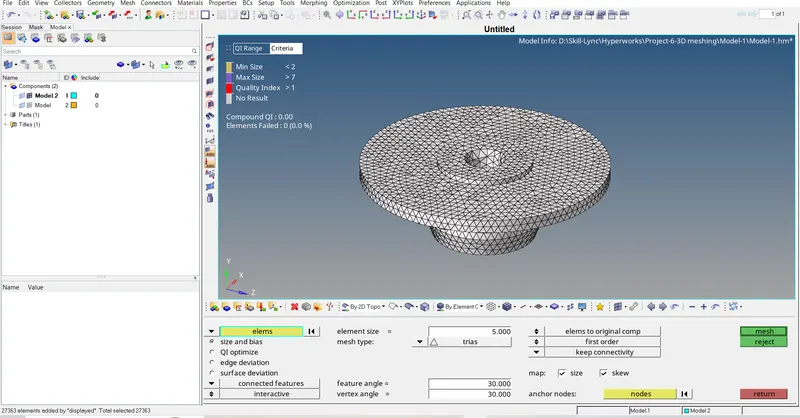
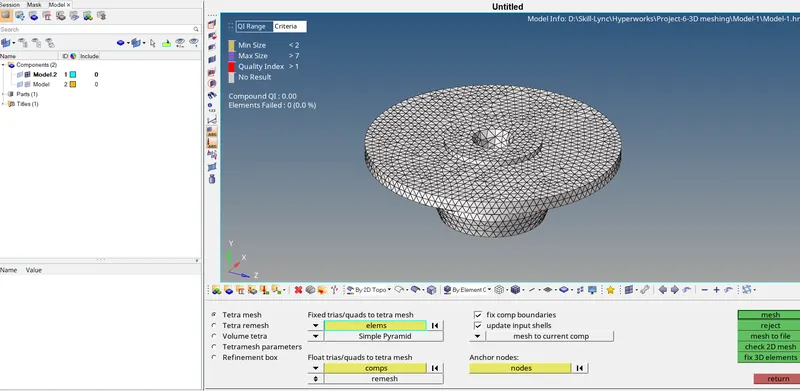
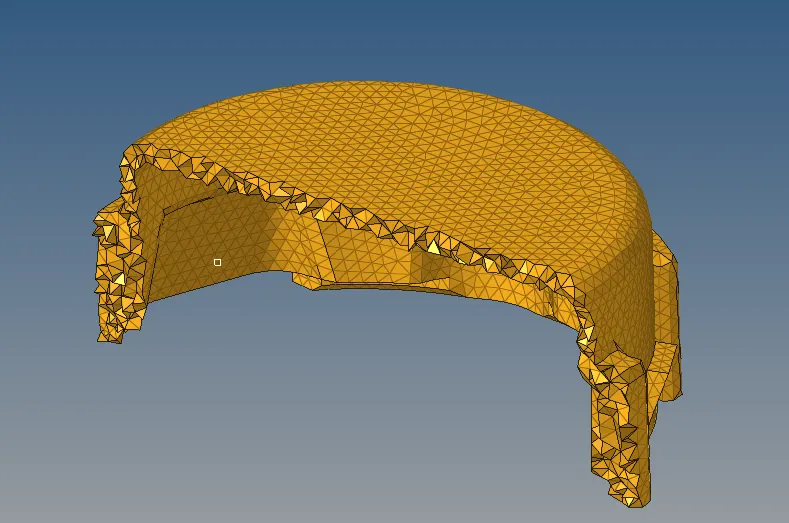
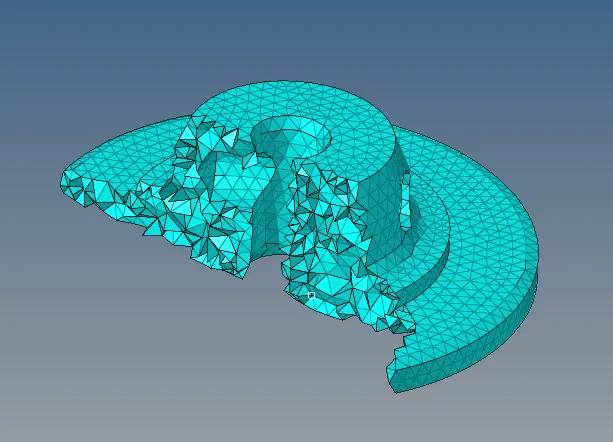
Delete 2D element from model :
Delete - elements - by config - tria3
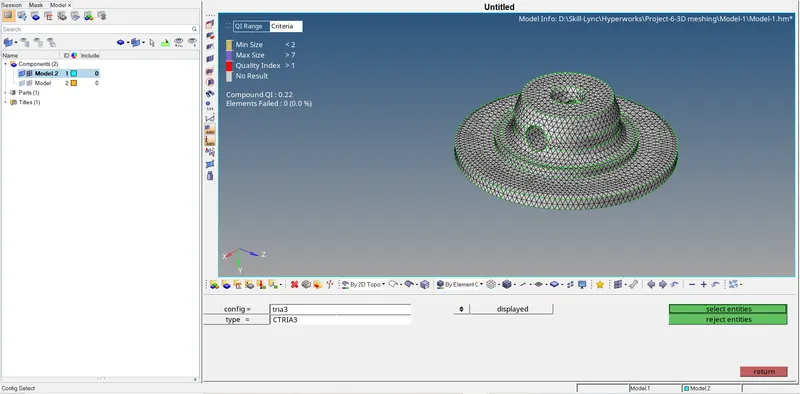
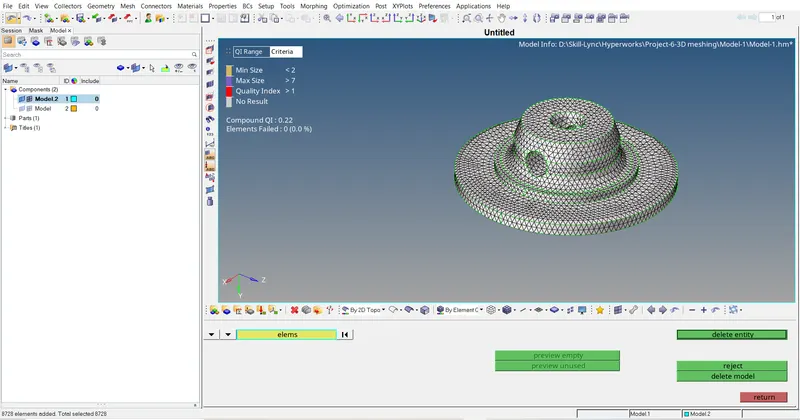
Final Meshing Model :-
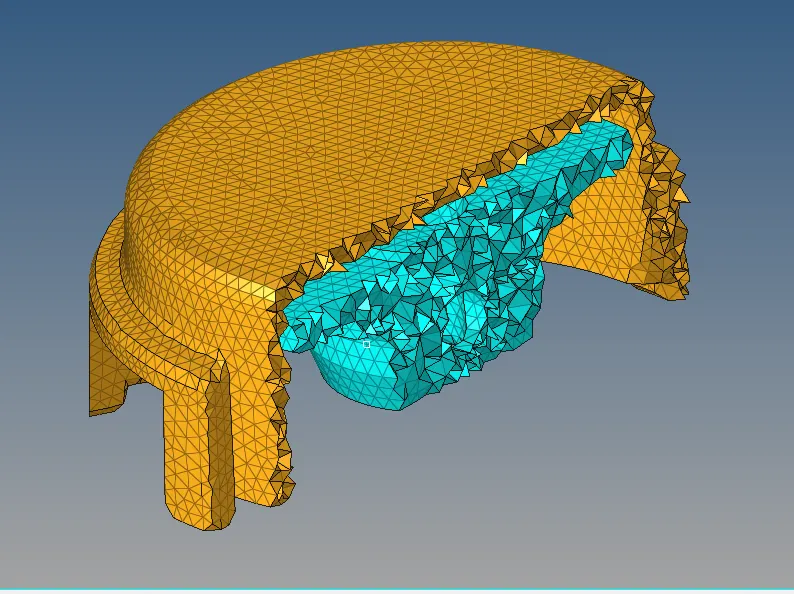
Model-2:
Objective:
To create a 3D Tetra mesh by using 'Quick Tetra mesh method for the given component with the mentioned quality criteria.
CAD Model Image:
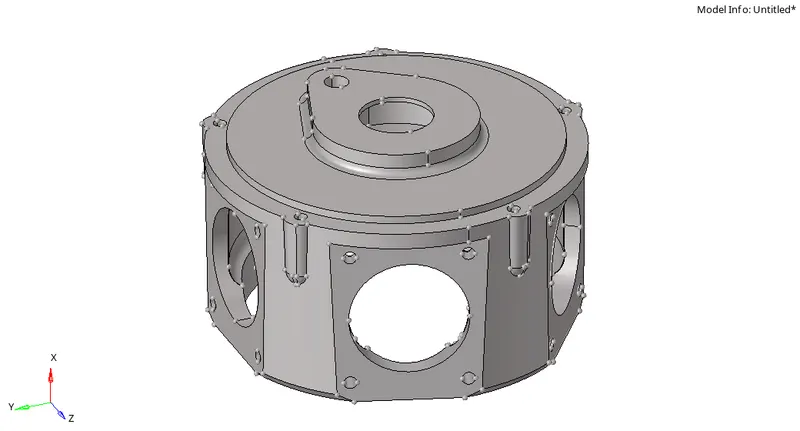
Procedure:
- Firstly import the IGES model from the system files.
- After importing the model delete the solid parts of the component.
- Defeature the surface fillets which are having low fillet radius which may result in element failures.
- perform the geometry cleanup wherever it is required.
- For meshing the model using the 'Quick Tetra mesh method we have to go to the Utility panel.
- For Utility panel use view option view>Browsers>Hypermesh>utility.
- After that select Geom/Mesh from 'Utility Menu'.
- Then select Quick Tetra mesh as it opens a panel named as 'Quick Tetar panel'.
- In that panel select the component to be meshed and specify the mesh size,minimum element size and change the mesh type to 'Trias only'.
- Click on the 'Mesh' option to generate the tetra mesh.
- After generating the tetramesh we need to check for the Failed tet-collapse elements.
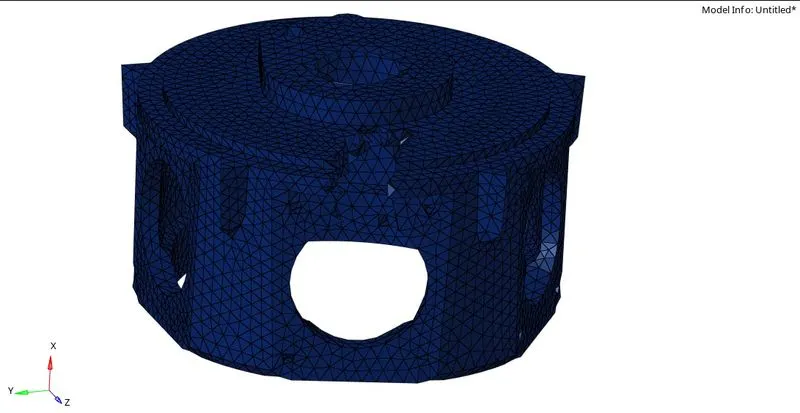
- For checking the failed elements select Tools>check elements>3D>tet collapse.
- For clearing the Tet-collapse elements we have to try to remesh the failed elements.
- If the failed tet-collapse elements still exists we have to follow other method as 'Translate' command in Tools option.
- To clear tet-collapse select Tools>translate option.
- Pick a node of the failed element which has minimum height.
- Select other nodes as N1,N2 & N3 for the translation.
- Assign the magnitude for Translating the node.
- After correction of the Failed elements check the tet-collapse value in 'Check elements' option.
Result:
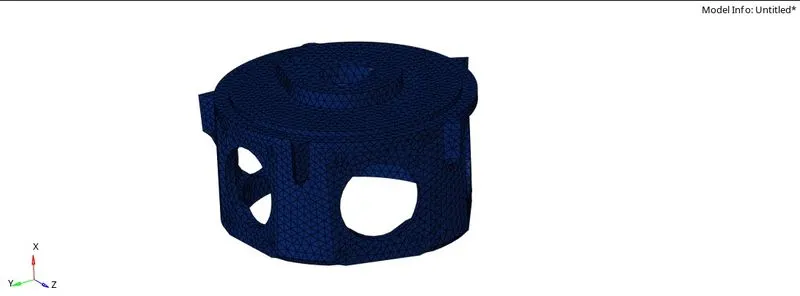
For the given model tetra mesh is generated by using 'Quick Tetra mesh method' with the mentioned criteria,The final model image is as follows.
Final Model Image:
MODEL 3:-
Step 1:- Initially ww will import the given model for that go to import>>import geometry>>Step file then hit import.
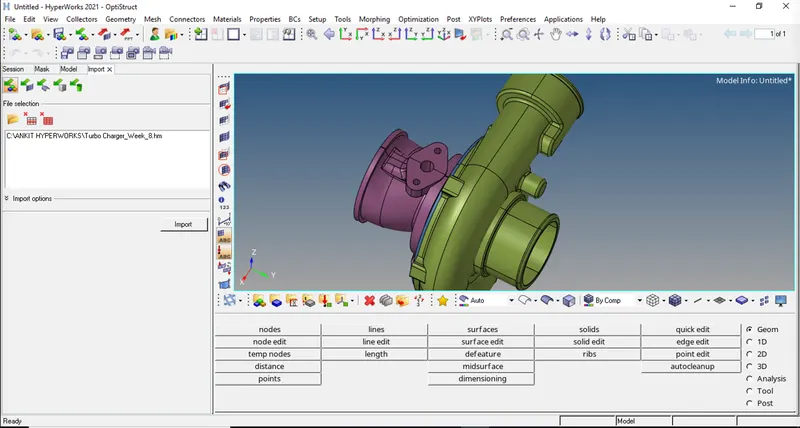
Step 2:- cleaning The Geometries.
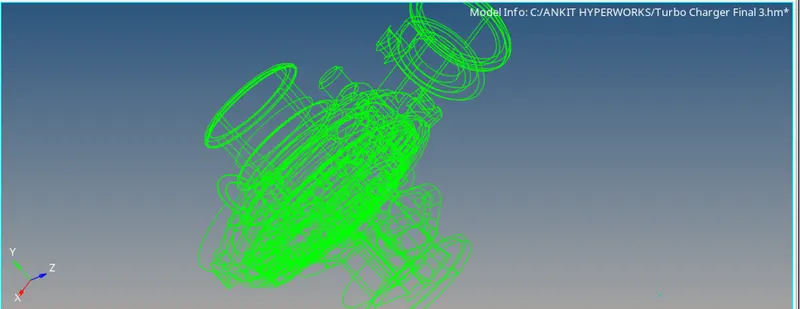
Step 3:- Creat Solids For All Parts.
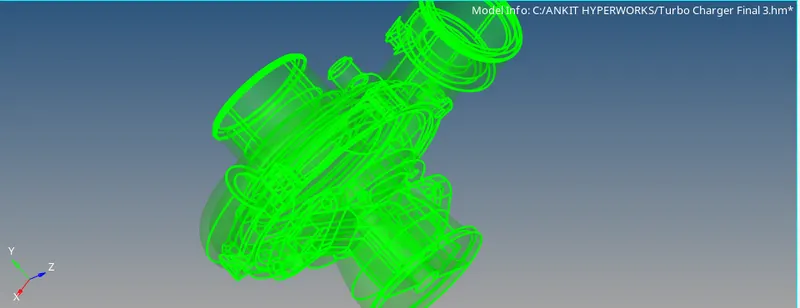
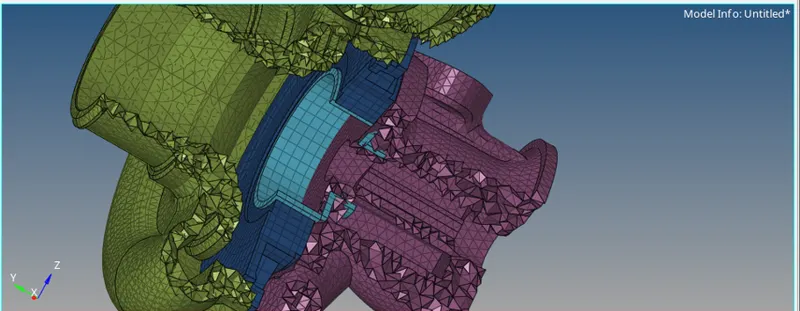
Step 4:- 3D Meshing By Volume Tetra Mesh.
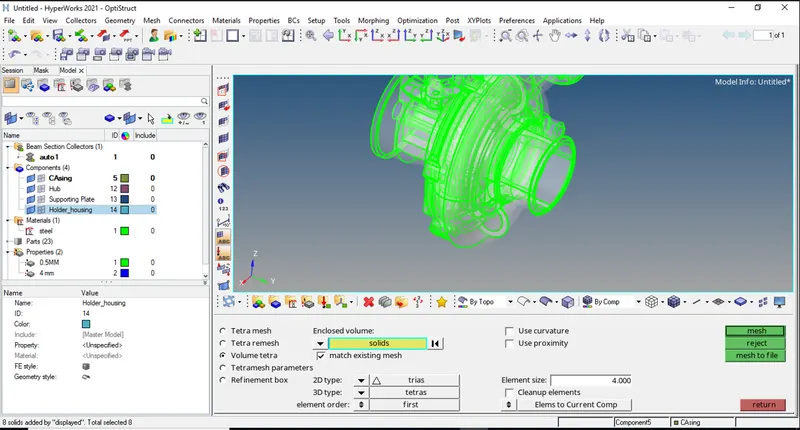
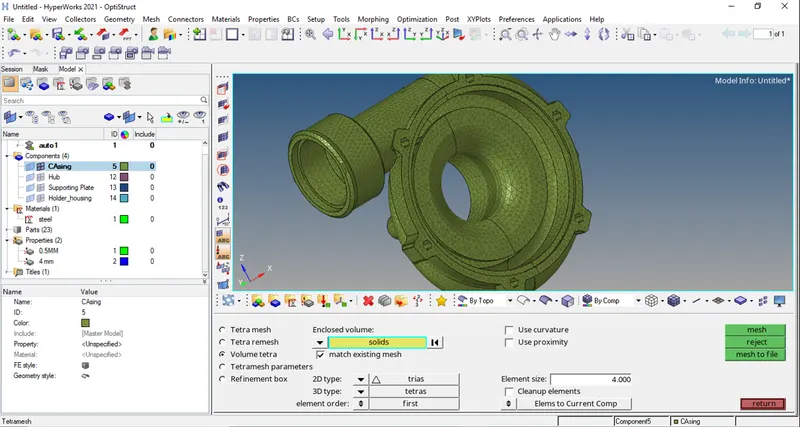
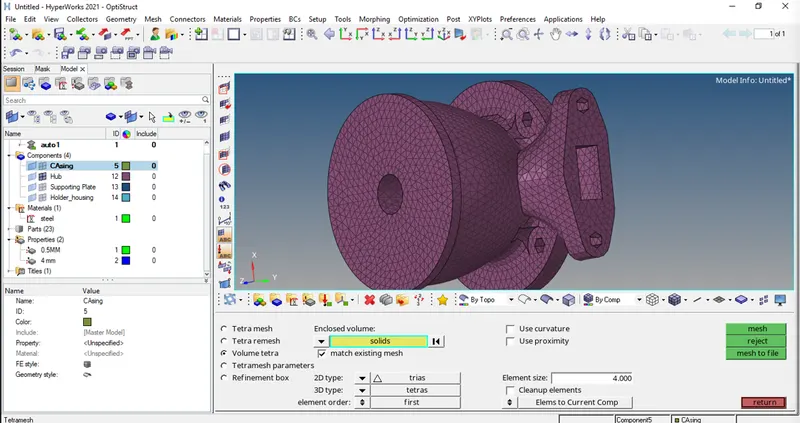
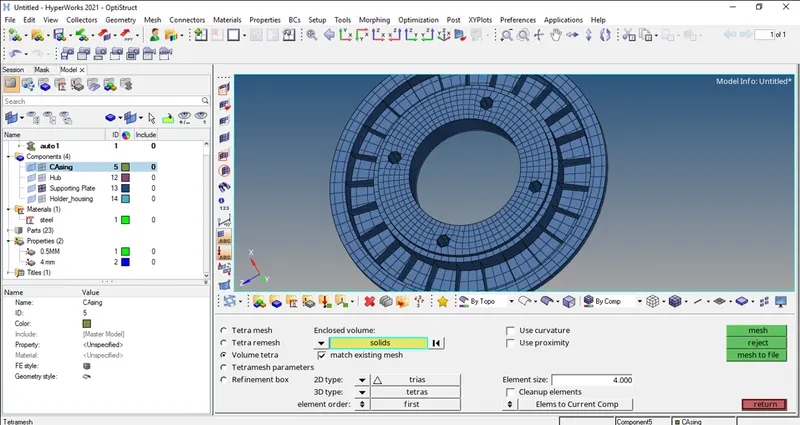
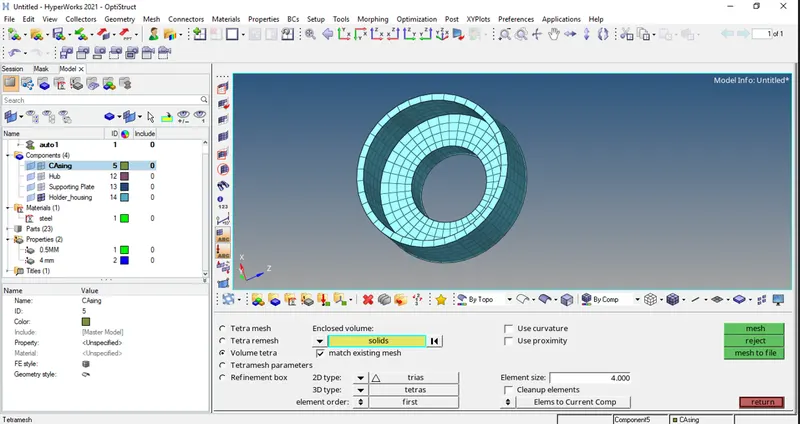
Step 5:- Element Quality Check .
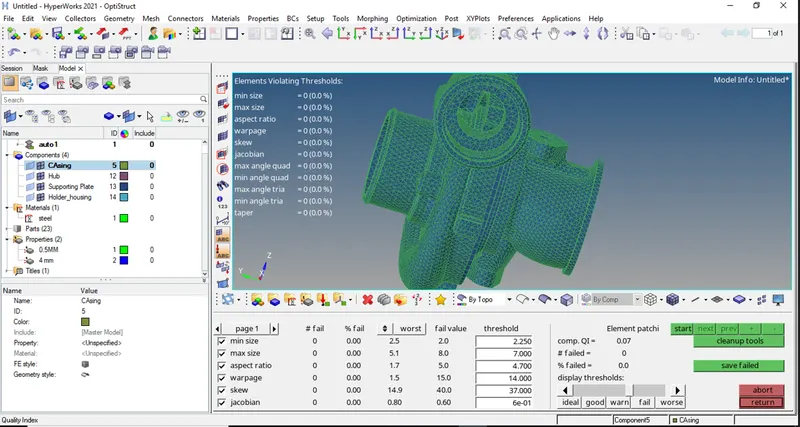
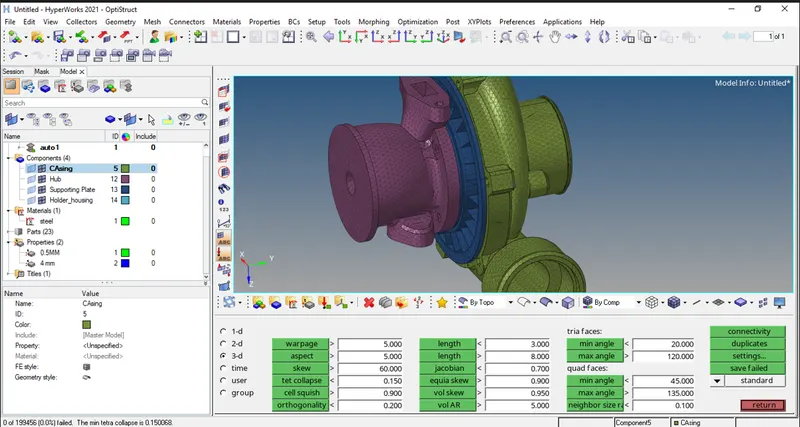
FULL GEOMETRY.
Conclusion-
- Learnt about 3D tetra mesh using 2D tria mesh.
- Quick tetra mesh of solid part, Volume tetra mesh.
- How to do remesh of failed elements.
REMARKS
i am using student version, due to that i cant able to use mesh more then 1 lakhs nodes, that is why i save model 3 as a two files.