AutoCAD_Creation of Layout_Week 10
Aim :- Create a plan and section of a Residential building using the template mArch.dwt format with the scale 1:50 as given and use of MV command to create the viewports, use the ATTEDIT command to edit the block and give the drawing information
1
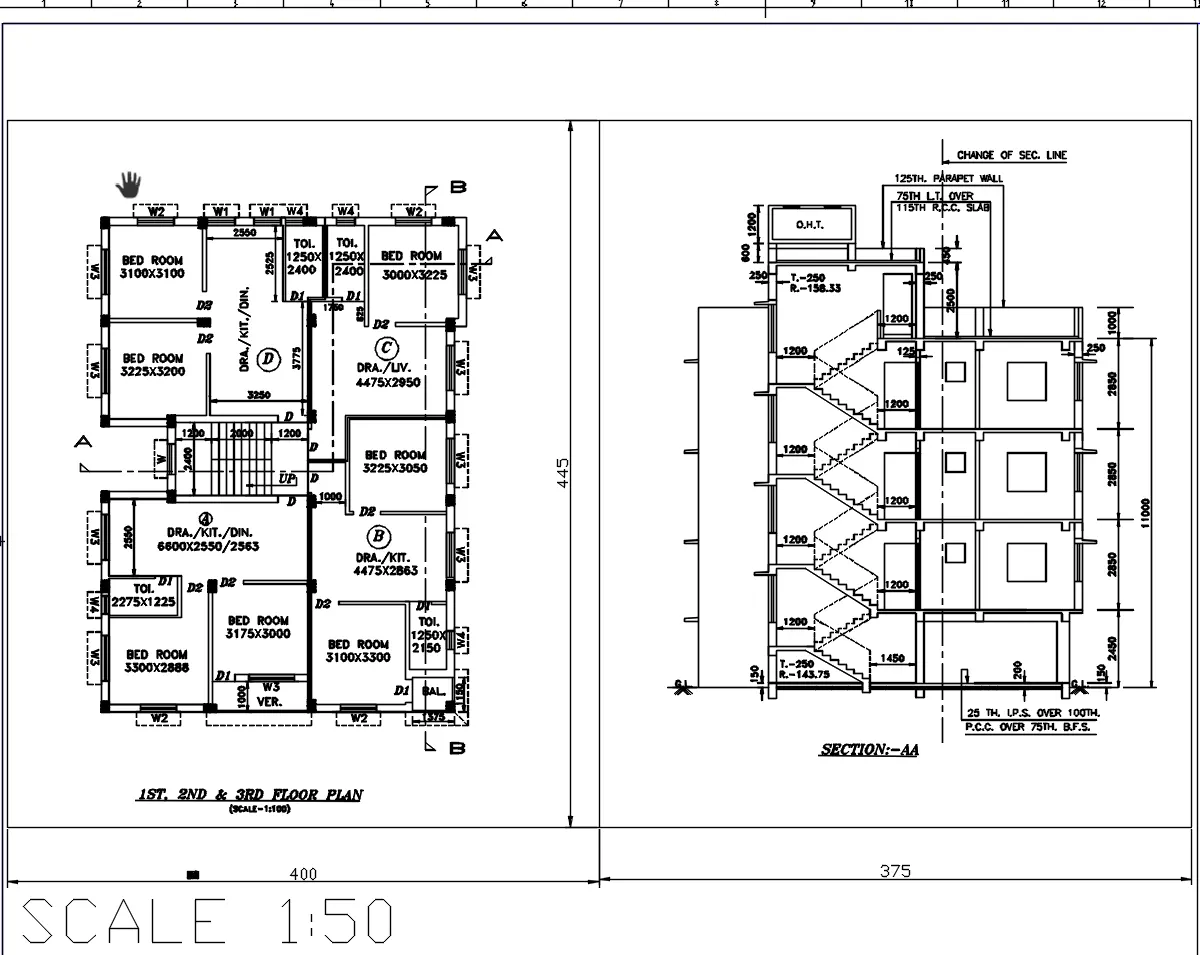
1. Open the cad drawing of the residential building from the saved file
2. Type Layout and then select mArch.dwt format and click open
3. Right click on the file name and rename the file if required
4. Type mv in the command prompt and select the page space area where drawing should be placed
5. Type pan command and resize the image and bring it to the specified area
6. Select the scale as 1:50 and place the image within the specified area
7. Type mview and select lock and on
8. Now the mview is locked
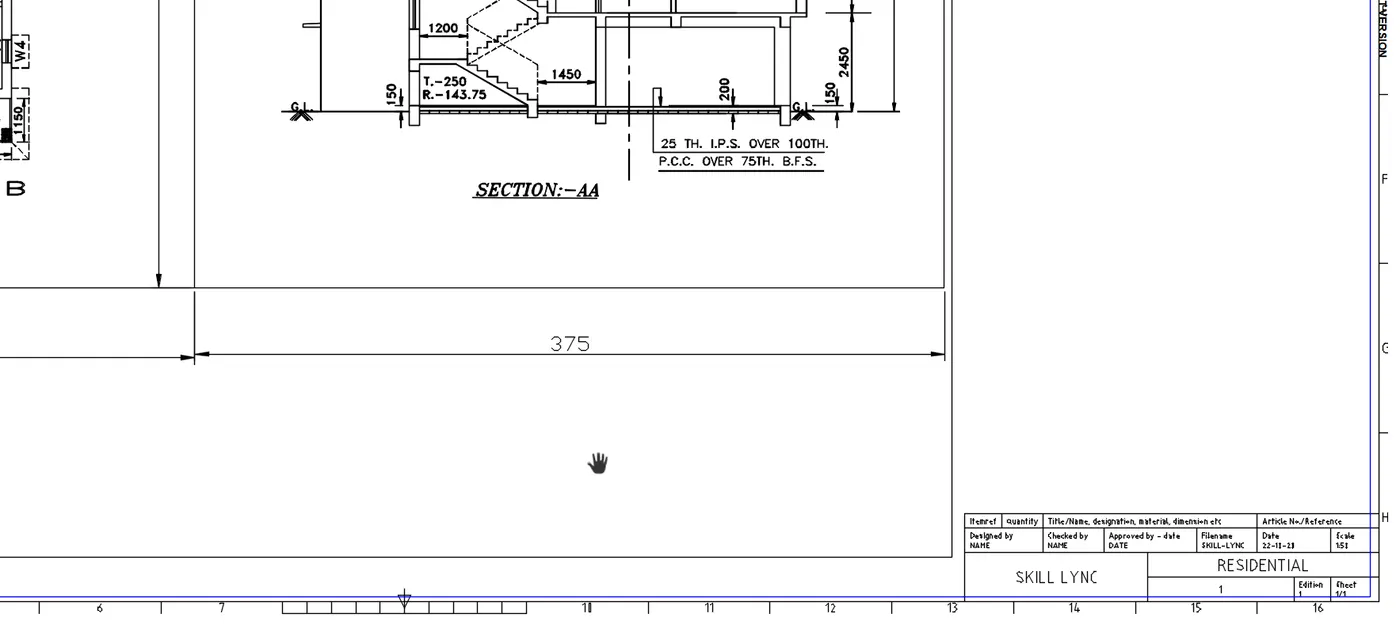
9. I have taken 2nd screenshot for the clear view
10. Type ATTEDIT and select the object
11. Rename all the information eg: Name, Designed by: , Owner etc
12. I have renamed it as per the fig
13. After editing all the information press enter
14. Now the block has been edited with all the information
15. take a print out of the following drawing.
16. The following drawing is obtained as per the required data , scale and fonts
2.
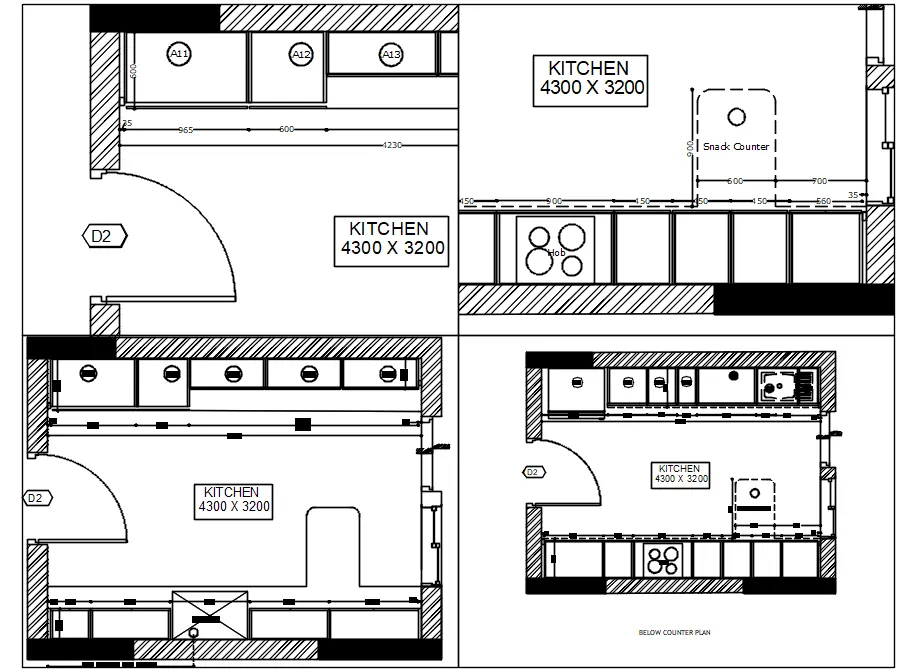
1. Open the .dwg file
2. select the view option and select the four equal view
3. Type viewport and select the space to place the view in layout
4. Select the drawing in the first view and zoom it
5. Select the scale and select it to 1:1 and adjust the image to the window
6. Select the second window and zoom and adjust the drawing
7. Select the scale and select 1:1 and adjust the drawing to the window with the help of pan
8. Select the third window and zoom the drawing and adjust it to the screen
9. Select the scale and 1:2 and adjust the drawing to the window with the help of pan
10. Select the fourth window and adjust the drawing and adjust to the screen
11. Select the scale as 1:2 and adjust it with the screen with the help of pan
12. Or we can use the MS command also to adjust the drawing in the screen
13. select the print button and select the printer and select the window and see the preview
14. The desired drawing is obtained as per the required
3.
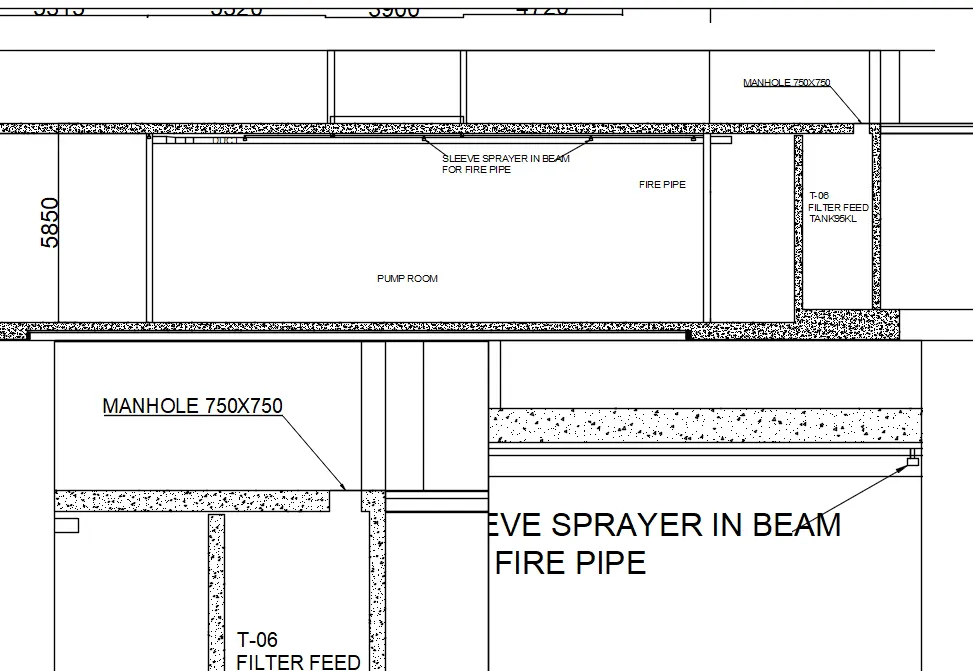
1. open the cad file
2. Go to the layout and type viewport
3. Select the type of viewport you want
4. Type the MS command and zoom the first drawing
5. select the scale 1:100 and the drawing is set to 1:100 scale
6. Type ps and enlarge the page to fit the drawing
7. Select the second view and type ms and zoom the drawing
8. select the scale 1:30 and the drawing enlarges itself to 1:30 ratio
9. do the same for the third wiew
10. Click the print option and select the printer and select window and do the print
11. Desired drawing with the scale is obtained