Week 1 : Exploring the GUI of GT-POWER
Q-1
Different moduls of GT-Suite softwares are GT-ISE, GT-POWER, GEM3D, COOL3D, VTDESIGN
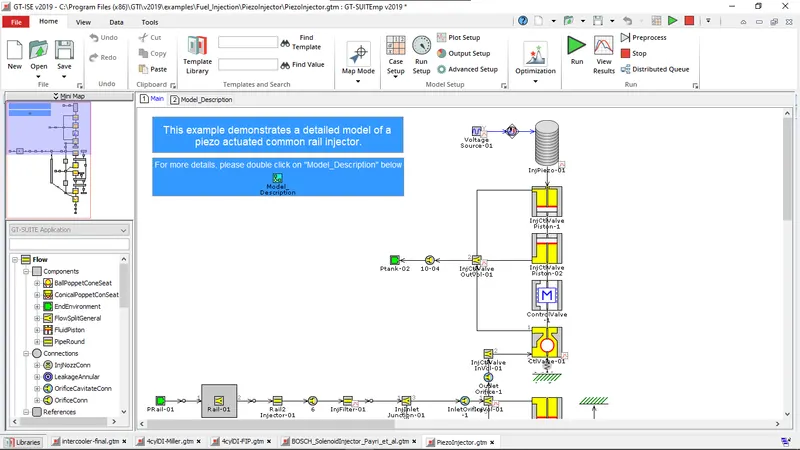
GT-ISE
It is 1D and 2D modeling models of GT-Suite software where from scratch or experiment data a model can be created and perform different analyses on it.
Models like SI Engine, CI Engine, Intercooler, Turbocharger, Waste Heat recovery are available to create in GT-ISE and efficiency analysis, thermodynamic effect, Mechanics are desirable outcome to be found in GT-ISE software results
GT-POWER
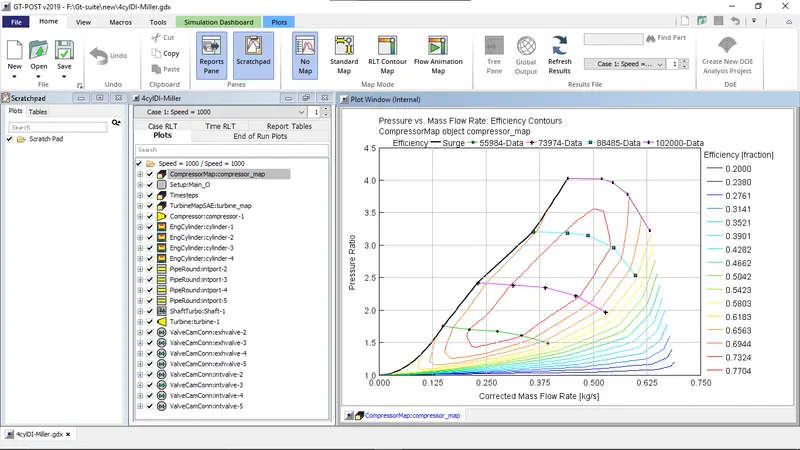
GT-power performs simulation of models run in GT-ISE module.
Perform or collected simulation result graph can be opened in this module and re-arranged for further analysis, presentation, report, etc. GT-power also allows to combine of multiple plots into one and create a scratchpad to use personally. Scratchpad data are editable so they can be manually corrected.
GEM3D & COOL3D
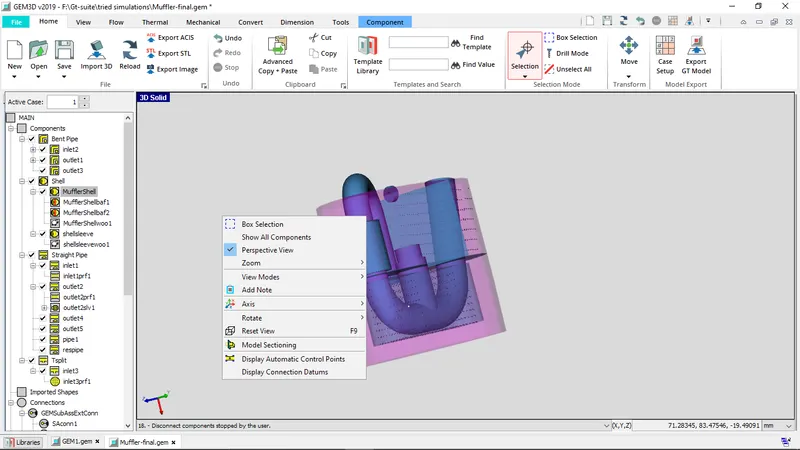
Both may have separate launches given but both modules are combined. It uses separate modules only after creating a new file or open saved files based on the related modules. GEM3D is a graphical 3D tool to build and discretize flow systems for use with GT-SUITE. COOL3D is used to build a 3D model of an underhood thermal management flow system. Created 3D model in this model can also be utilized in GT-SUITE. GEM3D has additional menus given like Flow, Thermal, Mechanical to directly use the templates of requirement without searching it in the library. since GEM3D is based on the design it has quick access options given on right-click. From there Box selection, rotate, reset view, edit properties, hide/show connection, etc. actions can be performed. To practice in GEM3D different tutorials along with a manual are given. COOL3D doesn't have this kind of creation screen. it only allows to open .ghx models.
VTDesign
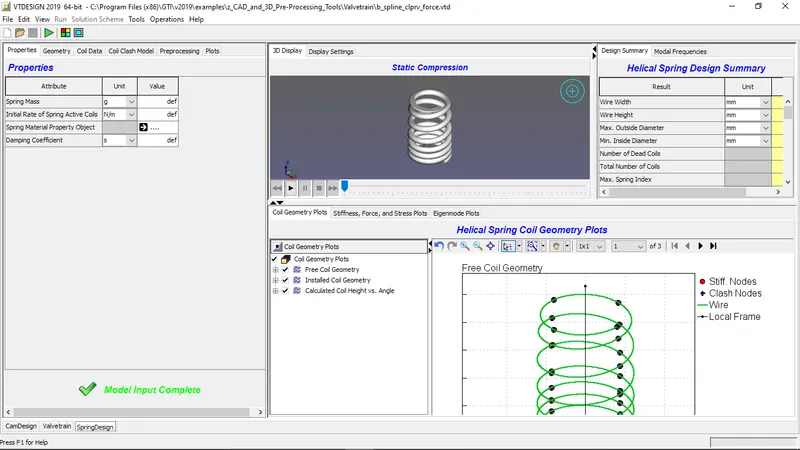
VTdesign has three different parts to work with accessible from the left corner of the taskbar. They are CamDesign, Valvetrain, and SpringDesign as named they are specifically used for that part of the valve operating mechanism. CamDesign didn't suggest any creation ven after opening examples. it only showed graphs of the example. Valvetrain and SpringDesign have editing options to optimize it as per requirement. They also animation to present its analysis smoothly.
Q-2
- Given menus are available in GT-ISE
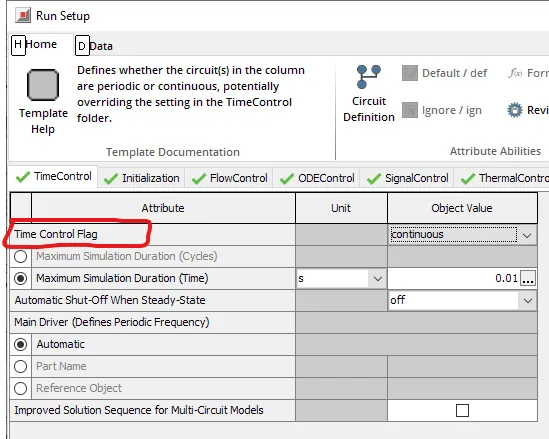
- Time control flag
- Follow path Home Menu > Open Run setup > Time Control (First Tab) > Time Control Flag
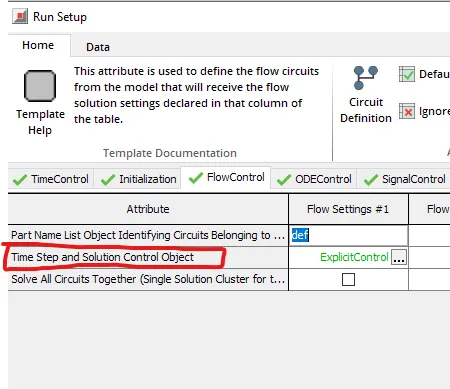
- Time step and solution control
- Follow path Home Menu > Open Run setup > FlowControl > 2nd raw - Time step & flow control object
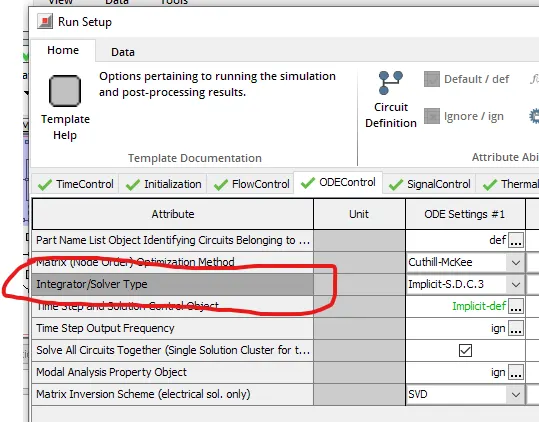
- Integrator/Solver type
- Follow path Home Menu > Open Run setup > ODEControl > Integrator/Solver Type
Q-3
Settings given in intercooler model for different menus are as follow
- Run setup
- TimeControl
- Time Control Flag - Continuos
- Maximum simulation duration - 0.5s
- Minimum simulation duration - 0s
- Automatic shut-off when steady-state - ON
- Main driver - AutomaticAdvanced setup
- Initialization
- Initialization State - user_imposed
- user Imposed methods - part attribute
- FlowControl
- Part Name List Object Identifying Circuits Belonging to Column - def
- Time Step and Solution Control Object - Explicit
- Solve All Circuits Together (Single Solution Cluster for the Column) - Not checked
- ODEControl
- Part Name List Object Identifying Circuits Belonging to Column - def
- Matrix Sparse Format Solver (BETA for CSR) - Skyline
- Matrix (Node Order) Optimization Method - Cuthil-Mckee
- Integrator/Solver Type - Explicit-Runge-Kutta
- Time Step and Solution Control Object - Explicit-def
- Time Step Output Frequency - def
- Solve All Circuits Together (Single Solution Cluster for the Column) - Checked
- Displacement SS Tolerance for Auto Shut-Off - ign
- Velocity Steady-State Tolerance for Auto Shut-Off - ign
- Torque Imbalance Tolerance for Auto Shut-Off - def (=0.002 fraction)
- Consecutive Cycles/RLT Update Intervals for Steady-State - 1
- Modal Analysis Property Object - ign
- Matrix Inversion Scheme (electrical sol. only) - SVD
- SignalControl
- Null
- ThermalControl
- Part Name List Object Identifying Circuits Belonging to Column - def
- Thermal Wall Solver - automatic
- Steady Thermal Wall Solver is Enabled if Thermal Wall Solver = Automatic
- ConvergenceRTE
- Null
- TimeControl
- Advanced Setup
- General
- Fixed Time Step Size (Overrides Flow and Mech Step) - ign
- Initial Seed for Random Number Generation - def
- Convergence Exclusion Part List - ign
- Flow
- Bend Loss Table - ign
- Adjust Nitrogen Molecular Weight to Compensate For Argon - Check
- Air Object for Ref Stoich AF Ratio (or value for multi-fuel models) - def
- Dead State for 2nd Law Output - ign
- Transport Properties for Species without Data - Check
- Cylinder Efficiency Analysis - OFF
- Improved Stagnation Condition Calculation in Turbomachinery Templates - Check
- Transport Properties for Species without Data - Automatic
- Alternative Calculation of Laminar Flow Losses in FMTs - OFF
- Alternative Orifice Calibration Method for FlowPDropSimple Objects - Check
- Improved Calculation of Default Pressure Loss Coefficient for Diffusers - Check
- Improved Implicit Solver Global Residual Definition - Check
- Improved FluidRefrigerant Properties Lookup - Check
- Improved Scavenging Profiles Lookup - Check
- *Rest settings are not selected
- Mechanics
- Gravitational Acceleration Vector - ign
- Restart
- Null
- VersionChanges
- *All settings are by default set to v2019
- Paths
- Paths Specified Explicitly Below - ign
- MiscFiles
- Additional Files to Send (Distributed Runs) - ign
- File Type - ASCII
- General
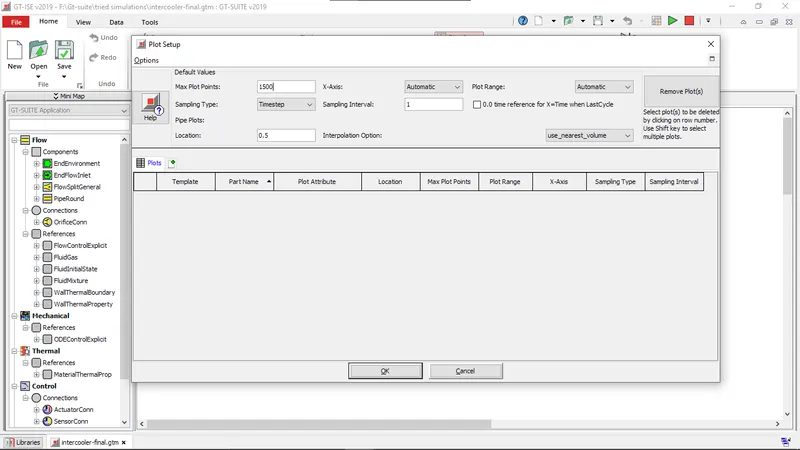
- Plot setup
- Null
- Output setup
- Data_storage
- > RLT (Result) Data Storage Settings
- RLT Calculation Interval (Continuous Circuits) - 0.05s
- Store Case RLT Results? - Yes
- List of RLT's to store (ALWAYS) - ign
- > List of RLT's to store (ALWAYS)
- Time Shift on X-Axis for EntireRun and TimeRLT Plots - ign
- Data Suppression for EntireRun Plots and TimeRLTs: Threshold Time - ign
- > General
- Thinning Method for Limiting Large Arrays to Maximum Point Limit - Automatic
- General
- Legend for Plot Header (OBSOLETE) - def
- Timestep Plot - Check
- GT-POST setup
- >Setup for RLTs (These settings can be changed in GT-POST)
- X-Axis RLT for Case Sweep Plots - def
- X-Axis RLT for Time RLT Plots (only used in Periodic Circuits) - time
- Plot Formatting File - def
- Flow
- Maximum Harmonics Stored for Acoustic/Frequency Analysis - def
- Calculate Water Saturation (Dew) Temperature RLT - LastRLTinterval
- Store Flow and Engine Results Summary in .out File? - no
- ODEMech
- *All settings are ign
- ScoreboardRLTs
- Cranktrain - Engine
- Cylinder - Cylinder
- Turbo - Turbo
- Lubrication - Lubrication
- Detailed Injector - Injector
- Vehicle - Vehicle
- Heat Exchanger - HeatExchangers
- Refrigerant Flow Machinery - RefrigFlowMach
- Battery - Battery
- UserScoreboardRLTs
- *Set to default or ign
- EndofRunTables
- Location of Model Configuration Sweep - Case_setup
- Parameter Defining Configurations - ign
- Results for each Model Configuration in Column or Row - Column
- EndOfRunTable Object 1 - ign
- EndOfRunTable Object 2 - ign
- EndOfRunTable Object 3 - ign
- EndOfRunTable Object 4 - ign
- EndOfRunTable Object 5 - ign
Q-5
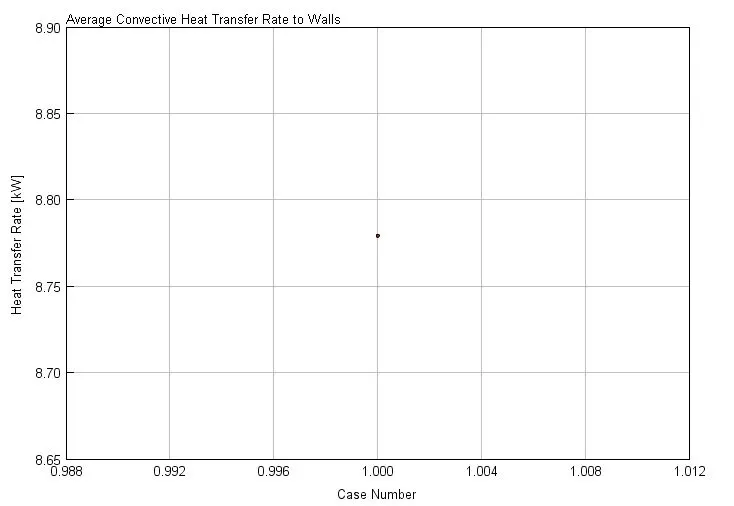
- the total heat transfer at Charge air cooler (CAC) - 8.77kW
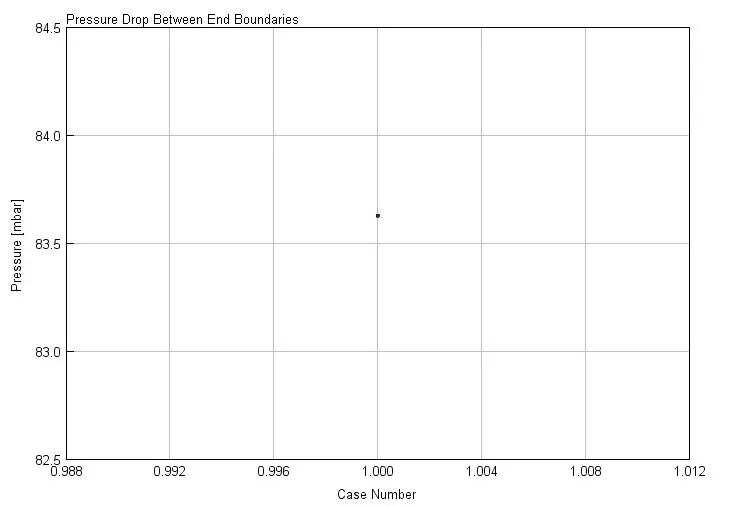
- Pressure drop across CAC - 83.62 mbar