REVIT_Introduction to REVIT_Week 1
1. Aim:- Create a new project using file menu (Structural /Architectural / Construction template) and name it accordingly
Commands used:-
- File menu
- Open
Procedure:-
- Open the Revit Software
- Click on the file menu
- Click on new and then to project
- Select the Construction template
- Select the Browse option and name the project (eg:- Residential project)
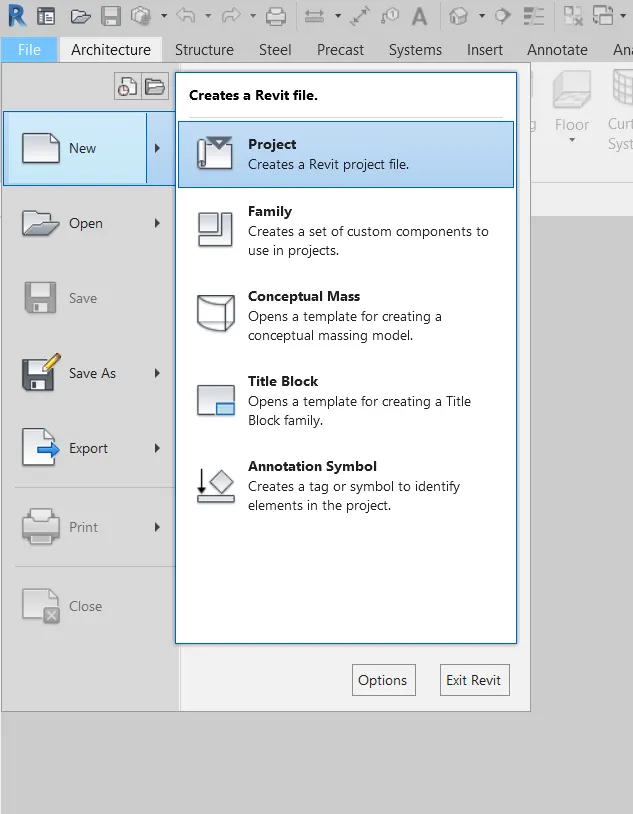
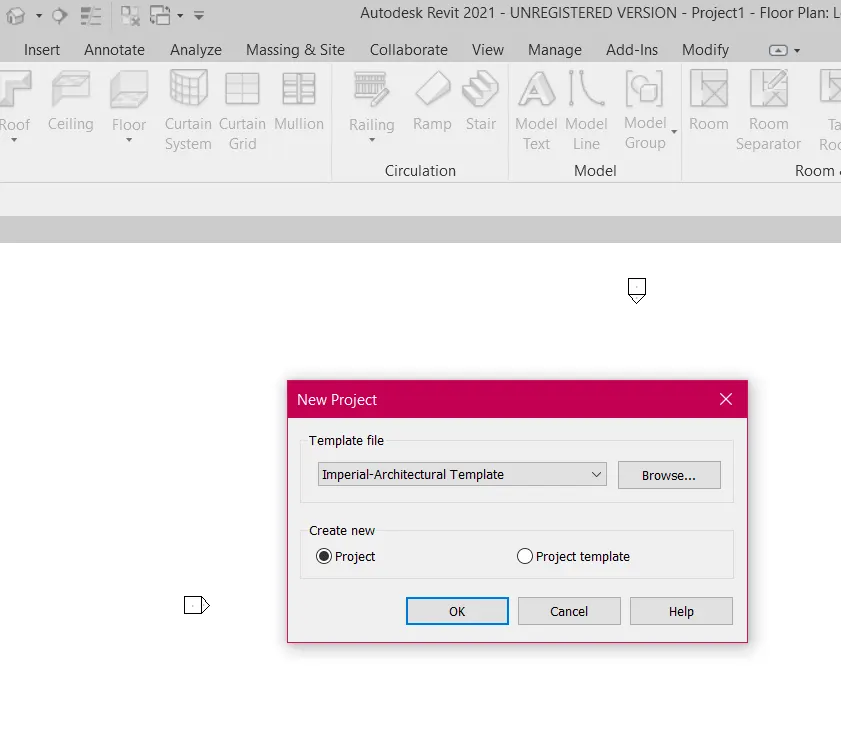
- Select the Architectural Template and click on browse and name it as required
- Again for Structural template select the structural template and click on browse and name it as required
Result:-
The following templates will be created by the above procedure
2. Aim:- Save the new project file, close and open the file using the icons from file toolbar
Commands used:-
- File
- Save
- Name the project
Procedure
- Click on the file menu
- Click on the save button
- Specify the path where we want to save it
- name the project and click save
Result:-
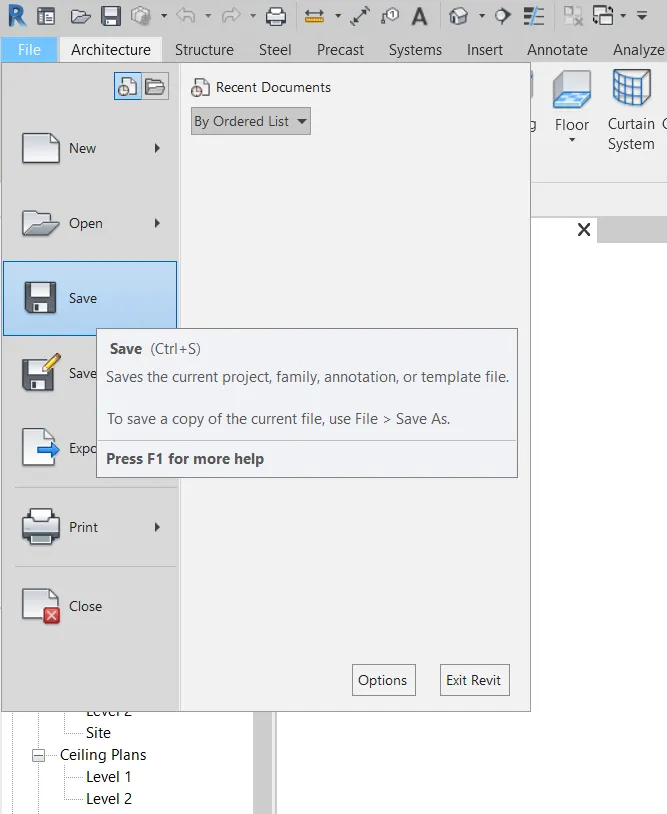
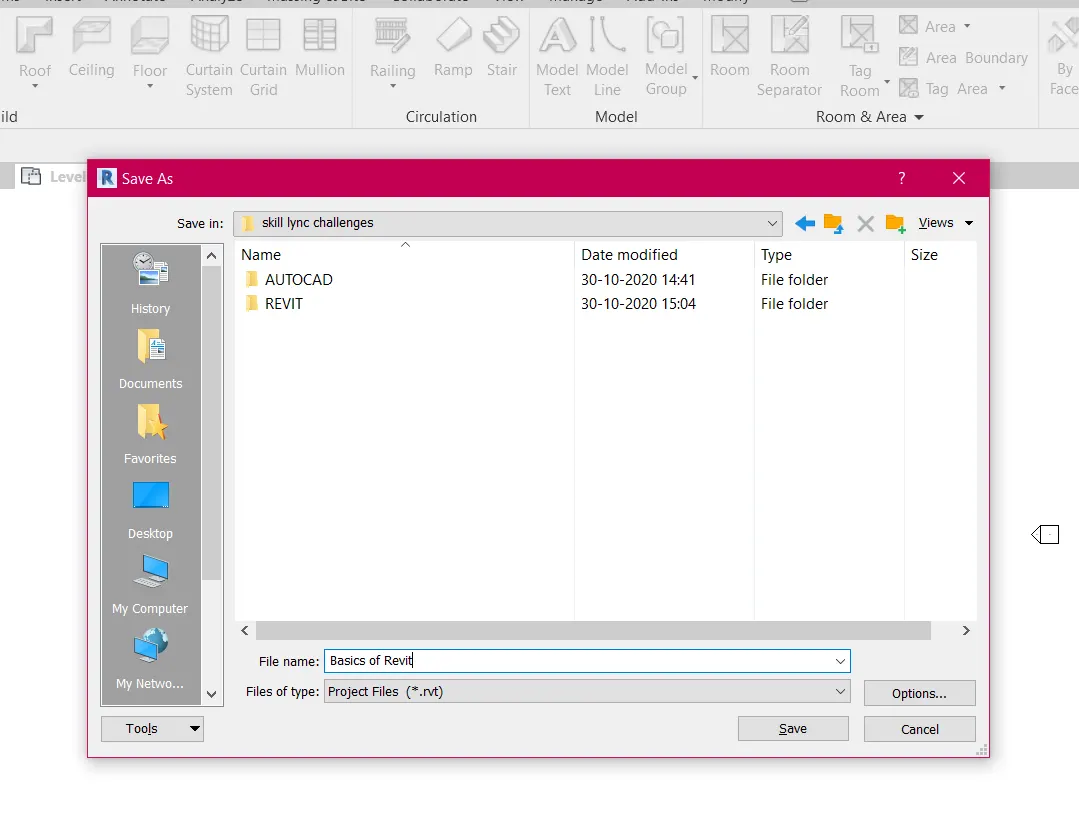
The following project will be saved
3. Aim:- Create a rectangular wall of 40'x35'
Commands used:-
- File
- Wall
Procedure:-
- Open the revit software
- Click on the file and then on new project
- Select the template as architectural
- Select the walls option and specify the first point and type 40' in x direction
- Place the cursor in y direction and type 35' enter
- Place the cursor in the direction and type 40' enter
- Place the cursor in the direction and type 35' enter
- walls is created
Result:-
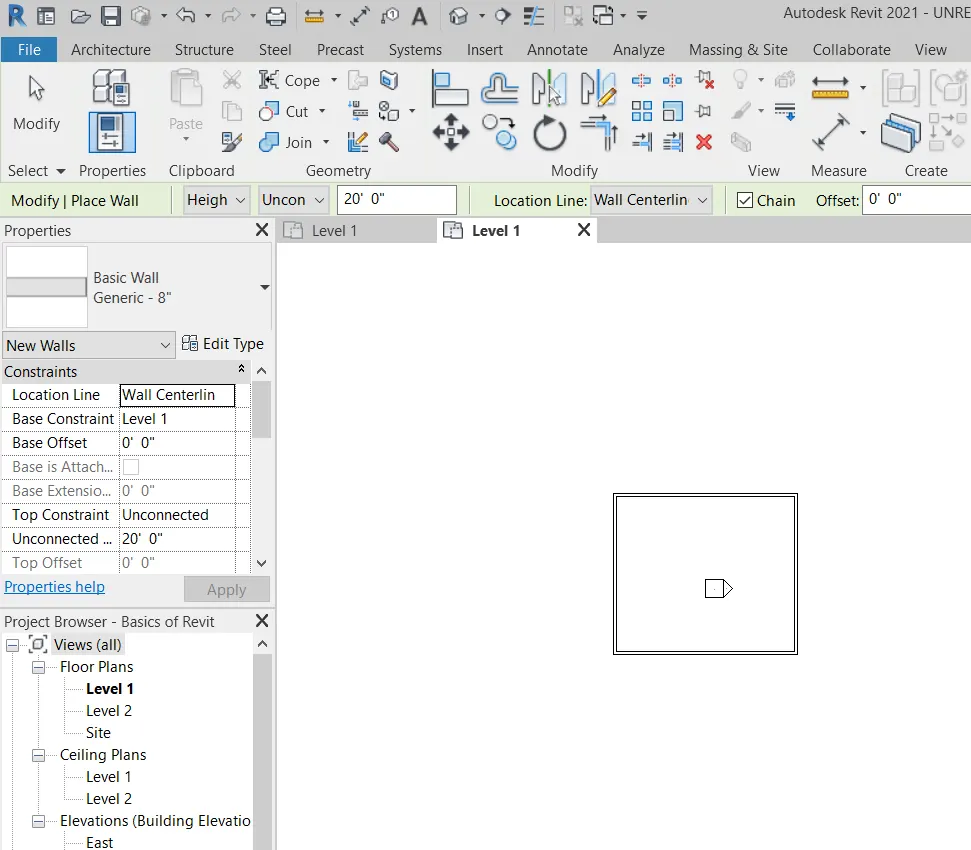
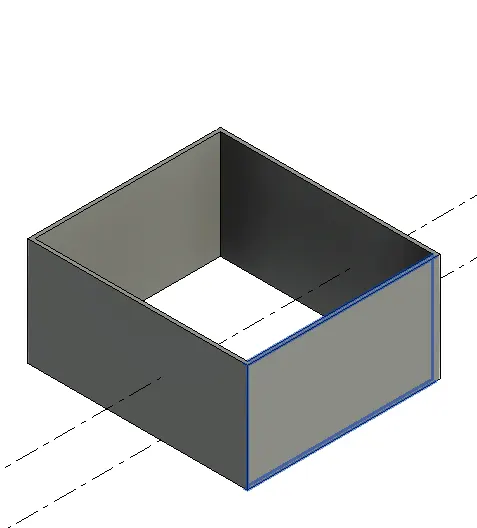
4. Aim:- Do the dimension using the aligned tool bar
Commands used:-
- Annotate
- Aligned
Procedure:-
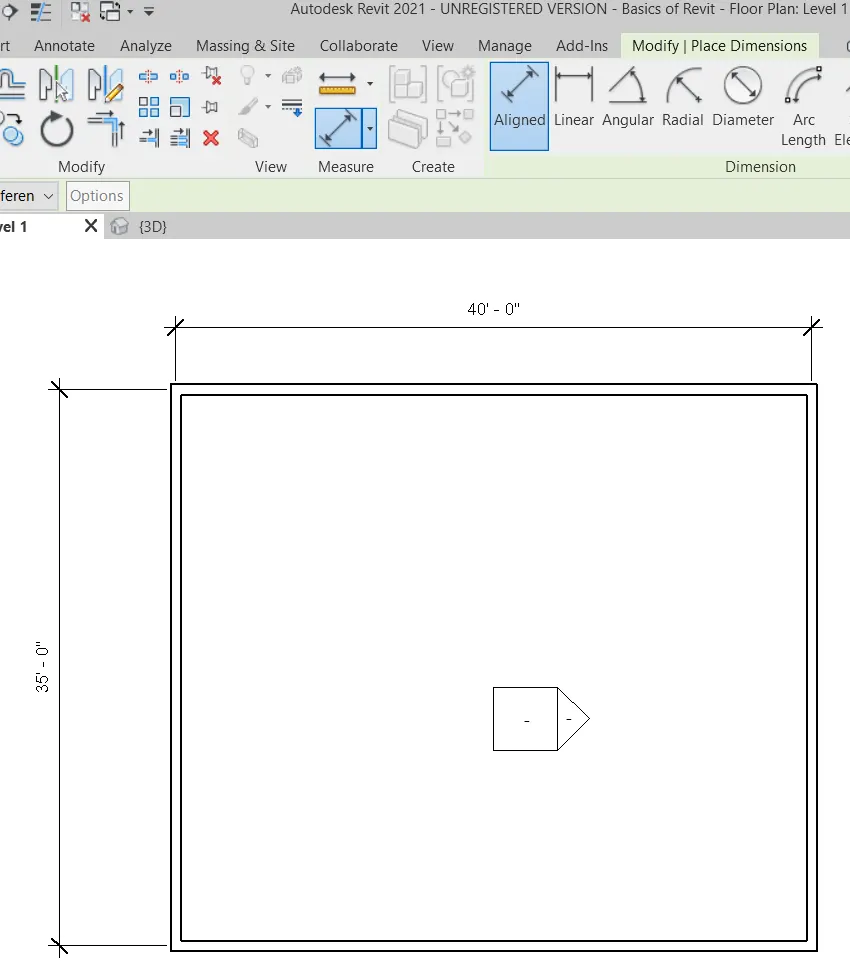
- Select the level 1 tab
- Select the Annotate tab and then click on aligned option
- Select the end of one wall to another and click enter
- Dimension is done.
Result:-
5. Aim:- Switch to different wall types using properties browser
Commands used:-
- Properties on the ribbon wall
Procedure
- Select the wall in the 3D view
- Properties will appear in the top ribbon bar
- Select the type of wall we want from the option
Result:-
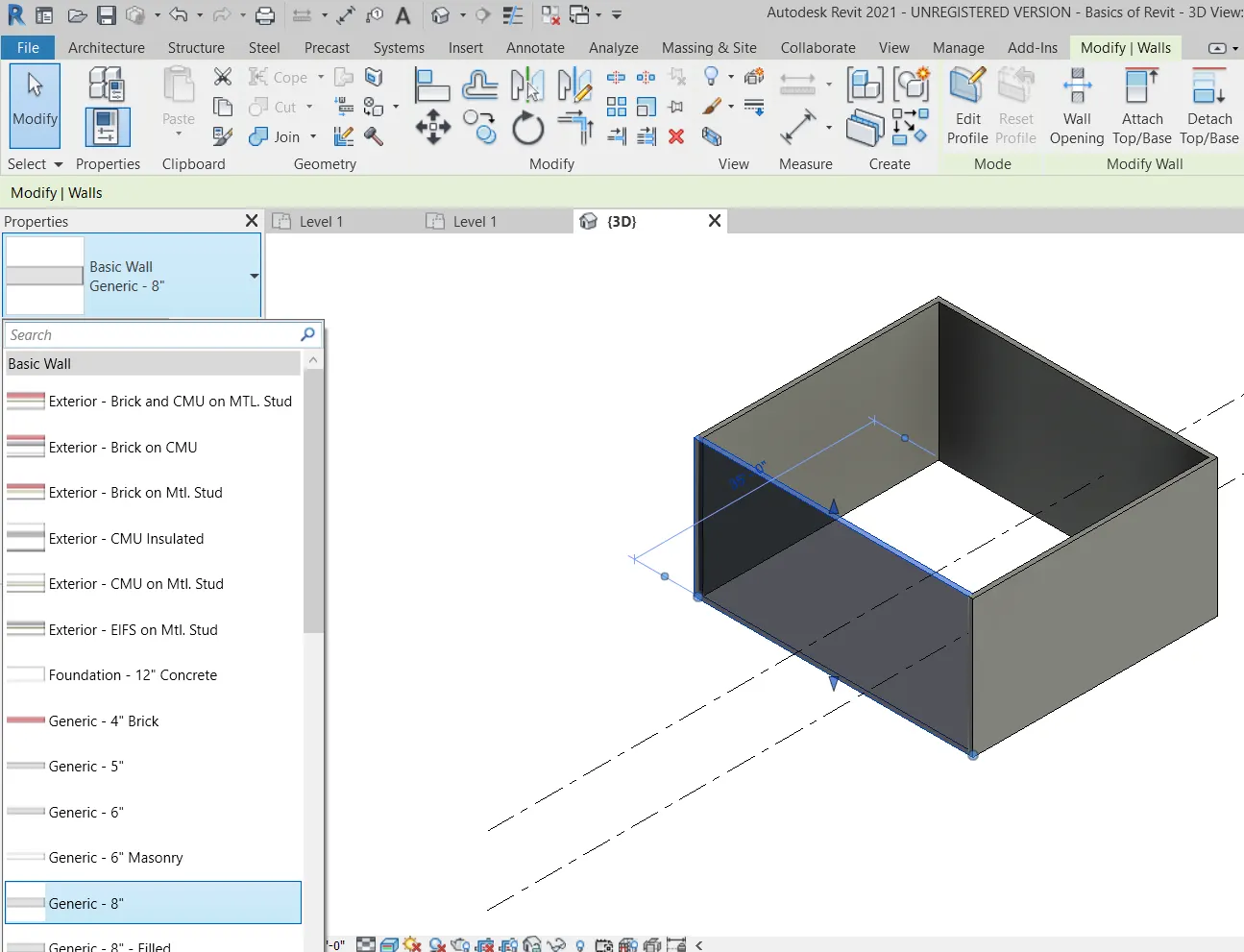
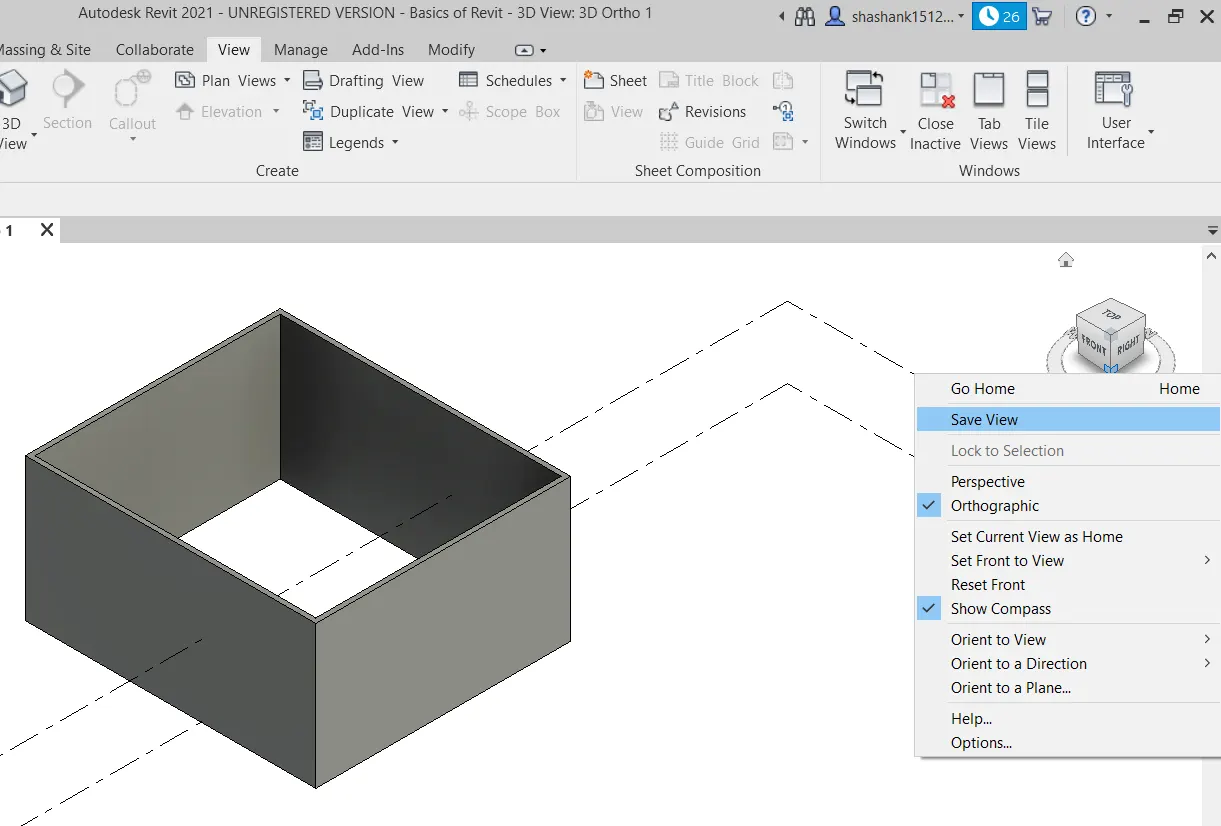
6. Aim:- Create a 3D view from view tool bar and save the view
Commands used:-
- view
- 3D
- Save
- Rename command
Procedure:-
- Select the 3D view in the view tool bar
- Right click on the ucs bar and there is a option save view
- Click on this and rename the view
Result:-
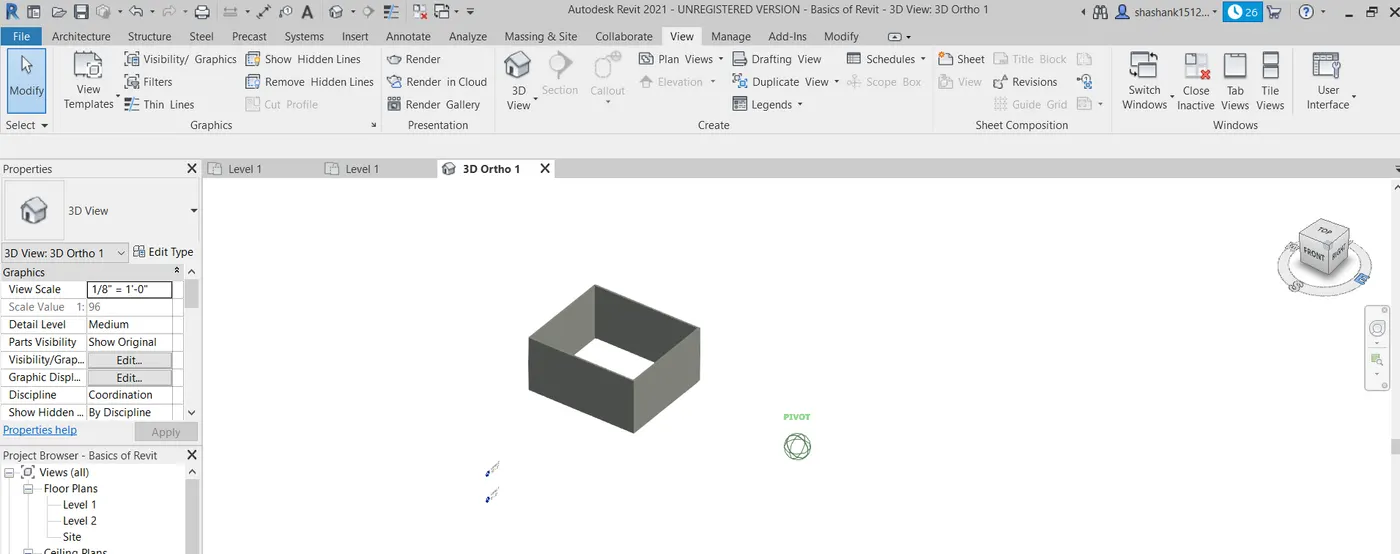
7. Aim:- navigate through the 3D model using view cube
Commands used:-
- view
- Navigation wheel
Procedure:-
- Select the 3d view
- click on the navigation wheel
- select the view in which direction we want to see
- Select the drag button and move the object in any direction to see the object in 360 view
- Select the pan also to see in the direction in which we want
Result:-
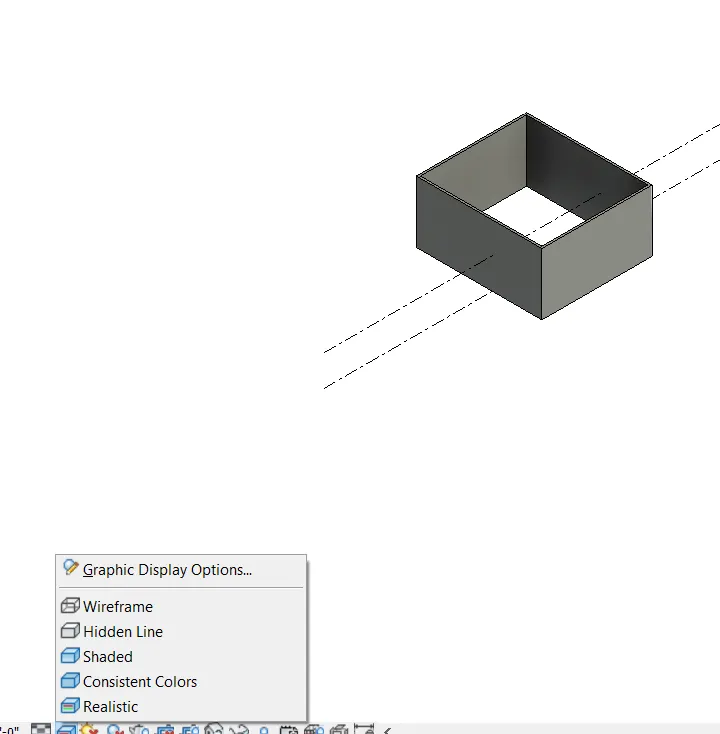
8. Aim:- Use the visibility settings option below to switch model to shaded, realistic, hidden lines options
Commands used:-
- visibility
- options
Procedure
- select the 3d view option and press enter
- At the bottom there is an option visual style click on that and switch to the shade which you want
Result:-
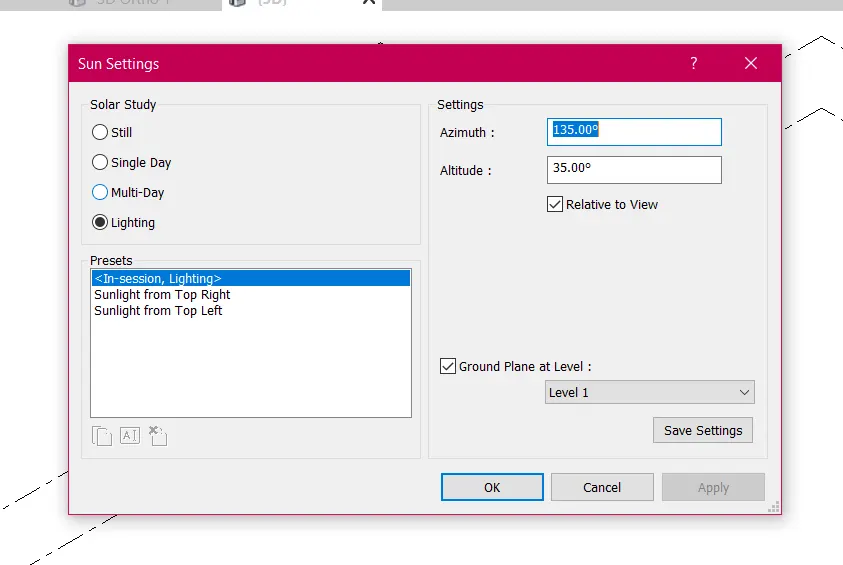
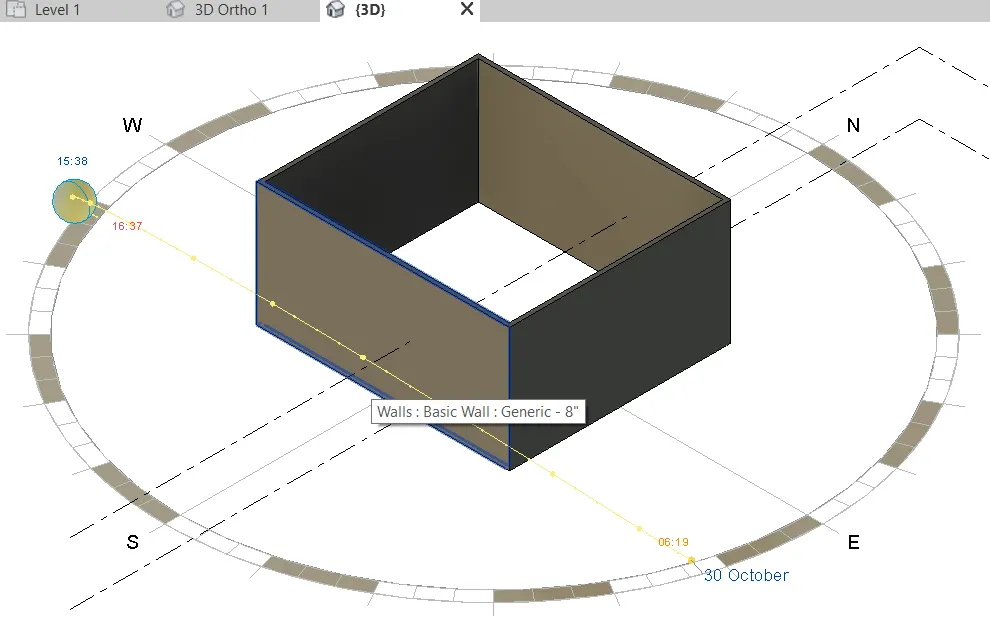
9. Aim:- Turn the sunlight on and off to view shadings in the layout created
Commands used:-
- manage
- Additional setting
Procedure:-
- Select the manage from the ribbon bar
- Select the additional setting and select the solar study and presets
- Click ok at the end
- Or go to the bottom and select the sunpath or the currect setting or the specified setting
Result:-
10. Aim:- Use the Manage tool bar to enter project settings, project name and project issue date
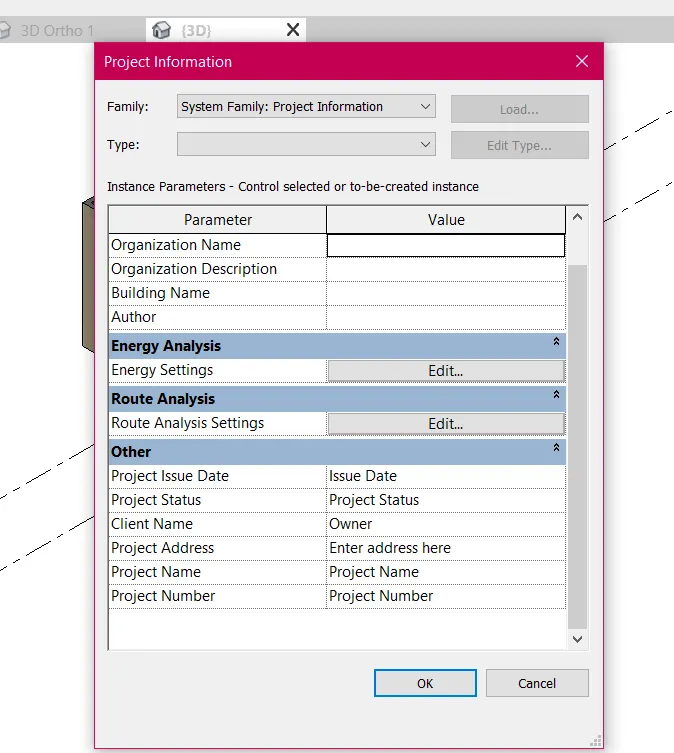
Commands Used:-
- manage tool
- Project information
Procedure:-
- Select the manage tool
- Go to the project information bar
- Give the details of the project name and issue date etc
Result:-
11. What is Analyze tool bar used in Revit? How it is beneficial for design and modelling
Ans:- Analyse tool bar is the tool which helps to combine the different loads in the structure , load combination, boundry conditions, etc. It is used to analyze the structure with all the different loads applied in the object with gives the analysis report as the result. It helps to detect the load failure in the structure.

These are the options in the analyze tool bar
12. What are the links that Revit supports to be linked to the model
Ans:- Links that revit supports are:-
- Link Revit
- Link IFC
- Link Topography
- Link CAD
These are the links supported by Revit software
13. Why do you need Collaborate tab in Revit? How it supports modelling and its efficiency
Ans:- collaborate in revit is a cloud based service which allows any revit users inside or outside the network to collaborate on the revit model. Many users can work under the same plan or drawing which makes the work more efficient and the productivity is more as many people can work under one project nd time is reduced in completing the project.