Week 1 Challenge
1. 1. Write the steps involved to upload a .std file through web mail?
2. Name the different materials that can be designed using STAAD Pro.
3. Is it possible to capture images in STAAD Pro? If yes how?
4. Name the three ways by which you can create a model.
5. Write the steps followed to assign properties in a model.
2. 1. Name any six design parameter involved in RCC design.
2. What are the different cursor types available in STAAD Pro?
3. How will you generate different views for a model? State the steps involved.
4. Explain the procedure to define a “Simply Supported” condition in STAAD Pro
5. Name any five topics that you will include while creating DBR.
6. Describe the term “Multi material design” of STAAD Pro.
3. 1. Name the structure systems in STAAD Pro? Explain each system?
2. Explain the coordinate system adopted in STAAD Pro software.
3. Elaborate DBR and its uses.
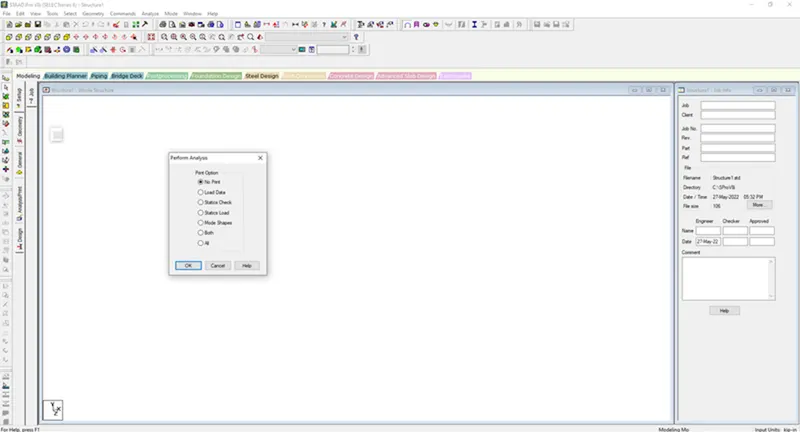
4. Explain the different types of analysis options in STAAD pro.
5. Explain the difference between Fixed and Fixed But condition.
Practical
1. Create a STAAD Model with the following Specification
a. A beam of span 16m
b. Support : Fixed on one end and Roller support(Horizontal) on the other end
c. A point load of 50 kN at the mid-point
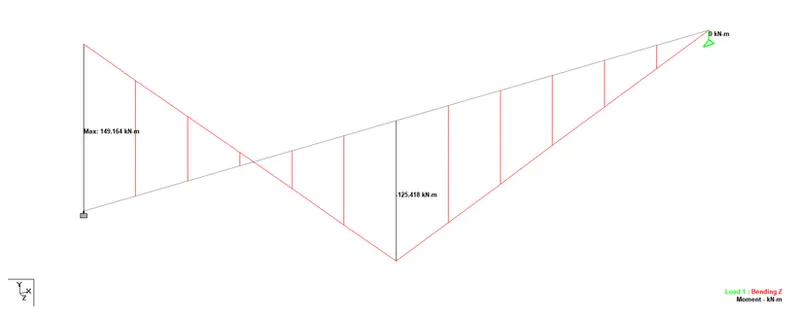
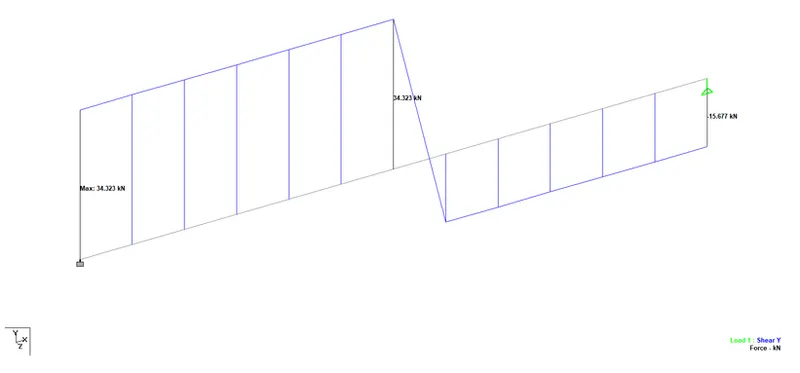
d. Draw SFD and BMD using software
ANSWER:-
1.1
- Select STAAD Import from the backstage.
The Import from STAAD.Pro dialog opens.
- Click [...] in General settings to browse and select a STAAD.Pro (*.std) file to import.
- Select Use Mapping File in Section Mapping settings, and then click [...] to browse and select a mapping file to import.
Note: Mapping files are delivered with AECOsim Building Designer, and are named using analysis program names. Their function is to compare two lists of section data, and to map the STAAD.Pro sections to the corresponding sections in AECOsim Building Designer. They are located in the active configuration \\Configuration\Datasets\[active dataset]\Datadata folder
- Set the catalog type and catalog instance assignments for the imported member types. This data is used by AECOsim Building Designer to rebuild the members' structural data as defined in the structural member catalogs.
- In Steel settings, select a section definition that is to be designated as the Default Section Name. This section definition is applied to imported members whose section data is not available in AECOsim Building Designer.
- Check Verify to scan the imported file for unknown sections.
The Unknown Sections dialog appears providing an opportunity to write the unknown sections to the active XML section definition file before importing.
- In Revision Tracking, check Use Design History. Design History tracks changes to a DGN file. Viewing details about the revision by using the controls on this tool.
- Click Import.
The update design dialogue appears. Review detailed information about each imported member and select which ones you want to import before accepting them into the target DGN file.
Note: Update Design Results contains Load Case and Load Combination data imported from the STAAD.Pro (*.std) file. - Click Update to complete the import process.
The structure is updated.
To create a new isotropic material definition for use with your model, use the following procedure.
You may want to set the input units to a familiar set of units for defining materials before creating a new material definition.
- Select the Materials page in the Analytical Modeling page control bar.
The Material - Whole Structure dialog and the Materials table open.
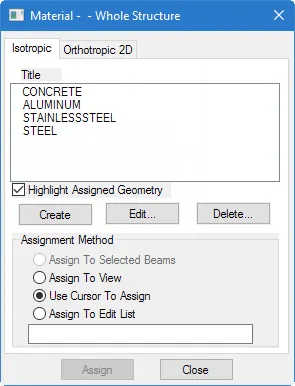
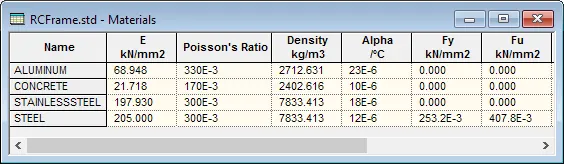
- In the Material - Whole Structure dialog Isotropic tab, click Create.
The Isotropic Material dialog opens.
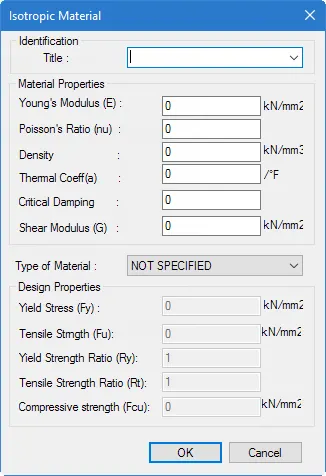
- Type a Title to identify the material. This title must be different than the predefined material names or any other existing user-defined material name.
- Type the values of the Material Properties used for analysis:
- Young's Modulus, E
- Poisson's Ratio, ν
- Density, γ
- Thermal Coefficient, α
- Critical Damping
- Shear Modulus, G
- Select the Type of Material from the drop-down list.
- Type the strength values in the Design Properties section. The fields corresponding to the selected material type are active.
- Click OK.
- Analytical
- Physical
- Building
steps followed to assign properties in a model.
Go to roperties tab
- For Concrete---> Define--->Rectangle--->Enter dimension in x and y
- For Steel---> Section database--->Indian---> Choose section
2.
2.1 six design parameter involved in RCC design.
- Ultimate tensile strength of steel - FU
- Yield strength of steel - FY
- Effective length factor - Kx Ky Kz
- Length for torsional buckling - LX Ly LZ
- Allowable L / R in comprssion - MAIN
- Max allowable local deflection - DFF
- Clear cover
- Cmpressie strength of concrete - Fck
Right click and select cursor the option are available
- Node cursor
- Bema cursor
- Plate cursor
- Surface cursor
- Solid Cursor
- Plate and Solid cursor
- Geomatric cursor
- Physical membrane
Go to the support command in the tool palet command
- Click on create support command
- There we can get option like fixed support , pin support , Fixed but
- Enforced but support
- Cable support
- Inclined support
- To take up a project from the scrach to the end this is need
- To specify the data and compile data recived and analysis and design of structural element
- It contains the assumption and specification to develop the project
- It will help to avoid the scope and the creep that can derail the projec schedule and lead to budget overness
- Contains the general Column drawing
- Contains the projec planning
- It is used for 3D model generation, analysis and multi -material design .
- The STAAD .Pro supports several steel , concrete and timber material in a seprate member
- This seprate member will cordinate and the formed in to a structure
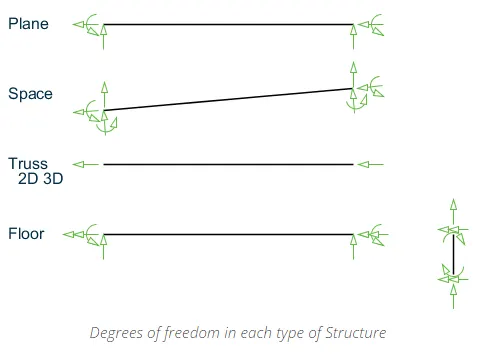
They are four structural system in staad pro :
Structure System Geometry Loading Deform Joint
Space 3D 3D 3D ANY
Plane 2D 2D 2D ANY
Frame 2D PARPEN TO XZ PERPEN TO XZ ANY
Truss 3D 3D 3D Pinned
- Global Axis : Gloabal Axis is fixed in the coordiate system
- Local axis : local axis is variable
- This is used for the orientation of the beam with the load varible
- DBR : Design basis report . And its uses are as follows;
- To take up a project from the scrach to the end this is need
- To specify the data and compile data recived and analysis and design of structural element
- It contains the assumption and specification to develop the project
- It will help to avoid the scope and the creep that can derail the projec schedule and lead to budget overness
- Contains the general Column drawing
- In fixed condition the node or the end condition are fixed are restrained with the FX , FY, FZ and the moment are also restrained
- In Fixed But condition the node are Fx and MZ are released as it is horizontal rolled support
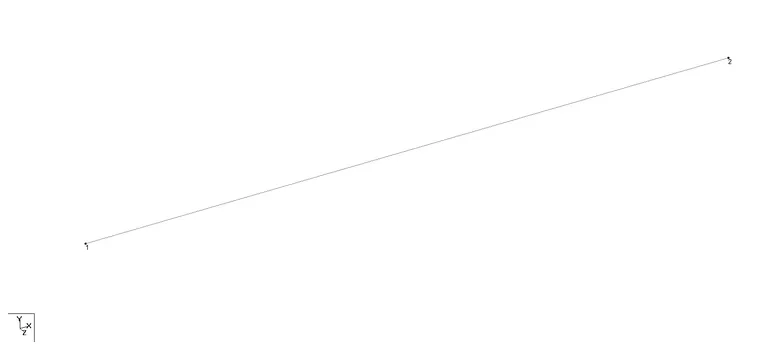
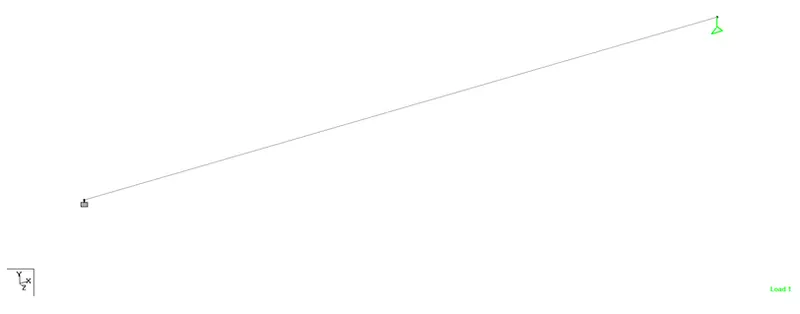
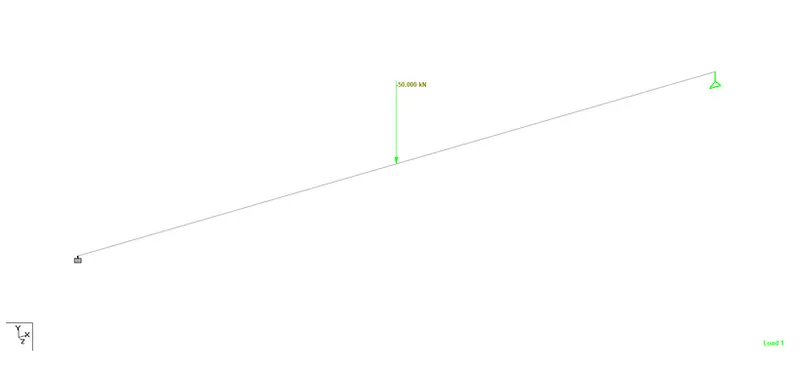
To create a STAAD PRO model following given procedure.
Procedure:-
Conclusion:-
SFD and BMD of the above beam is shown.
Result:-
SFD and BMD of the above beam is shown.