Week 1 Challenge
QUESTION:-
1. 1. Write the steps involved to upload a .std file through web mail?
2. Name the different materials that can be designed using STAAD Pro.
3. Is it possible to capture images in STAAD Pro? If yes how?
4. Name the three ways by which you can create a model.
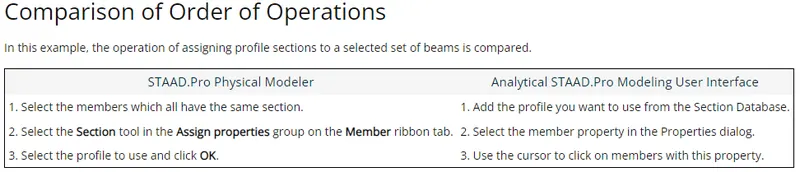
5. Write the steps followed to assign properties in a model.
2. 1. Name any six design parameter involved in RCC design.
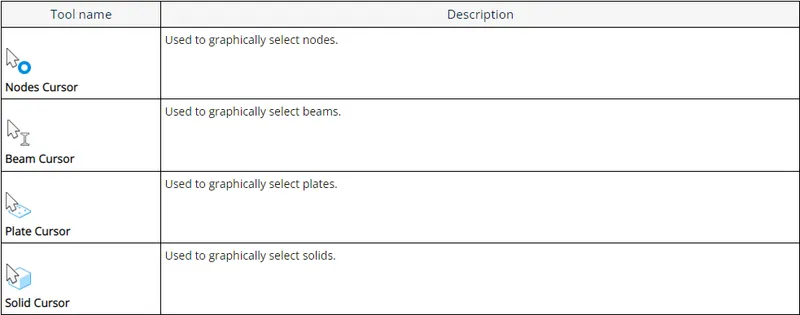
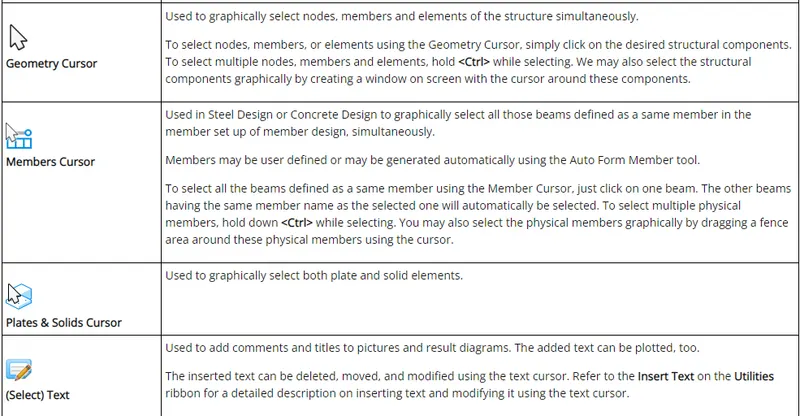
2. What are the different cursor types available in STAAD Pro?
3. How will you generate different views for a model? State the steps involved.
4. Explain the procedure to define a “Simply Supported” condition in STAAD Pro
5. Name any five topics that you will include while creating DBR.
6. Describe the term “Multi material design” of STAAD Pro.
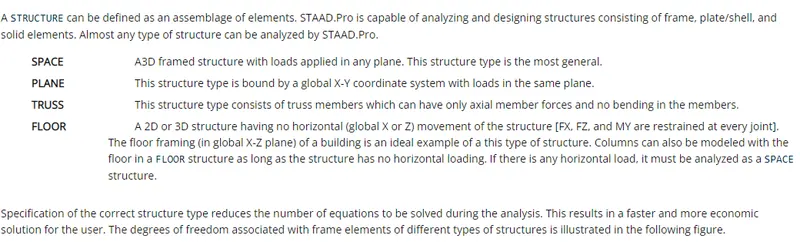
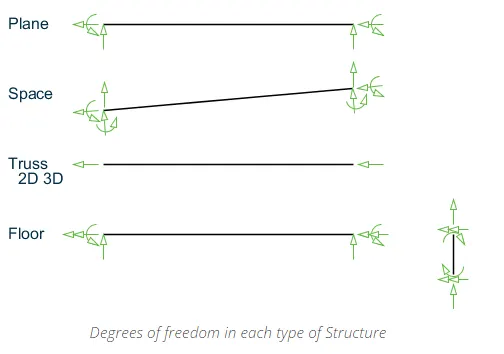
3. 1. Name the structure systems in STAAD Pro? Explain each system?
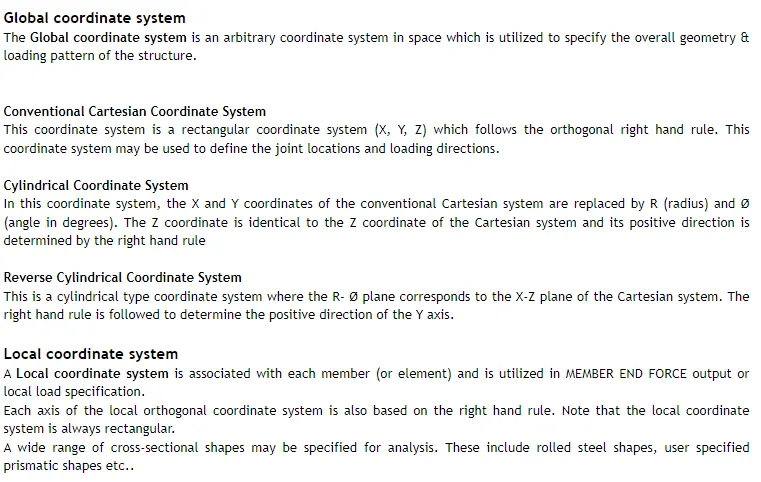
2. Explain the coordinate system adopted in STAAD Pro software.
3. Elaborate DBR and its uses.
4. Explain the different types of analysis options in STAAD pro.
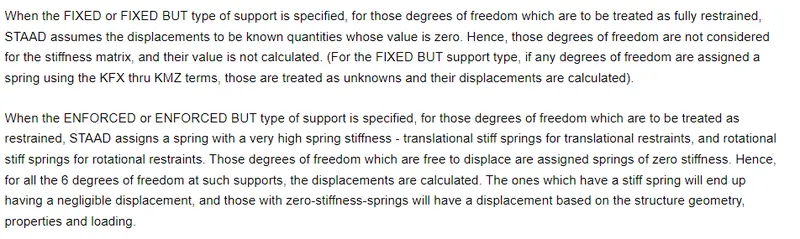
5. Explain the difference between Fixed and Fixed But condition.
Practical
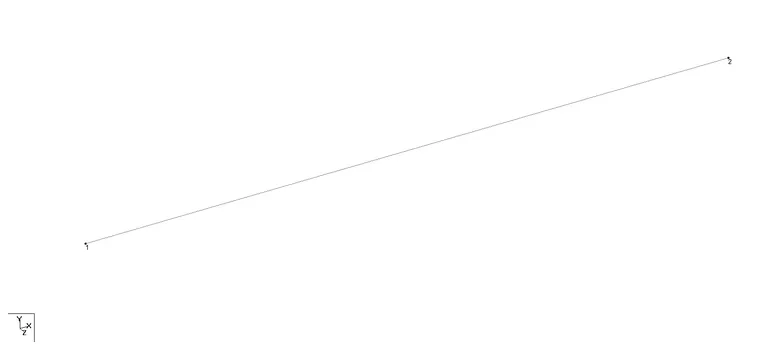
1. Create a STAAD Model with the following Specification
a. A beam of span 16m
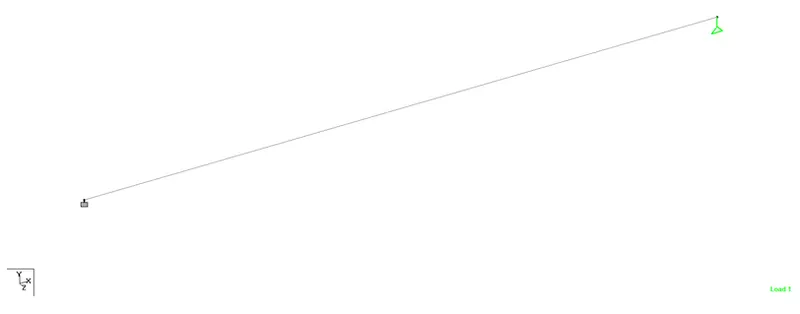
b. Support : Fixed on one end and Roller support(Horizontal) on the other end
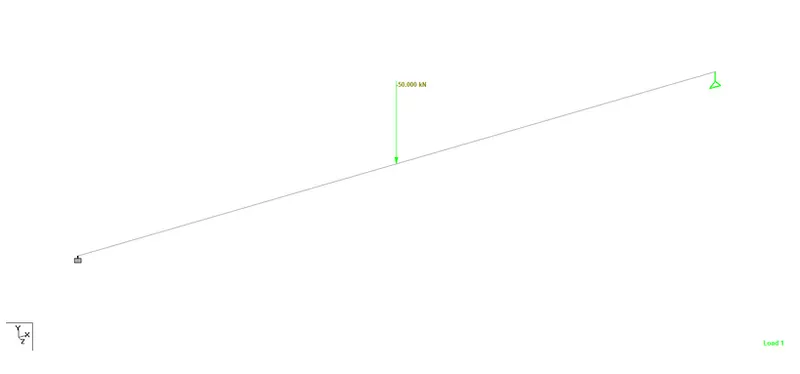
c. A point load of 50 kN at the mid-point
d. Draw SFD and BMD using software
ANSWER:-
1.1
- Select STAAD Import from the backstage.
The Import from STAAD.Pro dialog opens.
- Click [...] in General settings to browse and select a STAAD.Pro (*.std) file to import.
- Select Use Mapping File in Section Mapping settings, and then click [...] to browse and select a mapping file to import.
Note: Mapping files are delivered with AECOsim Building Designer, and are named using analysis program names. Their function is to compare two lists of section data, and to map the STAAD.Pro sections to the corresponding sections in AECOsim Building Designer. They are located in the active configuration \\Configuration\Datasets\[active dataset]\Datadata folder
- Set the catalog type and catalog instance assignments for the imported member types. This data is used by AECOsim Building Designer to rebuild the members' structural data as defined in the structural member catalogs.
- In Steel settings, select a section definition that is to be designated as the Default Section Name. This section definition is applied to imported members whose section data is not available in AECOsim Building Designer.
- Check Verify to scan the imported file for unknown sections.
The Unknown Sections dialog appears providing an opportunity to write the unknown sections to the active XML section definition file before importing.
- In Revision Tracking, check Use Design History. Design History tracks changes to a DGN file. Viewing details about the revision by using the controls on this tool.
- Click Import.
The update design dialogue appears. Review detailed information about each imported member and select which ones you want to import before accepting them into the target DGN file.
Note: Update Design Results contains Load Case and Load Combination data imported from the STAAD.Pro (*.std) file. - Click Update to complete the import process.
The structure is updated.
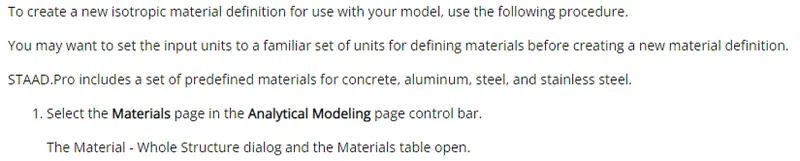
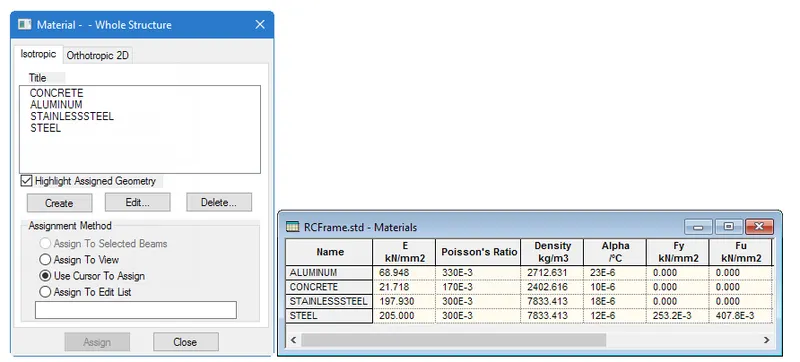

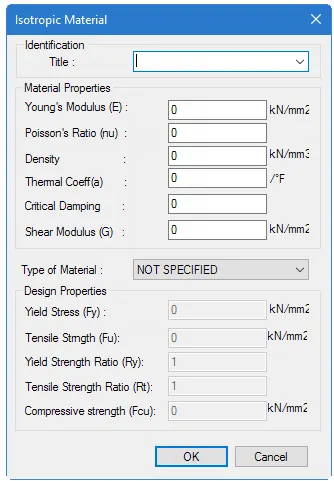
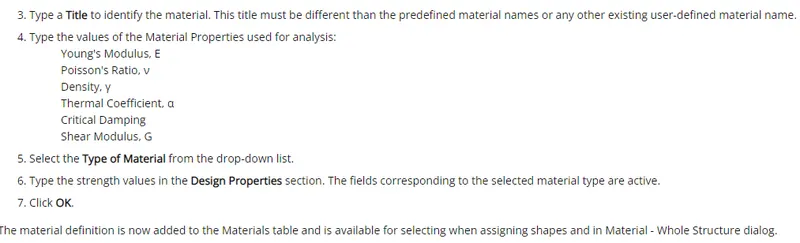
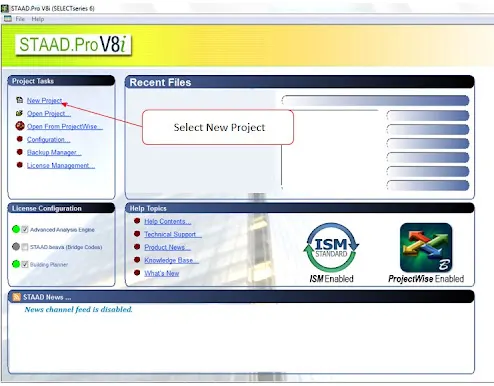
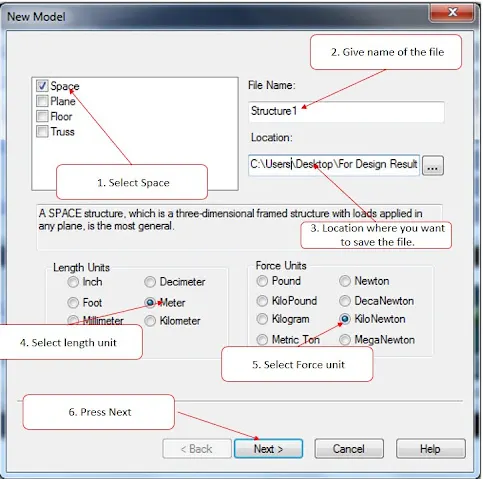
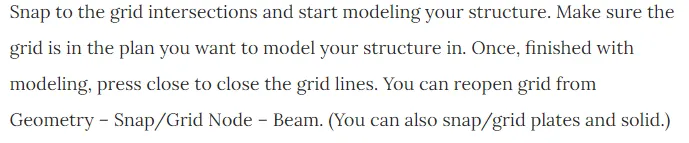

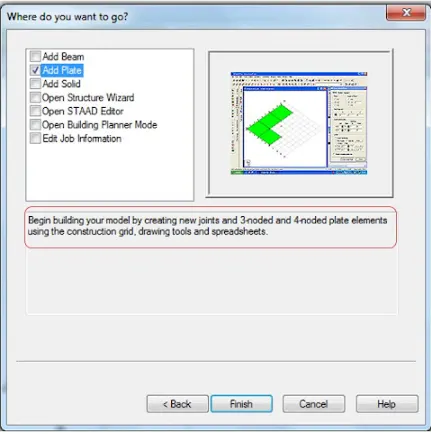

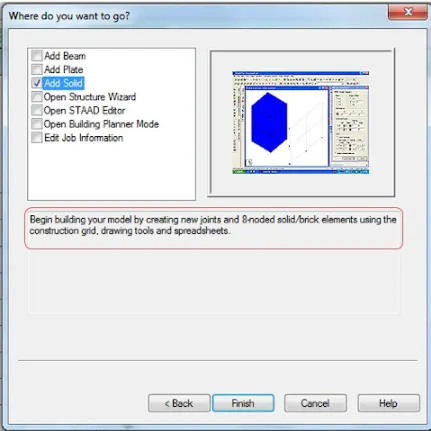

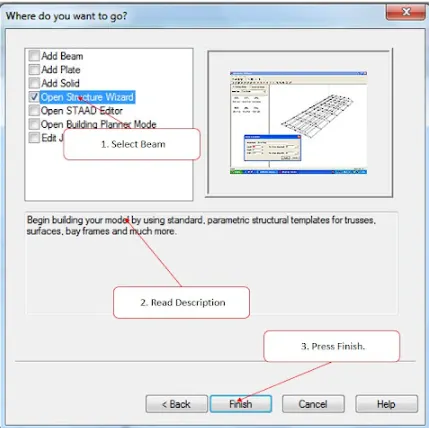



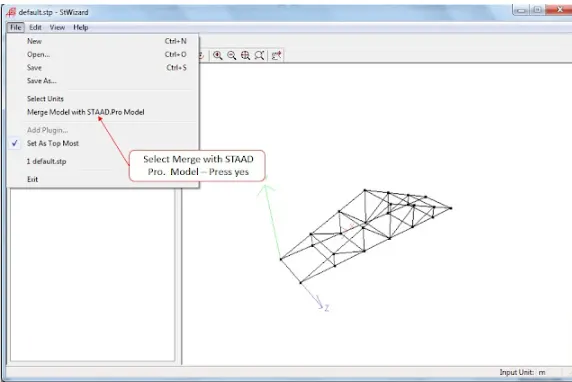
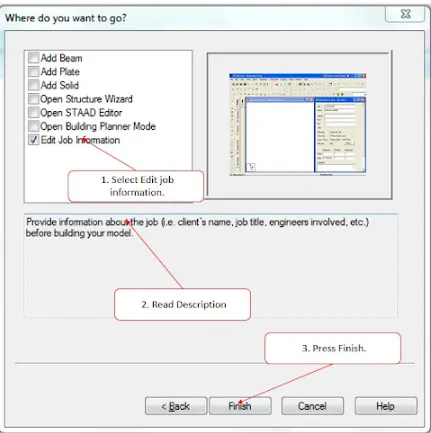
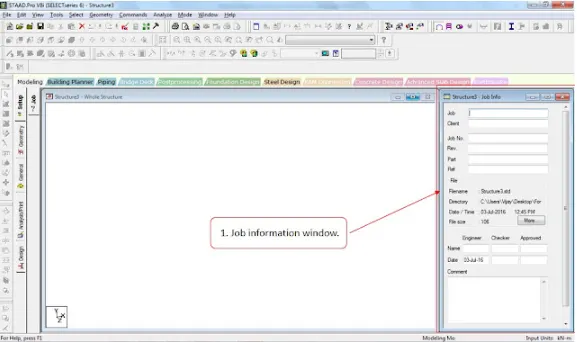


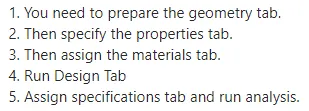
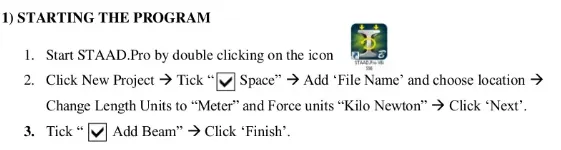
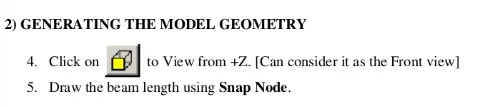
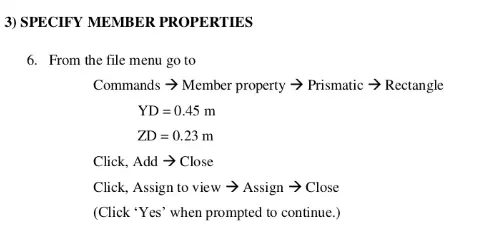
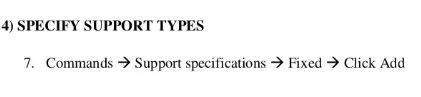


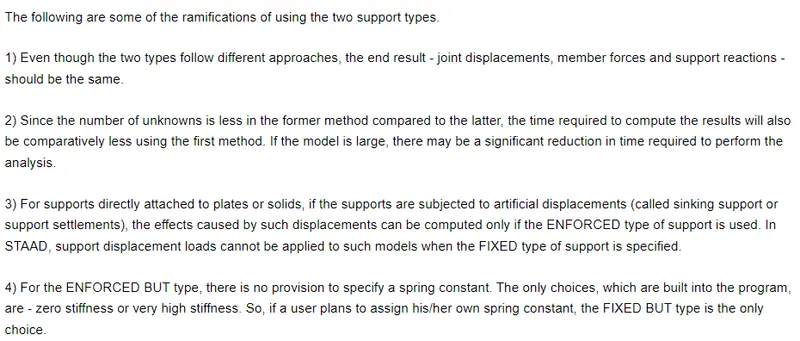

To create a STAAD PRO model following given procedure.
Procedure:-
Conclusion:-
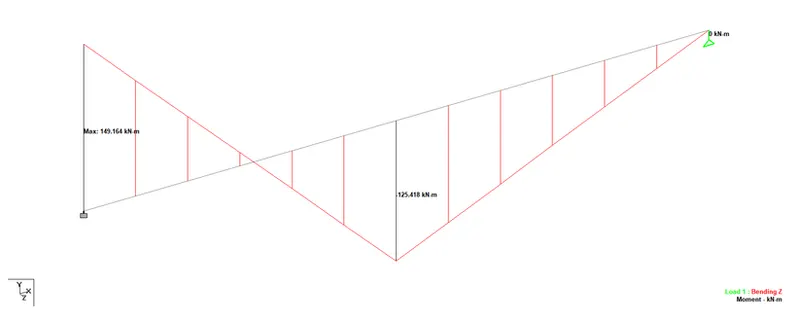
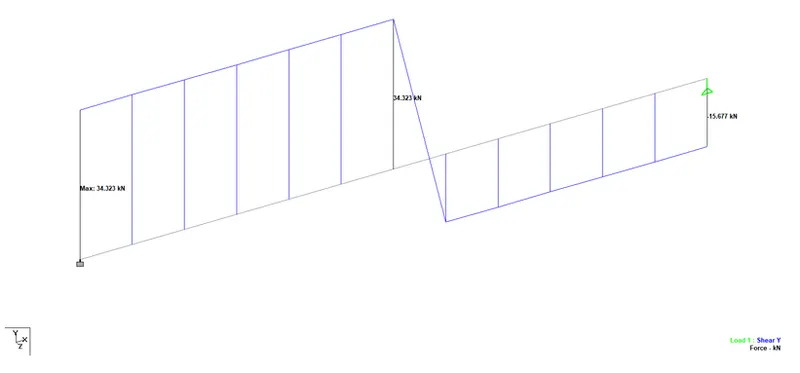
SFD and BMD of the above beam is shown.
Result:-
SFD and BMD of the above beam is shown.