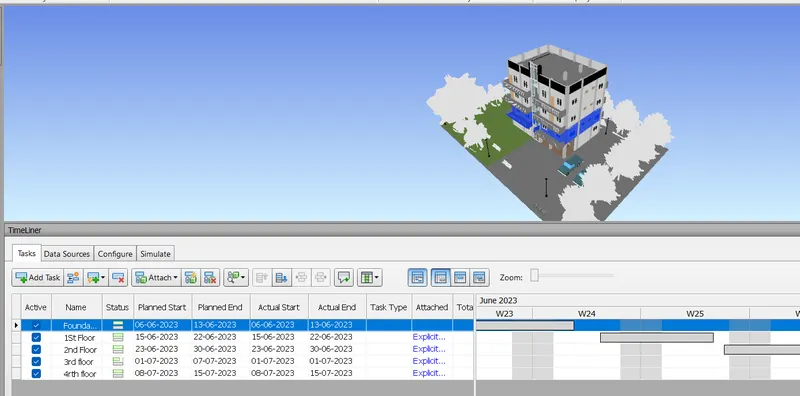
Usage of Navigation tool , Timeliner and Clash Detection test using Naviswork
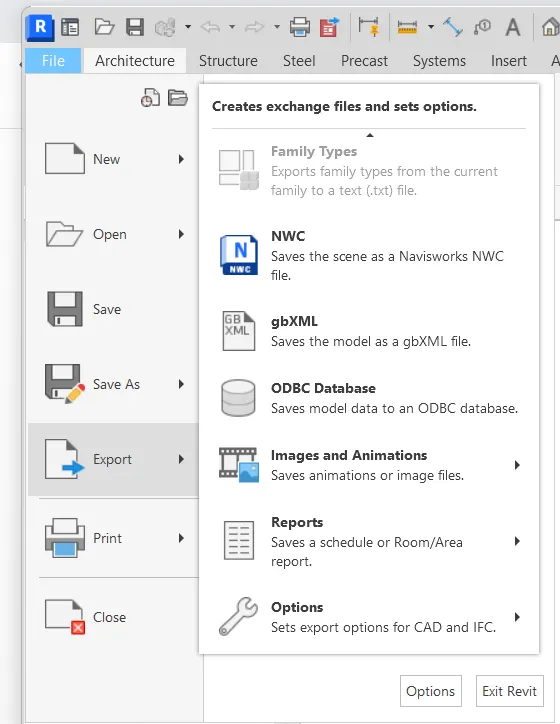
1. Aim: To export the Revit architectural and structural to Navisworks manage.
Procedure:
- Open the Revit software.
- Click on open and select week 7 Architectural and structural plan.
- Click on File and select export to NWC.
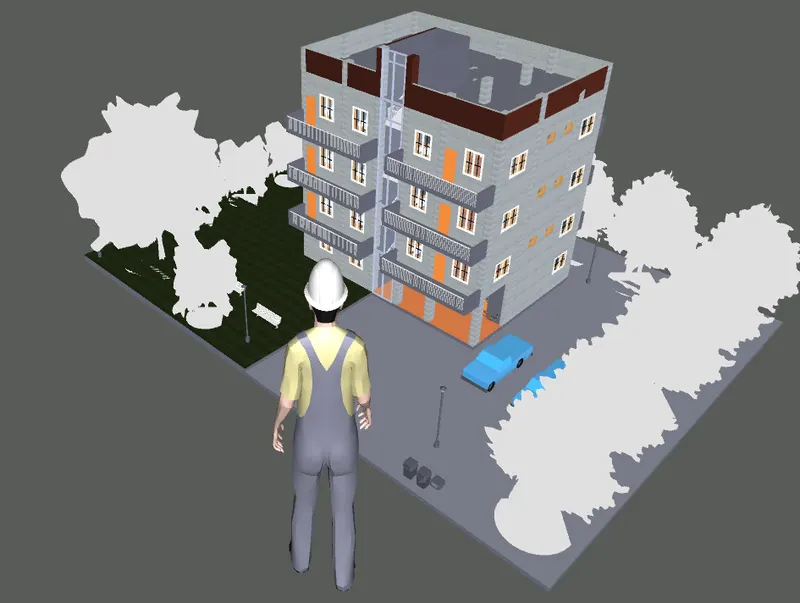
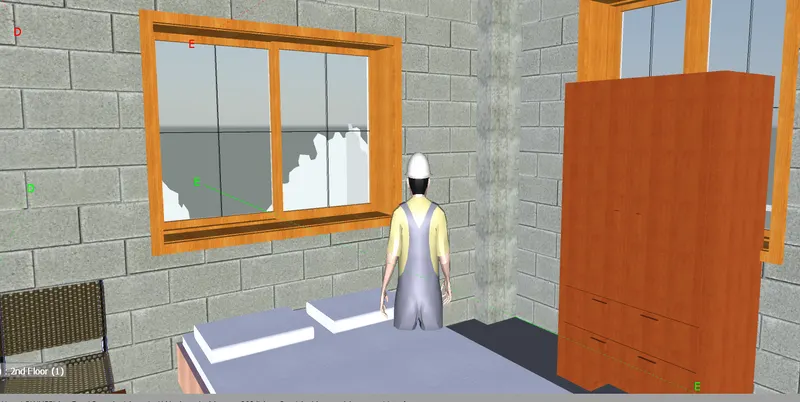
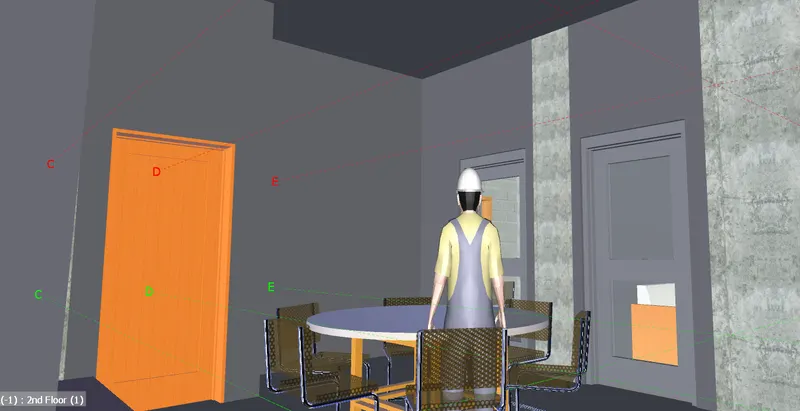
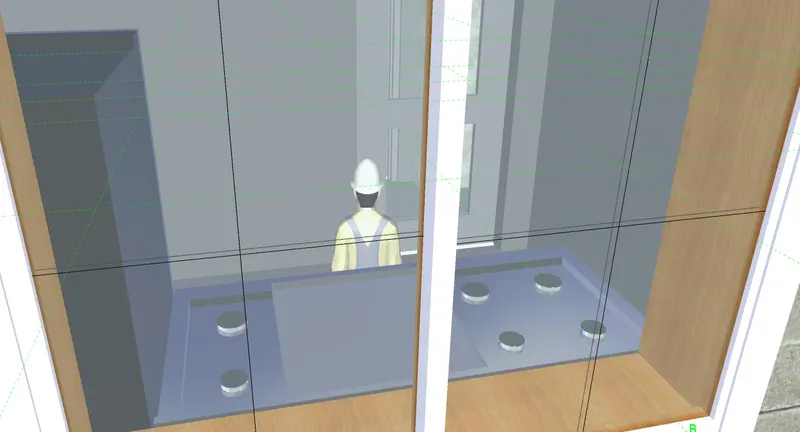
2. Aim: Use Navigate Tool to walk around the model and walking through the rooms and record moving as animation in the Navisworks file
Procedure:
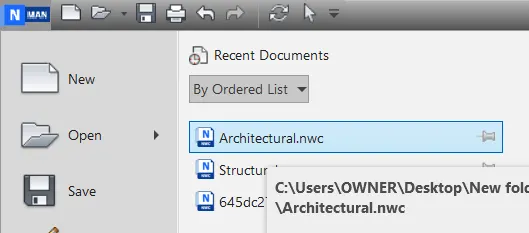
- Open the Navisworks mange.
- Click on open and select the file.
- Click on the record
- Select the walk.

- By adjusting the mouse and go inside.
- After that stop the recording.
- And click on viewpoints.
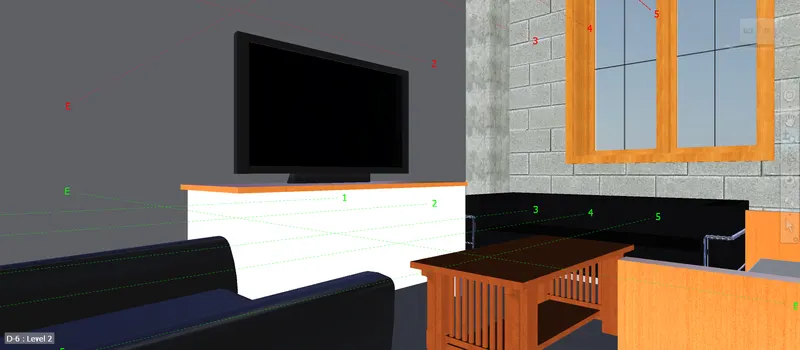
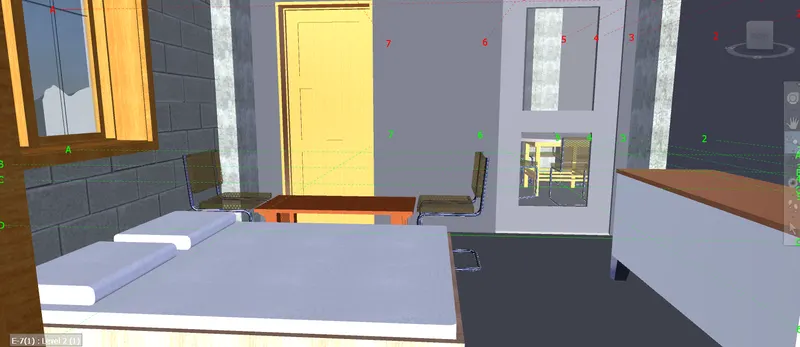
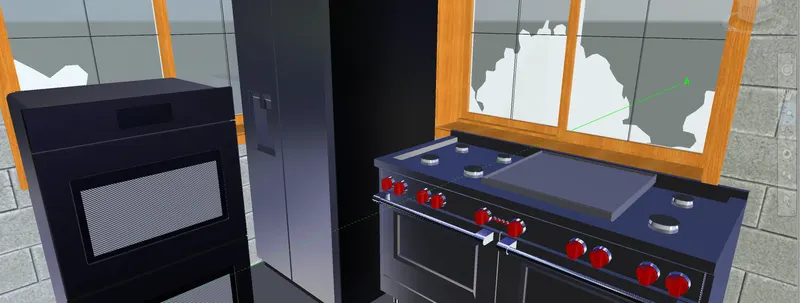
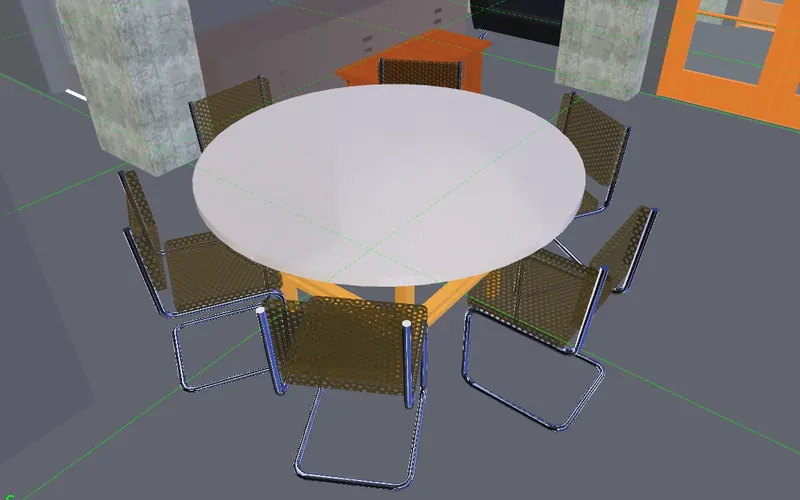
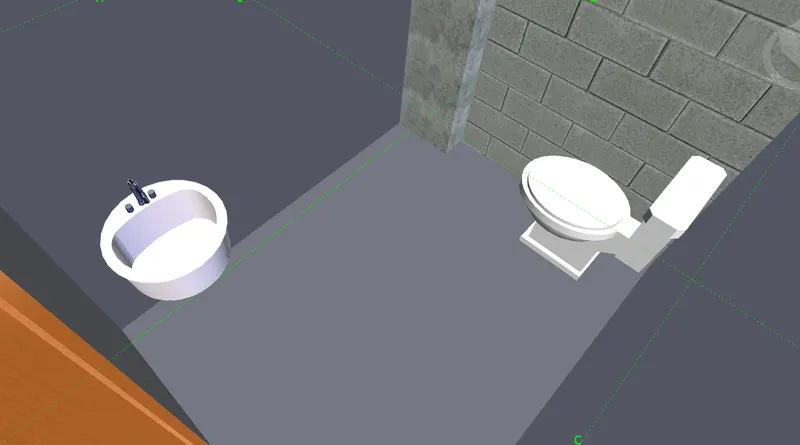
3. Aim: To Use Navigate tool to use the Realism feature to walk through the model and record your moving as animation in the Navisworks file.
Procedure:
- Open the Navisworks mange.
- Click on open and select the file.
- Click on realism

- And click on the Walk
- By adjusting the mouse and go inside.
- And save the viewpoint.
Result-
4. Aim: To create the clash detection test between the two models.
Procedure:
- Open the Navisworks mange.
- Click on open and select the Architectural file.
- click on append in home tab
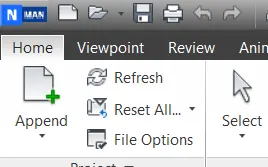
- select the structural model to identify clashes between models
- Goto home tab and select clash detective.
- Run the clash detection test

- click on clash detective
- select the architectural and structural section.
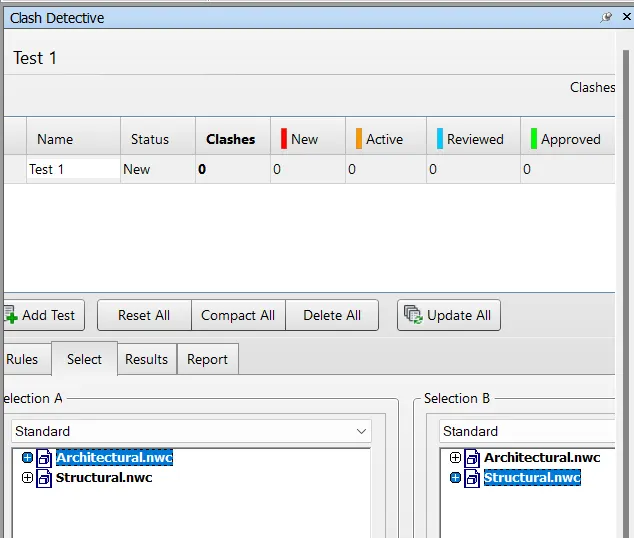
- click on run test
- Study the clash between the two models.Now.
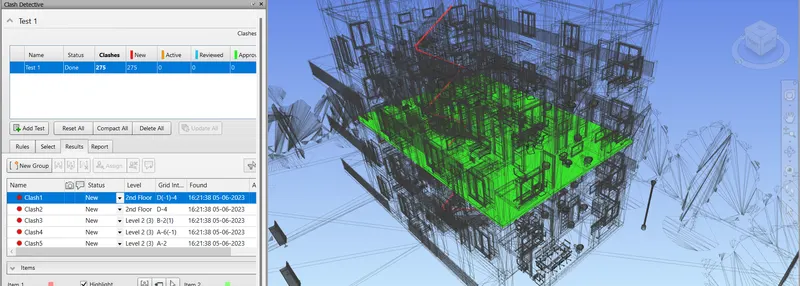
Result-
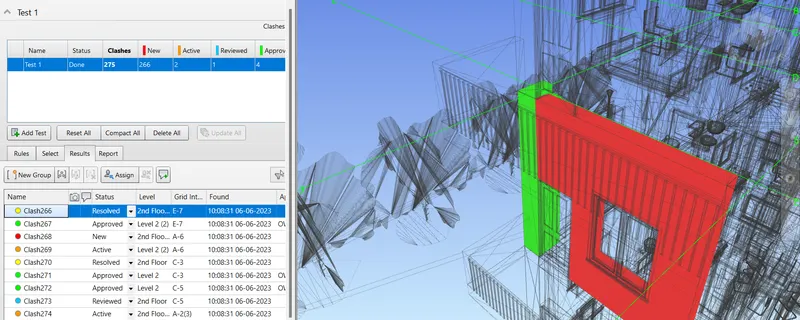
5. Aim: To use the Timeliner feature in Navisworks prepare a schedule for the project developed in week 6 to 8 by adding reasonable assumptions for task start date and end date and simulate the task completion as a visual simulation.
Procedure:
- Open the Navisworks mange.
- Click on open and select the file.
- go to home tab and click on timeliner.
- After clicking the timeliner.

- one dialogue box will open
- And click on add task.
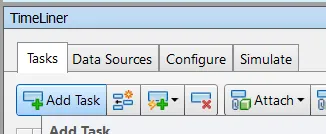
- Name that activity
- And select the dates as per requirement.
- Again add the task
- Enter the details as per requirement.
- After completion of all tasks.
- Go to stimulate.
Result-