Usage of Navigation tool , Timeliner and Clash Detection test using Naviswork
1.Aim:
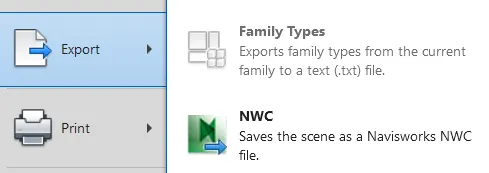
To export revit architectural and structural model to naviswork cache file.
Procedure:
- Open Revit file and choose new under that choose export and choose NWC file.
- If the file is not availbale download Neviswork export utility.
- Then save it with nwc format.
- Follow the same for structural model.
Result:
Thus the file is exported.
2.Aim:
To use navigation tool to walk around the model.
Procedure:
- Open naviswork manage software and attend the architectural nwc file.
- And from under viewport choose walk.
- And move the curser the move.
- And save the viewport bt recording it as video.
Result:
Thus the walk around model is made.
3.Aim:
To use the realism feature to walkthrought the model.
Procedure:
- Open naviswork manage and open file.
- Under viewport tab chooswe realism and make it walk through the model.
- And record the viewing.
Result:
Thus the realism walkthrough is done.
4.Aim:
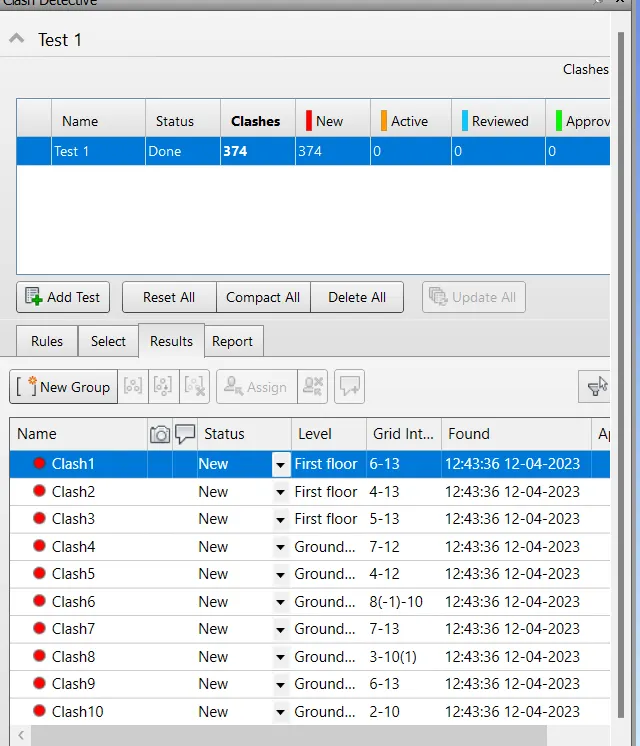
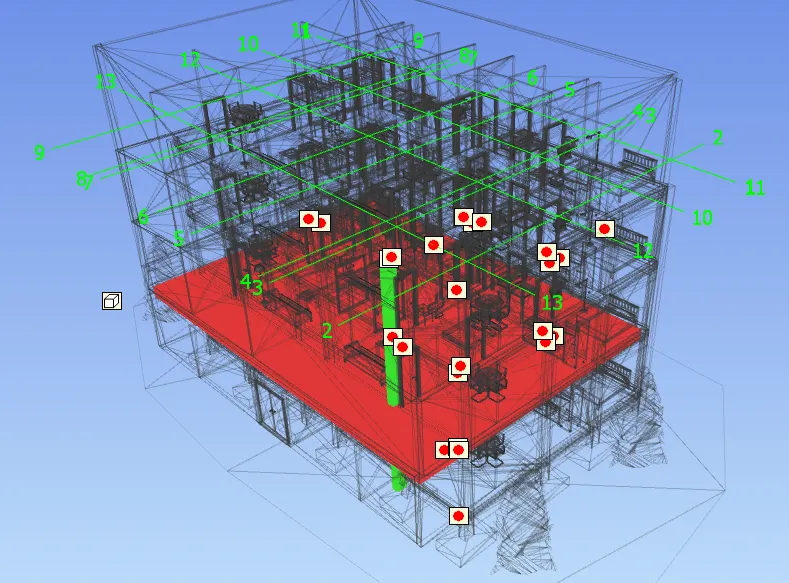
To create a clash detective test.
Procedure:
- Open naviswork manage and appen and merge the files.
- After than under viewport tab choose test detection.
- Give run test.
- It will show all the detect that happrn in it.
Result:
Thus the test detection test is done.
5.Aim:
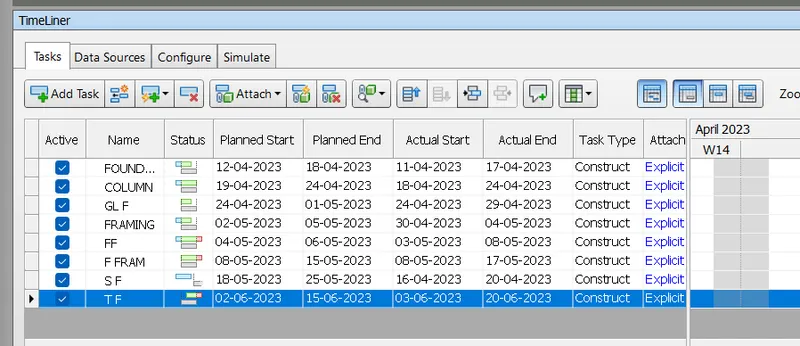
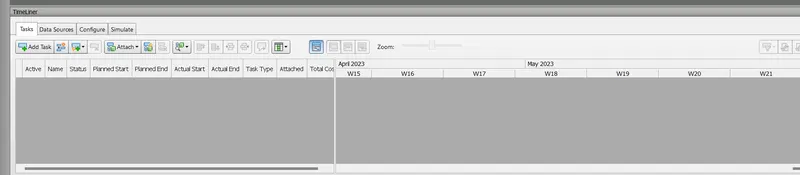
To use timeliner by naviswork.
Procedure:
- From naviswork manage after appen the models
- Under viewport choose timeliner.
- A dialogue box will appear.
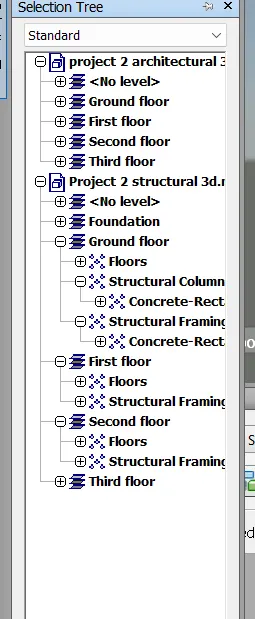
- And choose selection tree.
- And choose all the model and give the status and construction date and end date etc.
- And attach the file.
- After that choose simulation and it get stimulated.
Result:
Thus the timeliner is done in navigation.