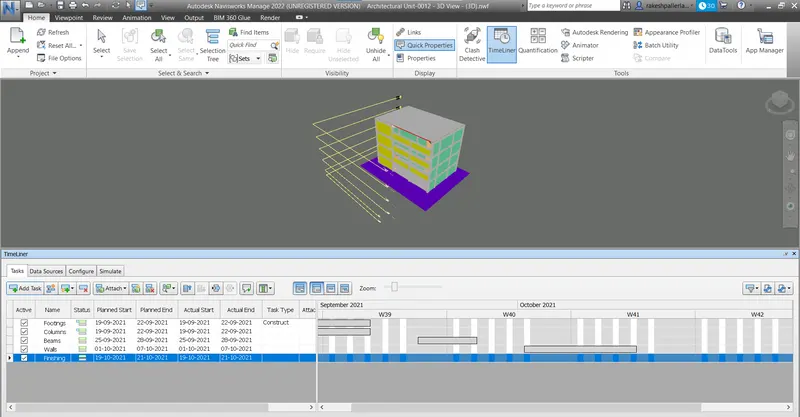
Usage of Navigation tool , Timeliner and Clash Detection test using Naviswork
1)
Aim: -
Export the Revit architecture and structure model to Navisworks Cache file
Procedure: -
- Open the Revit Software and Open the Architectural Model
- Now Click on file Option Now Export Model as DXF File
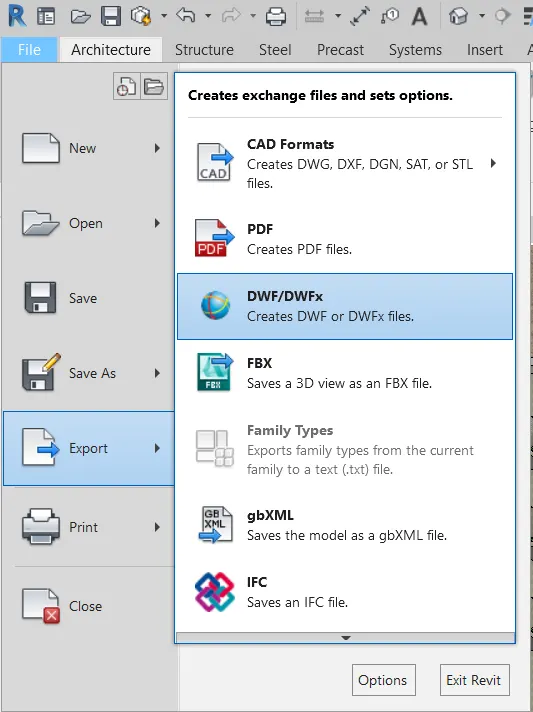
- Now Open the Navis Work Open the Menu
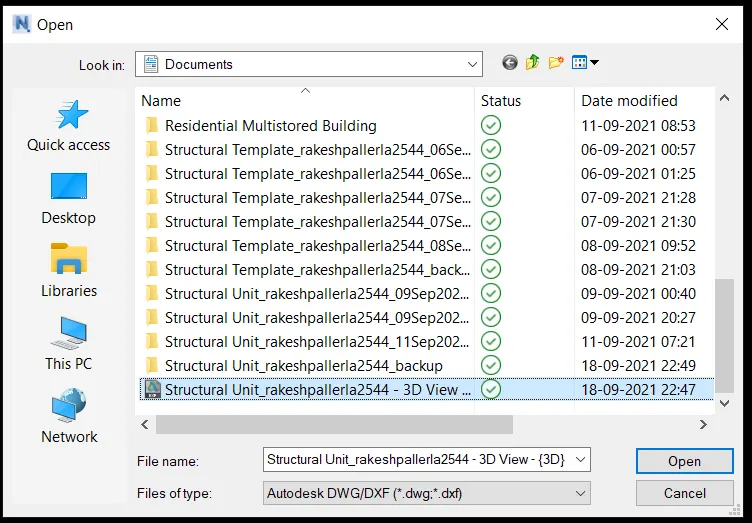
- Repeat the Same Procedure for Architectural Template
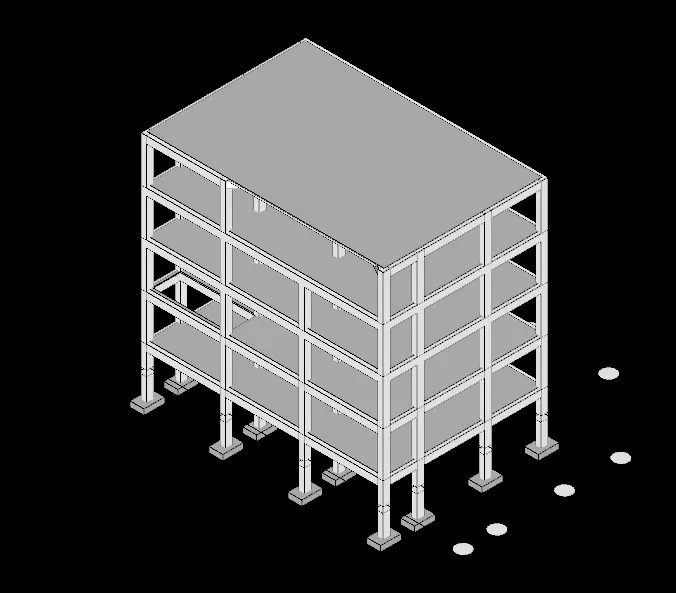
Result: -
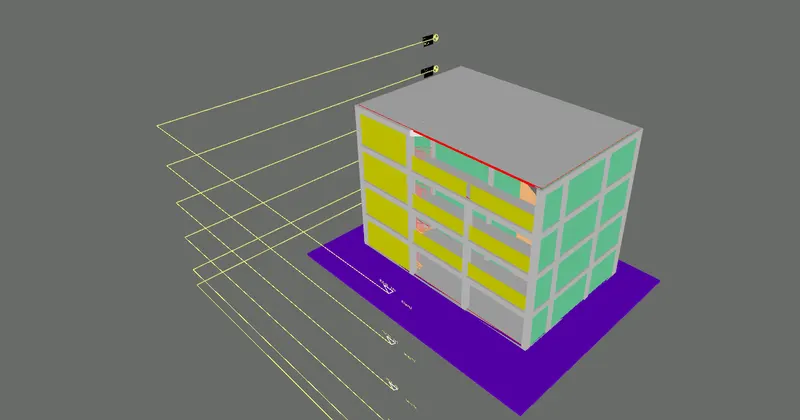
2)
Aim; -
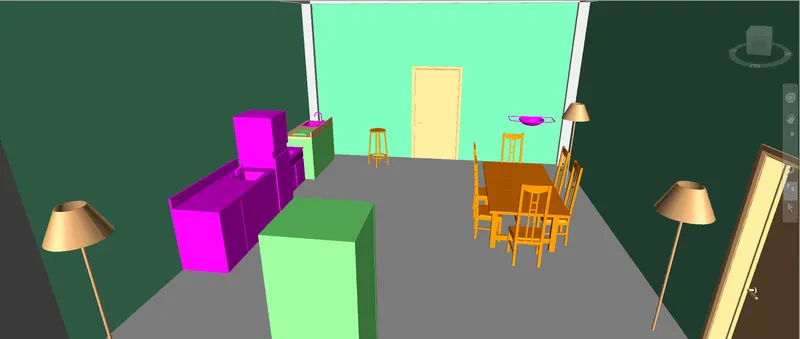
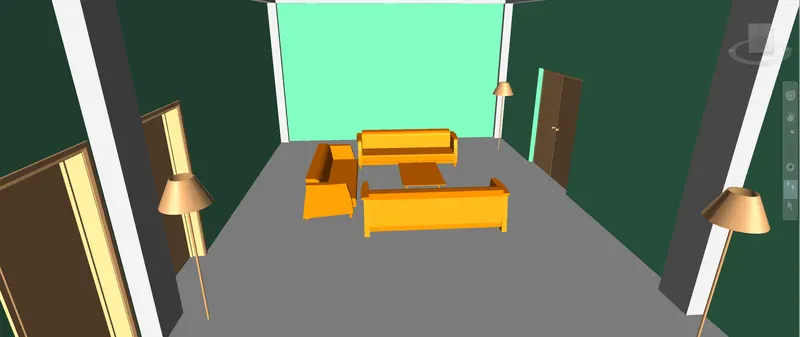
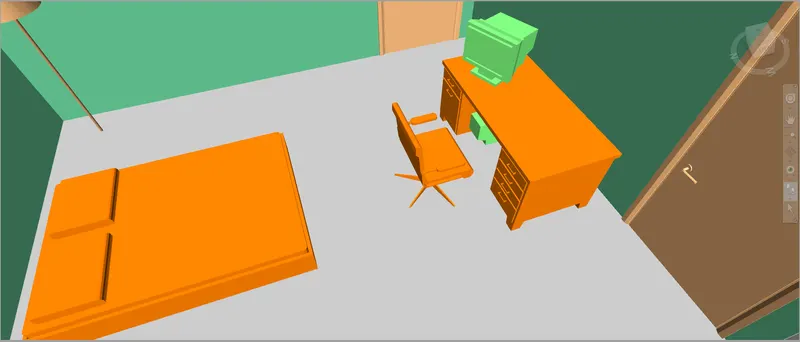
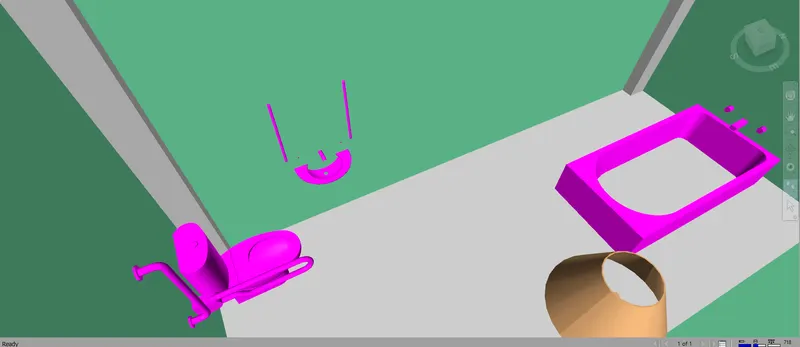
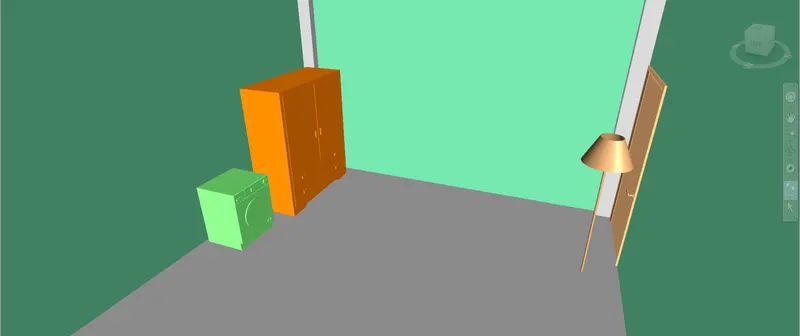
- Use Navigate Tool to walk around the model and walk through the rooms created and record your moving as animation in your Navisworks file
Procedure: -
- Open the Architectural Model In the Navis Work
- Go to View point and Click on Walk tool
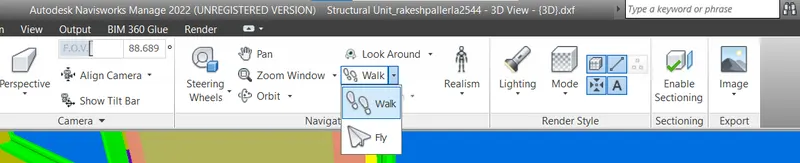
Result: -
3).
Aim: -
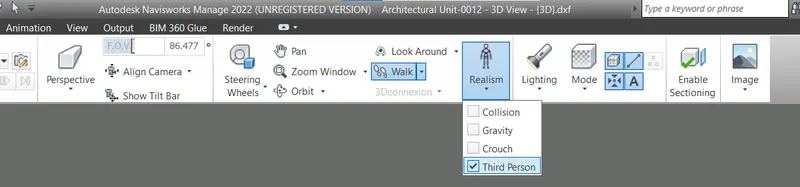
- Use Navigate tool to use Realism feature to walk through the model and record your moving as animation in Navisworks file
Procedure: -
- Open the Architectural Model In the Navis Work
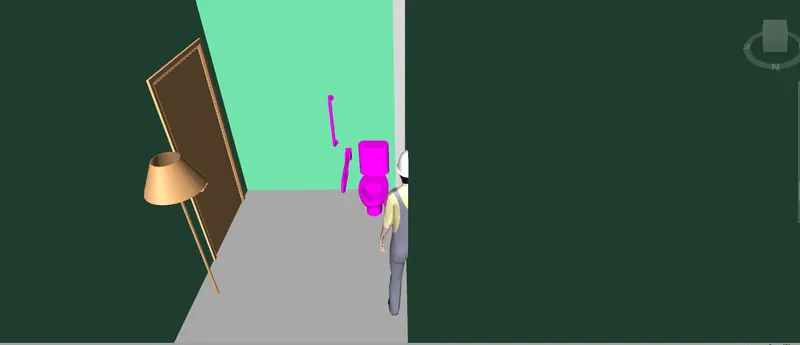
- Go to View point and Click on Realism in to Third Person
Result: -
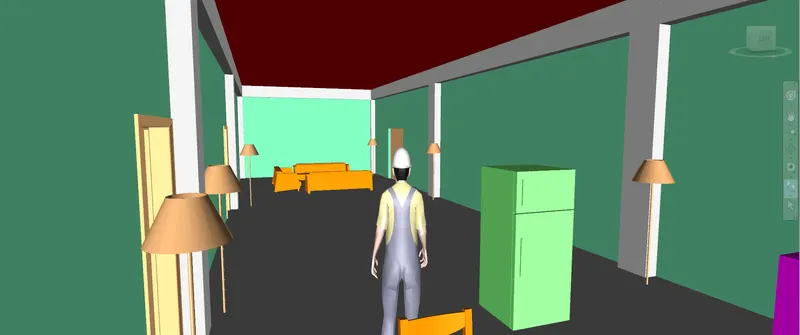
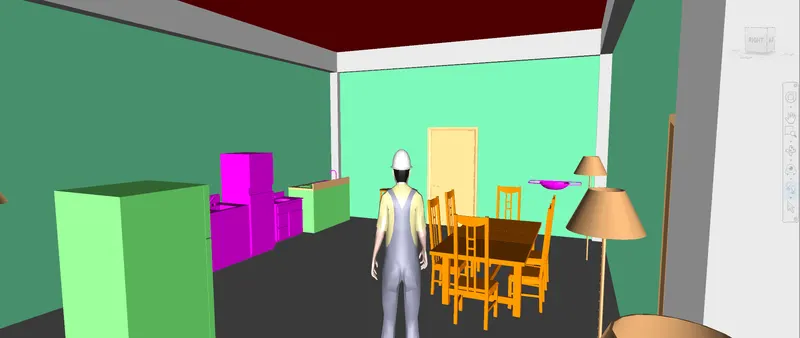
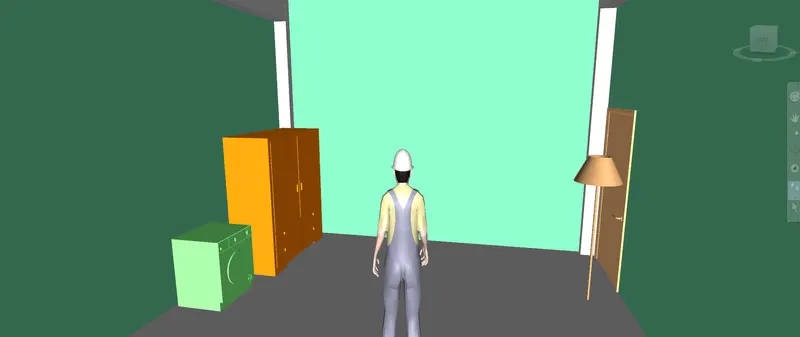
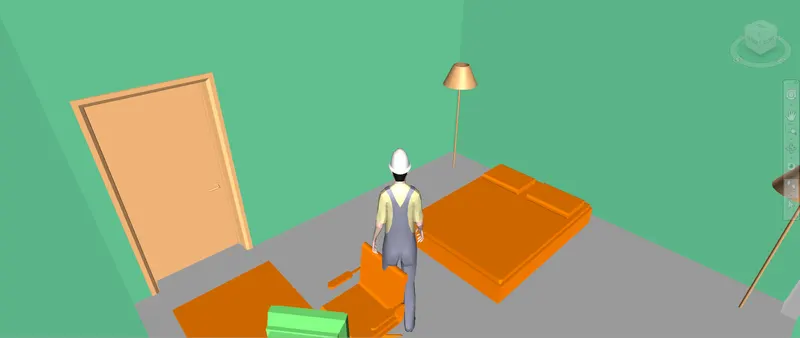
4)
Aim: -
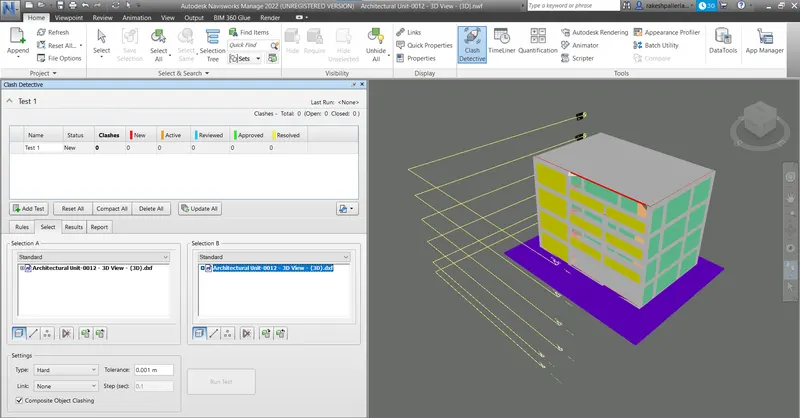
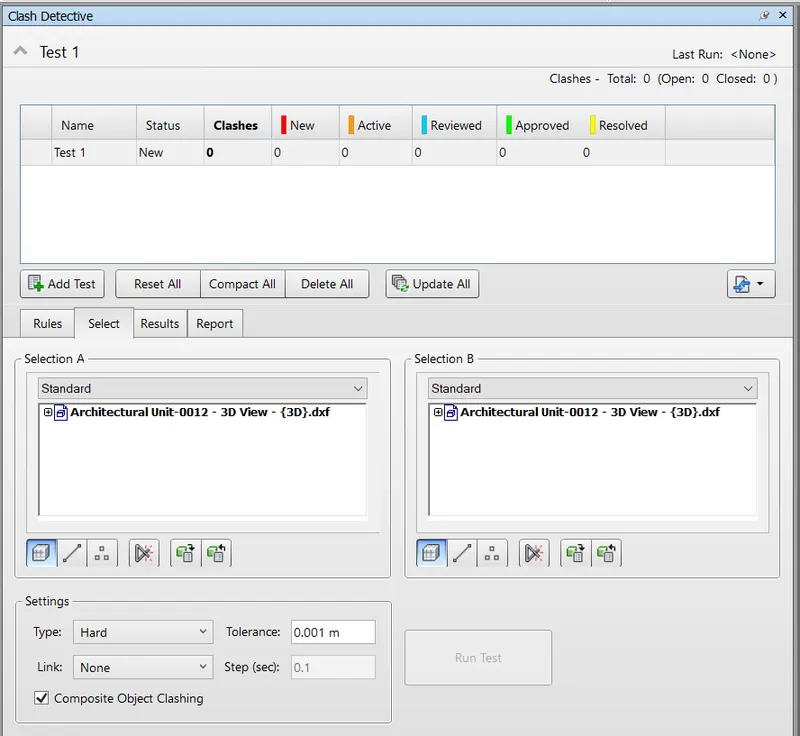
- Create a clash detection test between the two models
Procedure: -
- Select a Clash Detective From the Home Tab

Result: -
5)
Aim: -
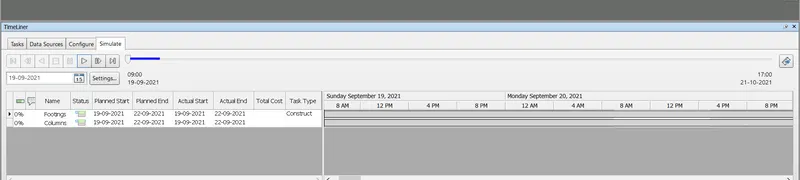
- Using the Timeliner feature in Navisworks prepare a schedule for the project
Procedure: -
- Select a Time Liner From the Home Tab

- Click on Attach and Select the Desired Levels & Components
- Now add the Start and End Date
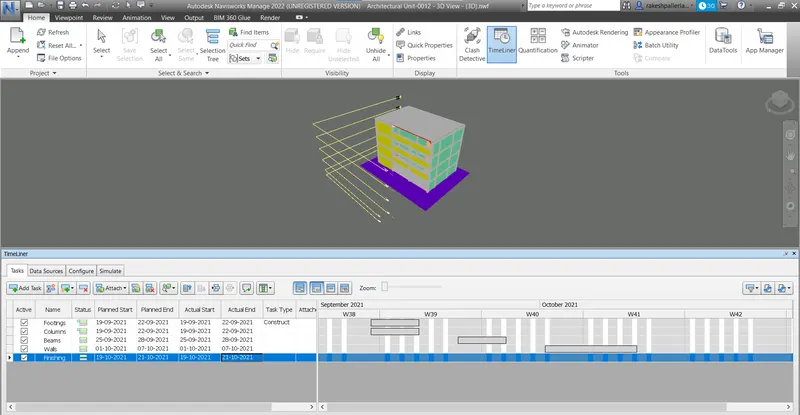
- Click on Simulate & Record It
Result: -