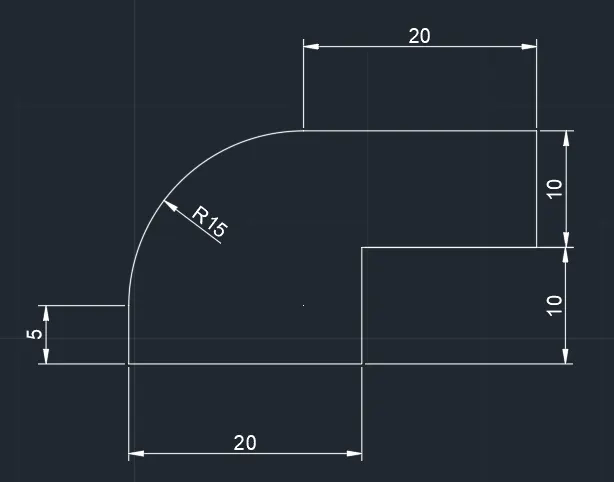
Drafting of various geometries using Chamfer, Fillet tool in AutoCad
1.
Aim:- Creating a Geometry Using Chamfer
Procedure:-
Step-1
- Give the Commond of REC In the Command Bar
- Select the specific Point
- Select the Dimensions From Command Bar
- Give the Commond Length 10 Units
- Give the Commond of Width 15 Units
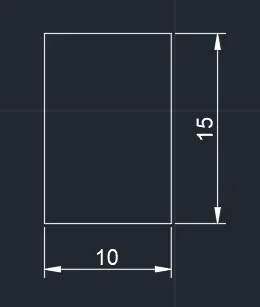
Step-2
- Give the Commond of Chamfer In the Command Bar
- Select the First Line of Rectangle
- Give the Chamfer Distance 2 Unit In the Command Bar
- Select the Second Lane
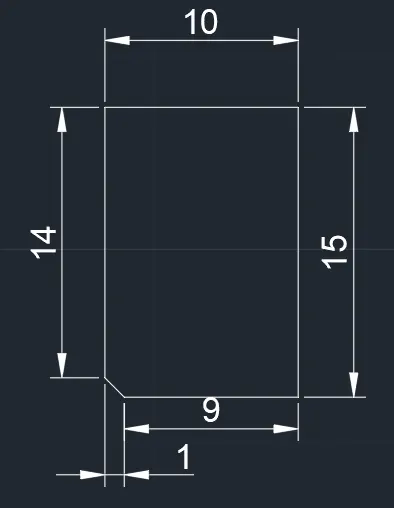
Step-3
- Give the Commond of Chamfer In the Command Bar
- Select the First Line of Rectangle
- Give the Chamfer Distance 2 Unit In the Command Bar
- Select the Second Lane
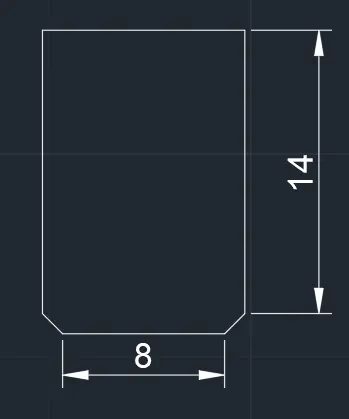
Step-4
- Give the Commond of Chamfer In the Command Bar
- Select the First Line of Rectangle
- Give the Chamfer Distance 2 Unit In the Command Bar
- Select the Second Lane
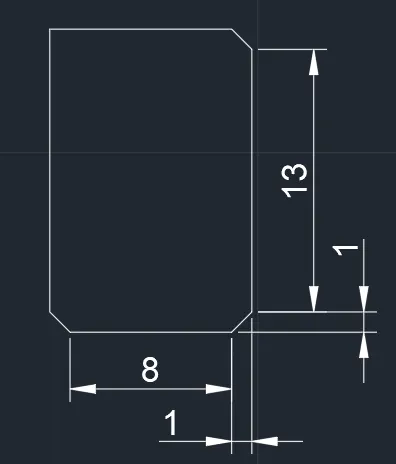
Step-5
- Give the Commond of Chamfer In the Command Bar
- Select the First Line of Rectangle
- Give the Chamfer Distance 2 Unit In the Command Bar
- Select the Second Lane
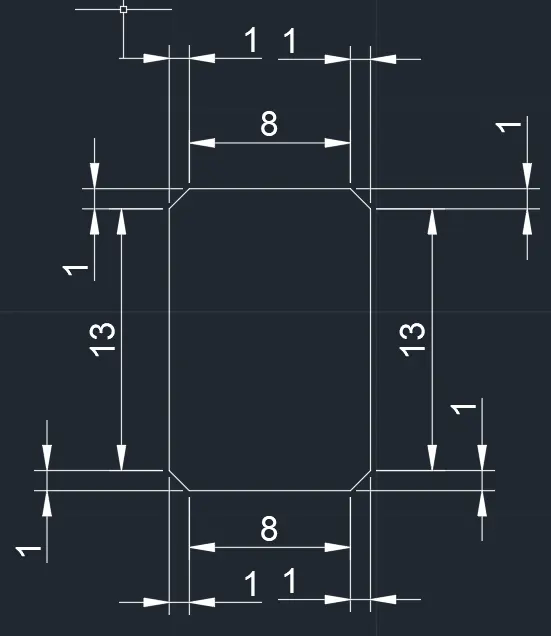
Result:-
2.
Aim:- Creating a Geometry Using Fillet
Procedure:-
Step-1
- Give the Commond of REC In the Command Bar
- Select the specific Point
- Select the Dimensions From Command Bar
- Give the Commond Length 10 Units
- Give the Commond of Width 15 Units
Step-2
- Give the Commond of Fillet In the Command Bar
- Select the First Line of Rectangle
- Give the Fillet Radius 5 Unit In the Command Bar
- Second Lane Of Rectangle
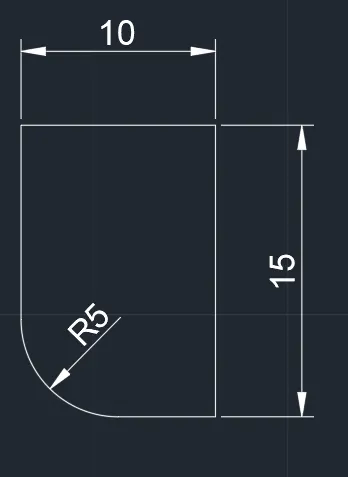
Step-3
- Give the Commond of Fillet In the Command Bar
- Select the First Line of Rectangle
- Give the Fillet Radius 5 Unit In the Command Bar
- Second Lane Of Rectangle
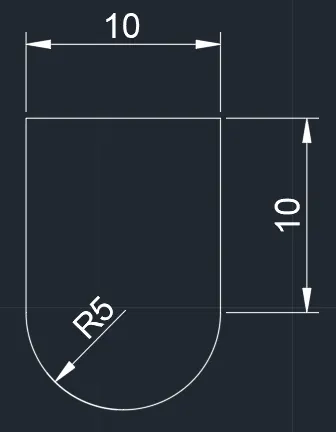
Step-4
- Give the Commond of Fillet In the Command Bar
- Select the First Line of Rectangle
- Give the Fillet Radius 5 Unit In the Command Bar
- Second Lane Of Rectangle
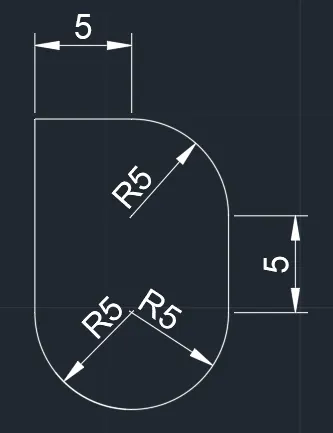
Step-5
- Give the Commond of Fillet In the Command Bar
- Select the First Line of Rectangle
- Give the Fillet Radius 5 Unit In the Command Bar
- Second Lane Of Rectangle
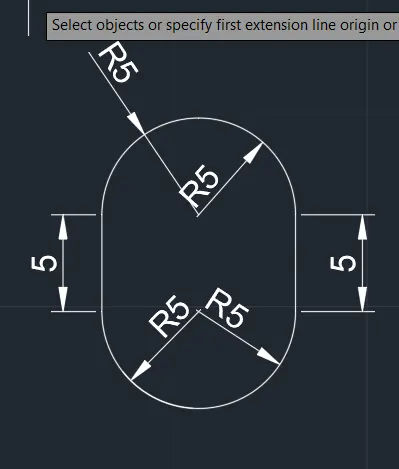
- Result:-
3.
Aim:- Create a Geometry Using Chamfer
Procedure:-
Step-1
- Give the Command of "Pl" in Command Bar
- Specify the statrting Point
- Move the Curser to -Y Direction Give 20 Units in Command Bar
- Move the Curser to X direction Give 20 Units In Command Bar
- Move the Curser to Y direction Give 10 Units In Command Bar
- Move the Curser to X direction Give 15 Units In Command Bar
- Move the Curser to Y direction Give 10 Units In Command Bar
- Select the Close From the Comamnd Bar
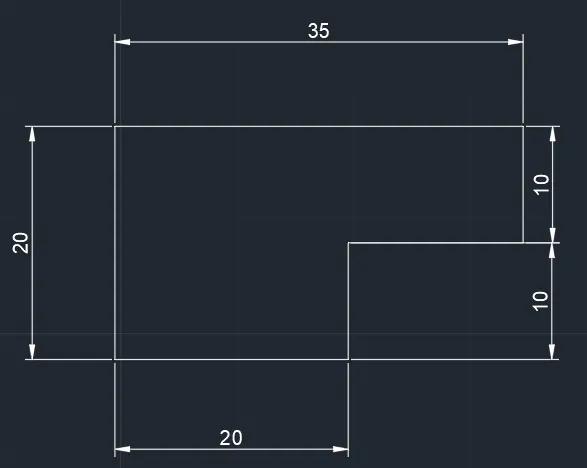
Step-2
- Give the Command of Chamfer in Command Bar
- Select the First Line
- Choose the Angle Option From Command Bar
- Mention the Chamfer Length 10 units In Command Bar
- Mention the Angle 60 Degrees In command Bar
- Select the Second Point
- Press Esc
Result:-
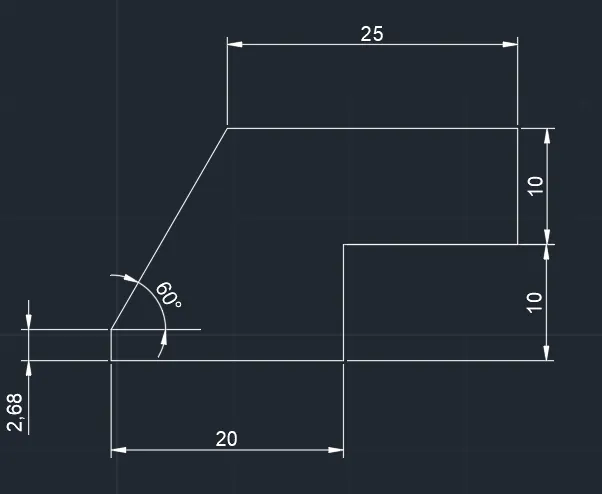
4.
Aim:- Create a Geometry Using Fillet
Procedure:-
Step-1
- Give the Command of "Pl" in Command Bar
- Specify the statrting Point
- Move the Curser to -Y Direction Give 20 Units in Command Bar
- Move the Curser to X direction Give 20 Units In Command Bar
- Move the Curser to Y direction Give 10 Units In Command Bar
- Move the Curser to X direction Give 15 Units In Command Bar
- Move the Curser to Y direction Give 10 Units In Command Bar
- Select the Close From the Comamnd Bar
Step-2
- Give the Command of Fillet in Command Bar
- Select the First Line
- Choose the Angle Option From Command Bar
- Mention the Fillet Angle 15 degrees In Command Bar
- Select the second Line
- Press Esc
Result:-