Creation of geometries by Coordinate system methods using AutoCad
Aim : To Draw the Given Geometries Using Different Coordinate Methods In Auto Cad.
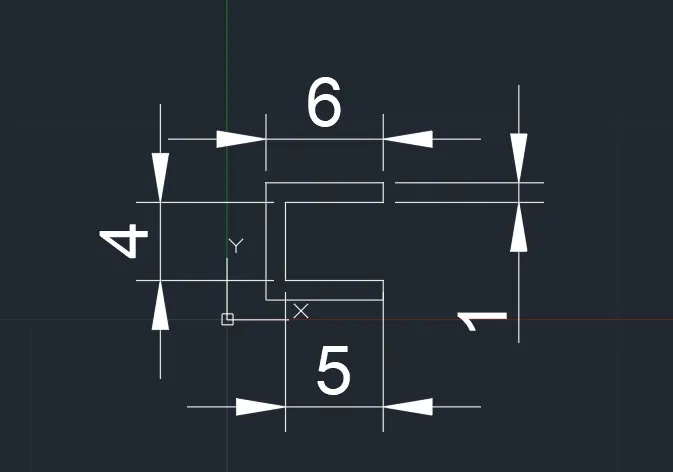
P1-
Absolute Coordinate System Method:-
Procedure :
- Step-1: Type the Command for Line "L" Enter and Give the Coordinates (2,1)
- Step-2: Give the 2nd Point of Coordinates (2,7) ↵
- Step-3: Give the 3rd Point of Coordinates (8,7) ↵
- Step-4: Give the 4th Point of Coordinates (8,6) ↵
- Step-5: Give the 5th Point of Coordinates (3,6) ↵
- Step-6: Give the 6th Point of Coordinates (3,2) ↵
- Step-7: Give the 7th Point of Coordinates (8,2) ↵
- Step-8: Give the 8th Point of Coordinates (8,1) ↵
- Step-9: Click On the Close Command ↵
Result :
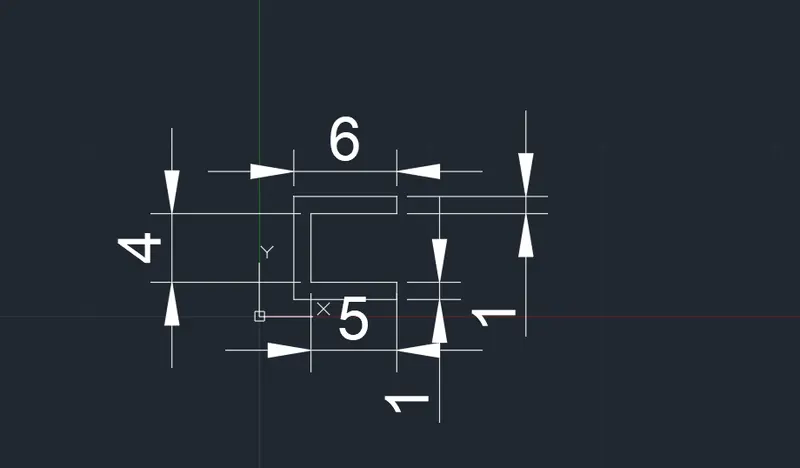
Relative Rectangular Method :-
Procedure
- Step-1: Type the Command for Line "L" Enter and Give the Coordinates (2,1)
- Step-2: Give the 2nd Point of Coordinates (@0,6) ↵
- Step-3: Give the 3rd Point of Coordinates (@6,0) ↵
- Step-4: Give the 4th Point of Coordinates (@0,-1) ↵
- Step-5: Give the 5th Point of Coordinates (@5,0) ↵
- Step-6: Give the 6th Point of Coordinates (@0,-4) ↵
- Step-7: Give the 7th Point of Coordinates (@5,0) ↵
- Step-8: Give the 8th Point of Coordinates (@0,-1) ↵
- Step-9: Click On the Close Command ↵
Result :
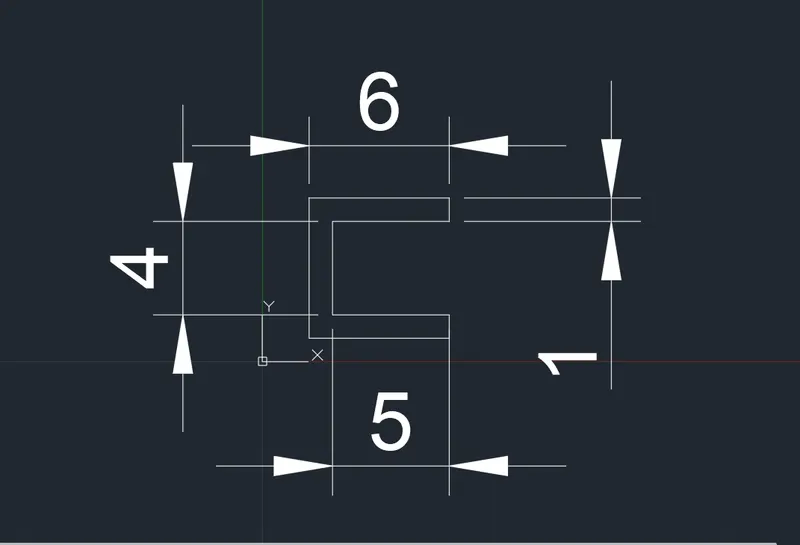
Polar Coordinate system:
Procedure:
- Step-1: Type the Command for Line "L" Enter and Give the Coordinates (2,1)
- Step-2: Give the 2nd Point of Coordinates (@6,<90) ↵
- Step-3: Give the 3rd Point of Coordinates (@6,<0) ↵
- Step-4: Give the 4th Point of Coordinates (@1,<270) ↵
- Step-5: Give the 5th Point of Coordinates (@5,<180) ↵
- Step-6: Give the 6th Point of Coordinates (@4,<270) ↵
- Step-7: Give the 7th Point of Coordinates (@5,<0) ↵
- Step-8: Give the 8th Point of Coordinates (@1,<270) ↵
- Step-9: Click On the Close Command ↵
Result:
P-2
Absolute Coordinate System Method:-
Procedure :
- Step-1: Type the Command for Line "L" Enter and Give the Coordinates (2,1)
- Step-2: Give the 2nd Point of Coordinates (4,8) ↵
- Step-3: Give the 3rd Point of Coordinates (7,8) ↵
- Step-4: Give the 4th Point of Coordinates (9,1) ↵
- Step-5: Give the 5th Point of Coordinates (6,1) ↵
- Step-6: Give the 6th Point of Coordinates (6,5) ↵
- Step-7: Give the 7th Point of Coordinates (5,5) ↵
- Step-8: Give the 8th Point of Coordinates (5,1) ↵
- Step-9: Click On the Close Command ↵
Result :
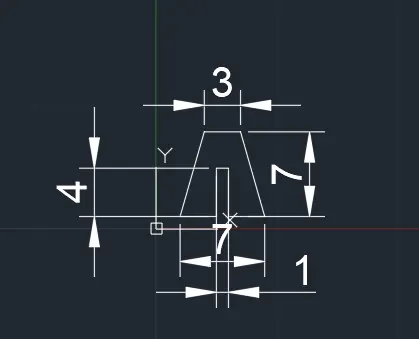
Relative Rectangular Method :-
Procedure
- Step-1: Type the Command for Line "L" Enter and Give the Coordinates (2,1)
- Step-2: Give the 2nd Point of Coordinates (@2,7) ↵
- Step-3: Give the 3rd Point of Coordinates (@3,0) ↵
- Step-4: Give the 4th Point of Coordinates (@2,-7) ↵
- Step-5: Give the 5th Point of Coordinates (@-3,0) ↵
- Step-6: Give the 6th Point of Coordinates (@0,4) ↵
- Step-7: Give the 7th Point of Coordinates (@-1,0) ↵
- Step-8: Give the 8th Point of Coordinates (@0,-4) ↵
- Step-9: Click On the Close Command ↵
Result:
P-4
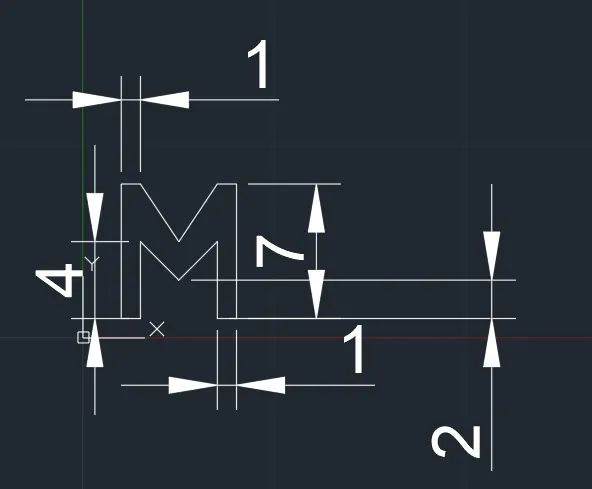
Absolute Coordinate System Method:-
Procedure :
- Step-1: Type the Command for Line "L" Enter and Give the Coordinates (2,1)
- Step-2: Give the 2nd Point of Coordinates (2,8) ↵
- Step-3: Give the 3rd Point of Coordinates (3,8) ↵
- Step-4: Give the 4th Point of Coordinates (5,8)
- Step-5: Give the 5th Point of Coordinates (7,8) ↵
- Step-6: Give the 6th Point of Coordinates (8,8) ↵
- Step-7: Give the 7th Point of Coordinates (8,1) ↵
- Step-8: Give the 8th Point of Coordinates (7,1) ↵
- Step-9: Give the 9th Point of Coordinates (7,5) ↵
- Step-10: Give the 10th Point of Coordinates (5,3) ↵
- Step-11: Give the 11th Point of Coordinates (3,5) ↵
- Step-12: Give the 12th Point of Coordinates (3,1) ↵
- Step-13: Click On the Close Command ↵
Result:
P-5
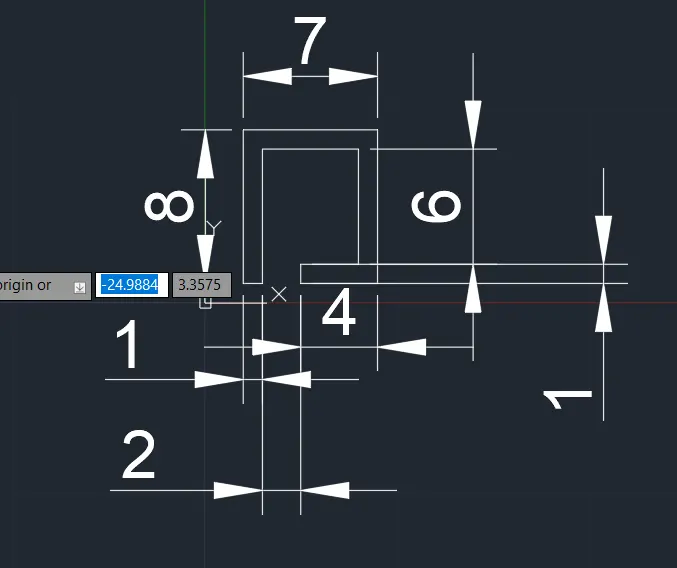
Absolute Coordinate System
- Step-1: Type the Command for Line "L" Enter and Give the Coordinates (2,1)
- Step-2: Give the 2nd Point of Coordinates (2,9) ↵
- Step-3: Give the 3rd Point of Coordinates (9,9) ↵
- Step-4: Give the 4th Point of Coordinates (9,1)
- Step-5: Give the 5th Point of Coordinates (5,1) ↵
- Step-6: Give the 6th Point of Coordinates (5,2) ↵
- Step-7: Give the 7th Point of Coordinates (8,2) ↵
- Step-8: Give the 8th Point of Coordinates (8,8) ↵
- Step-9: Give the 9th Point of Coordinates (3,8) ↵
- Step-10: Give the 10th Point of Coordinates (3,1) ↵
- Step-11: Click On the Close Command ↵
Result:
P-7
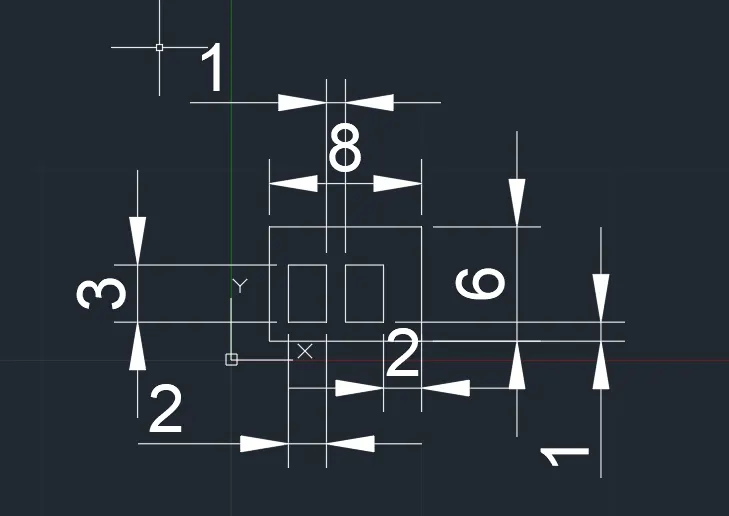
Relative Rectangular Method :-
Procedure
- Step-1: Type the Command for Line "L" Enter and Give the Coordinates (2,1)
- Step-2: Give the 2nd Point of Coordinates (@0,6) ↵
- Step-3: Give the 3rd Point of Coordinates (@8,0) ↵
- Step-4: Give the 4th Point of Coordinates (@0,-6) ↵
- Step-5: Click On the Close Command ↵
- Step-6: Type the Command for Line "L" Enter and Give the Coordinates (3,2)
- Step-7: Give the 7th Point of Coordinates (@0,3) ↵
- Step-8: Give the 8th Point of Coordinates (@2,0) ↵
- Step-9: Give the 9th Point of Coordinates (@0,-3) ↵
- Step-10: Click On the Close Command ↵
- Step-11: Type the Command for Line "L" Enter and Give the Coordinates (6,2)
- Step-12: Give the 11th Point of Coordinates (@0,3) ↵
- Step-13: Give the 12th Point of Coordinates (@2,0) ↵
- Step-14: Give the 13th Point of Coordinates (@0,-3) ↵
- Step-15: Click On the Close Command ↵
Result:
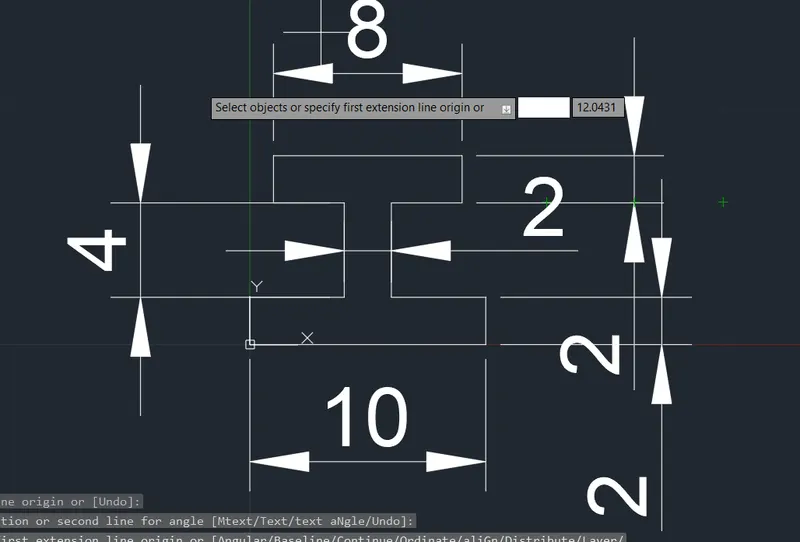
Relative Rectangular Method :-
Procedure
- Step-1: Type the Command for Line "L" Enter and Give the Coordinates (0,0)
- Step-2: Give the 2nd Point of Coordinates (@0,2) ↵
- Step-3: Give the 3rd Point of Coordinates (@4,0) ↵
- Step-4: Give the 4th Point of Coordinates (@0,4) ↵
- Step-5: Give the 5th Point of Coordinates (@-3,0) ↵
- Step-6: Give the 6th Point of Coordinates (@0,2) ↵
- Step-7: Give the 7th Point of Coordinates (@8,0) ↵
- Step-8: Give the 8th Point of Coordinates (@0,-2) ↵
- Step-9: Give the 2nd Point of Coordinates (@-3,0) ↵
- Step-10: Give the 3rd Point of Coordinates (@0,-4) ↵
- Step-11: Give the 4th Point of Coordinates (@4,0) ↵
- Step-12: Give the 5th Point of Coordinates (@0,-2) ↵
- Step-13: Click On the Close Command ↵
Result:
P-9
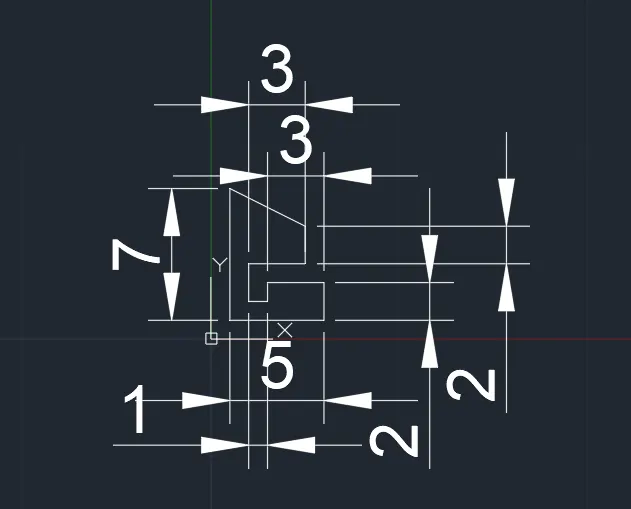
Absolute Coordinate System
- Step-1: Type the Command for Line "L" Enter and Give the Coordinates (1,1)
- Step-2: Give the 2nd Point of Coordinates (1,8) ↵
- Step-3: Give the 3rd Point of Coordinates (5,6) ↵
- Step-4: Give the 4th Point of Coordinates (5,4)
- Step-5: Give the 5th Point of Coordinates (2,4) ↵
- Step-6: Give the 6th Point of Coordinates (2,2) ↵
- Step-7: Give the 7th Point of Coordinates (3,2) ↵
- Step-8: Give the 8th Point of Coordinates (3,3) ↵
- Step-9: Give the 9th Point of Coordinates (6,3) ↵
- Step-10: Give the 10th Point of Coordinates (6,1) ↵
- Step-11: Click On the Close Command ↵
Result:
P-10
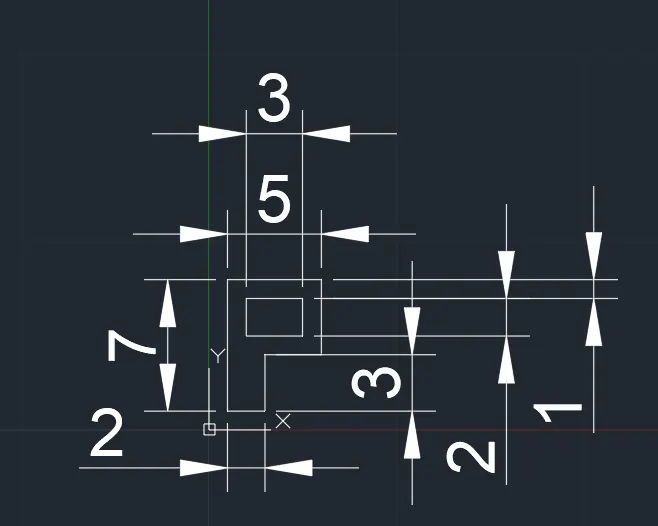
Relative Rectangular Method :-
Procedure
- Step-1: Type the Command for Line "L" Enter and Give the Coordinates (1,1)
- Step-2: Give the 2nd Point of Coordinates (@0,7) ↵
- Step-3: Give the 3rd Point of Coordinates (@5,0) ↵
- Step-4: Give the 4th Point of Coordinates (@0,-4) ↵
- Step-5: Give the 5th Point of Coordinates (@-3,0) ↵
- Step-6: Give the 6th Point of Coordinates (@0,-3) ↵
- Step-7: Click On the Close Command ↵
- Step-8: Type the Command for Line "L" Enter and Give the Coordinates (2,5)
- Step-9: Give the 9th Point of Coordinates (@0,2) ↵
- Step-10: Give the 10th Point of Coordinates (@3,0) ↵
- Step-11: Give the 11th Point of Coordinates (@0,-2) ↵
- Step-12: Click On the Close Command ↵
Result:
Profile Wood
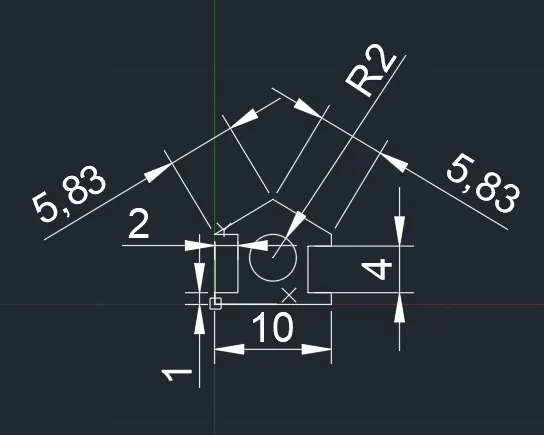
Relative Rectangular Method :-
Procedure
- Step-1: Type the Command for Line "L" Enter and Give the Coordinates (0,0)
- Step-2: Give the 2nd Point of Coordinates (@0,1) ↵
- Step-3: Give the 3rd Point of Coordinates (@2,0) ↵
- Step-4: Give the 4th Point of Coordinates (@0,5) ↵
- Step-5: Give the 5th Point of Coordinates (@-2,0) ↵
- Step-6: Give the 6th Point of Coordinates (5,3) ↵
- Step-7: Give the 7th Point of Coordinates (@0,-1) ↵
- Step-8: Give the 8th Point of Coordinates (@-2,0) ↵
- Step-9: Give the 9th Point of Coordinates (@0,-4) ↵
- Step-10: Give the 10th Point of Coordinates (@2,0) ↵
- Step-11: Give the 11th Point of Coordinates (@0,-1) ↵
- Step-12: Click On the Close Command ↵
- Step-13: Click the Circle from the Draw Panel & Select the Radius
- Step-14: Give the Centre of Circle Coordinates(5,4)
- Step-15: Cive the Circle Diametre of 2 and Enter
Result:
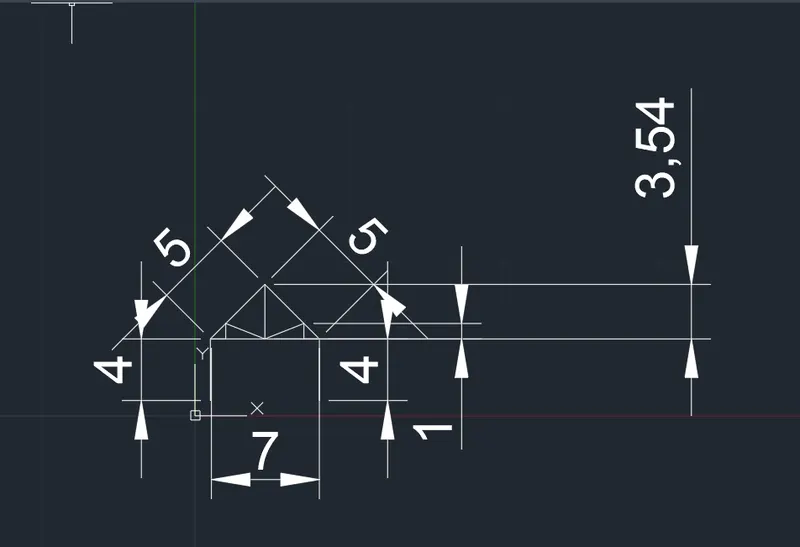
Queen Post Trust
Polar Coordinate system:
Procedure:
- Step-1: Type the Command for Line "L" Enter and Give the Coordinates (1,1)
- Step-2: Give the 2nd Point of Coordinates (@4,<90) ↵
- Step-3: Give the 3rd Point of Coordinates (@5,<45) ↵
- Step-4: Give the 4th Point of Coordinates (@5,<315) ↵
- Step-5: Give the 5th Point of Coordinates (@4,<270) ↵
- Step-5: Press Esc Command
- Step-6: Type the Command for Line "L" Select the 3rd Point and Give the Coordinates (@3.54,<270) ↵
- Step-7: Type the Command for Line "L" Select the 4th Point and Give the Coordinates (@7,<180) ↵
- Step-8:Give the Next Point of Coordinates(@1,<0) ↵
- Step-9: Give the Next Point of Coordinates (@1,<90) ↵
- Step-10: Jointhe Line in to Point of Step-5
- Step-9: Press Esc Command
- Step-10: Type the Command for Line "L" Select the 4th Point and Give the Coordinates (@1,<180) ↵
- Step-11: Give the Next Point of Coordinates (@1,<90) ↵
- Step-12: Jointhe Line in to Point of Step-5
Result:
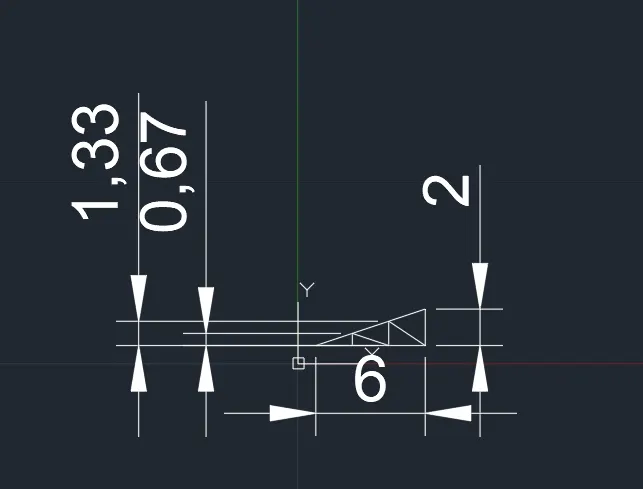
Mono Pitch
Relative Rectangular Method :-
Procedure
- Step-1: Type the Command for Line "L" Enter and Give the Coordinates (1,1)
- Step-2: Give the 2nd Point of Coordinates (@6,2) ↵
- Step-3: Give the 3rd Point of Coordinates (@0,-2) ↵
- Step-4: Click On the Close Command ↵
- Step-5: Type the Command for Line "L" Enter and Give the Coordinates (3,1)
- Step-6: Give the 5th Point of Coordinates (@0,0.667) ↵
- Step-7: Give the 6th Point of Coordinates (@2,-0.667) ↵
- Step-8: Give the 7th Point of Coordinates (@0,1.33) ↵
- Step-9: Give the 8th Point of Coordinates (@2,-1.33) ↵
- Step-10: Press Esc Command
Result: