Usage of Navigation tool , Timeliner and Clash Detection test using Naviswork
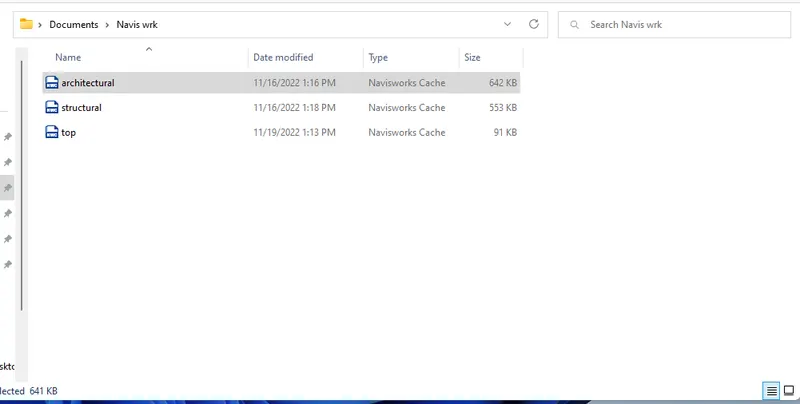
1) AIM & INTRODUCTION : export revit architecture file into naviswork catchea
PROCEDURE : open revit architectural plan - export - save in a new folder -rename the file - save
RESULT : exported revit architecture file into naviswork catchea succesfully
REPORT FORMAT :
2) AIM & INTRODUCTION : using navigate tool walk around the model and record in animation
PROCEDURE : open naviswork software -file - open - saved folder - drop down save view point and record import architecture first using scroll - go inside the building - view point - walk left side (save viewpoint) rename the view enter - using cursor move inside to change apperance using pan tool and walk - stop - rename - saved view points
play your recorded video animation to see recorded videos
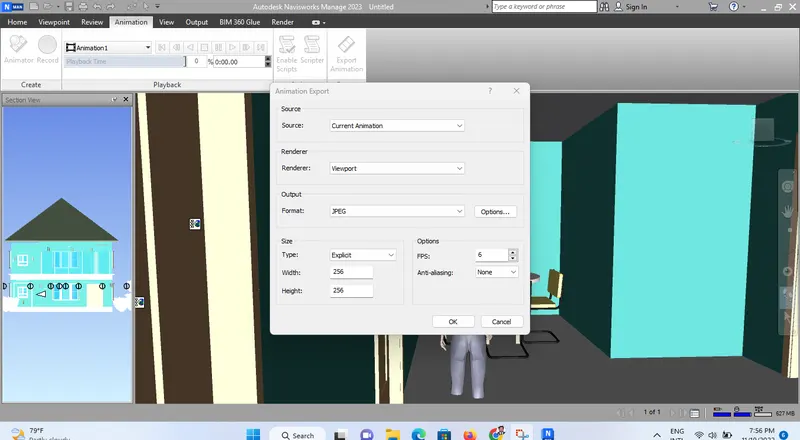
to export - animation - export animation - ok - choose the folder and save the file
RESULT :using navigate tool walk around the model and record in animation succesfully
REPORT FORMAT :
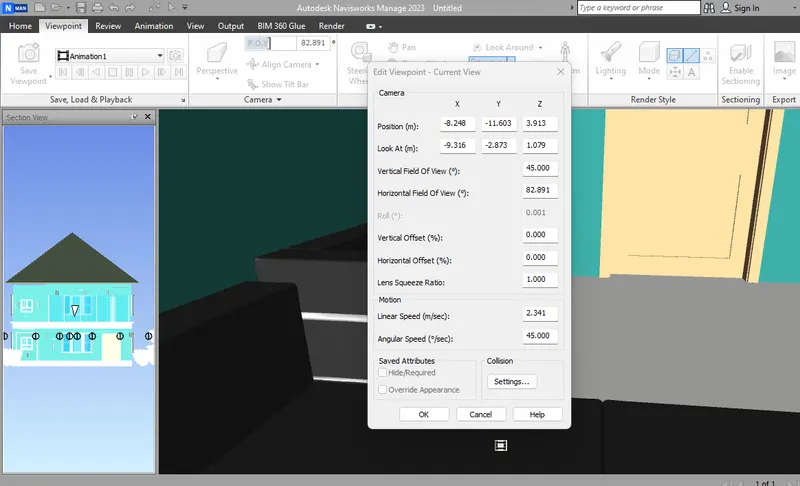
3)AIM & INTRODUCTION : use navigate tool to realism feature and record the moving as animation
PROCEDURE : open navis work -go to anyone using mouse of the room view point -realism - third person -click - viewpoint save point - save view rename as realism - walk -save viewpoint - record and using mouse walk slowly - stop recording rename - from section view point
to export - animation - export - choose the format - save
RESULT :using navigate tool to realism feature and record the moving as animation succesfully
REPORT FORMAT :
4) AIM & INTRODUCTION :