Usage of Navigation tool , Timeliner and Clash Detection test using Naviswork
1.ans
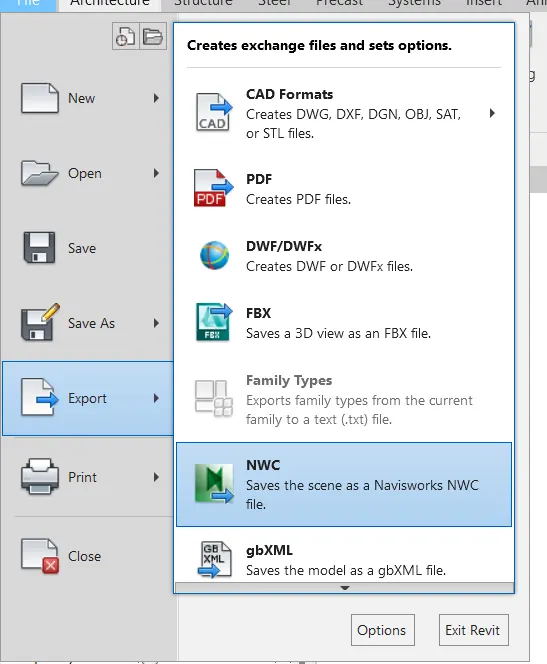
AIM: Use the Architecture/ Structure Project file developed by you in Week 6 to 8. Export the Revit architecture and structure model to Navisworks Cache file following the export settings discussed in class
procedure:
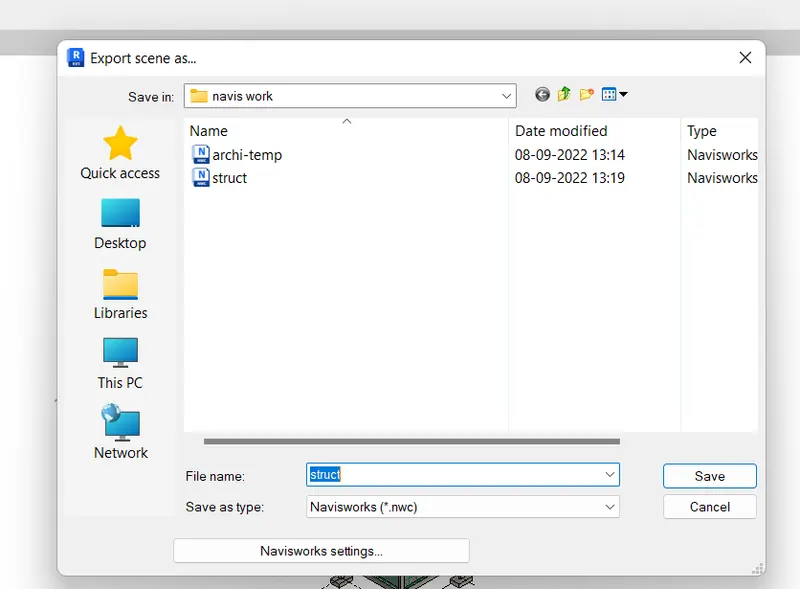
open the Revit software and open the architectural template and click the file and export to NWC to save in folder
open the structural file export the NWC and save as NWC file
2.ANS
AIM: Use Navigate Tool to walk around the model and walk through the rooms created and record your moving as animation in your Navisworks file
procedure:
first export the architectural and structural template export to the NWC file and save it in one folder
open the Navis work select the append and open the architectural template
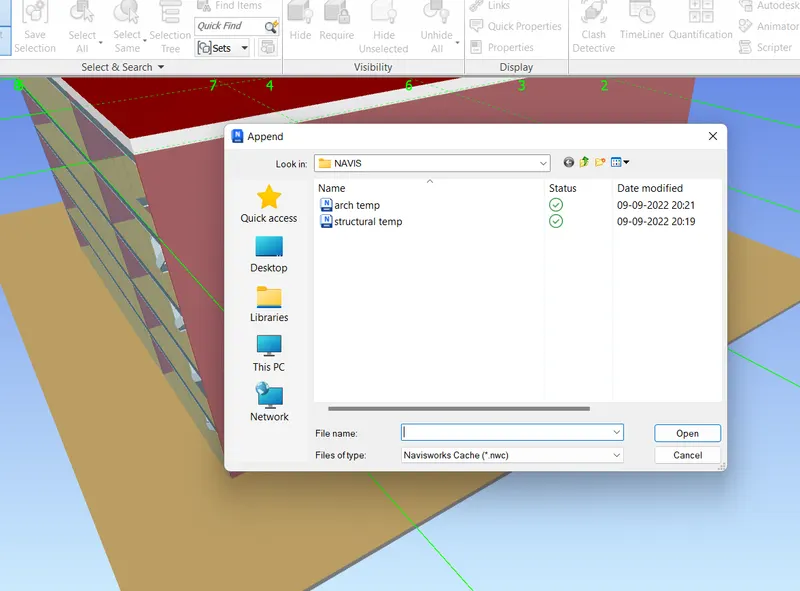
select the view point and walk through
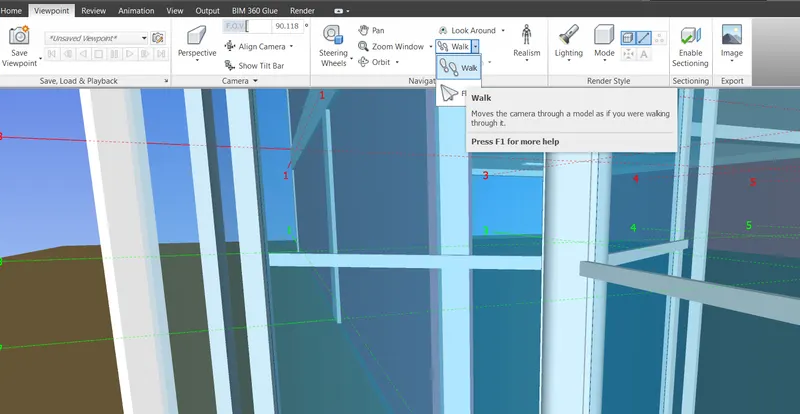
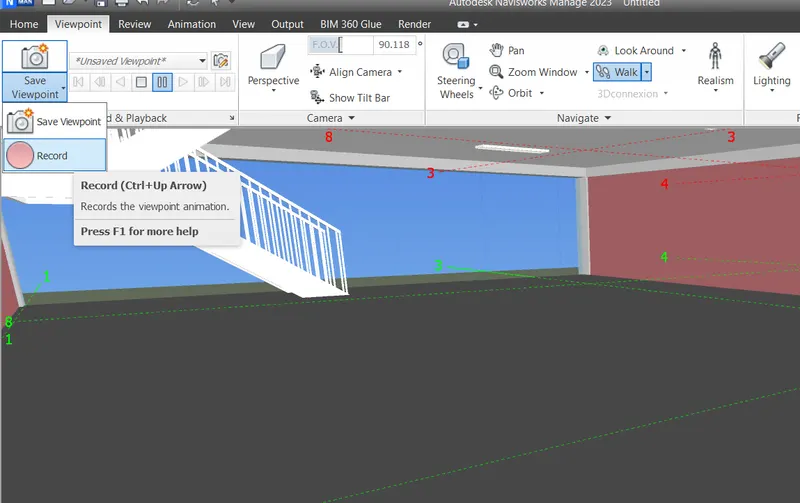
re name the view point as walk through and slowly move and recorded after complete save
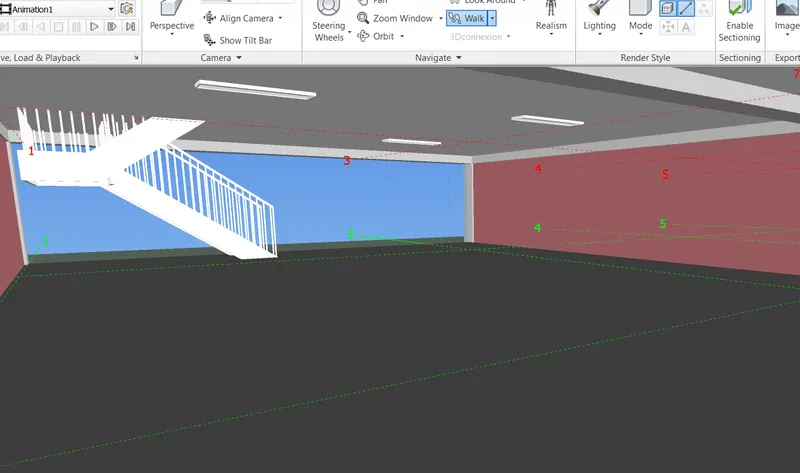
3.ANS
AIM: Use Navigate tool to use Realism feature to walk through the model and record your moving as animation in Navisworks file
procedure:
select the view point and next select the realism click the third person and click the camera and start the recording and slowly move the move cursor
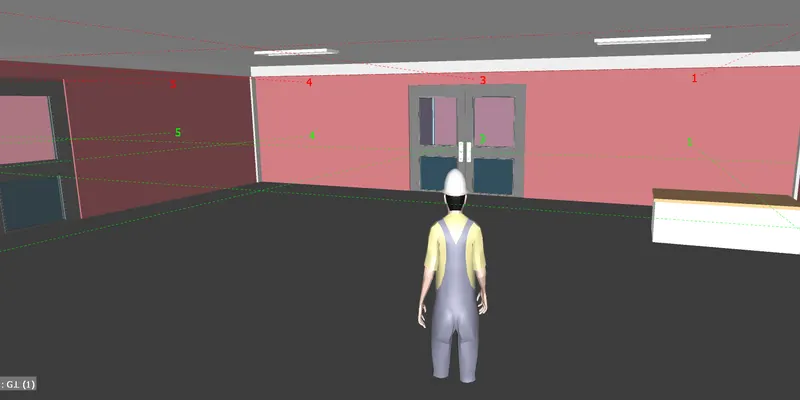
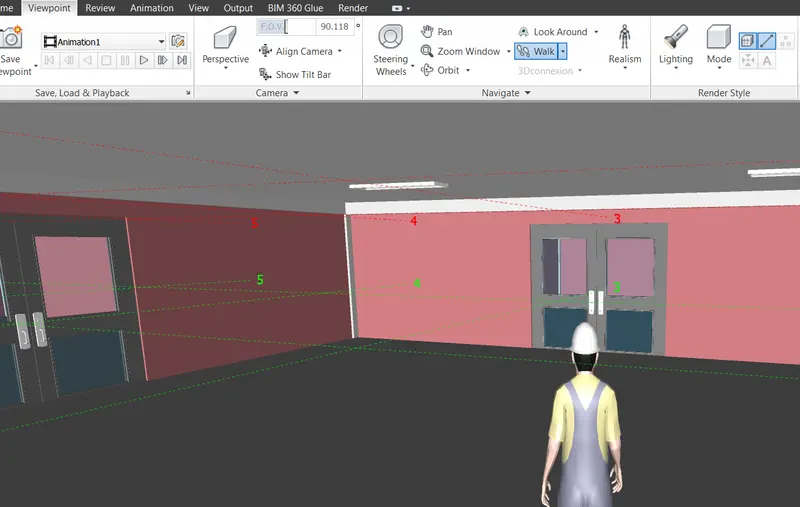
4. ANS
AIM: Embed both architecture and structure *.nwc file to your Navisworks file. Create a clash detection test between the two models
PROCEDURE:
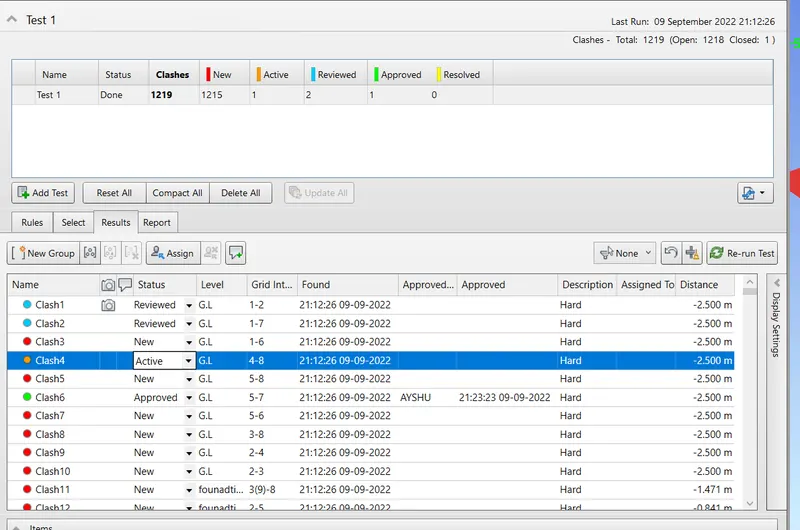
selected the clash detection test and added the test and select the architectural and structural template and run the test
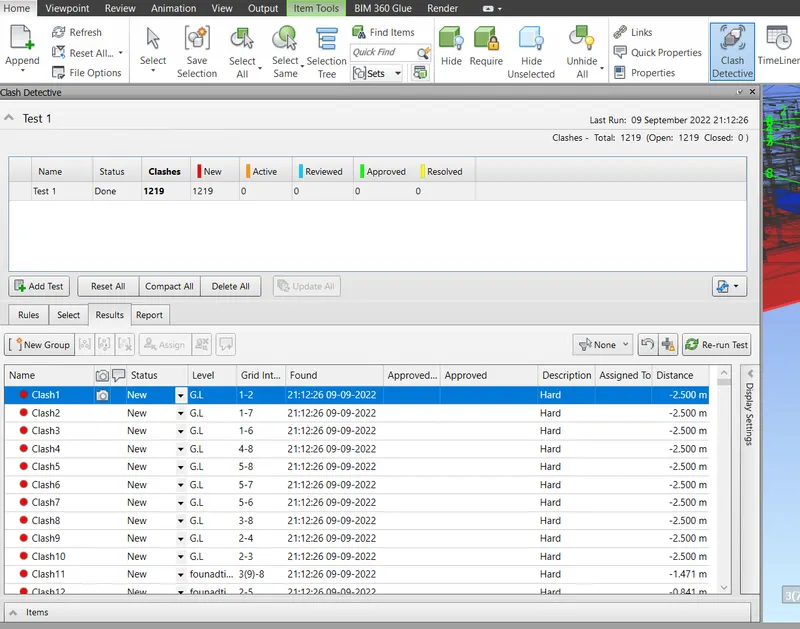
clashes are find and click the clash set the status as reviewed
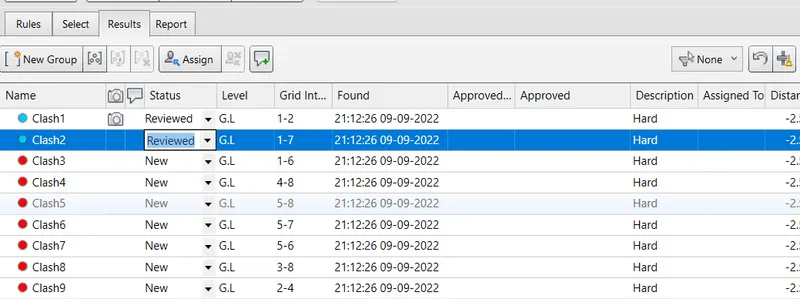
5. ans
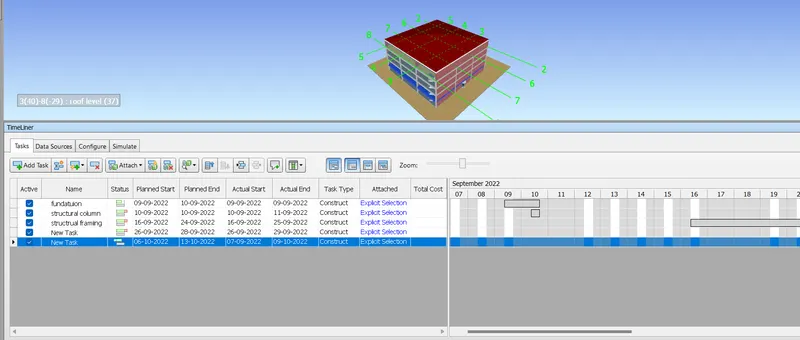
aim: Using the Timelier feature in Navisworks prepare a schedule for the project developed in week 6 to 8 by adding reasonable assumptions for task start date and end date and simulate the task completion as a visual simulation. Record it and save the timeline simulation to Navisworks file
procedure; selected the time liner and select the selection tree before added the task
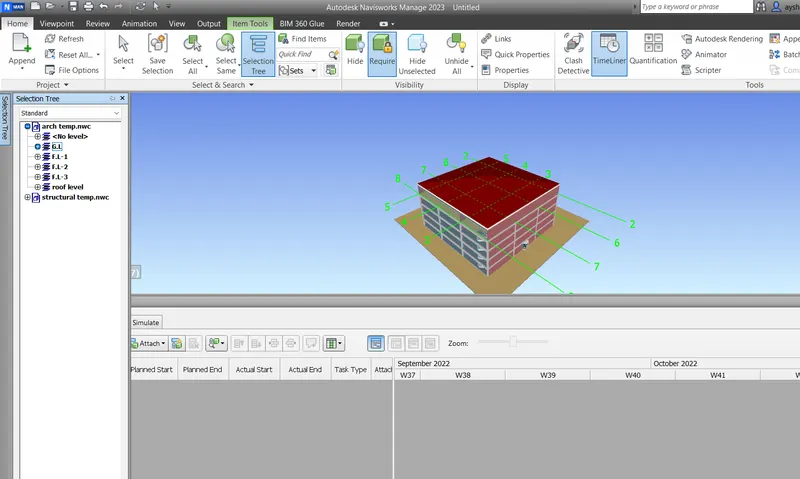
add the task and rename the name of task attach set the plan start and end. actual start and end status, attach the select task
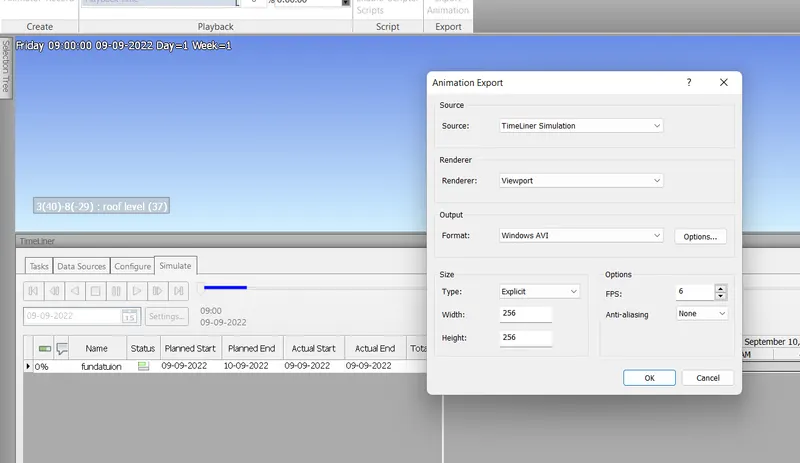
after completion of giving the task click the stimulate and animation video will play and exported the animation video