Usage of Navigation tool , Timeliner and Clash Detection test using Naviswork
1)
Aim:
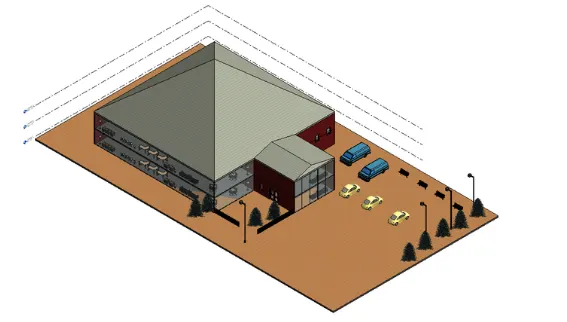
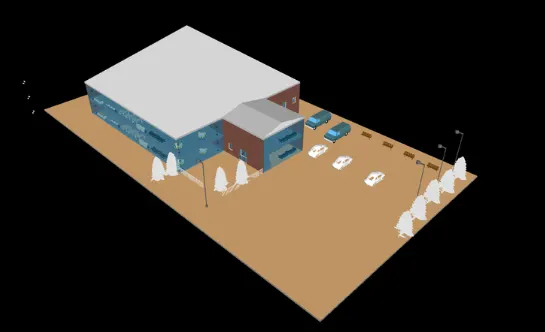
Use the Architecture/ Structure Project file developed by you in Week 6 to 8. Export the Revit architecture and structure model to Navisworks Cache file following the export settings discussed in class.
Procedure:
- Open the project that we made in week 2.
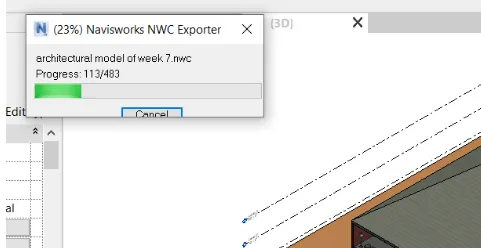
- We want to export this file into naviswork.
- Go to option and click NWC.
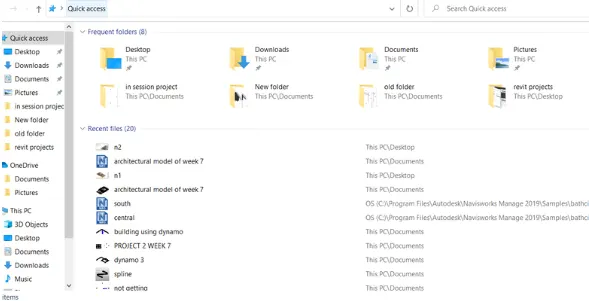
- Go to files and clicke the saved file.
____________________________________________________________________________________________________________________
2)
Aim:
Using navigation tool to walk around.
Procedure:
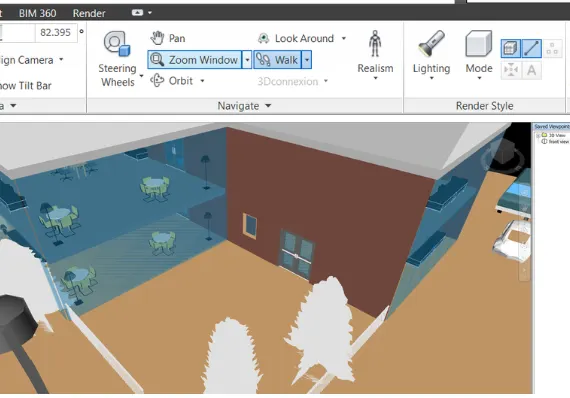
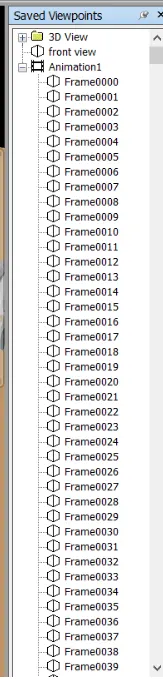
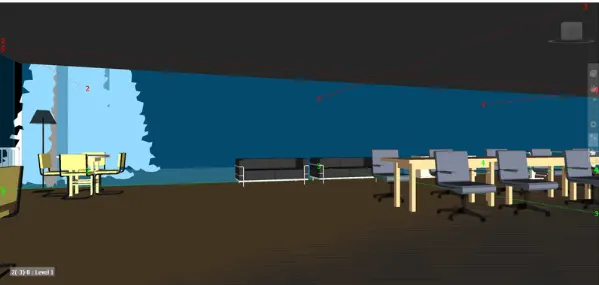
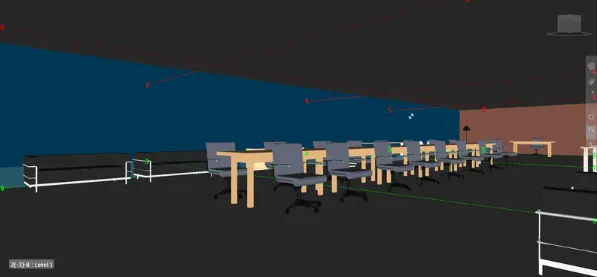
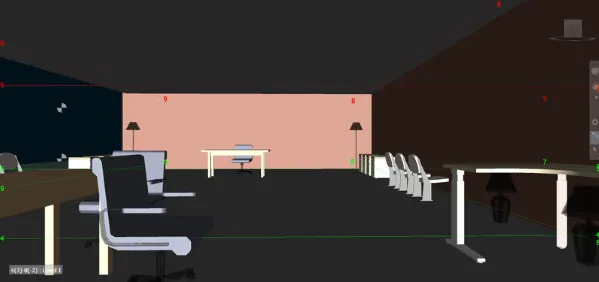
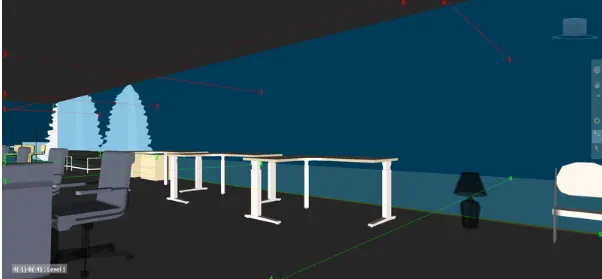
- Open naviswork, go to save viewpoints options, select record and after that select walk option.
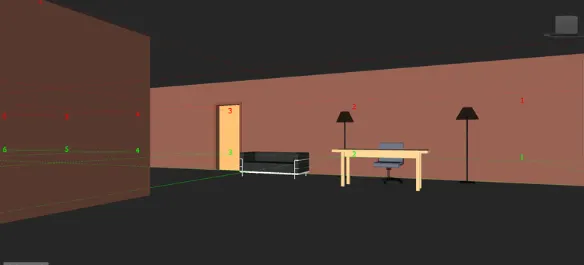
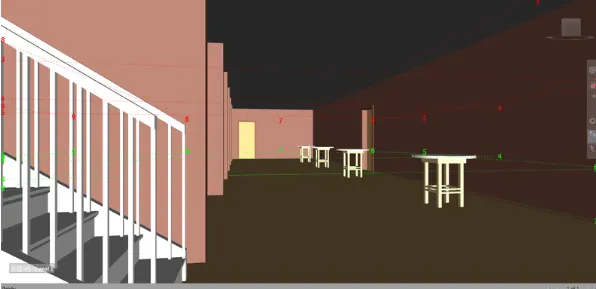
- Take a walkthrough the different rooms of the building.
- After the walk fininshed, click stop.
____________________________________________________________________________________________________________________
3)
Aim:
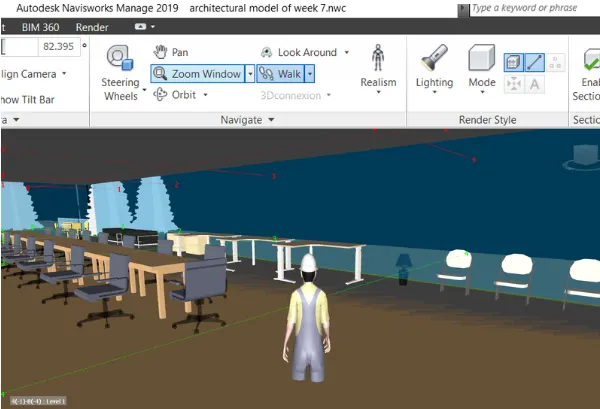
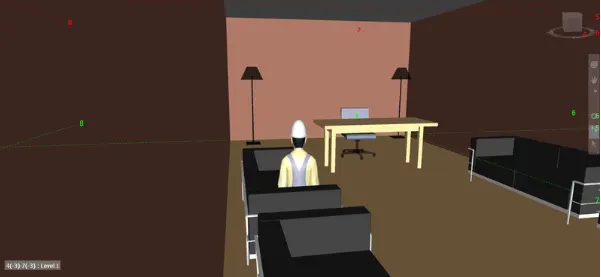
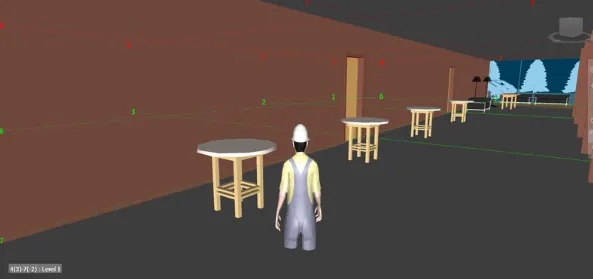
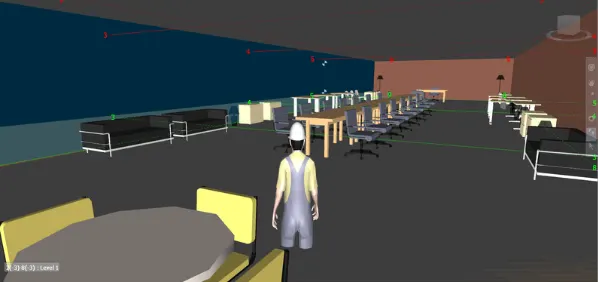
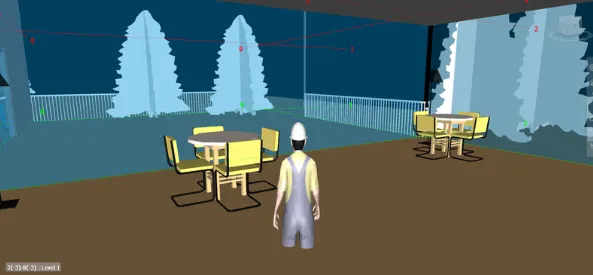
Use Navigate tool to use Realism feature to walk through the model and record your moving as animation in Navisworks file.
Procedure:
- Open naviswork
- Go to the realism object beside the walk.
- Click third person and take a walkthrough different rooms of the building.
____________________________________________________________________________________________________________________
4)
Aim:
To embed architectural and structural .nwc file to Naviswork file.
Procedure:
- Open the architectural file in revit.
- Go to append and open the structural file.
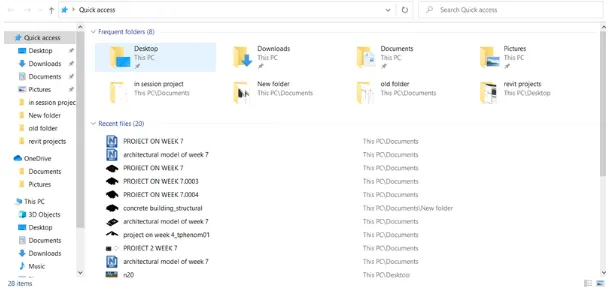
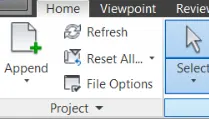
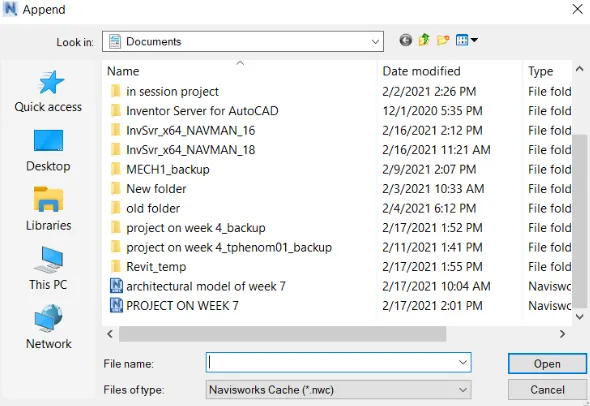
- We get the combination.
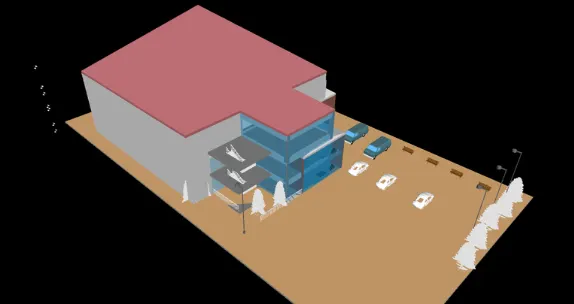
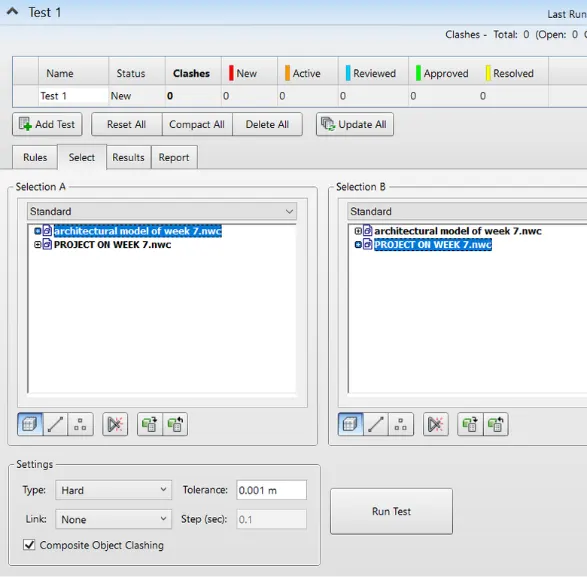
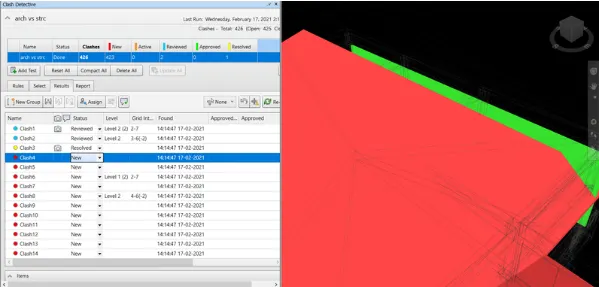
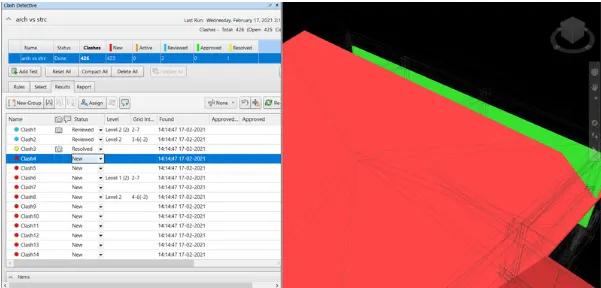
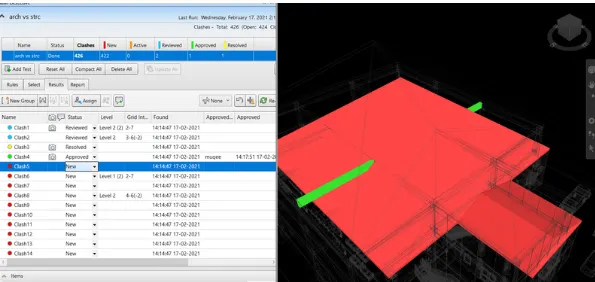
- Now go to the clash detecting option from the tab.
- Click both the models and rename the test and click on run test.
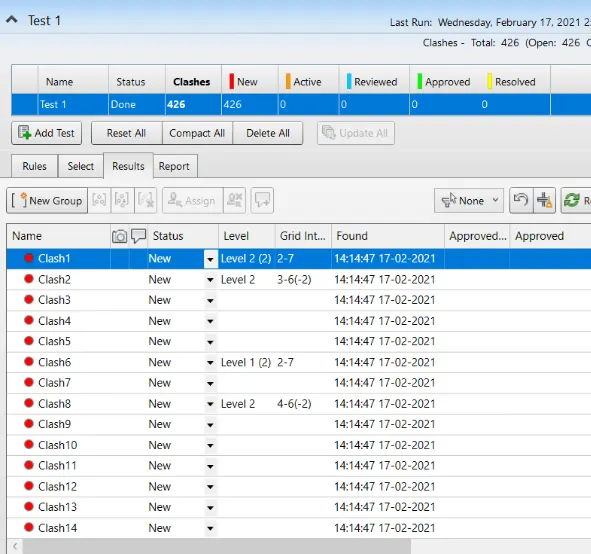
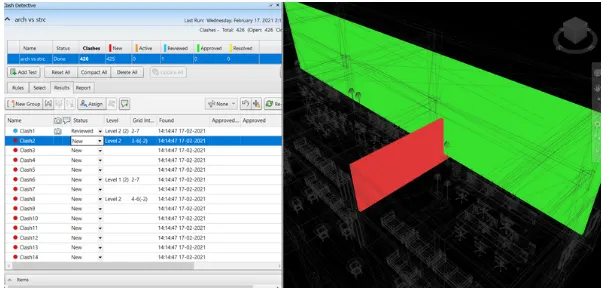
- We get the list of all the clashes from here the clashes can be appproved or resolvved.
____________________________________________________________________________________________________________________
5)
Aim:
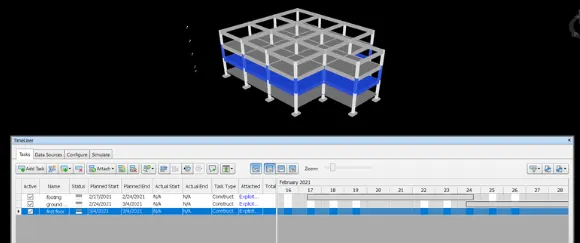
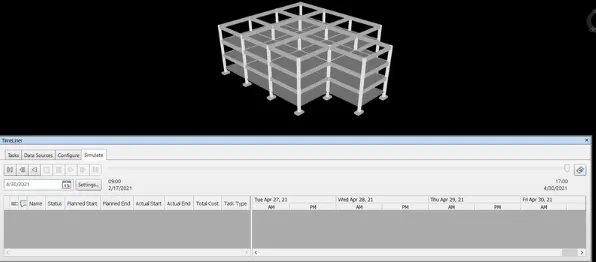
Using the Timeliner feature in Naviswork to preparea a schedule.
Procedure:
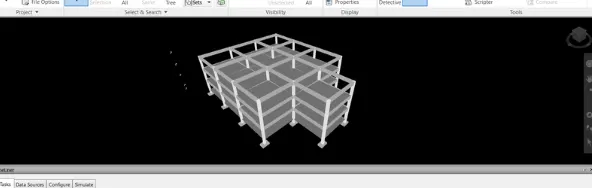
- Open structural file in naviswork.
- Go to timeliner and click it, we get a box
- Click on add task and enter the name of the component.
- First one will be foundation.
- Go to select tree and select the foundation and enter the start and the end date.
- Enter all the components with their dates and click on simulate.
____________________________________________________________________________________________________________________
____________________________________________________________________________________________________________________