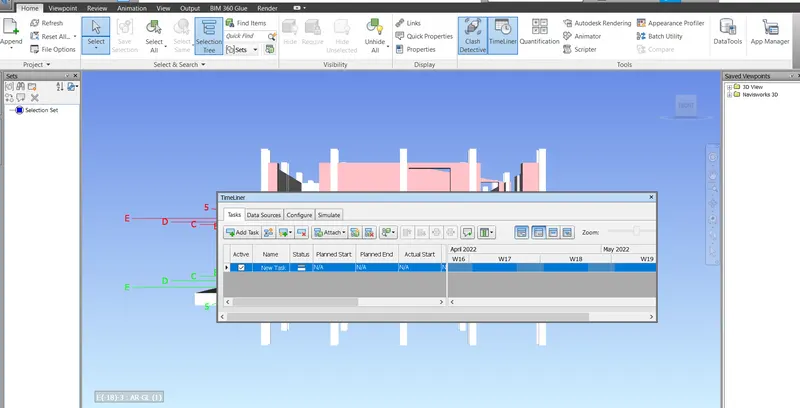
Usage of Navigation tool , Timeliner and Clash Detection test using Naviswork
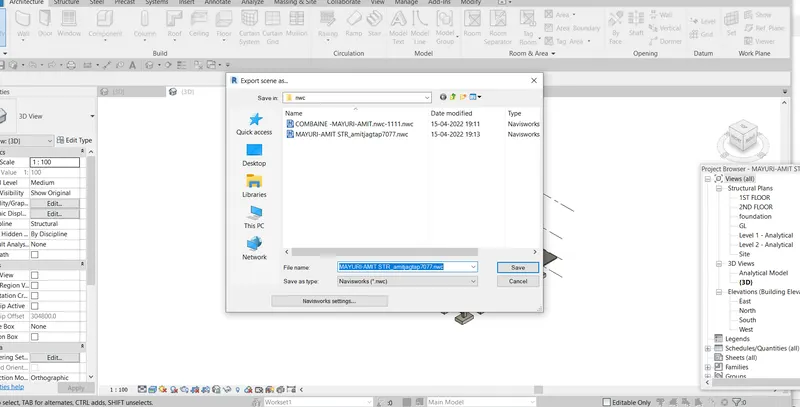
1:-AIM:- Use the Architecture/ Structure Project file developed by you in Week 6 to 8. Export the Revit architecture and structure model to Navisworks Cache file following the export settings discussed in class
PROCEDURE-
- OPEN REVIT SOFTEWARE
- THEN OPEN STRUCTRUE FILE
- THE EXPORT-NWC FILE
- SAME PROCESS IN ARETECHURE FILE
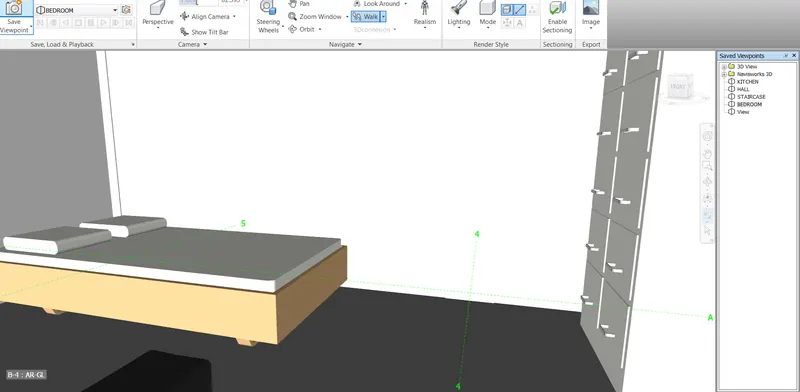
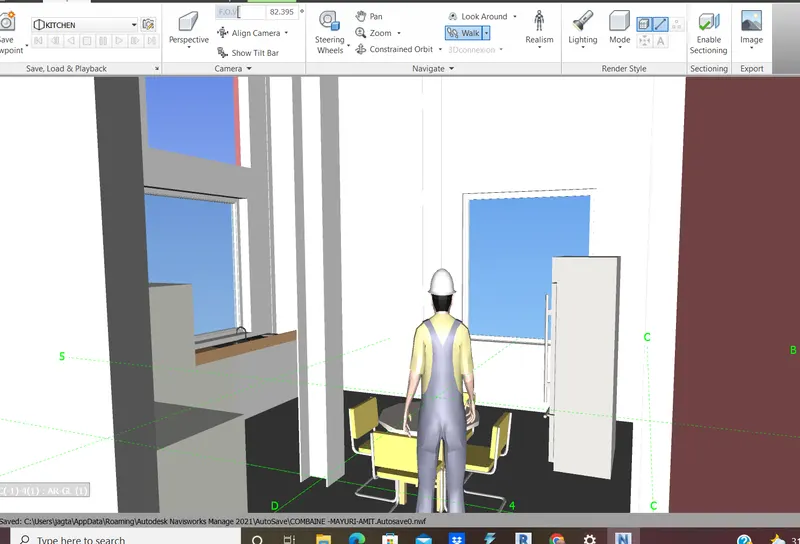
2:-AIM:- Use Navigate Tool to walk around the model and walk through the rooms created and record your moving as animation in your Navisworks file
PROCEDURE-
- OPEN NAVISWORK SOFT
- THEN OPEN ARECTECHURE FILE
- THEN SELECT VIEW POINT
- THEN GET ZOOM AND SELECT WALK
- THEN SAVE THE PHOTO
RESULT:-
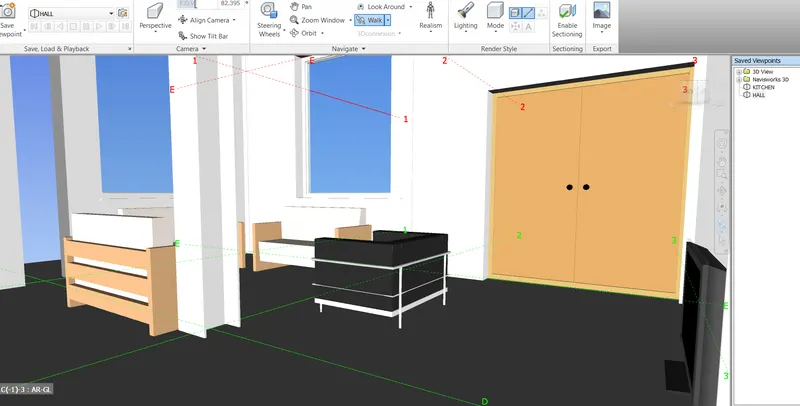
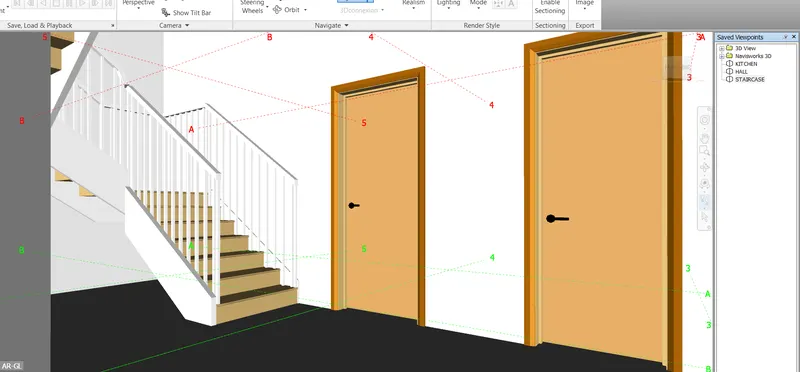
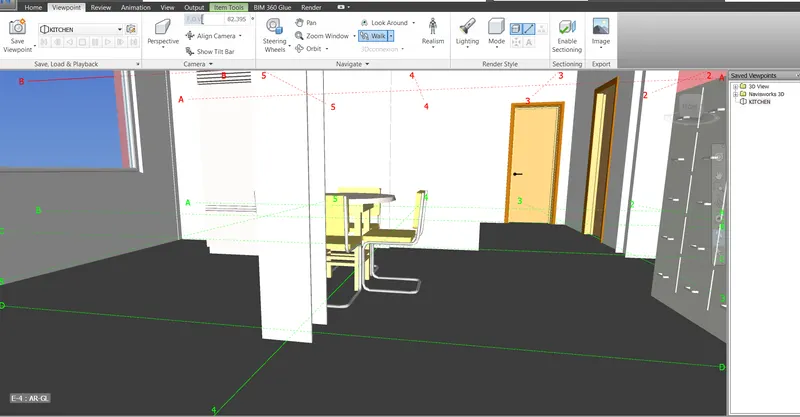
3:-Use Navigate tool to use Realism feature to walk through the model and record your moving as animation in Navisworks file
PROCEDURE:-
PROCEDURE-
- OPEN REVIT SOFTEWARE
- THEN OPEN STRUCTRUE FILE
- THE EXPORT-NWC FILE
- SAME PROCESS IN ARETECHURE FILE
- SELECTED THE REASLIM- THIRD PARTY
- THEN ZOOM IN
- AND SELECTED THE WALK
RESULT:-
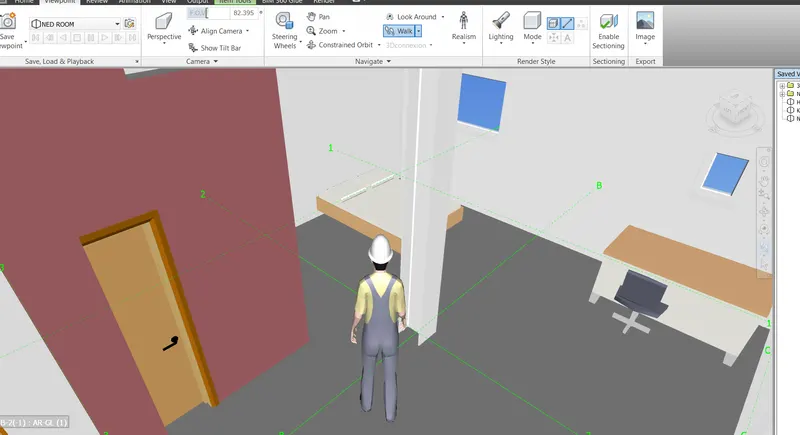
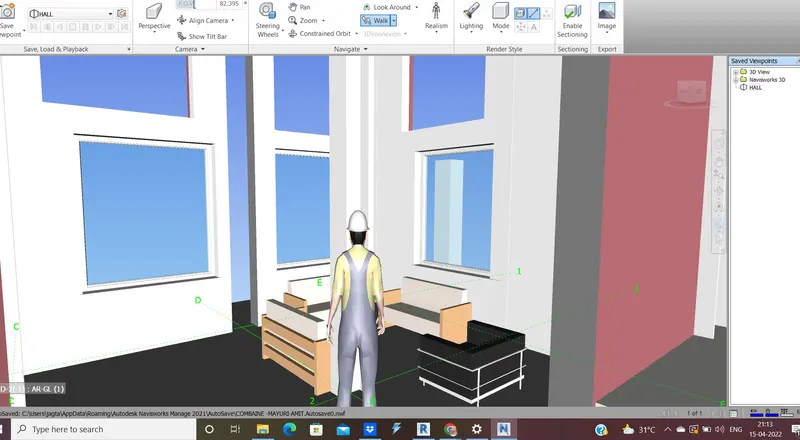
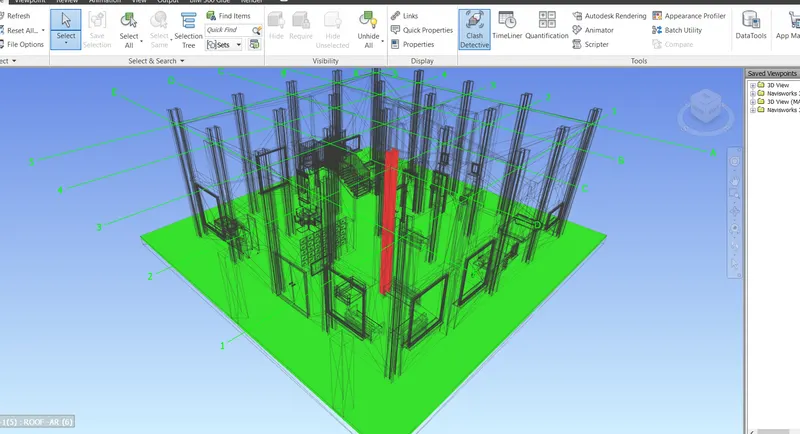
4:-AIM:- Embed both architecture and structure *.nwc file to your Navisworks file. Create a clash detection test between the two models
a. Run the Clash Detection Test
b. Study the clashes between the two models
c. List which of the clashes could be approved
d. List which of the clashes could be neglected ( will be taken care later)
e. List which of the clashes can be resolved
f. Save the results after color coding the clashes to the Navisworks file
g. In case of resolution annotate the clash and save the view to defined views in Navisworks
PROCEDURE:-
-
- OPEN REVIT SOFTEWARE
- THEN OPEN STRUCTRUE FILE
- THE EXPORT-NWC FILE
- SAME PROCESS IN ARETECHURE FILE
- open naviswork soft
- open the arechethcure file
- choose the attwmped file-slected the str file
- the click yhe clash
- RESULT:-
5:-aim:- Using the Timeliner feature in Navisworks prepare a schedule for the project developed in week 6 to 8 by adding reasonable assumptions for task start date and end date and simulate the task completion as a visual simulation. Record it and save the timeline simulation to Navisworks file
procedure:-
- open naviswork soft
- open the arechethcure file
- choose the timeliner
- choose the selection tree
- then click and atched the TYPE
RESULT:-