Usage of Collaborate tool in REVIT
1) Open an architectural template. Using the Manage tab set project base point and project shared coordinates for the project.
Aim:
- To set project base point and project shared coordinates for the project.
Procedure:
STEP:1
- Open architectural template.
- Open manage tab
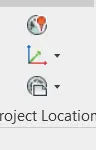
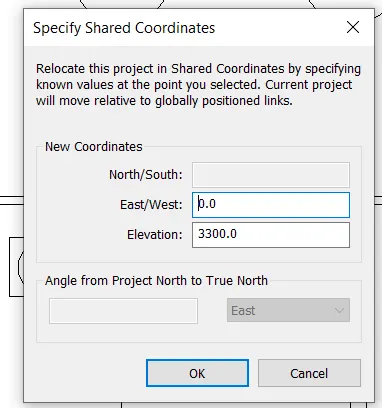
- Click on project coordinates -specific shared coordinates.
STEP:2
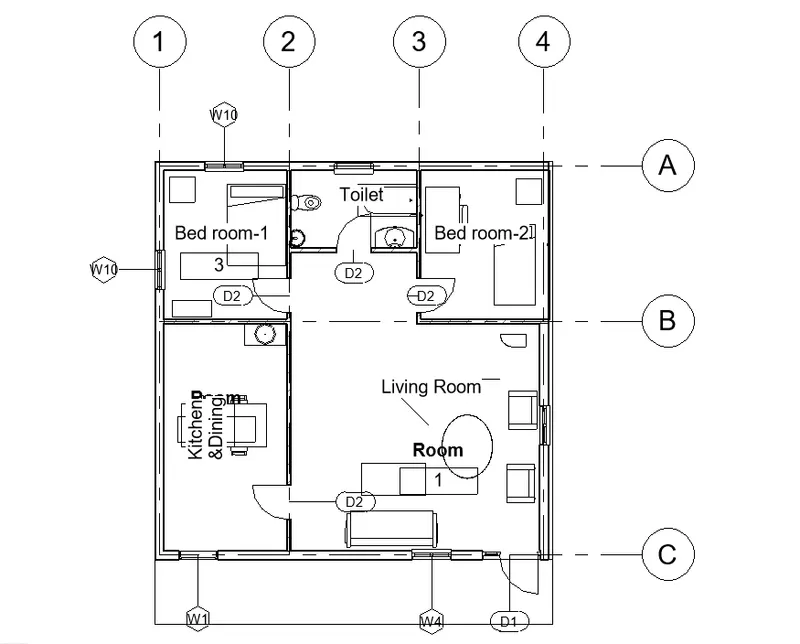
- Create a base point of Grid
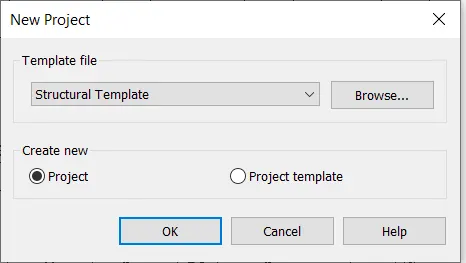
2) Open another new file but with a structural template. Using the manage tab set project parameters the same as the architectural model. Copy the parameters from the architectural model to the structural template or enter the parameters manually into the structural model.
Aim:
To create a structural template with parameters the same as the architectural template.
Procedure:
3.3) Re-open the architectural model. Using the tools under the Collaborate tab make the architectural model a central model (enabling simultaneous working on the model)
Aim:
To create the architectural model a central model.
Procedure:
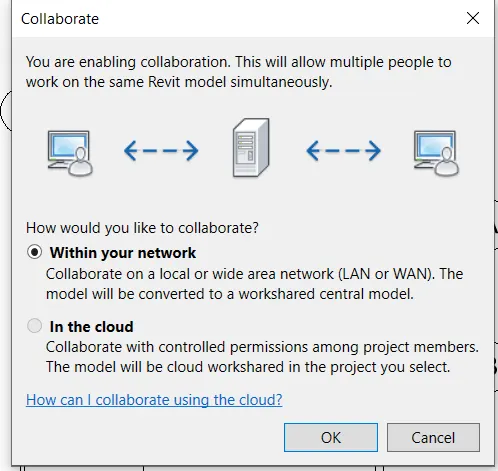
4) Create the Grids Longitudinal and Transverse pattern for the project similar to the task done in Week 2.
Aim:
To Create the Grids Longitudinal and Transverse pattern.
5) Synchronize the changes from the local copy to the central file of the architectural model.
Aim:
To Synchronize the changes from the local copy to the central file of the architectural model.
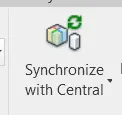
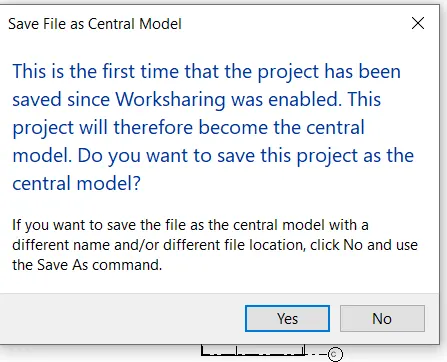
6) Open the structural model and use the collaborate tools to save the model as a central file.
Aim:
To Open the structural model and use the collaborate tools to save the model as a central file.
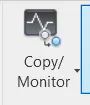
7) Under the Collaborate tab, select the grids and levels from the architectural model, and using Copy Monitor try to copy the grids to the structural model. See what happens when the copy monitored grid is moved around in the structural model.
Aim:
To copy the grids to the structural model.
Procedure:
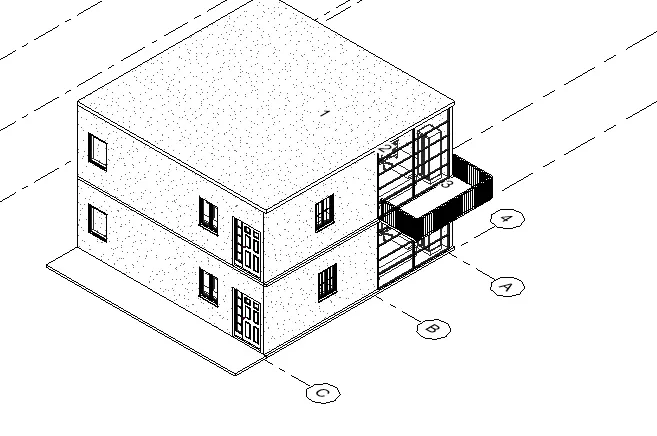
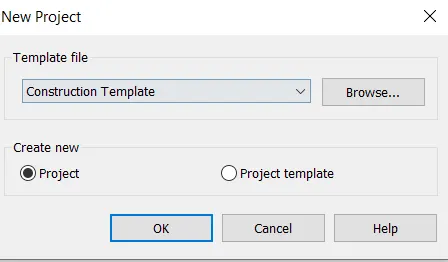
8) Create another new file with a construction template. Save the new file as a central model. This file will include both architectural and structural model. Under the manage tab, Click manage links to link both architectural and structural files. Save the file and close all the files.
Aim:
To Create another new file with a construction template include both architectural and structural model.
Procedure:
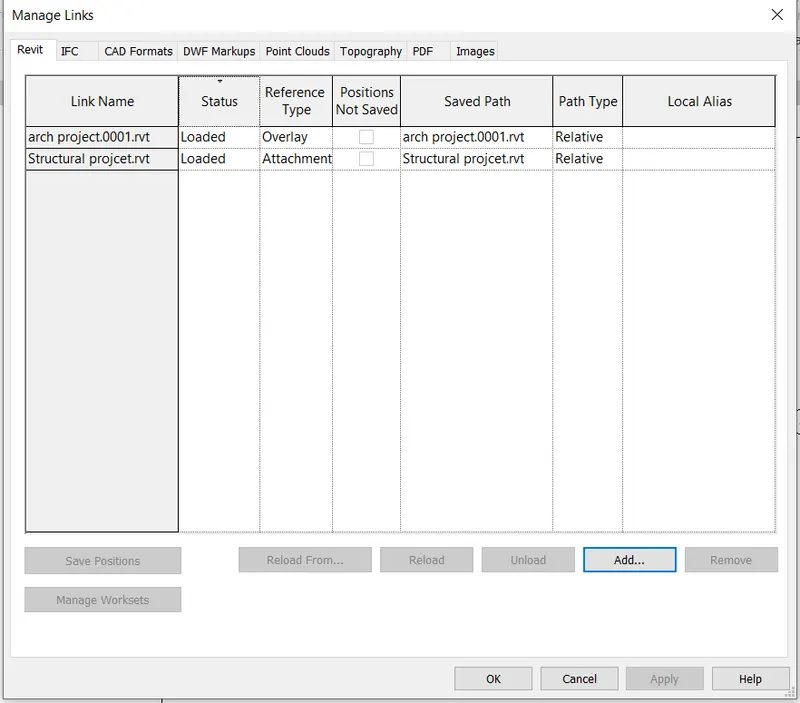
9) Are the grids from structural and architectural model matching in the construction template created? If yes the model is set up for project 2. If not work on the shared parameters and linking options under Manage links
( Hint: origin to origin, by shared coordinates or by project base point to base point ) to link the models in an appropriate manner
Ans;
Yes my structural and architectural model are attached in construction template created.