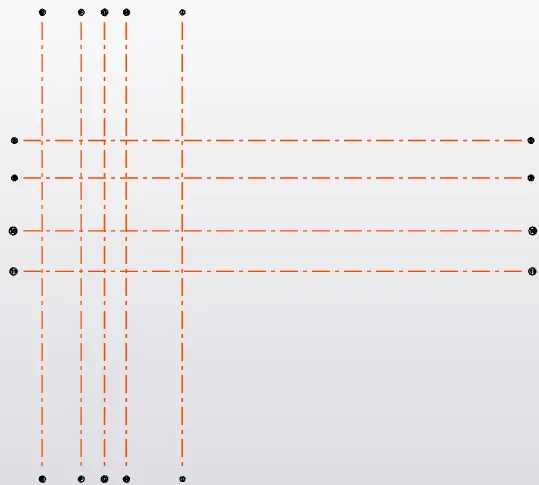
To plan a structural layout and to create grids using TSD
Challenge 1
1.
Aim: Summarize the user interface in TSD
Procedure:
Project Workspace
- Open the Tekla Software and click on the New option.
- Now the project workspace will be visible
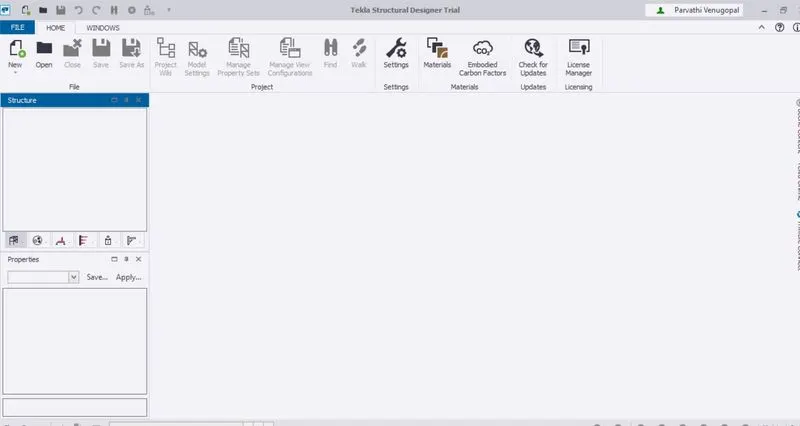
Scene Content– Demonstrate the use of scene content
- Open the Tekla Software and click on the New option.
- Now the project workspace will be visible
- Now click on the screen content option(at the left side of the screen) and now we can enable or disable the element and that is applied to the model
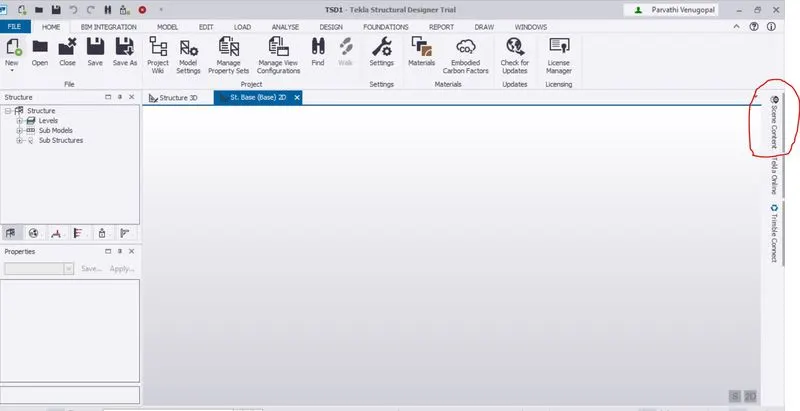
Create two scene views
- The two scene views can be created with the help of the isometric cube, if we select the top view, we can see the 2D, while selecting the other ways, 3D can also be seen
Loading drop list- How to access
- A loading drop list can be seen on the left side of the project interface, there we can see the load cases and load combinations
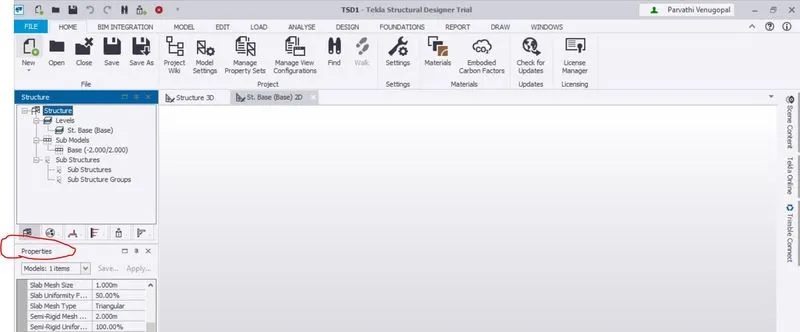
Properties windows – how to access and usage
- Select the properties window in the left most side and then the properties will be visible on the project interface
2.
Aim: To create a new file in TSD and set up the settings for a steel building to have member grade FE410 and concrete grade of M30 as per IS codes
Procedure:
- Open the TEKLA software
- Choose the Material menu and add Fe410 and M30
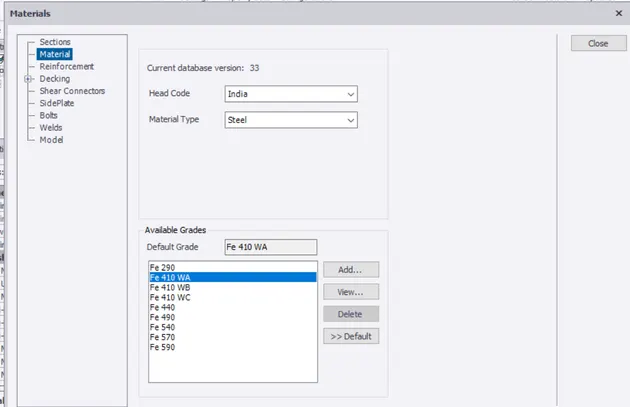
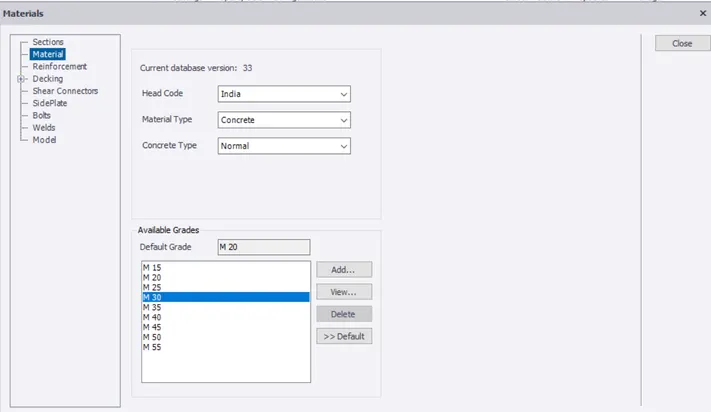
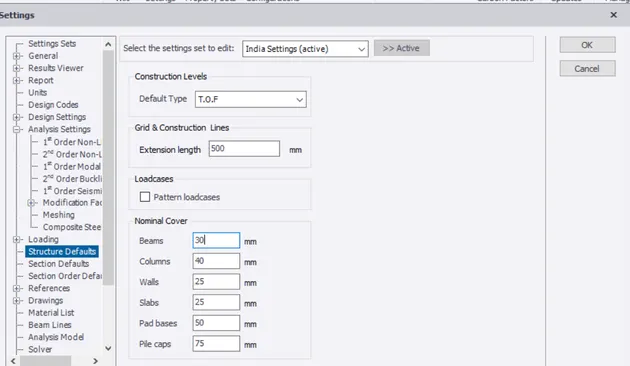
- Now open the setting and set the nominal covers for the given members in contact with ground and above ground
3.
Aim: To summarise the understanding of the plan
Attachment 1: According to the study, I have mentioned the places where we require the beams and columns
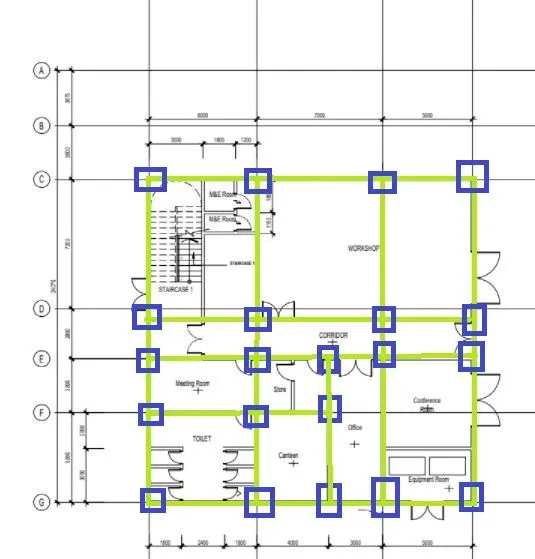
Attachment 1.1 : According to the study, I have mentioned the places where we require the beams and columns
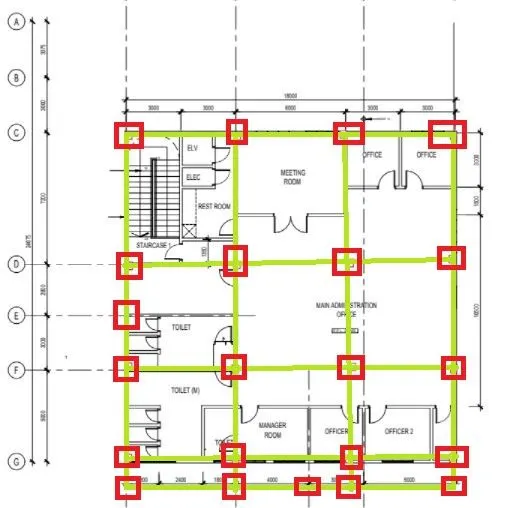
Attachment 1.2: According to the study, I have mentioned the places where we require the beams and columns
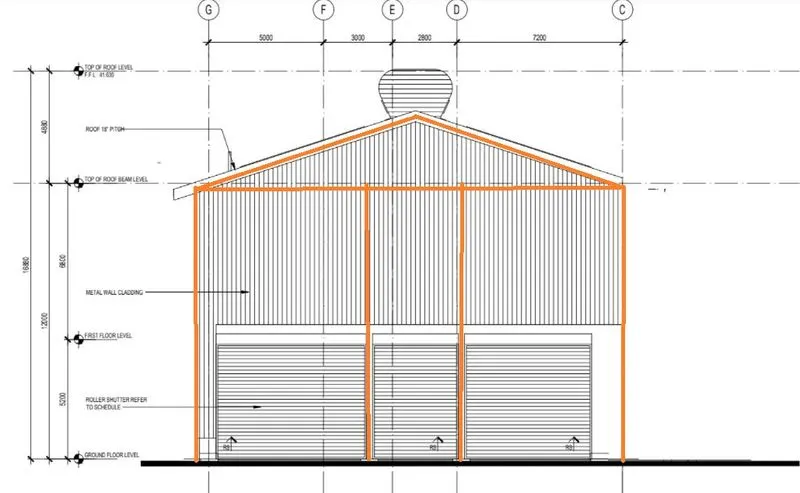
4.
Aim: To model grid lines and construction levels as per Attachment 1. 1.1 and 1.2
Procedure:
- Open the TEKLA software
- Now set the levels using construction lines and draw the grid lines according to that measurements in the question
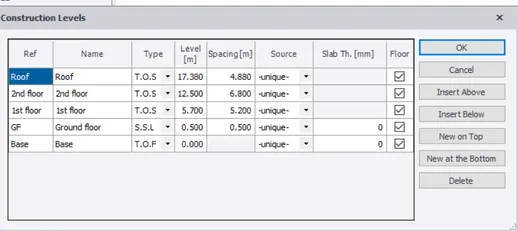
- Attachment 1
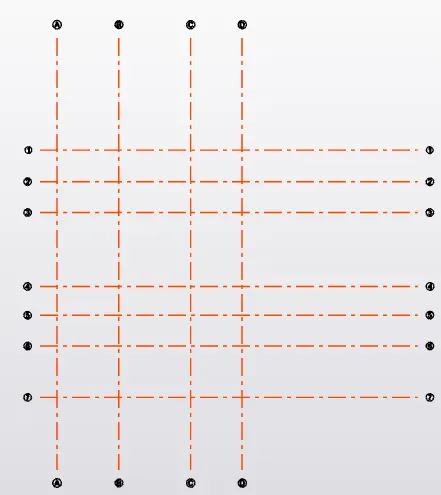
- Attachement 1.1
- Attachment 1.2