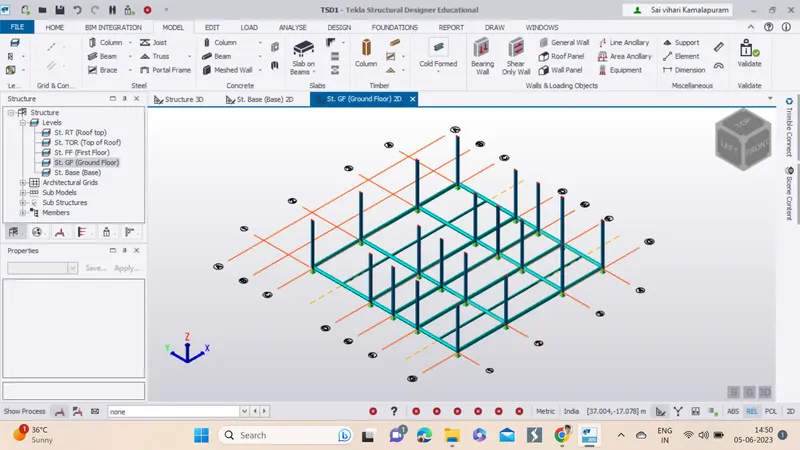
To model columns for industrial steel structure using TSD
Aim: Create column properties for different types of pedestal members and model in the grids created as per the assignment 1
Introduction: Tekla is a software product family that consists of programs for analysis and design, detailing and project communication. Tekla software is produced by Trimble, the publicly listed US-based technology company.
Procedure:
1. Open the Tekla software by double clicking on the icon.
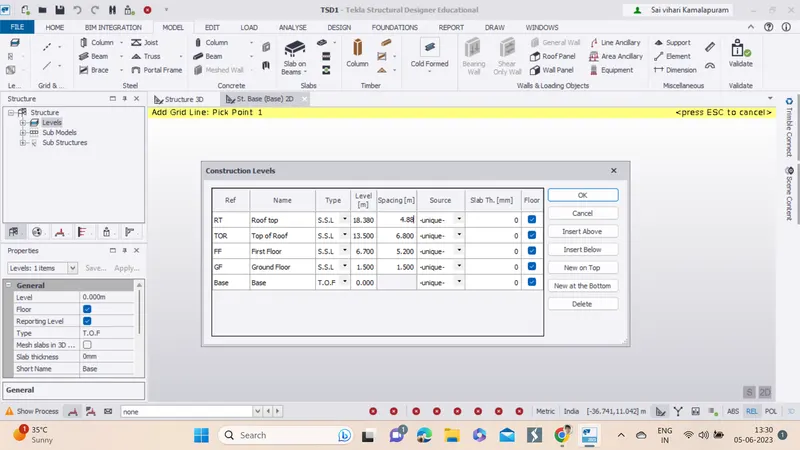
2. Open a new file, click on construction levels and levels are created.
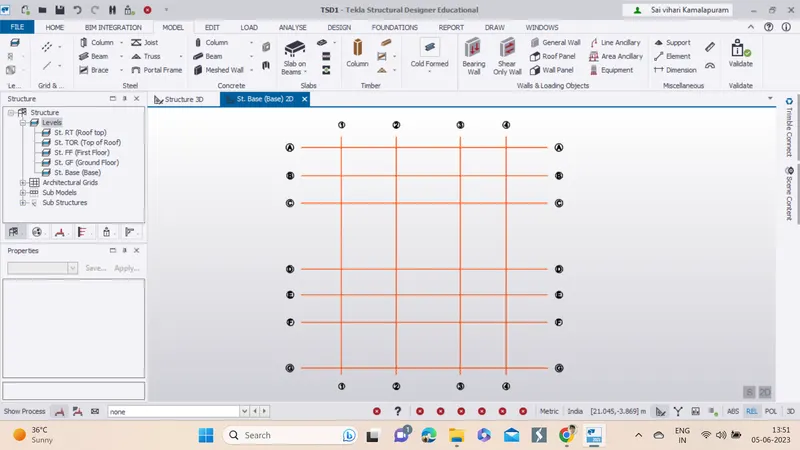
3. Grids option is clicked and then the grid lines are created as per the assignment.
4. Now go to model property settings, then click on New then we click on the concrete column, then we give the necessary instructions and then click ok.
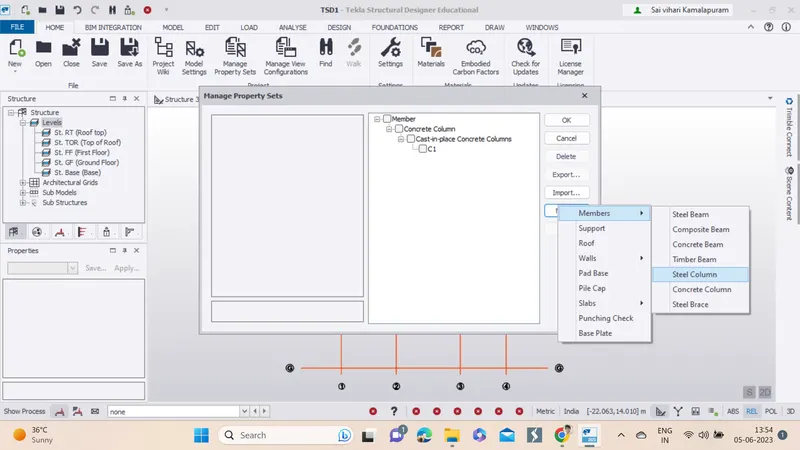
AIM: Create column properties for steel columns and model columns in the grid created as per assignment 1.
Introduction: Tekla is a software product family that consists of programs for analysis and design, detailing and project communication. Tekla software is produced by Trimble, the publicly listed US-based technology company.
Procedure:
1. Open the Tekla software by double clicking on the icon.
2. Open a new file, click on construction levels and levels are created.
3. Grids option is clicked and then the grid lines are created as per the assignment.
4. Now go to model property settings, then click on New then we click on the concrete column, then we give the necessary instructions and then click ok.
5. Same procedure is followed but we create steel columns this time to assign for the grid model, here we use ISMB 300.
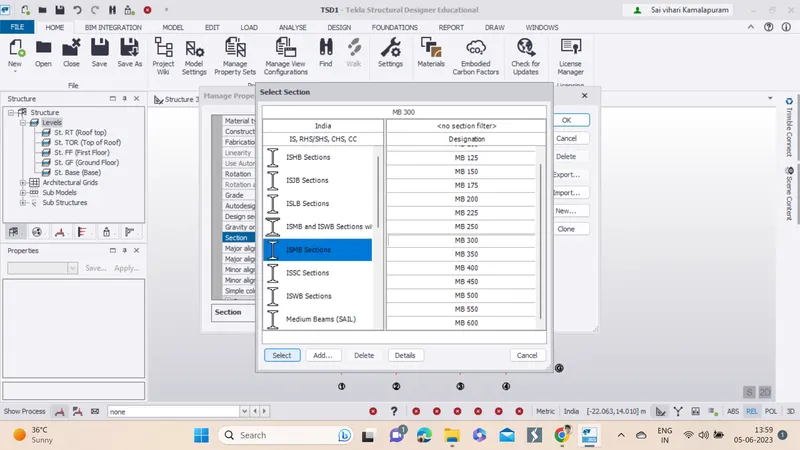
5. Now we assign the columns to the grid at ground level
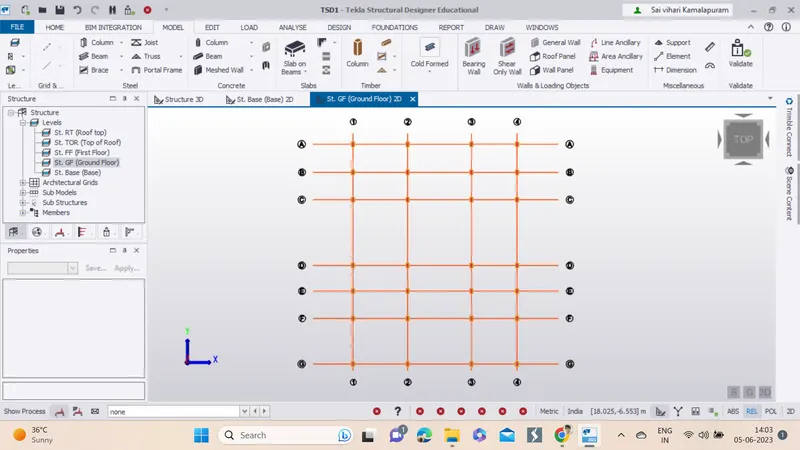
AIM: Create beam properties and model primary and secondary beams on the ground floor
Procedure:
1. The same file is used to create beam properties and then assign primary and secondary beams to the model.
2. Now go to model property settings, then click on New then we click on the steel beam, then we give the necessary instructions and then click ok.
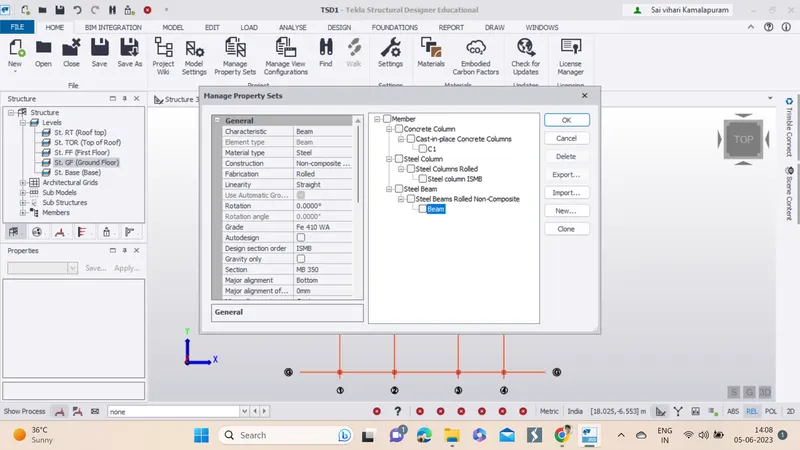
3. Now we need to place the primary beams to the model.
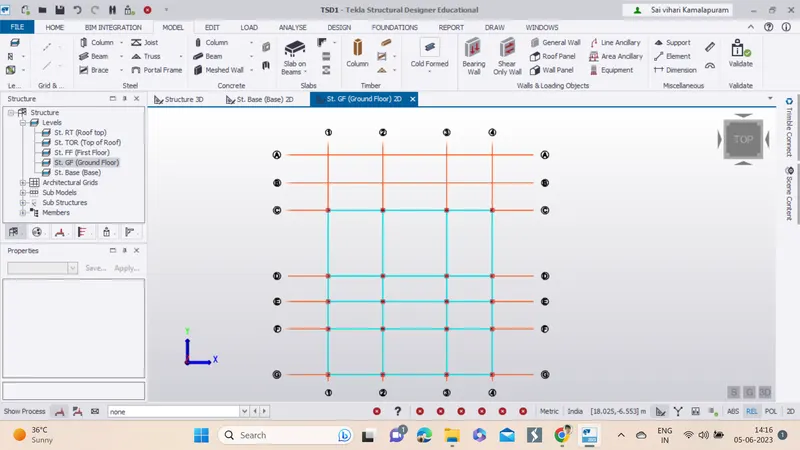
4. Now go to model property settings, then click on New then we click on the steel beam, then we give the necessary instructions to create a secondary beam and then click ok.
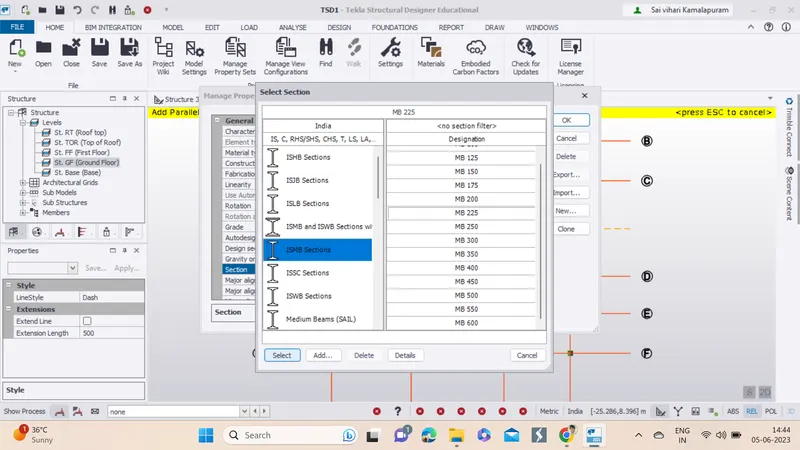
5. Now we need to place the secondary beams to the model.
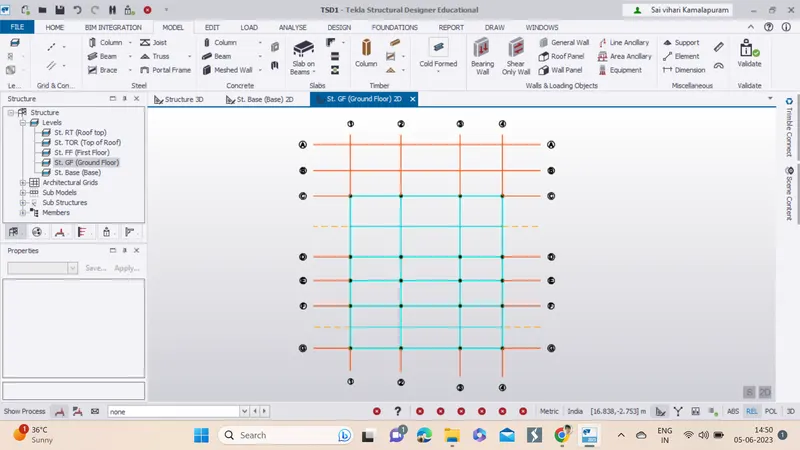
6. The final model looks like this in the 3d view.