To model columns for industrial steel structure using TSD
Aim: To Create column properties for different types of pedestal members and model in the grids created as per the assignment 1
PROCEDURE:
Initially open the Tekla file created in the assignment 1.
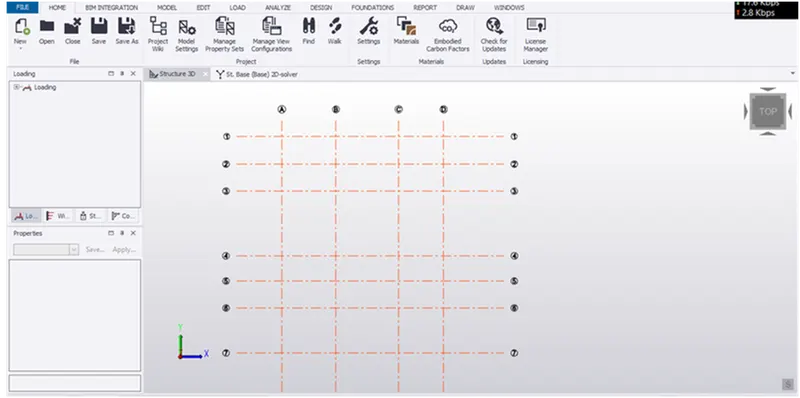
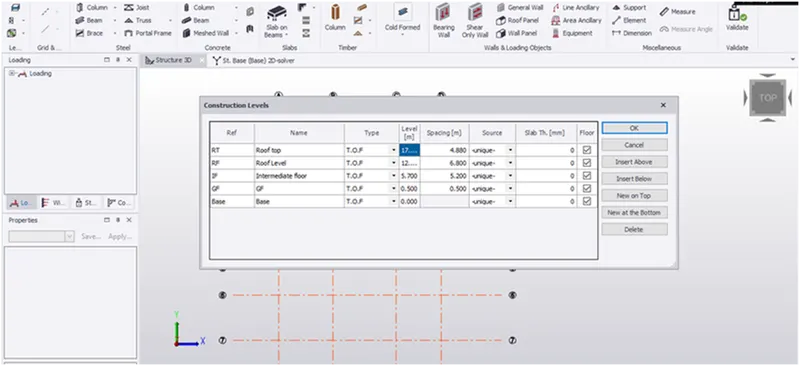
Cross checking was made to confirm the levels of the steel building.
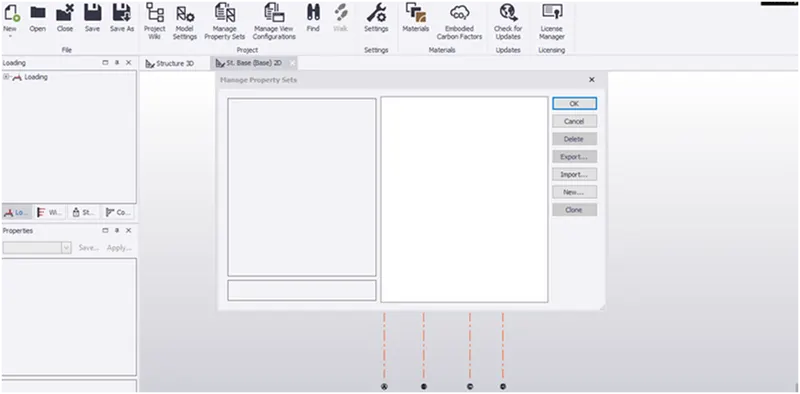
Now to add Pedestal columns in the Home menu click on Manage property sets options and the manage property sets dialogue box appears.
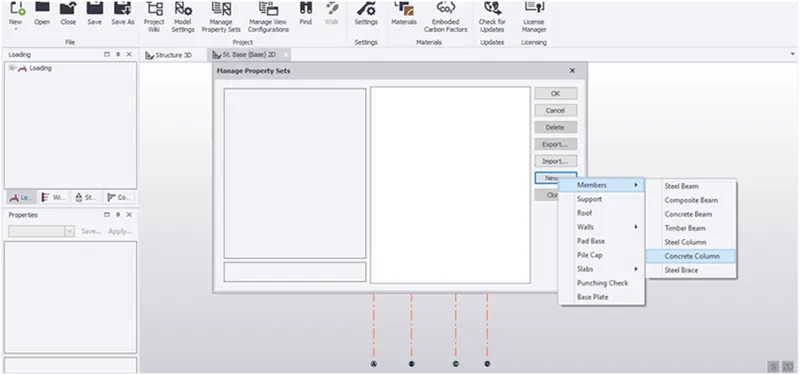
Click on New followed by members and select concrete column.
Rename the column for our own convenience and apply the properties as required on the side.
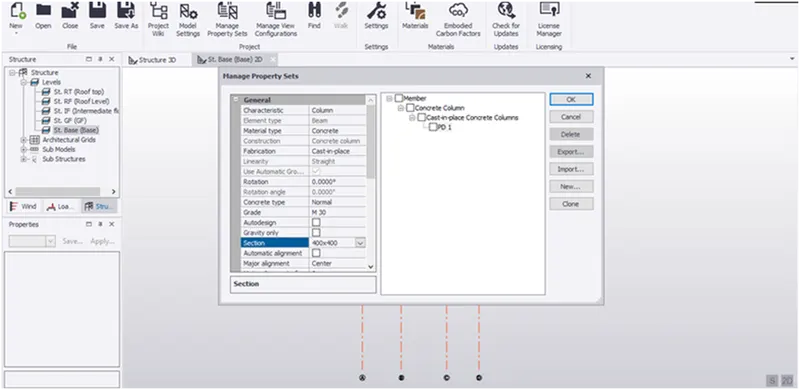
Now using the column option in the ribbon tab under the model menu columns was placed at locations as required. Columns was placed at base floor and till ground floor
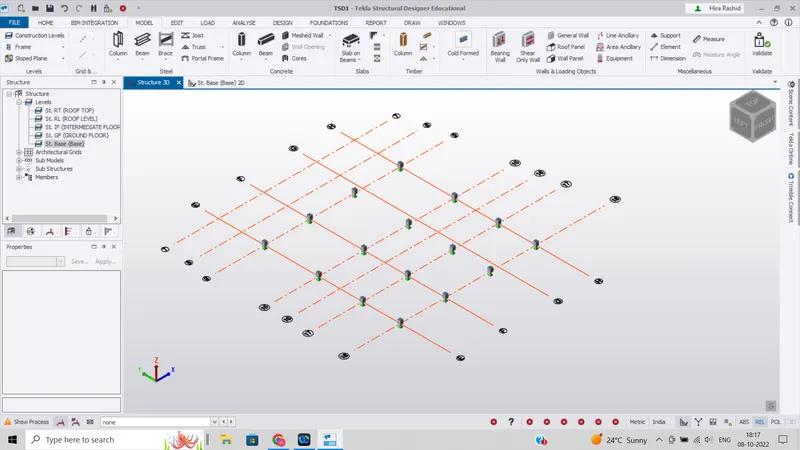
PART II
Aim: To create column properties for steel columns and model columns in the grid created as per assignment 1.
Procedure:
In the similar way concrete column was created steel columns was created and was renamed as C1.
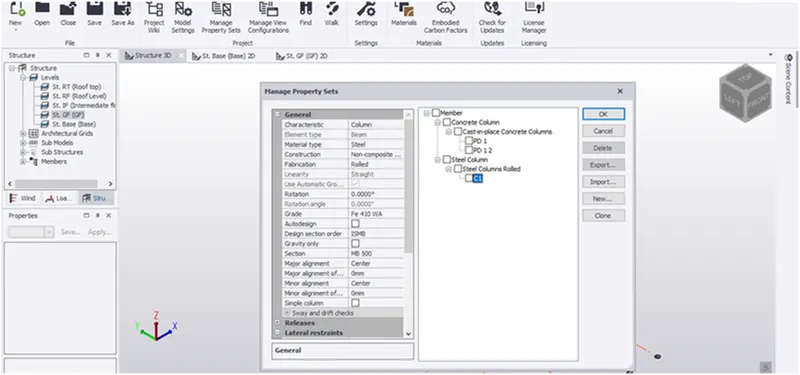
Now using the column option in the ribbon tab under the model menu columns was placed at locations as required. Columns was placed at ground floor and till top roof.
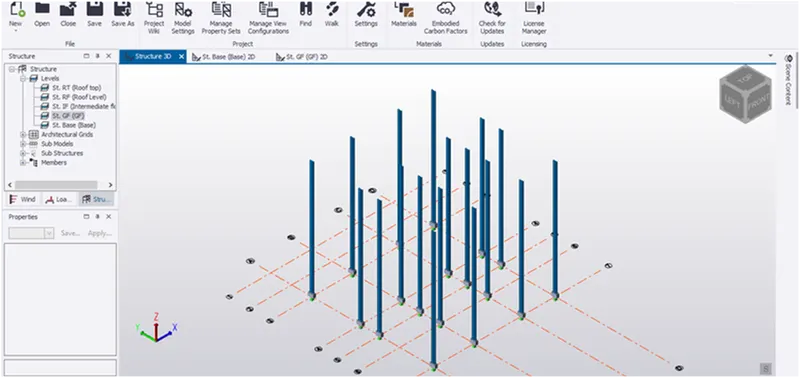
PART III
Aim: To create beam properties and model primary and secondary beams on the ground floor
Procedure:
In the similar way concrete column was created steel beams was created and was renamed as B1 and B2 as shown.
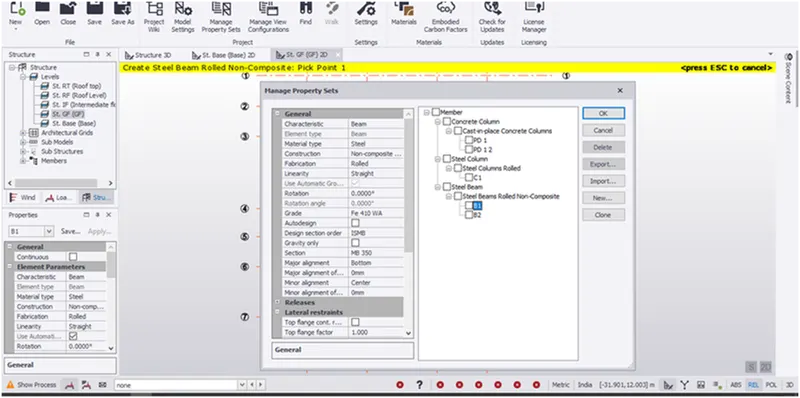
Now using the beam option in the ribbon tab under the model menu beams was placed at locations as required.
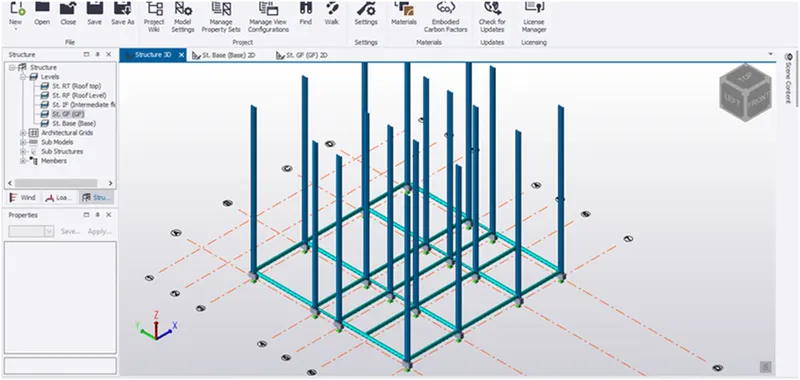
After that the model was validated by clicking on the validate option under the model menu and no errors was found.
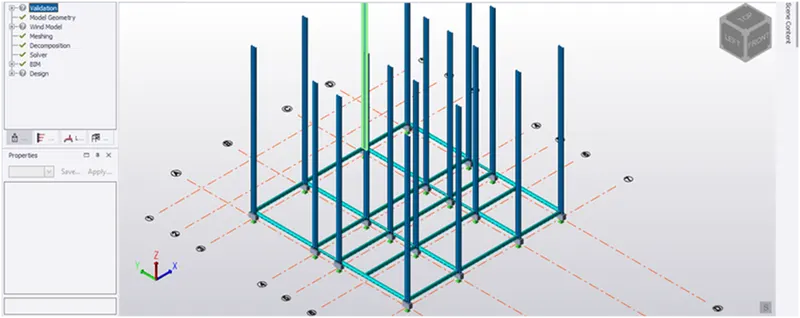
Results:
- Created column properties for different types of pedestal members and model in the grids.
- Created column properties for steel columns and model columns in the grid created.
- Create beam properties and model primary and secondary beams on the ground floor