Creation of geometries by Coordinate system methods using AutoCad
Aim: Creating the geometries using different coordinate system methods using the line and circle tool in AutoCAD
Objective1:Using all the 3 methods of coordinate system to draw geometries
P1:
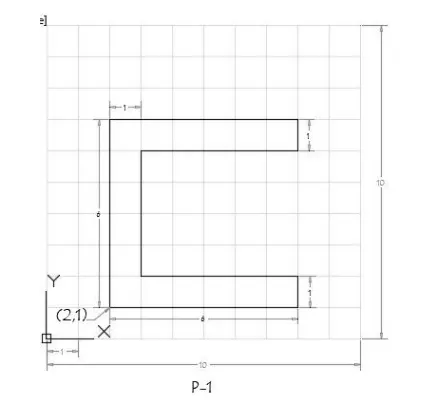
Procedure:
Firstly using se the Absolute Coordinate System where the distances are measured from the origon ie (0,0)
Steps to be taken:
1. Type the command "L" for line and give the coordinates for the point 1 which is the given point ie (2,1)
2. Enter the next coordinate as (2,7)in the command box
3. Enter the third coordinate being (8,7)
4. Enter the fourth coordinate (8,6)
5. Enter the fifth coordinate (3,6)
6. Enter the sixth coordinate (3,2)
7. Enter the seventh coordinate (8,2)
8.Enter the eighth coordinate (8,1)
9. Now click on the "close" command
RESULT
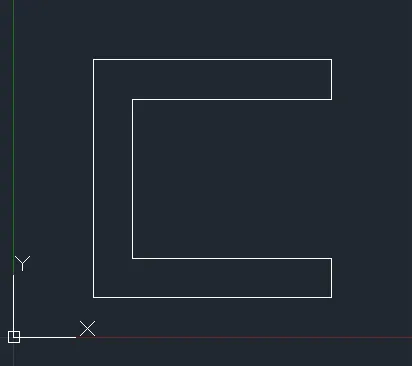
b. Using Relative Coordinate System in which the coordinates are measured from the previous point
Steps to be taken:
1. Type the command "L" for line and give the coordinates for the point 1 which is the given point ie (2,1)
2. Enter the next coordinate as @6,0 in the command box
3. Enter the third coordinate being @0,1
4. Enter the fourth coordinate @-5,0
5. Enter the fifth coordinate @0,4
6. Enter the sixth coordinate @5,0
7. Enter the seventh coordinate @0,1
8.Enter the eighth coordinate @6,0
9. Now click on the "close" command
RESULT
c. Using the third coordinate system i.e Polar Coordinate System in which the length and the angle with respect to x is considered
Steps to be taken:
1. Type the command "L" for line and give the coordinates for the point 1 which is the given point ie (2,1)
2. Enter the next coordinate as 6<0 in the command box
3. Enter the third coordinate being 1<90
4. Enter the fourth coordinate 5<180
5. Enter the fifth coordinate 4<90
6. Enter the sixth coordinate 5<0
7. Enter the seventh coordinate 1<90
8.Enter the eighth coordinate 6<180
9. Now click on the "close" command
RESULT
P2
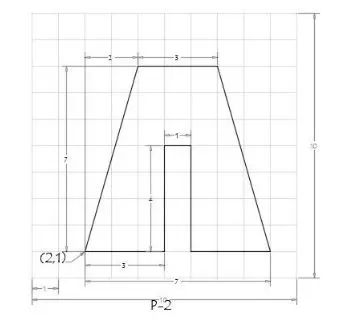
Firstly using se the absolute coordinate system
Steps to be taken:
1. Type the command "L" for line and give the coordinates for the point 1 which is the given point ie (2,1)
2. Enter the next coordinate as (5,1) in the command box
3. Enter the third coordinate being (5,5)
4. Enter the fourth coordinate (6,5)
5. Enter the fifth coordinate (6,1)
6. Enter the sixth coordinate (9,1)
7. Enter the seventh coordinate (7,8)
8.Enter the eighth coordinate (4,8)
9. Now click on the "close" command
RESULT
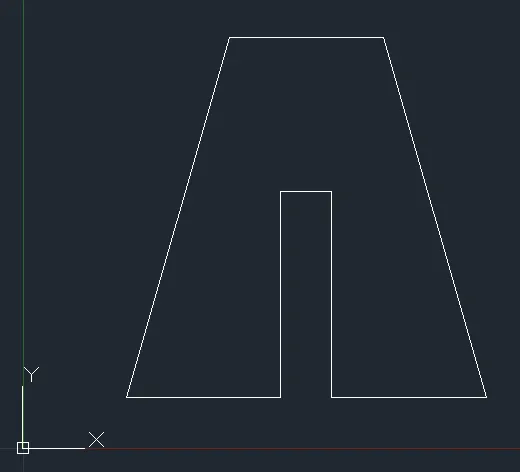
b. Using relative coordinate system
Steps to be taken:
1. Type the command "L" for line and give the coordinates for the point 1 which is the given point ie (2,1)
2. Enter the next coordinate as @3,0 in the command box
3. Enter the third coordinate being @0,4
4. Enter the fourth coordinate @1,0
5. Enter the fifth coordinate @0,4
6. Enter the sixth coordinate @3,0
7. Enter the seventh coordinate @-2,7
8.Enter the eighth coordinate @-3,0
9. Now click on the "close" command
RESULT
c. Using the third coordinate system i.e polar coordinate system
Steps to be taken:
1. Type the command "L" for line and give the coordinates for the point 1 which is the given point ie (2,1)
2. Enter the next coordinate as 3<0 in the command box
3. Enter the third coordinate being 4<90
4. Enter the fourth coordinate 1<0
5. Enter the fifth coordinate 4<270
6. Enter the sixth coordinate 3<0
7. Enter the seventh coordinate 7.28<106
8.Enter the eighth coordinate 3<180
9. Now click on the "close" command
RESULT
Objective2:Using any one method of coordinate system or a combination of any 2 as per drawing requirement
P3
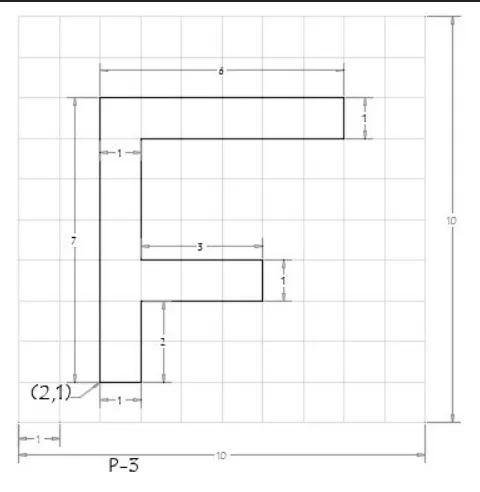
Using relative coordinate system
Steps to be taken:
1. Type the command "L" for line and give the coordinates for the point 1 which is the given point ie (2,1)
2. Enter the next coordinate as @0,7 in the command box
3. Enter the third coordinate being @6,0
4. Enter the fourth coordinate @0,-1
5. Enter the fifth coordinate @-5,0
6. Enter the sixth coordinate @0,-3
7. Enter the seventh coordinate @3,0
8.Enter the eighth coordinate @0,-1
9.Enter the ninth coordinate @-3,0
10. Enter the tenth coordinate @0,-2
11. Now click on the "close" command
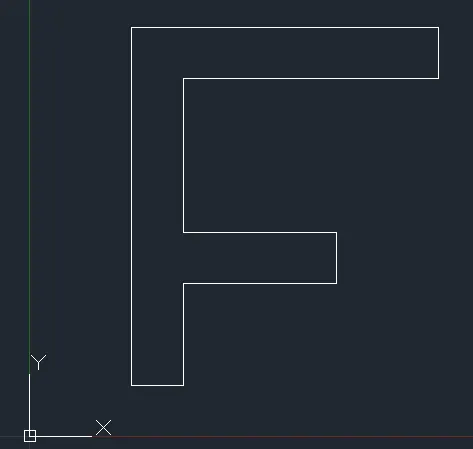
RESULT
P4
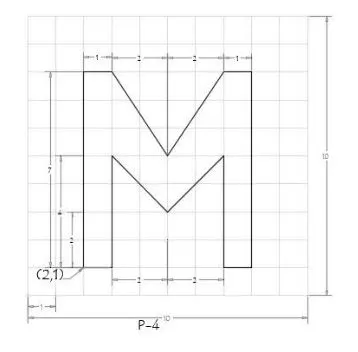
Using the absolute coordinate system
Steps to be taken:
1. Type the command "L" for line and give the coordinates for the point 1 which is the given point ie (2,1)
2. Enter the next coordinate as (3,1) in the command box
3. Enter the third coordinate being (3,4)
4. Enter the fourth coordinate (5,3)
5. Enter the fifth coordinate (7,4)
6. Enter the sixth coordinate (7,1)
7. Enter the seventh coordinate (8,1)
8.Enter the eighth coordinate (8,7)
9.Enter the ninth coordinate (7,7)
10.Enter the tenth coordinate (5,5)
11.Enter the eleventh coordinate (3,7)
12.Enter the tweltf coordinate (2,7)
13. Now click on the "close" command
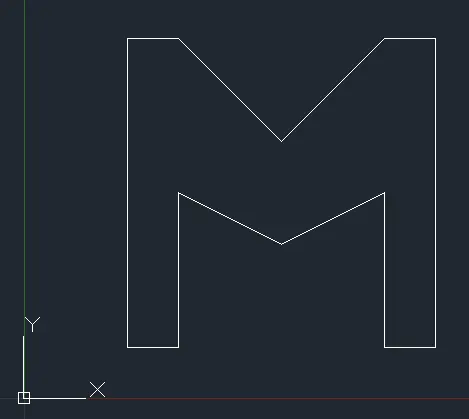
RESULT
P5
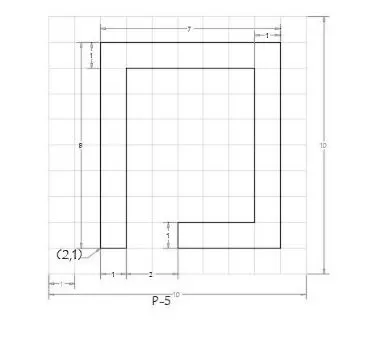
Using the absolute coordinate system
Steps to be taken:
1. Type the command "L" for line and give the coordinates for the point 1 which is the given point ie (2,1)
2. Enter the next coordinate as (3,1) in the command box
3. Enter the third coordinate being (3,8)
4. Enter the fourth coordinate (8,8)
5. Enter the fifth coordinate (8,2)
6. Enter the sixth coordinate (5,2)
7. Enter the seventh coordinate (5,1)
8.Enter the eighth coordinate (9,1)
9.Enter the ninth coordinate (9,9)
10.Enter the tenth coordinate (2,9)
11. Now click on the "close" command
RESULT
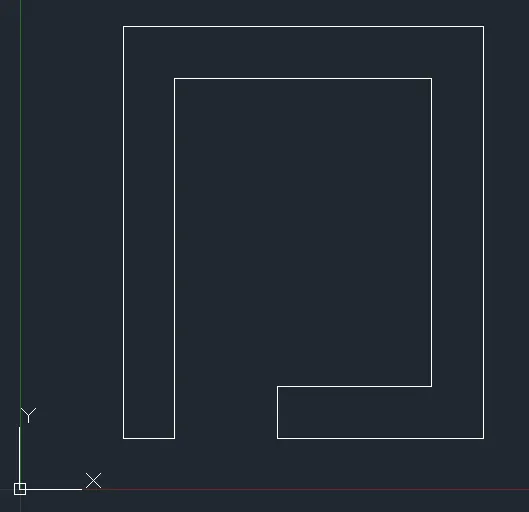
P6.
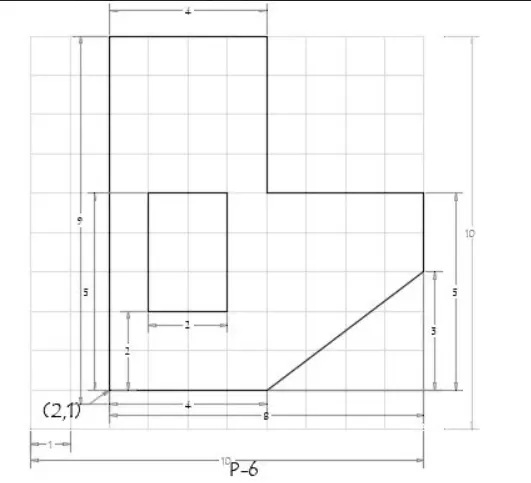
Using relative coordinate system
Steps to be taken:
1. Type the command "L" for line and give the coordinates for the point 1 which is the given point ie (2,1)
2. Enter the next coordinate as @0,9 in the command box
3. Enter the third coordinate being @4,0
4. Enter the fourth coordinate @0,-4
5. Enter the fifth coordinate @4,0
6. Enter the sixth coordinate @0,-2
7. Enter the seventh coordinate @-4,-3
8.Enter the eighth coordinate @-4,0
9. Now click on the "close" command
10. One portion being completed hop into the other portion by typing "LINE" in the command box and specify the points as (3,3)
11.Enter the second coordinate as @0,3
12.Third coordinate as @2,0
13. Fourth coordinate as (0,-3)
14. Now click on the "close" command
RESULT
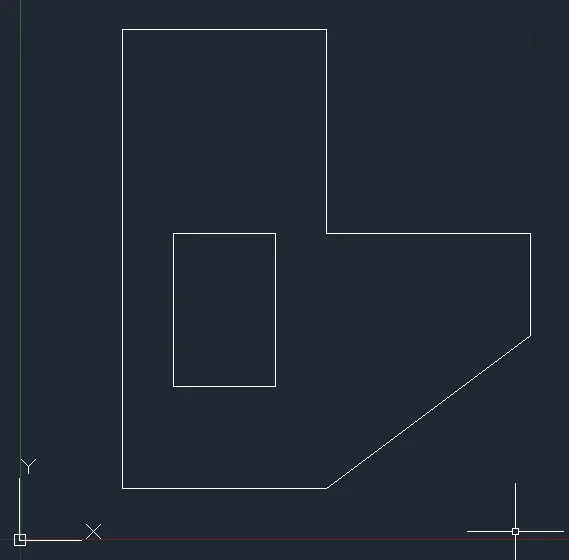
P7.
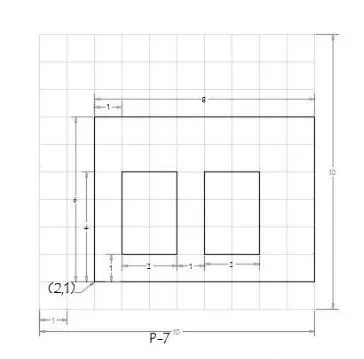
Using the absolute coordinate system
Steps to be taken:
1. Type the command "L" for line and give the coordinates for the point 1 which is the given point ie (2,1)
2. Enter the next coordinate as (10,1) in the command box
3. Enter the third coordinate being (10,6)
4. Enter the fourth coordinate (2,6)
5. This completes the first portion of the drawing,now for the inside portion we need to type line in the command boxc and specify the points as (3,2)
6. Enter the second coordinate as (3,5)
7.Third coordinate as (5,5)
8. Fourth coordinate as (5,2)
9. Now click on the "close" command
10. This completes the second portion of the drawing,now for the third portion adjacent to it we need to type line in the command boxc and specify the points as (6,2)
11. Enter the second coordinate as (6,5)
12.Third coordinate as (8,5)
13. Fourth coordinate as (8,2)
14. Now click on the "close" command
RESULT
v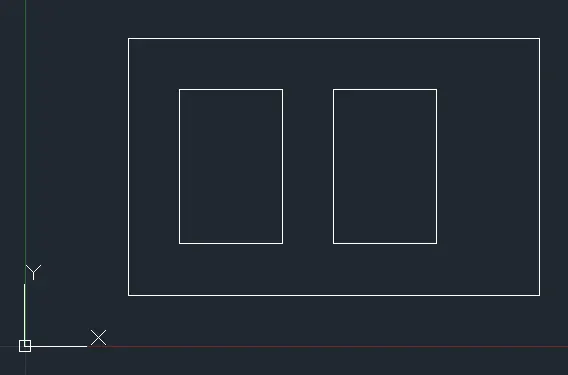
P8
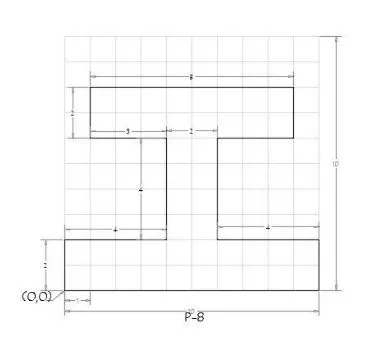
Using relative coordinate system
Steps to be taken:
1. Type the command "L" for line and give the coordinates for the point 1 which is the given point ie (0,0)
2. Enter the next coordinate as @0,2 in the command box
3. Enter the third coordinate being @4,0
4. Enter the fourth coordinate @-3,0
5. Enter the fifth coordinate @0,2
6. Enter the sixth coordinate @8,0
7. Enter the seventh coordinate @0,-2
8.Enter the eighth coordinate @-3,0
9.Enter the ninth coordinate @0,-4
10.Enter the tenth coordinate @4,0
11.Enter the eleventh coordinate @0,-2
12. Now click on the "close" command
RESULT
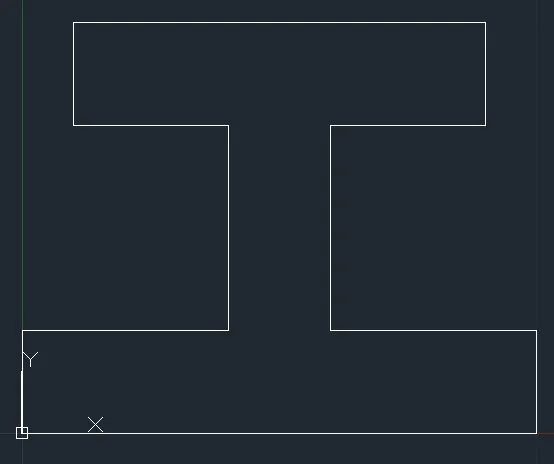
P9
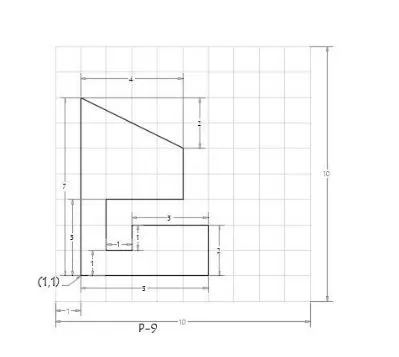
Using relative coordinate system
Steps to be taken:
1. Type the command "L" for line and give the coordinates for the point 1 which is the given point ie (1,1)
2. Enter the next coordinate as @6,0 in the command box
3. Enter the third coordinate being @0,2
4. Enter the fourth coordinate @-3,0
5. Enter the fifth coordinate @0,-1
6. Enter the sixth coordinate @-1,0
7. Enter the seventh coordinate @0,2
8.Enter the eighth coordinate @3,0
9.Enter the ninth coordinate @0,2
10.Enter the tenth coordinate @-4,-2
11. Now click on the "close" command
RESULT
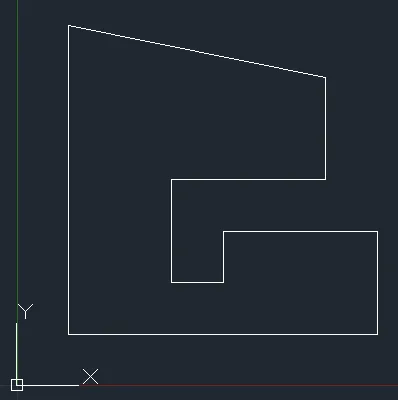
P10
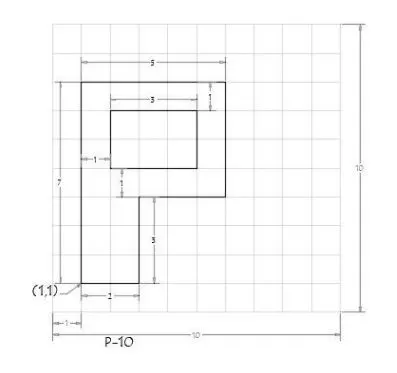
Using combination of relative and absolute coordinate system method
For the outer portion-Relative coordinate system
1. Type the command "L" for line and give the coordinates for the point 1 which is the given point ie (1,1)
2. Enter the next coordinate as @0,7 in the command box
3. Enter the third coordinate being @5,0
4. Enter the fourth coordinate @0,-4
5. Enter the fifth coordinate @-3,0
6. Enter the sixth coordinate @0,-3
For the inner portion-Absolute coordinate system
1. Type the command "L" for line and give the coordinates for the point 1 which is the given point ie (2,5)
2. Enter the next coordinate as (2,7) in the command box
3. Enter the third coordinate being (5,7)
4. Enter the fourth coordinate (5,5)
Civil related problems:
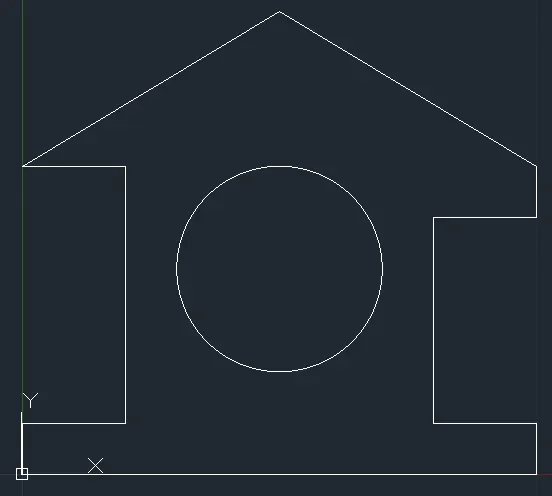
a. Profile Wood:
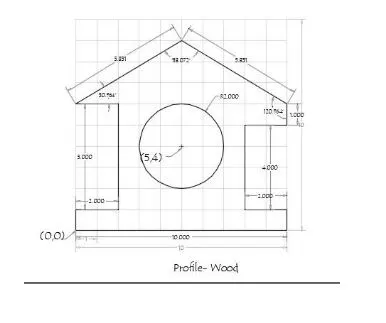
Using relative coordinate system
Steps to be taken:
1. Type the command "L" for line and give the coordinates for the point 1 which is the given point ie (0,0)
2. Enter the next coordinate as @10,0in the command box
3. Enter the third coordinate being @0,1
4. Enter the fourth coordinate @-2,0
5. Enter the fifth coordinate @0,4
6. Enter the sixth coordinate @2,0
7. Enter the seventh coordinate @0,1
8.Enter the eighth coordinate @-5,3
9.Enter the ninth coordinate @-5,-3
10.Enter the tenth coordinate @2,0
11.Enter the eleventh coordinate @0,-5
12.Enter the twelf coordinate@-2,0
13. Now click on the "close" command
14. Type "circle" in the command box or choose from the ribbon and choose the "center-radius circle" and specify the coordinates in the command box as (5,4) and radius 2
RESULT
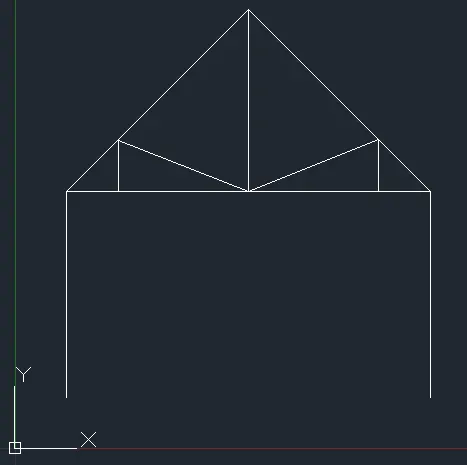
b. Queen Post Truss:
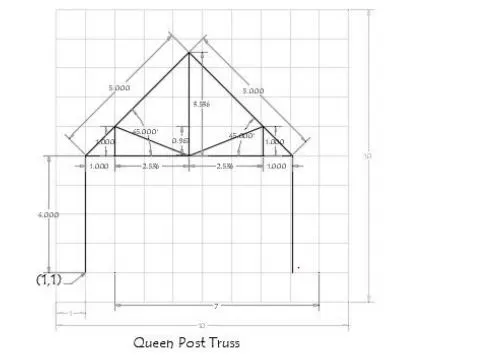
Using relative and polar methods of coordinate system
1. Type the command "L" for line and give the coordinates for the point 1 which is the given point ie (1,1)
2. Enter the next coordinate as @0,4 in the command box
3. Enter the third coordinate being 5<45
4. Enter the fourth coordinate 5<315
5. Enter the fifth coordinate 4<270
6. Specify the sixth coordinate 0,4
7. Enter the seventh coordinate 7.07<180
8.Enter the eighth coordinate 1<90
9. Enter the ninth coordinate 2.535<0
10.Enter the tenth coordinate 3.535<90
11.Enter the eleventh coordinate 2.535<0
12. Enter the twelf coordinate 1<90
RESULT
c. Monopitch
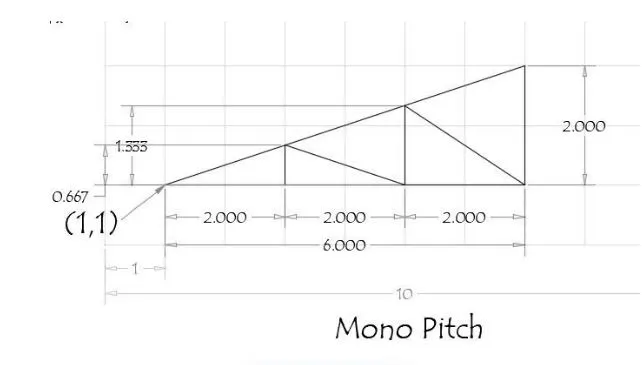
Using relative and polar methods of coordinate system
1. Type the command "L" for line and give the coordinates for the point 1 which is the given point ie (1,1)
2. Enter the next coordinate as @2,0 in the command box
3. Enter the third coordinate being 0.667<90
4. Specify the coordinate (2,0)
5. Enter the next coordinate 1.335<90
6. Specify the coordinate (2,0)
7. Enter the next coordinate 2<90
8. Now click on the "close" command
RESULT
v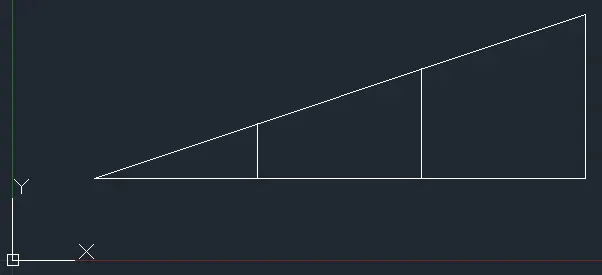
Conclusion:
The geometries are drawn using three coordinate system methods using line and circle tool and the result is shown for each geometry.