To model columns for industrial steel structure using TSD
1.) Create column properties for different types of pedestal members and model in the grids created as per the assignment 1
AIM :
To Create column properties for different types of pedestal members and model in the grids created as per the assignment 1
INTRODUCTION :
All different kinds of complex mixtures can be separated by column chromatography. Mobile phase is on a wide range. No limit for quantity as any amount of mixture can be separated by this technique. It is a robust method.
They can move loads to the foundations and soil below from the slab and beams. Columns should be positioned uniformly on all floors for the most efficient support, if possible. The stability of the lowest set of columns would be improved by this.
PROCEDURE :
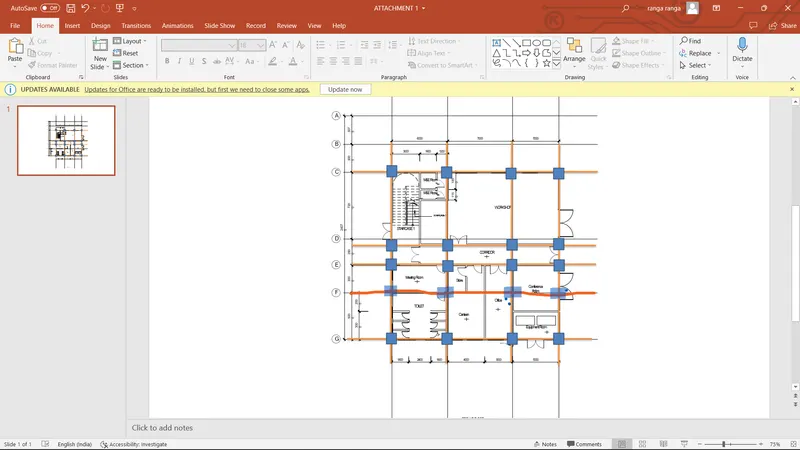
- Just taken the given architecture file and draw the diagram roughly
- Open the new file with use of new option
- After open the file they created two screen 2d, and 3d
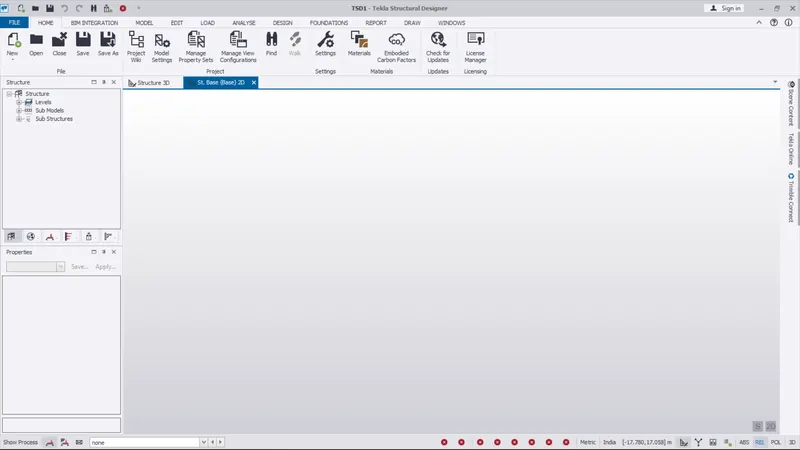
- Go to the home tab
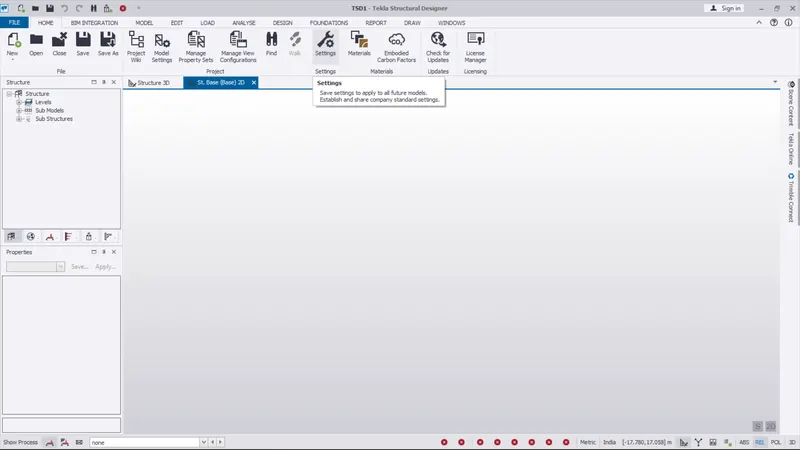
- Select the setting option
- And modify the setting like design code, design setting ect..,
- And also modify the slab spacing and autodesign
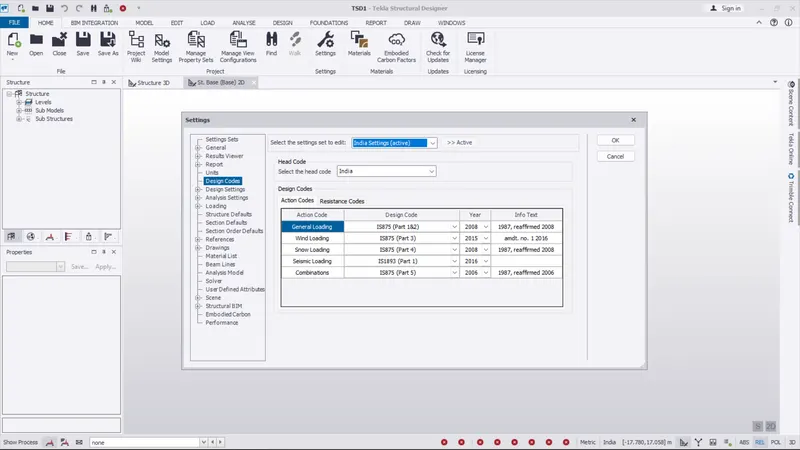
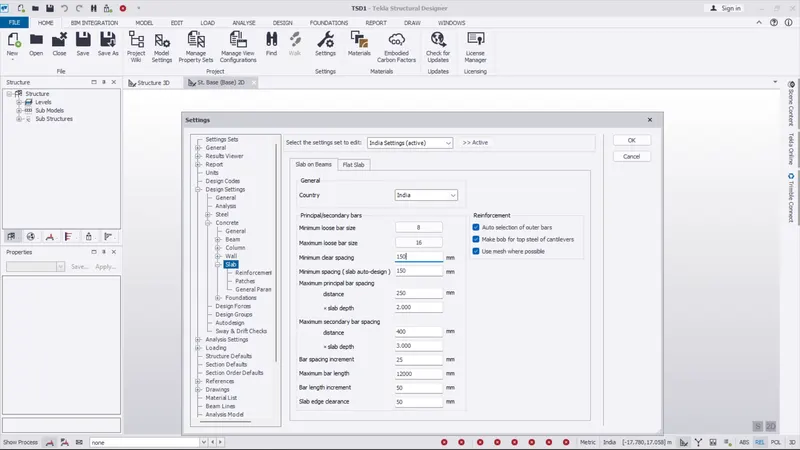
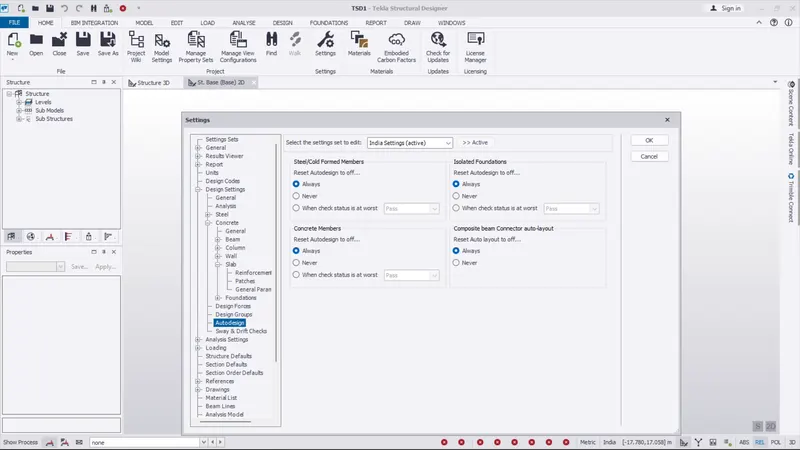
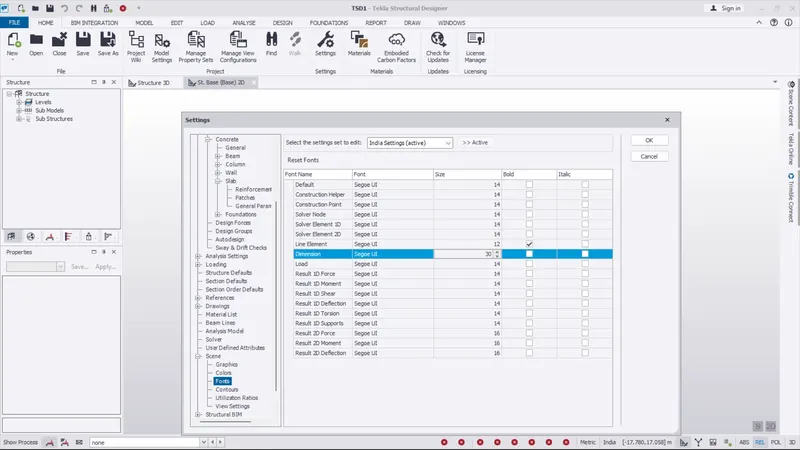
- Next go to the materila option
- modify the material code (INDIAN) and material type (STEEL)
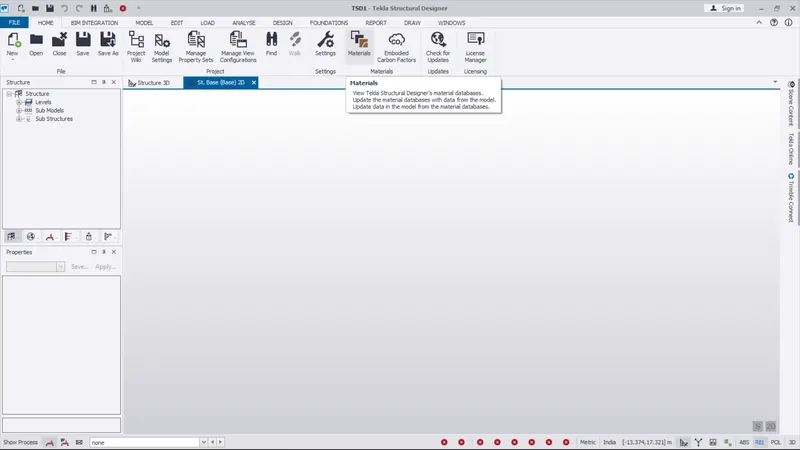
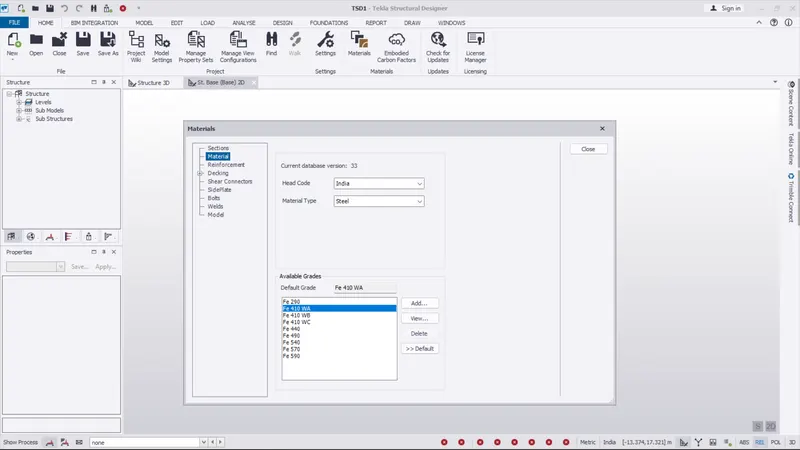
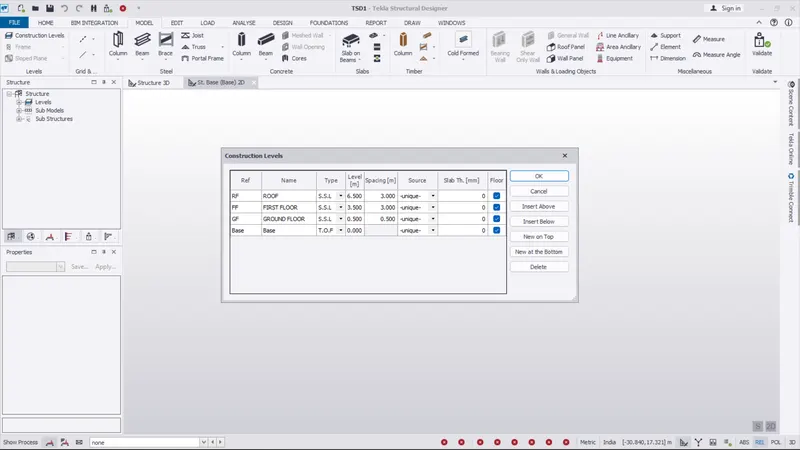
- Next go to the construction level option on the model tab
- Set the base, ground floor, first floor, and roof
- Give the spacing for the floors as per the given architecture diagram
- And set the type TOF, SSL
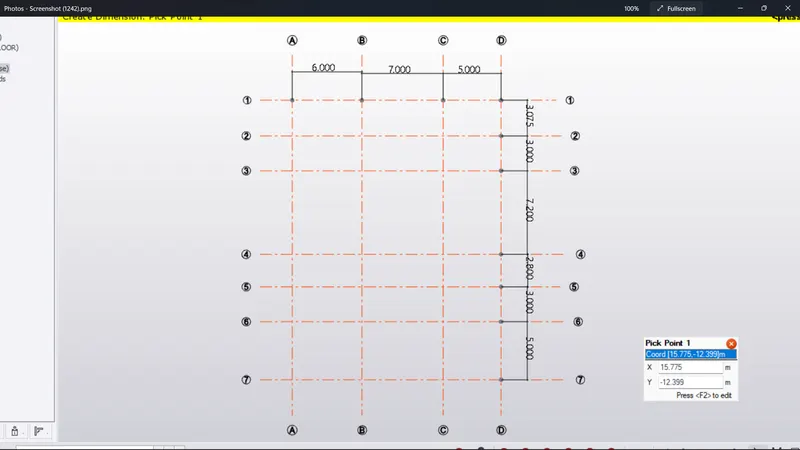
- Use the grid option to draw the grid lines
- And also use the grid parallel and perpendicular option to place the grid as per the given spacing
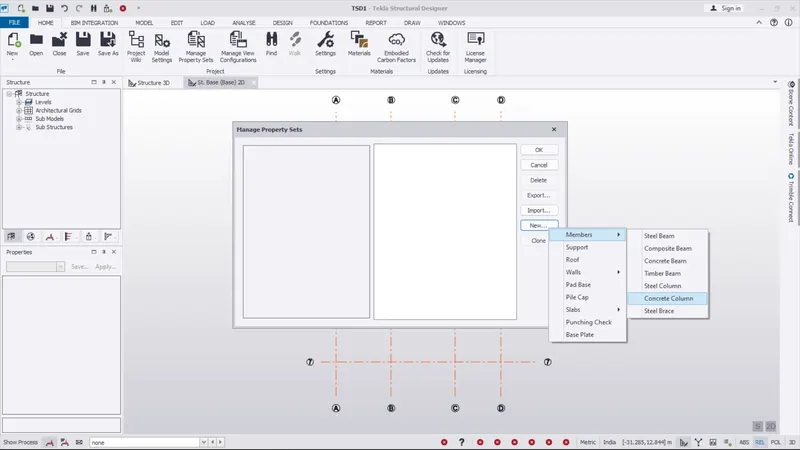
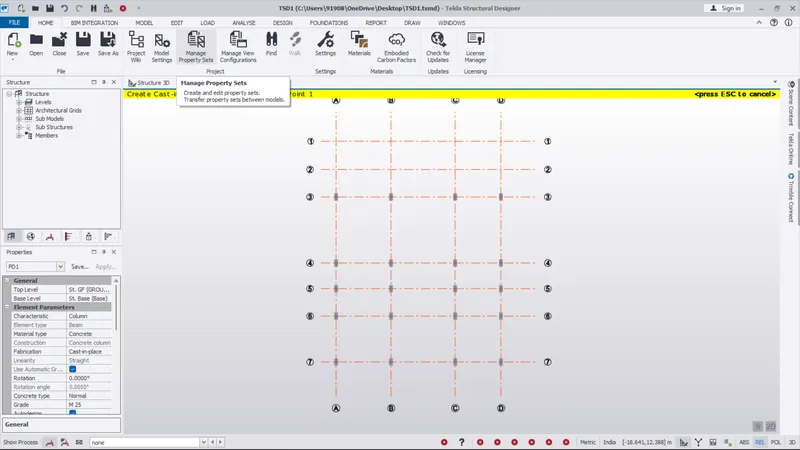
- And use the manage properties set option
- click the new file option and select the members and pick the concrete column
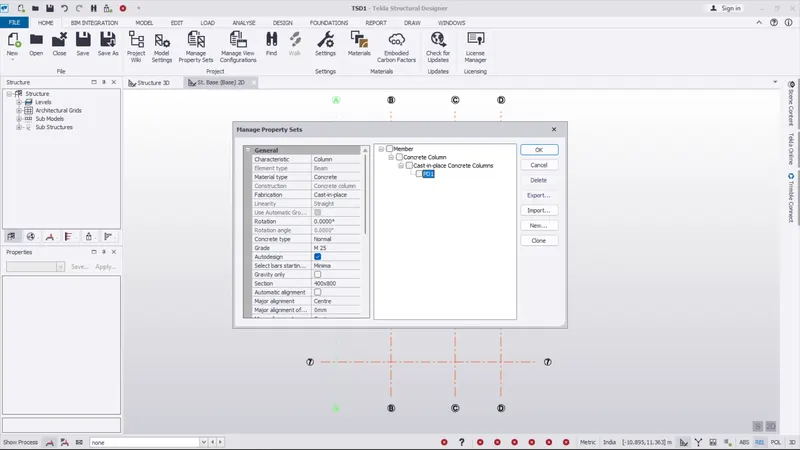
- And rename it Pd1
- And Modify the general setting and then ok
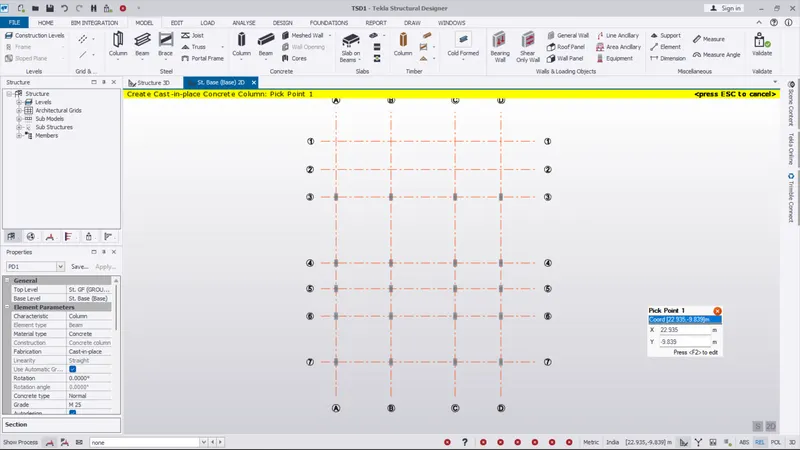
- Use the properties dialouge box on the left side screen
- select the Pd1 option and change base to ground floor
- And place the column on the grid
RESULT :
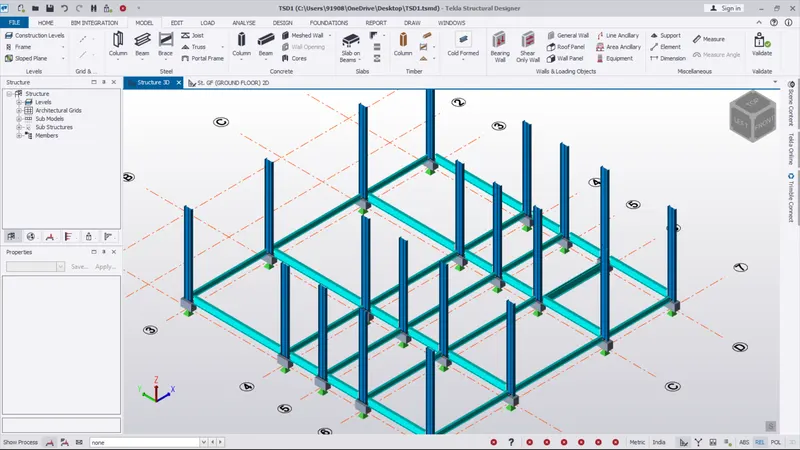
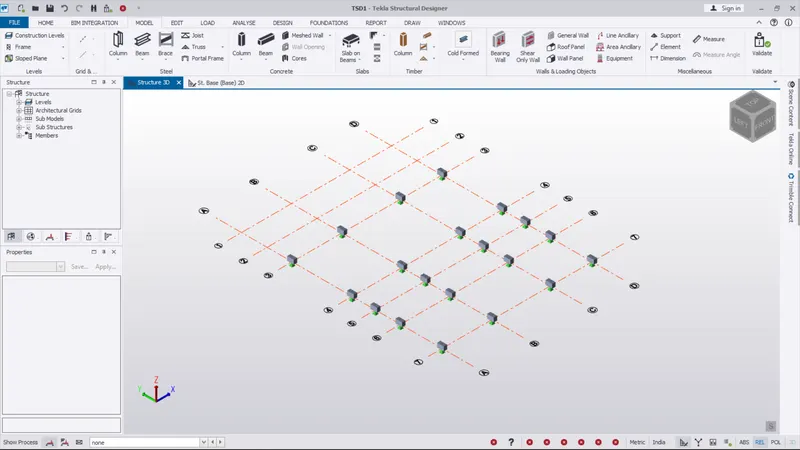
- As per the question the column as been created and placed on the grid
- And the column as been viewed in 3d screen is given below
2.) Create column properties for steel columns and model columns in the grid created as per assignment 1.
AIM :
To Create column properties for steel columns and model columns in the grid created as per assignment 1.
INTRODUCTION :
A steel column is a vertical structure member used in construction to provide essential support. They may carry loads in compression or they may transfer loads from things like beams, ceilings, floor slabs or roof slabs to floors or foundations. Steel columns may also carry bending moments near cross-section axes.
The Column Model. Columns are the core building blocks of the table. They describe the structure, behavior and appearance. When rows (data items) meet columns we get a matrix of cells we call a table / grid.
PROCEDURE :
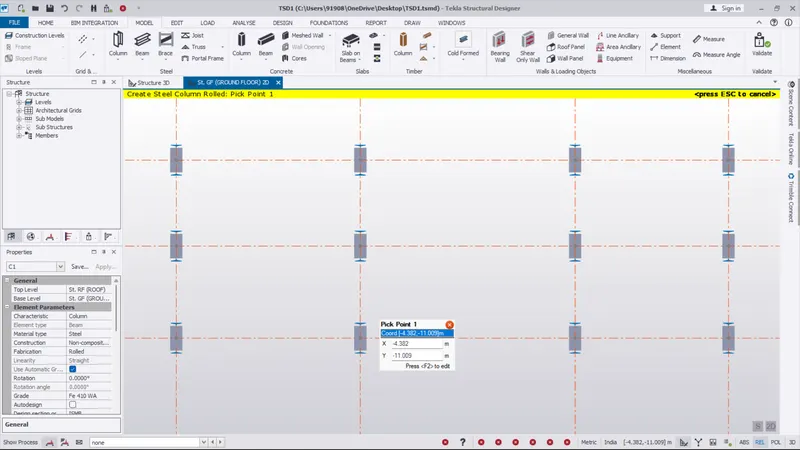
- Here now we want to place the steel column
- So first taken the manage properties set option
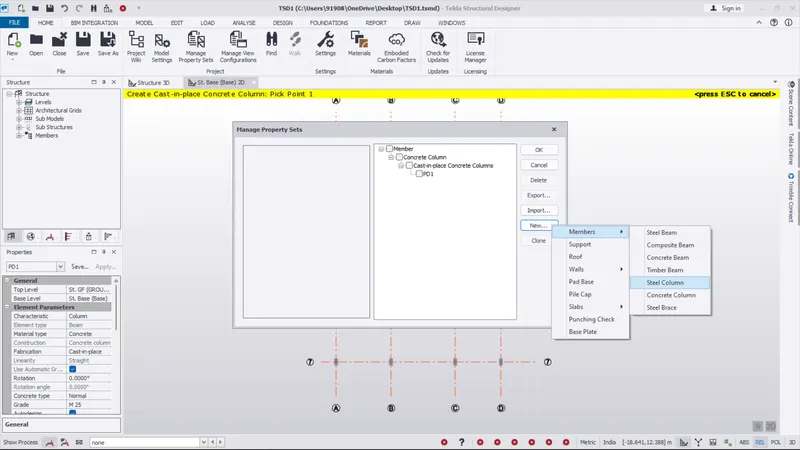
- Next go to the new option
- Then select the menbers and select steel column
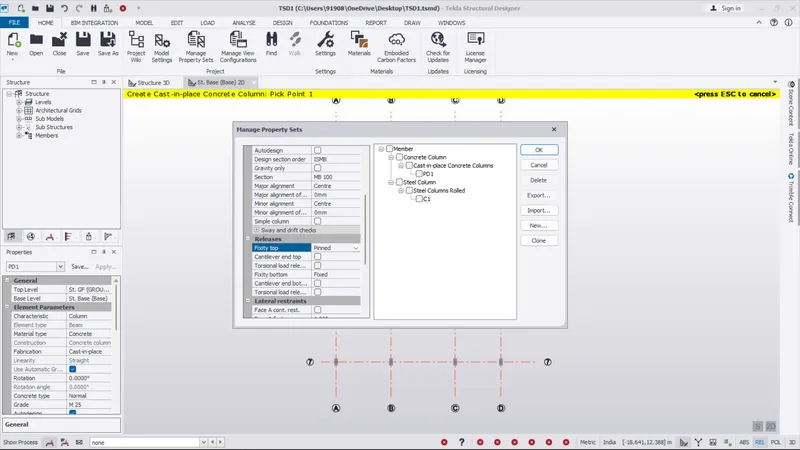
- And renmae it c1
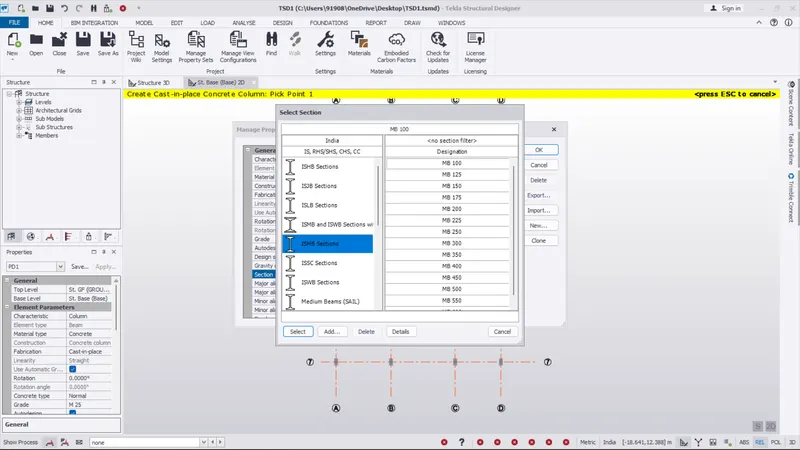
- Modify the general setting what we want like size , spacing etc...
- Use the properties dialouge box on the left side screen
- select the C1 option and change ground level to roof
- And place the column on the grid
RESULT :
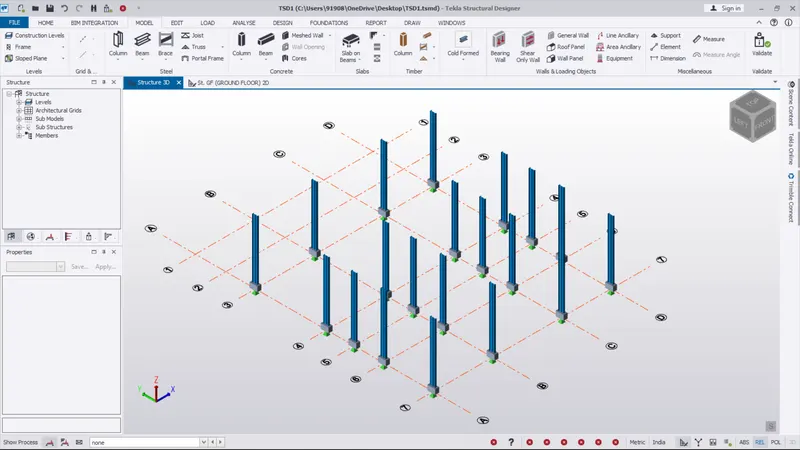
- As per the question the steel column as been created and placed on the concrete column above
- And the steel column as been viewed in 3d screen is given below
3.) Create beam properties and model primary and secondary beams on the ground floor
AIM :
To Create beam properties and model primary and secondary beams on the ground floor
INTRODUCTION :
1) primary beam :– those type of horizontal flexural (beam) structure member which directly connected to supporting compressive structure member that is column.
Primary beam is also known as main beam which Safely transfer the load to the column acting on it by the slab or by secondary beam if it is present
2) secondary beam :-those type of horizontal flexural (beam) structure member which directly connected to primary beam and not connected directly to column.this beam is known as secondary beam which Safely transfer the load to the primary beam acting on it by the slab.
There is several types of beam some of you have heared about simply supported beam, cantilever beam, continuous beam ,overhanging being and fixed beam, tie beam ,plinth beam ,lintel beam and etc.but there is also two type of beam known as primary beam and secondary beam. In this article we know about and discuss what is difference between primary beam and secondary beam.beam is flexural structure member undergoing both compression and tension causes bending moment.
PROCEDURE :
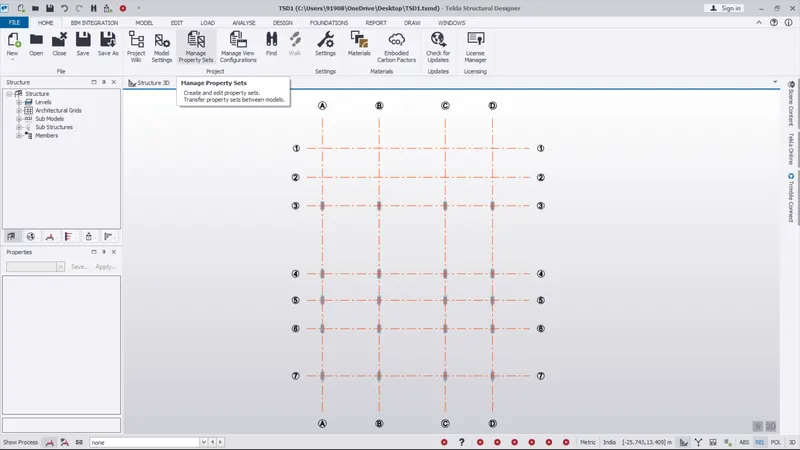
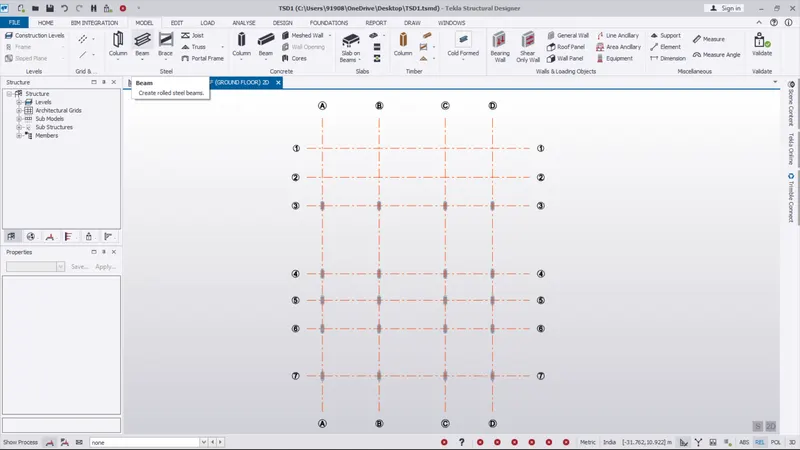
- Here now we want to place the Beam
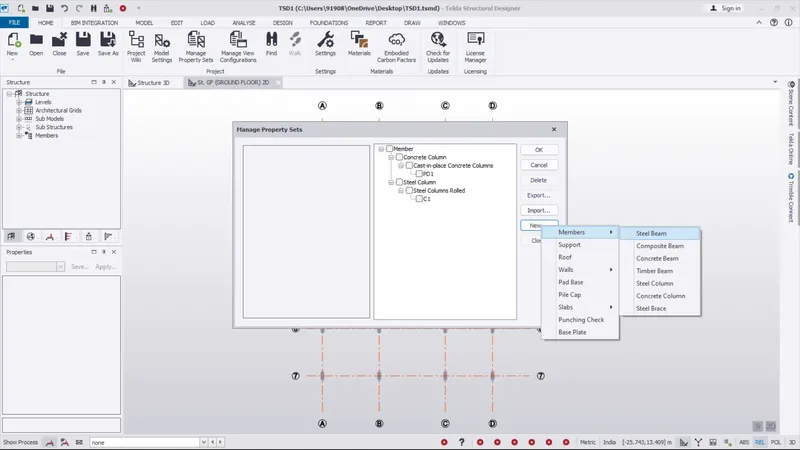
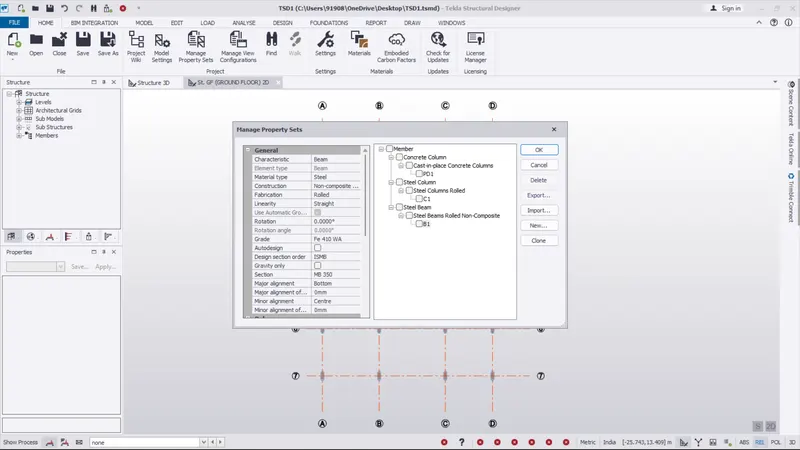
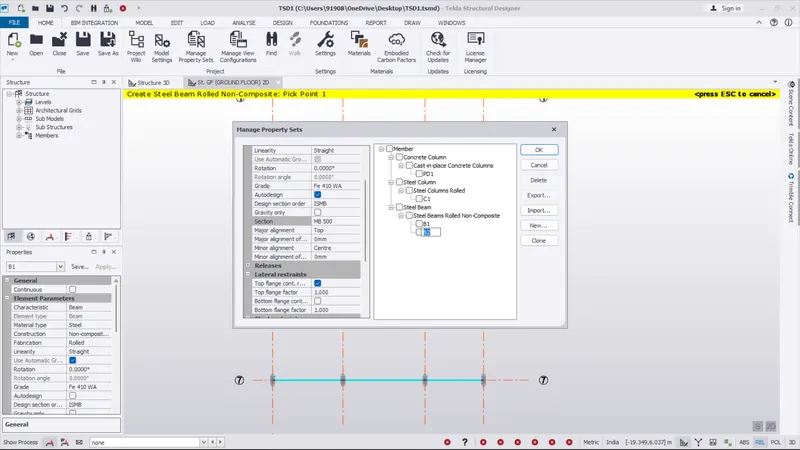
- So first taken the manage properties set option
- Next go to the new option
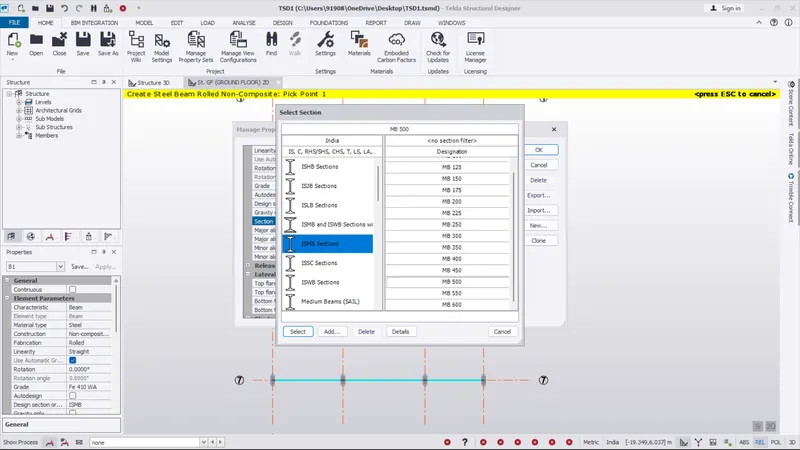
- Then select the menbers and select steel beam
- And renmae it B1
- Modify the general setting what we want like size , spacing etc...
- Use the properties dialouge box on the left side screen
- size as been MB 350
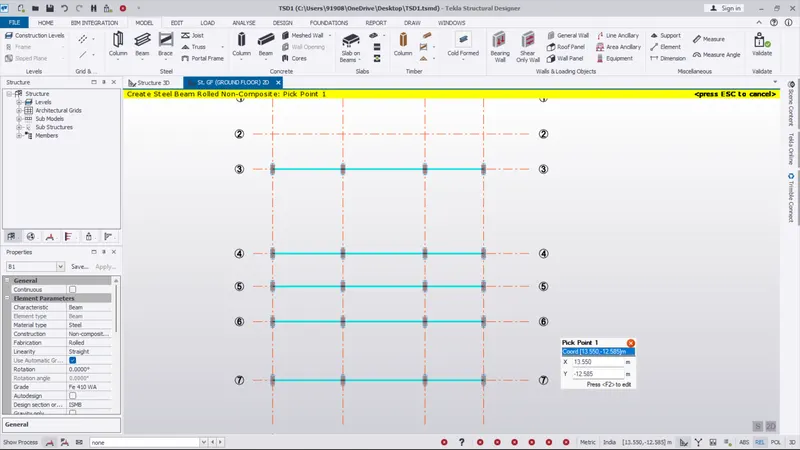
- select the B1 option
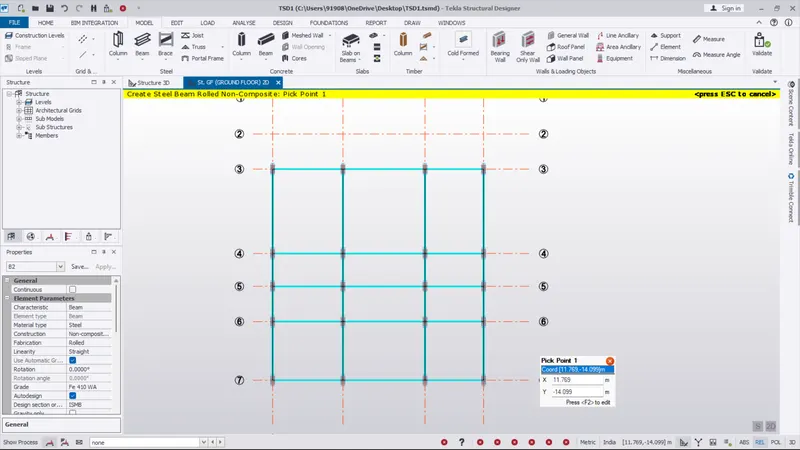
- And place the steel beam on the vertical grid direction
- Again taken the manage properties set option
- Next go to the new option
- Then select the menbers and select steel beam
- And renmae it B2
- Modify the general setting what we want like size , spacing etc...
- Use the properties dialouge box on the left side screen
- size as been MB 500
- select the B2 option
- And place the steel beam on the horizontal grid direction
RESULT :
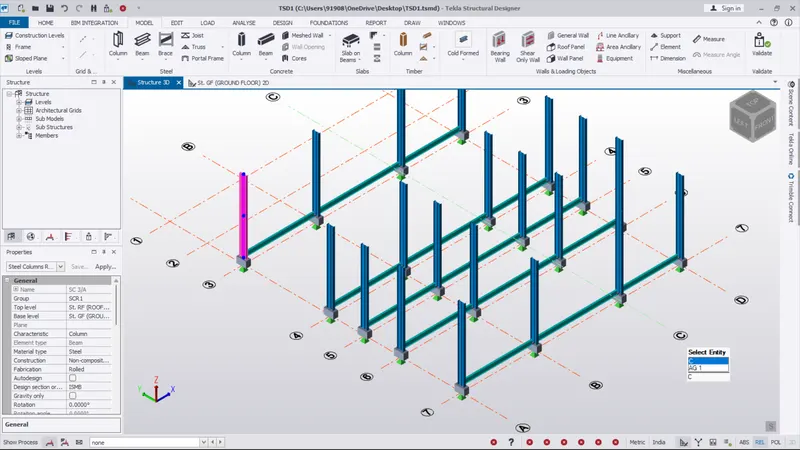
- As per the question the steel Beam as been created and placed on the concrete column above
- And the steel beam as been viewed in 3d screen is given below