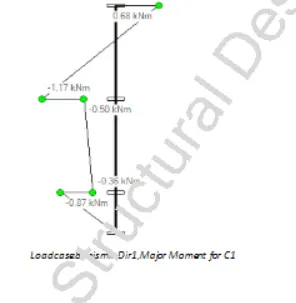
To Generate report for Steel Industrial and RC structures using TSD
Aim:- 1. Generate report for the steel building design from challenges 1 – 6 along with the loading summary
Introduction:-
Report commands are accessed from the report ribbon tab where we can customize model and member reports with specific content.
Procedure:-
1. Open the previously saved Tekla file from the past week challenge file in the Tekla structural design software.
2. First we need to run analysis for the Tekla model.
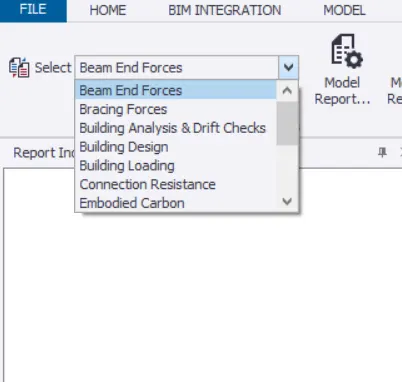
3. Then go to report tab and select "Beam end forces".
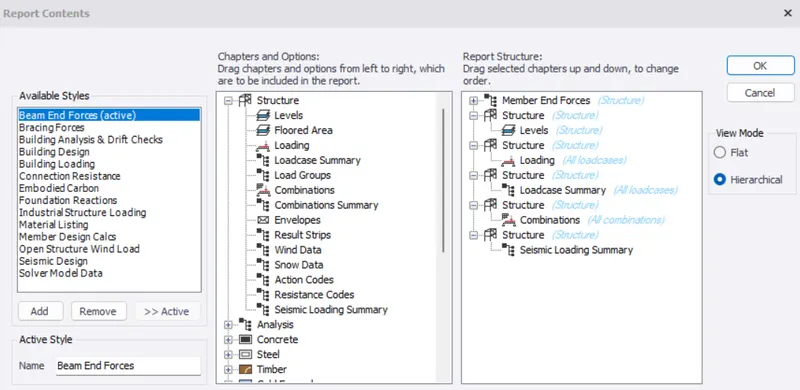
4. Click on Model report settings and select necessary content for report generation.
Example : For Beam end forces, In "Structure"
5. Select level, loading, loadcase summary, combination and seismic load.
6. Now select Show report
7. Similarly generate analysis
8. Click on Model report settings and select necessary content for report generation
Example : For Beam end forces, Analysis
9. Select element and move it to right side
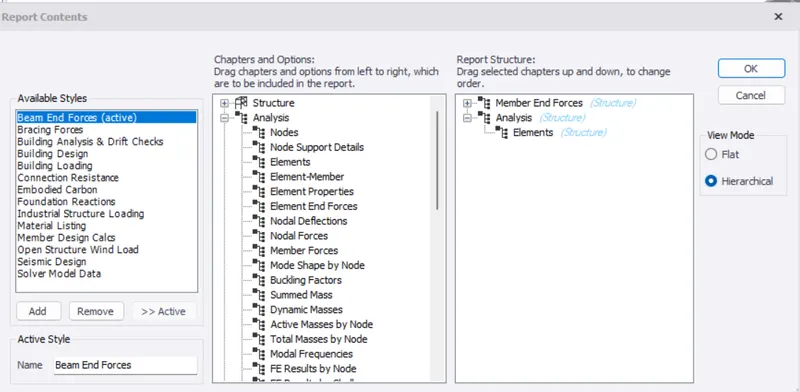
10. Right click and select Model Filter
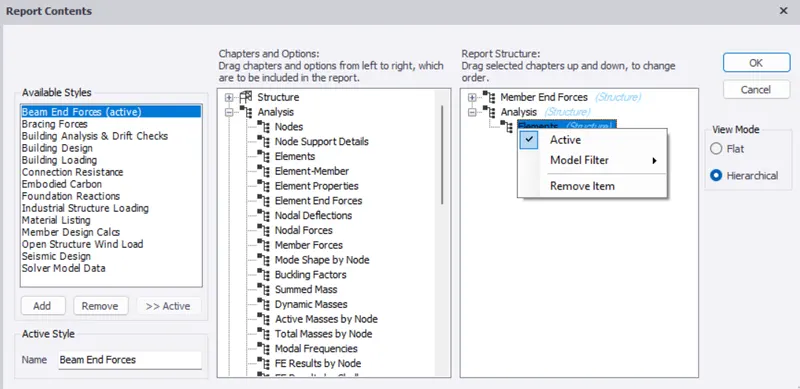
11. Select "Edit/New"
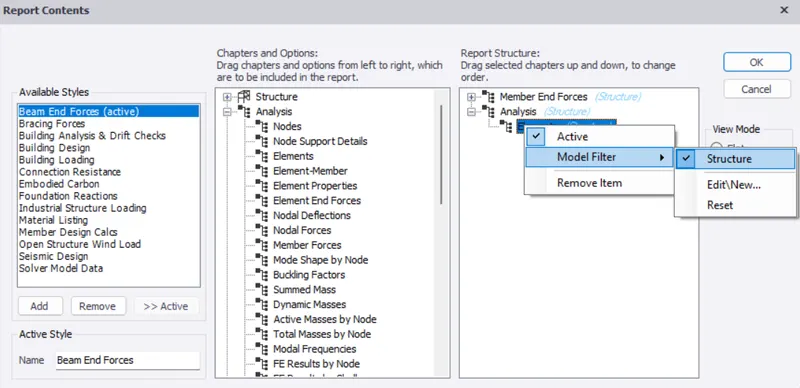
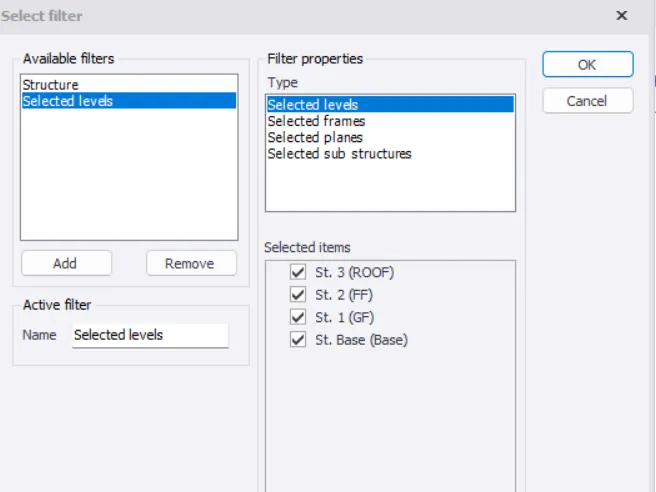
12. We get a "Select Filters"
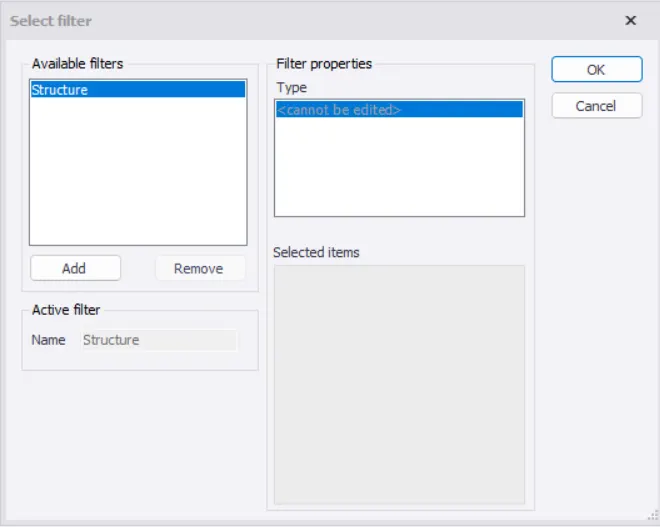
13. Select "Add"
14. Select the levels and click ok
Results:-
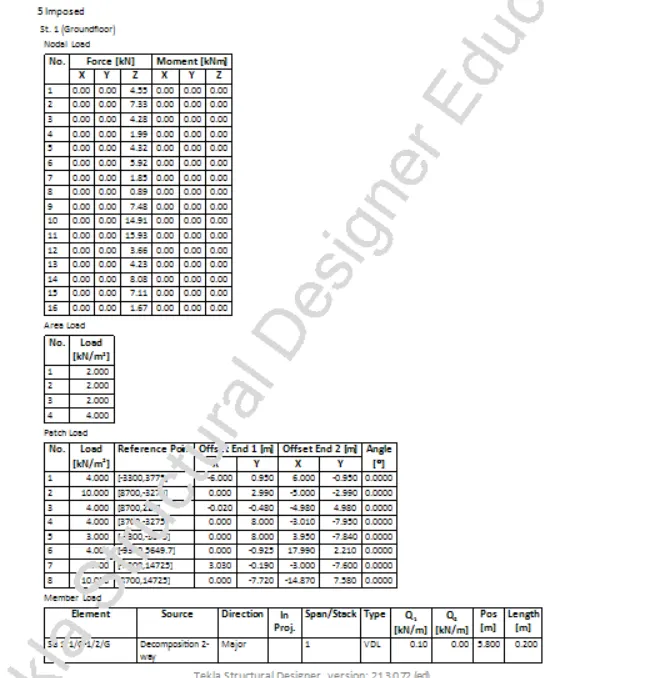
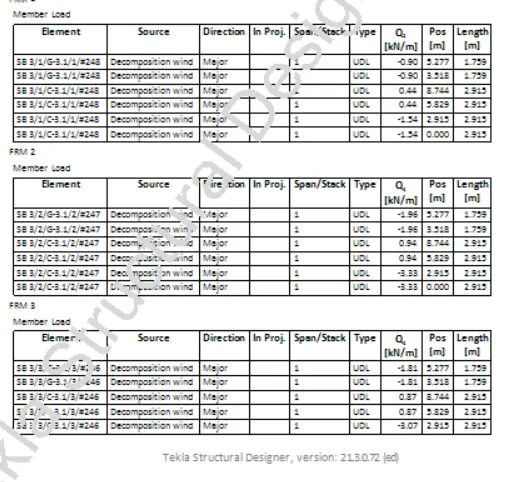
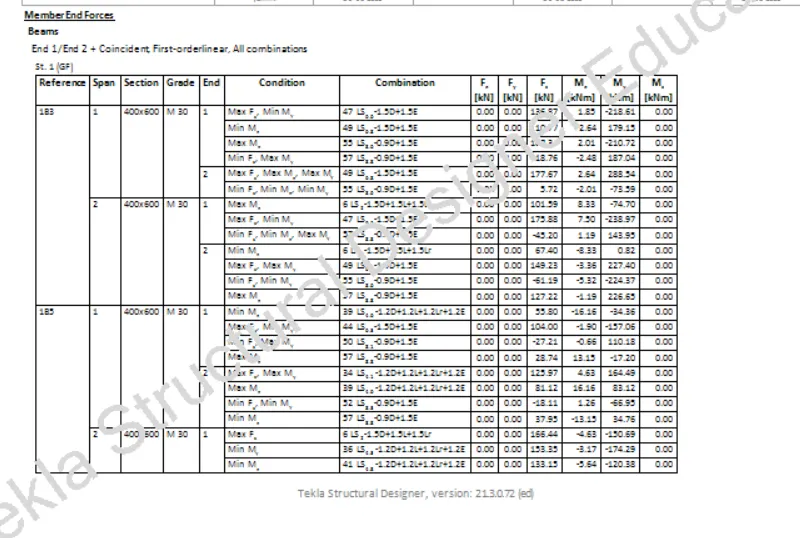
Structure report( For few members)
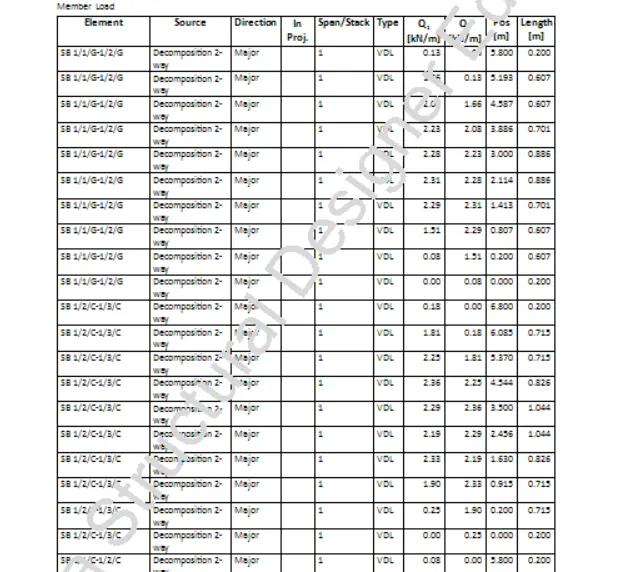
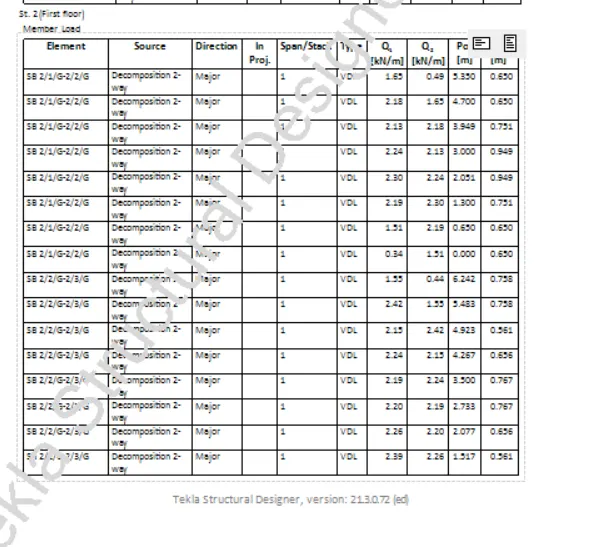
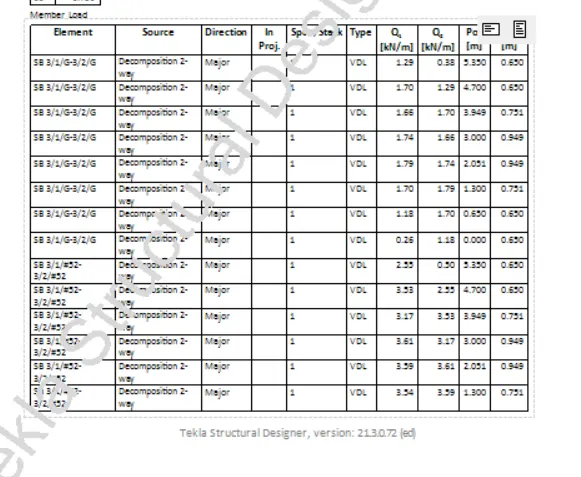
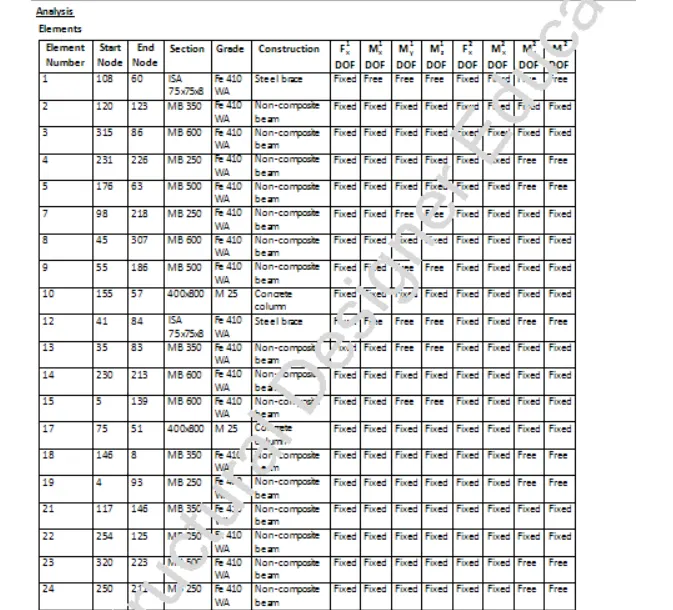
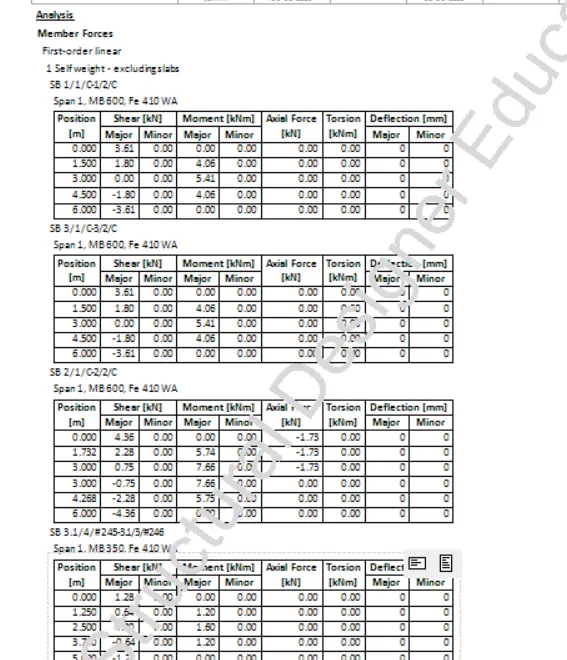
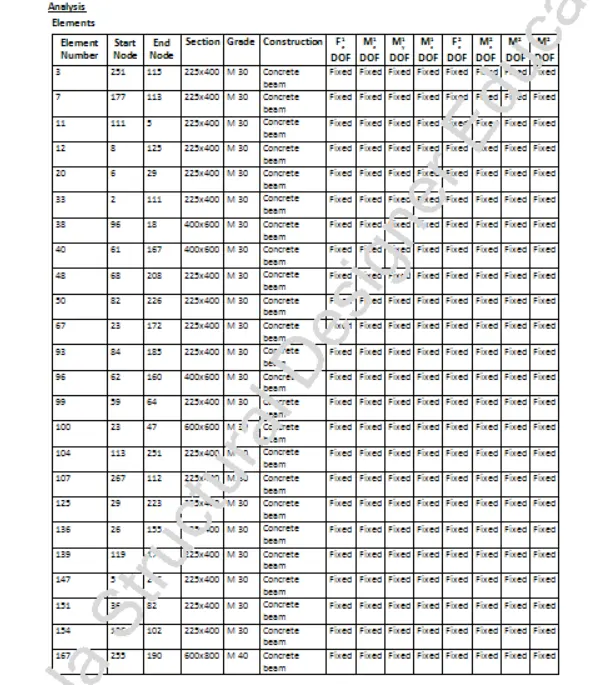
Analysis report( for few members)
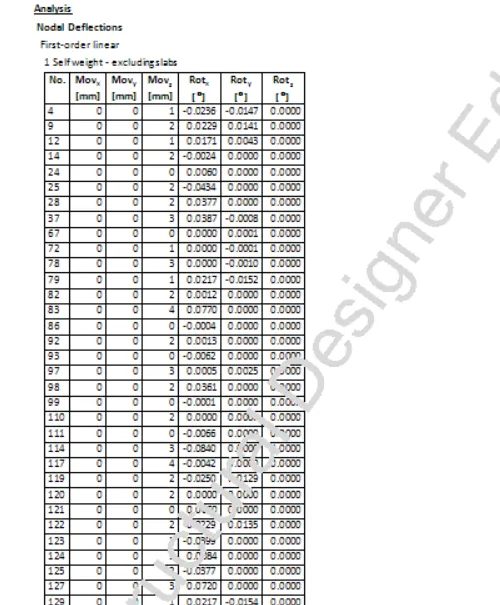
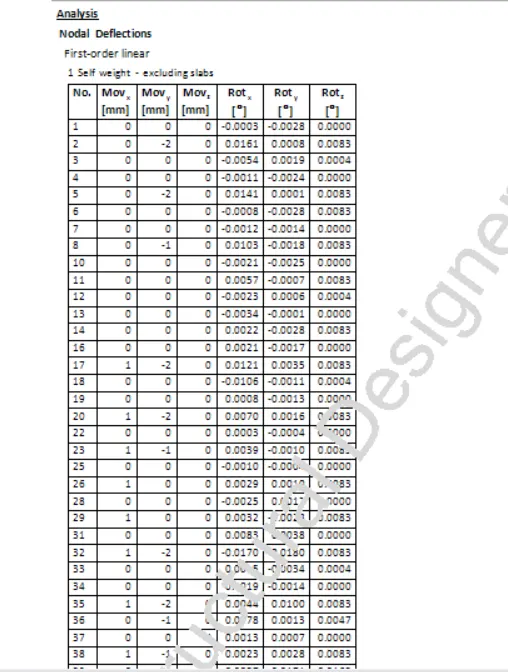
Nodal deflections
Member forces report
Aim:- 2. Generate report for RC structure along with the loading summary
Introduction:-
Report commands are accessed from the report ribbon tab where we can customize model and member reports with specific content.
Procedure:-
1. Open RC building model for that we need to open the Tekla saved file from the Tekla structural design software.
2. First step is to run analysis for the model.
3. Then go to report tab and select "Beam end forces"
4. Click on Model report settings and select necessary content for report generation
Example : For Beam end forces
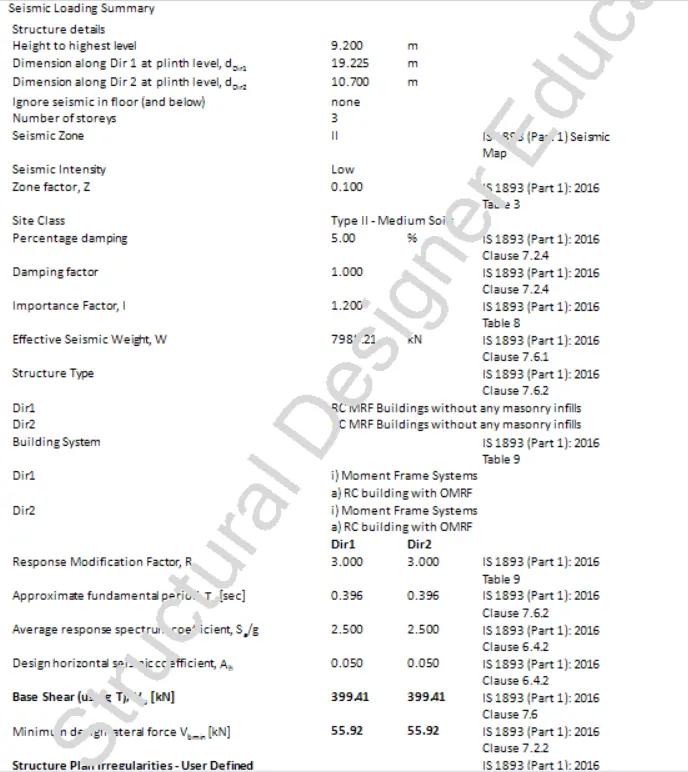
5. Select level, loading, loadcase summary, combination and seismic load
6. Now select Show report
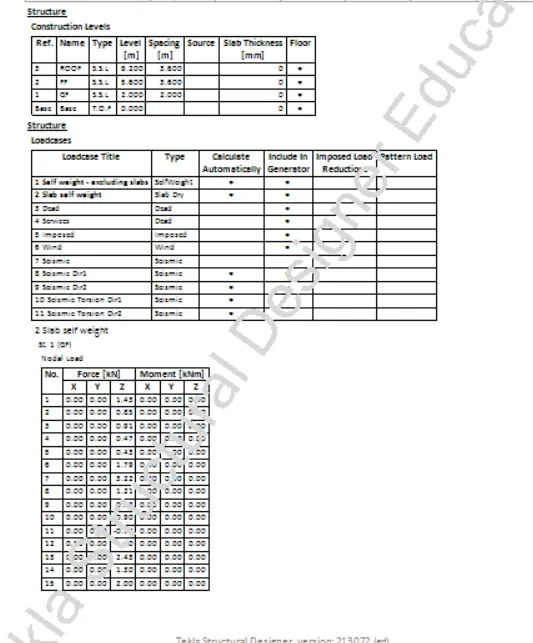
RESULTS:-
RC Structure report
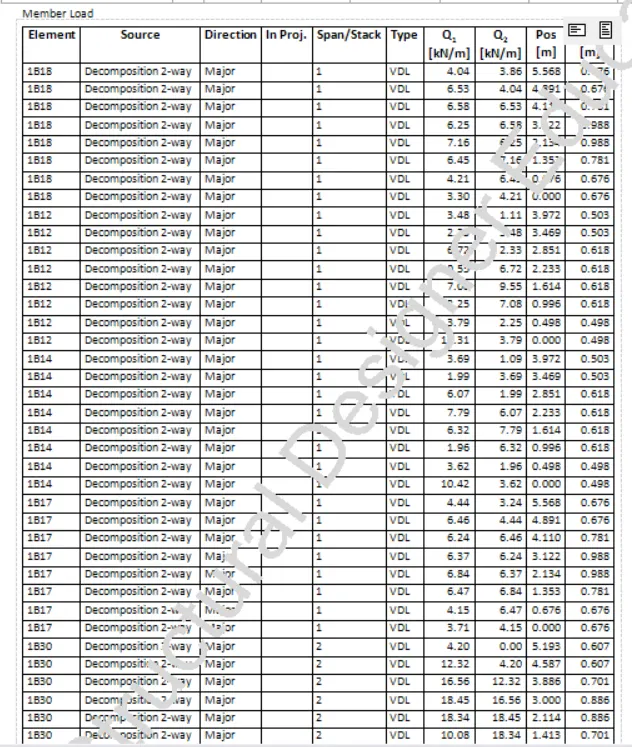
Analysis report( for few members)
Nodal deflections
Aim:- 3. Update the layers settings in the model and generate plan drawings and details from the model
Introduction:-
Report commands are accessed from the report ribbon tab where we can customize model and member reports with specific content.
Procedure:-
1. Go to Report tab and select "Member report"
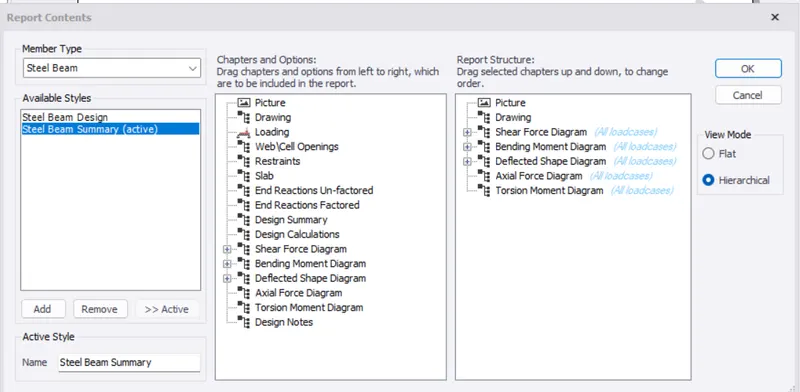
2. Generate Report for contents
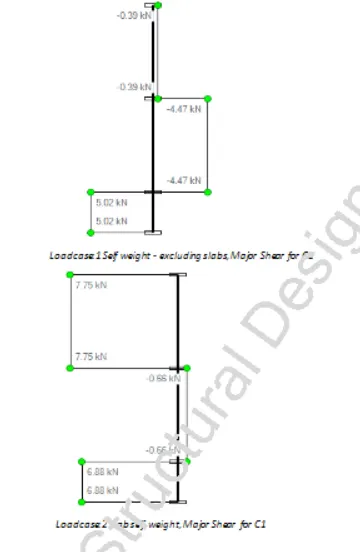
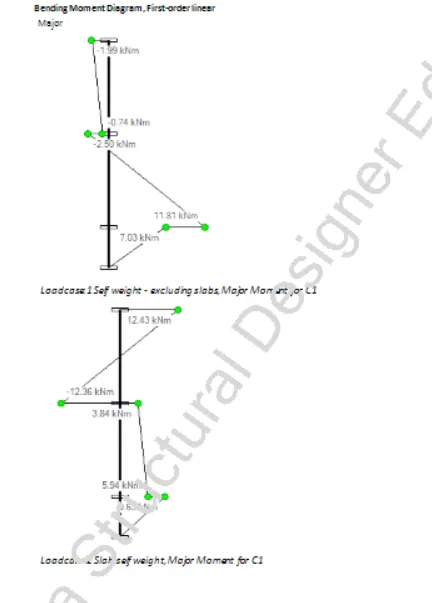
Picture, Drawing, SFD, BMD, Deflection diagram, Axial force diagram and Torsion moment diagram
3. Now select a member
Example : Pile
Right click and select report for member
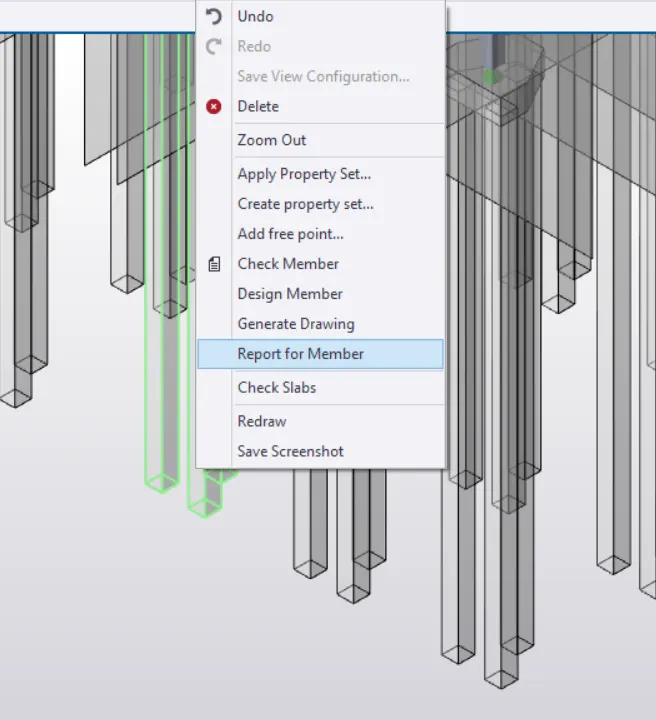
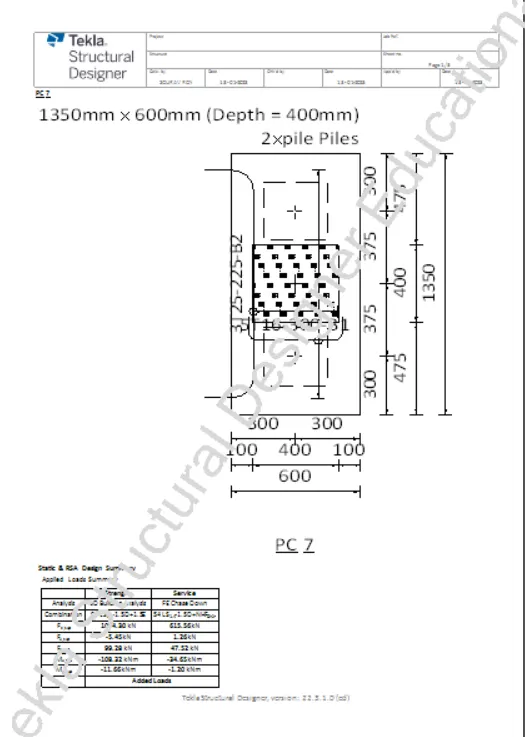
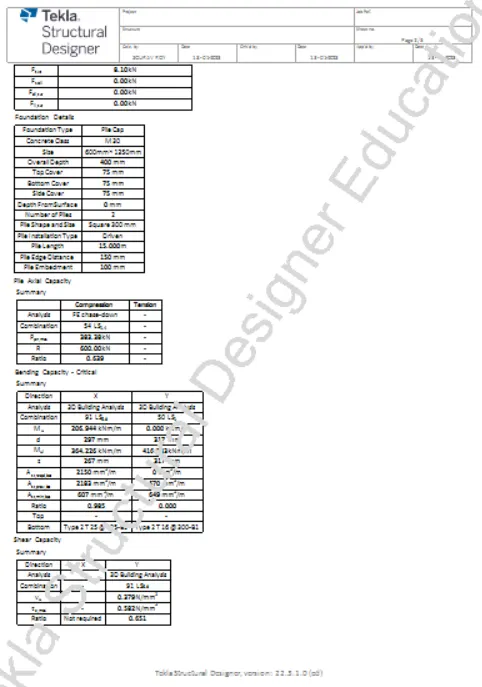
4. We get drawing details, force and moment details
Results:-
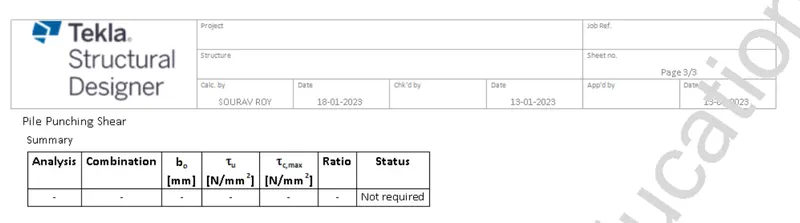
PILE DETAILS:-
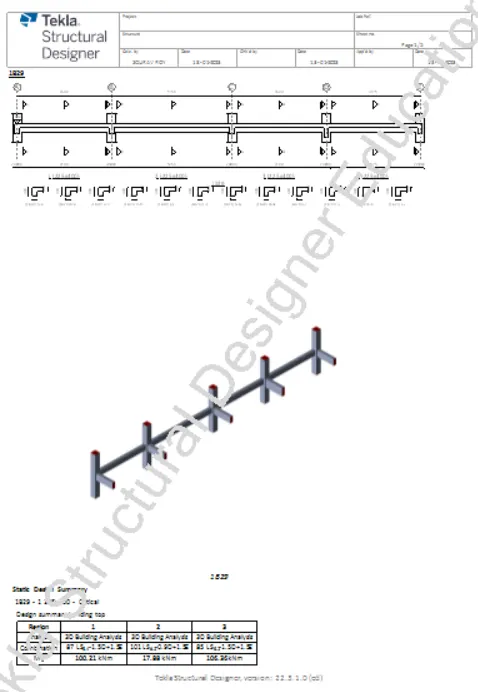
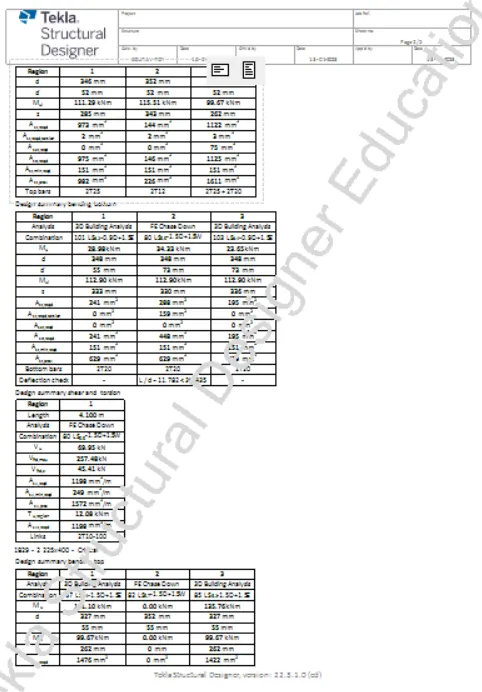
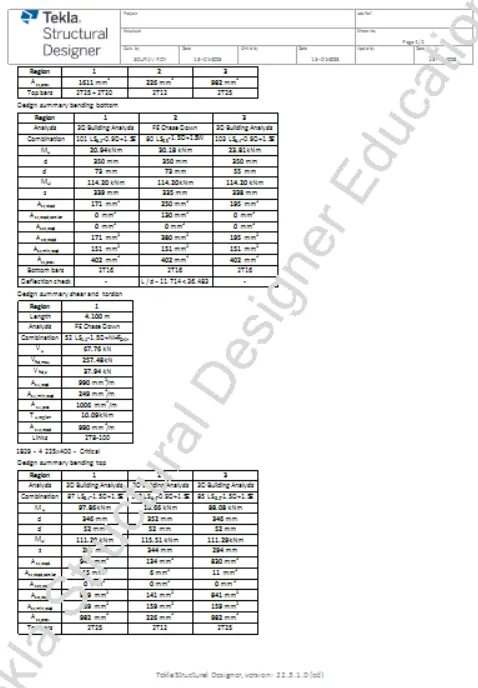
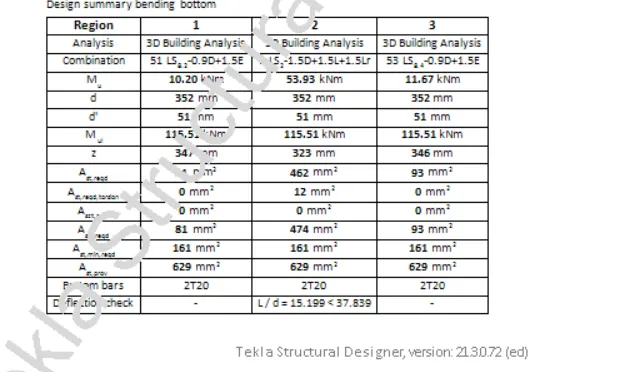
BEAM DETAILS:-
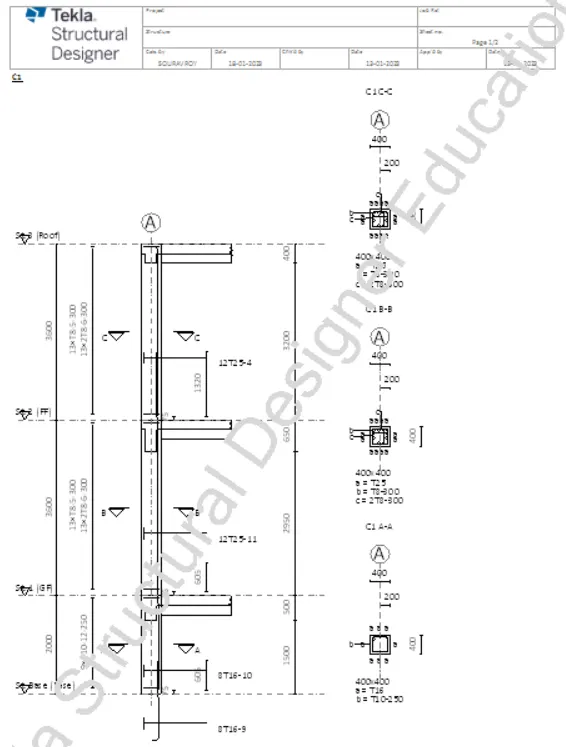
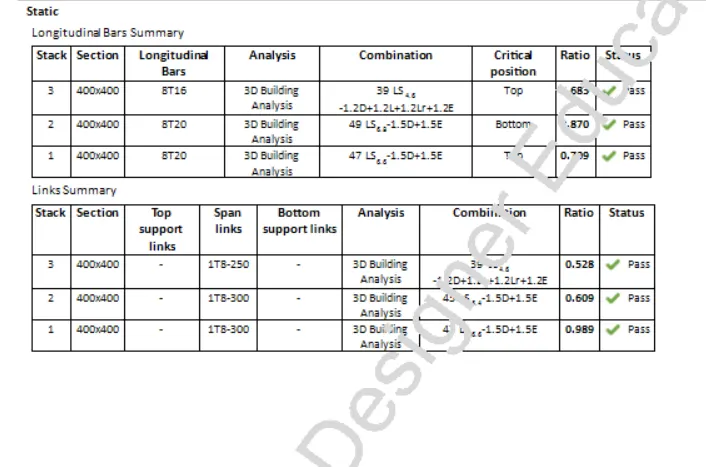
COLUMN DETAILS:-