REVIT_Usage of Collabrate tool_Week 6
1) Open an architectural template. Using the Manage tab set project base point and project shared coordinates for the project.
Aim : To open an architectural template and using the Manage tab set project base point and project shared coordinates for the project.
Tools required : Achitecture tab, Manage tab, Grid, Collaborate
Procedure :
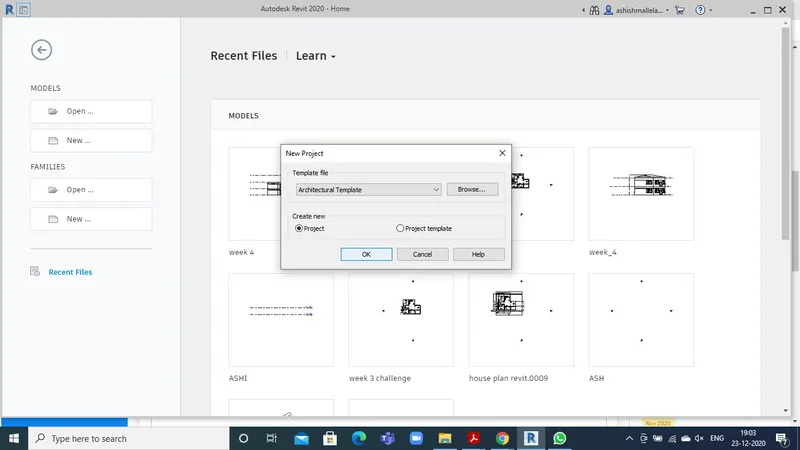
- open new file in achitectural template.
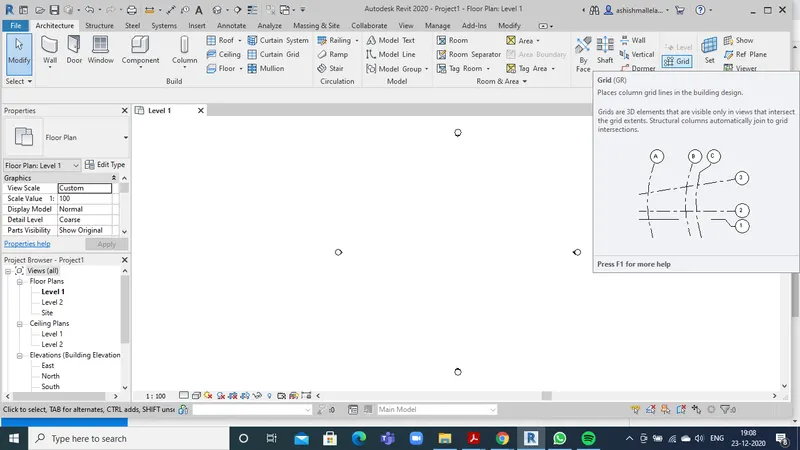
- from the architectural tab select grid and draw grids nd name them according to convention.
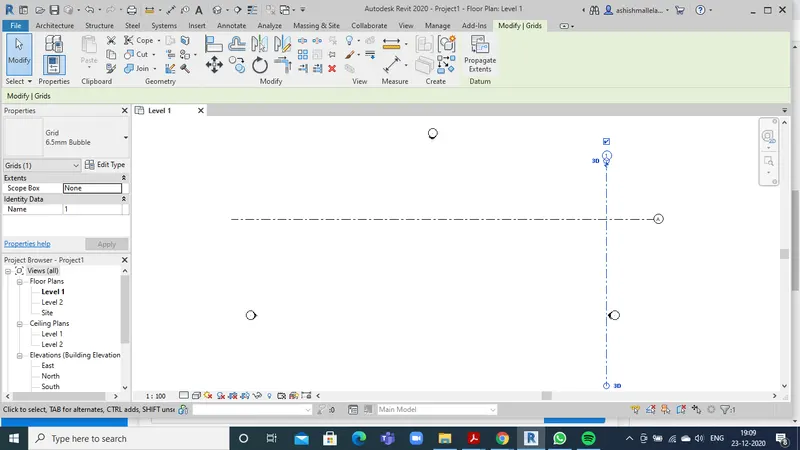
- from the manage tab select the specify coordinates option.
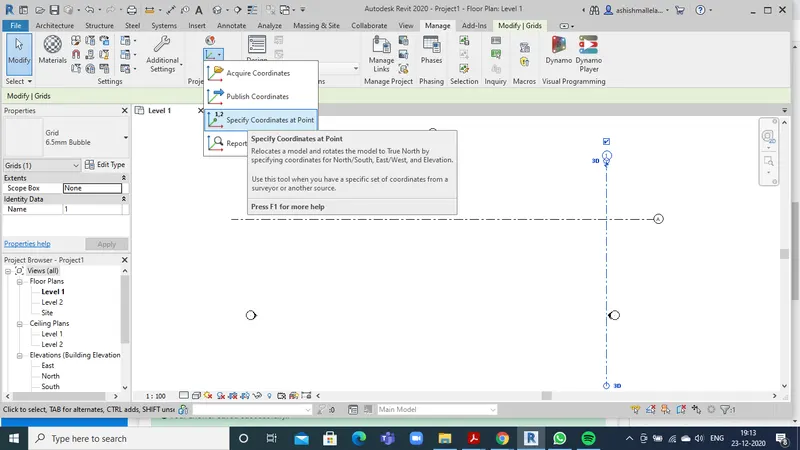
- select the grid and set the coordinates to 0.
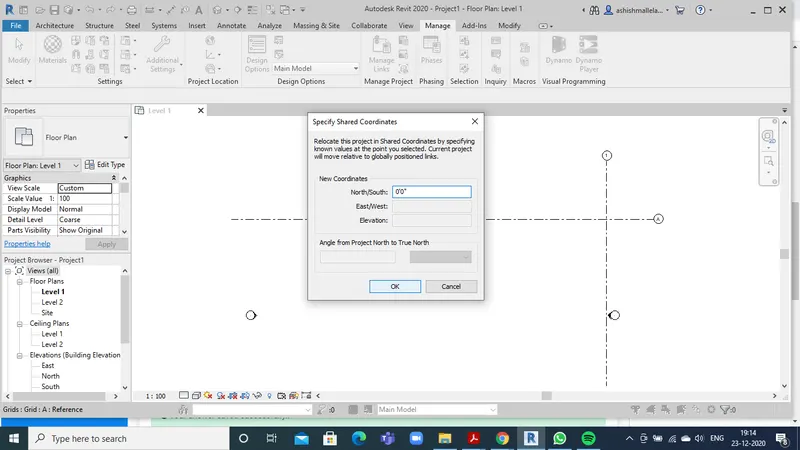
5. click on the collaborate option and save the file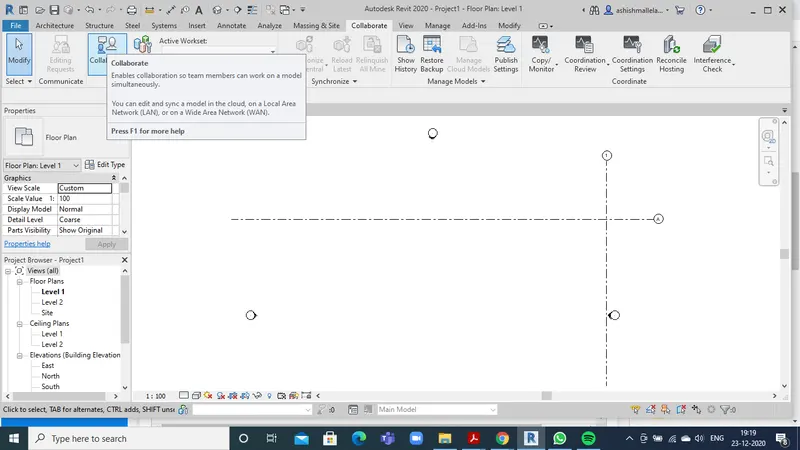
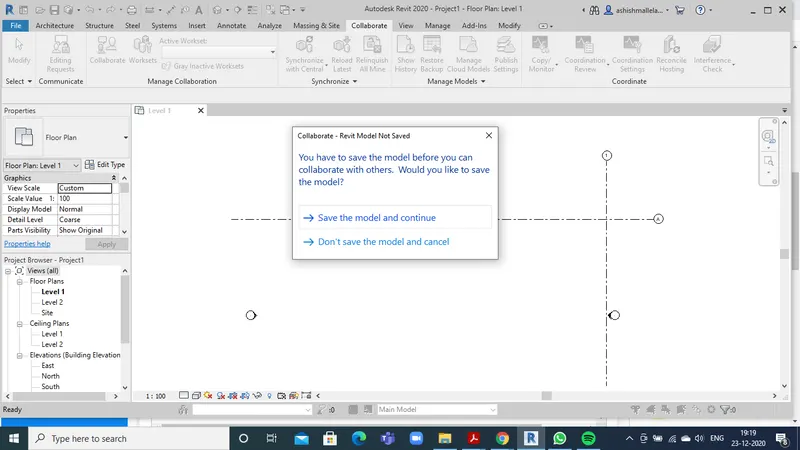
Result : setting up coordinates and collaboration had completed successfully.
2) Open another new file but with a structural template. Using manage tab set project parameters the same as the architectural model. Copy the parameters from the architectural model to the structural template or enter the parameters manually into the structural model.
Aim: To open another new file but with a structural template. Using manage tab set project parameters the same as the architectural model. Copy the parameters from the architectural model to the structural template or enter the parameters manually into the structural model.
Tools Required : Achitecture tab, Manage tab, Grid, Collaborate.
Procedure :
- open a structural template.
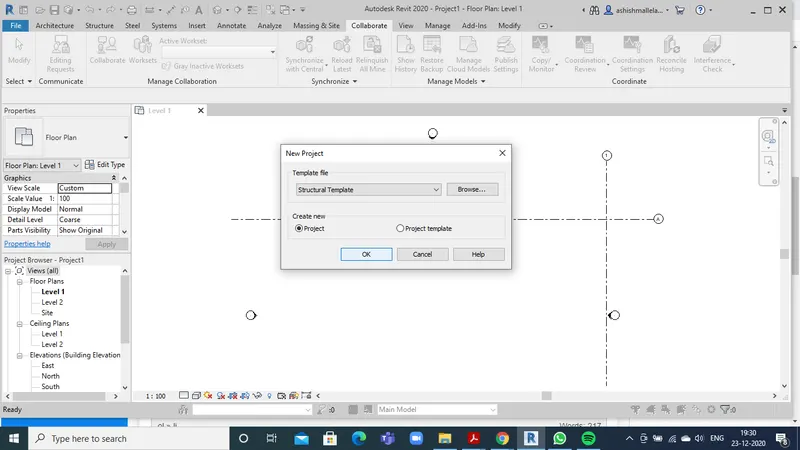
- from the architectural tab select grid option and draw grids.
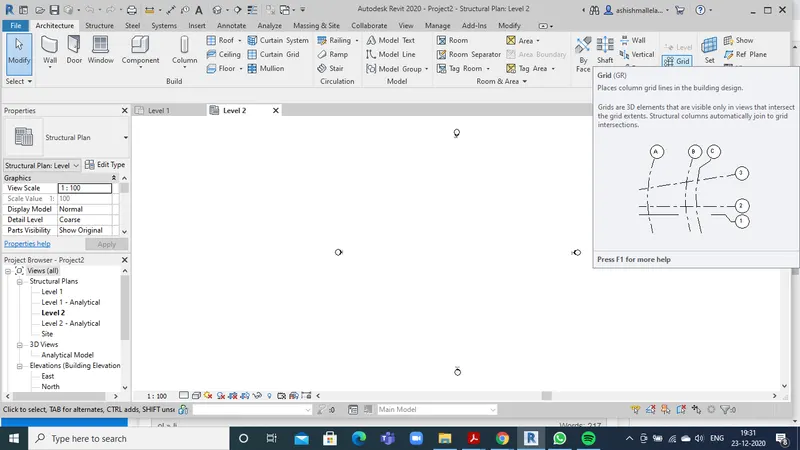
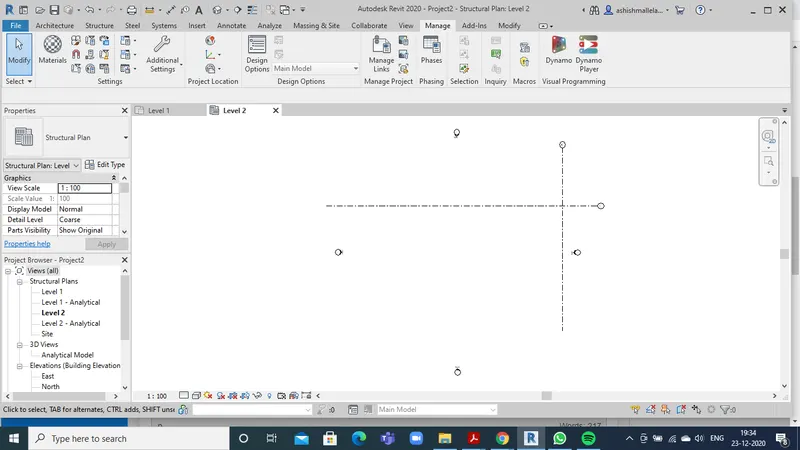 3. from the manage tab select the specify coordinates option.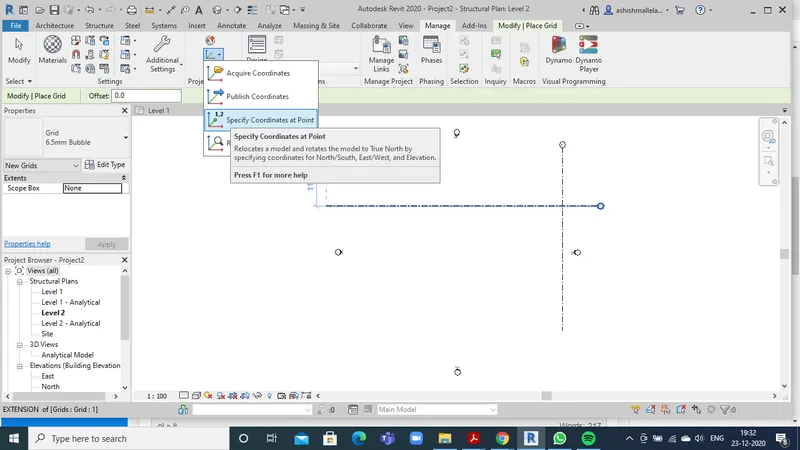
4. select the grid and set the coordinates to 0
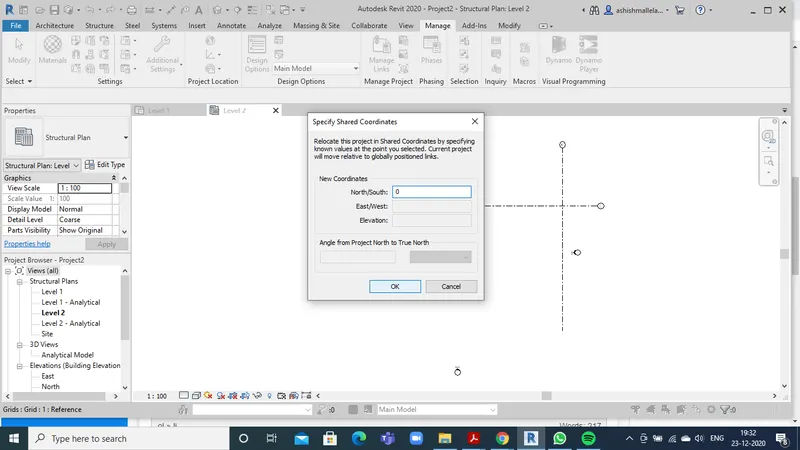
5. click on the collaborate option and save the file in the same folder same as architectural plan
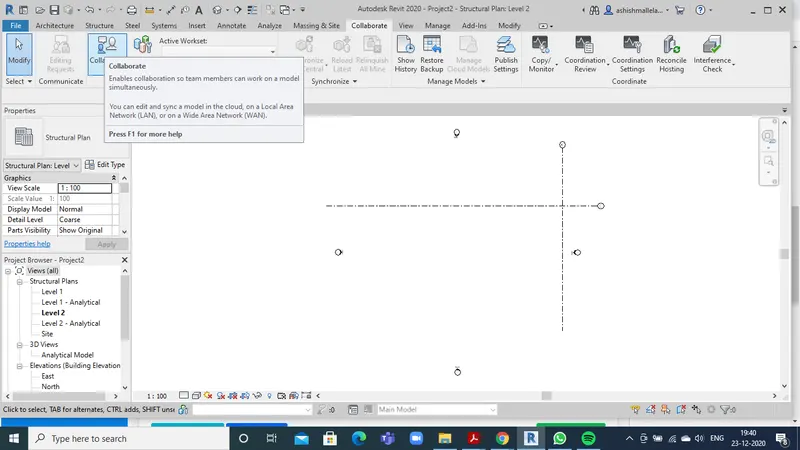
Result : collaboration between architectural and structural plan completed successfully.
3) Re-open the architectural model. Using the tools under the Collaborate tab make the architectural model a central model ( enabling simultaneous working on the model ).
Aim: To re-open the architectural model. Using the tools under the Collaborate tab make the architectural model a central model.
Tools Required: File, Save as, Options(in save as option)
Procedure:
- Open the architectural model again.
- Click on file and then click on Save As.
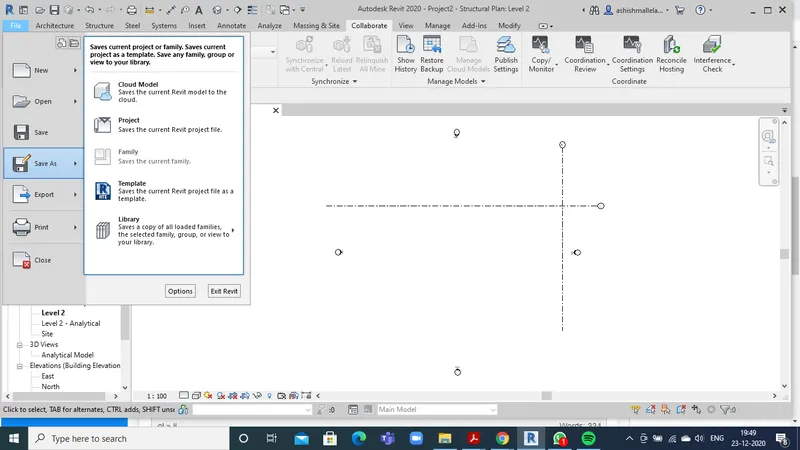
- select options and select mark this a central model after save
Result: the architectural model was made the central model successfully completed.
4) Create the Grids Longitudinal and Transverse pattern for the project similar to the task done in Week 2
Aim: To Create the Grids Longitudinal and Transverse pattern for the project similar to the task done in Week 2.
Tools Required : Architectural tab, Grids
Procedure:
- from the architecture tab select grid
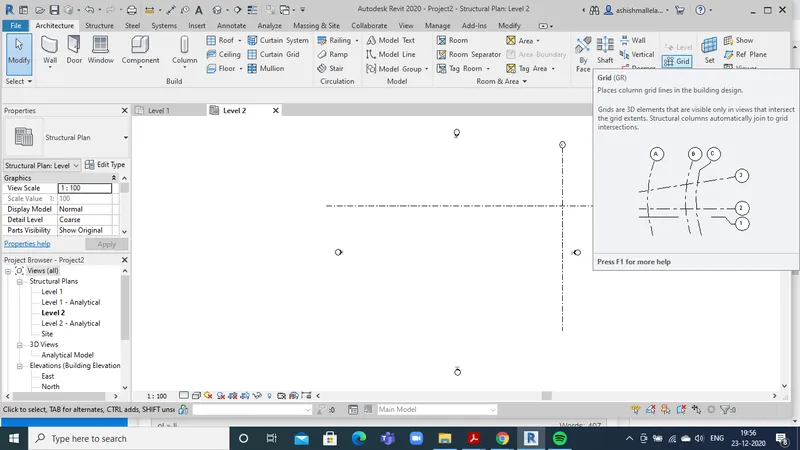
2. place horizontal and vertical grids with equal distances
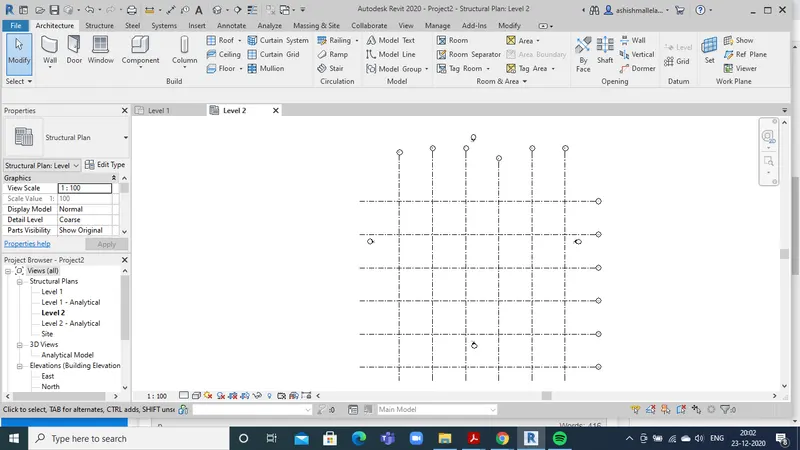
Result : Horizontal and vertical grids are created successfully.
5) Synchronize the changes from the local copy to the central file of the architectural model.
Aim : Synchronize the changes from the local copy to the central file of the architectural model.
Tools Required : Collaborate, Synchronize
Procedure:
- Click on the collaborate tab
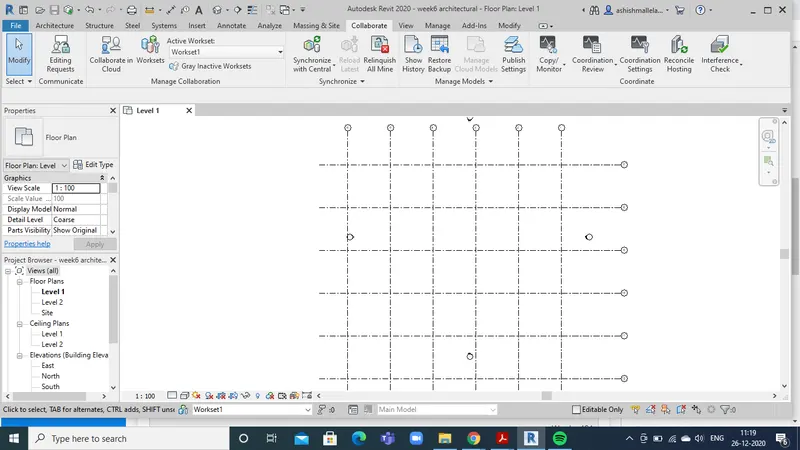
2. click on synchronize with central and click on ok on the new dialog box
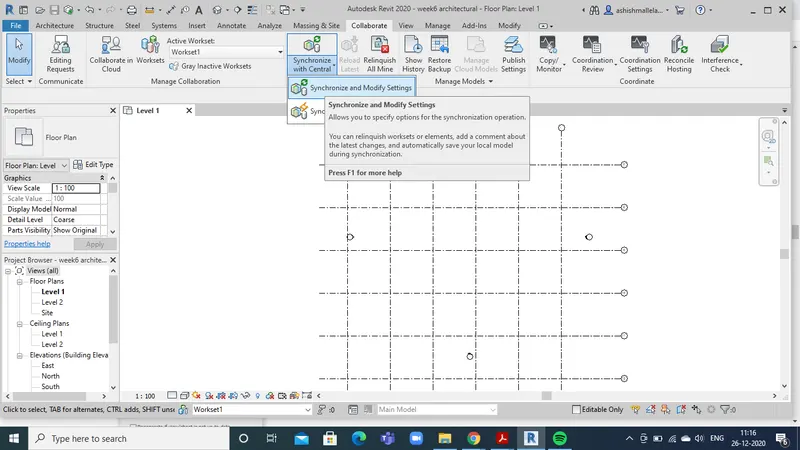
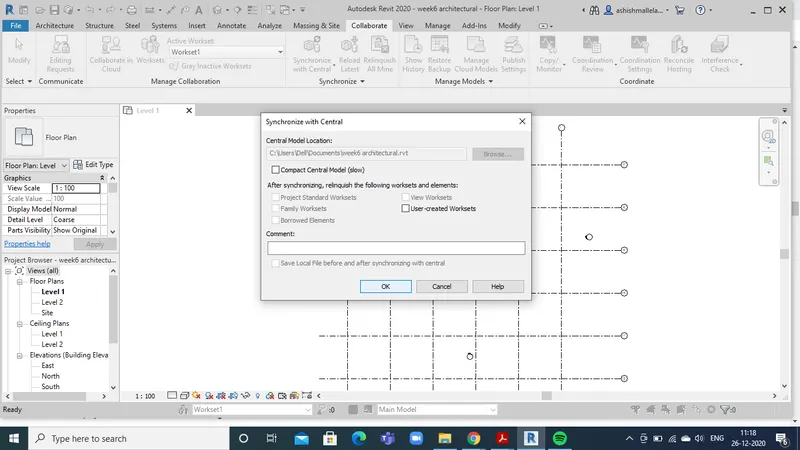
Result : synchronization with the central file is completed successfully.
6) Open the structural model and using the collaborate tools to save the model as a central file.
Aim: Open the structural model and using the collaborate tools to save the model as a central file.
Tools Required : File, Save As, Options
Procedure:
- open the saved structural template file
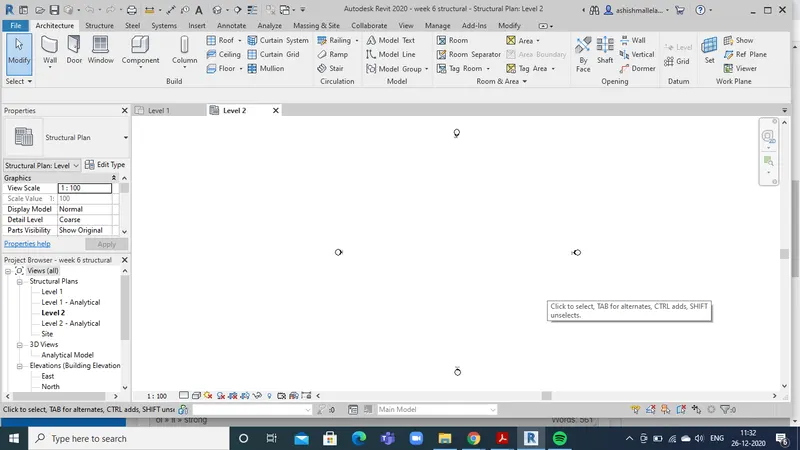
- click in file and click save as
- from the dialog box opened select options and select mark this a central model
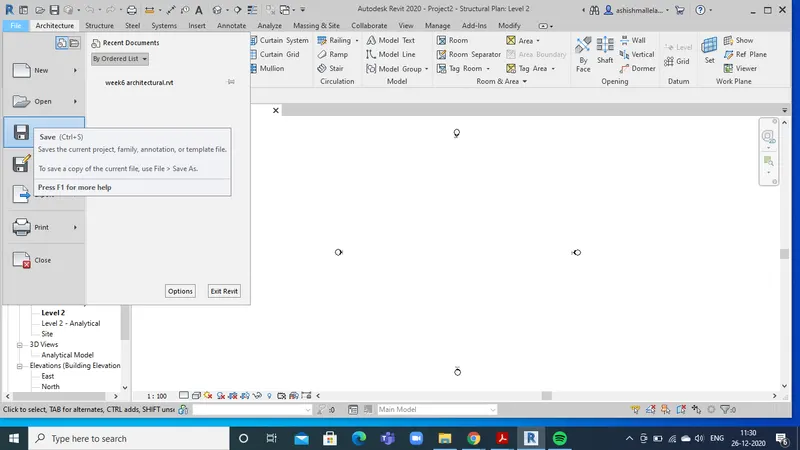
Result: the structural model as a central model saved successfully.
7) Under the Collaborate tab, select the grids and levels from the architectural model, and using Copy Monitor try to copy the grids to the structural model. See what happens when the copy monitored grid is moved around in the structural model.
Aim: Io select the grids and levels from the architectural model,Under the Collaborate tab and using Copy Monitor try to copy the grids to the structural model. See what happens when the copy monitored grid is moved around in the structural model
Tools Required: Collaborate, Copymonitor
Procedure:
- from collabarate tab select copy monitor
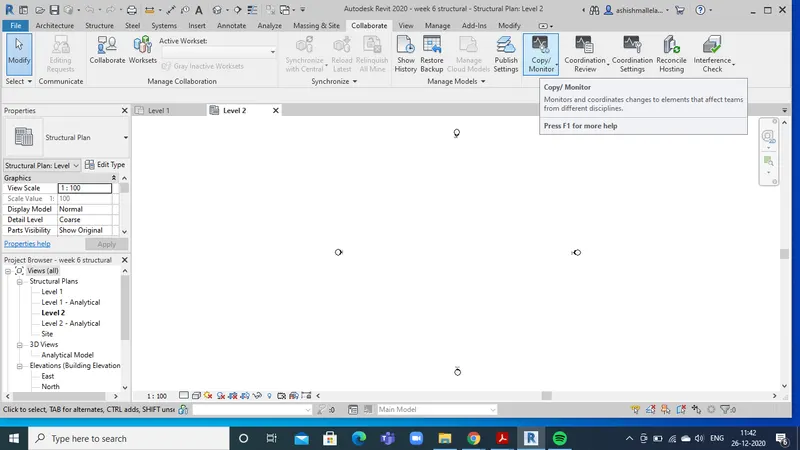
- select copy and click on multiple select the grids wanted to be linked and click finish.
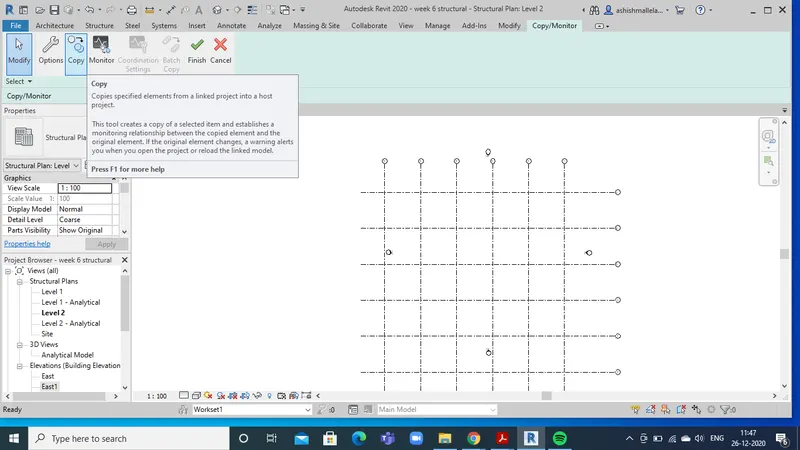
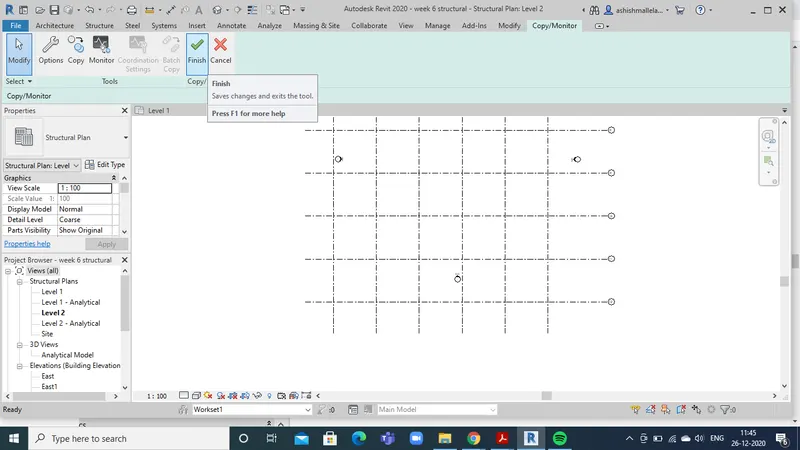
Result: Copy Monitor to copy the grids to the structural model was completed successfully.
8) Create another new file with a construction template. Save the new file as a central model. This file will include both architectural and structural model. Under the manage tab, Click manage links to link both architectural and structural files. Save the file and close all the files.
Aim: To create another new file with a construction template. Save the new file as a central model. This file must include both architectural and structural model. Under the manage tab, Click manage links to link both architectural and structural files. Save the file and close all the files.
Tools Required: Manage, Manage links
Procedure :
- after creating a file in the constructional template, follow the procedure in question 1and make it central model.
- from the manage tab select manage links and add the architectural and structural plans
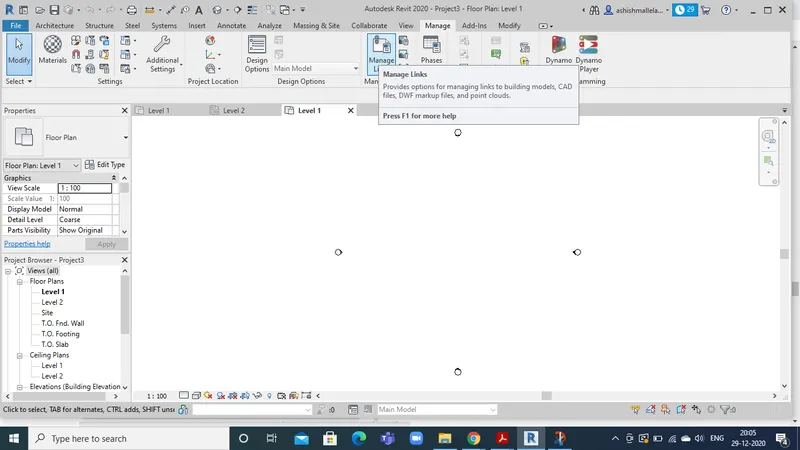
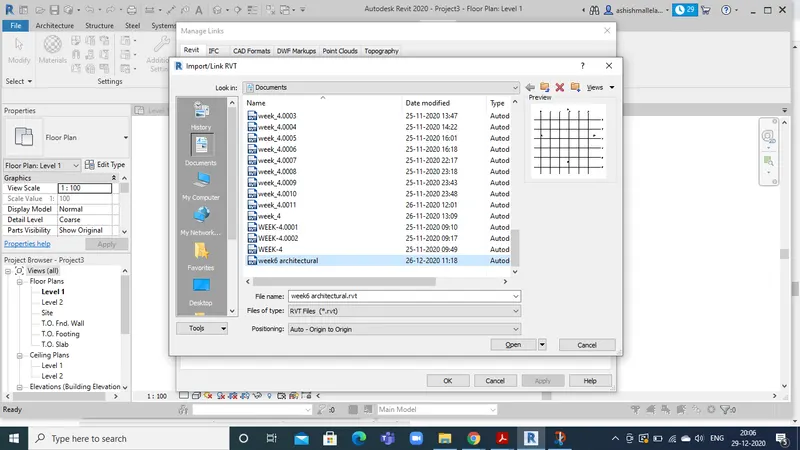
Result: Combined constructional template created successfully.
9) Are the grids from structural and architectural model matching in the construction template created? If yes the model is set up for project 2. If not work on the shared parameters and linking options under Manage links.
Aim: Are the grids from structural and architectural model matching in the construction template created? If yes the model is set up for project 2. If not work on the shared parameters and linking options under Manage links.
Tools Required: Link, Move, Allign
Procedure:
- Select the link and click on the move option.
- Now move it to make them aligned.
Result: Grids are matched in the architectural and structural model successfully