Project 2 - V&V SW Analysis II
EMBEDDED LIVE BATCH - 19 (ABINAYA MAAM) :
1. Perform Static Code Review Analysis for “C:\**\LDRA_workarea\Examples\C_Testbed_examples\Testrain\Testrain.c” Generate Code review report and upload them.
Ans: PROJECT - 2 :
Static code analysis :
- Open LDRA tool and load the file Testrain.c through source-> single file.
- Select the Testrain.c file and click ok.
- Create a sequence and give a name for the sequence.
- Enable code coverage for the sequence and click ok.
- For static analysis go to source and select run static analysis.
- After completion of static analysis get the test manager report from Results.
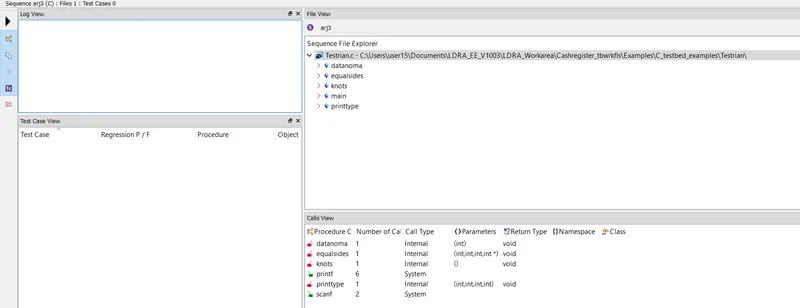
Result is attached below as Test Manager.html file as below.
2. Perform Integration testing by including all the .C files available in the folder location C:\**\LDRA_workarea\Examples\Toolsuite\Cashregister_6.0\ **
Ans: Integration Testing :
- Open LDRA tool and choose source-> multiple files.
- A window will popup and give a name and choose system.
- Create a sequence and give a name for the sequuence.
- Enable code coverage and click ok.
- Make the files as under black box testing.
- Run static analysis.
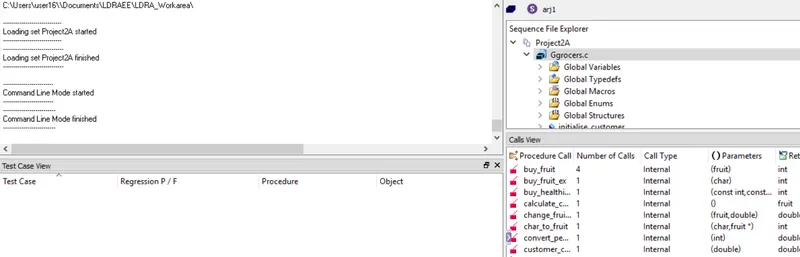
A)Create the test cases manually as well as automatically using TBExtreme and upload the reports.
Ans: MANUAL TESTING :
- Go to test case, and select create test case.
- Procedure window will pop open and choose a function from the list and click ok.
- Choose standard option and click on continue.
- From the file view window, choose the function selected and select procedure code inorder to analyze the code for 100% coverage.
- In the Variable I/O window assign the inputs and outputs with respect to 100% coverage.
- After that go for run driver and select Run driver.
- After the tests finishes, we can get the result in a window.
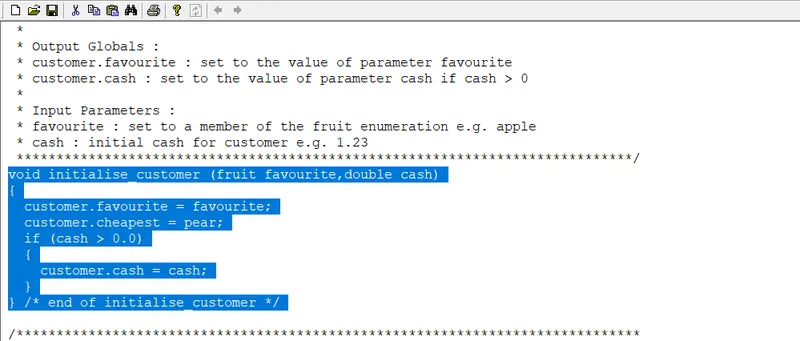
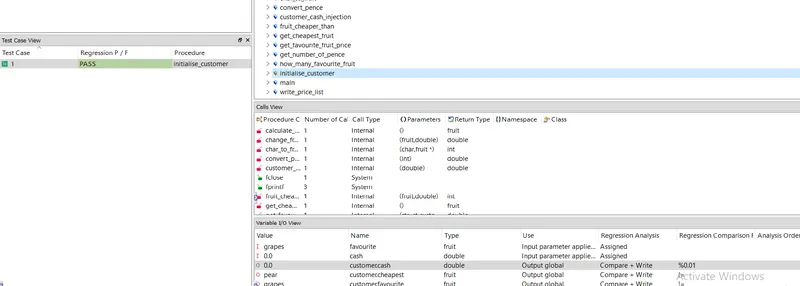
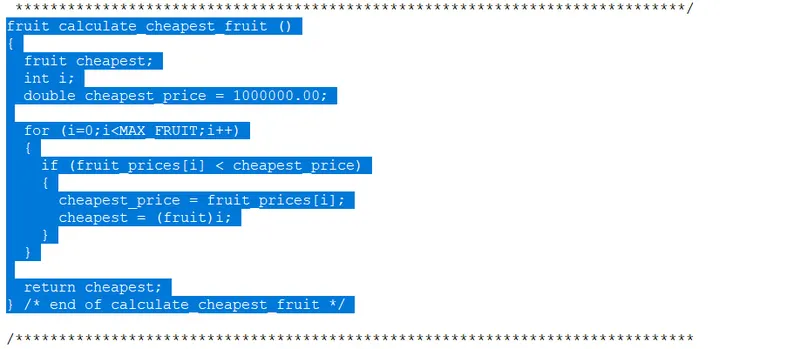
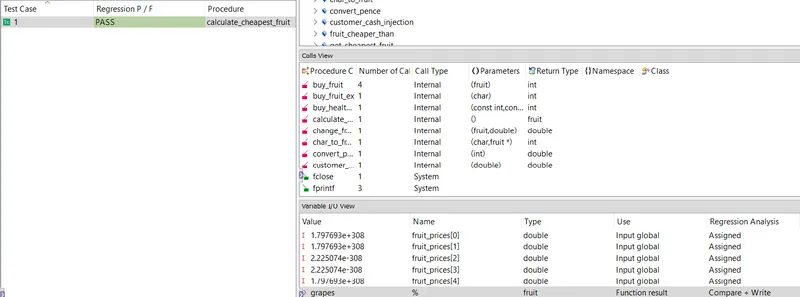
Result is attached below as Test Manager_test.html as below.
AUTOMATED TESTING :
- After removing the test cases created by manually.
- Goto extreme test.
- Select Run tabular extreme test.
- All the tests will be created and loaded.
- After completion go for regression test report under Results.
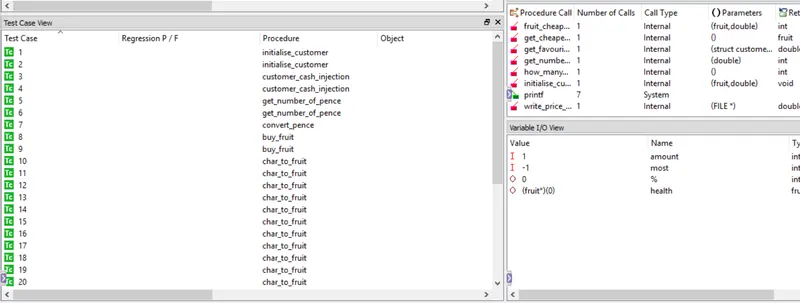
Result is attached below as Test Manager_automated.pdf file as below.
B)store the test cases as .tcf file. Upload the location image where the .tcf file is stored.
Ans: After performing automation test on Ggrocers.c
- Go to source
- Click on save as or set as tcf.
- Select the path
- click save.