Project 2 - V&V SW Analysis II
Live batch 5
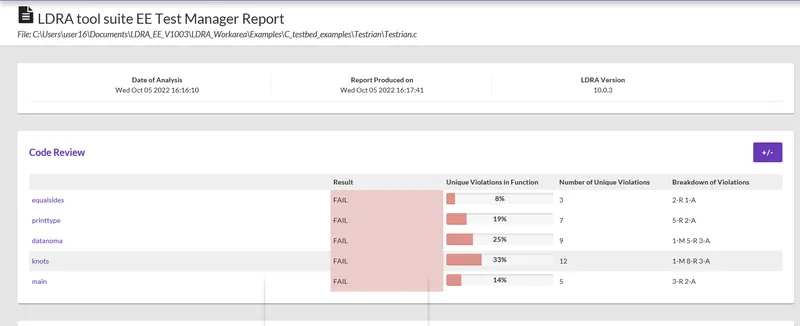
1) Perform Static Code Review Analysis for “C:\**\LDRA_workarea\Examples\C_Testbed_examples\Testrain\Testrain.c” Generate Code review report and upload them.
Soln:
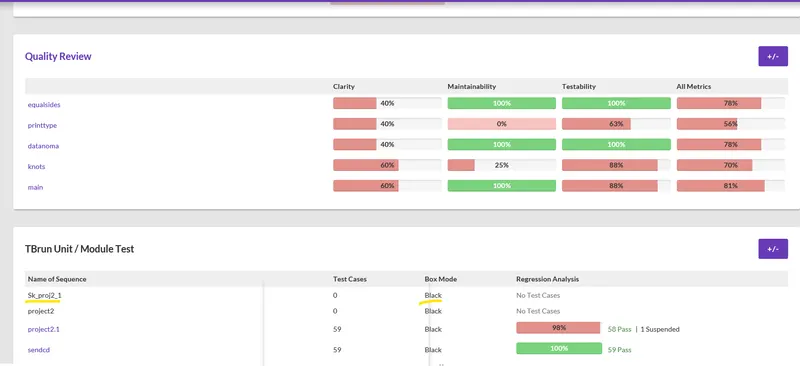
For the above given question and procedure we perform the static code review for the Testrain.c file.
Steps to perform STATIC CODE ANALYSIS:
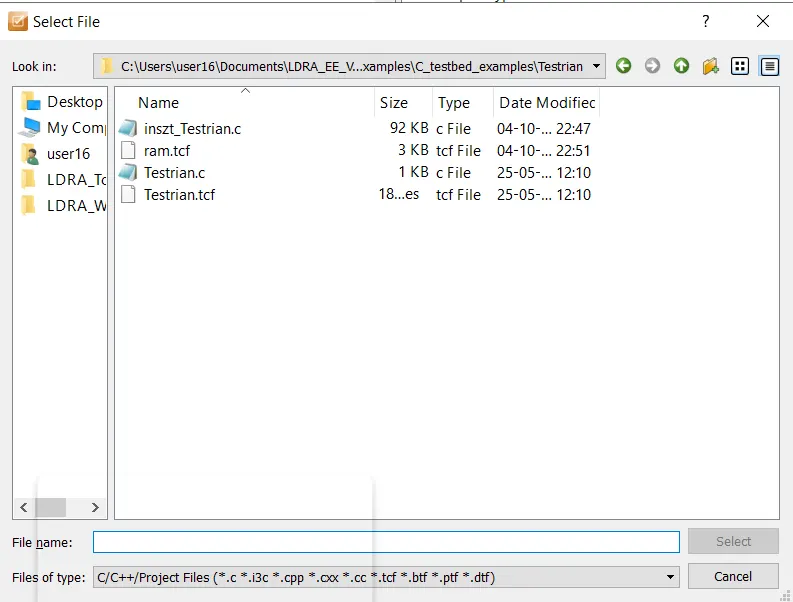
Step 1: Source -> Single file
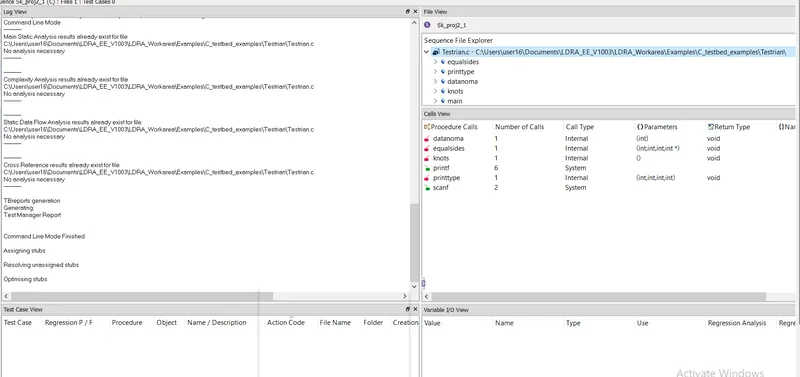
Step 2: Sequence -> New sequence -> “ select the .c file ” ->Code coverage -> Continue
Step 3: Source -> Run Static Analysis
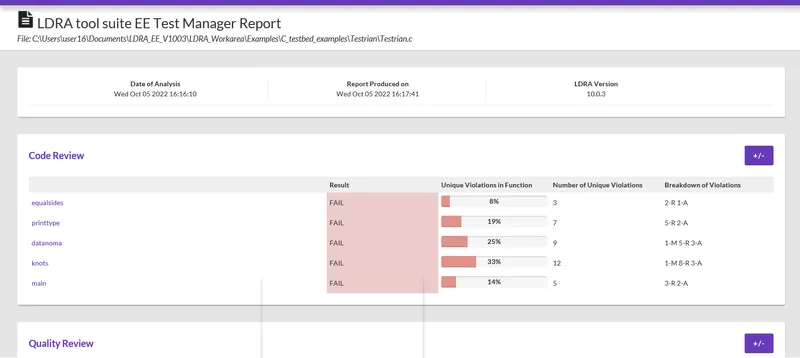
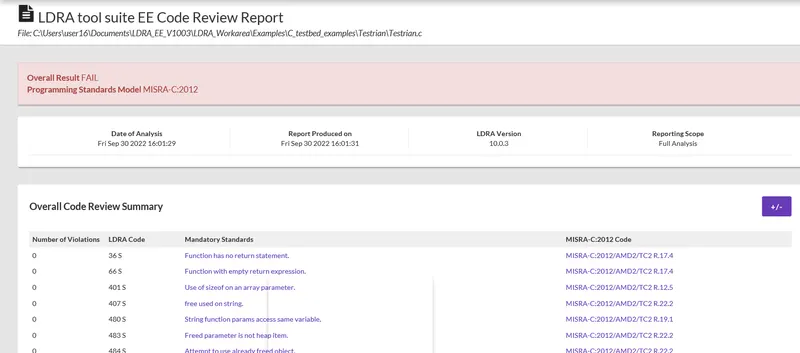
Step 4: Results -> Test Manager Report

Results :
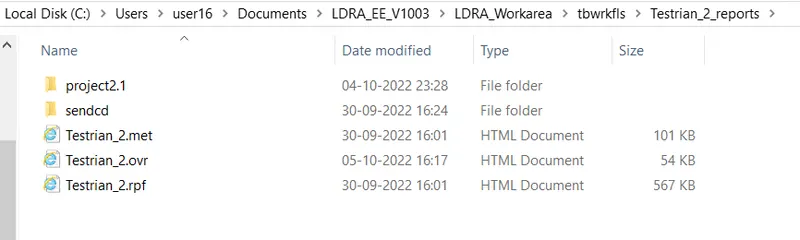
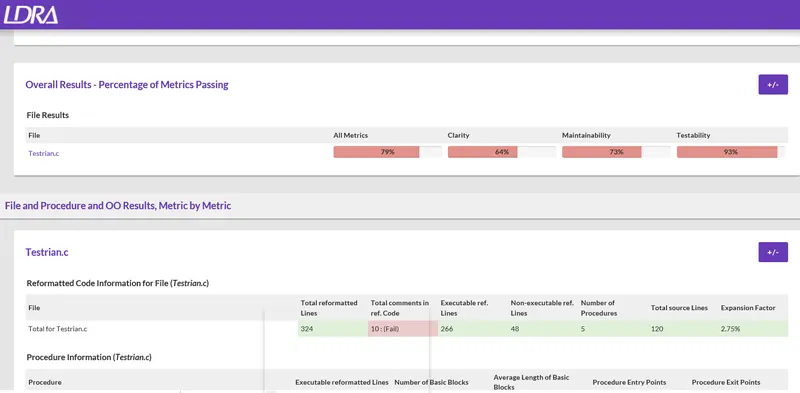
Additional code review :
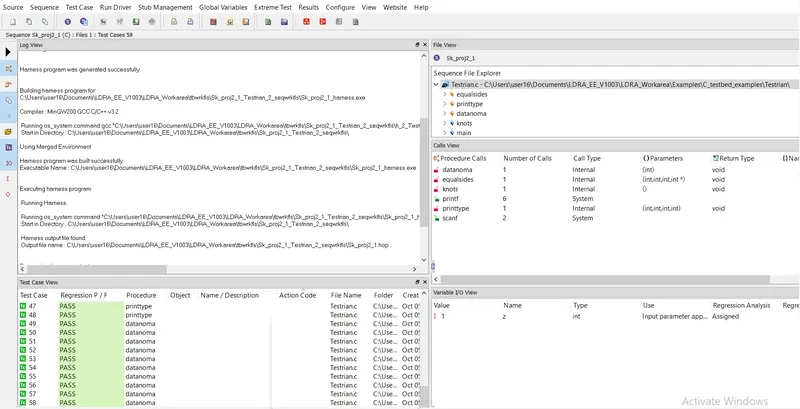
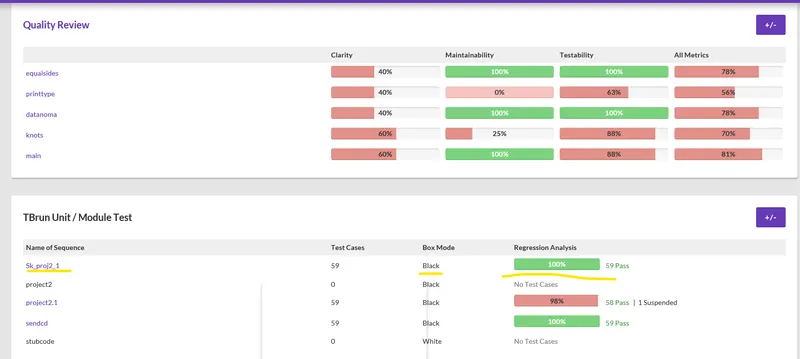
Test case:
Automotive test case:
************************************************************************************************************************************
2) Perform Integration testing by including all the .C files available in the folder location C:\**\LDRA_workarea\Examples\Toolsuite\Cashregister_6.0\ ** A)Create the test cases manually as well as automatically using TBExtreme and upload the reports. B)store the test cases as .tcf file. Upload the location image where the .tcf file is stored.
Soln:
For the above given question in LDRA tool we browse to following path.,
C:\**\LDRA_workarea\Examples\Toolsuite\Cashregister_6.0\ **
Then perform two sub questions as follows,
A)Create the test cases manually as well as automatically using TBExtreme and upload the reports.
In this question we will perform the integration testing as per the given above procdure,
Here we follow the below given steps,
Step 1: Source -> Multiple file
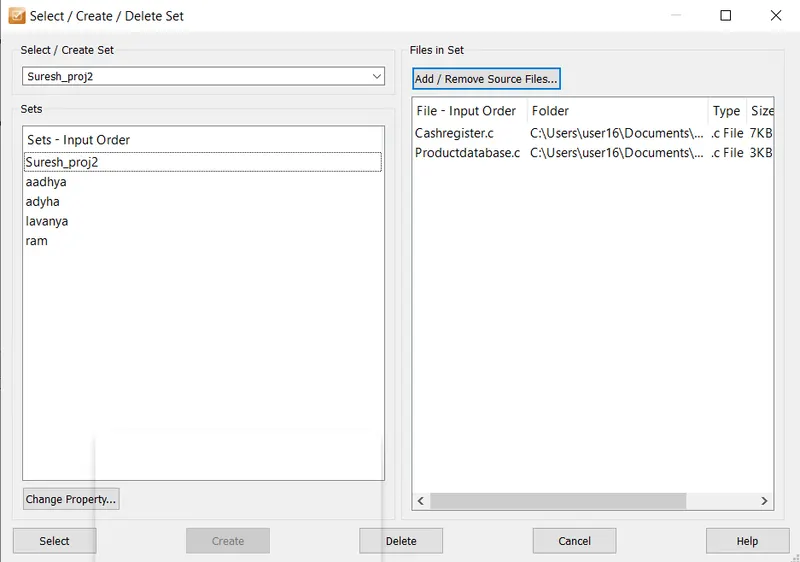
Step 2: Select / Create Set ->name -> system -> Add -> Choose .c file ->Add ->Choose .c file
Step 3: LDRA tool bed Analysis -> No
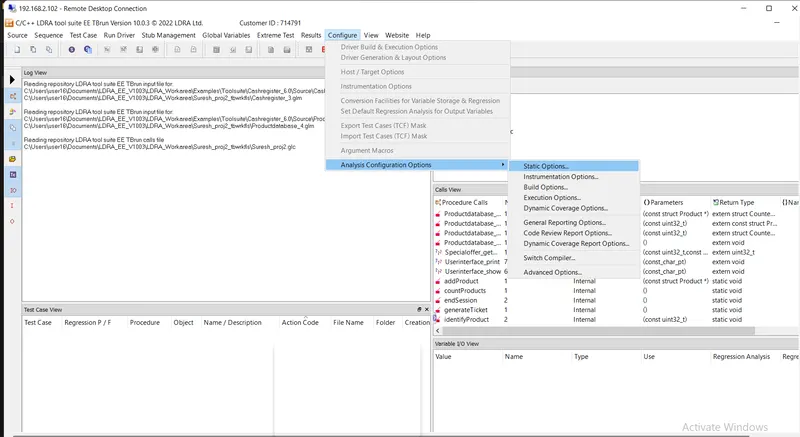
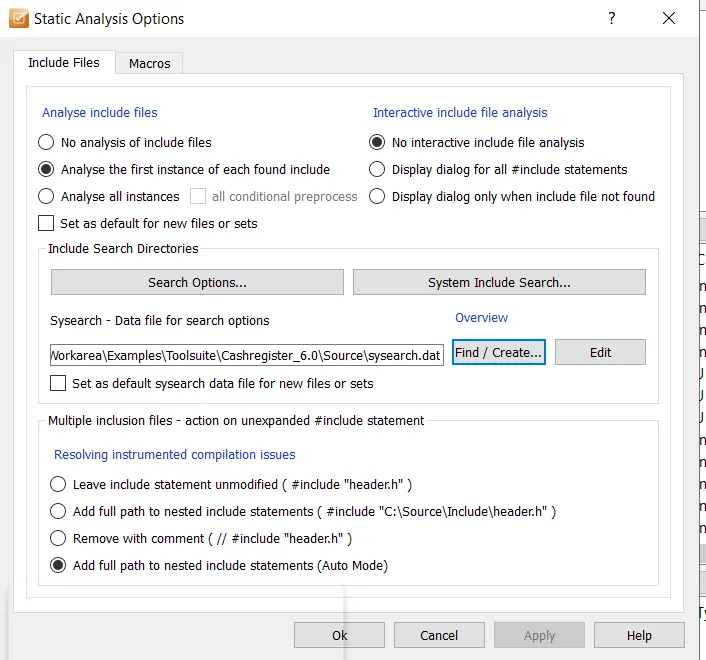
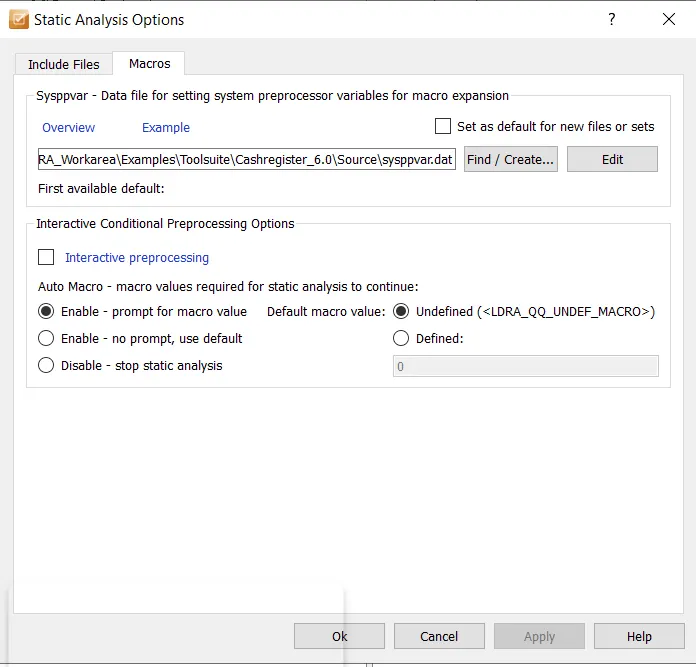
Step 4: Configuration -> LDRA test configuration -> Static options ->Give path for the .datfile
Step 5: Source -> Static Analysis
Step 6: Results -> Test Manager Reports
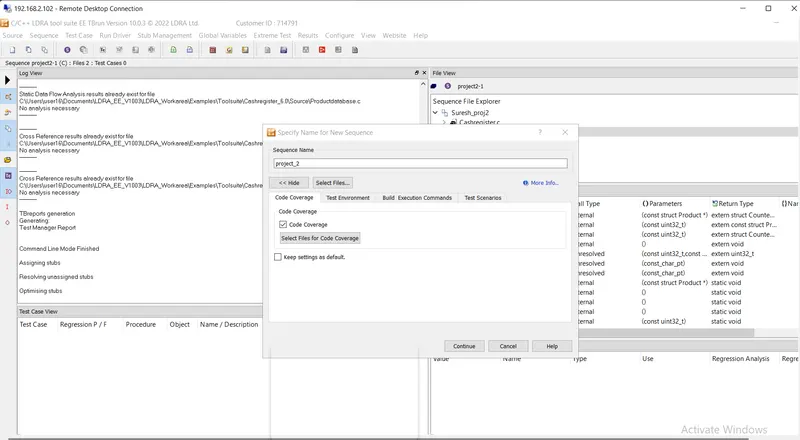
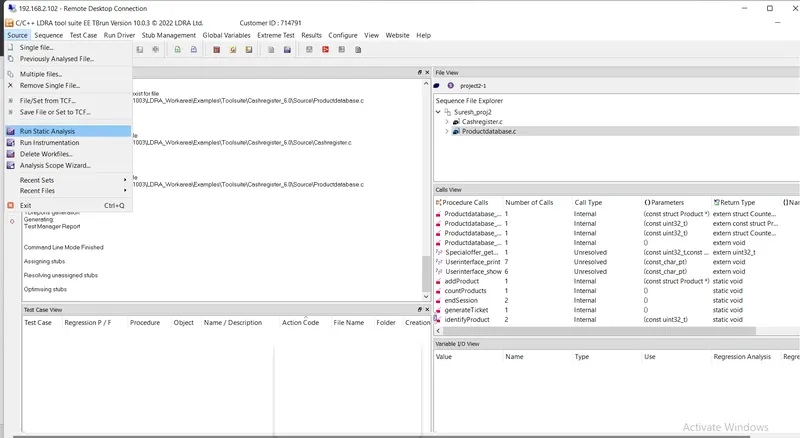
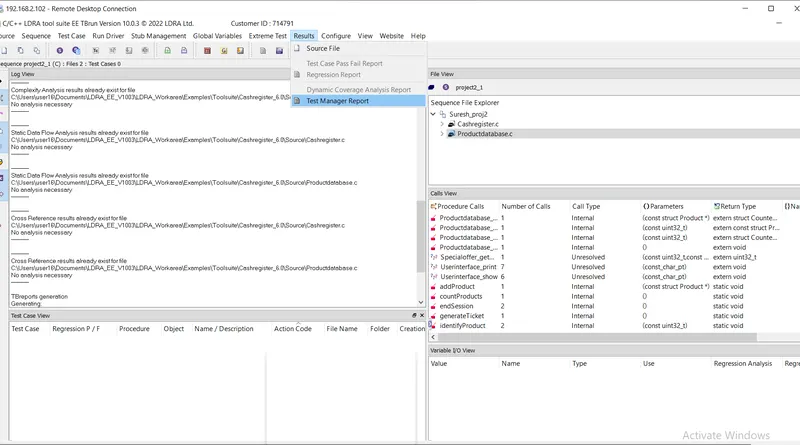
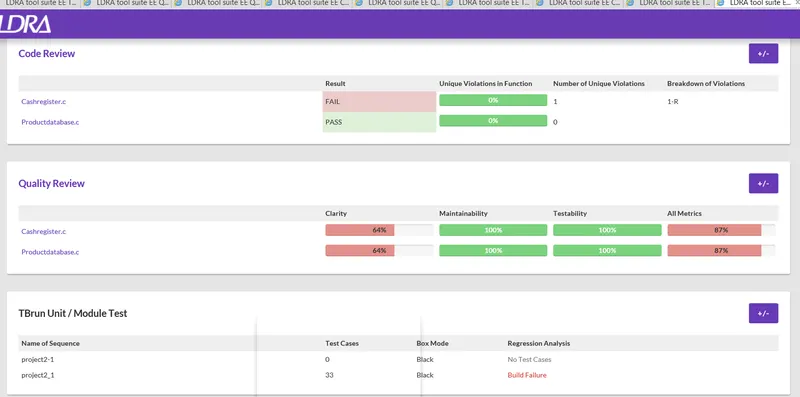
Results:
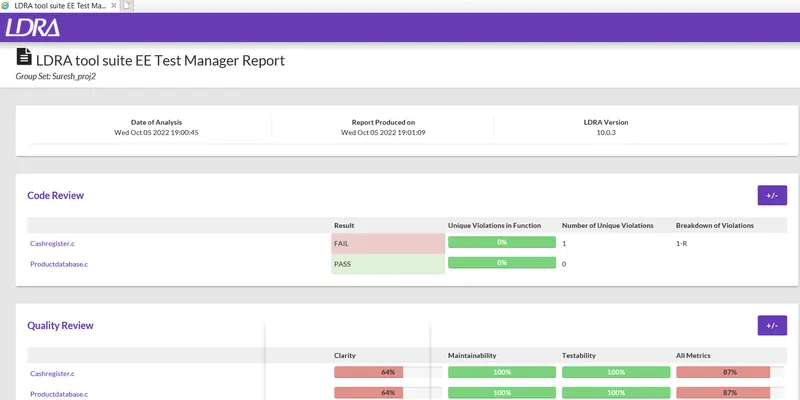
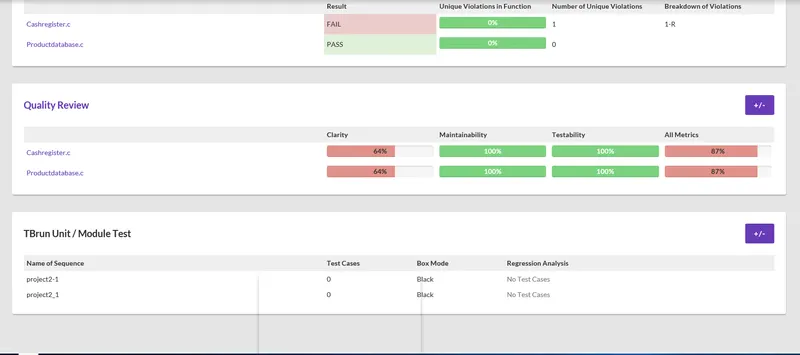
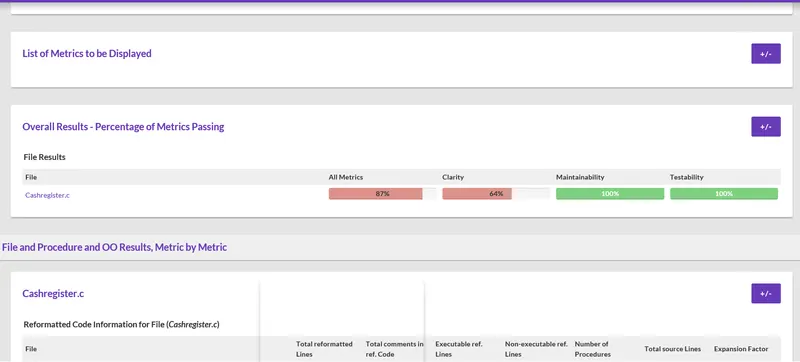
Cashregister.c
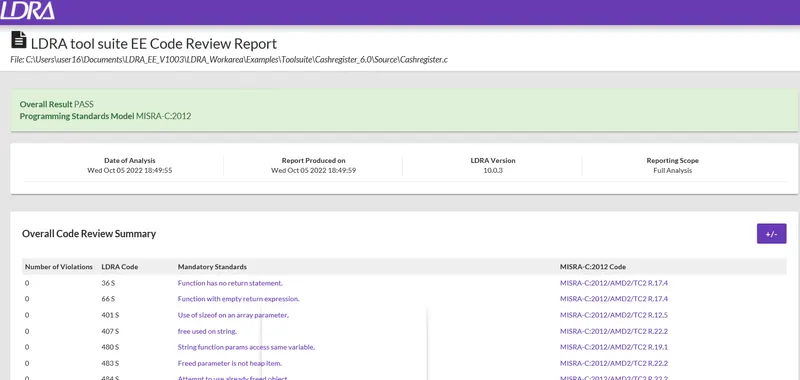
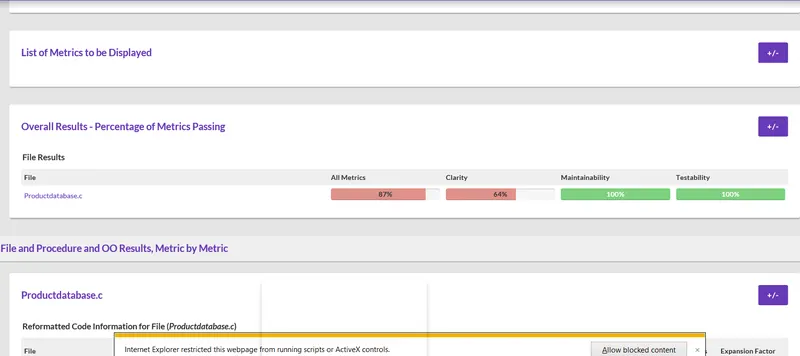
Productdatabase.c
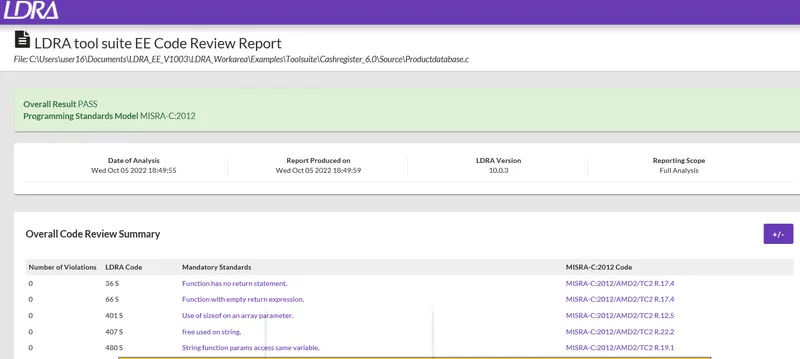
Main results :
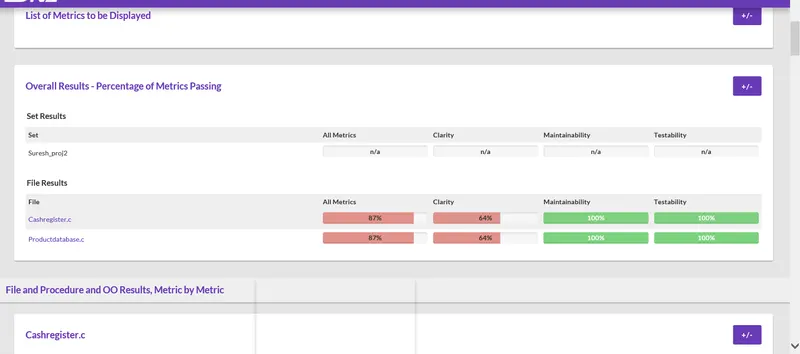
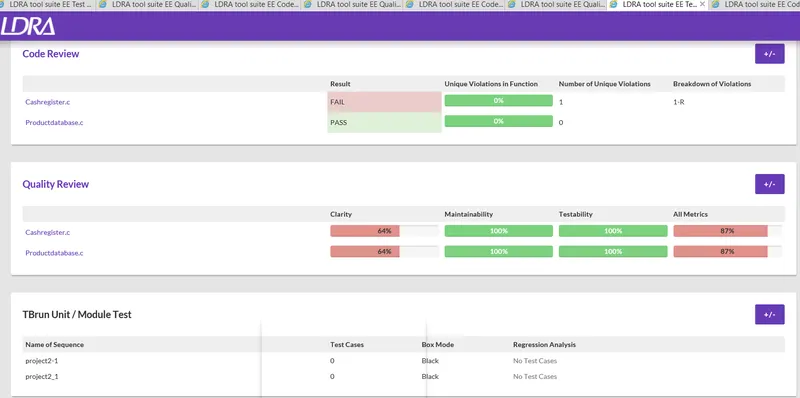
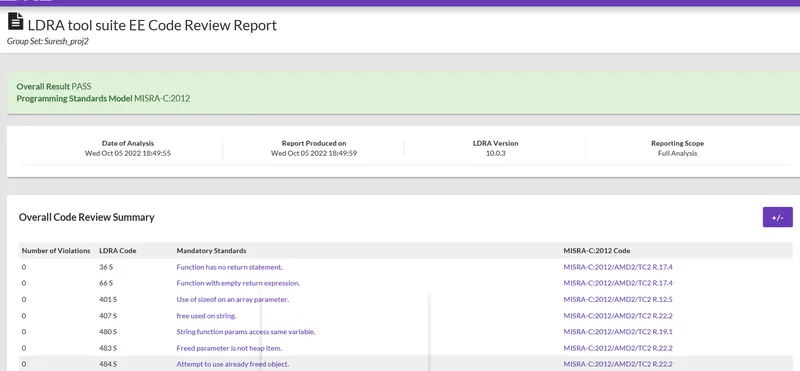
Manual test:
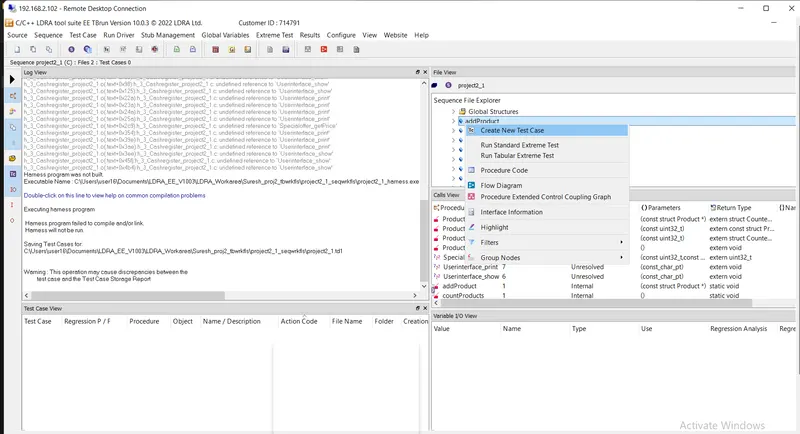
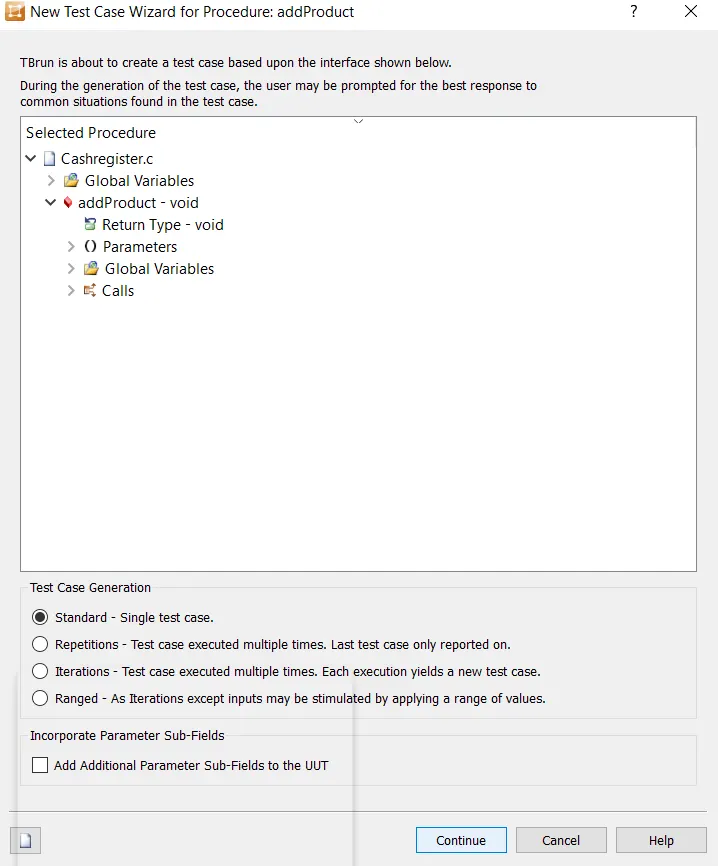
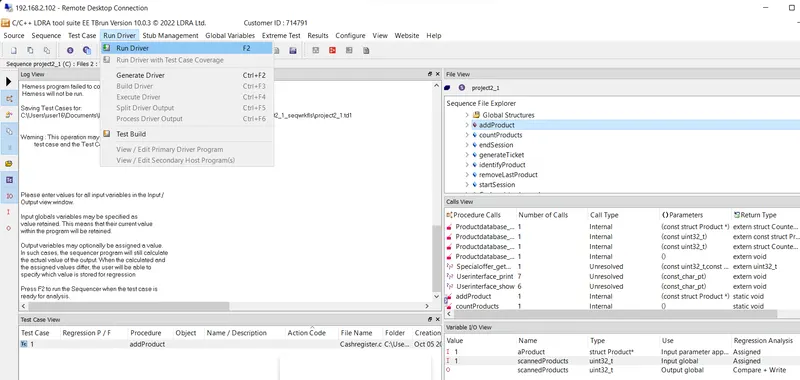
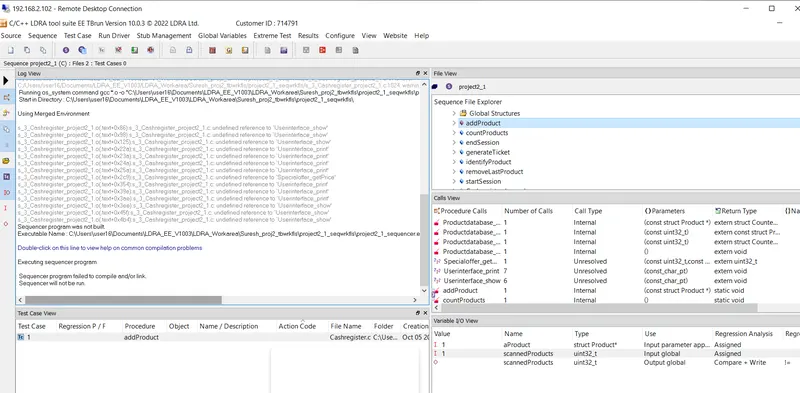
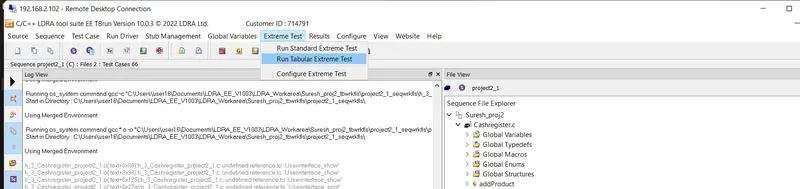
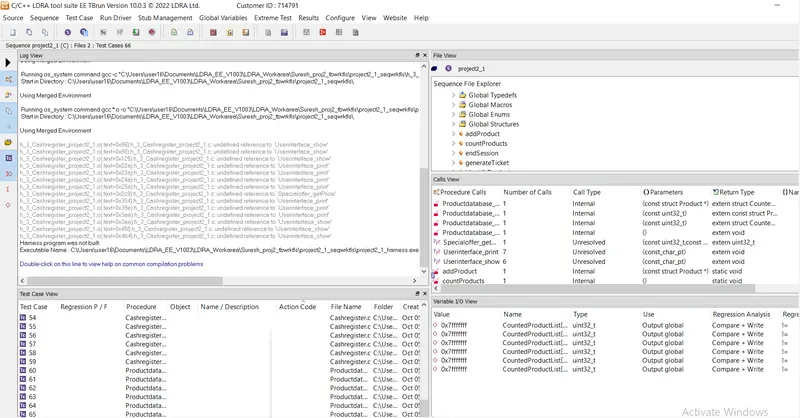
automatically test cases using TBExtreme:
**********************************************************************************************************************************************
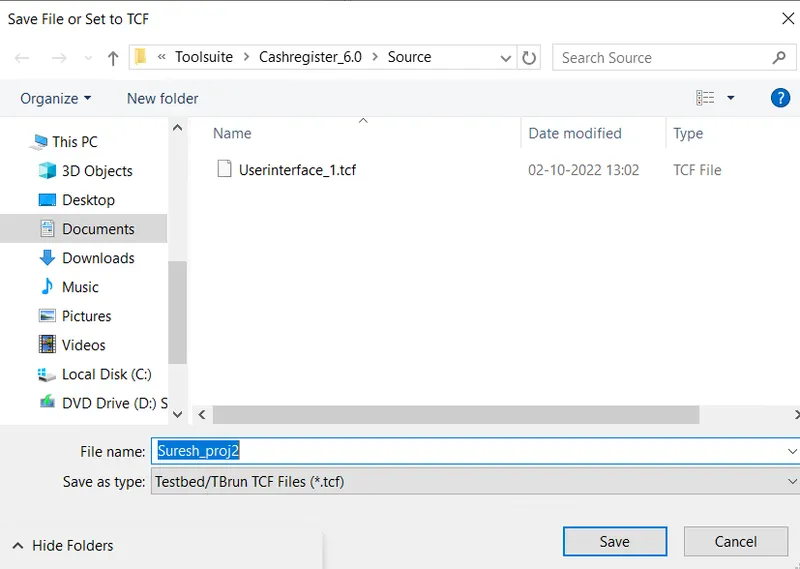
B)store the test cases as .tcf file. Upload the location image where the .tcf file is stored.
For creating .tcf file
CREATION OF TEST CASE AND SAVING WITH .tcf:
Step 1: Source -> Single File
Step 2: Sequence -> New Sequence ->Name -> Code Coverage -> Continue
Step 3: File View -> Click on .c File -> Set as Black Box
Step 4: Extreme Test ->Run Extreme Test
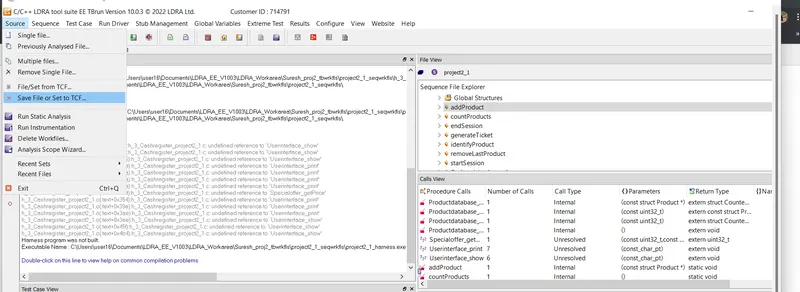
Step 5: Source -> Save file or set as TCF.
Here the procedure and results are same as the above 2)A) answer, only the Step 5: Source -> Save file or set as TCF, need to be applied.