Project-2-Meshing of Door Inner Panel Challenge
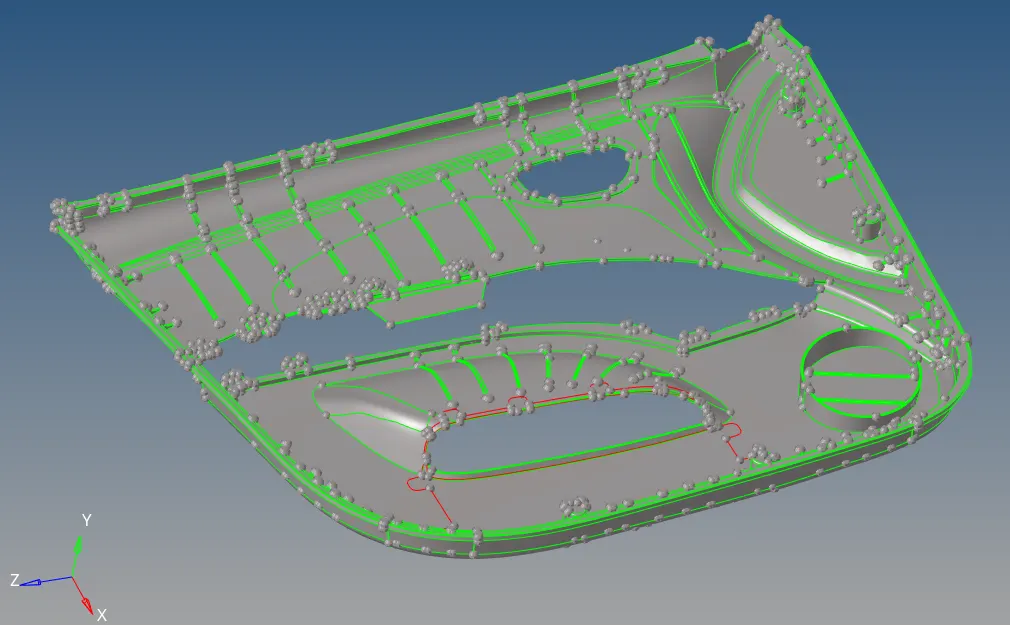
Objective: Generating Midsurface and geometry clean up on the given component. Also generating mesh on the given component with low tria concentration and proper mesh flow.
Modal Image:
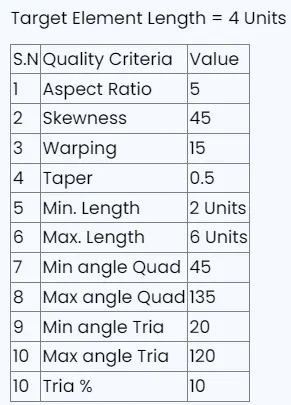
Quality Criteria:
Procedure:
1. Import the modal in Hypermesh.
Go to File >> Import >> Model >> Select the model >> click on open >> select the model in window >> click on import>> model will be imported.
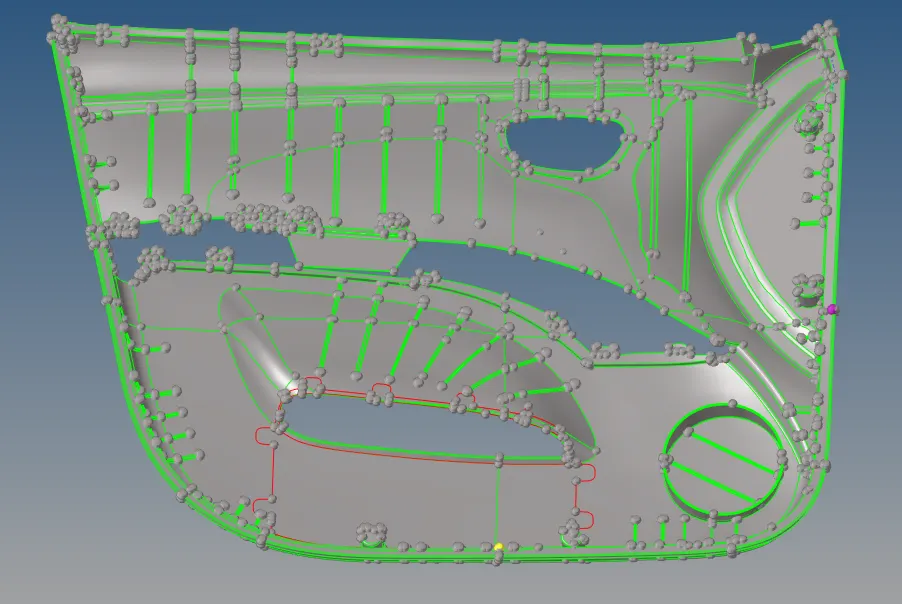
2. Observe the model carefully. we can clearly see that surfaces are in two different component, but they should be in same component. Hence using organiser tool, transfer surfaces iun same component.'
Go to Tool >> organize << select surface >> select destination surface >> click on move and return >> thus surface will be transfered.
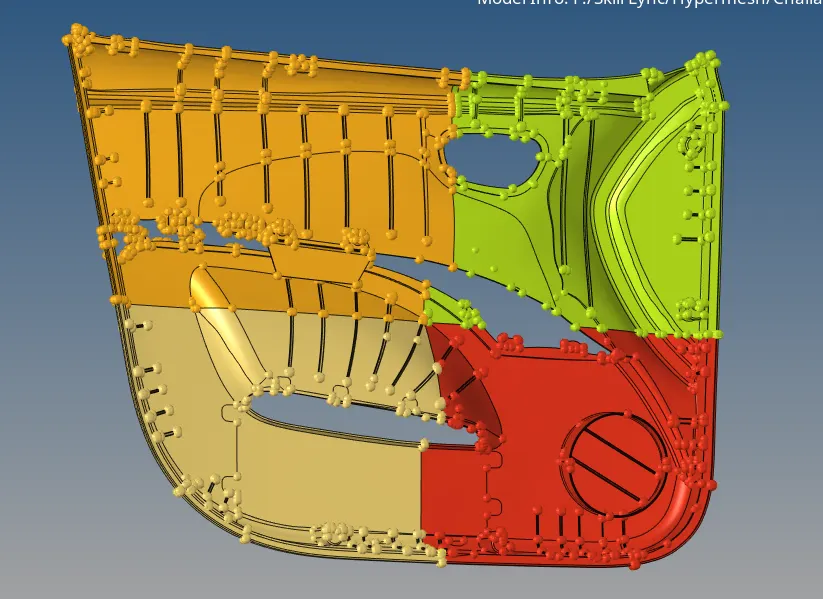
3. Since model is big, we will cut it into 4 diffferent parts and generate mid surface seperately.
For this, we will cut the geometry in two different planes.
Go to Geometry >> surface edit >> trim with surf/plane >> select desplayed surfaces >> select the axis about which we want to cut >> select the base point (For easyness create a temnode for basepoint) >> click on trim.
We can see the cut.
4. Now create a component named 'Body 1' and move a part of surfaces in this collector.
Similalry move required surfaces to Body 2, Body 3, and Body 4 Components.
5. Now we will work on Body 1.
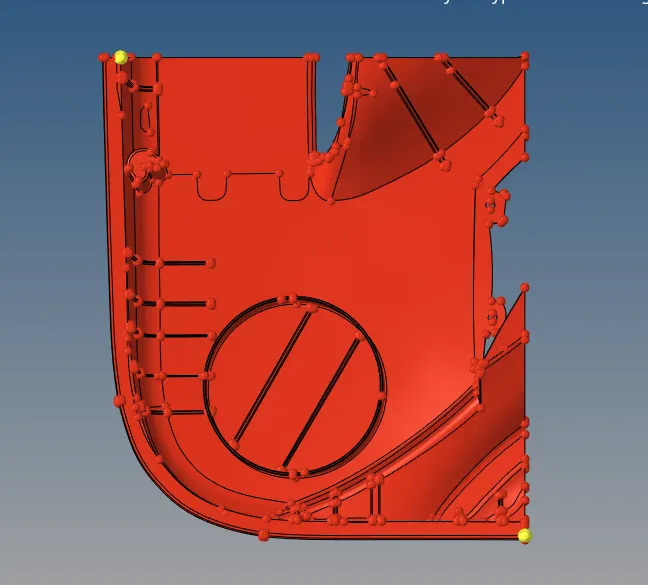
a) Offset the surface from back side

b) Defuture the small fillets. For this
Go to Geometry >> Defeture >> surf fillets >> select fillet surfaces >> Min radius = 0.1 >> max Radius = 5 >> click on find
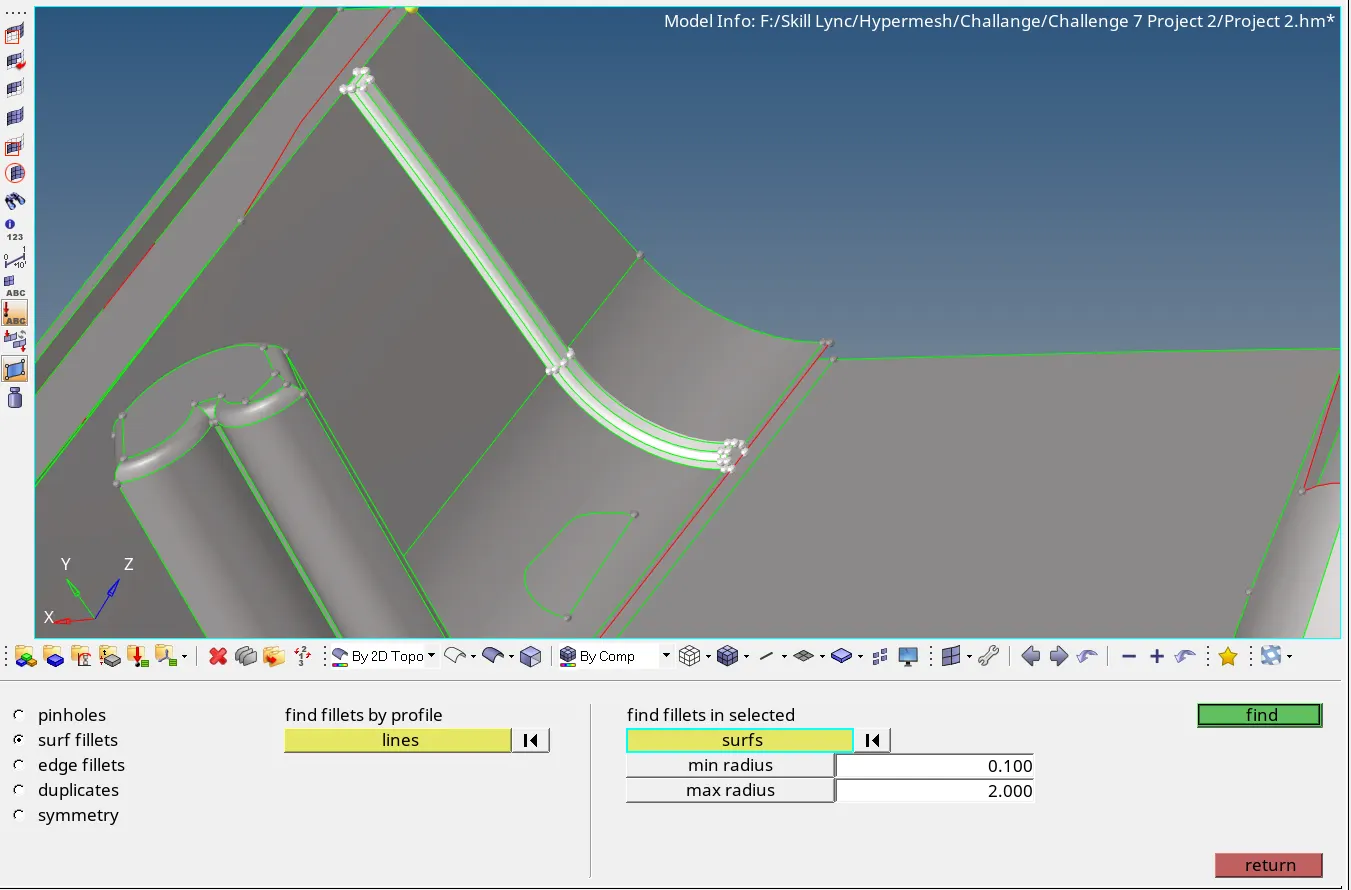
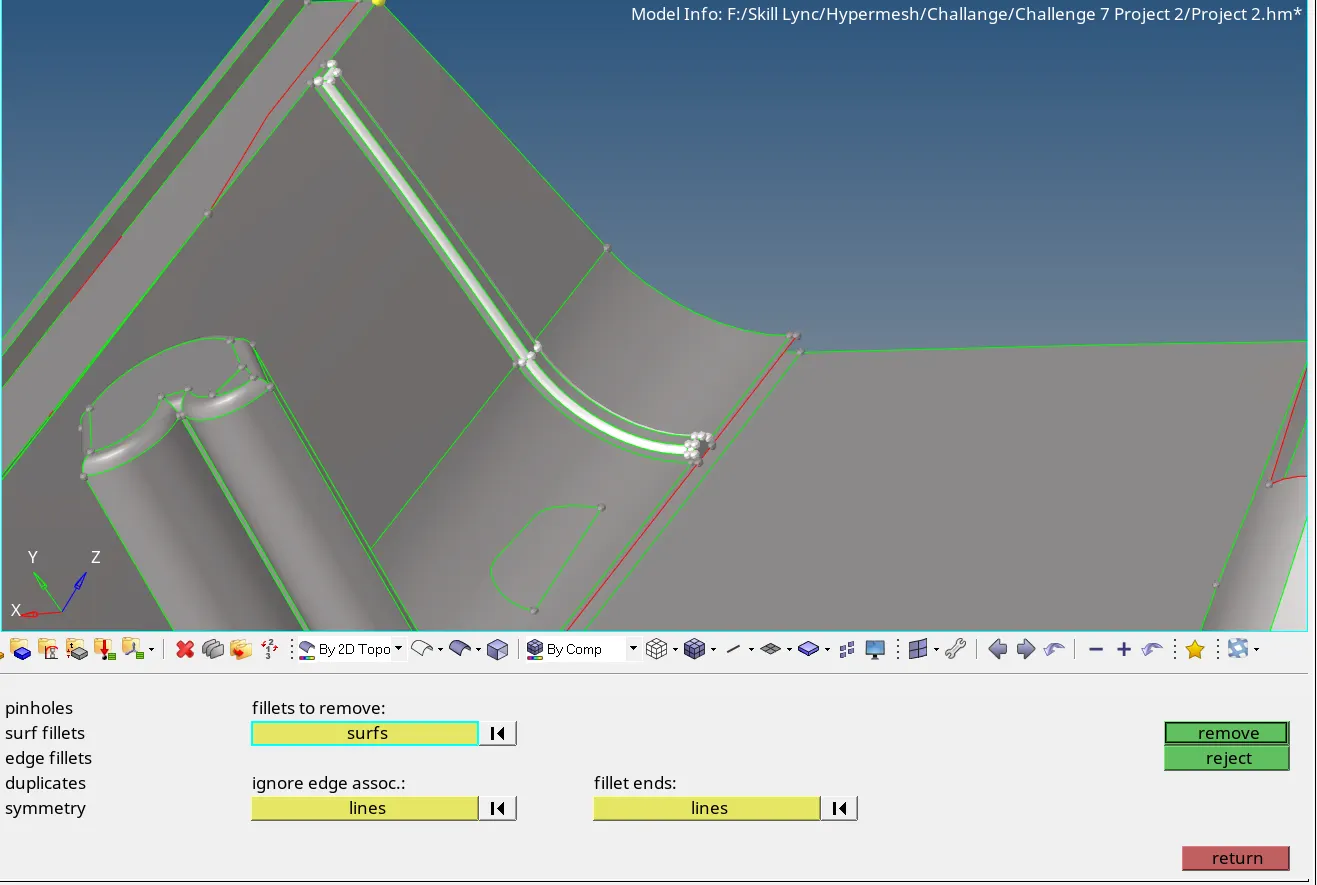
Now click on remove
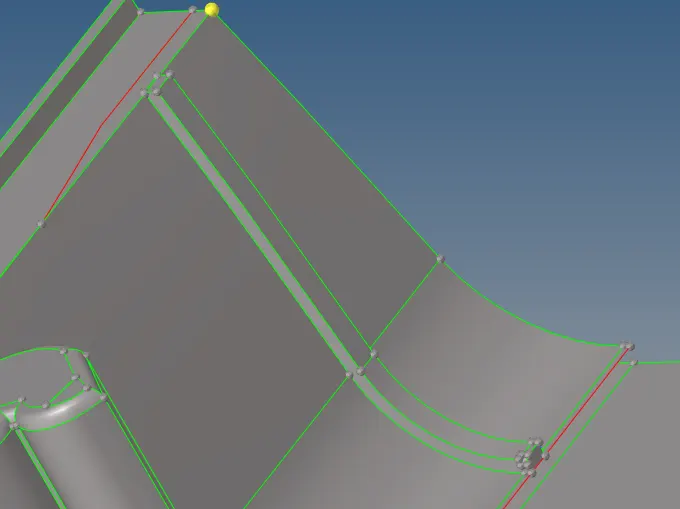
Similarly remove such fillets
c) here ribs are similar, so we will defeture the one fillet and copy midsurface of tha fillet.
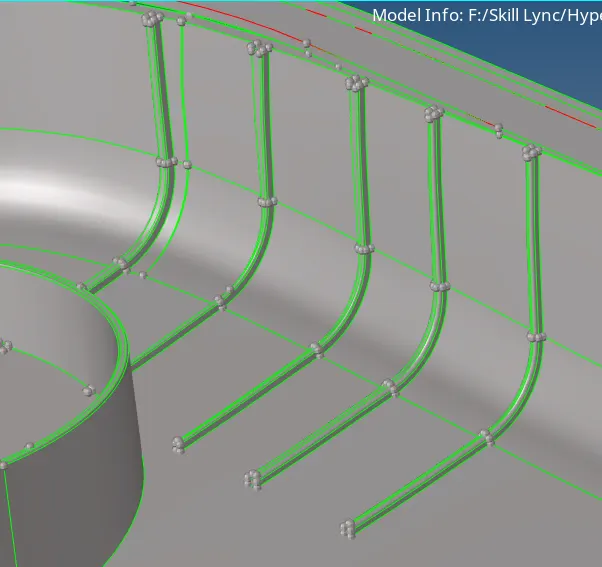
Similarly remove fillets at this area
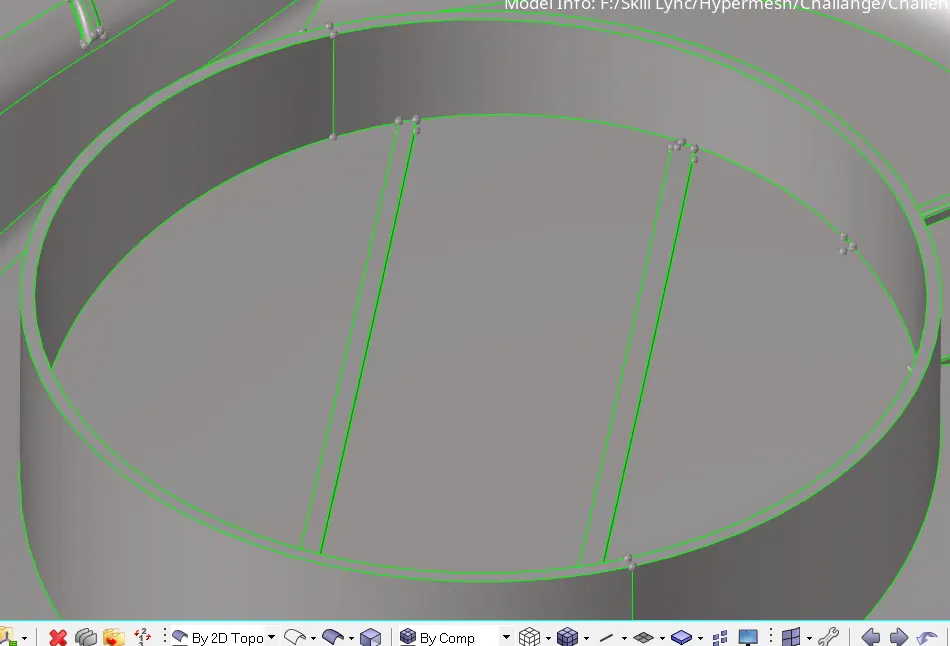
d) Now extract mid surface for ribs by offsetting one of the side.
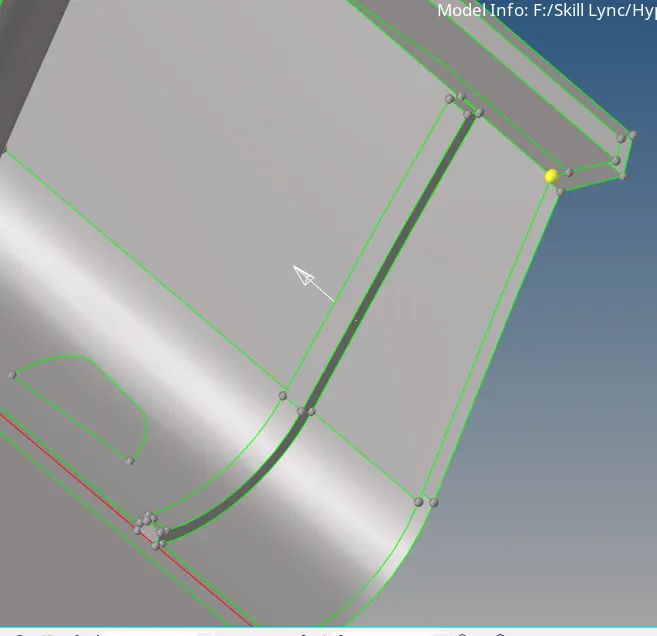
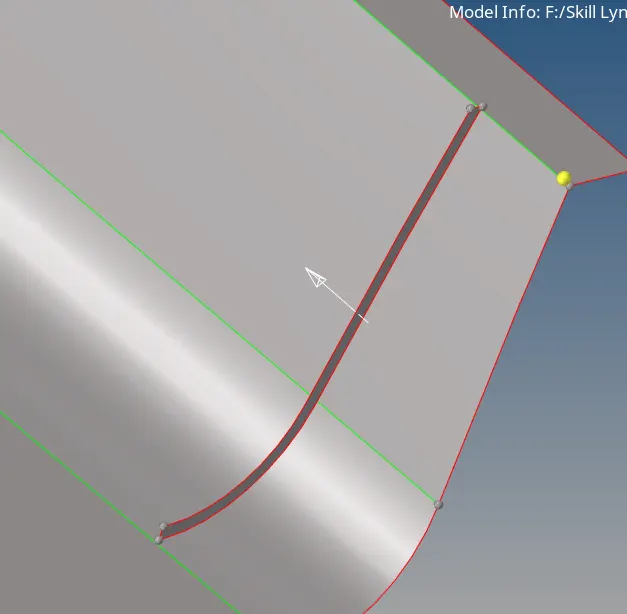
Similarly extract mid surface for other ribs
e) Now connect all the surfaces properly and supress unnecessary lines
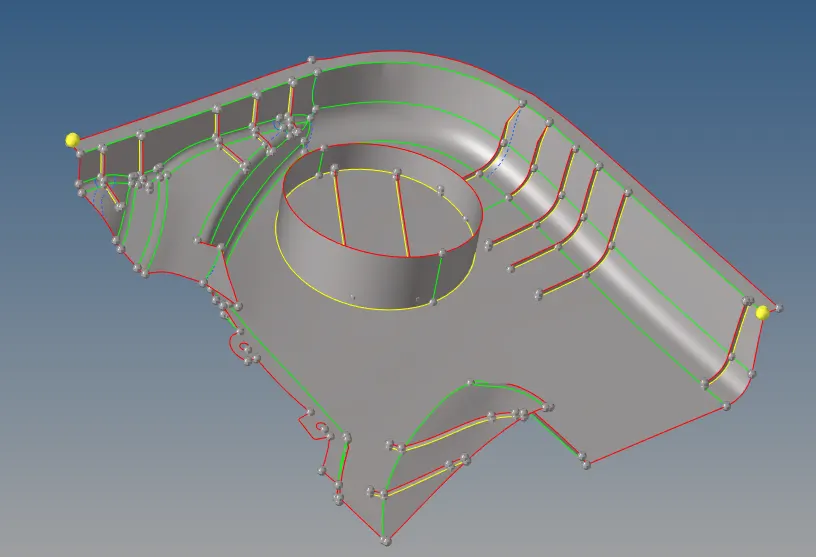
f) Now mesh the mid surface according to the given quality creteria.
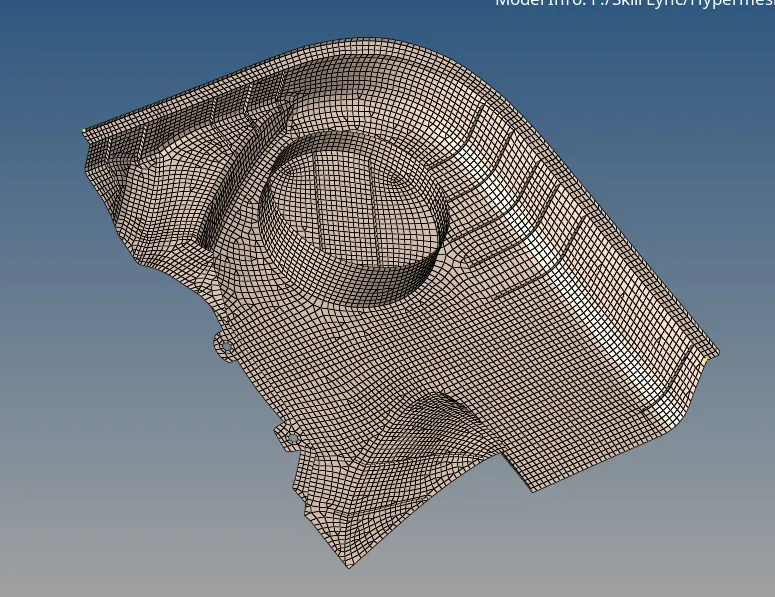
6. Similarly Work on Body 2, 3 and 4. Extract Mid Surface and mesh the Mid Surface.
a) Body 2
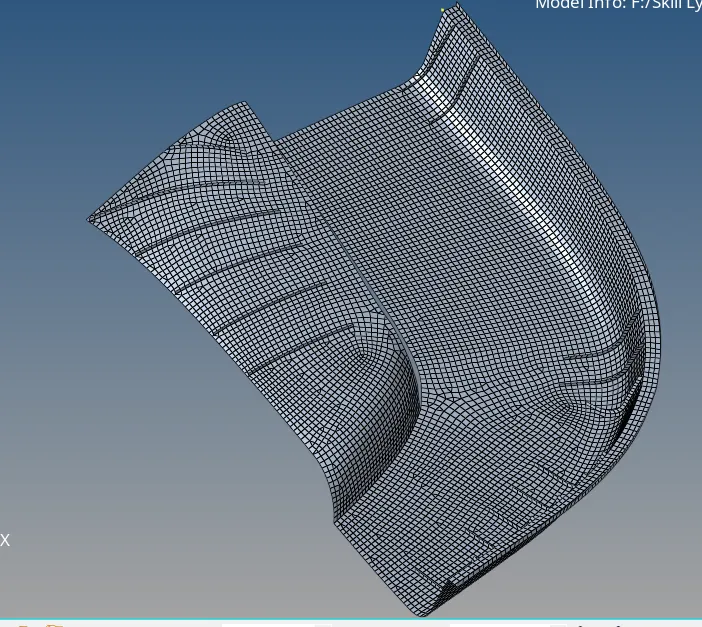
b) Body 3
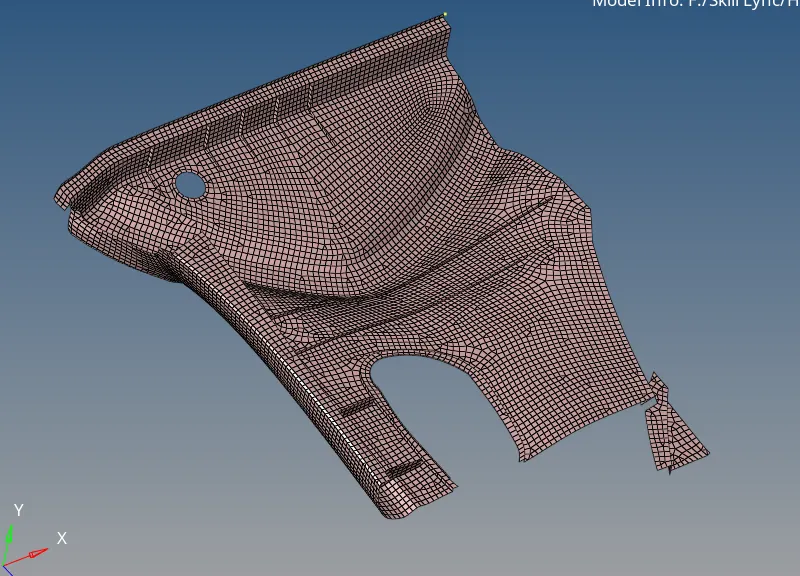
c) Body 4
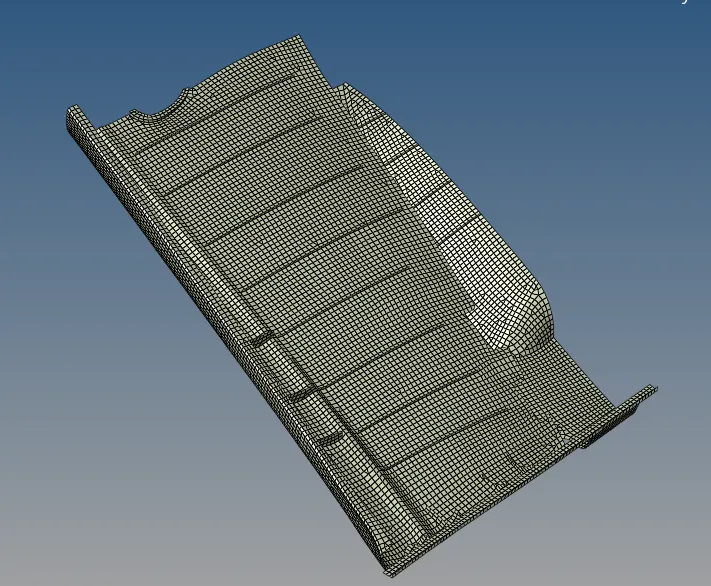
7. Now connect the elements of these 4 body parts. For this
Go to Tool >> Edges >> Select all elements >> click on preview equiv >> click on equivalance
If by this way few elements not got connected then connect the manually by placing nodes.
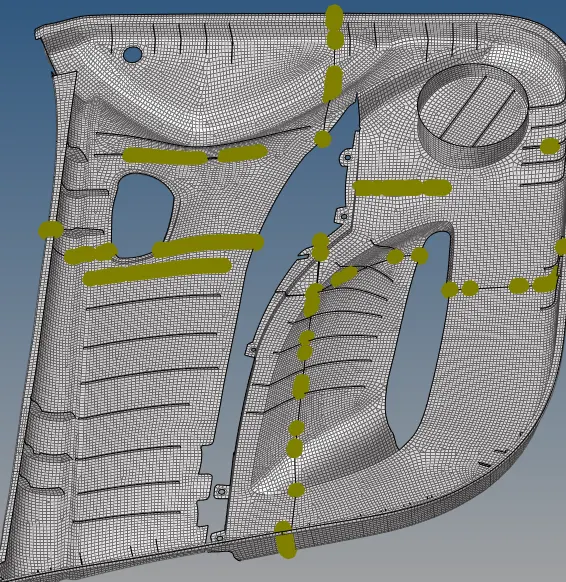
8. To Check wheather all elements are connected or not, we can generate edges. For this
Go to Tool >> Edges >> Select elements >> find edges
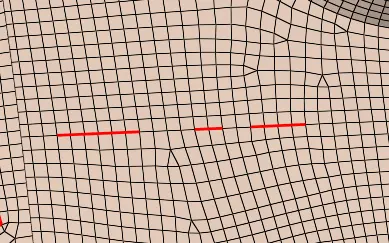
We can see that here at the red line elements are not connected. Join them by placing nodes.
For this ,
Go to 2D >> Place Nodes > Select nodes to place together
9. Thus meshing work is cvompleted and all elemnts is connected together
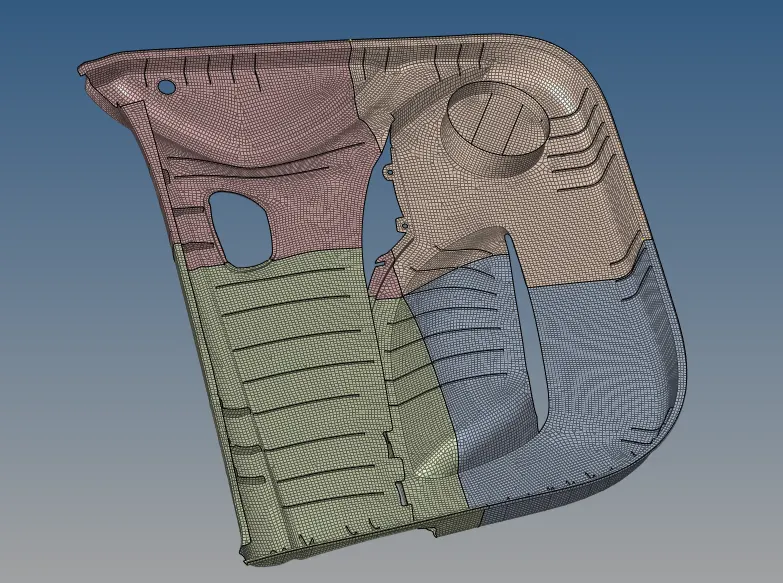
10. Now assign thickness.
For this
1st Create material
Go to create material >> choose Card Image 'MAT 1'
2nd Create Property >> choose Card Image ' PSHELL' and thickness 1mm
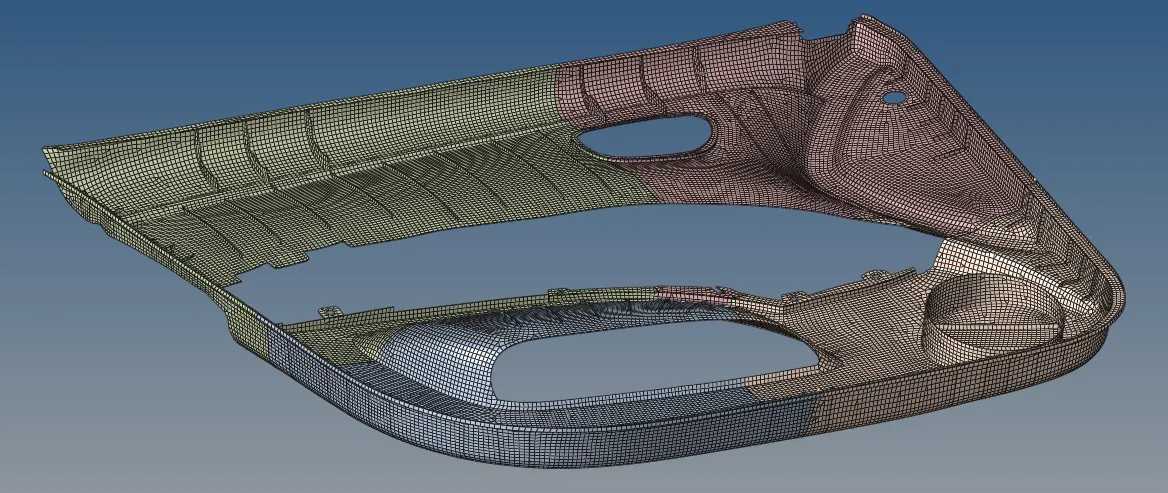
Final Image:
Conclusion:
Thus Mid Surface is extracted and mesh is done along with providing thicknesss.
File Link