Project 2_Creating a 3D rendered model for a Residential Building in AutoCad
AIM:- Creating a 3D rendered model for a Residential Building in AutoCad
INTRODUCTION:-
The plan is created in AutoCAD 3D using Layer, 3Dorbit, Slice, 3Drotate, Extrude, Material browser, Region, Boundary, Line, Offset, Pline, Trim, Rectangle tools, the dimensions, and text are provided with the use of layers. The procedure of drawing is explained in detail with diagrams of each step and the final result is given.
PROCEDURE:-
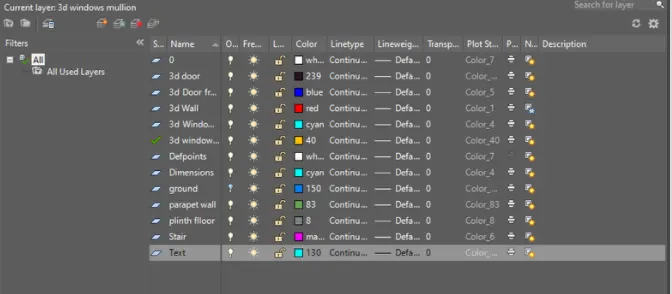
Layer properties:
Architectural drawing:
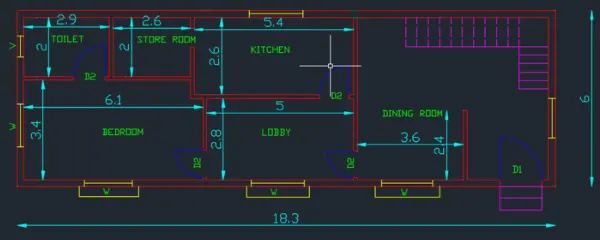
a) Plan:
- Give the size of the plot using the rectangle command and offset for the thickness of the wall.
- Give the orientation of the plot by marking the east direction.
- Now we draw the ground floor plan.
- Using offset command draw the bedroom of size 3.4X6.1m.
- Then for the toilet offset 2m in the vertical direction and 2.9m in the horizontal direction.
- For the storeroom offset 2m in the vertical direction and 2.6m in the horizontal direction.
- For the lobby offset 2.8m in the vertical direction and 5m in the horizontal direction.
- For kitchen offset 2.6m in the vertical direction and 5.4m in the horizontal direction.
- Now draw the stairs from north of the dining room and 1m for the offset of the width of the stair.
- Stair dimension thread-0.25m,riser-0.17m, and width-1m number of steps 16.
- Draw 5 steps in the first flight offsetting 0.25m and draw a landing of 1m width.
- For the next 3rd flight steps again offset 0.25m and draw 11 steps.
- Now draw the dining room by offsetting 3.6m in the horizontal direction and 2.4m in the vertical direction.
- Now insert the text using multiline text with text height as 0.10m style as standard.
- Now we draw the first-floor plan:
- Copy the ground floor plan and we make few changes.
- The kitchen is replaced with a bedroom of the same size as the bedroom-2.6X5.4m and a bathroom is attached with it.
- In the Northeast direction, the living room is created of size 2.4mX2.8m by offsetting in the horizontal and vertical direction.
- Now we create the doors and windows and making them as blocks.
- Assume door sizes as: D1-1X2.1m and D2-0.90X2.1m
- Place the doors wherever opening is provided and mark them as D1 or D2 wherever required.
- Assume the size of windows as 1x1.7m and ventilator as-0.50X0.70m.
- Place the windows and ventilators in the required place.
- Mark them as W, V and make them in a block.
- Now insert the dimensions using the "DIMLINEAR" command and for repeated dimensioning use "DISCONTINUE" and give text height as 0.25.
- Now create the layers using layer properties.
- Assign different colors to each layer in order to distinguish it.
- Insert respective elements in the layer.
- Insert steps in front of the entrance with riser as 0.15m and thread as 0.30m.
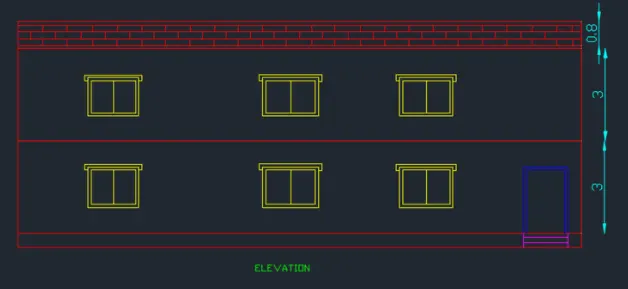
b) Elevation:
- Now project the lines to draw the elevation.
- Project the wall line to the top and draw a horizontal line.
- Offset 0.40m for the plinth level and 3m for the first-floor level and 3m again for the second floor.
- We draw the doors and windows from the plan and give heights of 2m and 1m as required.
- Project the shades and draw the shades at top of the window level.
- Trim off the extra lines using the trim command.
- Offset 0.076m for the thickness of doors and windows.
- Copy the windows and doors to another side also and draw the sunshade also.
- Project 1m to top to show the parapet wall.
Constructing the 3D model:
- Create the plinth level by using Region and boundary.
- Create the wall by Extruding it.
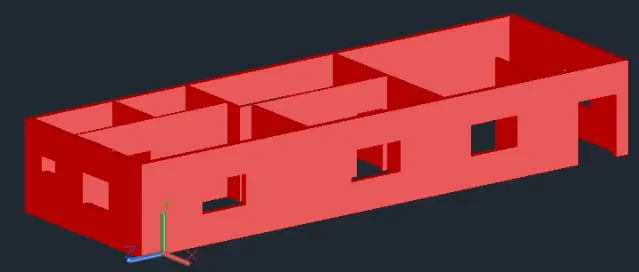
- Create the window and door and place them.
- Placing walls, doors, and windows together.
- Create the chajja.
- Place the ceiling over the ground floor.
- Create the same as that is created in the ground to the first floor.
- Create the ceiling of the first floor and create the parapet wall.
- Create the stairs for the front door.
- Show the top and front views of the building.
- Image after assigning the materials to the different components.
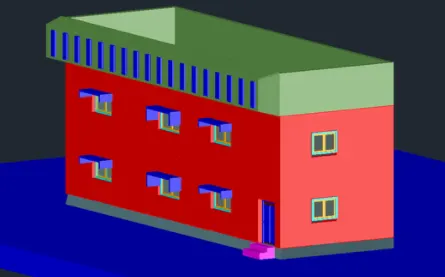
Result:
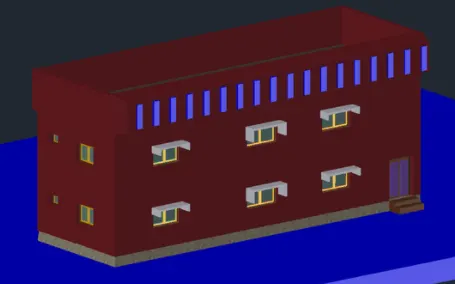
CONCLUSION:-
All result of each drawing has been attached which was drawn in AutoCAD.