Creation of geometries by Coordinate system methods using AutoCad
AIM:-
To create the geometries from P1 to P2 using all the coordinates system methods, using the Line tool to create the geometries.
INTRODUCTION:-
The main objective of this challenge is to gain knowledge about how to plot lines using the various coordinate systems available. The challenge is divided into four parts and each part certain figures are to be drawn using the line and circle tool based on the four coordinate systems.
Types of coordinate system:
- Absolute Coordinate System:- Absolute coordinates refers to a Cartesian System that uses x-axis, y-axis, and sometimes a z-axis to establish a point some distance from a common origin.
- Relative rectangular coordinate:- After first points entered, your next points can be entered by specifying the next coordinate relative from the first points. The relative coordinate started with the symbol “@”. Using relative coordinate, points entered by typing @x,y then Enter.
- Relative polar coordinate:- Polar coordinates used when you need to draw the next points at a specific angle. Polar coordinates system in AutoCAD specifies distance length at which angle. Using polar coordinate, points entered by typing @distance
- Direct distance entre:- This is the most common and easiest system used for drafting in Autocad. Values are provided through keyboard and direction is guided through the mouse.
PROCEDURE:-
Q.1:-
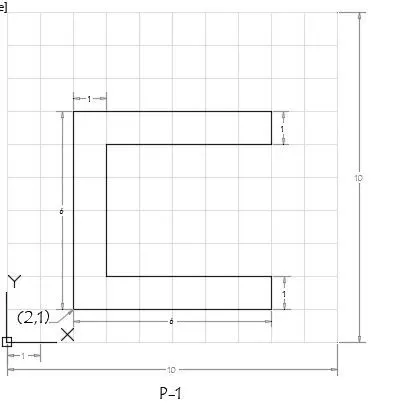
Absolute coordinate system:
- Select line tool from the Ribbon tab or type the command "L" for line and specify the coordinate for first point as (2,1)
- Specify the next point as (2,7)
- Specify the next point as (8,7)
- Specify the next point as (8,6)
- Specify the next point as (3,6)
- Specify the next point as (3,2)
- Specify the next point as (8,2)
- Specify the next point as (8,1)
- Specify the next point as (2,1) or click on the "close" from command prompt.
Relative rectangular coordinate:
- Select line tool from the Ribbon tab or type the command "L" for line and specify the coordinate for first point as (2,1)
- Specify the next point as (@6,0)
- Specify the next point as (@0,1)
- Specify the next point as (@-5,0)
- Specify the next point as (@0,4)
- Specify the next point as (@5,0)
- Specify the next point as (@0,1)
- Specify the next point as (@-6,0) or click on the "close" from command prompt.
Relative polar coordinate:
- Select line tool from the Ribbon tab or type the command "L" for line and specify the coordinate for first point as (2,1)
- Specify the next point as (@6<0)
- Specify the next point as (@1<90)
- Specify the next point as (@5<180)
- Specify the next point as (@4<90)
- Specify the next point as (@5<0)
- Specify the next point as (@1<90)
- Specify the next point as (@6<180) or click on the "close" from command prompt.
Direct distance entre:
- Select line tool from the Ribbon tab or type the command "L" for line and specify the coordinate for first point as (2,1)
- Type the length 6 in the command box to +ve X-axis.
- Type the length 1 in the command box to +ve Y-axis.
- Type the length 5 in the command box to -ve X-axis.
- Type the length 4 in the command box to +ve Y-axis.
- Type the length 5 in the command box to +ve X-axis.
- Type the length 1 in the command box to +ve Y-axis.
- Type the length 6 in the command box to -ve X-axis.
- click on the "close" from the command prompt.
RESULT:-
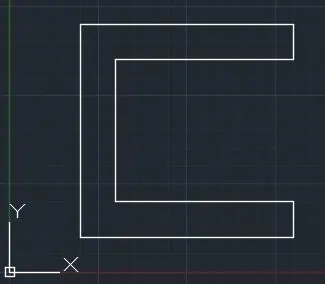
Q.2:-
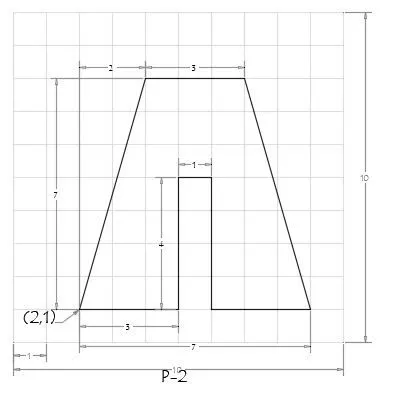
Absolute coordinate system:
- Select line tool from the Ribbon tab or type the command "L" for line and specify the coordinate for first point as (2,1)
- Specify the next point as (4,8)
- Specify the next point as (7,8)
- Specify the next point as (9,1)
- Specify the next point as (6,1)
- Specify the next point as (6,5)
- Specify the next point as (5,5)
- Specify the next point as (5,1)
- Specify the next point as (2,1) or click on the "close" from command prompt.
Relative rectangular coordinate:
- Select line tool from the Ribbon tab or type the command "L" for line and specify the coordinate for first point as (2,1)
- Specify the next point as (@3,0)
- Specify the next point as (@0,4)
- Specify the next point as (@1,0)
- Specify the next point as (@-4,0)
- Specify the next point as (@3,0)
- Specify the next point as (@7,-2)
- Specify the next point as (@0,-3) or click on the "close" from command prompt.
Relative polar coordinate:
- Select line tool from the Ribbon tab or type the command "L" for line and specify the coordinate for first point as (2,1)
- Specify the next point as (@3<0)
- Specify the next point as (@4<90)
- Specify the next point as (@1<0)
- Specify the next point as (@4<270)
- Specify the next point as (@3<0)
- Specify the next point as (@7.280<105.945)
- Specify the next point as (@3<180) or click on the "close" from command prompt.
Direct distance entre:
- Select line tool from the Ribbon tab or type the command "L" for line and specify the coordinate for first point as (2,1)
- Type the length 7 in the command box to +ve X-axis and Y-axis at an angle of 74.05.
- Type the length 3 in the command box to +ve X-axis.
- Type the length 7 in the command box to -ve X-axis and Y-axis at an angle of 285.95.
- Type the length 3 in the command box to -ve X-axis.
- Type the length 4 in the command box to +ve Y-axis.
- Type the length 1 in the command box to -ve X-axis.
- Type the length 4 in the command box to -ve Y-axis.
- Type the length 3 in the command box to -ve X-axis or click on the "close" from the command prompt.
RESULT:-
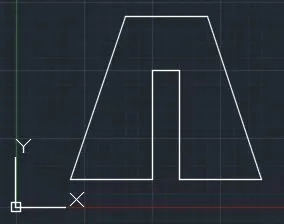
Q.3:-
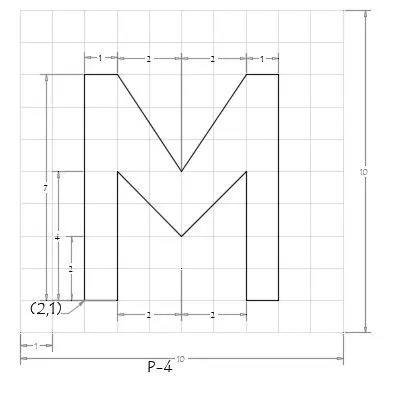
In Relative rectangular coordinate:
- Select line tool from the Ribbon tab or type the command "L" for line and specify the coordinate for first point as (2,1)
- Specify the next point as (@1,0)
- Specify the next point as (@0,4)
- Specify the next point as (@2,-2)
- Specify the next point as (@2,2)
- Specify the next point as (@0,-4)
- Specify the next point as (@1,0)
- Specify the next point as (@0,7)
- Specify the next point as (@-1,0)
- Specify the next point as (@-2,-3)
- Specify the next point as (@-2,3)
- Specify the next point as (@-1,0) or click on the "close" from command prompt.
RESULT:-
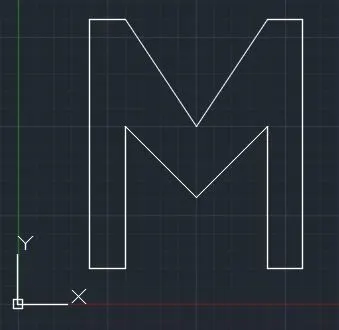
Q.4:-
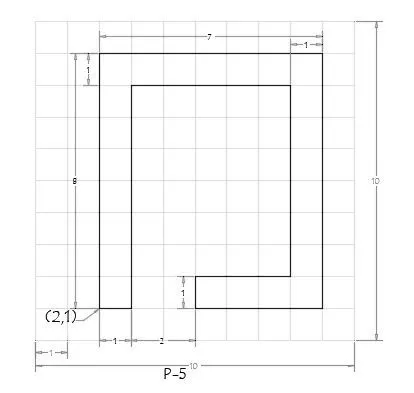
In Relative rectangular coordinate:
- Select line tool from the Ribbon tab or type the command "L" for line and specify the coordinate for first point as (2,1)
- Specify the next point as (@1,0)
- Specify the next point as (@0,7)
- Specify the next point as (@5,0)
- Specify the next point as (@0,-6)
- Specify the next point as (@-3,0)
- Specify the next point as (@0,-1)
- Specify the next point as (@4,0)
- Specify the next point as (@0,8)
- Specify the next point as (@-7,0) or click on the "close" from command prompt.
RESULT:-
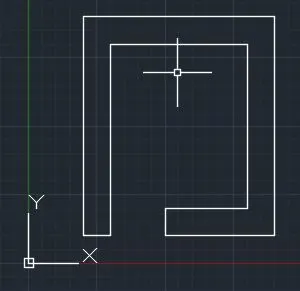
Q.5:-
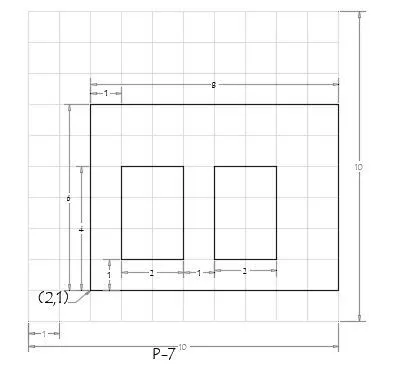
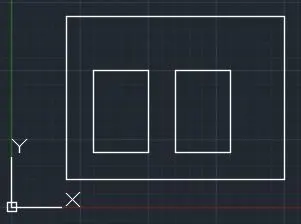
In Relative rectangular coordinate:
- Select line tool from the Ribbon tab or type the command "L" for line and specify the coordinate for first point as (2,1)
- Specify the next point as (@8,0)
- Specify the next point as (@0,6)
- Specify the next point as (@-8,0)
- Click "close" from the command prompt.
- Type the command "L" and Specify the next point as (3,2)
- Specify the next point as (@2,0)
- Specify the next point as (@0,3)
- Specify the next point as (@-2,0)
- Click "close" from the command prompt.
- Type the command "L" and Specify the next point as (6,2)
- Specify the next point as (@2,0)
- Specify the next point as (@0,3)
- Specify the next point as (@-2,0) or click on the "close" from command prompt.
RESULT:-
Q.6:-
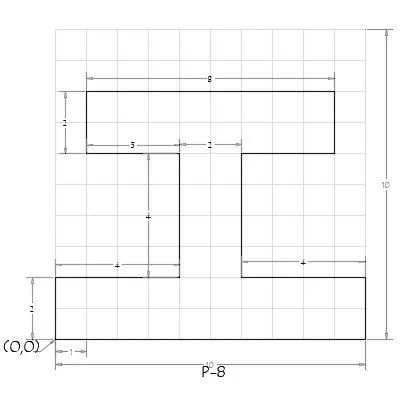
In Absolute coordinate system:
- Select line tool from the Ribbon tab or type the command "L" for line and specify the coordinate for first point as (0,0)
- Specify the next point as (10,0)
- Specify the next point as (10,2)
- Specify the next point as (6,2)
- Specify the next point as (6,6)
- Specify the next point as (9,6)
- Specify the next point as (9,8)
- Specify the next point as (1,8)
- Specify the next point as (1,6)
- Specify the next point as (4,6)
- Specify the next point as (4,2)
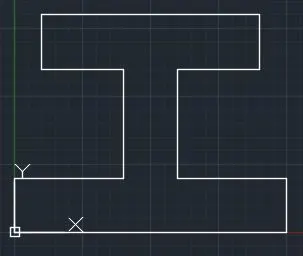
- Specify the next point as (0,2) or click on the "close" from the command prompt.
RESULT:-
Q.7:-
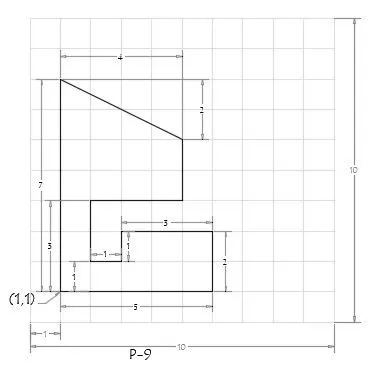
In Absolute coordinate system:
- Select line tool from the Ribbon tab or type the command "L" for line and specify the coordinate for first point as (1,1)
- Specify the next point as (6,1)
- Specify the next point as (6,3)
- Specify the next point as (3,3)
- Specify the next point as (3,2)
- Specify the next point as (2,2)
- Specify the next point as (2,4)
- Specify the next point as (5,4)
- Specify the next point as (5,6)
- Specify the next point as (1,8) or click on the "close" from the command prompt.
RESULT:-
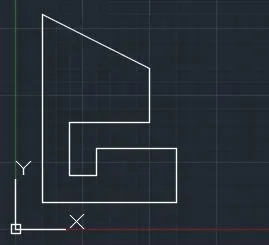
Q.8:-
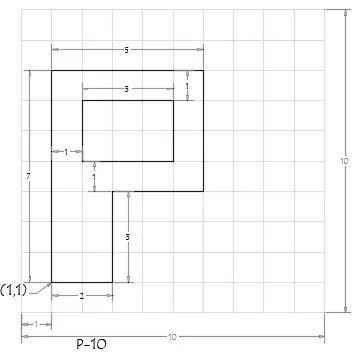
In Relative rectangular coordinate:
- Select line tool from the Ribbon tab or type the command "L" for line and specify the coordinate for first point as (1,1)
- Specify the next point as (@2,0)
- Specify the next point as (@0,3)
- Specify the next point as (@3,0)
- Specify the next point as (@0,4)
- Specify the next point as (@-5,0)
- Click "close" from the command prompt.
- Type the command "L" and Specify the next point as (2,5)
- Specify the next point as (@3,0)
- Specify the next point as (@0,2)
- Specify the next point as (@-3,0) or click on the "close" from the command prompt.
RESULT:-
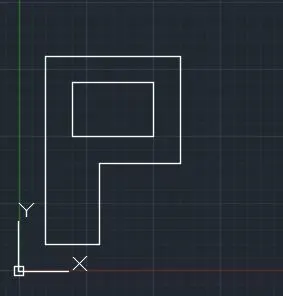
Q.9:-
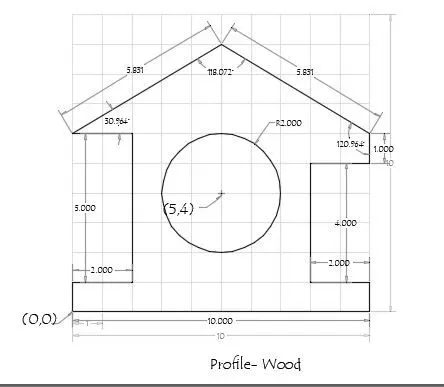
Procedure:
- Select line tool from the Ribbon tab or type the command "L" for line and specify the coordinate for first point as (0,0)
- Specify the next point as (@10,0)
- Specify the next point as (@0,1)
- Specify the next point as (@-2,0)
- Specify the next point as (@0,4)
- Specify the next point as (@2,0)
- Specify the next point as (@0,1)
- Specify the next point as (@5.831<149.03)
- Specify the next point as (@5.831<210.96)
- Specify the next point as (@2,0)
- Specify the next point as (@0,-5)
- Specify the next point as (@-2,0) or click on the "close" from the command prompt.
- Select circle from the Ribbon tab or type the command "C" and specify the centre point as (5,4)
- Specify the Radius circle as 2 and press enter.
RESULT:-
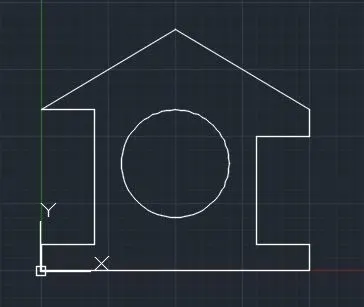
Q.10:-
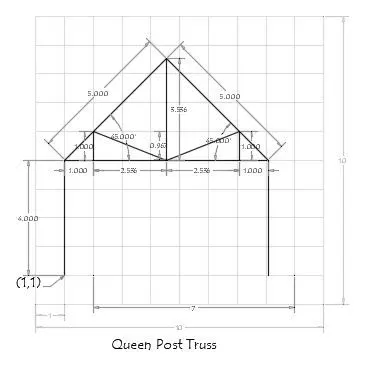
In Direct distance entre:
- Select line tool from the Ribbon tab or type the command "L" for line and specify the coordinate for first point as (1,1)
- Type the length 4 in the command box to +ve Y-axis for point 2.
- Type the length 7 in the command box to +ve X-axis for point 3.
- Type the length 4 in the command box to -ve Y-axis For point 4.
- Click "close" from the command prompt.
- Type the command "L" and Specify the next point as (4.5,5)
- Type the length 3.5 in the command box to +ve Y-axis.
- Click "close" from the command prompt.
- Type the command "L" and then join point 3 & 2.
- Click "close" from the command prompt.
- Type the command "L" and then join point 3 & 4, then Enter.
- Type the command "L" and specify the coordinate for point 7 as (2,6)
- Type the length 1 in the command box to -ve Y-axis for point 8.
- Click "close" from the command prompt.
- Type the command "L" and specify the coordinate for point 9 as (7,6)
- Type the length 1 in the command box to -ve Y-axis for point 10, then Enter.
- Type the command "L" and then join point 6 & 7, then Enter.
- Type the command "L" and then join point 6 & 9 ,then Enter.
RESULT:-
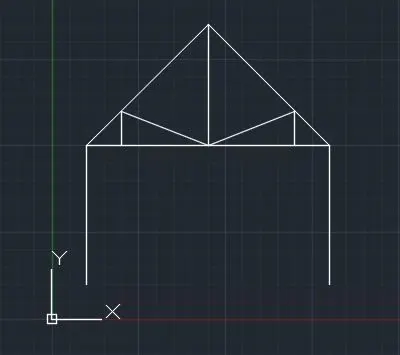
Q.11:-
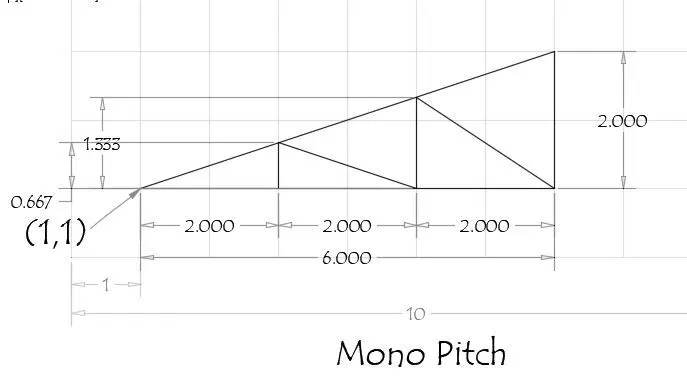
In Relative rectangular coordinate:
- Select line tool from the Ribbon tab or type the command "L" for line and specify the coordinate for first point as (1,1)
- Specify the next point as (@6,0)
- Specify the next point as (@0,2)
- Click "close" from the command prompt.
- Type the command "L" and Specify the next point as (2,1)
- Specify the next point as (@0,0.667)
- Specify the next point as (@2,-0.667)
- Specify the next point as (@0,1.333)
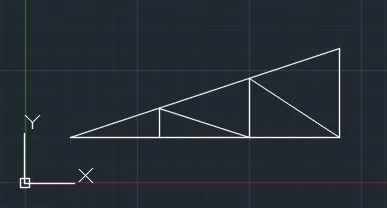
- Specify the next point as (@2,-1.333) or click on the "close" from the command prompt.
RESULT:-
CONCLUSION:-
All the given sample designs have been drawn using a coordinate system and the result of each drawing has been attached which was taken from AutoCAD.