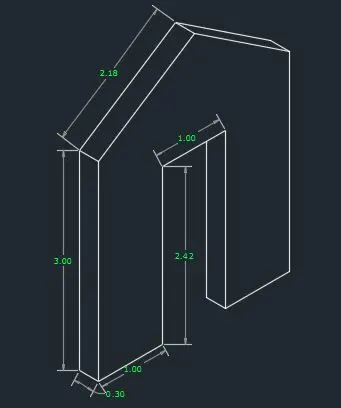
Creating a Floor plan, Footing detail and Isometric view using AutoCad
AIM:-
To create a Floor plan, Footing details and isometric view using AutoCAD.
INTRODUCTION:-
The main objective of this challenge is to get in touch with various tools in AutoCad like rectangle, polylines, modification tools like copy, move, offset. These tools will be understood by creating load bearing wall over spread footing, isolated footing, two bedroom building, foundation details and isometric view of steps & gable wall.
PART 1: Cross section of load bearing wall over spread footing
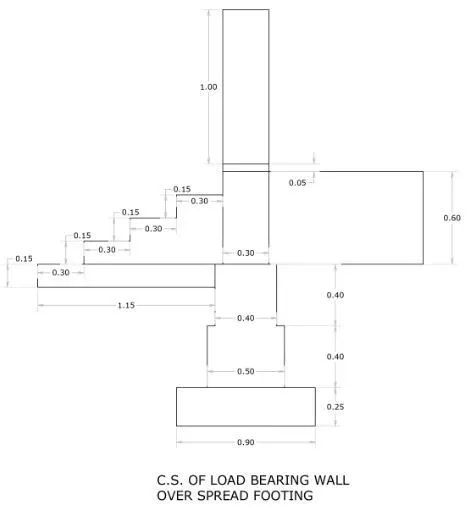
Procedure:
- Type Rec in the command line for rectangle and press Enter.
- Specify the first corner of the rectangle. Enter D for dimensions.
- Enter the length:- 0.90
- Enter the width:- 0.25
- Specify the other corner.
- Select line tool from the Ribbon tab or type the command "L" for line and specify the coordinate for first point as (0.2,0.25)
- Specify the next point as (@0,0.4)
- Specify the next point as (@0.05,0)
- Specify the next point as (@0,0.4)
- Specify the next point as (@0.4,0)
- Specify the next point as (@0,-0.4)
- Specify the next point as (@0.05,0)
- Specify the next point as (@0,-0.4)
- Click "close" from the command prompt.
- Type Rec in the command line for rectangle and press Enter.
- Specify the first corner of the rectangle as (0.25,1.05). Enter D for dimensions.
- Enter the length:- 1.15
- Enter the width:- 0.15
- Specify the other corner.
- Select line tool from the Ribbon tab or type the command "L" for line and specify the coordinate for first point as (0.3,1.05)
- Specify the next point as (@0,1.65)
- Specify the next point as (@0.3,0)
- Specify the next point as (@0,-1.65)
- Click "close" from the command prompt.
- Select line tool from the Ribbon tab or type the command "L" for line and specify the coordinate for first point as (0.3,1.05)
- Specify the next point as (@-0.9,0)
- Specify the next point as (@0,0.15)
- Specify the next point as (@0.3,0)
- Specify the next point as (@0,0.15)
- Specify the next point as (@0.3,0)
- Specify the next point as (@0,0.15)
- Specify the next point as (@0.3,0)
- Click "close" from the command prompt.
- Type Rec in the command line for rectangle and press Enter.
- Specify the first corner of the rectangle as (0.6,1.05). Enter D for dimensions.
- Enter the length:- 1
- Enter the width:- 0.6
- Specify the other corner.
- Select line tool from the Ribbon tab or type the command "L" for line and specify the coordinate for first point as (0.6,1.65)
- Specify the next point as (@-0.3,0)
- Click "close" from the command prompt.
- Type Offset in the command line and press Enter.
- Specify offset distance:- 0.05
- Select the object for offset.
- Then exit from the command prompt.
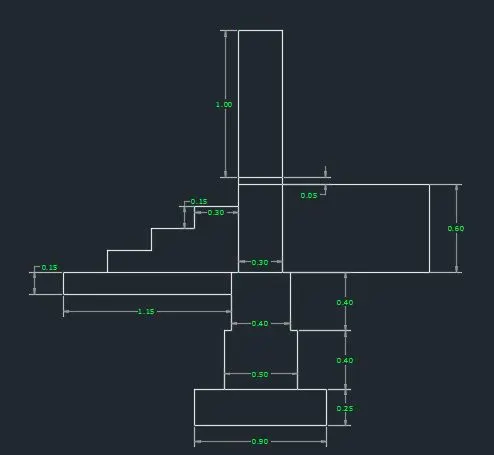
Result:
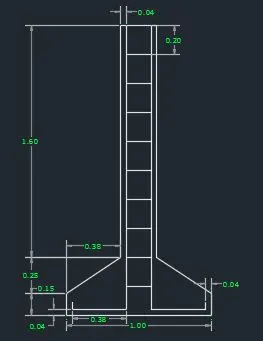
PART 2: Cross section of Isolation footing
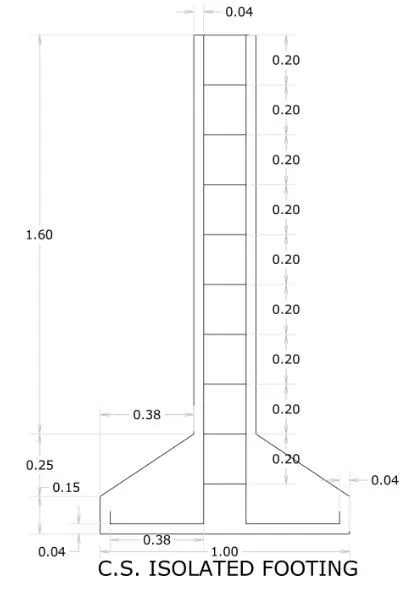
Procedure:
- Type Rec in the command line for rectangle and press Enter.
- Specify the first corner of the rectangle. Enter D for dimensions.
- Enter the length:- 1
- Enter the width:- 0.4
- Specify the other corner.
- Type Cha in the command line for chamfer and press Enter.
- Enter D for dimensions.
- Specify first chamfer distance: 0.25
- Specify second chamfer distance: 0.38
- Select the first line (vertical left) and Second line (horizontal upper line).
- Repeat the same for the opposite side and after completing this command delete the upper horizontal line.
- Select the line tool from the Ribbon tab or type the command "L" for line and specify the coordinate for the first point.
- Specify the next point as (@0,1.6)
- Specify the next point as (@0.24,0)
- Specify the next point as (@0,-1.6)
- Click "close" from the command prompt.
- Type the command "L" for line and specify the coordinate for the first point.
- Specify the next point as (@0.04,0)
- Specify the next point as (@0,-1.96)
- Specify the next point as (@-0.38,0)
- Specify the next point as (@0,0.04)
- Click "close" from the command prompt.
- Type the command "L" for line and specify the coordinate for the first point.
- Specify the next point as (@-0.04,0)
- Specify the next point as (@0,-1.96)
- Specify the next point as (@0.38,0)
- Specify the next point as (@0,0.04)
- Click "close" from the command prompt.
- Type the command "L" for line and specify the coordinate for the first point.
- Specify the next point as (@0.12,0)
- Click "close" from the command prompt.
- Type Offset in the command line and press Enter.
- Specify offset distance:- 0.20
- Select the object for offset.
- Move the cursor inside to place the line.
- Then exit from the command prompt.
Result:
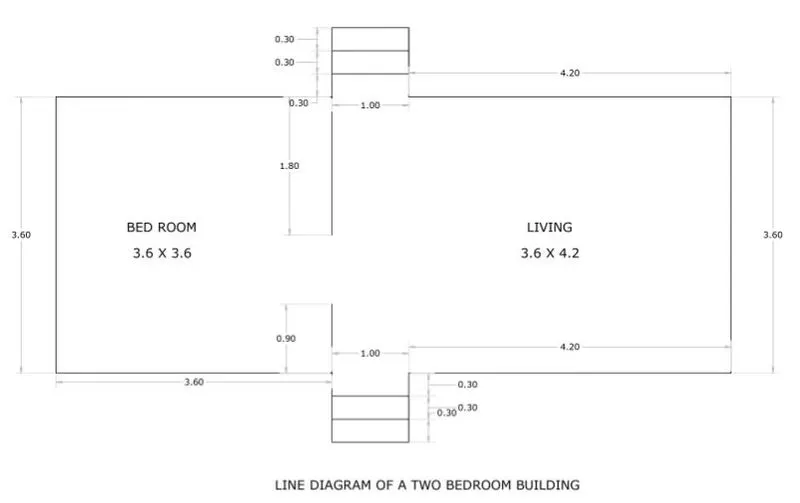
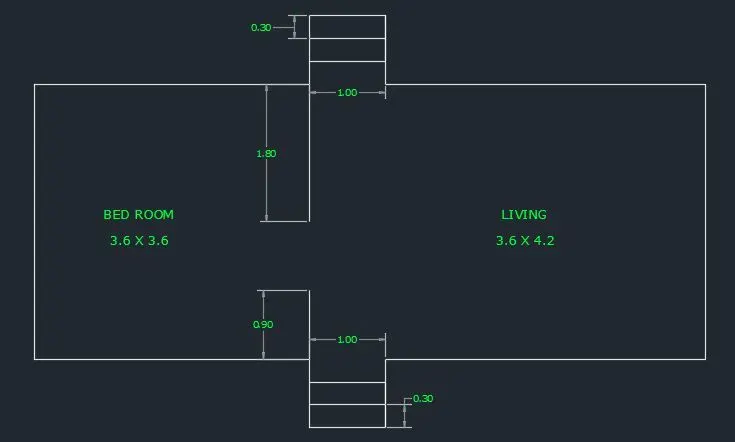
PART 3: Line Diagram of a Two Bedroom Building
Procedure:
- Select line tool from the Ribbon tab or type the command "L" for line and specify the coordinate for first point as (0,0)
- Specify the next point as (@3.6,0)
- Specify the next point as (@0,0.9)
- Click "close" from the command prompt.
- Type the command "L" for line and specify the coordinate for first point as (0,0)
- Specify the next point as (@0,3.6)
- Specify the next point as (@3.6,0)
- Specify the next point as (@0,-1.8)
- Click "close" from the command prompt.
- Type the command L for line and specify the coordinate for first point as (3.6,0)
- Specify the next point as (@0,-0.9)
- Specify the next point as (@1,0)
- Specify the next point as (@0,0.9)
- Specify the next point as (@0,-0.3)
- Specify the next point as (@-1,0)
- Click "close" from the command prompt.
- Type CO in the command line for copy and press Enter.
- Select objects
- Specify base point: 4.6,-0.3
- Specify second point or [array] (use first point as displacement): -0.3
- Then exit from the command prompt.
- Type Mirror in the command line and press Enter.
- Select objects
- Specify first point: 3.6,1.8
- Specify second point of Mirror line
- Erase source objects? [Yes/no]: no
- Type the command L for line and specify the coordinate for first point as (4.6,0)
- Specify the next point as (@4.2,0)
- Specify the next point as (@0,3.6)
- Specify the next point as (@-4.2,0)
- Specify the next point as (@0,-0.3)
- Specify the next point as (@-1,0)
- Click "close" from the command prompt
Result:
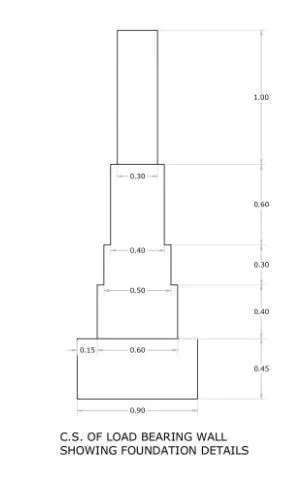
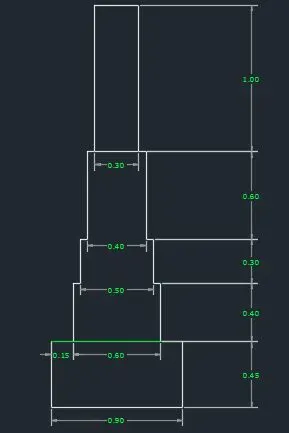
PART 4: C/s of Load Bearing wall showing foundation details
Procedure:
- Select line tool from the Ribbon tab or type the command "L" for line and specify the coordinate for first point as (0,0)
- Specify the next point as (@0,0.45)
- Specify the next point as (@0.15,0)
- Specify the next point as (@0,0.4)
- Specify the next point as (@0.05,0)
- Specify the next point as (@0,0.30)
- Specify the next point as (@0.05,0)
- Specify the next point as (@0,0.6)
- Specify the next point as (@0.05,0)
- Specify the next point as (@0,1)
- Specify the next point as (@0.3,0)
- Specify the next point as (@0,-1)
- Specify the next point as (@0.05,0)
- Specify the next point as (@0,-0.6)
- Specify the next point as (@0.05,0)
- Specify the next point as (@0,-0.3)
- Specify the next point as (@0.05,0)
- Specify the next point as (@0,-0.3)
- Specify the next point as (@0.05,0)
- Specify the next point as (@0,-0.4)
- Specify the next point as (@0.15,0)
- Specify the next point as (@0,-0.45)
- Specify the next point as (@-0.9,0) or Click "close" from the command prompt.
Result:
PART 5: Isometric view of Steps
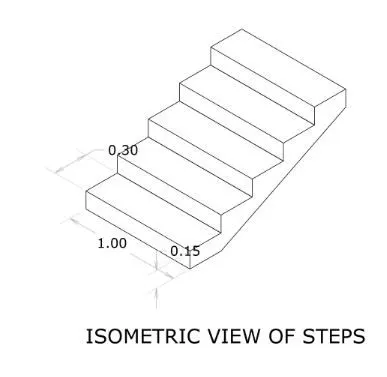
Procedure:
- Type DS in the command line and press enter.
- Click on Isometric Snap in snap type. This will activate the isometric screen.
- Select line tool from the Ribbon tab or type the command "L" for line and specify the coordinate for first point as (0,0)
- Type the length 0.15 in the command box and place the cursor upward direction.
- Type the length 1 in the command box and place the cursor on the right side.
- Type the length 0.15 in the command box and place the cursor downward direction.
- Type the length 1 in the command box and place the cursor on the left side.
- Click "close" from the command prompt.
- Type the command "L" for line and click on the upper top corner point of the diagram.
- Enter 0.3 as the first point in the common box.
- Type CO in the command line and press enter.
- Select the line of 0.3 length and press enter.
- Click on the base point age of a top corner & click it at 1 distance at another point.
- Type CO in the command line and press enter.
- Select the line of 0.3 length at the lower top corner of the diagram, click it at 0.15 distance at lower point and press enter.
- Type CO in the command line and press enter.
- Select the rectangular box and press enter
- Click the baseline as the lower corner of the rectangle, click it after the two straight lines and fix it.
- Type CO in the command line and press enter.
- Select the two straight lines opposite to each other and press enter.
- Click the top corner of the rectangle as base point fix the two lines after the second rectangular box.
- Type CO in the command line and press enter.
- Again copy the rectangular box into opposite straight lines, fix three rectangular boxes and six lines.
- Type CO in the command line and press enter. Select the upper line in the last rectangular box. click the last rectangular top Corner Point. fix it after two opposite lines
- Type CO in the command line and press enter.
- Select the line of 0.3 length and press enter.
- Click the lower top corner of the rectangular as base point & fix it below at a distance of 0.15.
- Type the command "L" for line and connect the to unconnected lines.
Result:
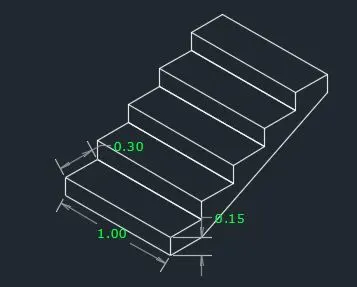
PART 6: Isometric view of Gable Wall
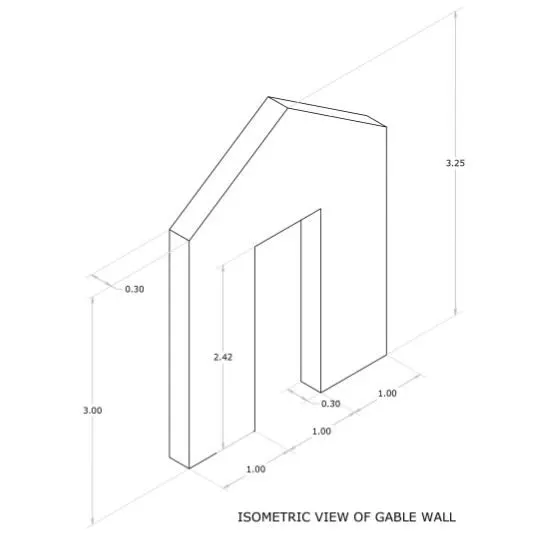
Procedure:
- Select the line tool from the Ribbon tab or type the command "L" for line and specify the coordinate for the first point as 0,0. (Isoplane right)
- Specify the next point as 1
- Specify the next point as 2.42
- Specify the next point as 1
- Specify the next point as 2.42
- Specify the next point as 1
- Specify the next point as 3
- Click "close" from the command prompt.
- Type the command "L" for line and specify the coordinate for the first point as 0,0
- Specify the next point as 3
- Specify the next point as 0.3 (isoplane left)
- Specify the next point as 3
- Specify the next point as 0.3
- Click "close" from the command prompt.
- Type the command "L" for line and specify the coordinate for the first point.
- Specify the next point as 0.3
- Click "close" from the comand prompt.
- Type the command "L" for line and specify the coordinate for the first point as 0,3
- Specify the next point as (@2.18<53)
- Specify the next point as (2.598,45)
- Click "close" from the command prompt.
- Type CO in the command line and press enter.
- Select the object and specify the opposite corner
- Select the base point as 0,3
- Specify the second point as-0.2598,3.15
- Click "close" from the command prompt
Result: