Project 2_Creating a 3D rendered model for a Residential Building in AutoCad
PROJECT-2 : CREATING A 3D RENDERD MODEL FOR A RESIDENTIAL BUILDING IN AUTOCAD.
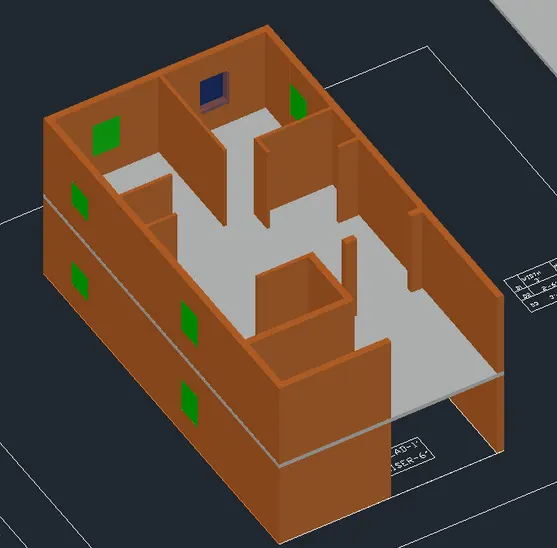
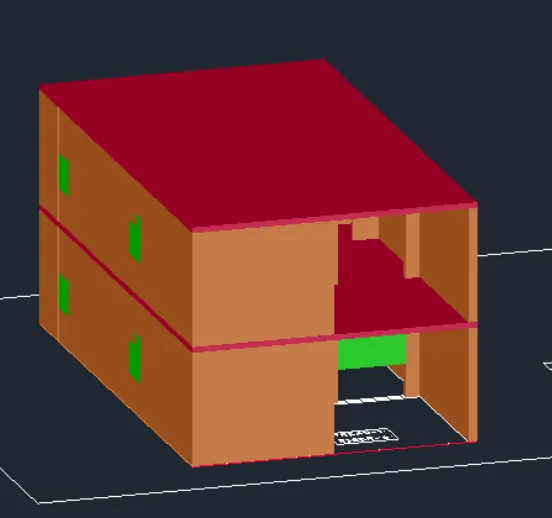
AIM: To create a 3D model of the residential building with a rendered view.
PROCEDURE:
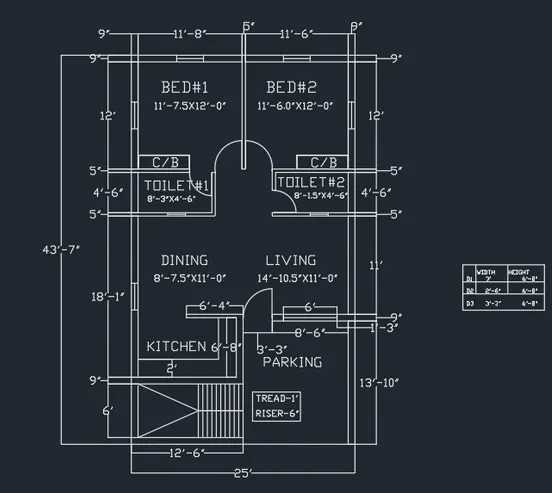
- First step is to create a 2D plan of residential building and need to study the plan and draw.
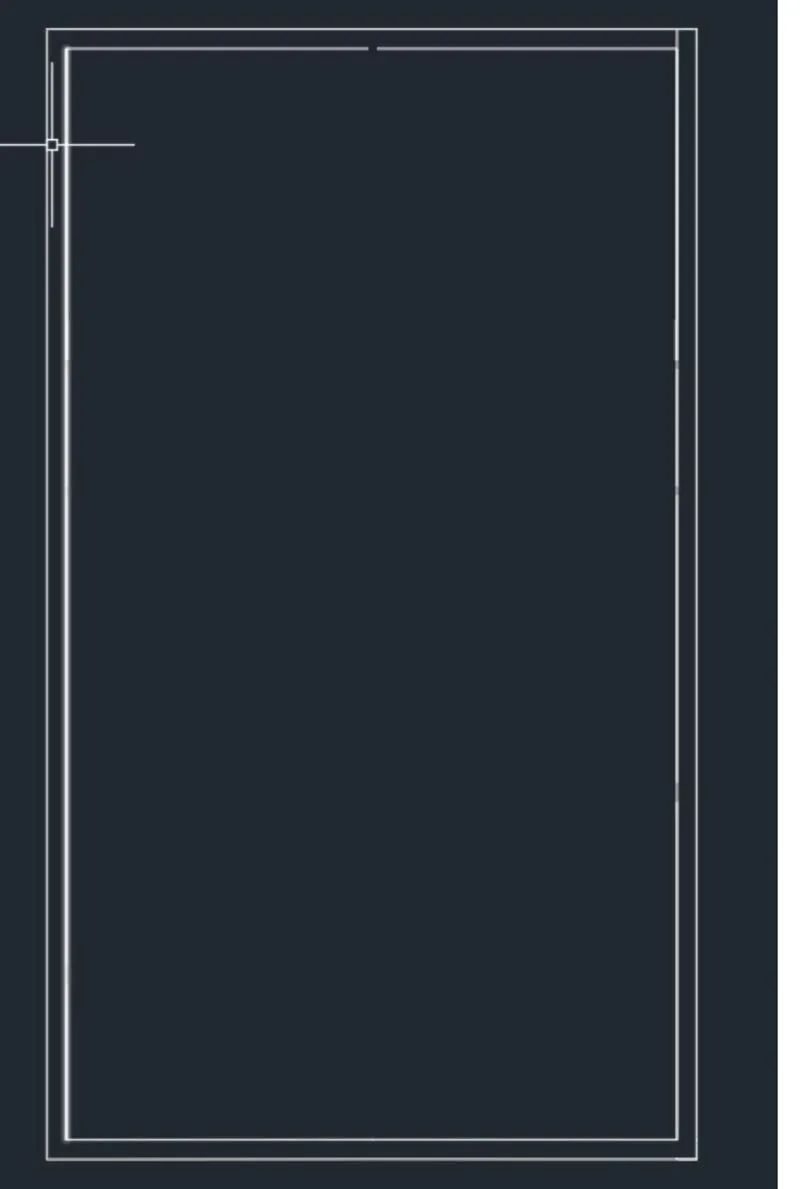
- Click 'XL'-V (Verticle line) Command to start the drawing ( Start the drawing from left hand side of the drawing.
- Click 'OF' command to offset the line as per diemssions given.
- First create the outer plan of building then take offset to inside of plan.
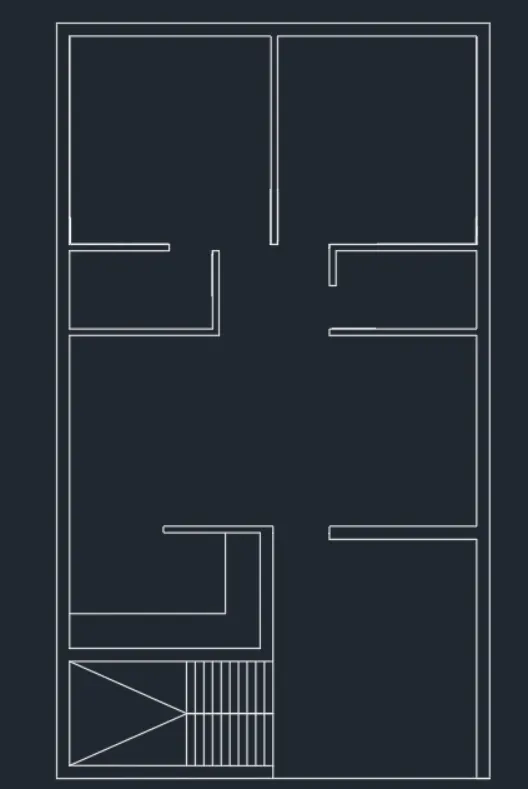
- Click 'TR' command to trim the extended line.
- Click 'EX' command to extend the line upto second line.
- Then draw Staircase as per diemnssions given.Use 'OF' command to take offset while drawing stairs.
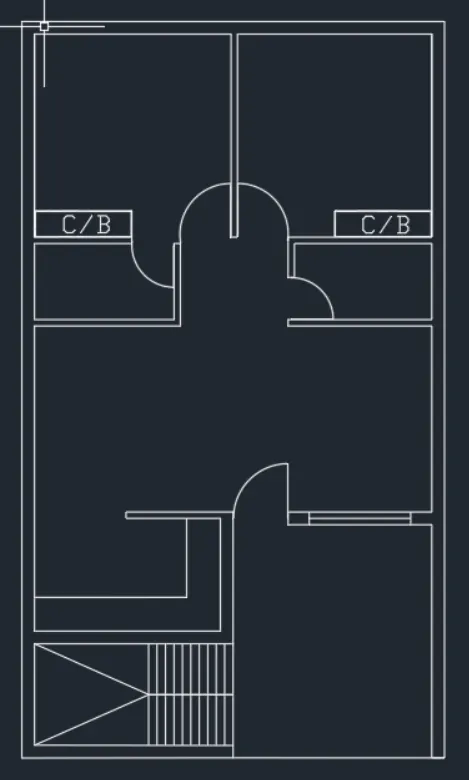
- Then draw 'DOOR' with the help of 'circle' command.
- And draw the hinch of 0.25" inch over a circle. Then draw straight line to the centre to center of the line.Finally trim the circle and create the door.
- Then click a 'Layer Properties' to create layers.
- Create the layer option to 3D DOOR, 3DFLOOR, 3D WINDOW ,3DPARAPET WALL & 3D WALL.
- Click 'TEXT' Option to create a room name as text layer.
- After complition of drawing we need to show dimenssions of plan i.e 2D residential building plan.
- Click 'DIM' command to create a dimenssion.
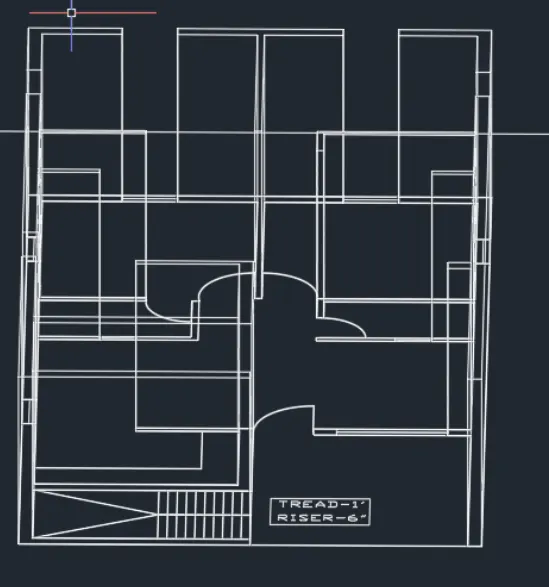
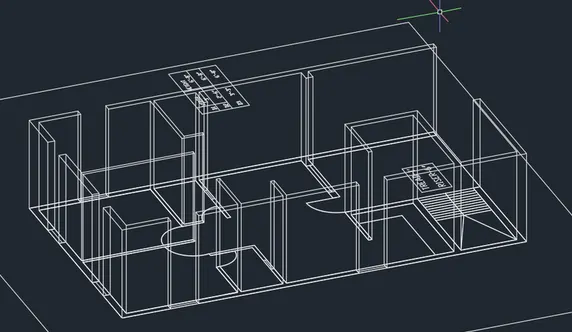
- Then we rotate the plan for isometric view to create 3D plan.
- Now click 'BOUNDARY' command , pick the region point and select edges as region.
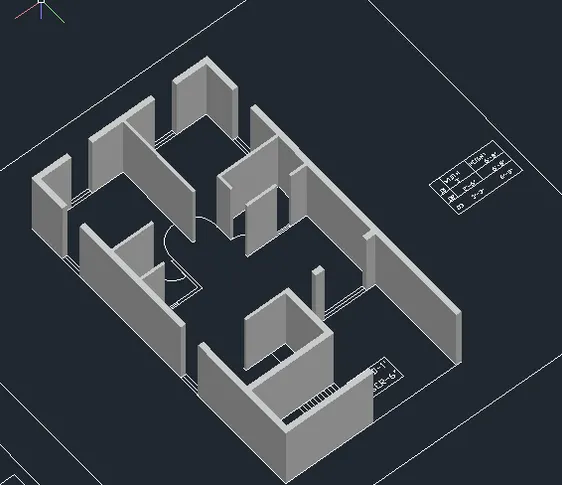
- Then click 'EXT' command to extude command to 10' of the height of the wall.
- And create the window and door in the 3D view by using extude command.
- Then click 'Shaded' command and view the building.
- After complete the inner design then create the roof for 6" thicknesss.
- Then click 'COPY' to create the first floor plan as same as for dimenssion.
- Then create the top roof of the building.
- Now create the 3D view of parapet wall as for hieght of 3'feet.
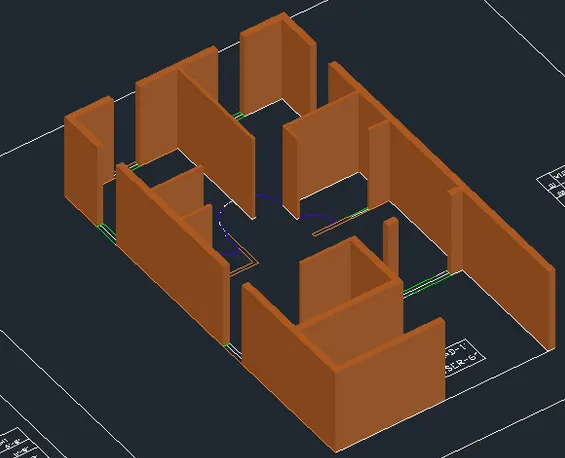
- Finally click 'RR' command for render view of the building.
- And now check the view and proper finishing of the building.
- Click 'Save' option to save the drawing.
- NOW using snipping tool take a scrrenshots of drawing at different views and save it for later presentations.
RESULTS: In this challenge we learned to create a 3D view od residential building in renderd view and figures of drawing is mentioned below.