Project 2
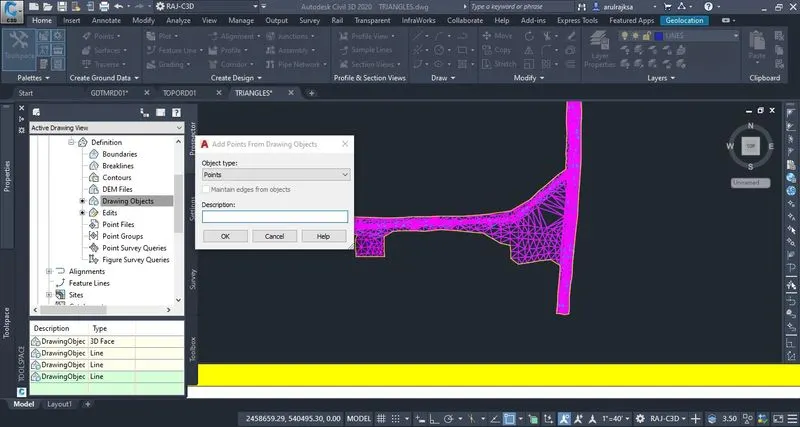
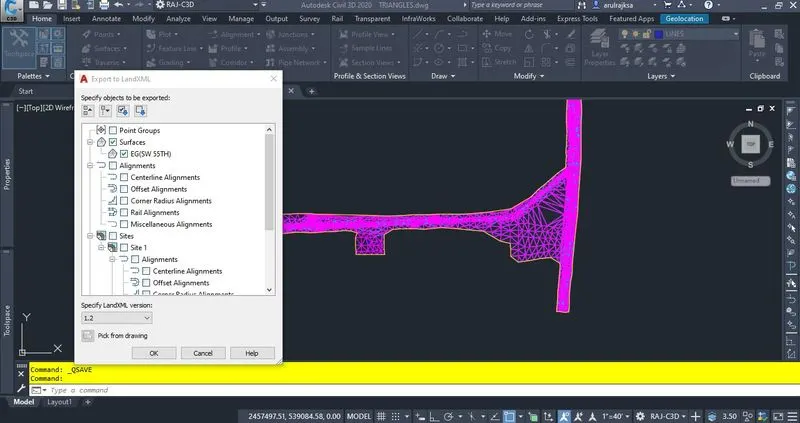
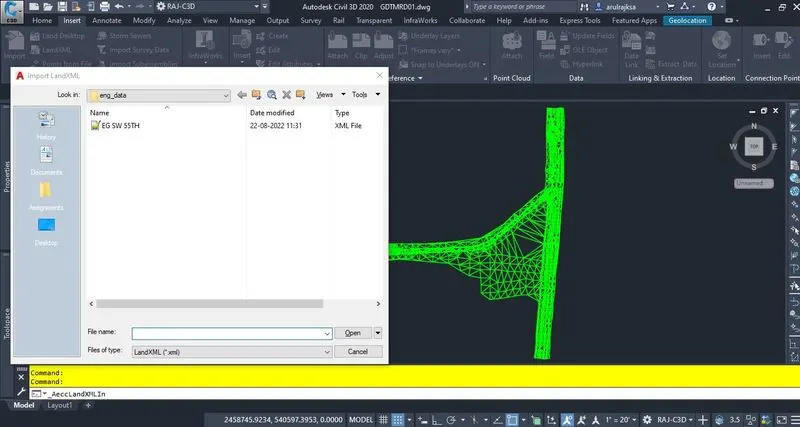
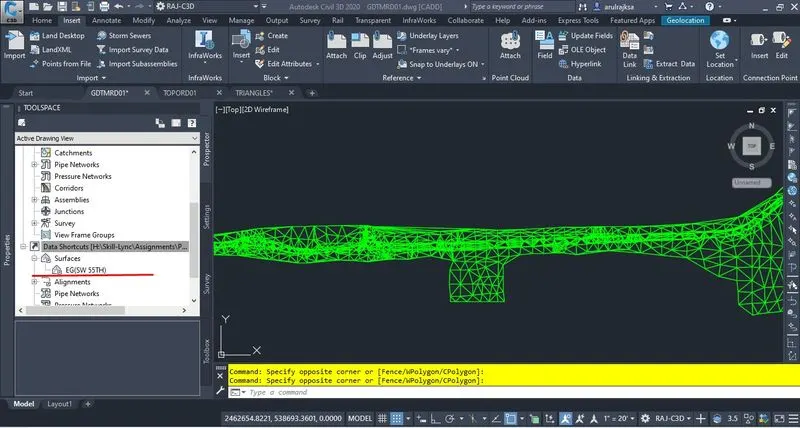
1. I have extracted the given data from the survey folder and generated surface successfully as shown below. Created surface from the given triangles drawing and exported it as in landxml format. Imported that landxml file into GDTMRD01.dwg file and generated as surface. Atlast exported surface as data shortcut for future references.
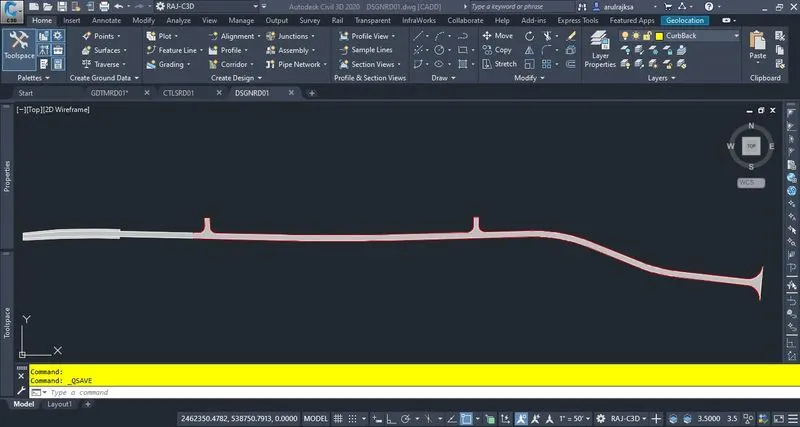
2. Created alignment in the given ALGNRD01.dwg with using the given information in control sheet. Calculated superelevation as per standard. Exported alignment as data shortcut for future uses. Created control points data in the given CTLSRD01.dwg with help of given information. Finally generated 2D geometry file in DSGNRD01.dwg file as shown below image. Imported all necessary informations like guardrails, ripraps, fence etc., and saved the drawing.
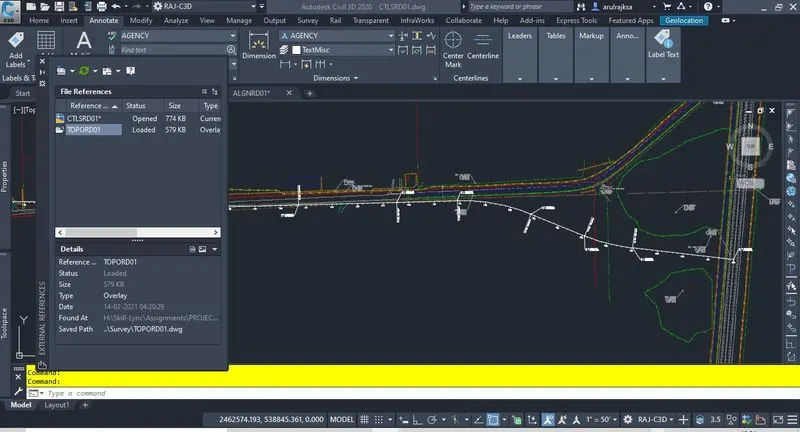
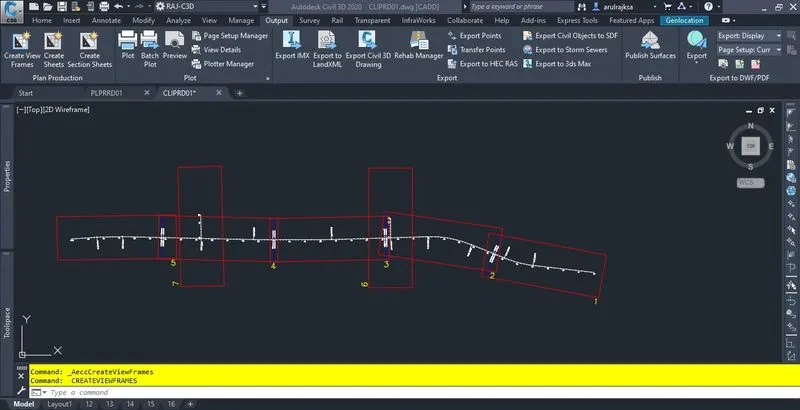
3. Created view frames in CLIPRD01.dwg as shown below.
4. Created profiles in the given PLPRRD01.dwg and exported as data shortcut.
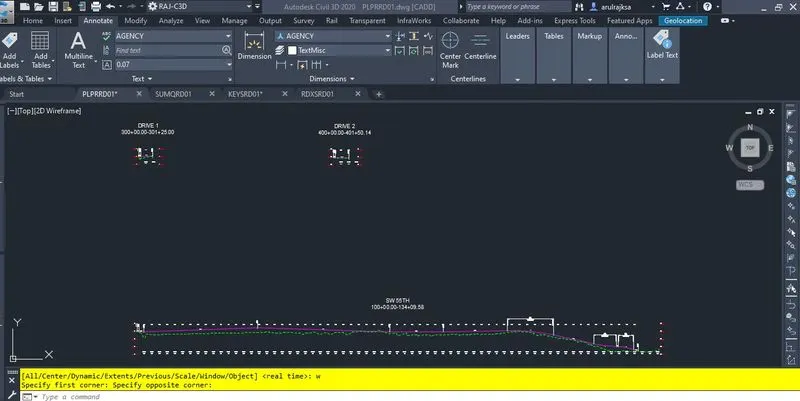
5. Created assemblies and sub-assemblies as per the given typical section details as attached below. After that created corridor for the alignment and created required corridor surfaces.
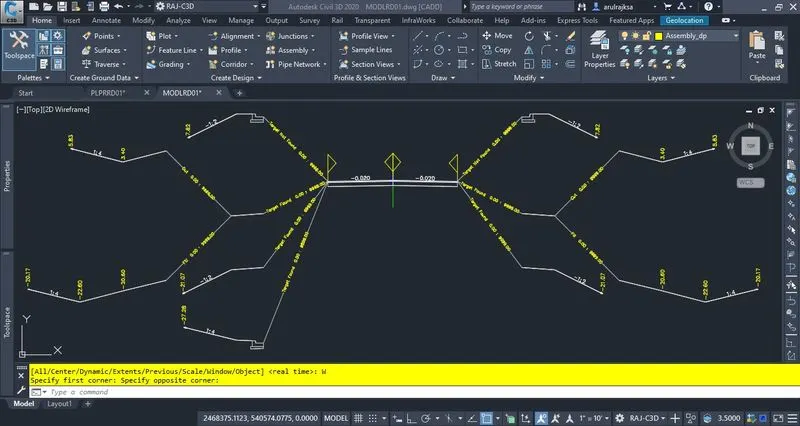
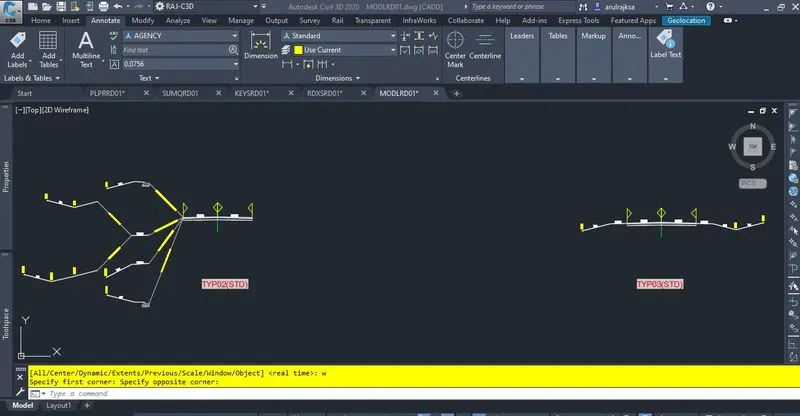
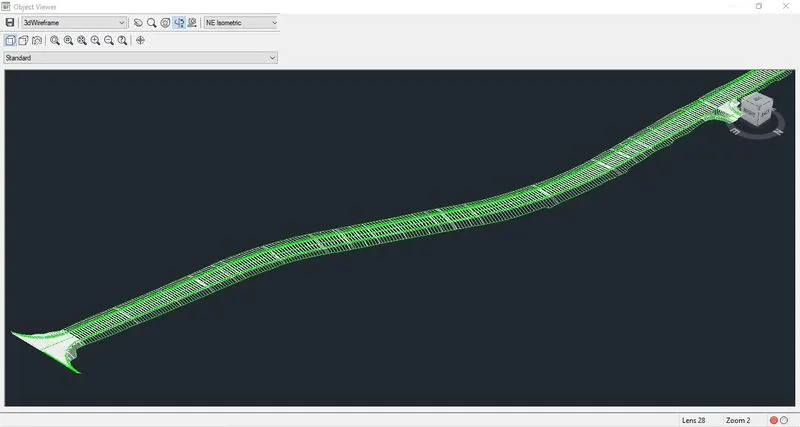
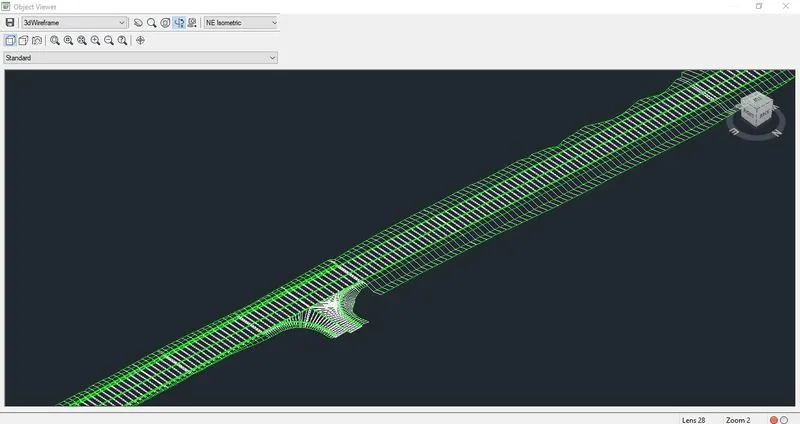
6. Created sample lines for the corridor assembly as shown below.
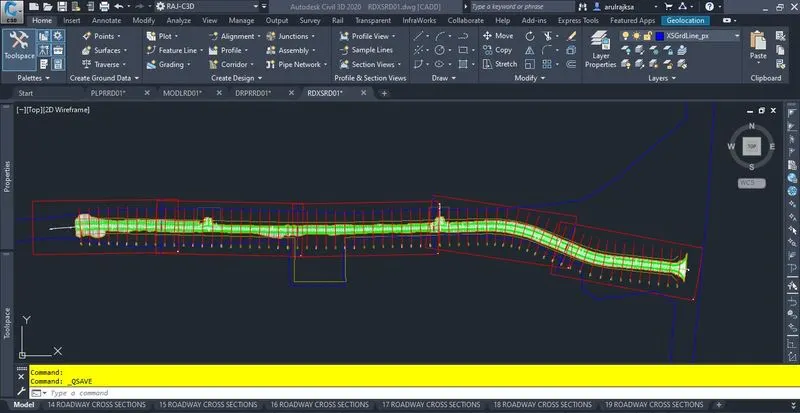
7. After that generated Plan, Profile and cross-section sheets with the help of create sheets and section sheets option in Output menu.
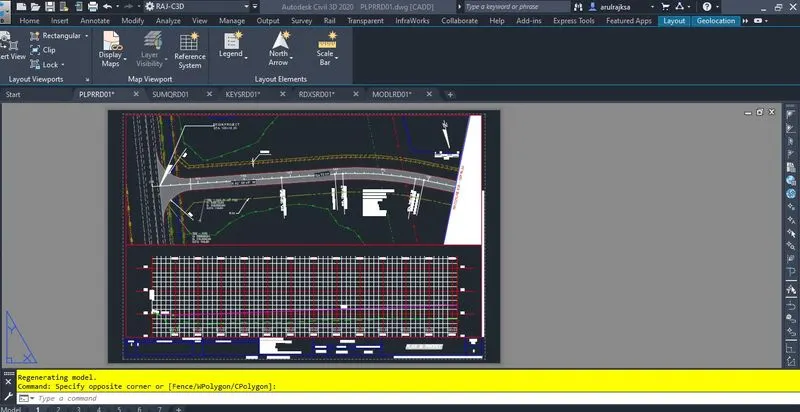
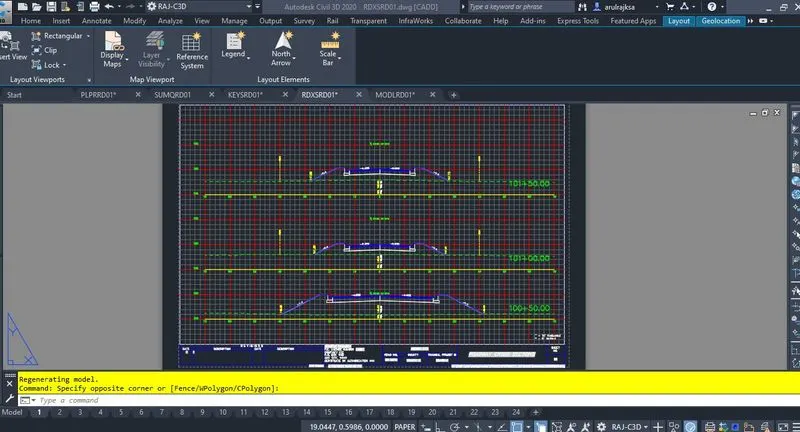
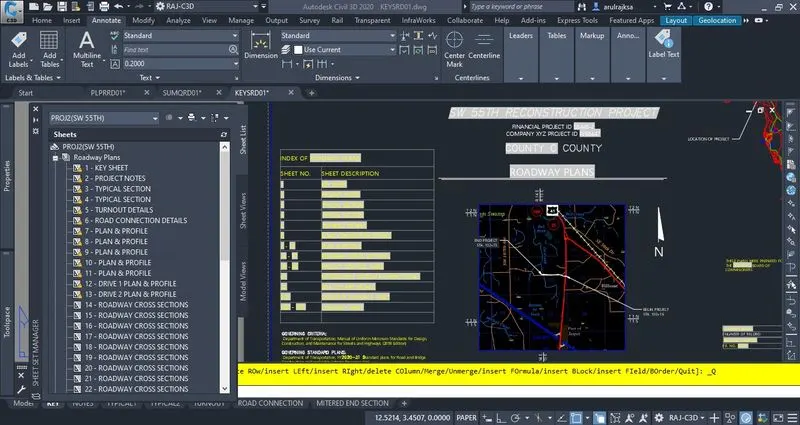
8. Imported all plan profile layouts, cross section layouts, Control sheet layouts, Box culvert layout into the sheet set called as PROJ2(SW 55TH).dst. Created KEYSHEET layout in KEYSRD01.dwg and imported all layouts from this drawing into the sheetset.
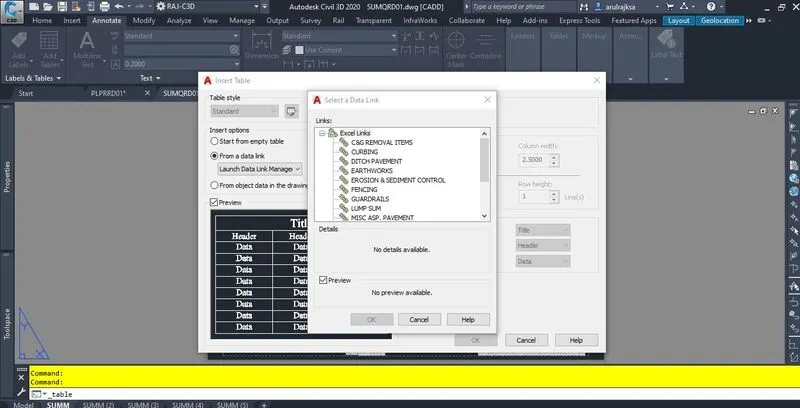
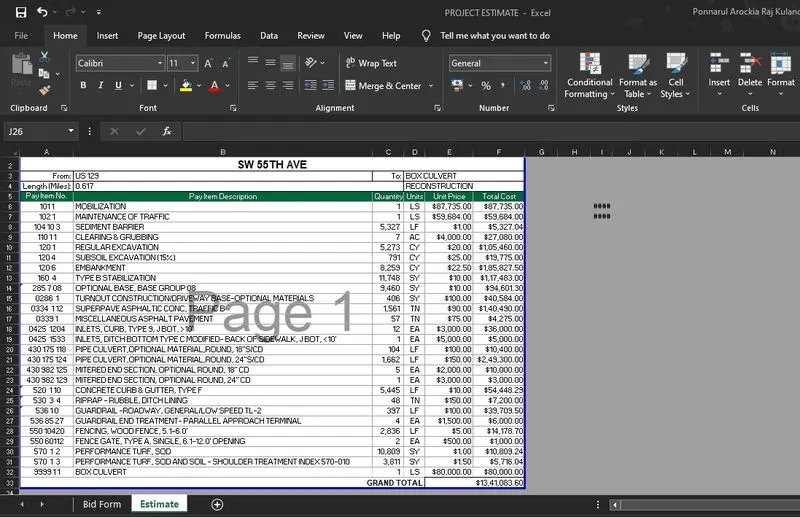
9. Calculated pay rate items in QTDSRD01.dwg file using QTO Manager and takeoff function in Analyze menu. Exported all quantities details into excel file. Filled out required quantity details in the provided Excel files and imported all of them into SUMQRD01.dwg using launch data link manager tool. Exported those quantity sheet layouts into PROJ2(SW 55TH) sheet set. Created an Estimation details along with bid form in Excel sheet.
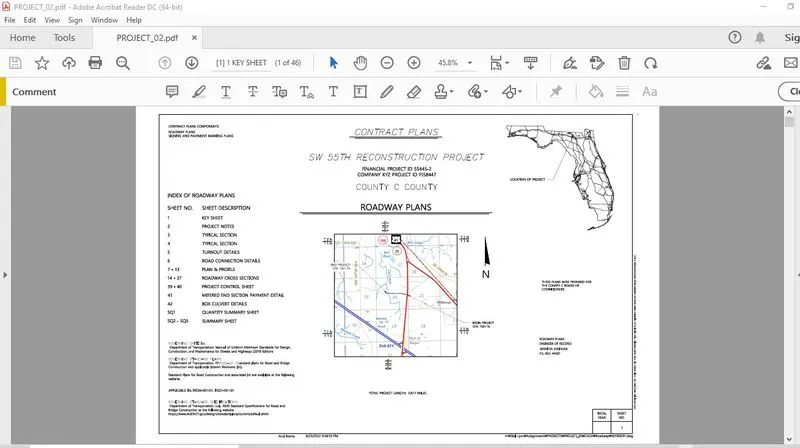
10. Exported all the layouts as PDF using publish dialog box option in sheet set.