AutoCAD_3D Model of a Residential Building with Rendered View_Project 2
AIM:- Create a 3D model of a residential building with a rendered view
Commands Used:-
- Line
- Rectangle
- Offset
- Trim
- XL
- Surface
- Extrude
- Presspull
- MAterial Browser
- Camera
- Move
- Copy
- 3D rotate
- Paste
- UCS
- BO
- Join
- substract
- Union
- Layers
Procedure:-
- Open the autocad
- Type UN and specify engineering and select precision as 0'0"
- Type Limits and specify lower and upper limits
- Z enter a enter
- Draw a plan of 12'x12'
- Select Line and specify starting point and type 12' in x axis
- Type 12' in y axis and draw
- Type offset and specify 3" and do the offset
- Trim the extra line using trim command
- Type offset 8' and do the offset for room
- Type offset and specify 2" and do the offset
- Draw the toilet
- Draw the window and door using line command
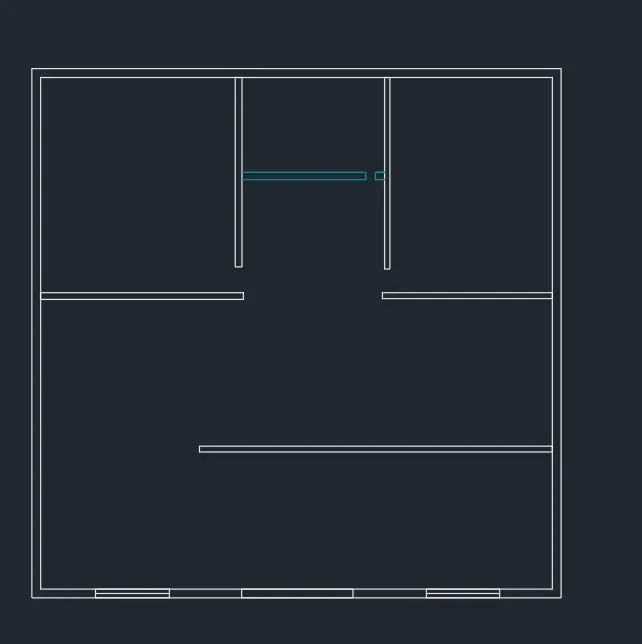
- Select the home button in ucs and go to 3d screen
- Type BO and make the region of the plan
- Select extrude and select the plan and extrude it 10'
- Type su in command prompt and substract the inner wall with respect to the outer wall
- Draw a rectangle in the window and door area and extrude it till sill level
- Type union and do the union
- select the front surface and substract the window and door
- Type 3drotate and select the face and rotate the plan
- Select the layers and assign the layers
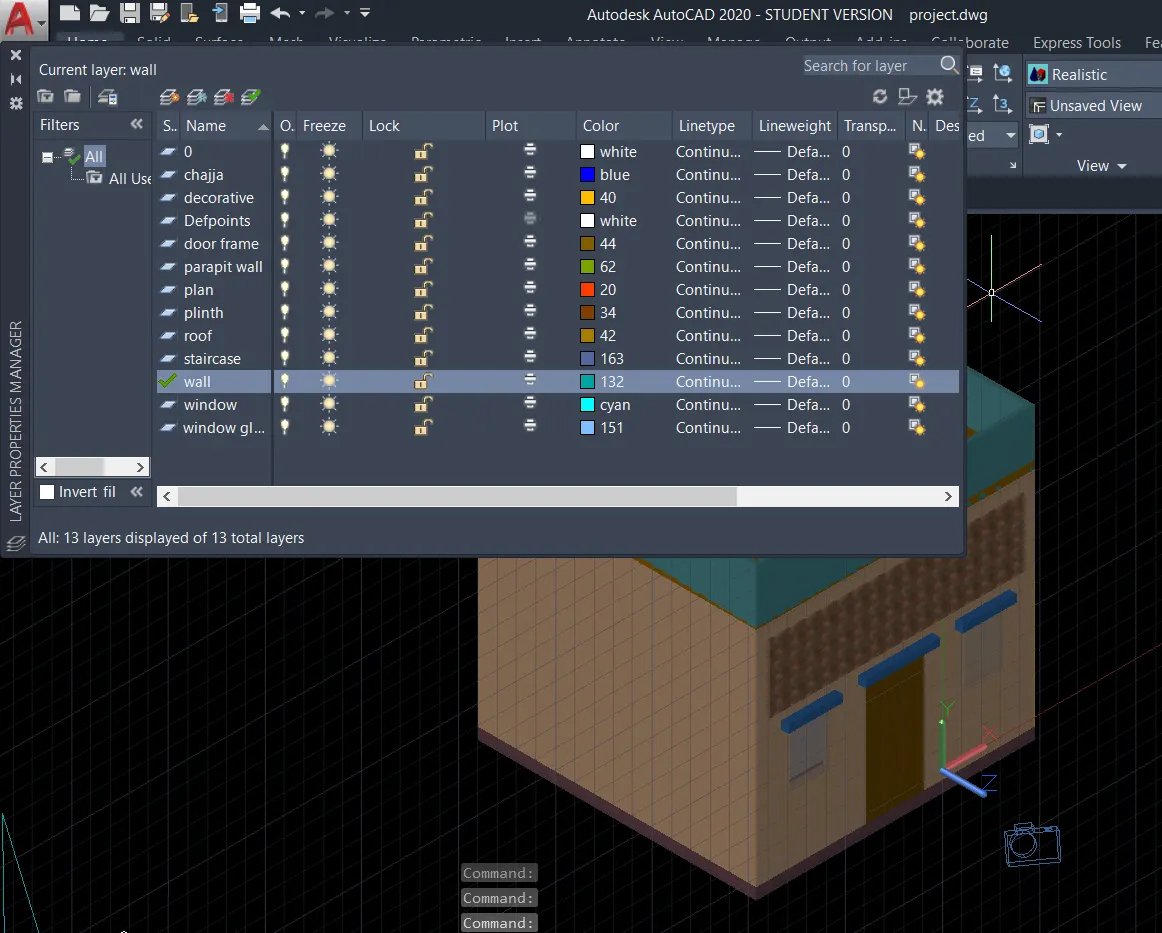
- Select extrude and extrude the chajja for door nd window
- Type co and select the object and move the projected in the elevation and paste it
- Make a new layer as door frame and project it inside and make frame
- Make a new layer and draw the door and do the extrude
- Select the top surface and change the ucs
- make a rectangle as a lyer roof and assign it
- Select the wall surface and change the ucs
- draw rec and make the parapit wall and extrude it to 3'
- Select and assign the color to it in new layernamed as roof
- Draw the plinth and assign the material
- Join the lines and trim the extra lines
- Select the camera and place it and check the camera view
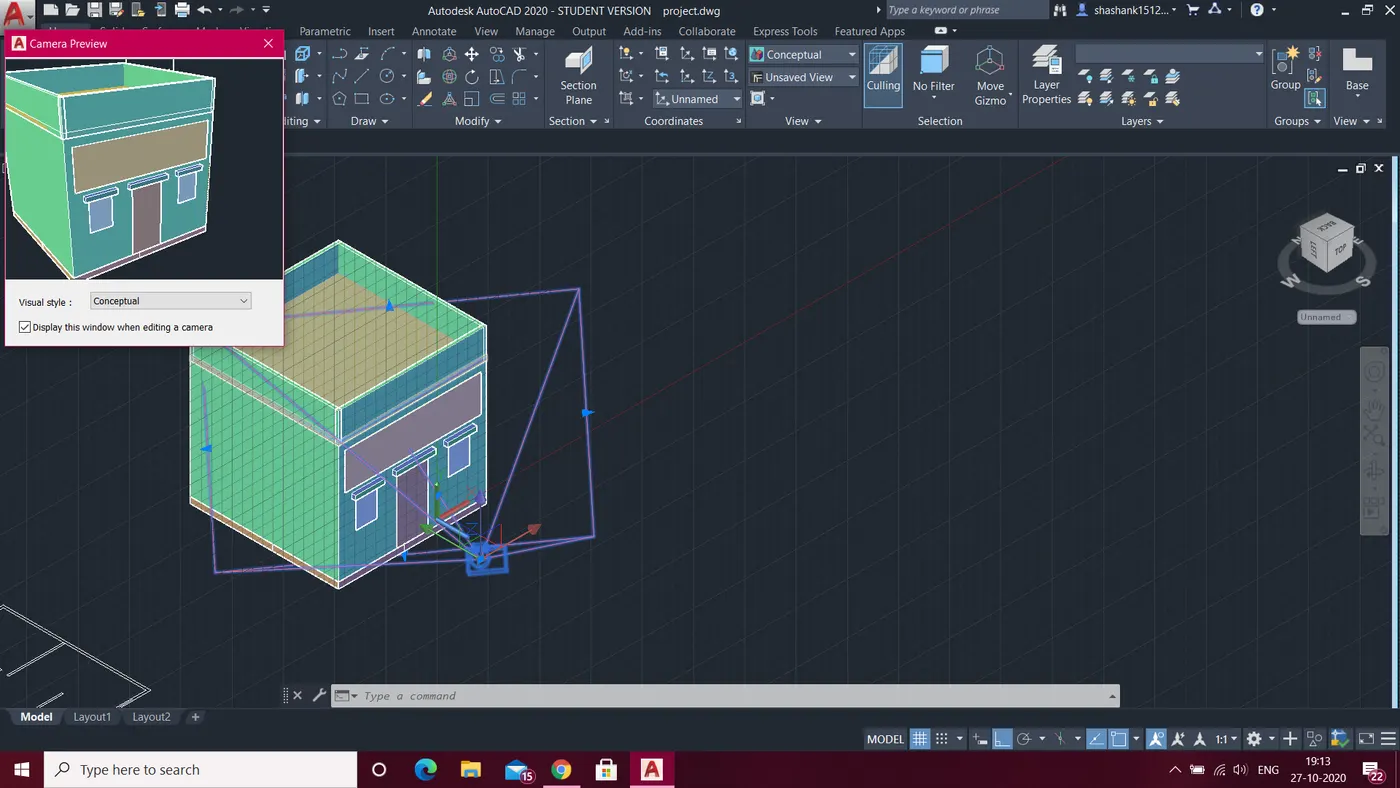
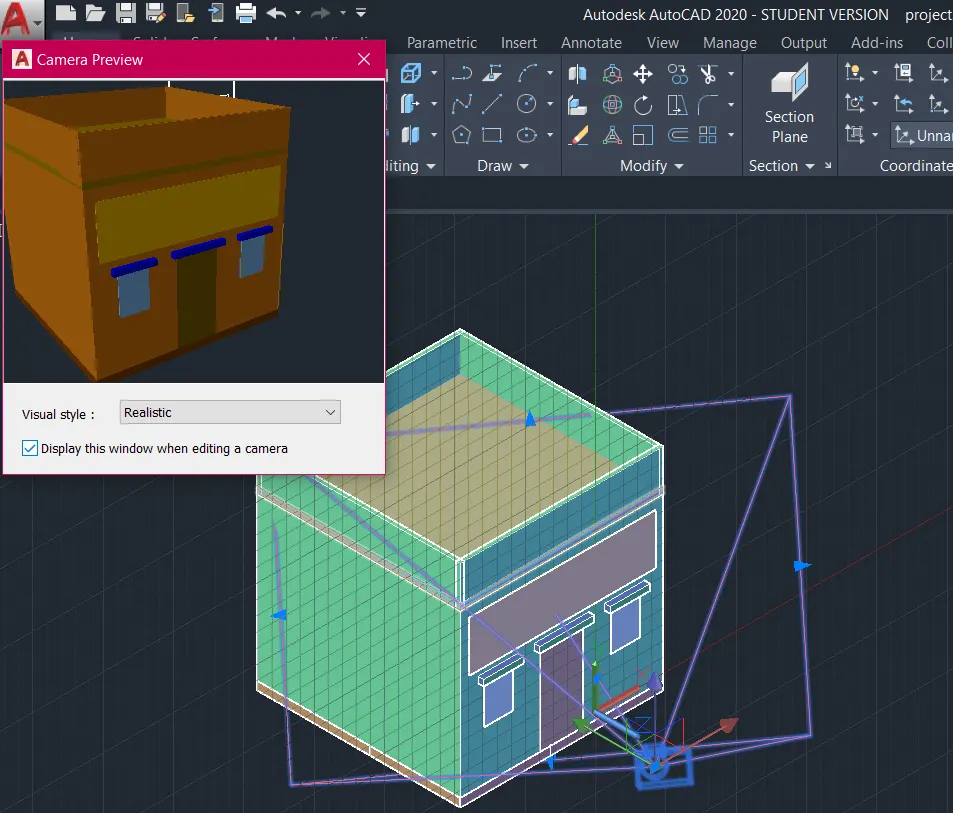
- Select the front surface and draw a rec for decorative purpose
- Select the material browser and select the material and assign to the selection
- Select the window glass and assign the glass material to it
- Select the sun light
- Select the enviroment on and select the light which is required
Result:-
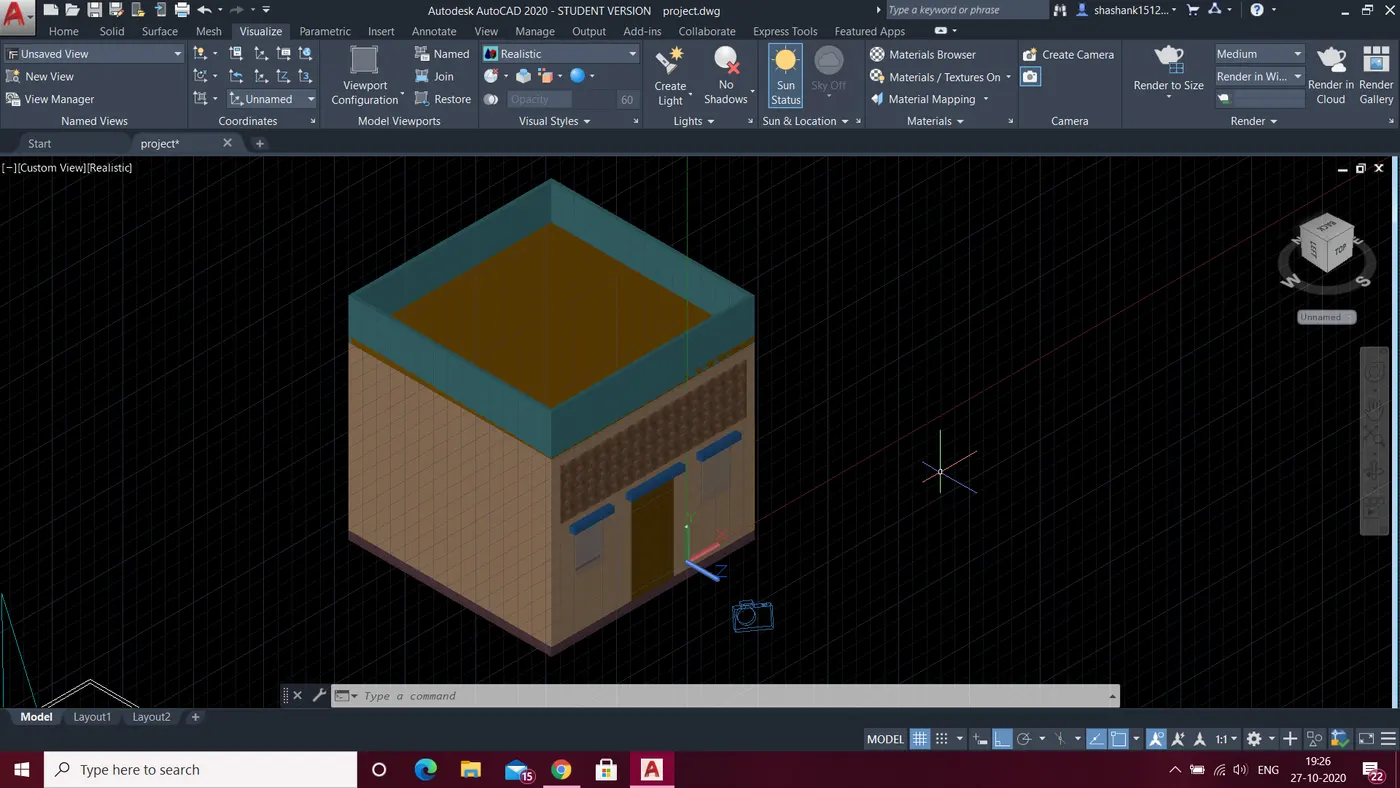
One BHK residentail building is ready in the realistic view.